
Home > Get Started > Configure Hybrid Management Agent
Download this articleConfigure Hybrid Management Agent
To view and manage your on-premises Active Directory resources in EnPower, you need to install and configure AvePoint Hybrid Agent Management on your Azure Directory servers with Exchange Management Shell. For details on downloading AvePoint Hybrid Agent Management, refer to Manage Agents.
- For the management of hybrid Active Directory resources, you must download and install AvePoint Hybrid Agent Management on the device that has Microsoft Entra ID Connect.
- To leverage the latest on-premises and hybrid management functionalities in EnPower, ensure that the installed AvePoint Hybrid Agent Management is upgraded to the latest version. You can upgrade the agent by:
- Running the Setup file as administrator and selecting Update.
- Enabling auto-upgrade in Hybrid agent configuration.
To complete the installation and configuration, refer to the following sections for instructions.
Create Certificate Files
To establish a secure connection between the agent and AvePoint Online Services, the following certificate files are required:
-
CER file: The CER file is used to register the AvePoint API application within AvePoint Online Services. For details steps on the file setup, refer to Prepare a Certificate for the Custom Azure App.
For steps on register the AvePoint API application, refer to Register an AvePoint API App.
-
PFX file: The file provides the agent's identity for authenticating to AvePoint Online Services and must be installed on the local VM server where the Hybrid Management Agent will run.
To install the PFX file on the VM, complete the following steps:
-
Open the Certificate Import Wizard and select Local Machine as the store location.
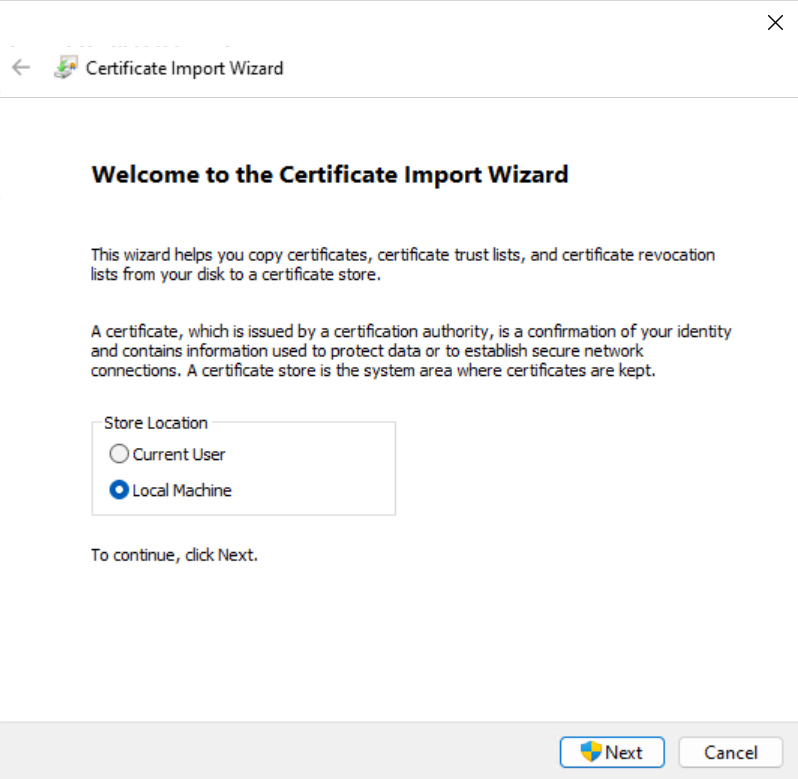
Click Next.
-
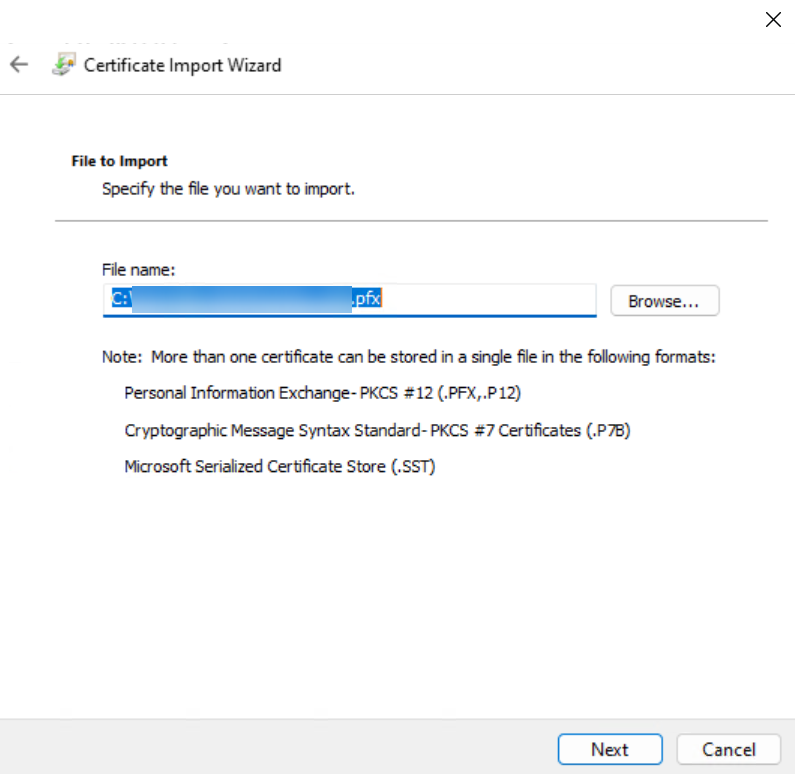
Select the PFX file to import by clicking Browse. Then, click Next.
-
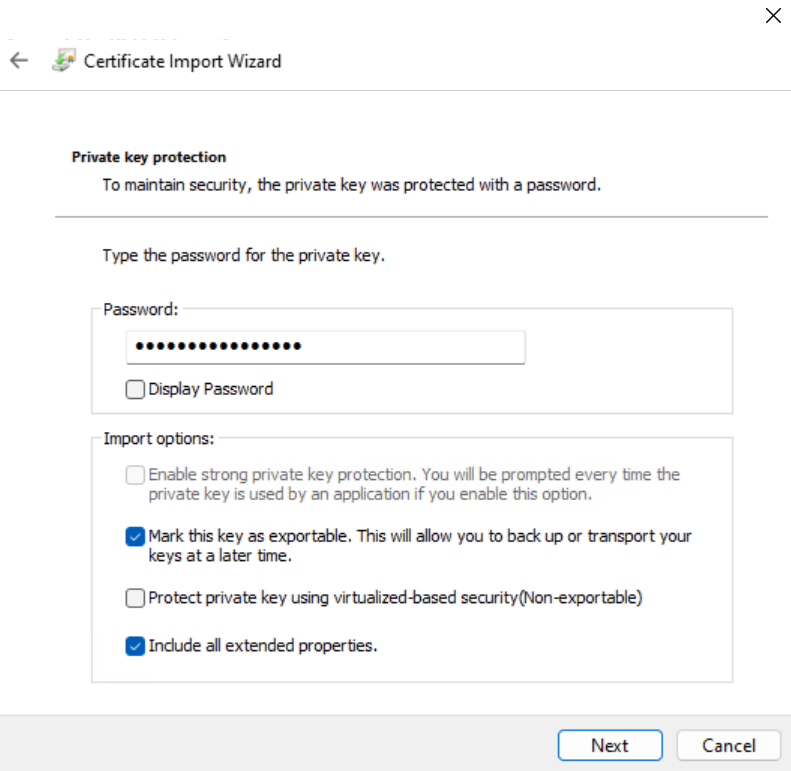
Enter the Password and select the import options.
-
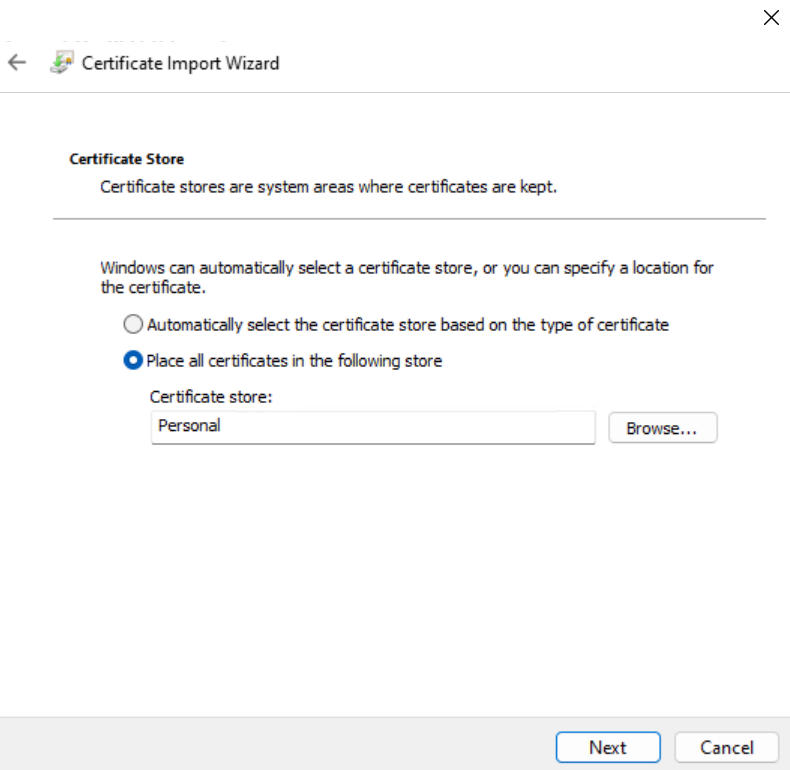
In the Certificate Store step, select Place all certificates in the following store and then select Personal as the store location.
-
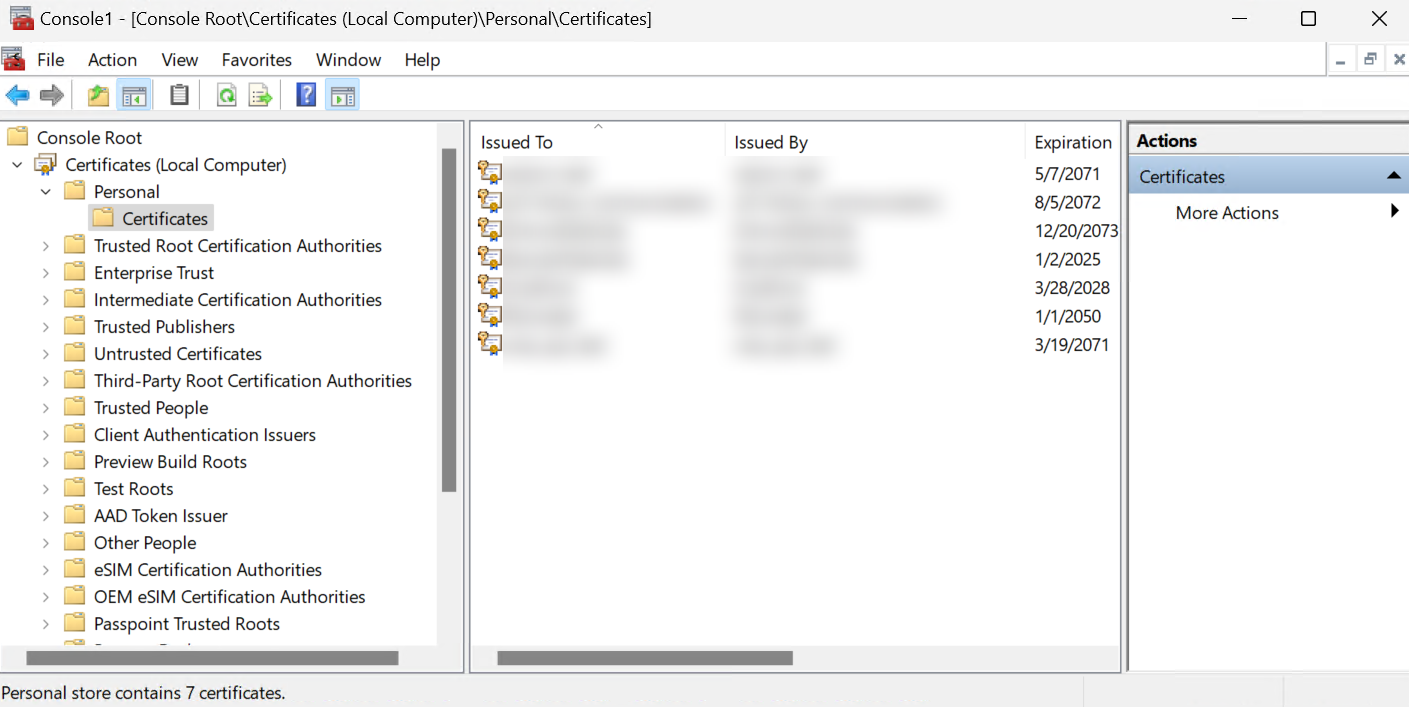
Upon clicking Next. The certificate will start to be imported to the Personal store where you can verify the imported certificate's status.
-
Register an AvePoint API App
To connect your on-premises resources to Hybrid Agent Management, you need to register an AvePoint API app in AvePoint Online Services.
Refer to the following table for the permissions required by the app.
| Service | Permission | Why we need this |
|---|---|---|
| AvePoint Online Services | autodiscovery.readwrite.all | Allows Auto Discovery Scan profiles to retrieve information. |
| AvePoint Online Services | hybrid.readwrite.all | Allows AvePoint Online Services to retrieve on-premises resources’ information. |
| EnPower | entrust.graph.readwrite.all | Allows the management of on-premises resources in EnPower. |
| Hybrid Service | hybridserver.common.readwrite.all | Allows the AvePoint Online Services to synchronize information from/to Hybrid Agent Management. |
| Hybrid Service | hybridserver.agent.readwrite.all | Allows AvePoint Online Services to retrieve data from Hybrid Agent Management. |
Install Hybrid Agent Management
To install Hybrid Agent Management, complete the following steps:
-
Go to AvePoint Online Services > Management > Agent management and click Download agent package.
-
Find the ZIP file downloaded on your local device, copy the file to your designated VM server and extract the file.
NOTETo install the agent, the HybridAgentEnvironment.config file must remain under the extracted folder.
-
Run the Setup file as administrator.
-
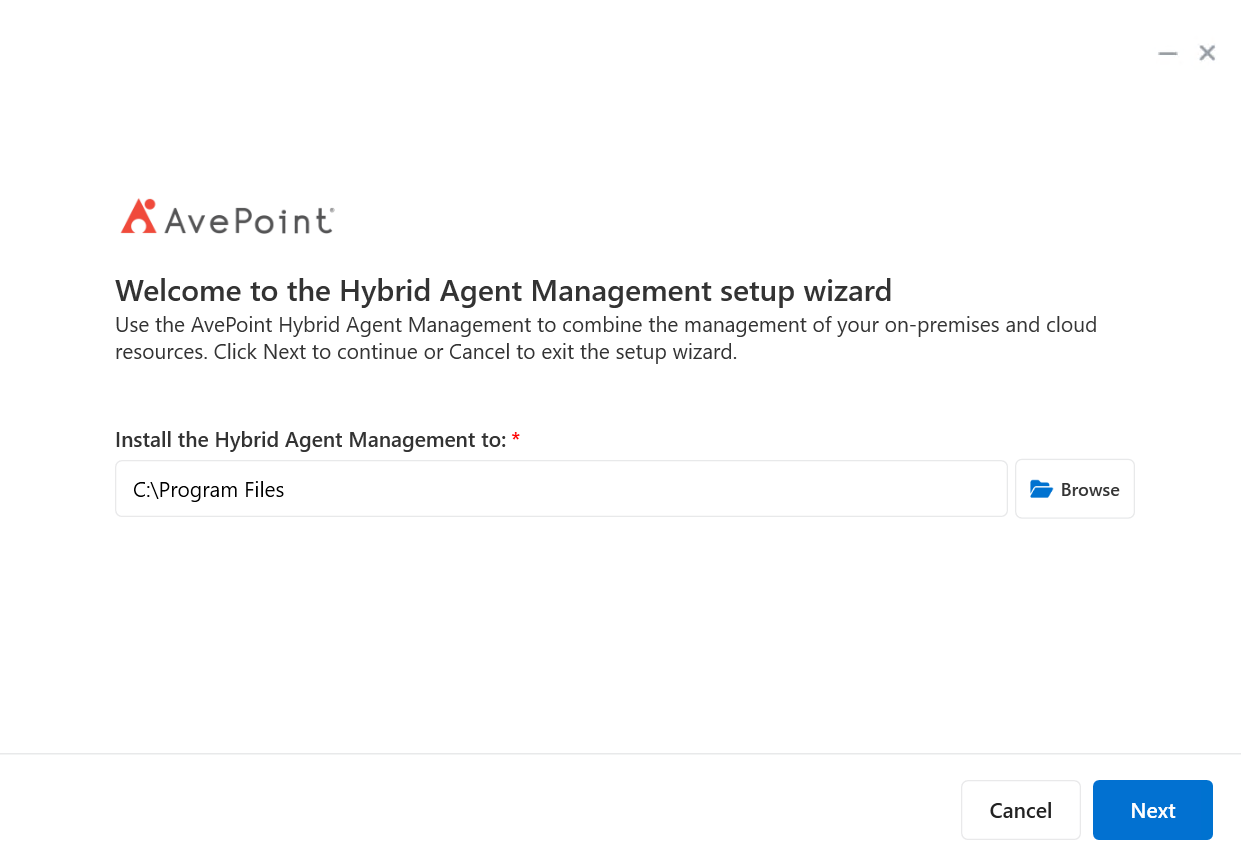
In the Hybrid Agent Management installation wizard, select the destination folder to install. Select a destination folder to install Hybrid Agent Management to and click Next.
-
The installation scan will start to check whether all installation requirements are met. If any of them is not met, after installing or upgrading the required tools or system, click Rescan to check again.
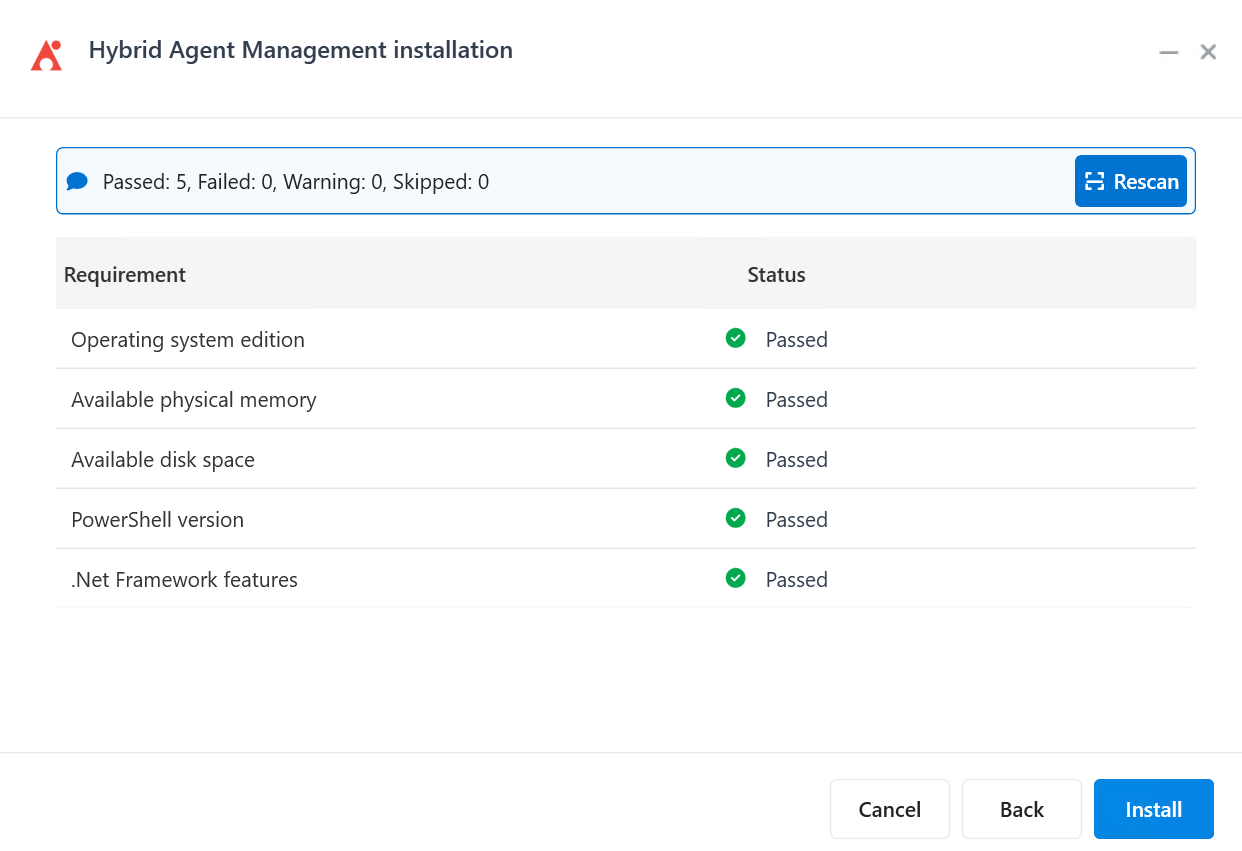
After all requirements are met, click Install to proceed.
-
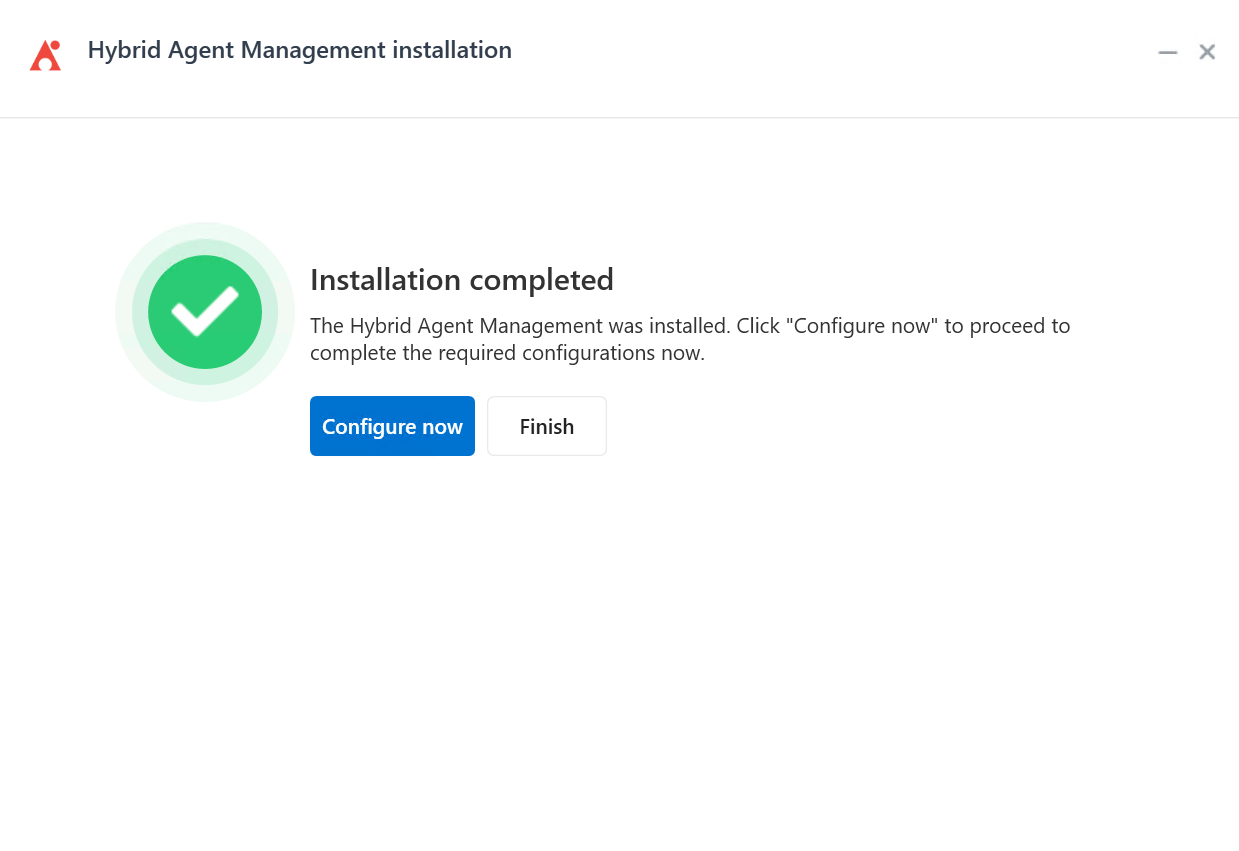
When the installation finishes. Click Configure now to complete the agent configuration to connect it to your tenant and AvePoint Online Services. Or you can click Finish to exit and complete the configurations later.
To repair, update, or uninstall Hybrid Agent Management, run the setup file as administrator again, and select Repair, Update, or Uninstall.
Configure Hybrid Agent Management
To connect the Hybrid Agent Management to your AvePoint Online Service and EnPower, complete the following steps:
-
In the local device that has Hybrid Agent Management installed, find the Hybrid Agent Configuration in the Start menu or in the folder you installed Hybrid Agent Management to.
-
Run Hybrid Agent Configuration as administrator.
-
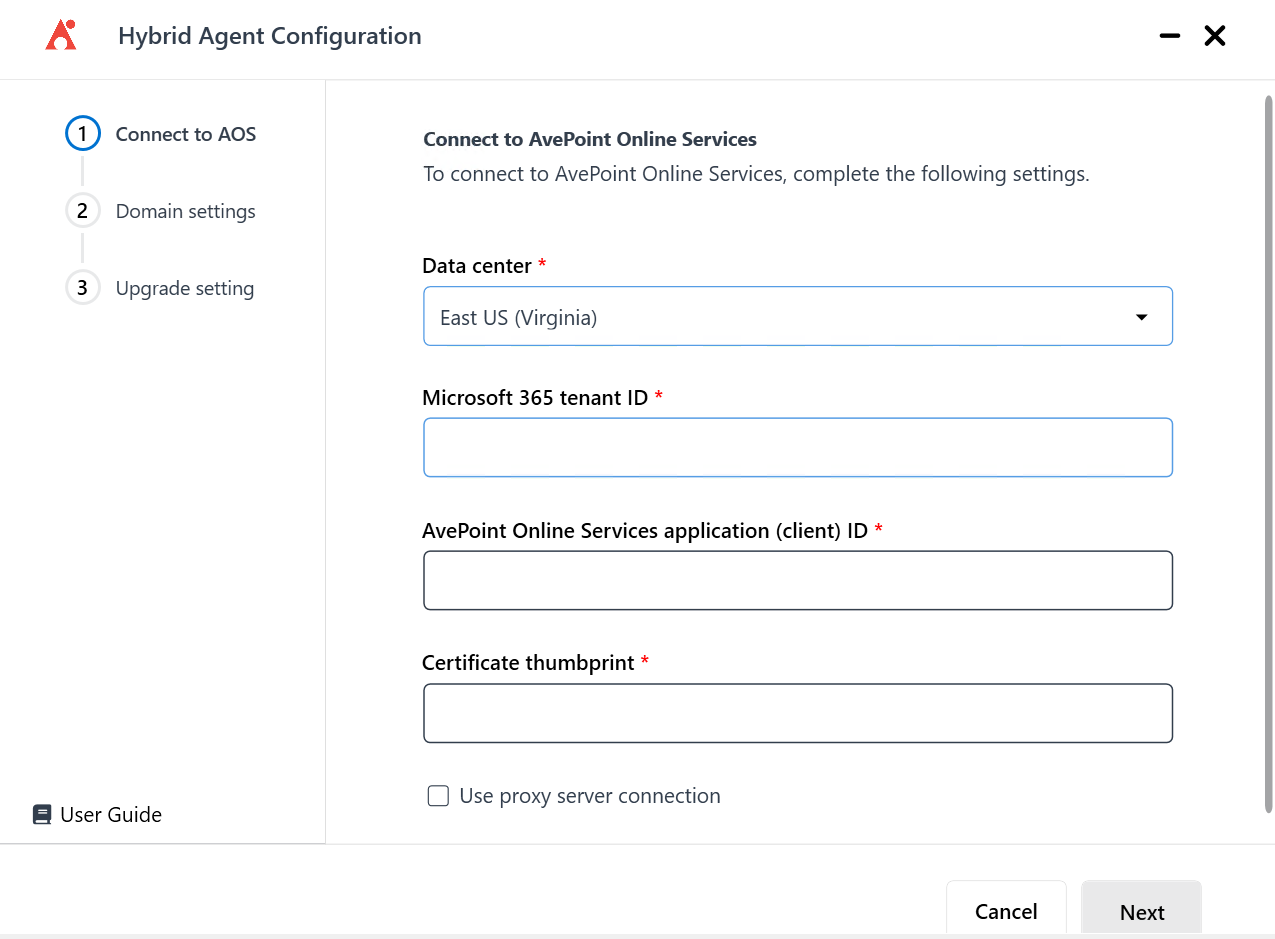
In Connect to AvePoint Online Services step, complete the following settings:
-
Data center – Select your AvePoint Online Services data center. To check your data center, go to AvePoint Online Services, and click your profile photo on the upper-right corner. Click Organization profile and your data center is displayed.
-
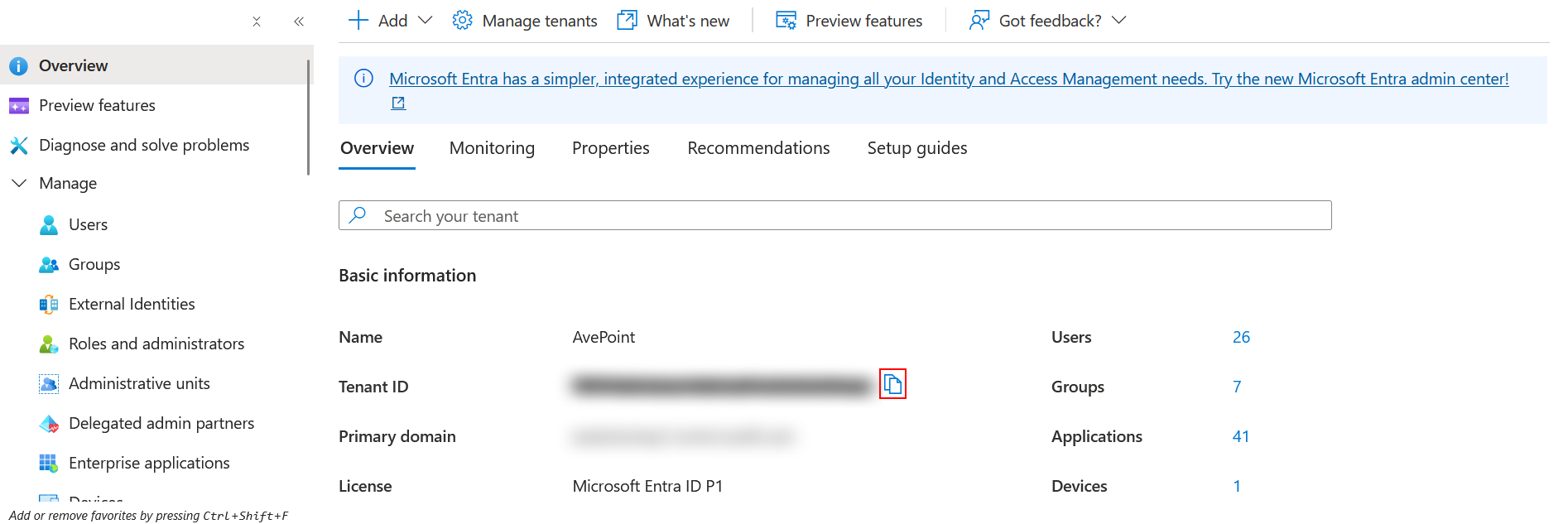
Microsoft 365 tenant ID – Enter your Microsoft 365 tenant ID.
Your tenant ID can be found in Microsoft Entra admin center or Azure portal. Go to Microsoft Entra ID > Overview.
-
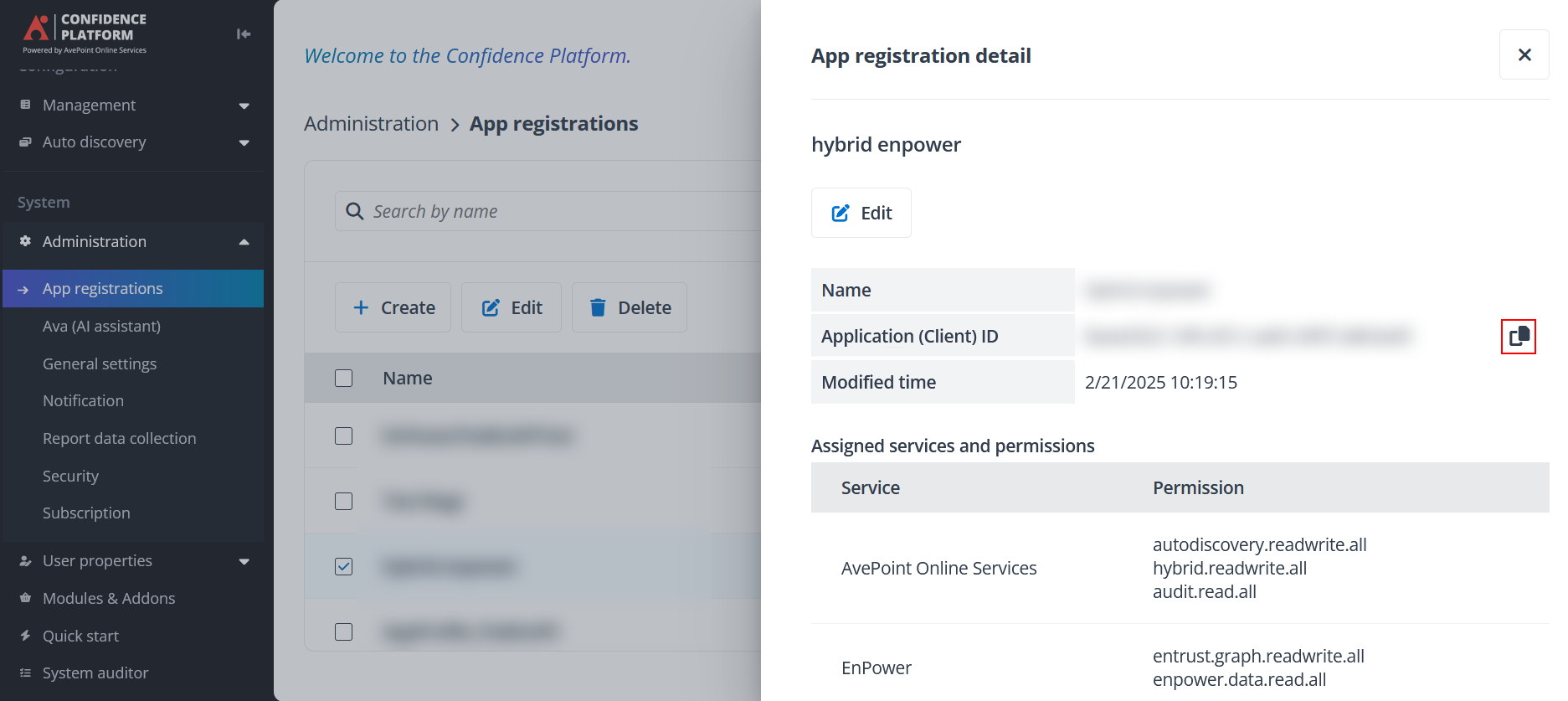
AvePoint Online Services application (client) ID – Enter the client ID you’re your registered app.
Your application (client) ID can be found in AvePoint Online Services > Administration > App registration.
-
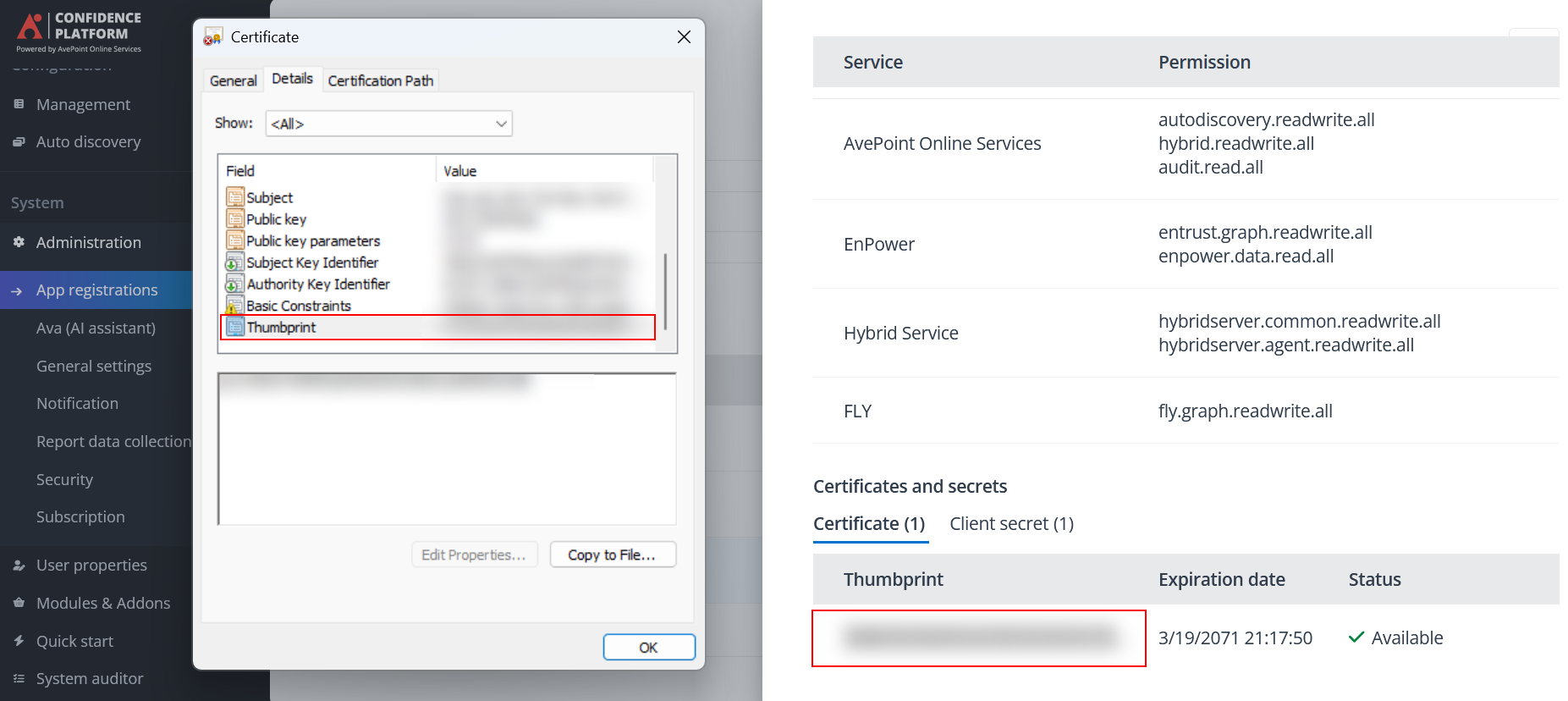
Certificate thumbprint – Enter the certificate thumbprint you used for the app registration.
The certificate thumbprint can be found either in AvePoint Online Services > Administration > App registration or from the Local Computer store.
 NOTE
NOTEThe certificate must be installed on the device that has Hybrid Agent Management installed.
-
User proxy server connection – To use a proxy server for the connection, select the checkbox and provide the proxy server information, including host, port, username, and password.
Click Next to proceed.
-
-
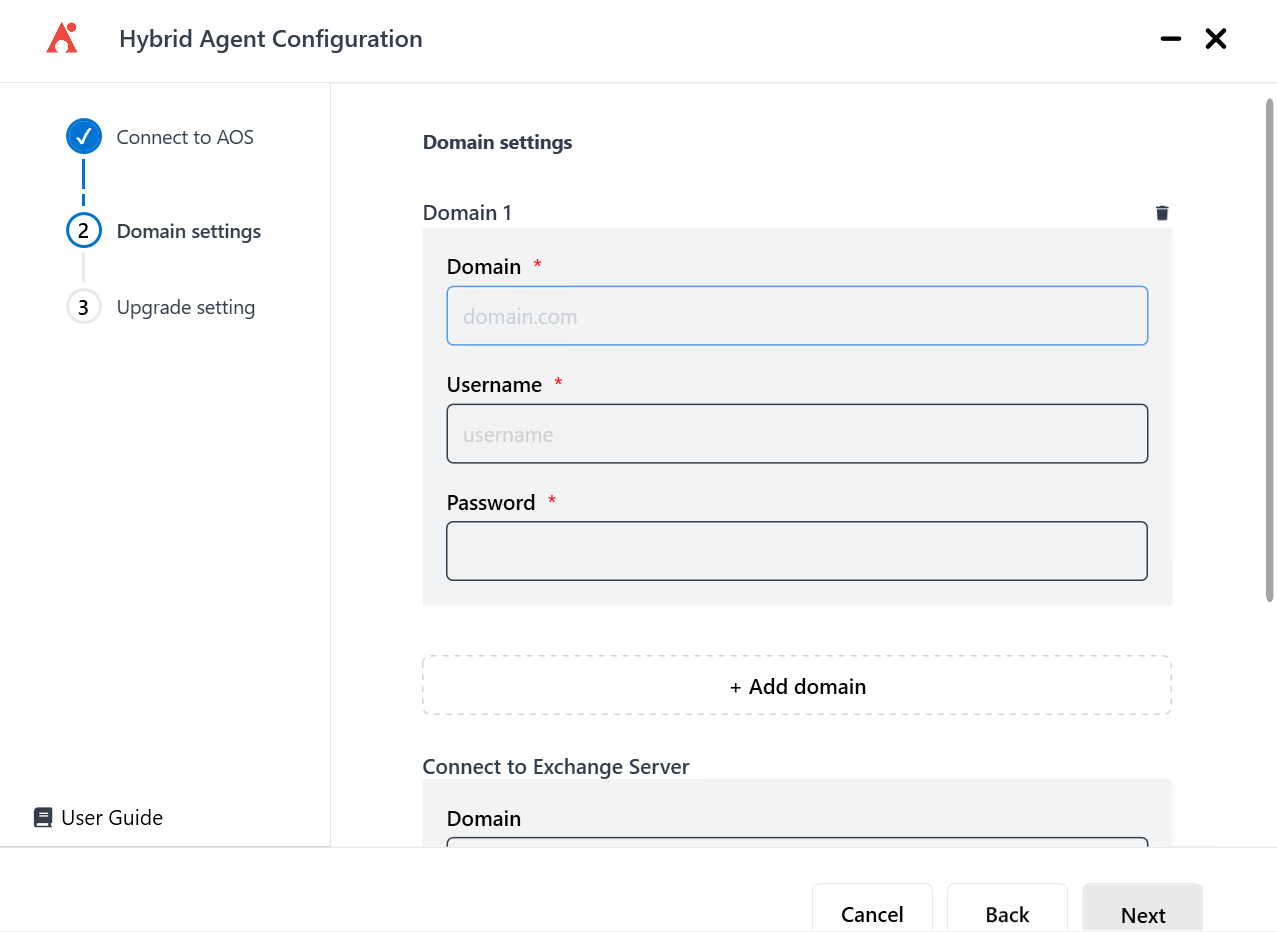
In the Domain settings step, enter the domain and provide the account information of a domain admin for authentication. Then, click Next.
-
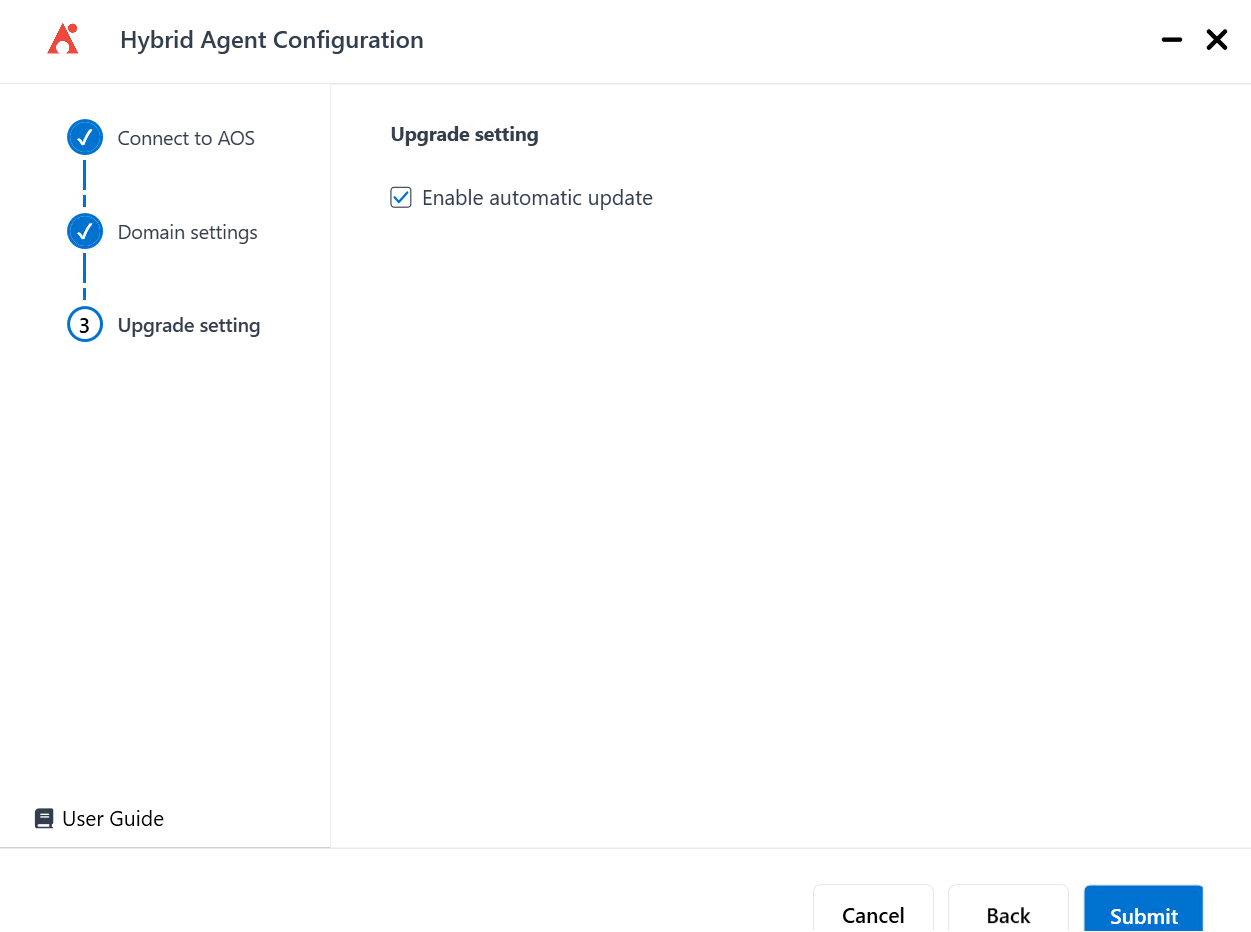
In Upgrade setting, if you want to automatically upgrade your agent, select the checkbox.
-
Click Submit to save your configurations.
Scan Active Directory Objects
After the agent has been installed and configured, you will be able to see the agent status and other details in AvePoint Online Services > Management > Agent management.
To scan Active Directory objects and manage them in EnPower, follow the steps in Create Scan Profiles.