
Home > Microsoft 365 Management > Exchange > View and Manage Mailboxes
Download this articleView and Manage Mailboxes
In EnPower, both cloud mailboxes and hybrid mailboxes synced from your Active Directory can be managed.
Cloud mailboxes are scanned into EnPower via your app profile created in AvePoint Online Services while hybrid mailboxes are scanned and managed via the Hybrid Agent and information provided in Hybrid Agent Management. For details, refer to Create App Profile and Configure Hybrid Management .
View Mailbox Details
EnPower enables you to view detailed information and manage mailboxes in your organization. On the Mailbox details page, information and manageable settings are displayed in the following tabs:
-
Basics – Displays the basic information of a mailbox, including basic mailbox properties and recipient type, archive status, address list visibility, and mail contact information.
-
Settings – Displays the mailbox setting, including general settings, storage quota, mail flow, email apps, regional settings, and delegation settings.
-
Activities – Displays the Mailbox action and Meeting action charts, showing the number of emails sent, received, and read by the mailbox as well as the number of meetings created and interacted.
NOTEResource mailboxes do not have activities displayed on the details page.
-
Governance details – For shared mailboxes and resource mailboxes imported to AvePoint Cloud Governance that have profile or metadata applied, you can view the details in the Governance details tab.
NOTEData and management is only available when you have a Cloud Governance for Microsoft 365 subscription.
Refer to the following sections on the available management operation and detailed steps.
View Mailbox Activities
To view the activities of a specific user or shared mailbox, including the mailboxes action and meeting action, you can:
-
On the Exchange page, click an email address to go to the Mailbox details page, the activities can be checked under the Activities tab.
-
On the Users page, click a user's display name to open the User details page. On the Settings tab, click Go to mailbox details to view the user's mailbox activities.
Mailbox Action
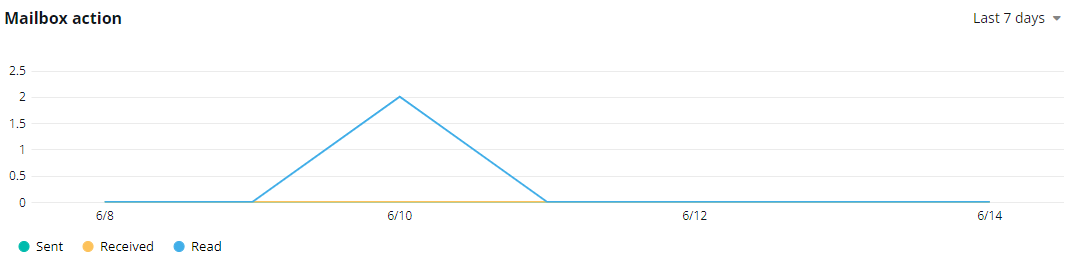
The Mailbox action chart shows the number of three mailbox actions operated in this mailbox in the specified time range. The actions include Sent, Received, and Read. On the chart, the X-axis depicts the date in the selected time range, and the Y-axis depicts the number of each action.
You can specify the time range of the chart on the upper-right of the chart from:
-
Last 7 days
-
Last 30 days
-
Last 90 days
-
Last 180 days
To hide a specific line in the chart, click the Sent, Received, or Read data category, the corresponding line in the chart will be hidden. You can hover your mouse over the line to view the detailed number of actions each day.
Meeting Action
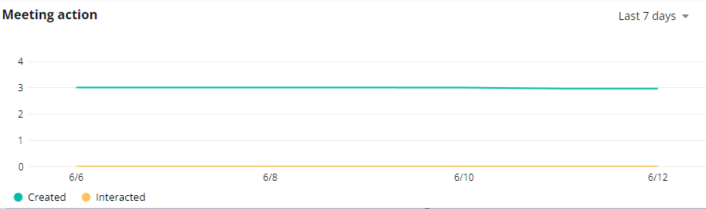
The Meeting action chart shows the number of meeting actions operated in this mailbox in the specified time range. The actions include Created and Interacted. On the chart, the X-axis depicts the date in the selected time range, and the Y-axis depicts the number of each action.
You can specify the time range of the chart on the upper-right of the chart from:
-
Last 7 days
-
Last 30 days
-
Last 90 days
-
Last 180 days
To hide a specific line in the chart, click the Created or Interacted data category, the corresponding line in the chart will be hidden. You can hover your mouse over the line to view the detailed number of actions each day.
Sync Latest Data
To manually retrieve the latest data of mailboxes, complete the following steps:
-
On the Exchange page, select the target mailboxes.
-
Click Management > Sync latest data. A process will start to retrieve the latest data.
Convert Mailboxes Recipient Type
You can convert user mailboxes to shared mailboxes or convert shared mailboxes to user mailboxes. To convert the mailbox recipient type, complete the following steps:
-
On the Exchange page, select the mailboxes you want to convert in the Mailboxes tab.
-
Click Management > Convert to regular mailbox/Convert to shared mailbox.
-
In the confirmation window, click Confirm.
Only mailboxes with the same recipient type can be converted in bulk. You can filter the recipient type by selecting the corresponding recipient type in the table filter.
Archive Mailboxes
Archive mailboxes provide email archiving through the archive mailbox feature. When enabled, users have a dedicated archive mailbox that appears alongside their primary mailbox folders and can be accessed in the same way as their primary mailbox.
To enable or disable archive mailboxes, complete the following steps:
-
Select the mailboxes you want to update the archiving settings.
-
Click Management > Archive.
-
In the Archive panel, enable or disable mailbox archive. If you enable the mailbox archive, the Archive name setting appears.
-
Enter the Archive name or leave as default.
-
Click Save. The process will start to update the mailboxes settings.
Hide Mailboxes from Address List
In an address list, mail-enabled recipient objects are grouped. If a mailbox is hidden from address lists, the mailbox can still receive emails. However, the mailbox cannot be found in address lists by users.
To hide or show mailboxes from the address list, complete the following steps:
-
Select the mailboxes you want to hide or show from the address list.
-
Click Management > Hide from address list.
-
In the Hide from address list panel, enable or disable hide from the address list.
-
Click Save and the process will start to update the mailboxes settings.
Copy Permissions
EnPower enables you to copy mailbox delegation permissions from one selected mailbox to another mailbox. To copy permissions, complete the following steps:
-
Select the mailbox you want to copy the permissions from.
-
Click Management > Permissions > Copy permissions.
-
In the Copy permissions panel, enter the display name or email address to search for mailboxes you want to copy the permissions to.
-
Select mailboxes to copy permissions to. You can select multiple mailboxes.
-
Click Save and the process will start to copy.
You can only select one mailbox to copy permissions from.
Check If Mailbox Exists
EnPower runs scan jobs regularly to retrieve and synchronize data from Microsoft 365 services. If a mailbox is deleted from portals of Microsoft between these scan jobs, it may still be visible and listed in EnPower. For this special occasion, you can check the mailbox existence by the following steps:
-
Select the mailbox you want to check existence.
-
Click Management > Check if mailbox exists.
-
The Message window appears to show if the mailbox exists.
-
Click Close to close the window.
Search for Mailbox Forwarding
With the Search for mailbox forwarding functionality in EnPower, mailboxes that are automatically forwarding emails to a specific internal recipient can be found and listed.
Refer to the following instructions on searching:
-
On the Mailboxes page, click Management > Search for mailbox forwarding on the ribbon.
-
In the Search for mailbox forwarding panel, specify the following:
-
Recipient mailbox – Enter the internal recipient to which the mailboxes are forwarding email to.
-
Searching scope
-
Do not show results when the specified mailbox is contained in a recipient group mailbox – Results will not be listed when mailboxes are forwarding to a group mailbox and the specified recipient is a member of the group.
-
Show all results – A process will start to search for mailboxes forwarding to the recipient. To view the process status, go to the Process center. You can download the report to view all results when the process is completed
-
-
-
Click Search, the results will be listed. If Do not show results when the specified mailbox is contained in a recipient group mailbox is selected, the Search results panel will appear with the results displayed in the table.
Move OU (Organization Units)
To move the organization units of on-premises shared mailboxes, complete the following steps:
-
Select one or more on-premises mailboxes in the same on-premises tenant domain.
-
Click Management > Move OU on the ribbon.
-
In the Move OU panel, select the organizational unit to move the mailboxes to.
-
Click Save.
Export Shared Mailboxes' Settings
To export detailed settings of your mailboxes into a report file, complete the following steps:
-
Click Export in the upper-right corner to expand the action list. Then click Export shared mailboxes settings and select fields to include in the exported report. You can select from Current fields and All fields.
If you select Current fields, only the columns and shared mailboxes currently shown in the table are exported. To control which fields and shared mailboxes are included, manage the columns and apply filters.
-
In the Export shared mailboxes' settings panel, select the details to export, including:
-
General
-
Storage quota
-
Mail flow
-
Email apps
-
Regional settings
-
Contacts folder delegation
-
Calendar delegation
-
Mailbox delegation
-
-
Click Export. The process will start to export the report. Click process center in the popup window or click View all in the Process center window to navigate to the Process center.
-
On the Process center page, you can view the export status and click the Download button to download the exported file.
Bulk Edit Custom Attributes
To bulk edit custom attributes of cloud mailboxes of all types and on-premises shared mailboxes, complete the following steps:
-
On the Mailboxes page, select multiple mailboxes.
-
Click Management > Bulk operations and then select Bulk edit custom attributes.
-
In the Bulk edit custom attributes panel, complete the following steps:
-
Click Export to Export the custom attributes' editing template for the selected mailboxes.
-
Complete your edits in the exported file.
-
Click Select files or drop the file to the panel to upload it.
-
-
Click Save.