
Home > Get Familiar with the EnPower Interface
Download this articleGet Familiar with the EnPower Interface
EnPower provides an intuitive working environment. The pages within EnPower share similar look and feel. The page below is a sample page in EnPower.
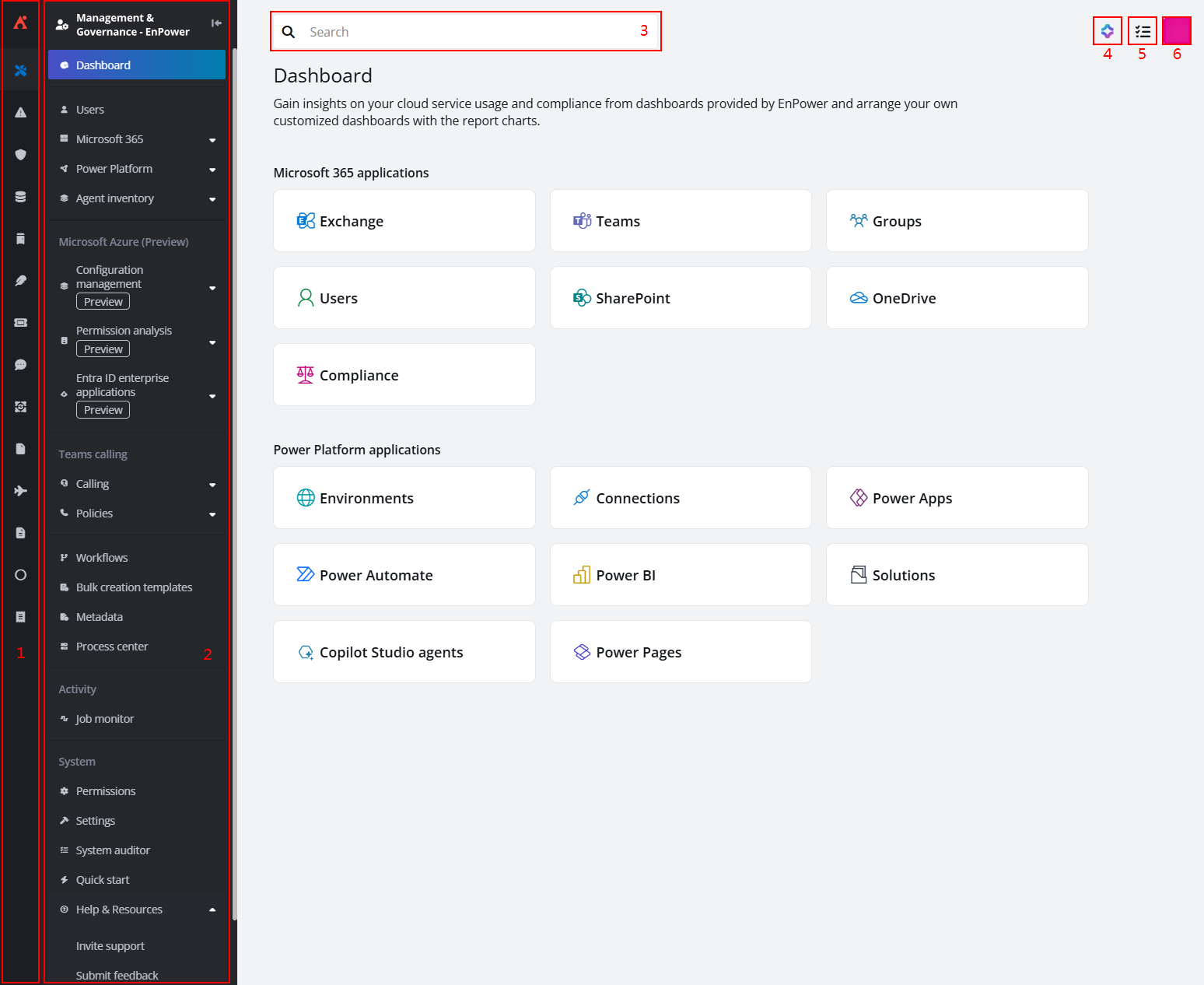
Refer to the instructions below to get familiar with the EnPower interface.
-
AvePoint Online Services navigation pane – By hovering your mouse over the AvePoint Online Services navigation pane on the left of the page, you can see other AvePoint cloud services you subscribe to. To navigate to another service, click the corresponding icon.
-
EnPower quick navigation pane – Use the left navigation pane to navigate to different EnPower pages, Quick start (renamed from Prerequisites), and Help services.
-
Search box – In the upper left of EnPower pages, enter keywords to search for reports or dashboards for quick navigation.
-
AVA chatbot – Click the AVA chatbot icon in the upper-right corner when you have questions regarding the service usage and availability.
-
Process center – To view the processes for application management jobs in EnPower, apart from navigating there through the left navigation pane, you can also click the Process center (
 )
icon in the upper-right. For more details on the process center, refer to Process Center.
)
icon in the upper-right. For more details on the process center, refer to Process Center. -
Profile – Click your profile photo in the upper-right corner to see your signed-in account or sign out from the system.
View and Manage Objects
In the EnPower management pages, use the dynamic ribbon to manage items in a list. Select an object, and the available actions will display on the ribbon.
Refer to the following sections for the common actions and corresponding instructions:
Find Management Actions
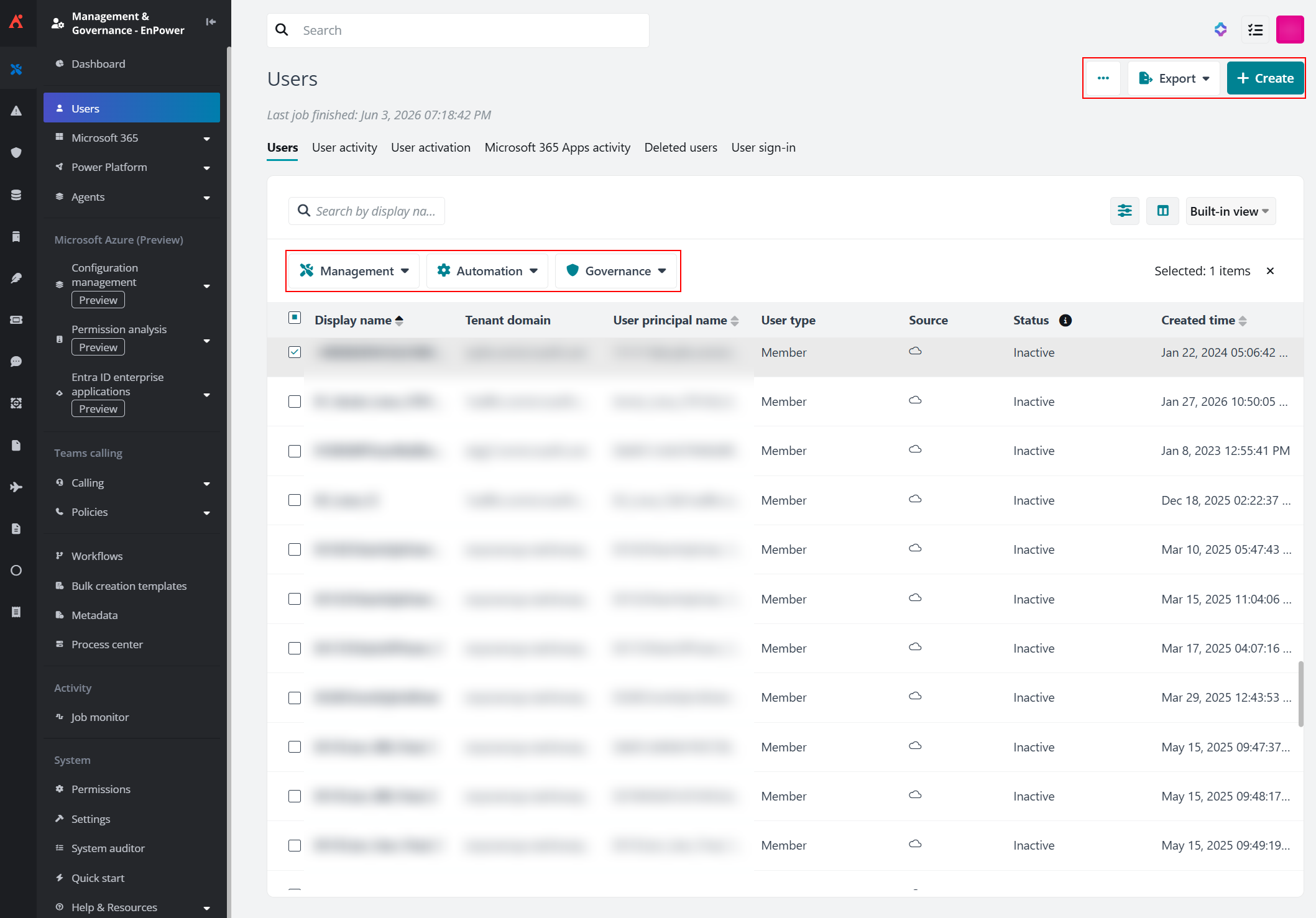
On the management pages, the available actions are displayed in the ribbon above the table. If no object is selected, only the actions that do not require object selection will be displayed. After selecting an object, available actions for the selected object will be displayed and the actions are categorized in the following groups:
-
Management - Basic management actions are available under this group, including but not limited to object deletion and object setting modification actions.
-
Automation - EnPower workflow related actions are available under this group. For details on automating actions via workflows, refer to Workflows.
-
Governance - If you have valid Cloud Governance subscription, lifecycle management and metadata editing actions are grouped under this category.
Create, View Details, Edit, and Delete
-
Create – Click Create in the upper-right corner of the page to create a new object.
-
View and edit object details – To view and edit object details, click the display name of the object to navigate to the object details page. In each tab, click Edit in the upper-right corner or click the Edit (
 )
icon to the right of each editable field and complete your updates.
)
icon to the right of each editable field and complete your updates. -
Bulk edit – To update settings for multiple objects at a time, select the objects and click Bulk edit. In the bulk edit panel, select the settings to edit in the left pane and complete your updates in the right pane.
When bulk editing members in an object, there are three types of operations available, including:
-
Add specific users – Specify users, and they will be added to the Group, Team, or SharePoint Online sites, etc. This is applicable when you want to make sure that one or more users can access these multiple objects.
-
Remove specific users – Specify users, and they will be removed from the Group, Team, or SharePoint Online sites, etc. This is applicable when you want to remove user access to certain objects in bulk.
-
Replace with specific users – Remove all existing members from the objects and add your specified users to them. This is applicable when you want to replace all existing members of an object with another group of people.
NOTEOnly objects in the same tenant can be managed in bulk. You can find the objects with the tenant filters on management pages.
-
-
Delete – Select one or more objects and click Management > Delete. For better performance, when deleting, you can delete up to 100 objects in bulk at a time.
View User or Object Lists
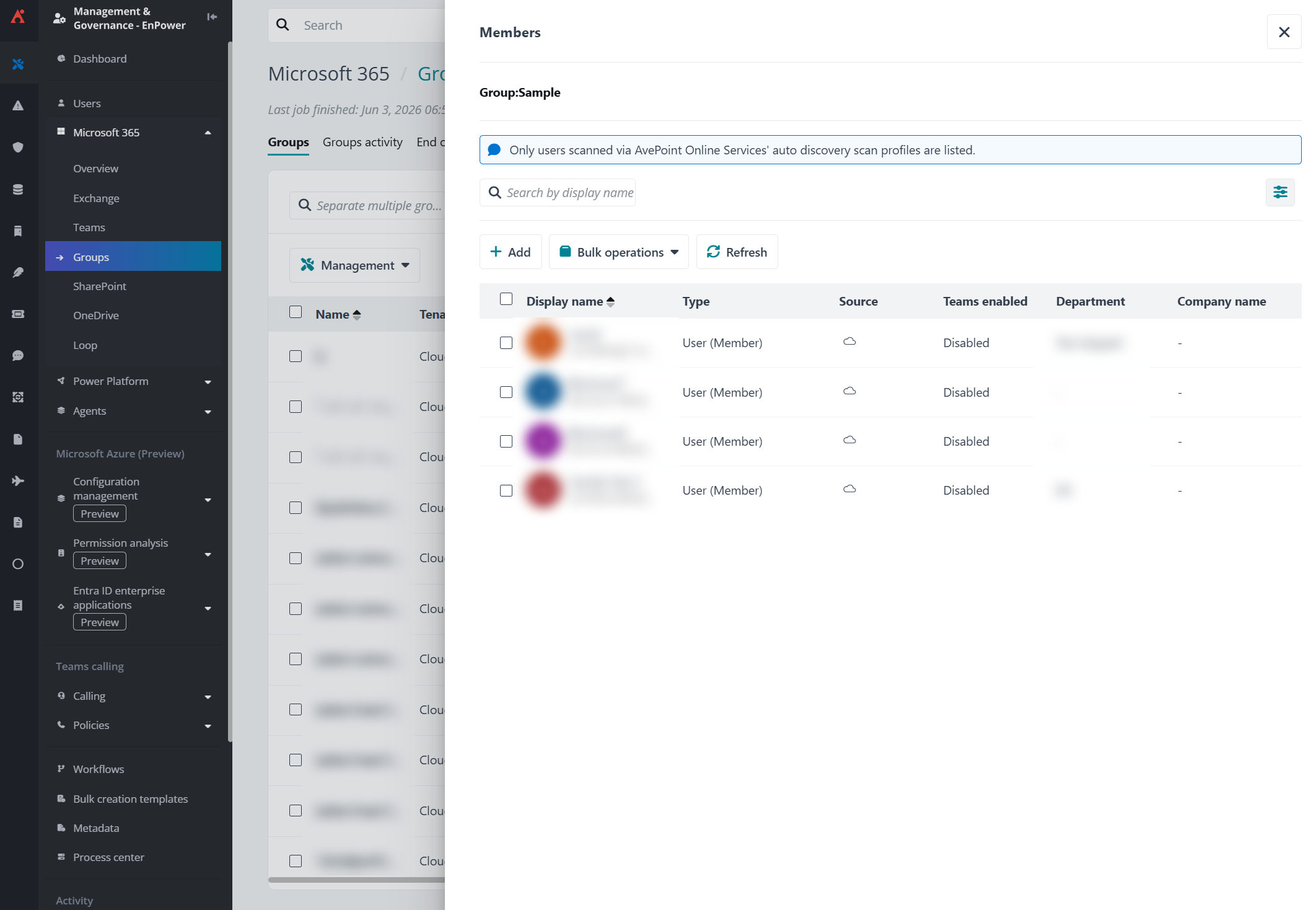
In columns that displays the number of users that have access to the object or the number of related objects, by clicking the number in the column, the detailed list of users or related objects are available to be checked or managed in a panel.
The page below is a sample member list panel with available actions on the Groups page.
Export Reports
To export objects and their properties into reports for further processing, complete the following steps:
-
Click Export or Export selected objects and select fields to include in the exported report. You can select from Current fields and All fields.
-
If you select Current fields, only columns and objects shown in the table on the page will be exported. To configure the fields to show, you can manage the columns and configure the filters.
-
If you select All fields, the process will start to export the report showing all columns.
NOTEWhen specific objects are selected, only the selected objects will be included in the exported report.
-
-
Click process center in the popup window or click View all in the Process center (
 )
window to navigate to the Process center.
)
window to navigate to the Process center. -
On the Process center page, you can view the export status and click the Download (
 )
button to download the exported file. For more details on the Process center, refer to Process Center.
)
button to download the exported file. For more details on the Process center, refer to Process Center.
Filter Objects
On the management pages, the selected filter conditions are displayed as tags above the table.
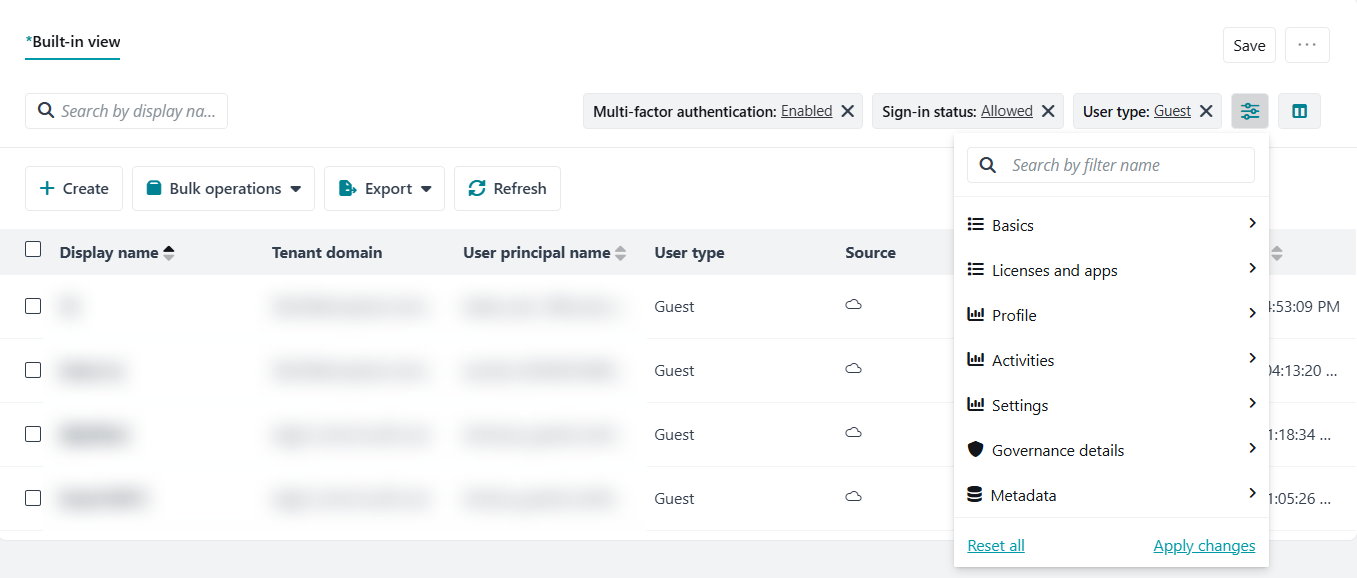
To filter specific objects on these pages, complete the following steps:
-
Click the Filter (
 )
icon in the upper-right corner above the table.
)
icon in the upper-right corner above the table. -
In the Filter panel, select the filter category first. Then, select the required conditions in the dropdown list of the filters.
To go back to the general filter category selection step, click the go back arrow in the upper-left corner.
-
Click Apply changes to apply the filters.
To remove any filter conditions, click the remove (
 )
icon on the tag.
)
icon on the tag.
Manage Columns
On the management pages, to manage the columns shown in the table, complete the following steps:
-
Click the Manage columns (
 )
icon in the upper-right corner above the table.
)
icon in the upper-right corner above the table. -
In the column list, columns are grouped into categories.
-
Select or deselect the columns to show or hide in the table.
-
Click Apply.
Manage Views
On the management pages of EnPower, you can save your customized views and columns into views to meet your management requirements and preferences.
Unlike the Built-in view provided by EnPower, all created or edited views are only visible to the user who created or edited the view.
On the management pages, the views are displayed in the view selection field in the upper-right corner above the table. You can click the dropdown list to select the view to display.
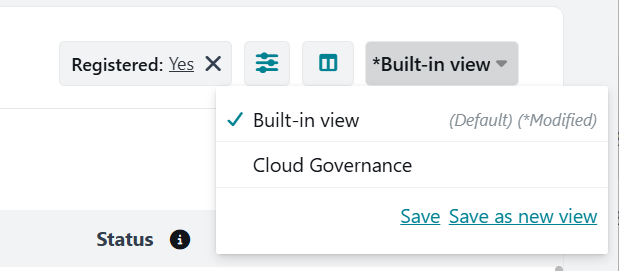
To create a new view on these pages, complete the following steps:
-
After completing the column and filter configurations, expand the view selection dropdown list.
-
Click Save as new view to save the current view as a new one.
-
On the Save as window, enter the name for the view.
-
Select whether to Set as default view. If selected, the created view will be the default view for the current signed in user.
-
Click Save to save the new view.