
Home > Dashboard > Power Automate Dashboards
Download this articlePower Automate Dashboards
EnPower provides three container-level default dashboards for Power Automate, including:
Cloud Flow Overview Dashboard
The following are the report charts that can be managed on the default Power Automate overview dashboard. You can also add them to your custom Power Automate dashboards as gadgets. They are all container-level reports and can only be added to container-level dashboards.
Total Flows

The Total flows card shows the current total number of flows and difference with the data of the last month in the specified containers.
Created This Month

The Created this month card shows the number of flows created in this month and the difference with the data of the last month in the specified containers.
Flow Creators

The Flow creators card shows the current number of users who have created flows and difference with the data of the last month in the specified containers.
Flow Creation
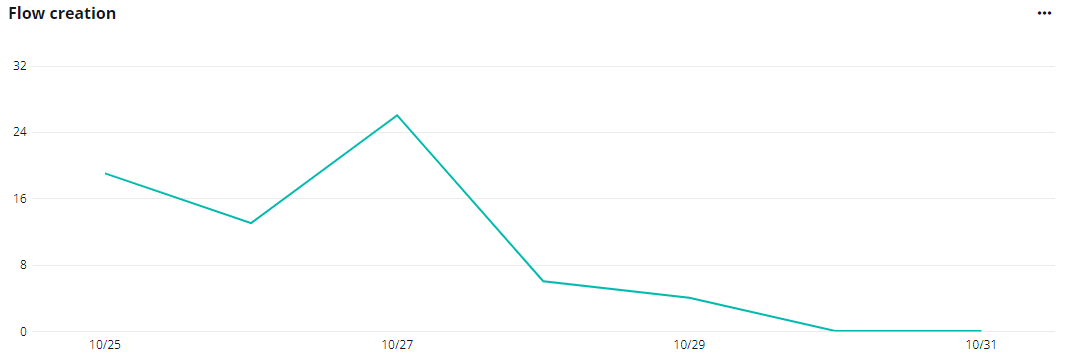
The Flow creation chart shows the changes of the number of flows created on each day in the defined time range.
Hover your mouse over the line to view the detail number of flows created on a specific date.
Expand the action list in the upper-right corner of the chart. Then click View more to go to the Power Automate page to view the list of flows.
Total Flow Creators

The Total flow creators chart shows the number of users who have created flows and users with creator permission but never created flows.
The creator permission applies to users with designated service plans. For the detailed service plan list, refer to the Service Plans for Flow Creator Permission section on this page.
Hover your mouse over the ring to view the detailed numbers of users. To hide the data of a specific type, click the corresponding data category below the chart.
Flow Creation in Creators’ Departments

The Flow creation in creators’ departments chart shows the number of flows created by the departments of flow creators. The X-axis depicts the number of flows, and the Y-axis depicts the departments.
Hover your mouse over the bars to view the detailed number of flows created for each department.
Expand the action list in the upper-right corner of the chart. Then click View more to go to the Power Automate page to view the list of flows.
Flow Ranking by Connector Usage

The Flow ranking by connector usage chart ranks apps by the number of connectors used by the flows.
The X-axis depicts the connectors. The Y-axis depicts the number of flows using the connector.
Hover your mouse over the bars to view the detailed numbers.
Expand the action list in the upper-right corner of the chart. Then click View more to go to the Power Automate page to view the list of flows.
Flow Creation in Creator’s Offices
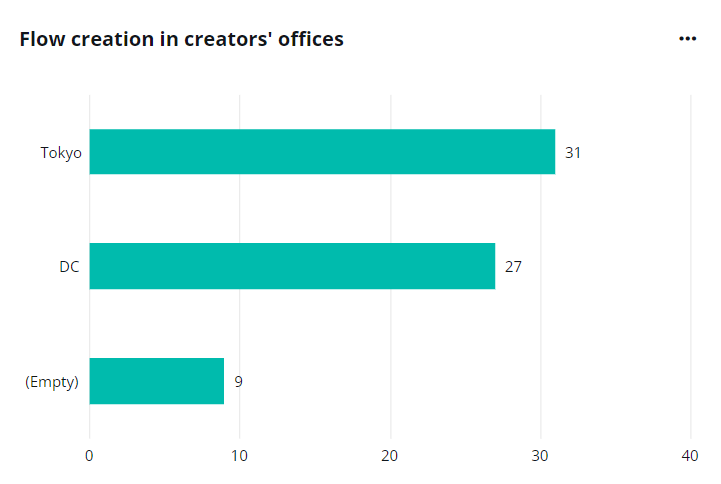
The Flow creation in offices chart shows the number of flows created in each office. The X-axis depicts the number of flows created and the Y-axis depicts the offices.
Hover your mouse over the bars to view the detailed number of flows created.
Flows Created in Last 12 Months
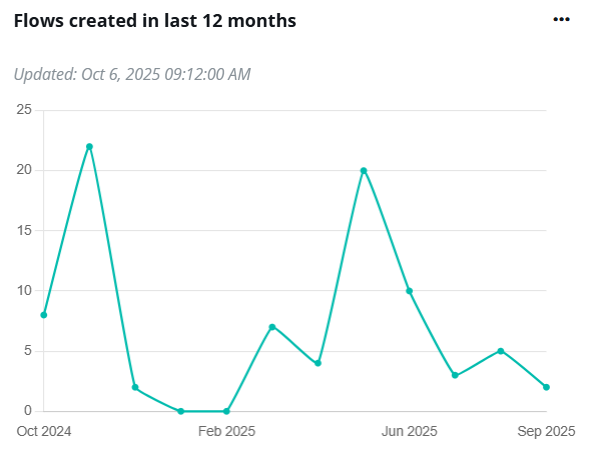
The Flows created in last 12 month chart shows the changes of the number of cloud flows created in the last 12 months.
Hover your mouse over the line to view the detailed number of flows created on a specific date.
Flow Creators in Last 12 Months

The Flow creators in last 12 month chart shows the number of users who created cloud flows in the last 12 months.
Hover your mouse over the line to view the detailed number of flow creators on a specific date.
Flow Consumers
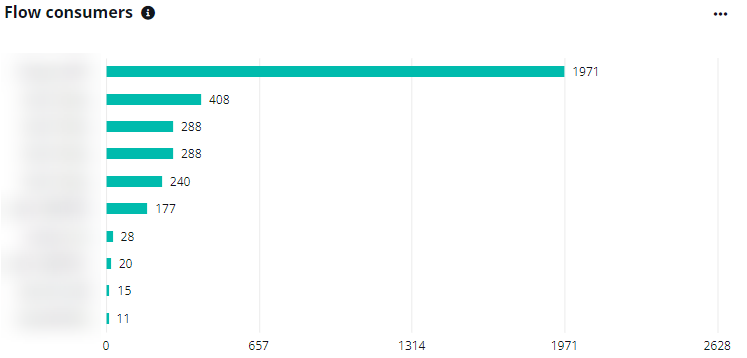
The Flow consumers chart shows the top flow consumers by the number of Power Automate activities they have performed. The X-axis depicts the number of activities. The Y-axis depicts the users.
Hover your mouse over the bars to view the detailed numbers.
Flow Action Ranking

The Flow action ranking chart shows the top action used in flows. The X-axis depicts the number of times an action is used in flows. The Y-axis depicts the flow actions.
Hover your mouse over the bars to view the detailed numbers.
Flow Rankings by Runs/Activities
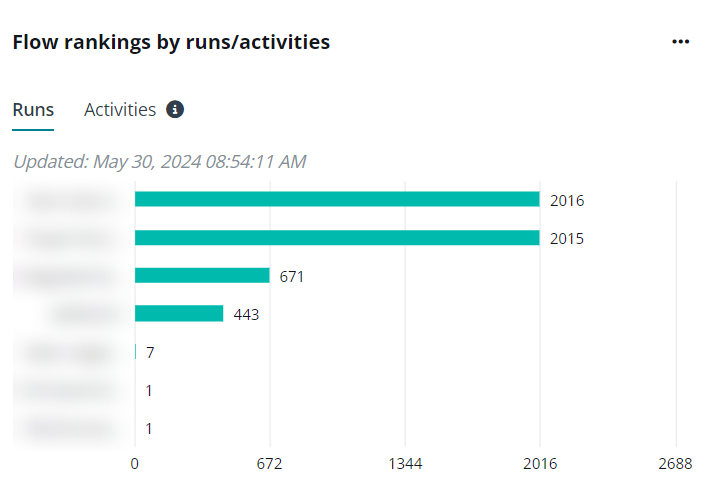
The Flow rankings by runs/activities chart shows the top flows by the number of times a flow has been run and the flow-related activities.
Click Runs and Activities to switch the ranking tabs. Hover your mouse over the bars to view the detailed numbers.
Expand the action list in the upper-right corner of the chart. Then click View the latest report to go to the Power Automate > Cloud flow analytics tab.
Service Plans for Flow Creator Permission
When calculating users with creator permission in the Total flow creators chart, the creator permission applies to users with the designated service plans. Refer to the table below for the service plans with the creator permission and corresponding licenses containing these service plans.
| Service plan | Licenses |
|---|---|
| Power Automate RPA Attended | Power Automate per user with attended RPA plan |
| Flow per user plan | Power Automate per user plan Power Automate per user plan dept |
| Common data service for Flow per business process plan | Power Automate per flow plan |
| Flow per business process plan | Power Automate per flow plan |
| Flow Free | Microsoft Power Automate Free Microsoft Power Apps Plan 2 Trial |
| Power Automate for Customer Service Pro | Dynamics 365 Customer Service Professional |
| FLOW FOR DYNAMICS 365 | DYNAMICS 365 FOR TEAM MEMBERS ENTERPRISE EDITION DYNAMICS 365 TEAM MEMBERS Dynamics 365 Business Central Team Members |
| Flow for Dynamics 365 | Dynamics 365 Business Central Essentials Dynamics 365 Business Central External Accountant Dynamics 365 Business Central Premium Dynamics 365 Customer Engagement Plan Dynamics 365 Finance DYNAMICS 365 FOR CUSTOMER SERVICE ENTERPRISE EDITION DYNAMICS 365 FOR FINANCIALS BUSINESS EDITION DYNAMICS 365 FOR SALES AND CUSTOMER SERVICE ENTERPRISE EDITION Dynamics 365 for Sales Enterprise Edition Dynamics 365 Sales Premium Dynamics 365 Sales Premium DYNAMICS 365 FOR SUPPLY CHAIN MANAGEMENT Dynamics 365 for Talent DYNAMICS 365 TEAM MEMBERS MICROSOFT DYNAMICS CRM ONLINE BASIC MICROSOFT DYNAMICS CRM ONLINE Dynamics 365 for Case Management Enterprise Edition Dynamics 365 for Field Service Enterprise Edition |
| Power Automate for Office 365 | Microsoft 365 Business Basic MICROSOFT 365 BUSINESS BASIC Microsoft 365 Business Standard MICROSOFT 365 BUSINESS STANDARD - PREPAID LEGACY Microsoft 365 Business Premium MICROSOFT TEAMS EXPLORATORY Microsoft Teams Trial Microsoft Teams Commercial Cloud OFFICE 365 E1 OFFICE 365 E2 |
| Power Automate for Office 365 | Microsoft 365 A3 for Faculty MICROSOFT 365 A3 FOR STUDENTS Microsoft 365 A3 for students use benefit Microsoft 365 A3 - Unattended License for students use benefit Microsoft 365 A5 for students use benefit Microsoft 365 A5 without Audio Conferencing for students use benefit Microsoft 365 E3 Microsoft 365 E3 - Unattended License Office 365 A3 for faculty Office 365 A3 for students Office 365 E3 OFFICE 365 E3 DEVELOPER OFFICE 365 E4 Office 365 A1 for faculty Office 365 A1 Plus for faculty Office 365 A1 for students Office 365 A1 Plus for students |
| Power Automate for Office 365 | Office 365 E5 Microsoft 365 A5 for Faculty MICROSOFT 365 A5 FOR STUDENTS Microsoft 365 E5 Microsoft 365 E5 without Audio Conferencing Office 365 A5 for faculty Office 365 A5 for students OFFICE 365 E5 WITHOUT AUDIO CONFERENCING Microsoft 365 E5 Developer (without Windows and Audio Conferencing) Microsoft 365 E5 (No Teams) |
| Power Automate for Office 365 K1 | Microsoft 365 F3 OFFICE 365 F3 |
| Power Automate (Plan 1) for Government | PowerApps Plan 1 for Government |
| Power Automate for Project | Project Plan 5 Project Plan 3 Project Plan 3 (for Department) |
| Power Automate for Customer Service Pro for Government | Dynamics 365 Customer Service Professional for Government |
| Flow for Developer | Microsoft Power Apps for Developer |
| Power Automate for Dynamics 365 | Dynamics 365 Customer Engagement Applications for Demo Trial Dynamics 365 Customer Engagement Plan DYNAMICS 365 UNF OPS PLAN ENT EDITION |
| Power Automate for Project | Project Plan 5 Project Plan 3 Project Plan 3 (for Department) |
| Power Automate for Office 365 for Government | Office 365 G1 GCC |
| POWER AUTOMATE FOR OFFICE 365 FOR GOVERNMENT | MICROSOFT 365 G3 GCC OFFICE 365 G3 GCC |
| Power Automate for Office 365 for Government | Office 365 G5 GCC Microsoft 365 GCC G5 |
| Power Automate for Office 365 F3 for Government | Microsoft 365 F3 GCC |
| Power Automate (Plan 2) | MICROSOFT POWER AUTOMATE PLAN 2 Microsoft Power Apps Plan 2 (Qualified Offer) |
| Flow P2 Viral | Microsoft Power Apps Plan 2 Trial |
| Power Automate for Power Apps per App Plan | Power Apps per app plan Power Apps per app plan (1 app or portal) |
| Flow per app baseline access | PowerApps per app baseline access |
| Power Automate per User Plan for Government | Power Automate per user plan for Government |
| Power Automate for Power Apps per User Plan | Power Apps per user plan |
| Power Automate for Power Apps per User Plan for GCC | Power Apps per user plan for Government |
| Power Automate for Virtual Agent | Power Virtual Agent |
Desktop Flow Overview Dashboard
The following are the charts available on the default Desktop flow overview dashboard. You can add them to you custom Power Automate dashboards as gadgets. They are container-level reports and can only be added to container-level dashboards.
Total Flows
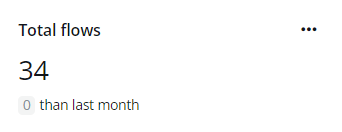
The Total flows card displays the current total number of desktop flows and the difference compared to last month's data within the specified containers.
Created This Month

The Created this month card displays the number of flows created during the current month and compares it with the previous month's data within the specified containers.
Flow Creators
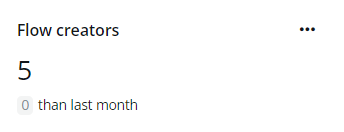
The Flow creators card displays the current number of users who have created flows, along with the difference compared to last month’s data within the specified containers.
Flow Creation

The Flow creation chart displays the trend of desktop flow creation in the defined time range.
Hover your mouse over the line to view the detail number of flows created on a specific date.
Expand the action list in the upper-right corner of the chart. Then click View more to go to the Power Automate page to view the list of flows.
Total Flow Creators

The Total flow creators chart shows the number of users who have created desktop flows and users with creator permission but never created flows.
The creator permission applies to users with designated service plans. For the detailed service plan list, refer to the Service Plans for Flow Creator Permission section on this page.
Hover your mouse over the ring to view the detailed numbers of users. To hide the data of a specific type, click the corresponding data category below the chart.
Flow Creation in Creators’ Departments
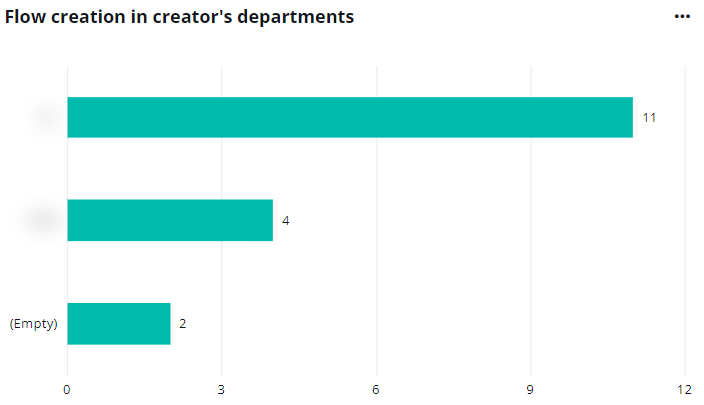
The Flow creation in creators’ departments chart shows the number of desktop flows created by the departments of flow creators. The X-axis depicts the number of flows, and the Y-axis depicts the departments.
Hover your mouse over the bars to view the detailed number of flows created for each department.
Expand the action list in the upper-right corner of the chart. Then click View more to go to the Power Automate page to view the list of flows.
Flow Creation in Creators’ Offices

The Flow creation in offices chart shows the number of desktop flows created in each office. The X-axis depicts the number of flows created and the Y-axis depicts the offices.
Hover your mouse over the bars to view the detailed number of flows created.
Expand the action list in the upper-right corner of the chart. Then click View more to go to the Power Automate page to view the list of flows.
Flow Ranking by Runs
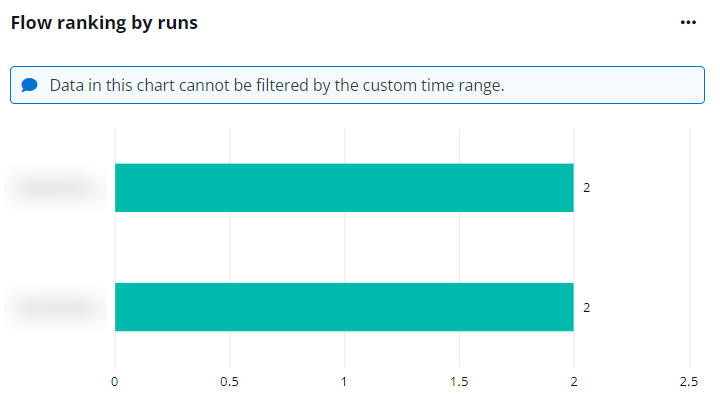
The Flow rankings by runs chart shows the top desktop flows by the number of times a flow has been run.
Hover your mouse over the bars to view the detailed numbers.
Flows Created in Last 12 Months
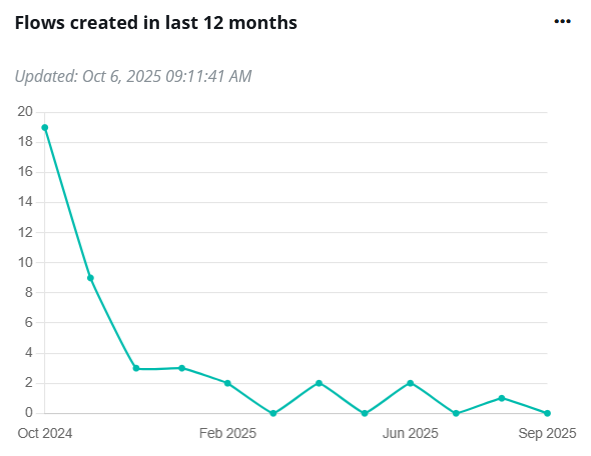
The Flows created in last 12 month chart shows the changes of the number of desktop flows created in the last 12 months.
Hover your mouse over the line to view the detailed number of flows created on a specific date.
Flow Creators in Last 12 Months

The Flow creators in last 12 month chart shows the number of users who created desktop flows in the last 12 months.
Hover your mouse over the line to view the detailed number of flow creators on a specific date.
Service Plans for Flow Creator Permission
When calculating users with creator permission in the Total flow creators chart, the creator permission applies to users with the designated licenses. Refer to the table below for the service plans with the creator permission and corresponding licenses containing these service plans.
| Service plan | Licenses |
|---|---|
| Power Automate RPA Attended | Power Automate per user with attended RPA plan |
| Flow per user plan | Power Automate per user plan Power Automate per user plan dept |
| Common data service for Flow per business process plan | Power Automate per flow plan |
| Flow per business process plan | Power Automate per flow plan |
| Flow Free | Microsoft Power Automate Free Microsoft Power Apps Plan 2 Trial |
| Power Automate for Customer Service Pro | Dynamics 365 Customer Service Professional |
| FLOW FOR DYNAMICS 365 | DYNAMICS 365 FOR TEAM MEMBERS ENTERPRISE EDITION DYNAMICS 365 TEAM MEMBERS Dynamics 365 Business Central Team Members |
| Flow for Dynamics 365 | Dynamics 365 Business Central Essentials Dynamics 365 Business Central External Accountant Dynamics 365 Business Central Premium Dynamics 365 Customer Engagement Plan Dynamics 365 Finance DYNAMICS 365 FOR CUSTOMER SERVICE ENTERPRISE EDITION DYNAMICS 365 FOR FINANCIALS BUSINESS EDITION DYNAMICS 365 FOR SALES AND CUSTOMER SERVICE ENTERPRISE EDITION Dynamics 365 for Sales Enterprise Edition Dynamics 365 Sales Premium Dynamics 365 Sales Premium DYNAMICS 365 FOR SUPPLY CHAIN MANAGEMENT Dynamics 365 for Talent DYNAMICS 365 TEAM MEMBERS MICROSOFT DYNAMICS CRM ONLINE BASIC MICROSOFT DYNAMICS CRM ONLINE Dynamics 365 for Case Management Enterprise Edition Dynamics 365 for Field Service Enterprise Edition |
| Power Automate for Office 365 | Microsoft 365 Business Basic MICROSOFT 365 BUSINESS BASIC Microsoft 365 Business Standard MICROSOFT 365 BUSINESS STANDARD - PREPAID LEGACY Microsoft 365 Business Premium MICROSOFT TEAMS EXPLORATORY Microsoft Teams Trial Microsoft Teams Commercial Cloud OFFICE 365 E1 OFFICE 365 E2 |
| Power Automate for Office 365 | Microsoft 365 A3 for Faculty MICROSOFT 365 A3 FOR STUDENTS Microsoft 365 A3 for students use benefit Microsoft 365 A3 - Unattended License for students use benefit Microsoft 365 A5 for students use benefit Microsoft 365 A5 without Audio Conferencing for students use benefit Microsoft 365 E3 Microsoft 365 E3 - Unattended License Office 365 A3 for faculty Office 365 A3 for students Office 365 E3 OFFICE 365 E3 DEVELOPER OFFICE 365 E4 Office 365 A1 for faculty Office 365 A1 Plus for faculty Office 365 A1 for students Office 365 A1 Plus for students |
| Power Automate for Office 365 | Office 365 E5 Microsoft 365 A5 for Faculty MICROSOFT 365 A5 FOR STUDENTS Microsoft 365 E5 Microsoft 365 E5 without Audio Conferencing Office 365 A5 for faculty Office 365 A5 for students OFFICE 365 E5 WITHOUT AUDIO CONFERENCING Microsoft 365 E5 Developer (without Windows and Audio Conferencing) Microsoft 365 E5 (No Teams) |
| Power Automate for Office 365 K1 | Microsoft 365 F3 OFFICE 365 F3 |
| Power Automate (Plan 1) for Government | PowerApps Plan 1 for Government |
| Power Automate for Project | Project Plan 5 Project Plan 3 Project Plan 3 (for Department) |
| Power Automate for Customer Service Pro for Government | Dynamics 365 Customer Service Professional for Government |
| Flow for Developer | Microsoft Power Apps for Developer |
| Power Automate for Dynamics 365 | Dynamics 365 Customer Engagement Applications for Demo Trial Dynamics 365 Customer Engagement Plan DYNAMICS 365 UNF OPS PLAN ENT EDITION |
| Power Automate for Project | Project Plan 5 Project Plan 3 Project Plan 3 (for Department) |
| Power Automate for Office 365 for Government | Office 365 G1 GCC |
| POWER AUTOMATE FOR OFFICE 365 FOR GOVERNMENT | MICROSOFT 365 G3 GCC OFFICE 365 G3 GCC |
| Power Automate for Office 365 for Government | Office 365 G5 GCC Microsoft 365 GCC G5 |
| Power Automate for Office 365 F3 for Government | Microsoft 365 F3 GCC |
| Power Automate (Plan 2) | MICROSOFT POWER AUTOMATE PLAN 2 Microsoft Power Apps Plan 2 (Qualified Offer) |
| Flow P2 Viral | Microsoft Power Apps Plan 2 Trial |
| Power Automate for Power Apps per App Plan | Power Apps per app plan Power Apps per app plan (1 app or portal) |
| Flow per app baseline access | PowerApps per app baseline access |
| Power Automate per User Plan for Government | Power Automate per user plan for Government |
| Power Automate for Power Apps per User Plan | Power Apps per user plan |
| Power Automate for Power Apps per User Plan for GCC | Power Apps per user plan for Government |
| Power Automate for Virtual Agent | Power Virtual Agent |
Orphaned Flows Dashboard
The following are the report charts that can be managed on the default Orphaned flows dashboard. You can also add them to your custom Power Automate dashboards as gadgets. They are all container-level reports and can only be added to container-level dashboards.
Legacy flows
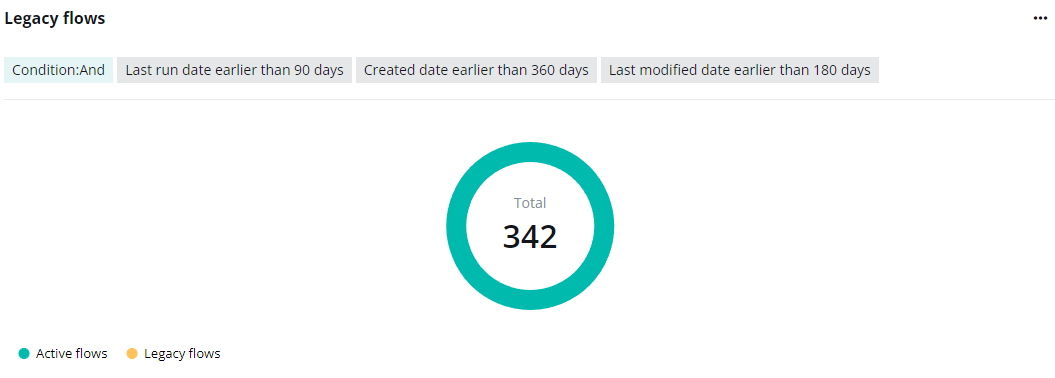
The Legacy flows chart shows the number of legacy and active flows in the specified containers.
You can define the legacy flows when you are adding the gadget or by editing the gadget. Flows can be defined as legacy flows by their last run date, creation date, last modification date, and last active date.
When defining the legacy flows, you can select And or Or as the condition. If And is selected, flows that meet all of the specified definitions will be categorized as legacy flows. If Or is selected, flows will be defined as legacy when one of the definitions is met.
Hover your mouse over the ring to view the detailed numbers. To hide the data of a specific type, click the corresponding data category below the chart.
Expand the action list in the upper-right corner of the chart. Then click View legacy flows to go to the Power Automate page to view the list of flows.
When the conditions are in the Or relations, the View legacy flows button is not available.
Ownership Risk Monitor

The Ownership risk monitor chart shows the number of flows with ownership risks and apps without ownership risks.
You can define the ownership risks when you are adding the gadget or by editing the gadget. Flows with no owners, disabled owners, guest owners, disabled creators, and guest creators can be defined as flows with ownership risks.
When defining the ownership risks, you can select And or Or as the condition. If And is selected, flows that meet all the specified definitions will be categorized as flows with ownership risks. If Or is selected, flows will be defined as risky when one of the definitions is met.
Hover your mouse over the ring to view the detailed numbers. To hide the data of a specific type, click the corresponding data category below the chart.
Expand the action list in the upper-right corner of the chart. Then click View flows with ownership risks to go to the Power Automate page to view the list of flows.
When the conditions are in the Or relations, the View flows with ownership risks is not available.