
Home > Get Started > Quick Start Setups
Download this articleQuick Start Setups
After finishing setups for the authentication profiles and auto discovery scan profiles in AvePoint Online Services, you will be navigated to the Quick start page the first time your organization signs into EnPower. On this page, you can:
-
Configure the app and service account profile leveraged by each tenant.
-
Check whether each object type has auto discovery profile configured.
-
Manually run synchronization jobs.
After finishing the initial setups, you can come back and change your settings by clicking Quick start in the left navigation.
For the setup steps, refer to the following sections.
Manual Sync
EnPower runs synchronization jobs daily to retrieve and refresh data displayed in reports and on dashboards. Apart from the default synchronization jobs, you can also manually run synchronization jobs to retrieve the latest information.
In the Manual sync section, click Run now to start the manual data synchronization job and retrieve the latest data from your tenants to EnPower.
App Profile Authentication
In the App profile authentication section, you can view all manageable tenants under each EnPower module and select the app profile that each tenant uses for data retrieval and object management.
-
In the Power Platform management section, you can select the app profile to use for Power BI management and other Power Platform object management in a tenant separately.
-
In the Agents section, you can select the app profile to use for Microsoft 365, SharePoint, and Microsoft Foundry agents management in a tenant separately. For details of supported app types for each agent type, refer to Create App Profile.
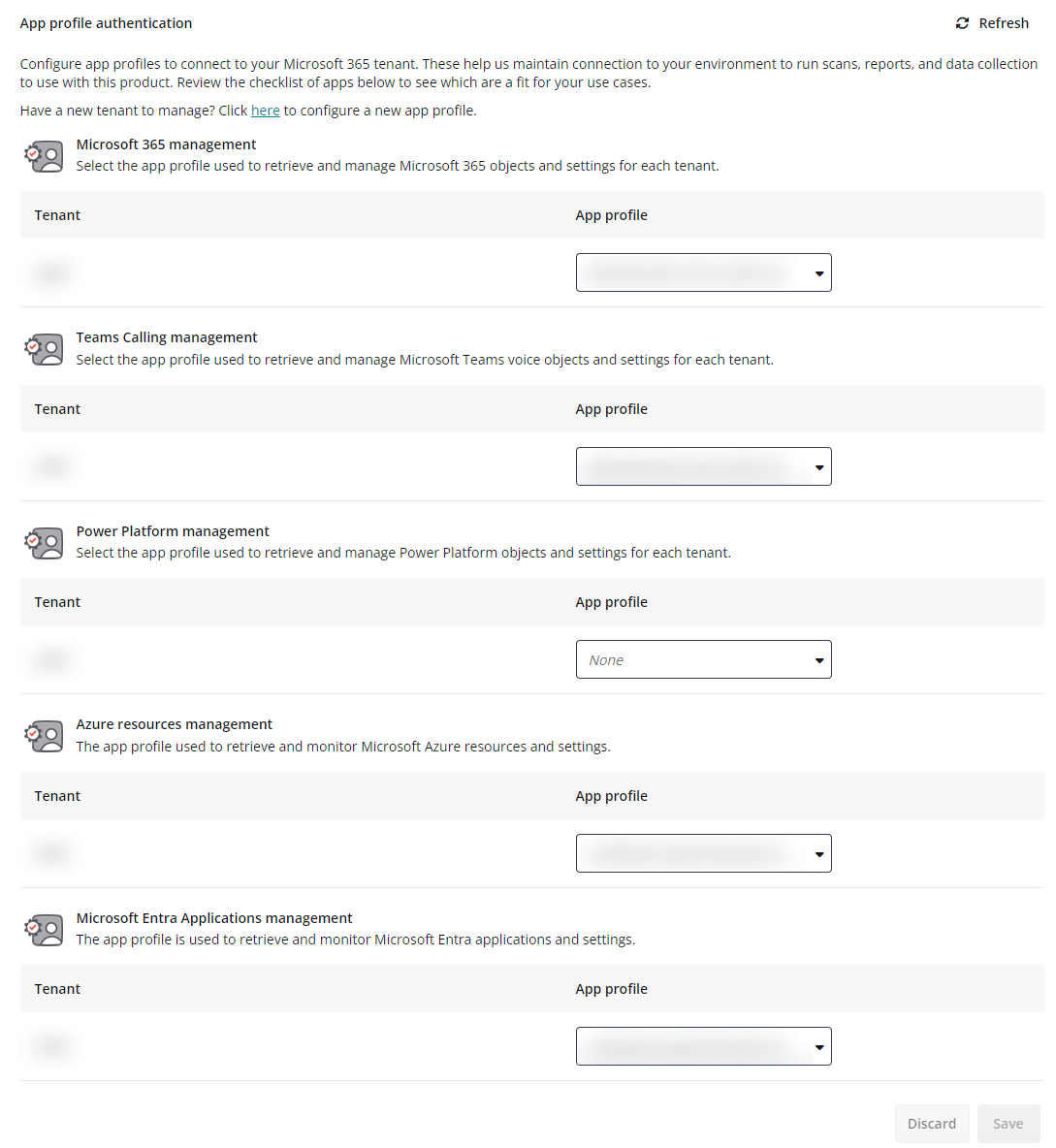
Select the app profile to use in the App profile column and click Save when completed. If no app profile is available for the tenant, click Configure app profile in the drop-down list to create one in AvePoint Online Services.
Microsoft Azure and Microsoft Entra ID enterprise application management are currently in private preview and available as an on-demand feature. For more information, contact AvePoint Technical Support or your sales representative.
Service Account Profile
In EnPower, there are specific management operations that are required to be authenticated and completed with service account profiles. In the Service account profile (optional) section, you can select the service account profile to use for corresponding operations.
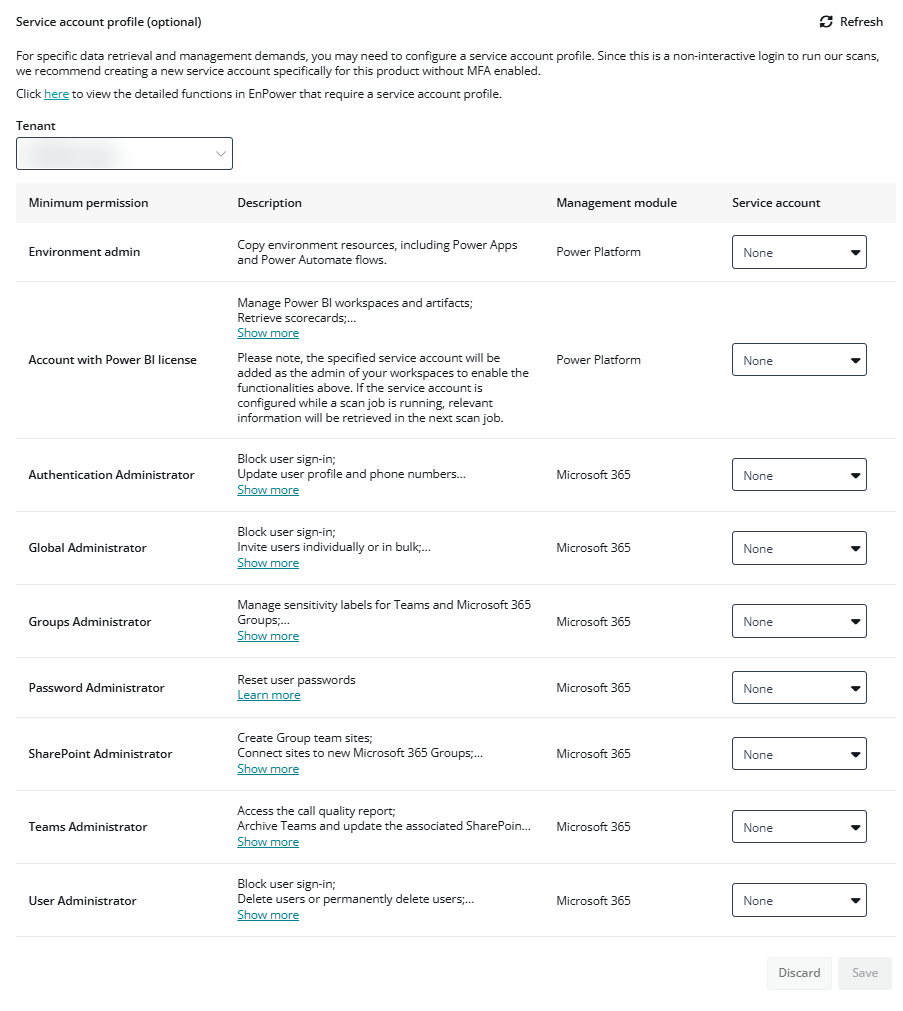
To specify a service account, complete the following steps:
-
Select the tenant to configure for in the upper-left corner of the section.
-
Select the service account profile to use in the Service account column. If the tenant has no available service account profile, click Configure service account in the dropdown list to create one in AvePoint Online Services. If Automatic is selected, the system will randomly select a service account with the required role when performing the operation.
-
Click Save.
- The specified service account for Power Platform management features that require Account with Power BI license will be automatically added to workspace as admins. Select None in the service account dropdown list when the automatic role assignment is unwanted.
- From April 13, 2025, apart from the following operations, service account with administrative role is not required:
- Connect SharePoint Online sites to new Microsoft 365 Groups
- Create SharePoint Online sites with the Visio Process Repository template
- Update hub settings for SharePoint Online sites in multi geo tenants
- Pre-provision OneDrive with workflows
- Access the call quality report If you are using any of the functionalities above, a service account with corresponding required administrative role still needs to be specified in Quick start. All other operations now can be performed via an app profile with the required permissions. To switch to an app profile, select None in the Service account column and save your settings. For details on which service account permissions are no longer required and which new app profile permissions are required, refer to Service Account Permissions for Microsoft 365 Management.
Enable Report Data Collection
To retrieve user activities in Microsoft 365 for activity related report charts on the Dashboard and triggering workflows in EnPower, make sure you have enabled report data collection.
In the Activities in Microsoft 365 section, turn on the toggle to enable the report data collection.

Or you can enable or disable the same setting in AvePoint Online Services > Administration > Report data collection.
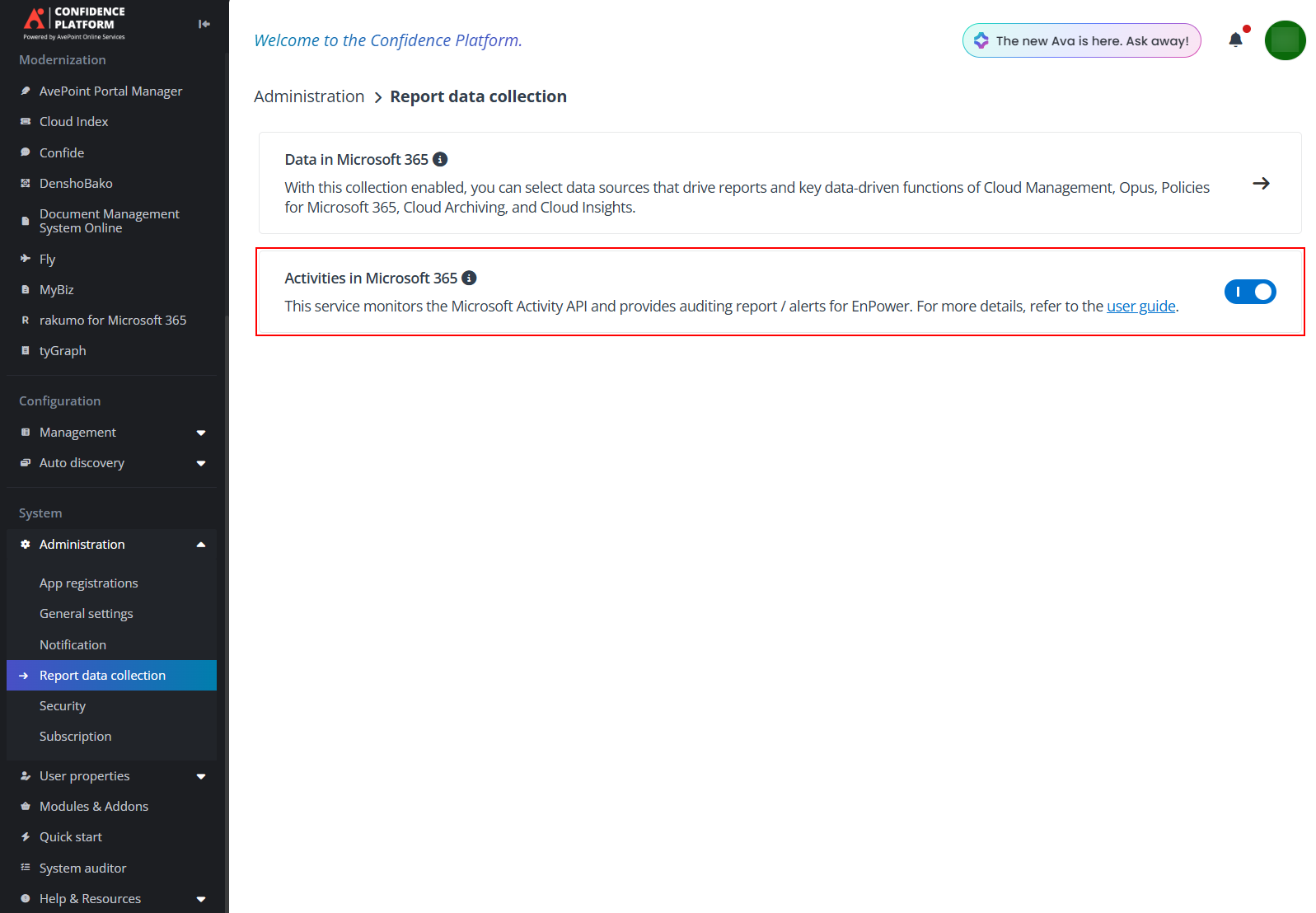
- Before you enable this, make sure that the Start recording user and admin activity setting is enabled in Microsoft Purview portal. Otherwise, activities cannot be successfully collected. For more details, refer to Microsoft document.
- To enable the report data collection, a Reporting for Microsoft 365, Microsoft 365, or custom Azure app configured in AvePoint Online Services is required. For details on configuring the apps, refer to Manage App Profiles.
Auto Discovery scan profile
In the Auto discovery scan profile section, you can check the Auto Discovery scan profile configuration status of each object type for your tenants.
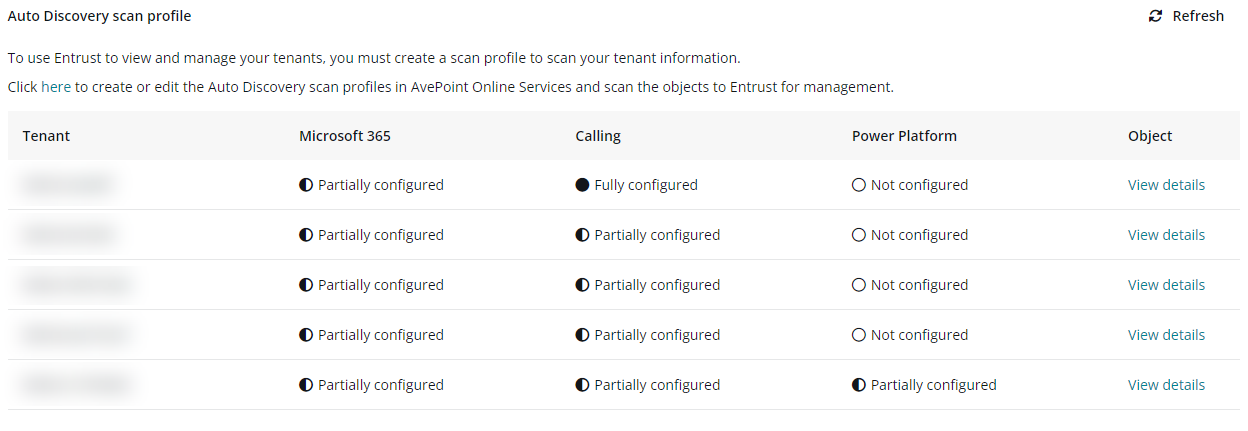
The following statuses may be displayed:
-
Fully configured – You have configured scan profiles for all object types.
-
Partially configured – You have configured scan profiles for a part of the object types.
-
Not configured – You have not configured any scan profiles for the object types.
Click View details to check for which object type you have and have not created scan profiles and you can click the link on top the panel to complete the configurations in AvePoint Online Services.