
Overview
The Overview module in Entra ID enterprise applications management enables applications risk report on your Azure Entra ID app registrations and enterprise applications. Go to Entra ID enterprise applications > Overview and refer to the following sections for the details.
Applications Risk Report
You can select which tenants’ Applications risk report will be checked from the drop-down list. The corresponding health score of the selected tenant will be displayed on the right. The report details will be generated based on your selection.
The initial health score is 100. The health score will decrease based on the risk level of the risky rules and the detected issues identified by those rules. The amount by which the score decreases for each rule will be displayed next to the risk level of the rule.
App Registrations Analysis
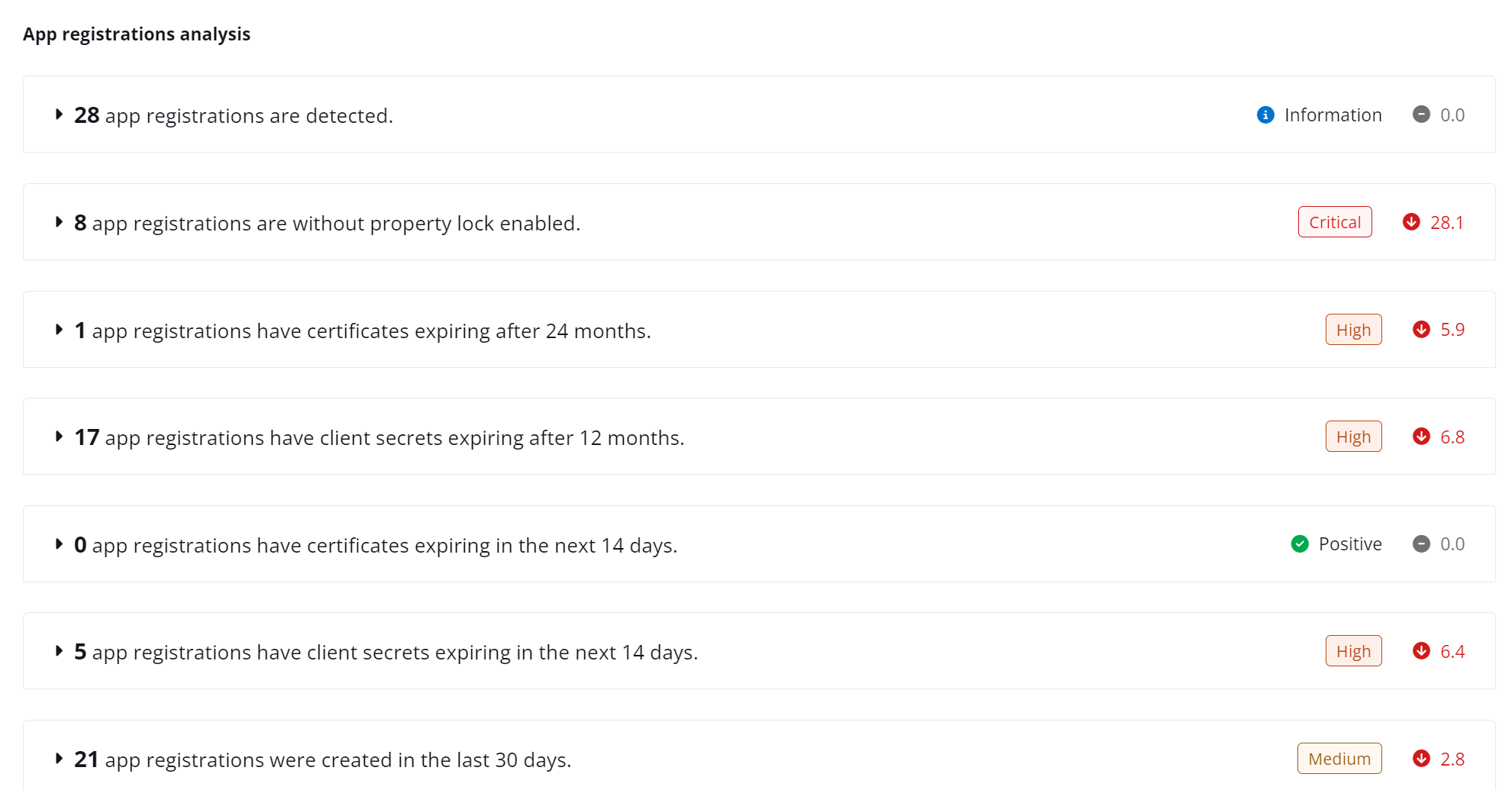
The App registrations analysis statistical table shows the number of app registrations that match the corresponding risky rules.
Click name of the risky rule to learn why it is important to monitor such issues.
Enterprise Applications Analysis
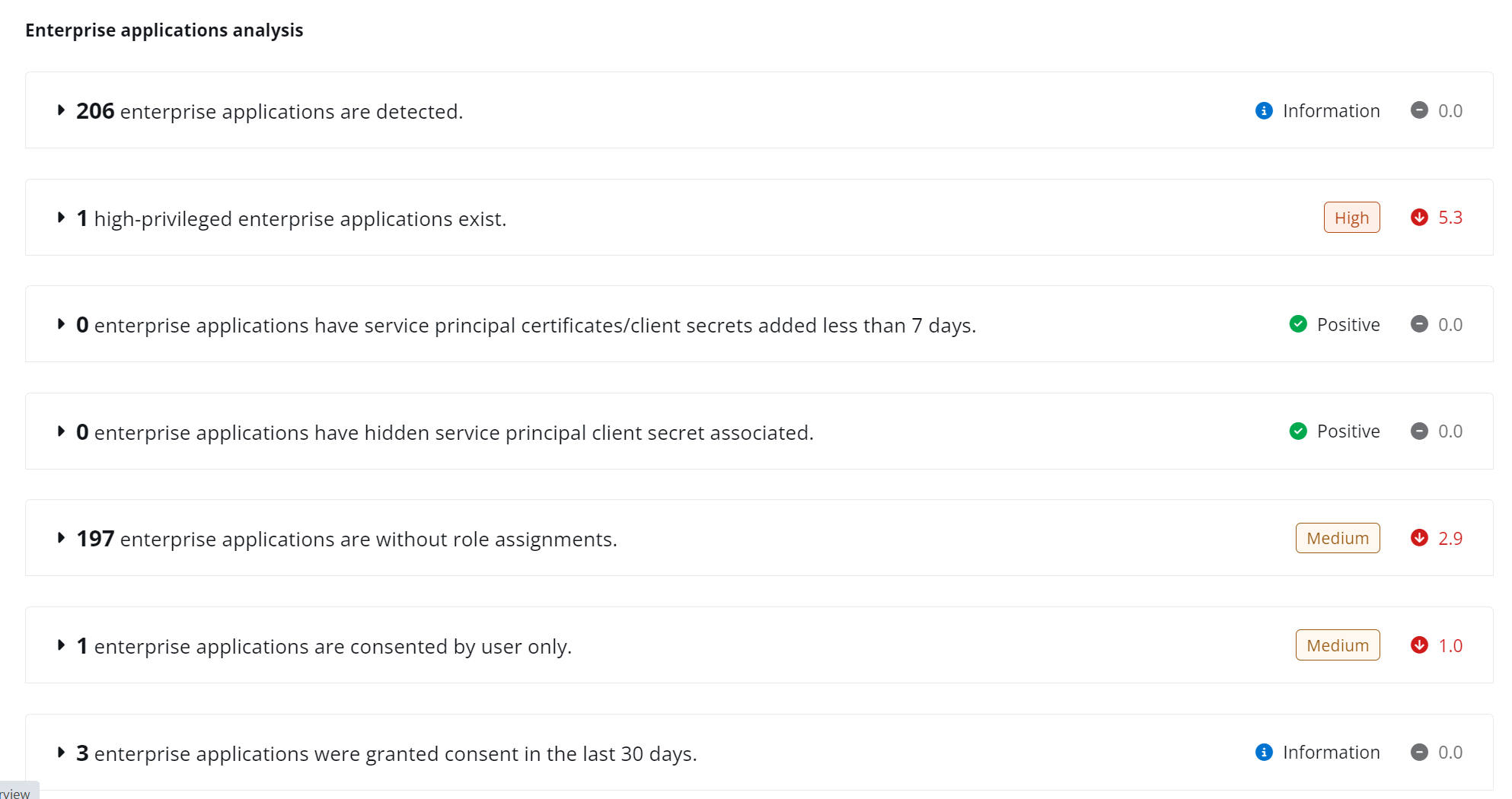
The Enterprise applications analysis statistical table shows the number of enterprise applications that match the corresponding risky rules.
Click name of the risky rule to learn why is important to monitor such issues.
Tenant settings analysis
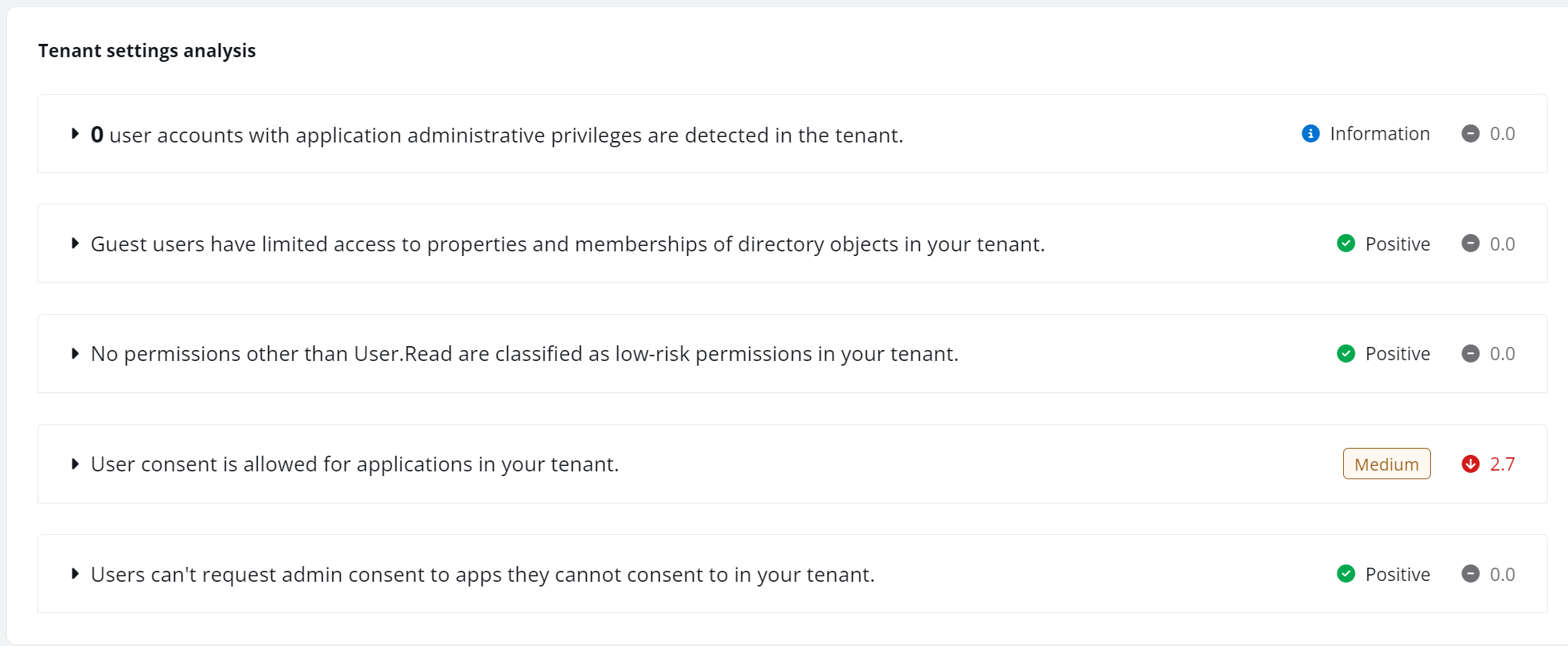
The Tenant settings analysis statistical table shows whether your tenant matches the corresponding risky rules.
Click the name of the risky rule to learn why it is important to monitor such issues.
Resolve Risky Rules
To resolve the detected risky issues identified by the risky rules and improve the health score of your tenant, select a resolution for the applications with risky rule detected on the risky rule Details page. The health score will increase based on the resolutions.
Select Resolutions
To select resolutions for the applications, navigate to Entra ID enterprise applications > Overview and complete the following steps:
-
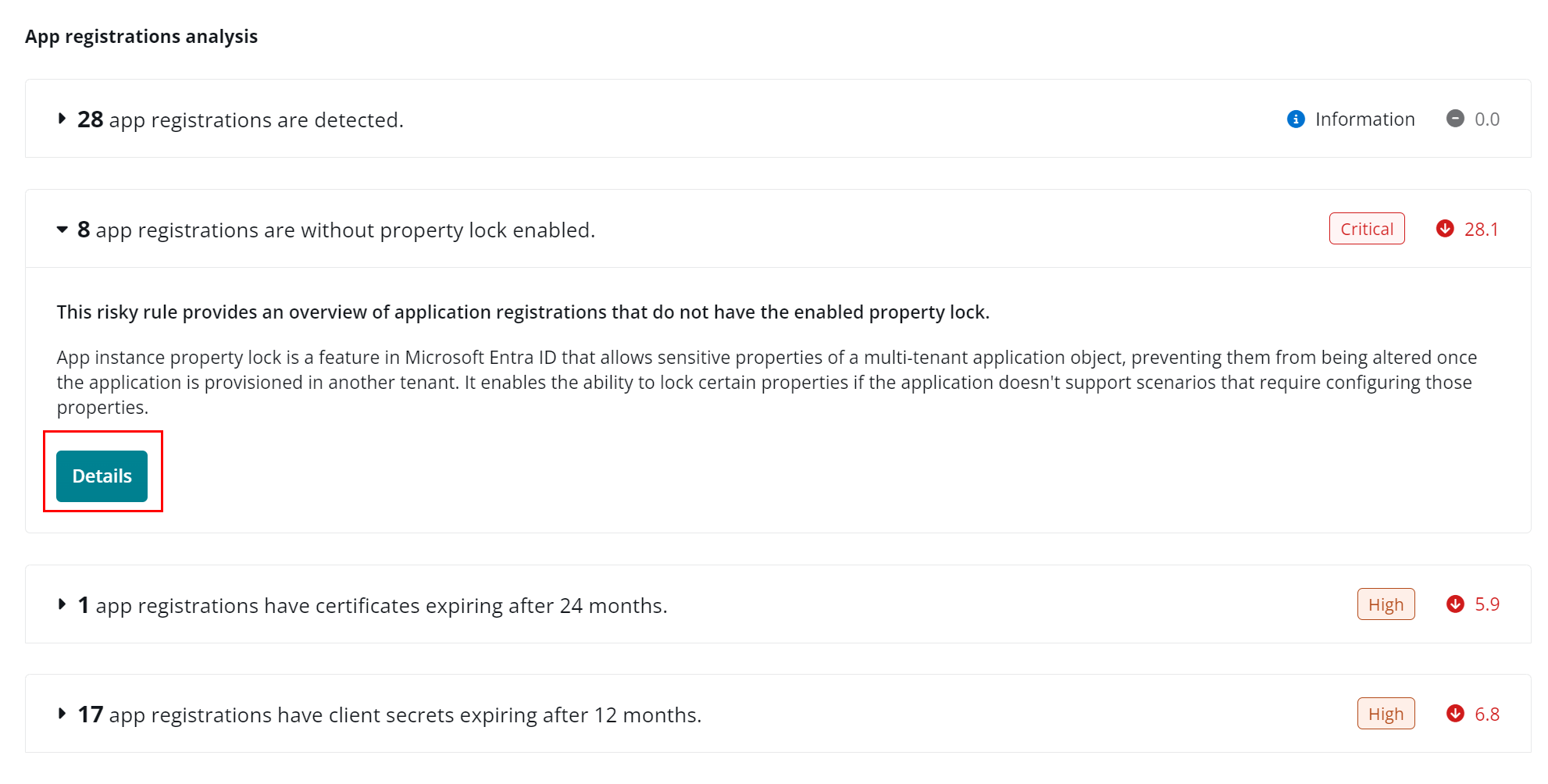
On the Overview page, select the corresponding risky rule and click Details.
-
On the Details page, applications that match the current risky rule are displayed under the Under review tab.
-
Select the application you want to resolve and click Resolve on the ribbon.
-
In the Resolve panel, complete the following configurations:
-
Resolution – Select a resolution for the application.
-
I have fixed the issue manually – Select after fixing the issue in your Azure environment.
-
The resolution Status for the application will change to Resolved.
-
The application will be removed from the Under review tab. If the application no longer matches the risky rule, the health score will be automatically updated after the next scan job,
-
-
Ignore this risky rule for the application – Select and specify the Ignored duration to ignore the risky rule for the application.
-
The ignored application will be moved to the Ignored tab.
-
The health score will be updated immediately, and the scan job will skip scanning this risky rule for the application during the specified duration.
-
-
-
Comments – Enter optional comments for the resolution.
-
-
Click Save.
Remove from Ignored List
To re-monitor the ignored applications, you can remove them from the ignored list by completing the following steps:
-
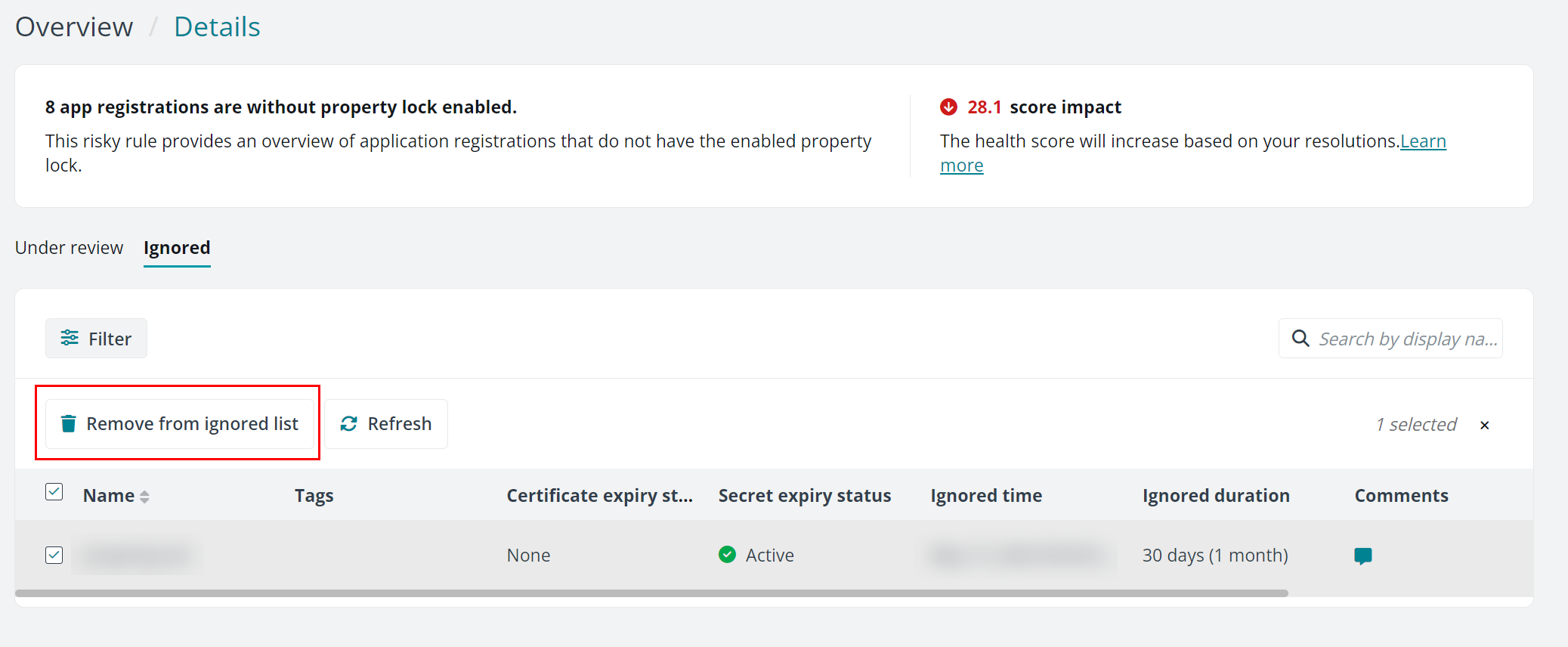
On the Details page, select the Ignored tab and check the applications that have been ignored from this risky rule.
-
Under the Ignored tab, select the applications and click Remove from ignored list on the ribbon.
-
Enter an optional description.
-
Click Remove. The applications will be rescanned. If they still meet the criteria of this risky rule, they will be displayed in the Under review tab. And the health score will be updated accordingly.