
Home > Get Started > Create App Profile
Download this articleCreate App Profile
To use EnPower, you must create and configure the required app profiles for authentication and data retrieval.
To set up the required app profiles:
-
Create the app profile - Select the app type for your management service. For details on apps required by EnPower, refer to Apps Used by EnPower.
For more details on creating the app profiles in AvePoint Online Services, refer to Manage App Profiles.
-
Consent app permissions - To retrieve and manage data in your tenants, the app needs to have required API permissions assigned and authorized by an account in your tenant. For the API permissions required by the app, refer to Permissions for App Authorization.
Additionally, when creating app profiles, the account used to authorize the apps must have the Global Administrator role. After the app is created, you can reauthorize the apps to apply the latest required permissions to the service app or to change the administrative role of the authorization account to the minimum required role.
For more information about app reauthorization, refer to Re-authorize an App Profile.
For the minimum roles and licenses required by the re-authorizing account, refer to Minimum Administrative Role Required for Re-Authorization.
-
Grant administrative roles to the app - For certain management operations, administrative roles are required to be assigned to the app used by your tenant, including:
-
For Exchange-related tasks, including recipient management and protection features, you need to go to the Microsoft Entra admin center (or Azure portal) to assign the Exchange Administrator role to the EnPower for Microsoft 365 or your custom Azure app.
-
For the retrieval of information barrier segments, the app you are using for EnPower Microsoft 365 management requires the Compliance Administrator role.
-
To perform the following actions against users with specific administrative roles, the higher administrative roles indicated in Who can perform sensitive actions must be granted to the app:
- Update user profile and phone numbers
- Restore deleted users
- Reset user password
- Block user sign-in
- Delete users and permanently delete users
- Invite users
For steps on assigning roles to your apps, see Assign Administrator Role to the App.
-
-
As of October 12, 2025, you must add a service principal to your tenant before creating or reauthorizing the Power Platform service app. This is required because the PowerPages.Websites.Read and PowerPages.Websites.Write API permissions for Power Pages management depend on that service principal.
If you are using a custom Azure app with delegated permissions and want to manage Power Pages within EnPower, a service principal is also required to assign the necessary API permissions to your app.
For more details on the service principal configurations, refer to Authentication.
-
To access the Sensitivity report for Teams management, you need to configure available Insights app profiles in your tenants. For detailed configuration and required permissions, refer to the Insights User Guide.
Apps Used by EnPower
Refer to the table below for the app requirements of each management service.
| Management service | App | Setup method | Description |
|---|---|---|---|
| Microsoft 365 management | EnPower for Microsoft 365 | Modern mode | The service app provided with all permissions required by the Microsoft 365 management in EnPower. |
| Microsoft 365 management | Reporting for Microsoft 365 | Modern mode | The app with permissions required by all dynamic workflows triggered by events and those triggered by activity-related conditions. |
| Microsoft 365 management | Azure app with delegated permissions | Custom mode | The custom app to which you can select the permissions to grant. You can use the Azure app with delegated permissions to meet your compliance policy. Refer to Permissions for Microsoft 365 Management for the permissions required by each Microsoft 365 management. *Note: After the app creation, an impersonation profile is required for mailbox and Group management functionalities. For details on the impersonation profile management refer to Settings. |
| Power Platform management | EnPower for Power Platform | Modern mode | The service app provided with all permissions required by the Power Platform management in EnPower. |
| Power Platform management | Reporting for Microsoft 365 | Modern mode | The app with permissions required by all dynamic workflows triggered by events and those triggered by activity-related conditions. |
| Power Platform management | Azure app with delegated permissions | Custom mode | The custom app to which you can select the permissions to grant. You can use the custom Azure app with delegated permissions to meet your compliance policy. Refer to Permissions for Power Platform Management for the permissions required by each Power Platform management. |
| Agents | AgentPulse | Modern mode | The app with permissions required by Microsoft 365, SharePoint, and Copilot Studio agents management. *Note: This app is available only for AgentPulse Trial subscription. |
| Agents | AgentPulse Enterprise | Modern mode | The app with permissions required by Microsoft 365, SharePoint, and Copilot Studio agents management. |
| Agents | AgentPulse Microsoft Foundry | Modern mode | The app with permissions required by Microsoft Foundry agent management. |
| Agents | Azure app with delegated permissions | Custom mode | The custom app for which you can select the permissions to grant. You can use the custom Azure app with delegated permissions to meet your compliance requirements. *Note: For SharePoint agent management, you must add a custom app with the required additional permissions to your tenants, even if the AgentPulse service apps have already been consented. For more details, refer to Permissions for Agents. |
| Calling management | EnPower for Teams Calling | Modern mode | The service app provided with all permissions required by the Calling management in EnPower. |
| Calling management | Reporting for Microsoft 365 | Modern mode | The app with permissions required by the report data collection for Calling related reports in EnPower. |
| Azure Resource Management | EnPower for Azure Resources | Modern mode | The service app provided with all permissions required by the Azure Resource Management in EnPower. |
| Azure Resource Management | Azure app | Custom mode | The custom app to which you can select the permissions to grant. You can use the custom Azure app to meet your compliance policy. Refer to Permissions for Microsoft Azure for the permissions required by each Microsoft 365 management. |
| Microsoft Entra Applications Management | EnPower for Microsoft Entra Applications | Modern mode | The service app provided with all permissions required by the Microsoft Entra Applications Management in EnPower. |
| Microsoft Entra Applications Management | Azure app | Custom mode | The custom app to which you can select the permissions to grant. You can use the custom Azure app to meet your compliance policy. Refer to Permissions for Azure Entra ID enterprise for the permissions required by each Microsoft Entra application management. |
Minimum Administrative Role Required for Re-Authorization
Refer to the following table to view the minimum administrative role required for the account used to re-authorize the apps:
| Management module | Service | Required role |
|---|---|---|
| Power Platform | Environment | Power Platform Administrator |
| Power Platform | Connections | Power Platform Administrator |
| Power Platform | Power Apps | Power Platform Administrator |
| Power Platform | Power Automate | Power Platform Administrator |
| Power Platform | Power BI | Fabric Administrator with Power BI license |
| Agents | Microsoft 365 agents | No admin role required |
| Agents | SharePoint agents | No admin role required |
| Agents | Copilot Studio agents | Power Platform Administrator with Power Platform license |
| Agents | Microsoft Foundry agents | Azure AI User role assigned in Azure portal > Subscriptions > Access control (IAM) |
| Microsoft 365 | Users | No admin role required |
| Microsoft 365 | Groups | Groups Administrator |
| Microsoft 365 | Mailboxes | No admin role required |
| Microsoft 365 | SharePoint | No admin role required |
| Microsoft 365 | OneDrive | No admin role required |
| Microsoft 365 | Teams | Teams Administrator |
| Calling | Users | Teams Administrator |
| Calling | Resource account | Teams Administrator |
| Calling | Phone numbers | Teams Administrator |
| Calling | Auto attendants | Teams Administrator |
| Calling | Call queues | Teams Administrator |
| Calling | Voice policy | Teams Administrator |
Configure Service Principal
Before creating the EnPower for Power Platform service app or a custom Azure app with the PowerPages.Websites.Read and PowerPages.Websites.Write API permissions, make sure that you have configured service principal in your tenant.
The following scenarios can occur when your tenant does not have the required service principal:
-
When creating the EnPower for Power Platform service app in AvePoint Online Services, the error message below appears.
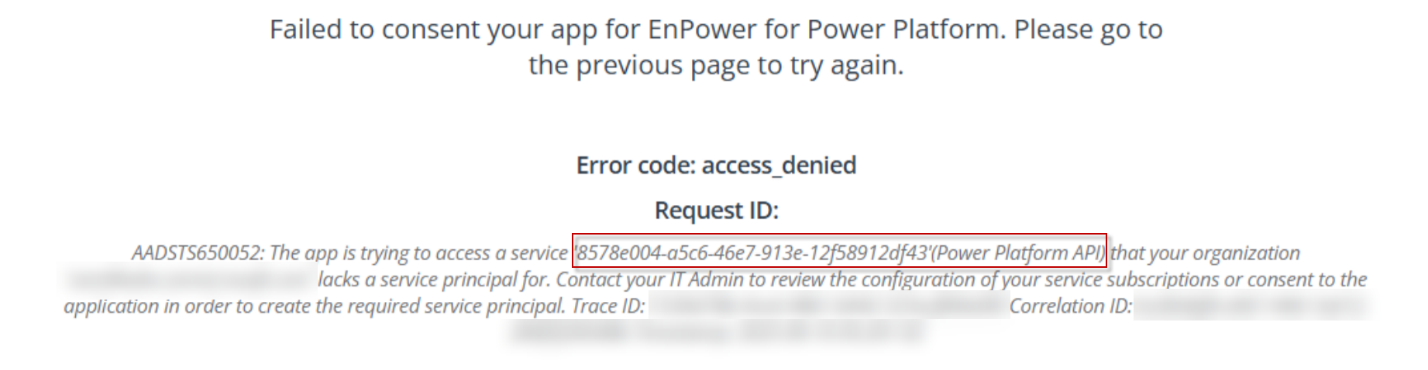
-
When granting API permissions to your custom Azure app, the following API permissions cannot be found under the Power Platform API:
-
PowerPages.Websites.Read
-
PowerPages.Websites.Write
-
To enable the service app consent and API permission assignment, ensure that you have a service principal in your tenant.
To create a service principal, make sure you have the Global Administrator role and run the PowerShell commands provided below:
-
#Install the Microsoft Graph PowerShell SDK moduleInstall-Module Microsoft.Graph -Scope CurrentUser -Repository PSGallery -Force -
Connect-MgGraphNew-MgServicePrincipal -AppId <your app ID> -DisplayName "Power Platform API"
After running the commands successfully, you will be able to continue with the service app consenting or API permission assignment.
Assign Administrator Role to the App
For EnPower for Microsoft 365, EnPower for Power Platform, and EnPower for Teams Calling service apps, as the apps are provisioned in Microsoft Entra ID, they need to have appropriate roles assigned.
-
For Exchange-related tasks, including recipient management and protection features, you need to go to the Microsoft Entra admin center (or Azure portal) to assign the Exchange Administrator role to the EnPower for Microsoft 365 and EnPower for Teams calling app.
-
For the retrieval of information barrier segments, the app you are using for EnPower Microsoft 365 management requires the Compliance Administrator role.
-
To perform the following action against users with specific administrative roles, higher administrative roles as indicated in Who can perform sensitive actions requires to be granted to the app:
-
Update user profile and phone numbers
-
Restore deleted users
-
Reset user password
-
Block user sign-in
-
Delete users and permanently delete users
-
Invite users
-
To assign the role, click Exchange Administrator, Compliance Administrator, or any other role on the Microsoft Entra admin center > Microsoft Entra ID roles and administrators page and follow the steps below:
-
Click Add assignments.
-
In the Add assignments panel, search for and select the app.
-
Click Add to assign the role.
Or you can assign custom Exchange Online role groups to the app. For details on assigning custom Exchange Online role groups, refer to Assign Custom Exchange Online Role Groups to the Application.
Refer to the table below for the required roles to assign when you create custom role groups in the Exchange Online admin center:
| Module | EnPower feature | Role | PowerShell Cmdlet |
|---|---|---|---|
| Microsoft 365 | Create distribution groups | Distribution Groups | New-DistributionGroup; |
| Microsoft 365 | Update distribution groups | Distribution Groups | Set-DistributionGroup; |
| Microsoft 365 | Update distribution groups | Distribution Groups | Set-DynamicDistributionGroup -Identity '0' -ManagedBy $null |
| Microsoft 365 | Update dynamic membership distribution group | Distribution Groups | Set-DynamicDistributionGroup; |
| Microsoft 365 | Update dynamic membership distribution group | Distribution Groups | Set-DynamicDistributionGroup -Identity '0' -ManagedBy $null |
| Microsoft 365 | Load distribution groups | Distribution Groups | Get-DistributionGroup; |
| Microsoft 365 | Load distribution group members | Distribution Groups | Get-DistributionGroupMember; |
| Microsoft 365 | Create dynamic distribution groups | Distribution Groups | New-DynamicDistributionGroup; |
| Microsoft 365 | Load dynamic distribution groups | Distribution Groups | Get-DynamicDistributionGroup; |
| Calling | Load dynamic distribution groups | Distribution Groups | Get-DynamicDistributionGroup; |
| Microsoft 365 | Load dynamic distribution group members | Distribution Groups | Get-DynamicDistributionGroupMember; |
| Microsoft 365 | Delete dynamic distribution groups | Distribution Groups | Remove-DynamicDistributionGroup; |
| Microsoft 365 | Delete distribution groups | Distribution Groups | Remove-DistributionGroup; |
| Microsoft 365 | Update distribution group members | Distribution Groups | Update-DistributionGroupMember; |
| Microsoft 365 | Update distribution group members | Distribution Groups | Update-DistributionGroupMember -Identity '0' -Members 1 -BypassSecurityGroupManagerCheck -Confirm:$False; |
| Microsoft 365 | Add distribution group members | Distribution Groups | Add-DistributionGroupMember; |
| Microsoft 365 | Delete distribution group members | Distribution Groups | Remove-DistributionGroupMember; |
| Microsoft 365 | Create mailboxes | Mail Recipient Creation | New-Mailbox; |
| Microsoft 365 | Delete mailboxes | Mail Recipient Creation | Remove-Mailbox; |
| Microsoft 365 | Update mailbox details | Mail Recipient Creation | Set-MailboxFolderPermission; |
| Microsoft 365 | Create mail contacts | Mail Recipient Creation | New-MailContact; |
| Microsoft 365 | Delete mail contacts | Mail Recipient Creation | Remove-MailContact; |
| Microsoft 365 | Delete mail users | Mail Recipient Creation | Remove-MailUser; |
| Microsoft 365 | Update mailboxes | Mail Recipients | Set-Mailbox; |
| Microsoft 365 | Update mailboxes | Mail Recipients | Add-MailboxPermission; |
| Microsoft 365 | Update mailboxes | Mail Recipients | Add-RecipientPermission; |
| Microsoft 365 | Update mailboxes | Mail Recipients | Set-Mailbox -Identity '0' -EmailAddresses 1; |
| Microsoft 365 | Update mailboxes | Mail Recipients | Set-MailboxAutoReplyConfiguration; |
| Microsoft 365 | Update mailboxes | Mail Recipients | Set-MailboxRegionalConfiguration; |
| Microsoft 365 | Update mailboxes | Mail Recipients | Add-MailboxFolderPermission; |
| Microsoft 365 | Update mailboxes | Mail Recipients | Remove-MailboxFolderPermission; |
| Microsoft 365 | Update mailboxes | Mail Recipients | Remove-MailboxPermission; |
| Microsoft 365 | Update mailboxes | Mail Recipients | Remove-RecipientPermission; |
| Microsoft 365 | Update mailboxes | Mail Recipients | Set-CASMailbox; |
| Microsoft 365 | Update mailboxes | Mail Recipients | Set-CalendarProcessing; |
| Microsoft 365 | Update mailboxes | Mail Recipients | Set-User; |
| Microsoft 365 | Load mailbox details | Mail Recipients | Get-MailboxPermission; |
| Microsoft 365 | Load mailbox details | Mail Recipients | Get-RecipientPermission; |
| Microsoft 365 | Load mailbox details | Mail Recipients | Get-MailboxAutoReplyConfiguration; |
| Microsoft 365 | Load mailbox details | Mail Recipients | Get-MailboxRegionalConfiguration; |
| Microsoft 365 | Load mailbox details | Mail Recipients | Get-CASMailbox; |
| Microsoft 365 | Load mailbox details | Mail Recipients | Get-CalendarProcessing; |
| Microsoft 365 | Load mailbox details | Mail Recipients | Get-User; |
| Microsoft 365 | Load mailbox details | Mail Recipients | Get-MailboxFolderPermission; |
| Microsoft 365 | Update mailbox archive settings | Mail Recipients | Enable-Mailbox; |
| Microsoft 365 | Update mailbox archive settings | Mail Recipients | Disable-Mailbox; |
| Microsoft 365 | Update Microsoft 365 Groups | Mail Recipients | Set-UnifiedGroup; |
| Microsoft 365 | Add group delegates | Mail Recipients | Add-RecipientPermission; |
| Microsoft 365 | Remove group delegates | Mail Recipients | Remove-RecipientPermission; |
| Microsoft 365 | Load Microsoft 365 Groups | Mail Recipients | Get-UnifiedGroup; |
| Microsoft 365 | Load group delegates | Mail Recipients | Get-RecipientPermission; |
| Microsoft 365 | Load mail contacts | Mail Recipients | Get-Contact; |
| Microsoft 365 | Load mail contacts | Mail Recipients | Get-MailContact; |
| Microsoft 365 | Update mail contacts | Mail Recipients | Set-Contact; |
| Microsoft 365 | Update mail contacts | Mail Recipients | Set-MailContact; |
| Microsoft 365 | Load mail users | Mail Recipients | Get-MailUser; |
| Microsoft 365 | Update mail users | Mail Recipients | Set-MailUser; |
| Microsoft 365 | Scan mailboxes | Mail Recipients | Get-Mailbox; |
| Microsoft 365 | Scan recipients | Mail Recipients | Get-Recipient; |
| Microsoft 365 | Scan recipients | Mail Recipients | Get-Recipient -Identity 0; |
| Microsoft 365 | Load mailbox policies | View-Only Configuration; Mail Recipient Creation | Get-SharingPolicy; |
| Microsoft 365 | Load mailbox policies | View-Only Configuration; Mail Recipient Creation | Get-RoleAssignmentPolicy; |
| Microsoft 365 | Load mailbox policies | View-Only Configuration; Mail Recipient Creation | Get-AddressBookPolicy; |
| Microsoft 365 | Load mailbox policies | View-Only Configuration | Get-RetentionPolicy; |
Grant Reader Role for Azure Resources Monitoring
For the retrieval and monitoring of your Microsoft Azure resources, the app you are using for EnPower Microsoft Azure management requires the Reader role.
To assign the role, go to the Microsoft Azure portal > Subscriptions page, and follow the steps below to add the AvePoint EnPower for Azure Resources and grant Reader role to each subscription where the Microsoft Azure resources you want to monitor belongs to:
The user to add this app to the subscription and grant it the Reader role must be the Owner of the subscription or the User access administrator of your tenant.
-
On the Subscription page, find the list of subscriptions. You can filter the subscriptions in the list or search for subscriptions via keywords.
-
Click a subscription.
-
Click Access control (IAM) on the left pane.
-

-
On the Access control (IAM) page, click Add on the action bar and select Add role assignment from the dropdown list.
-
In the Add role assignment pane, click Reader from the Role tab, and then click Next.
-
In the Members list, find the Members field, and click Select members.
-
In the Select members pane, enter a keyword in the Select box to search for the AvePoint EnPower for Azure Resources. Click the app to add it to the Selected members field and click the Select button.
-
Click the Review + assign button to review the role assignment and click this button again to add this app as Reader for your subscription.