
Home > Dashboard > OneDrive Dashboards
Download this articleOneDrive Dashboards
EnPower provides a tenant-level default dashboard and a container-level default dashboard for OneDrive, including:
OneDrive Activity and Usage Dashboard
The following are tenant-level charts for OneDrive. They are included in the default tenant-level dashboard. You can also add them to your custom OneDrive dashboards as gadgets. However, the tenant-level charts can only be added to tenant-level dashboards.
File Activity
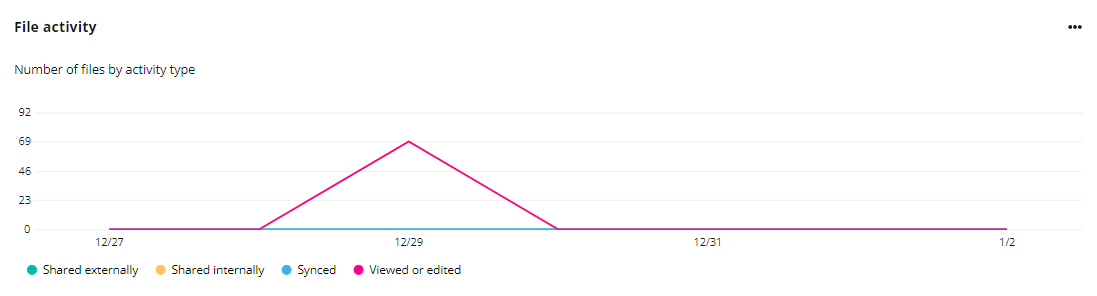
The File activity chart shows the number of files in your tenants by user activity type regarding the files. The X-axis depicts the selected time range, and the Y-axis depicts the number of activities for each activity type.
To highlight a specific line in the chart, hover your mouse over the data category below the chart.
To hide a specific line in the chart, click the data category, and the corresponding line in the chart will be hidden. You can hover your mouse over the line to view the detailed number of the active accounts or total accounts each day.
User Activity
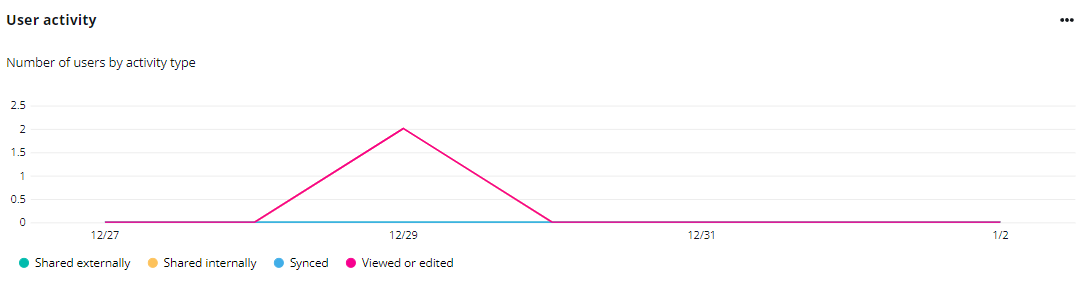
The User activity chart shows the number of users by user activity type. The X-axis depicts the selected time range, and the Y-axis depicts the number of activities for each activity type.
To highlight a specific line in the chart, hover your mouse over the data category below the chart.
To hide a specific line in the chart, click the data category, and the corresponding line in the chart will be hidden. You can hover your mouse over the line to view the detailed number of the active accounts or total accounts each day.
Active Accounts

The Active accounts chart shows the number of total and active accounts in your tenants. The X-axis depicts the selected time range for the chart, and the Y-axis depicts the number of accounts.
To highlight a specific line in the chart, hover your mouse over the data category below the chart.
To hide a specific line in the chart, click the data category, and the corresponding line in the chart will be hidden. You can hover your mouse over the line to view the detailed number of the active accounts or total accounts each day.
Active Files

The Active files chart shows the number of total and active files in your tenants. The X-axis depicts the selected time range for the chart, and the Y-axis depicts the number of files.
To highlight a specific line in the chart, hover your mouse over the data category below the chart.
To hide a specific line in the chart, click the data category, and the corresponding line in the chart will be hidden. You can hover your mouse over the line to view the detailed number of the active files and total files each day.
To export this chart, expand the action list in the upper-right corner of the chart. Then click Export gadget to download the exported chart.
Storage

The Storage chart shows the amount of used OneDrive storage in your tenants. The X-axis depicts the selected time range for the chart, and the Y-axis depicts the amount of storage used.
Hover your mouse over the line to view the detailed amount of used storage each day.
To export this chart, expand the action list in the upper-right corner of the chart. Then click Export gadget to download the exported chart.
OneDrive Storage Dashboard
The following are container-level charts for OneDrive. They are included in the default container-level dashboard. You can also add them to your custom OneDrive dashboards as gadgets. However, the container-level charts can only be added to container-level dashboards.
Total Storage Used

The Total storage used shows the total used OneDrive storage in your containers.
Expand the action list in the upper-right corner of the chart. Then click View more to go to the OneDrive page to view the storage used by OneDrive in your containers.
Total Files

The Total files shows the total number of files in OneDrive storage in your containers.
Expand the action list in the upper-right corner of the chart. Then click View more to go to the OneDrive page to view the number of files in OneDrive in your containers.
Storage Used by Blocked Users

The Storage used by blocked users shows the OneDrive storage used by blocked users in your containers.
Expand the action list in the upper-right corner of the chart. Then click View more to go to the OneDrive page to view the storage used by blocked users’ OneDrive in your containers.
Files of Blocked Users

The Files of blocked users shows the number of files owned by blocked users in your containers.
Expand the action list in the upper-right corner of the chart. Then click View more to go to the OneDrive page to view the number of files in blocked users’ OneDrive in your containers.
Top 10 Users by Storage
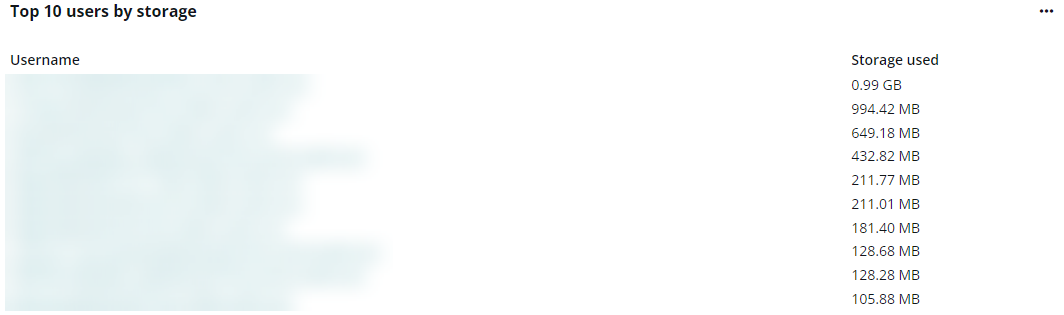
The Top 10 users by storage chart shows the OneDrive users with the greatest amount of used storage in your containers. You can click the username of each user to go to the OneDrive details page to view and manage OneDrive.
Expand the action list in the upper-right corner of the chart. Then click View more to go to the OneDrive page to view the storage used by OneDrive in your containers.