
Home > Dashboard > Teams Dashboards
Download this articleTeams Dashboards
EnPower provides a tenant-level default dashboard and three container-level default dashboards. For details on each dashboard, refer to the following sections.
To ensure the data retrieval of the Teams User Adoption dashboard, apart from Teams containers, users in your tenants need to be scanned into Microsoft 365 User containers in AvePoint Online Services.
Teams Analytics Dashboard
The following are tenant-level charts on the default Teams analytics dashboard and can be added to your custom tenant-level Teams dashboards.
Teams User Activity
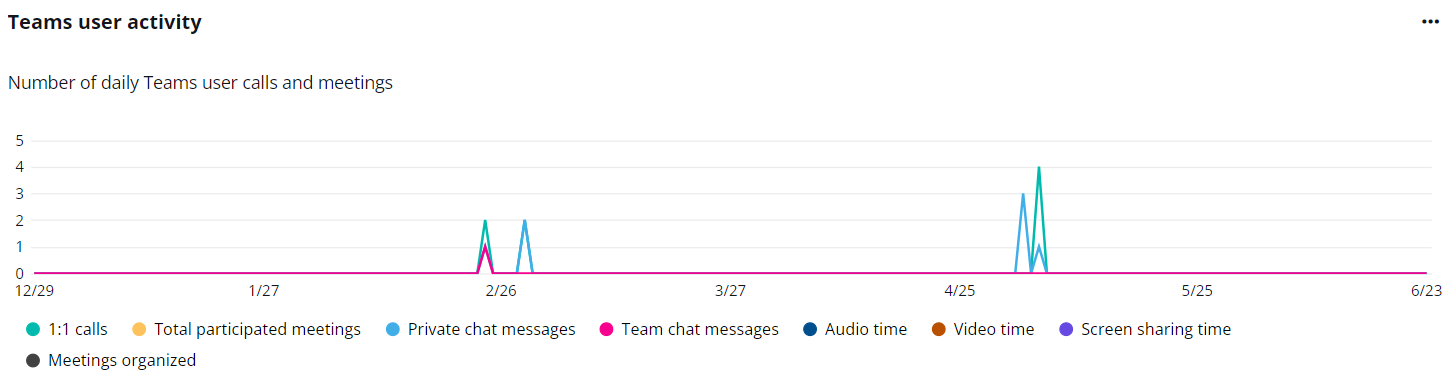
The Teams user activity chart shows the number of Teams activity performed by users during the selected time range. On the chart, the X-axis depicts the selected date range for the chart, and the Y-axis depicts the count of user activity, including 1:1 Calls, Total participated meetings, Private chat messages, Team chat messages, Audio time, Video time, Screen sharing time, and Meetings organized.
To highlight a specific line in the chart, hover your mouse over each data category below the chart.
To hide a specific line in the chart, click the data category below the chart, the corresponding line in the chart will be hidden. You can hover your mouse over the line to view the detailed number of activities each day.
Device Usage
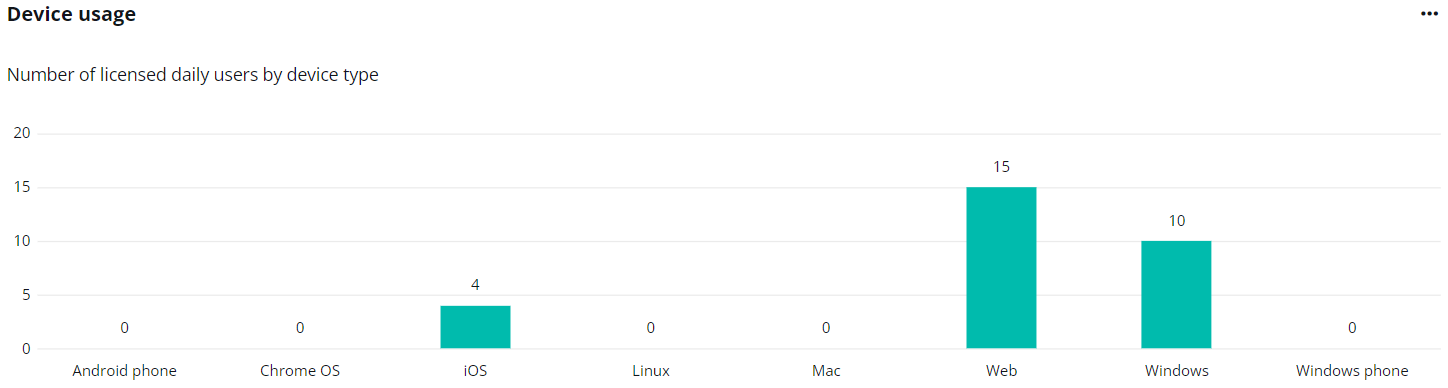
The Device usage chart shows the number of devices your tenant users utilize to access Microsoft Teams during the selected time range. The X-axis on the chart shows the devices, including Android phone, Chrome OS, iOS, Linux, Mac, Web, Windows, and Windows phone. The Y-axis shows the number of users using the device during the selected time range. You can hover your mouse over the bars to view the detailed number of devices used by your users.
From September 2021, user level information contained in Microsoft 365 reports in the Admin center is pseudonymized by default. To enable EnPower to retrieve data for the Teams activity chart and the Device chart, you need to deselect the Display concealed user, group, and site names in all report setting in the Reports panel on the Microsoft 365 admin center > Settings > Org settings page.
Calling plan/SMS
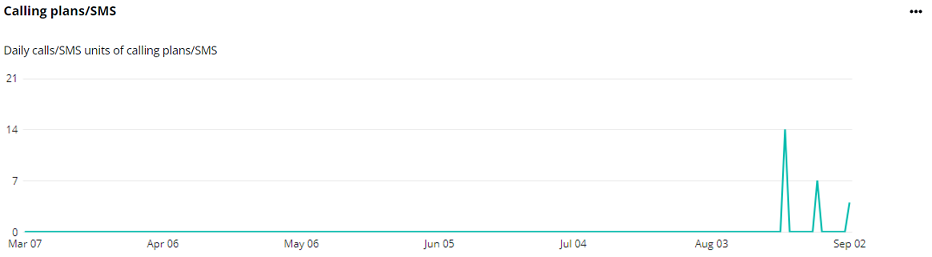
The Calling plan/SMS chart shows the information on users’ inbound and outbound PSTN calls and their costs. The X-axis depicts the selected date range for the report, and the Y-axis depicts the total number of calls over the selected time period. You can hover your mouse over the line to view the detailed number of calls each day.
Direct Routing
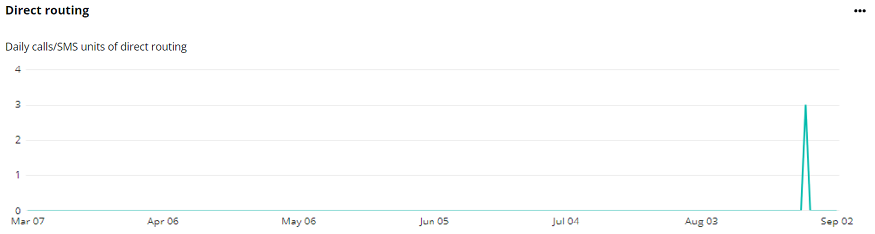
The Direct routing chart shows the information on the direct routing, including the SIP address and calls start and end times. The X-axis depicts the selected date range for the report. The Y-axis depicts the total number of calls over the selected time range. You can hover your mouse over the line to view the detailed number of calls each day.
Teams Activity Dashboard
The following are container-level charts included in the default Teams activity dashboard and added to your custom container-level Teams dashboards:
Teams Without Owners

The Teams without owners shows the number of Teams without owners in your selected containers.
Expand the action list in the upper-right corner of the chart. Then click View more to go to the Teams page to view the number of Teams without owners in the selected containers.
Inactive Teams

The Inactive Teams shows the number of inactive Teams in your selected containers.
Expand the action list in the upper-right corner of the chart. Then click View more to go to the Teams page to view the number of inactive Teams in the selected containers.
Empty Teams

The Empty Teams shows the number of Teams that has no members in your selected containers.
Expand the action list in the upper-right corner of the chart. Then click View more to go to the Teams page to view the number of empty Teams in the selected containers.
Teams with External Users

The Teams with external users shows the number of Teams with external users in your selected containers.
Expand the action list in the upper-right corner of the chart. Then click View more to go to the Teams page to view the number of Teams with external users in the selected containers.
Top 10 Teams by Members
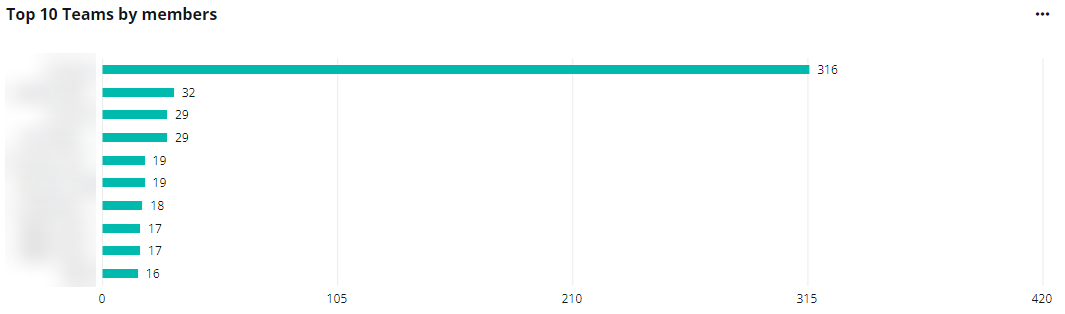
The Top 10 Teams by members chart shows the Teams with the greatest number of members in your selected containers. You can click the name of each Team to go to the Team details page to view and manage the Team.
Expand the action list in the upper-right corner of the chart. Then click View more to go to the Teams page to view the number of members in Teams in the selected containers.
Top 10 Teams by Channels
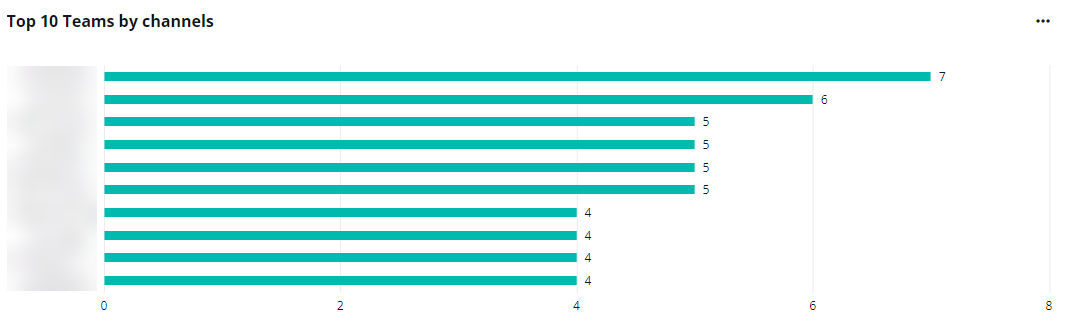
The Top 10 Teams by channels chart shows the Teams with the greatest number of channels in your selected containers. You can click the name of each Team to go to the Team details page to view and manage the Team.
Expand the action list in the upper-right corner of the chart. Then click View more to go to the Teams page to view the number of channels in Teams in the selected containers.
Top 10 Teams by Activity
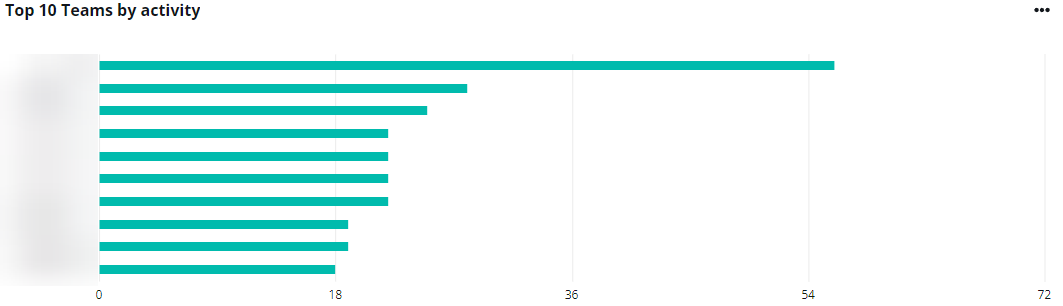
The Top 10 Teams by activity chart shows the Teams with the greatest number of activities in your selected containers. You can click the name of each Team to go to the Teams details page to view and manage the Team.
Public vs Private Teams
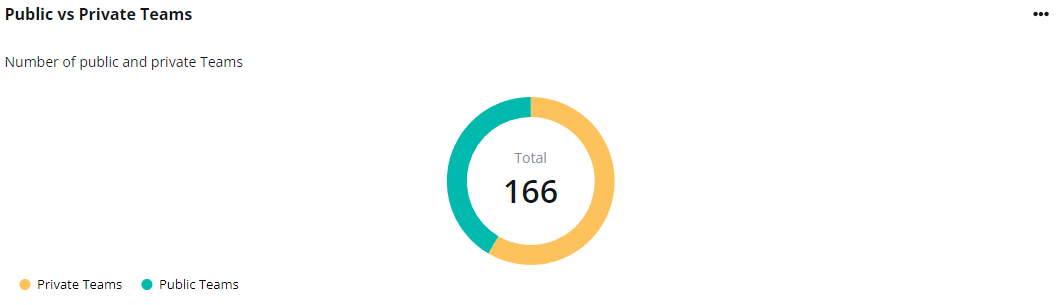
The Public vs Private Teams shows the total number of Teams, and number of public and private Teams in your selected containers.
To hide the data for a specific Team type, click the Private Teams or Public Teams data category. The corresponding data in the chart will be hidden. You can hover your mouse over the chart to view the detailed number of public or private Teams.
Expand the action list in the upper-right corner of the chart. Then click View more to go to the Teams page to view the number of private and public Teams in the selected containers.
Teams Users Dashboard
The following are container-level charts included in the default Teams users dashboard.
Active Users

This gadget shows the number of active Teams users in your selected containers.
Expand the action list in the upper-right corner of the chart. Then click View more to go to the User report page to view the number of active users in the selected containers.
Inactive Users

This gadget shows the number of inactive Teams users in your selected containers.
Expand the action list in the upper-right corner of the chart. Then click View more to go to the Teams > User report page to view the number of inactive users in the selected containers.
Active vs Inactive Users
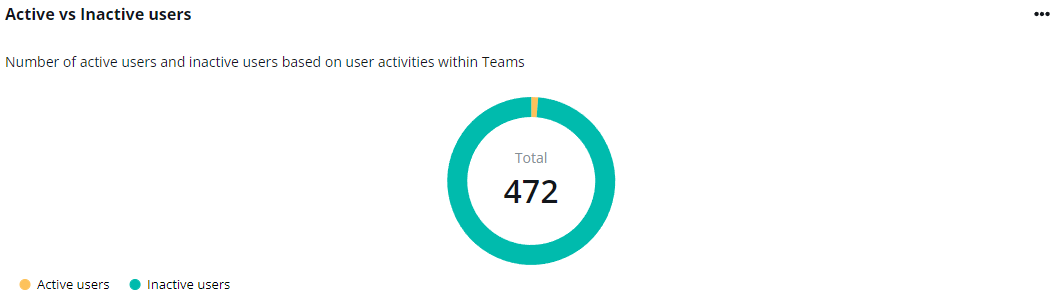
This gadget shows the number of active users and inactive users in your selected containers based on user activities within Teams with a pie chart.
Expand the action list in the upper-right corner of the chart. Then click View more (Active users)/ View more (Inactive users) to go to the Teams > User report page to view the number of active/inactive users in the selected containers.
Teams User Adoption Dashboard
The following are the container-level dashboard included in the default Teams user adoption dashboard and added to your custom container-level Teams dashboard.
To ensure the data retrieval of this dashboard, apart from Teams containers, users in your tenants need to be scanned into user containers in AvePoint Online Services.
Active Users

This gadget shows the numbers of active Teams users in your containers for the two selected months, as well as the number of active users increased/decreased.
Expand the action list in the upper-right corner of the chart. Then click View the latest user report. You will be navigated to the Teams > User report page to view the latest active users in the selected containers.
1:1 Calls and Meetings

This gadget shows the numbers of 1:1 calls and meetings in Teams in your containers for the two selected dates, as well as the percentage of the number of calls and meetings that increased/decreased.
Expand the action list in the upper-right corner of the chart. Then click View the latest user report. You will be navigated to the Teams > User report page to view the latest number of 1:1 calls and meetings in the selected containers.
Audio and Video Time (Min)

This gadget shows the duration of audio and video calls and meetings in Teams in your containers for the two selected dates, as well as the percentage of the duration of calls and meetings increased/decreased.
Expand the action list in the upper-right corner of the chart. Then click View the latest user report. You will be navigated to the Teams > User report page to view the latest 1:1 calls and meetings duration in the selected containers.
Chats

This gadget shows the number of chat messages in your containers for the two selected dates, as well as the number of messages that increased/decreased.
Expand the action list in the upper-right corner of the chart. Then click View the latest user report. You will be navigated to the Teams > User report page to view the latest number of chat messages in the selected containers.
Active users in departments
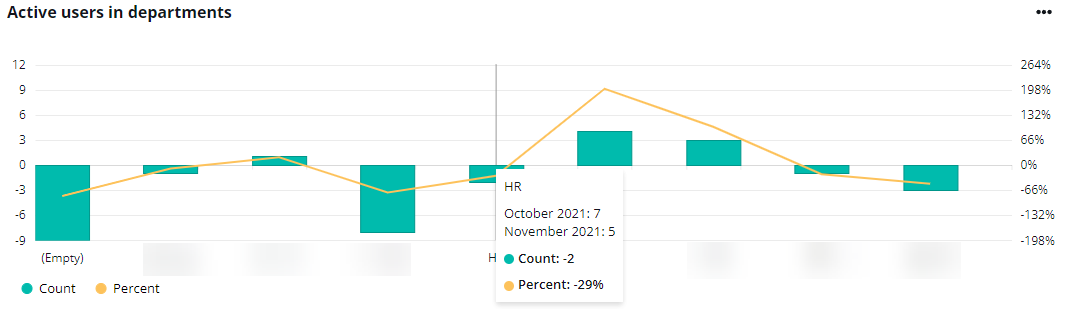
This chart shows the number of active Teams users in each department in your containers for the two selected dates, as well as the number and percentage of active users that increased/decreased. The X-axis depicts the departments, and the Y-axis depicts the number and percentage increased/decreased.
Hover your mouse over the bars to see the number of active users as well as the increased/decreased number and percentage of active users in this department in the two selected months.
Expand the action list in the upper-right corner of the chart. Then click View the latest user report. You will be navigated to the Teams > User report page to view the latest active users in the selected containers.
Chats in departments
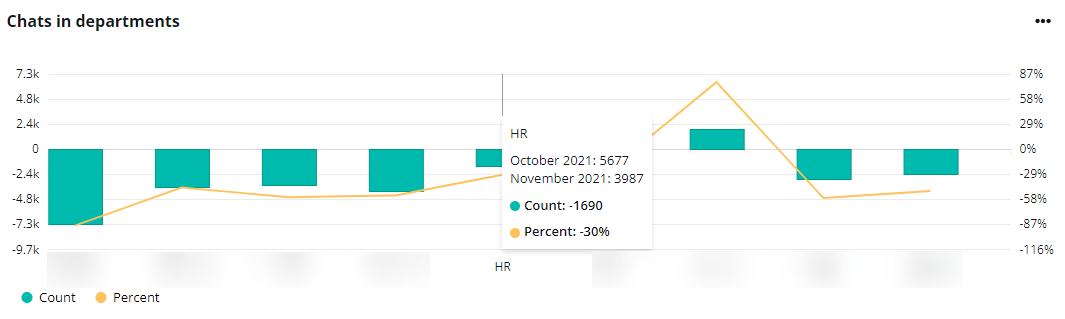
This gadget shows the number of chat messages in each department in your containers for the two selected dates, as well as the percentage and count of message numbers that increased/decreased. The X-axis depicts the departments, and the Y-axis depicts the number and percentage increased/decreased.
Hover your mouse over the bars to see the number of chats as well as the increased/decreased number and percentage of chats in this department in the two selected months.
Expand the action list in the upper-right corner of the chart. Then click View the latest user report. You will be navigated to the Teams > User report page to view the latest number of chat messages in the selected containers.
Audio and video time in departments (min)
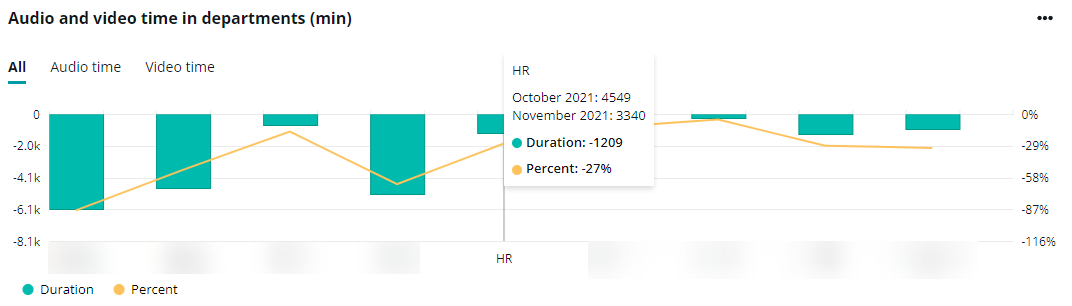
This gadget shows the duration of audio and video calls in each department in your containers for the two selected dates, as well as the duration and percentage of audio and video calls, increased/decreased. The X-axis depicts the departments, and the Y-axis depicts the number and percentage of minutes increased/decreased.
Hover your mouse over the bars to see the audio and video time duration as well as the increased/decreased minutes and percentage of audio and video time in this department in the two selected months.
Expand the action list in the upper-right corner of the chart. Then click View the latest user report. You will be navigated to the Teams > User report page to view the latest 1:1 calls and meetings duration in the selected containers.
1:1 calls and meetings in departments
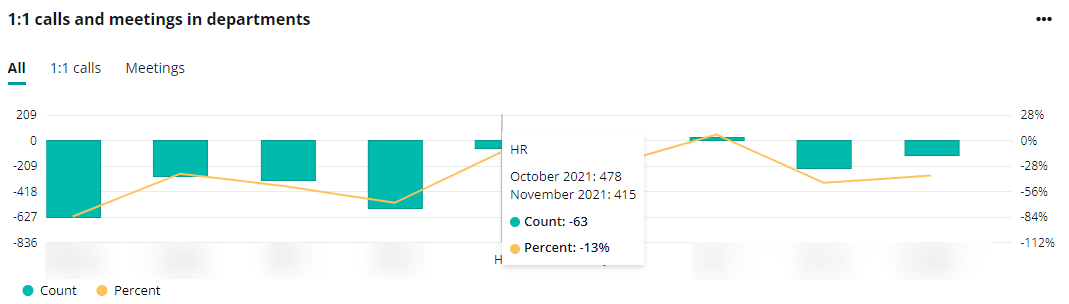
This gadget shows the number of 1:1 calls and meetings in each department in your containers for the two selected dates, as well as the number and percentage of calls and meetings increased/decreased.
Hover your mouse over the bars to see the number of 1:1 calls and meetings as well as the increased/decreased number and percentage of calls and meetings in this department in the two selected months.
Expand the action list in the upper-right corner of the chart. Then click View the latest user report. You will be navigated to the Teams > User report page to view the latest number of 1:1 calls and meetings in the selected containers.