
Home > Dashboard > Power BI Dashboard
Download this articlePower BI Dashboard
EnPower provides two container-level default dashboards for Power BI to show the creation and rankings of both Power BI workspaces and artifacts.
For more details on the dashboards and their charts, refer to the following sections.
Workspace Overview Dashboard
On the Workspace overview dashboard, the numbers, trends, and rankings of your workspaces are displayed to provide insights of the workspace creation and usage in your tenants.
Refer to the following sections for the details about the available gadget on this dashboard.
Due to the data access limitations, data of personal workspaces cannot be retrieved or displayed on this dashboard.
Total Workspaces

The Total workspaces card shows the current total number of workspaces and the difference with the data of the last month.
Created This Month
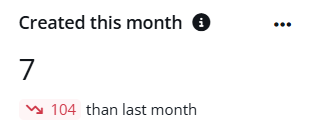
The Created this month card shows the number of workspaces created in this month and the difference with the data of the last month.
Workspace Creators

The Workspaces creators card shows the current total number of users who have created artifacts and difference with the data of the last month.
Workspaces Created in the Past 12 Months
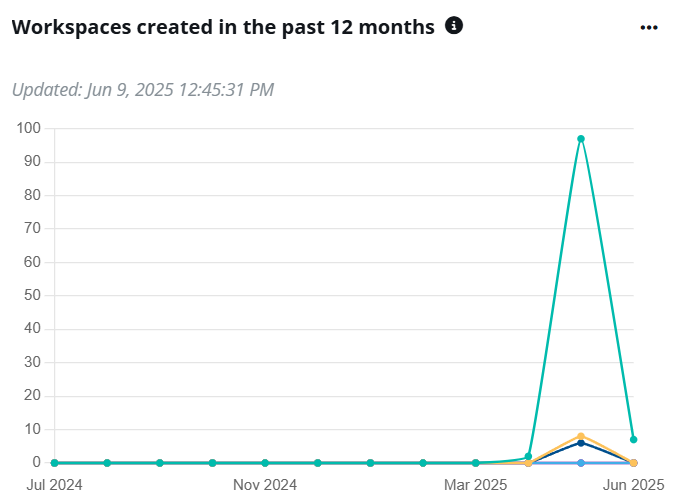
The Workspaces created in the past 12 months chart shows the number of workspaces created in the past 12 months by their current status, including:
-
Active - This status indicates that the workspace is available and accessible for use.
-
Orphaned - An orphaned workspace is one that does not have an admin user assigned to it. This can happen if the admin leaves the organization or their account is deactivated without transferring ownership.
-
Not found: This status typically indicates that the workspace cannot be located, possibly due to it being deleted or not existing in the current context.
-
Removing: This status indicates that the workspace has been marked for deletion and is in the process of being permanently removed from the Power BI service.
-
Deleted: A deleted workspace still exists in the Power BI service but is no longer accessible for use. It may be retained for a period before being permanently removed.
You can hover your mouse over the line to view the detailed number.
Workspace Creation in Creator’s Departments
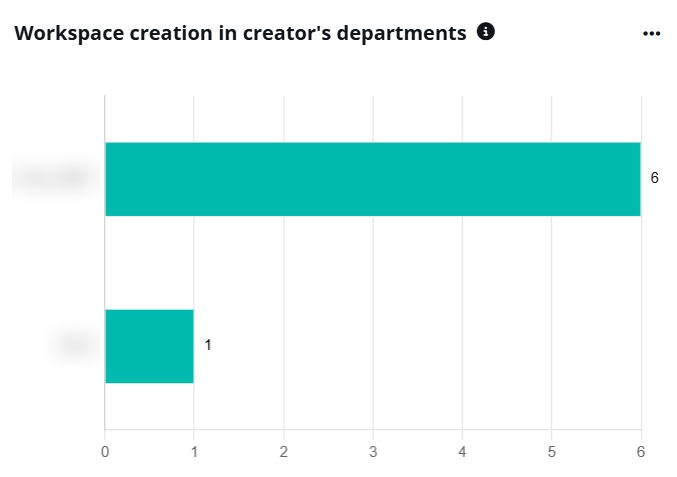
The Workspace creation in creator’s departments chart shows the number of workspaces created by the department of the creator. The X-axis depicts the number of workspaces created and the Y-axis depicts the departments.
Hover your mouse over the bars to view the detailed number of workspaces of each type created for each department.
Workspace Creation in Regions

The Workspace creation in regions chart shows the number of workspaces created in each department. The X-axis depicts the number of workspaces created and the Y-axis depicts the departments.
Hover your mouse over the bars to view the detailed number of artifacts of each type created for each department.
Workspace Ranking by Artifact Types
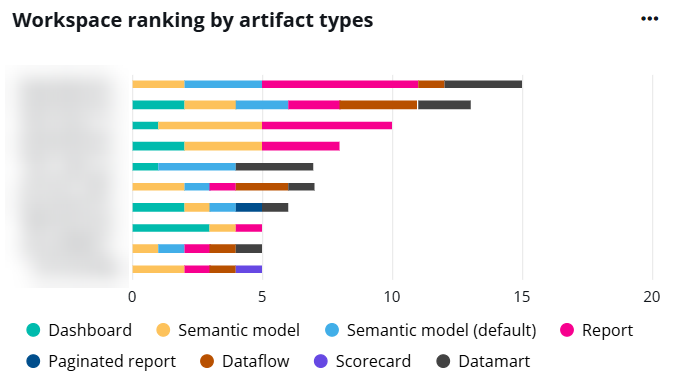
The Workspace ranking byartifact types chart ranks workspaces by the number of artifacts they contain.
To view the workspace's full name and artifact number, hover your mouse over the bar.
To hide data of a specific artifact type, click the artifact type below the chart.
Workspace Creation Trend
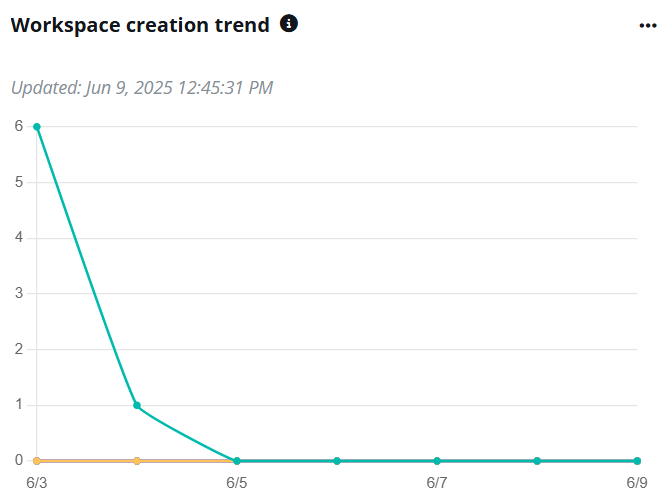
The Workspace creation trend chart shows the changes of the number of workspaces created in the selected time range by their current status, including:
-
Active - This status indicates that the workspace is available and accessible for use.
-
Orphaned - An orphaned workspace is one that does not have an admin user assigned to it. This can happen if the admin leaves the organization or their account is deactivated without transferring ownership.
-
Not found: This status typically indicates that the workspace cannot be located, possibly due to it being deleted or not existing in the current context.
-
Removing: This status indicates that the workspace has been marked for deletion and is in the process of being permanently removed from the Power BI service.
-
Deleted: A deleted workspace still exists in the Power BI service but is no longer accessible for use. It may be retained for a period before being permanently removed.
You can hover your mouse over the line to view the detailed number of artifacts created on a specific date.
Artifact Overview Dashboard
On the Artifact overview dashboard, you can check the number of your artifact and data of artifact activities, including artifact creation and views. They are all container-level reports and can only be added to container-level dashboards.
- Currently, the following types of artifacts are retrieved and displayed:
- Semantic model
- Semantic model (default)
- Report
- Paginated report
- Scorecard
- Dataflow
- Dashboard
- Datamart
When these artifacts are included in app, they cannot be viewed or managed in EnPower.
- Data of scorecards is only included in the Total artifacts card.
Refer to the following sections for the details about the available gadget on this dashboard.
Total Artifacts
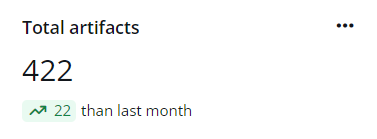
The Total artifacts card shows the current total number of artifacts and the difference with the data of the last month.
Created This Month
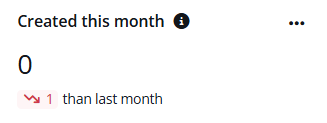
The Created this month card shows the number of artifacts created in this month and the difference with the data of the last month.
Artifact Creators
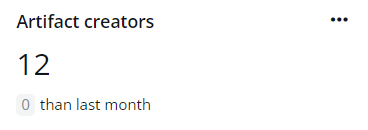
The Artifact creators card shows the current total number of users who have created artifacts and difference with the data of the last month.
Artifact Creation Trend

The Artifact creation trend chart shows the changes of the number of artifacts created on each day in the defined time range.
You can hover your mouse over the line to view the detailed number of artifacts created on a specific date.
To hide data of a specific artifact type, click the artifact type below the chart.
Top Artifact Creators and Viewers
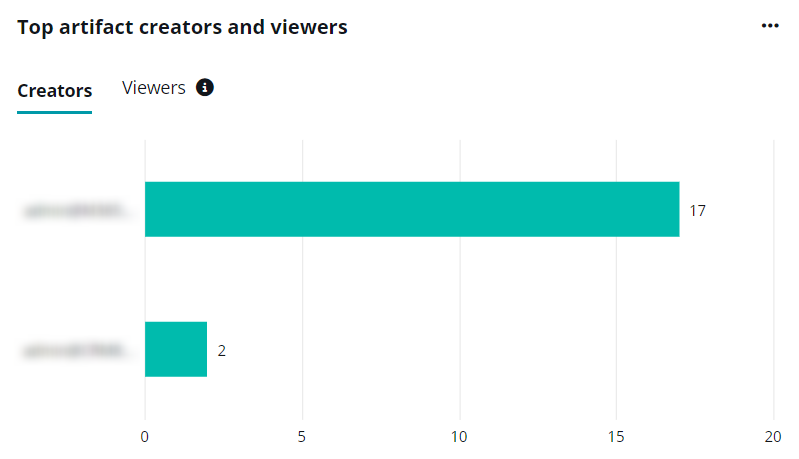
The Top artifact creators and viewers chart displays the top artifact creators and viewers respectively in the Creators and Viewers tabs.
Click the tab name to view the user list and hover your mouse over the bar to view the number of artifacts created or viewed by the user.
Due to API limitations, viewers of semantic models are not included in this chart.
Artifact Creation in Departments
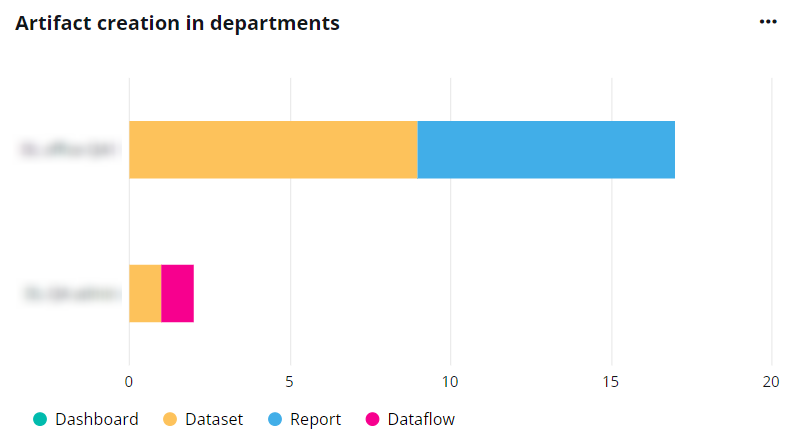
The Artifact creation in departments chart shows the number of artifacts created for each department. The X-axis depicts the number of artifacts created and the Y-axis depicts the departments.
Hover your mouse over the bars to view the detailed number of artifacts of each type created for each department.
To hide the data of a specific artifact type, click the artifact type below the chart.
Artifact Rankings by Views/Unique Viewers
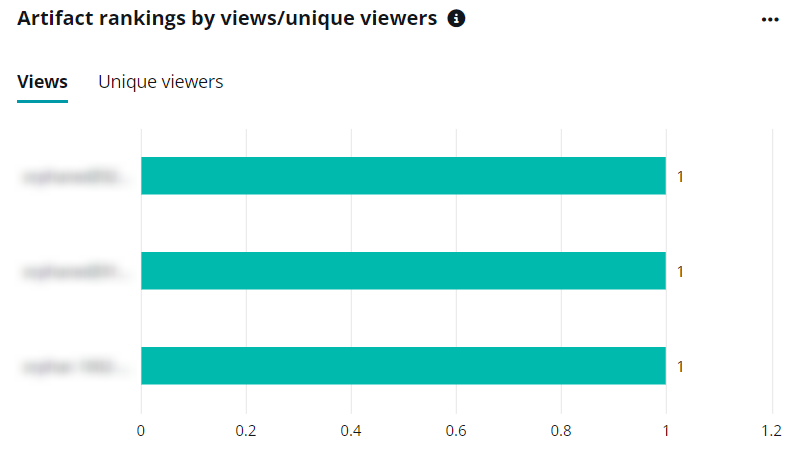
The Artifact rankings by views/unique viewers chart ranks artifacts by the number of views and unique viewers respectively in the Views and Unique viewers tabs.
Due to API limitations, views of semantic models are not included in this chart.
The Y-axis depicts the artifacts. The X-axis depicts the number of views or unique viewers. The number of views is the number of visits to an artifact and the number of unique viewers is the number of users who visits an artifact.
Hover your mouse over the bars to view the detailed numbers.