
Home > Azure Entra ID Enterprise Applications (Public Preview) > Enterprise Applications > Enterprise Applications
Download this articleEnterprise Applications
In EnPower, you can view and check the detailed report on your Azure Entra ID enterprise applications.
View Change Details
To view the change details between the current snapshot with the baseline, complete the following steps:
-
In the Enterprise applications tab on the Enterprise applications page, select the enterprise application with recent changes detected.
-
In the New changes detected column, click View.
-
On the Change details page, you can view the changes information in General view and Code view.
-
General view – The section that shows the summary of the enterprise application, including:
-
Owners – The changes summary of the app owners in the enterprise application.
-
Certificates – The changes summary of the certificates in the enterprise application.
-
Admin-consent permissions – The changes summary of the permissions consented by administrators in the enterprise application.
-
User-consent permissions – The changes summary of the permissions consented by users in the enterprise application.
-
-
Code view – The section that shows all the detailed changes of the enterprise application in code.
The detailed changes information between the two snapshots will be displayed in Split view and Unified view. By default, only the changed information will be displayed. You can expand the hidden lines to view the complete code.
NOTEFor snapshots with a large amount of code, it may not be displayed properly. You can export the YAML file to view the detailed changes.
-
View Snapshot Details and Reset Baseline
To view the change details between the current snapshot with the baseline, complete the following steps:
-
In the Enterprise applications tab on the Enterprise applications page, select an enterprise application and click View in the Snapshots column.
-
Select an available snapshot in the dropdown list and view the following detailed information:
-
Owners – The information of the app owners in the enterprise application.
-
Certificates – The information of the certificates in the enterprise application.
-
Admin-consent permissions – The information of the permissions consented by administrators in the enterprise application.
-
User-consent permissions – The information of the permissions consented by users in the enterprise application.
-
-
To reset the current snapshot as baseline, click Reset baseline in the upper-right corner.
You can also reset baseline by following these steps:
-
In the Enterprise applications tab on the Enterprise applications page, select an enterprise application and click Reset baseline.
-
In the Reset baseline panel, select the snapshot that you want to reset as the baseline.
-
Click Save.
-
Compare Snapshots
To view the comparison details between two snapshots, complete the following steps:
-
In the Enterprise applications tab on the Enterprise applications page, select an enterprise application and click Compare.
-
Select two snapshots that you want to compare.
-
Click Compare, and you can view the changes information in General view and Code view.
-
General view – The section that shows the summary of the enterprise application, including:
-
Owners – The changes summary of the app owners in the enterprise application.
-
Certificates – The changes summary of the certificates in the enterprise application.
-
Admin-consent permissions – The changes summary of the permissions consented by administrators in the enterprise application.
-
User-consent permissions – The changes summary of the permissions consented by users in the enterprise application.
-
-
Code view – The section that shows all the detailed changes of the enterprise application in code.
The detailed changes information between the two snapshots will be displayed in Split view and Unified view. By default, only the changed information will be displayed. You can expand the hidden lines to view the complete code.
NOTEFor snapshots with a large amount of code, it may not be displayed properly. You can export the YAML file to view the detailed changes.
-
Resolve the Matched Risky Rules
The number of risky rules that match each enterprise application will be displayed in the Matched risky rules column. You can resolve the issues identified by the corresponding risky rules.
To resolve the risky issues for the enterprise applications, complete the following steps:
-
In the Enterprise applications tab on the Enterprise applications page, select an enterprise application and click the figure in the Matched risky rules column.
-
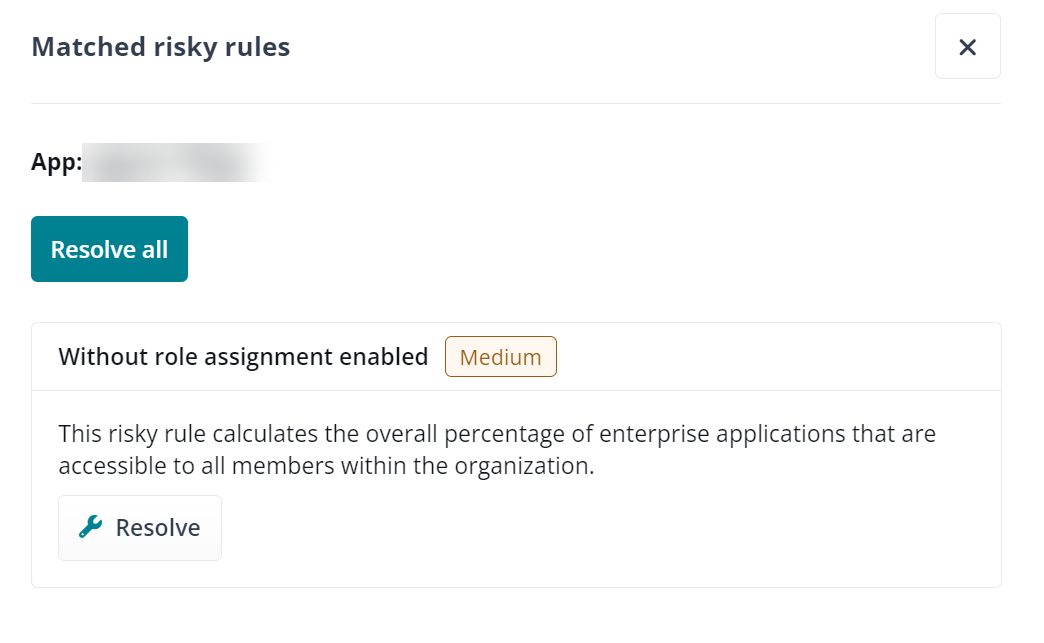
In the Matched risky rules panel, click Resolve under each risky rule to resolve this rule for the current enterprise application.
-
In the Resolve panel, complete the following configurations:
-
Resolution – Select a resolution for the enterprise application.
-
I have fixed the issue manually – Select after fixing the issue in your Azure environment. If the enterprise application no longer matches the risky rule, the health score will be automatically updated after the next scan job.
-
Ignore this risky rule for the application – Select and specify the Ignored duration. The scan job will skip scanning this risky rule for the enterprise application during the specified duration, and the health score will be updated immediately.
-
-
Comments – Enter optional comments for the resolution.
-
-
Click Save and close the Matched risky rules panel.
You can also bulk resolve all the risky rules for the current enterprise application by clicking Resolve all in the Matched risky rules panel.
View Activity Report
To view the activity report of the enterprise applications, navigate to Azure Entra ID enterprise applications > Enterprise applications. In the Enterprise applications tab, select an enterprise application and click View in the Activity column.
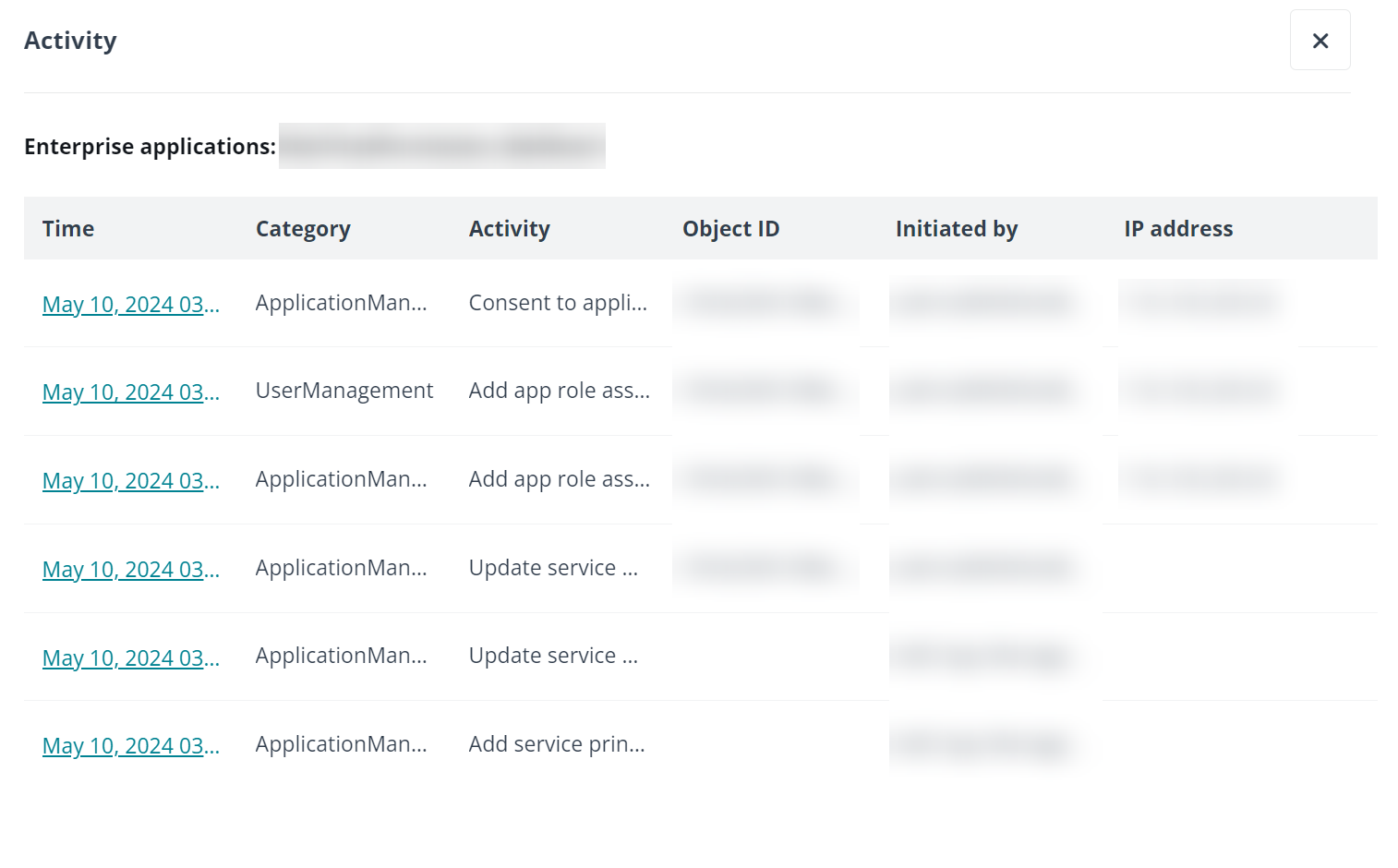
You can also click the Time in the Activity panel and check the detailed activity logs.
The activity report will display activities from the last 7 days. If a Microsoft Entra ID P1 or P2 license is obtained, the activity report will extend to show activities from the last 30 days.