
Home > Process Center
Download this articleProcess Center
When performing objects creation, bulk operations, report exports, and mailbox-related operations, you can monitor the status and view reports for the processes you are performing in the Process center.
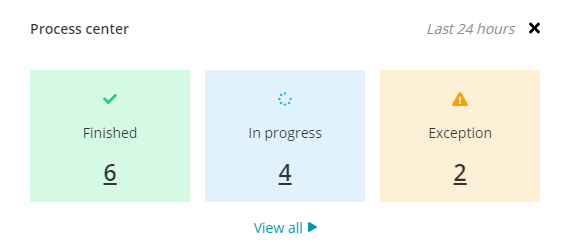
To navigate to the Process center page, you can click the process center link in the notification that appears after the corresponding process has started. Or click Process center in the left navigation or the Process center (  ) button on the upper-right of the page. Then click View all in the Process center.
The Process center window shows the Finished, In progress, and Exception process within the last 24 hours. You can click the number for each status to view the detailed page.
On the Process center page, you can operate the following actions:
-
Manage columns – You can manage the columns that are shown in the table on the Process center page. To select the columns, click the Manage columns (
 ) button. After selecting the columns, click Apply to apply the changes.
 -
Filter process – You can filter the process status shown in the table. To filter specific processes to view, click the Filter (
 ) button. By default, all fields are selected in the filter. You can expand the Module, Status, and Start time fields in the filter to select or deselect specific process modules that the process was triggered in, the process status, and the start time of the process. Then, click Apply to apply the updates.
 -
Download reports – You can download the reports generated in the report exportation job or download the reports for the finished process.
-
Copy process ID – To copy a process ID for supporting or other referencing purposes, click the Copy (
 ) button after each process ID and the ID will be copied to your clipboard.
 -
Continue the Power Platform resource copy process after the analysis job is finished – When copying Power Platform resources, EnPower needs to analyze the selected apps/flows first. The analysis job can be checked in the Process center. After the job is finished, to view the analysis report and proceed with the copy, you need to go to the Copy page by clicking the object name of the analysis job. For more information on the copy, refer to Copy Environments, Copy Cloud Flows, and Copy Canvas Apps.
- On the Process center page, standard users can only view the process started by themselves and download the corresponding reports, while application administrators can view all processes and download the reports.
- When a process includes multiple objects, the object names cannot be viewed until the process is finished.