
Home > Workspace Management > View Workspaces of a Tenant > SharePoint Management
Export to PDFSharePoint Management
When you click the SharePoint tile, you can view and manage SharePoint sites in the tenant. You can also create new sites as required.
Create a SharePoint Site
Click Create with template and select Create from the drop-down list. The Create SharePoint site panel appears. You have three options to create different sites, Team site, Communication site, and Other options.
Create a team site
In the Create SharePoint site panel, select Team site and click Continue to access the Create Group team site panel. Group Team sites are Microsoft 365 Group-connected sites that can provide spaces for users to collaborate in teams.
-
In the Create Group team site panel, complete the basic information for the Group team site, including:
-
Site name – Enter the name of the Group team site.
-
Group email address – The Group email address is for the Group that is connected to the Group team site. It is the same as the site name entered. However, you can edit this email address to make it different from the site name if needed.
-
Site address – The address of the Group team site. It is the same as the site name entered. However, you can edit this site address to make it different from the site name if needed.
-
Group owner – Enter the name or the email address of the user that you want to specify as the Group owner.
-
Select a language – Select the language for the site.
There are also advanced settings that you can configure for the Group team site, including:
-
Sensitivity – Select the sensitivity for the site.
-
Privacy settings – Select if the site is private or public. Private sites can only be accessed by Group members, while public sites can be accessed by anyone in the organization.
-
Time zone – Select the time zone for the site.
-
Site description – Enter a site description to tell people the purpose of this site.
-
Storage limit (GB) – Enter the site storage limit.
-
-
Add Group members for the Group team site, including:
-
Add additional owners – Apart from the Group owner you have configured, you can also add additional owners to the Group to be additional site admins.
-
Add members – Add members to the Group and they will also be members of the Group team site.
-
-
Click Save to create the Group team site.
Create a communication site
In the Create SharePoint site panel, select Communication site and click Continue to access the Create communication site panel.
-
To create a communication site, complete the following steps:
-
In the Create communication site panel, complete the basic information, including:
-
Site name – Enter the name of the site.
-
Site address – The address of the site. It is the same as the site name entered. However, you can edit this site address to make it different from the site name if needed.
-
Site owner – Enter the name or the email address of the user that you want to specify as the site owner.
-
Select a language – Select the language for the site.
There are also advanced settings that you can configure for the communication site, including:
-
Sensitivity – Select the sensitivity for the site.
-
Time zone – Select the time zone for the site.
-
Site description – Enter a site description to tell people the purpose of this site.
-
Storage limit (GB) – Enter the site storage limit.
-
-
Click Save to create the communication site.
Create other sites
In the Create SharePoint site panel, select Other options and click Continue to access the Create SharePoint site panel.
-
In the Create SharePoint site panel, complete the basic information, including:
-
Site name – Enter the name of the site.
-
Select a template – Select the template for the site.
-
Site address – The address of the site. It is the same as the site name entered. However, you can edit this site address to make it different from the site name if needed.
-
Primary administrator – Enter the name or the email address of the user that you want to specify as the primary administrator of the site.
-
Select a language – Select the language for the site.
There are also advanced settings that you can configure for the communication site, including:
-
Time zone – Select the time zone for the site.
-
Site description – Enter a site description to tell people the purpose of this site.
-
Storage limit (GB) – Enter the site storage limit.
-
-
Click Save to create the site.
Create a SharePoint Site with Template
Click Create with template and select Create with template from the drop-down list. The Create with template window appears. Select Team site, Communication site, Community portal, or Project site, and click Continue.
Select a template with which you want to create the site, enter the requester for which you create the site, and click Continue.
*Note: Only the provisioning templates with the corresponding type that are published to the tenant can be selected here.
Complete the settings in the window, and click Create to create the workspace with the template.
-
Enter a name and optional description for the site.
-
Complete the configurable settings for the site based on the template.
-
Click Create to create the site with the template.
-
*Note: The site settings will be affected by the following:
-
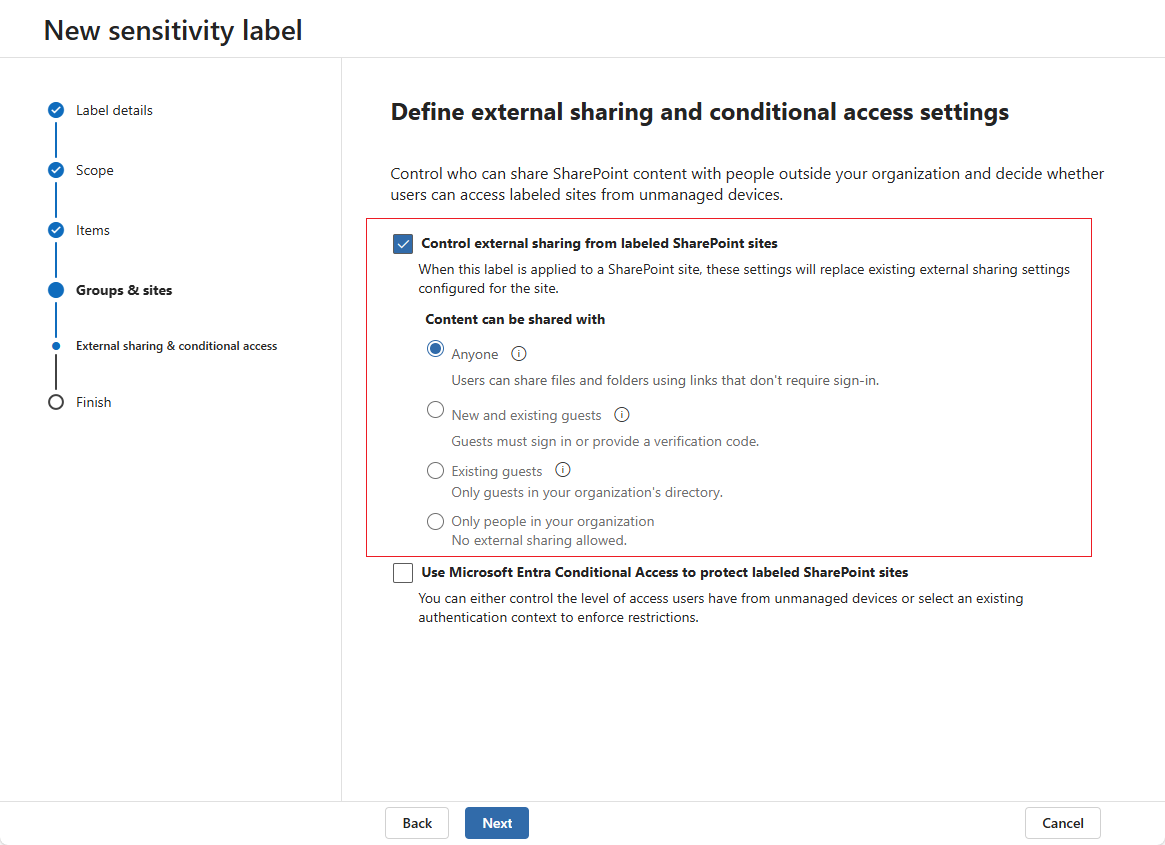
The external sharing and conditional access settings of the sensitivity label selected for the site.
-
External sharing setting at the organization level in SharePoint.
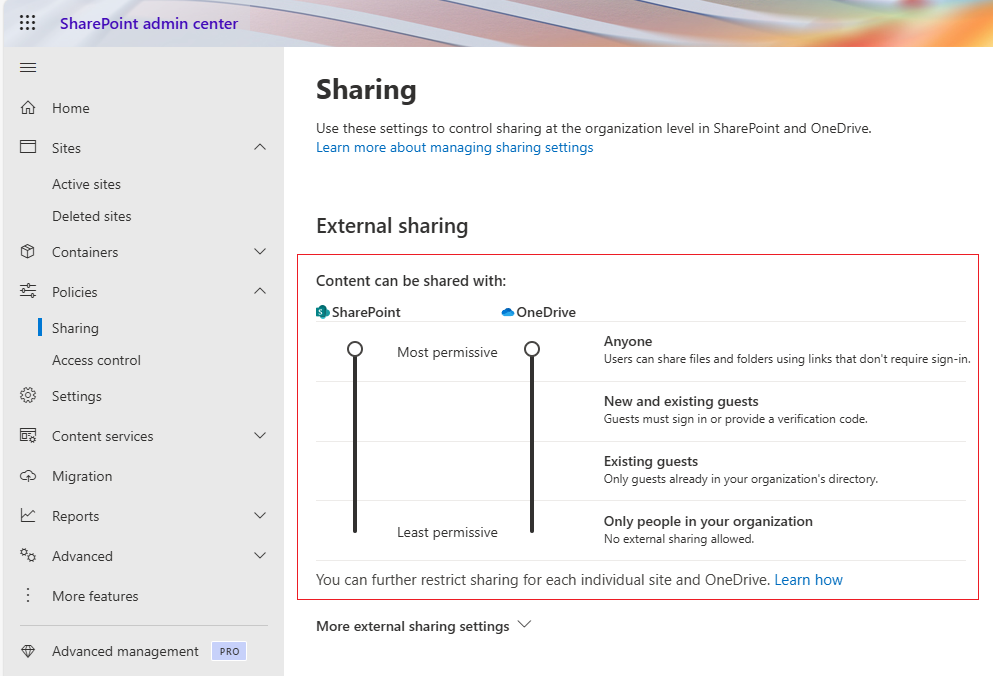
- If Control external sharing from labeled SharePoint sites setting takes high priority than the Externa sharing setting at the organization level in SharePoint.
-
View and Manage Sites
You can update information and settings for a single site or bulk edit sites.
To view the details of a site, click the site name to go the Site details page. Information and manageable settings are displayed in tabs:
Refer to the following sections for the available management operations and the steps to manage them.
Update site basic information
-
Click the site name to enter the Site details page.
-
To edit the basics for the site, stay at the Basics tab and click the Edit (
 ) button to the right of each editable field after hovering over it. The editable fields will show:
-
Site name
-
Description
-
Copilot search included
If a team site has a Microsoft 365 Group connected, the value of Microsoft 365 Group will be Yes. If the Group has a Team added, the value of Connected to Teams will be Connected.
-
-
Edit settings in the Storage section to update the site storage related settings. For more information, refer to .
-
Click Apply changes in the upper-right corner of the page after you make changes to save and apply the changes.
Update permissions
You can manage the users in the following groups for the site under the Permissions tab: Site admins, Site owners, Site members, Site visitors. If the site has a Microsoft 365 Group connected, you can view the Owners and Members groups to manage membership for the Group.
To add group members, complete the following steps:
-
Click Add after selecting the Site admins, Site owners, Site members, Site visitors, Owners, or Members group.
-
In the Add users panel, search users by display name or email address, and select users to add.
-
Click Save.
-
For more information about managing membership of the Site admins, Site owners, Site members, and Site visitors groups, refer to .
-
For more information about managing membership of the Owners and Members groups, refer to . if the team site has a Microsoft 365 Group connected. If the Group has a Team added, refer to .
-
To remove group members, complete the following steps:
-
Select the users you want to remove and click Remove.
-
In the Remove users confirmation window, click Remove.
-
To promote a site admin as the primary admin, complete the steps below:
-
Click the Site admins group to show all admins of the site.
-
Select the user with Site admin role and click Set as primary admin. The role of the user in this site will be updated.
*Note: Only one primary admin can be set for a site. If there is a user with the Primary admin role, this action will remove the primary admin role from that user.
Handle workspace issues (Preview)
You can handle workspace issues that are flagged by tenant users for administrator’s assistance or missing owner issues under the Workspace issues tab.
Select a Flag for help issue and click Review issue, and the Review flagged issue window appears. After reviewing the general information of the object and the issue type, the following actions can be performed:
Restore Objects
-
Click the site name to enter the Site details page.
-
To restore the archived objects, switch to the Storage insights tab.
-
You can search for the archived objects by entering keywords of object names in the search box and press Enter to start the search. To perform advanced search, click the search criteria (
 ) button above the table, use the provided criteria, and click Search to narrow down the archived objects displayed on the table.
 -
Select one or multiple archived objects and click Restore to restore the required objects back to their original locations.
-
In the Restore window, complete the following settings for archived objects:
-
Select the number of latest versions to restore or select to restore all versions.
-
*Note: This is not available for file versions.
-
Select the conflict resolution for the restore.
-
Skip – This will not restore the archived object, and instead keep the existing object in the destination.
-
Overwrite – This will replace the existing object in the destination with the archived object.
-
Append – This will keep the original object as it is and copy the archived object to the original location by adding a suffix (_1, _2, _3, …) to the item object name.
-
-
Select Include sharing link to restore sharing links for the object.
-
-
Click Restore to start restoring the selected objects.
Manage Permissions
To manage permissions of a site, complete the following steps:
-
Select the site for which you would like to update permissions.
-
Click the Permissions button to expand the management list.
-
With the management list, you can perform the following actions:
-
Manage site admins – Remove administrators from the site or add administrators to the site. To promote an admin as the primary admin or demote the primary admin as an admin, select Primary admin or Admin from the drop-down list in the role column. The role of the user in this site will be updated. For more information, refer to .
-
Manage owners – Remove owners from the Group or add Group owners.
-
*Note: This is only available for the site with a Microsoft 365 Group connected. For more information, refer to . If the Group has a Team added, refer to .
Set Site Status
To update the status of a site, complete the following steps:
-
Select the site you would like to update, and click Set site status.
-
Select the status to update to, including:
-
Unlocked – When the site status is unlocked, the site is available to users.
-
Read only – When the site status is read-only, users cannot add, update, or delete content. A message will appear in the site stating that it is under maintenance and read-only.
-
No access – When the site status is no access, users cannot access the site or its content, and will receive a 403 error page.
-
-
Click Save to update the site status.
Update External Sharing Settings
To update the external sharing settings of a site, complete the following steps:
-
Select the site you would like to update, and click Sharing.
-
In the Sharing panel, you can update the following external sharing settings for the selected site:
-
Site content can be shared with – Select with whom the site content can be shared. You can select from Anyone, New and existing guests, Existing guests only, and Only people in your organization.
-
Advanced settings for external sharing
-
Limit sharing by domain – Select whether you would like to allow only specific domains to receive the sharing or block the sharing to specific domains.
3. Click Save to update the external sharing settings.
Edit Storage Limit
To update the site storage settings, complete the following steps.
-
Select the site you would like to update, and click Storage.
-
In the Edit storage limit panel, you can configure the maximum storage and the notification settings when a specific percentage of the storage is used.
-
Click Save to update the site storage settings.
-
For more information, refer to .
Archive or Destroy Objects
To archive or destroy objects within one or multiple sites, complete the following steps.
-
Select the sites where the objects you would like to archive or destroy, and click Archive or destroy.
-
Complete the following settings in the Archive or destroy window.
-
Define the data scope to be actioned. The modified time range and file size range defined in the discovery profile are automatically loaded and available to narrow down the data scope. The file types in the reporting scope are also available as a filter.
-
You can choose to manage all files in the scope defined above, or manage specific files and versions by selecting inactive data rules and/or ROT data rules to narrow down versions and files.
-
Select the action that you want to take on files:
-
Archive and destroy files – Select this option to archive files to a storage location for the defined period. These files will be destroyed in the content source.
- Select Leave a stub in place for each file if you want to leave a stub in the original location after a file is archived and disposed of. A default message is displayed below and you can customize it. Click Preview to preview the stub content.
-
Destroy files – Select this option to destroy files in the content source.
In addition, you can select Include declared records if you want to include files that have been declared as SharePoint records (with a padlock icon).
-
-
Select the action that you want to take on versions:
-
Archive and destroy versions – Select this option to archive versions to a storage location for the defined period. These versions will be destroyed in the content source.
-
Destroy versions – Select this option to destroy versions in the content source.
-
-
You can select Run now to run the Archive or destroy data job immediately after you save changes or select Configure a time and then set a time to run the job on time.
-
-
Click Submit to save the settings above and you can view the record in Action Tracker.
Connect to New Microsoft 365 Group
For the site with the Team site (no Microsoft 365 Group) and Team site (classic experience) template, you can create and connect a Microsoft 365 Group to the site if they have no Microsoft 365 Group connected.
-
Select the sites to which you want to connect to a Microsoft 365 Group, and click Connect to new Microsoft 365 Group.
-
In the Connect to new Microsoft 365 Group panel, complete the following settings:
-
Group name – The site name is the default Group name and you can edit it as required.
-
Group email address – The site name is the default Group email address and you can edit it as required.
-
Privacy settings – Select from Public or Private.
-
Content in a public group can be seen by anybody in your organization, and anybody in your organization is able to join the group.
-
Content in a private group can only be seen by the members of the group, and people who want to join a private group have to be approved by a group owner.
-
-
Add members – Search members by display name or email address and select members to add as Group members. The site admins are added as Group Owner automatically. You can change their role by selecting Member from the role list or remove them from the Group.
-
-
Click Save to create the Microsoft 365 Group and connect to the site.
Edit Membership
To perform bulk operation to edit membership for sites, complete the following steps:
-
Select the sites for which you want to edit membership.
-
Click Edit membership.
-
In the Edit membership window, select the role for which you want to edit the membership, Site admins, Site owners, Site members, or Site visitors.
-
Select the bulk operation you want to perform:
-
Add users – Specify the users you want to add with the selected role.
-
Replace user – Configure the original user and new user to replace the original user with the new user.
-
Remove users – Specify the users you want to remove from the corresponding group.
-
Remove all users – This option is only available when the Site members role is selected. Select it to remove all members from the Site members group for the workspaces.
-
Remove all guests – This option is only available when the Site visitors is selected. Select it to remove all guests from the workspaces.
-
-
Click Save to save the membership changes.
Apply a Sensitivity Label
Sensitivity labels classify and protect team content like files and sites. For more information, refer to .
To apply a sensitivity label to SharePoint sites, complete the following steps:
-
Select the sites to which you want to apply a sensitivity label.
-
Click Apply sensitivity label.
-
In the Apply sensitivity label panel, select the sensitivity label you would like to apply to the selected sites.
*Note: You can only apply labels whose scope is site/group to sites.
-
Click Apply. The process will start to apply the sensitivity label. To view the process status, you can go to the Process center. For details, refer to Action Tracker.
Apply a Lifecycle Policy
To apply a lifecycle policy to SharePoint sites, complete the following steps:
-
Select the sites to which you would like to apply the lifecycle policy.
-
Click Apply lifecycle policy on the ribbon.
-
In the Apply lifecycle policy panel, select the lifecycle policy you would like to apply.
-
Click Apply to update the changes.
Alternatively, you can follow the steps below to apply a lifecycle policy to a site:
-
Click the site name to enter the Site details page.
-
Switch to the Governance details tab, and click the edit (
 ) button in the Applied lifecycle policy field.
 -
In the Apply lifecycle policy panel, select the lifecycle policy you would like to apply.
-
Click Apply to save and apply the lifecycle policy.
Restart Renewal Process
To restart the renewal process of SharePoint sites, complete the following steps:
-
Select the sites you would like to restart the renewal process.
-
Click Restart renewal process on the ribbon.
-
If the site has a renewal task generated, you can choose whether to inform the task assignee about the task cancellation by selecting or deselecting the Send a cancellation email to the task assignees option.
-
On the confirmation window, click Restart. The process will start to restart the renewal process for the selected sites.
-
*Note: You can only restart the renewal process for the workspaces of which the tenant has a lifecycle policy applied.
Auto-complete Renewal Process
To auto-complete the renewal process of SharePoint sites, complete the following steps:
-
Select the sites you would like to auto-complete the renewal process.
-
Click Auto-complete on the ribbon.
-
In the Auto-complete window, select In compliance or Renewal canceled to indicate the phase status of the auto-completed renewal.
-
You can choose whether to inform the task assignee about the auto-completed renewal by selecting or deselecting the Send a cancellation email to the task assignees option.
-
Click Auto-complete. The process will start to auto-complete the renewal process for the selected sites.
Apply a Compliance Policy
To apply a compliance policy to SharePoint sites, complete the following steps:
-
Select the sites to which you would like to apply the compliance policy.
-
Click Apply compliance policy on the ribbon.
-
In the Apply compliance policy panel, select the compliance policy you would like to apply.
-
Click Apply to update the changes.
Alternatively, you can follow the steps below to apply a compliance policy to a site:
-
Click the site name to enter the Site details page.
-
Switch to the Compliance details tab, and click the edit (
 ) button in the Compliance policy field.
 -
In the Apply compliance policy panel, select the compliance policy you would like to apply.
-
Click Apply to save and apply the compliance policy.
Delete Sites
Select one or multiple sites that you want to delete and click Delete above the table. The process will start to delete the sites. To view the process status, you can go to the Process center. For details, refer to Action Tracker.
Include or Exclude Sites for Copilot Search
For the tenant that restricts both organization-wide search and Copilot experiences to a curated set of workspaces, you can define the allowed list.
-
Select the sites you want to add to the allowed list.
-
Click Include in Copilot search.
-
In the confirmation message, you can view the number of workspaces that are already in the allowed list. Click Include in Copilot search to add the selected sites to the allowed list.
-
To exclude sites from the allowed list, select them and click Exclude from Copilot search.
-
Click Exclude from Copilot search in the confirmation message to exclude the sites from the allowed list.