Home > Manage Customers > Add Services
Download this articleAdd Services
You can add new services for a customer and configure the subscription settings by referring to the instructions below:
-
Select services.
-
Premium management services
-
Workspace management
-
Workspace management - Storage optimization
-
Baseline management
-
User and device management (including the User management, Device management, App management, and Azure Virtual Desktop modules)
-
Azure security management
Premium management services are not available if the customer is in the Customer management of tenant mode.
-
-
Premium management services add-on
Add-on services are free to use when certain requirements are met, and no license assignment is needed. Add-on services will expire when all prerequisite service subscriptions expire. Add-on services are enabled by default. If you do not want to include an add-on service for the customer, you must manually disable it.
Add-on services are not available if the customer is in the Customer management of tenant mode.
-
Risk management
This add-on service will be available when the customer has an active subscription for Baseline management, Workspace management, or Cloud Backup for Microsoft 365.
-
Change management communication
This add-on service will be available when the customer has an active subscription for any services supported in Elements.
-
-
Services for Microsoft 365
-
Cloud Backup for Microsoft 365
-
Cloud Backup Express
NOTEOnly Trial subscription is available for Cloud Backup Express.
-
Cloud Backup for Exchange Online & OneDrive
NOTEOnly Trial subscription is available for Cloud Backup for Exchange Online & OneDrive.
-
Cloud Management (includes the Administrator, Content Manager, Replicator, Deployment Manager, Report Center, and Identity Manager modules in DocAve Online)
-
Cloud Governance
-
DocAve Online (includes the Granular Backup & Restore and Exchange Online Backup & Restore modules in DocAve Online)
-
Insights
-
Policies for Microsoft 365
-
Cense
-
Opus
-
tyGraph
-
-
Services for Google
- Cloud Backup for Google Workspace
-
Services for Dynamics 365
- Cloud Backup for Dynamics 365
-
Services for Salesforce
- Cloud Backup for Salesforce®
-
Services for IaaS + PaaS
- Cloud Backup for IaaS + PaaS
-
Services for EnPower
- EnPower
-
Services for migration
- Fly
-
-
Click Continue to proceed.
-
On the Licensing page, configure the subscription information service by service. There is a Skip for now button for each service, allowing you to cancel adding the service. After clicking it, Skipped will appear.
Below are common subscription settings that are relevant to the majority of services:
-
Subscription type – Select the subscription type: Trial or Subscription.
NOTEWhen a trial subscription to DocAve Online is added, all the modules will be assigned to the customer automatically.
-
Source – Select a value to indicate the source of your subscription. This field only appears while assigning the Subscription type.
-
Payment type – Select the payment type. You can select different payment types when assigning pooled subscriptions to customers.
-
Subscription expiration date (for Subscription only) – By default, Same as pooled subscription is selected to keep the same expiration date as the pooled subscription. You can select Expire now or select Specify a time to set an expiration date for the customer’s subscription.
-
Contract end date – Click the calendar button and select the contract end date.
For service-specific subscription settings, refer to Manage Customer Subscriptions.
-
-
Click Save and continue.
-
If there are no tenants for the customer, a message will appear, asking you to add tenants for this customer. For detailed instructions on how to add a tenant, refer to Add a Microsoft 365 Tenant.
NOTECurrently, Elements only supports adding Microsoft 365 tenants. If you want to add Google tenants and Salesforce tenants, you need to go to AvePoint Online Services to complete the operations. For detailed instructions, refer to Connect Your Tenants to AvePoint Online Services.
-
On the Permissions page, tenants (tenant name and type) and services you have added for the customer are displayed. Based on the service you selected for the customer, the following methods may be available for authentication:
-
Consent to app – In each service section, the required apps are displayed. If an app for the tenant has already been consented, a green checkmark icon will appear. If not, your consent to the app will be required. For detailed instructions, refer to Consent to an App.
-
Create custom app profile – For the following services, you can create custom app profiles. For detailed instructions, refer to Create a Custom App Profile.
-
For Microsoft 365 tenant
-
Cloud Backup for Microsoft 365
-
Baseline management
-
-
For Google tenant
-
Cloud Backup for Google Workspace
-
Fly
-
Insights
-
Opus
-
-
-
Create service account profile – For the following services, you can create a service account profile. For detailed instructions, refer to Create a Service Account Profile.
-
Cloud Backup for Microsoft 365
-
Cloud Backup for IaaS + PaaS
-
EnPower
-
Policies for Microsoft 365
-
-
Create Google Cloud service account profile – For the Cloud Backup for IaaS + PaaS service, you can create a Google Cloud service account profile. For detailed instructions, refer to Create a Google Cloud Service Account Profile.
If you want to add a new Microsoft 365 tenant, click Add new tenant. For detailed instructions, refer to Add a Microsoft 365 Tenant. If you want to hide a tenant from the page, you can click Remove tenant.
Note the following:
-
The custom app profile and service account profile can only be created once for each customer. Make sure all required services have been added for a customer before you create the custom app profile or service account profile for the customer.
-
Multiple app profiles for Elements premium services and AvePoint services (Cloud Backup for Microsoft 365, Policies for Microsoft 365, Insights, and Fly) can be created for a customer. After adding services, you can create additional app profiles for the customer by following the instructions in the Manage Customer App Profiles section.
-
For some services, a message will appear below the app type, indicating that you need to assign the Exchange Administrator or Groups Administrator role to the app in the Microsoft Entra admin center. For detailed instructions, refer to How to Assign the Exchange Administrator Role to an App? and How to Assign the Groups Administrator Role to an App?.
-
-
Click Continue.
-
On the Overview page, view the customer’s services and their subscription information.
-
Click Finish. If the services you have added for the customer include Cloud Backup for Microsoft 365 or Cloud Backup for Google Workspace, the Finish and start service button will be available, allowing you to start service. For detailed instructions on starting services, refer to Start Services.
Manage Customer Subscriptions
If you are managing a trial subscription, no subscriptions need to be configured. When the subscription type is changed to Subscription, you can change the settings for the service.
There is a minimum commitment period: pooled subscriptions must be active for at least one month; licenses cannot be reduced within one month after they have been assigned.
Below are common subscription settings that are relevant to the majority of services:
- Subscription type – Select the subscription type: Trial or Subscription.
NOTE
When a trial subscription to DocAve Online is added, all the modules will be assigned to the customer automatically.
- Source – Select a value to indicate the source of your subscription.This field only appears while assigning the Subscription type.
- Payment type – Select the payment type. You can select different payment types when assigning pooled subscriptions to customers.
-
Subscription expiration date (for Subscription only) – By default, Same as pooled subscription is selected to keep the same expiration date as the pooled subscription. You can select Expire now or select Specify a time to set an expiration date for the customer’s subscription.
-
Contract end date – Click the calendar button and select the contract end date.
The additional subscription settings vary with services:
-
Baseline management
- Tenants – The number of tenants that you want to assign to the customer.
-
Workspace management
- User seats – If the customer has assigned product licenses in Microsoft 365, the number of user seats will be the same as the number of assigned Microsoft 365 licenses. Otherwise, the newly added license will have one user seat, and the existing license will keep the current number of user seats.
-
Workspace management – Storage optimization
- Capacity – Enter the capacity you want to assign to the customer.
-
User and device management
- User seats – If the customer has assigned product licenses in Microsoft 365, the number of user seats will be the same as the number of assigned Microsoft 365 licenses. Otherwise, the newly added license will have one user seat, and the existing license will keep the current number of user seats.
-
Azure security management
-
Add subscription for Backup and restore – While assigning the subscription for Azure security management, if you have any of the pooled subscription for Backup and restore, you can click this button to add the subscription for the customer. The following information can be configured additionally:
-
Storage – Choose to use the customer’s own storage or AvePoint storage.
-
Retention – If the customer uses AvePoint storage, configure the data retention by choosing one of the following options:
-
Retain data for _ years – The data generated within the specific years will be kept. The time to keep data is determined by the subscriptions you purchased from AvePoint.
-
Unlimited retention – All data will be kept without any pruning. If this option is available is determined by the subscriptions you purchased from AvePoint.
-
-
Backup mode – Select the SaaS Infrastructure or CAP Gateway backup mode and enter the capacity you want to assign.
-
-
Add subscription for CSPM – While assigning the subscription for Azure security management, if you have a pooled subscription for Cloud security posture management, you can click this button to add the subscription for the customer. Enter the number of workloads you want to allocate to the customer.
-
-
Policies for Microsoft 365/Insights/Cloud Management/Cloud Governance/DocAve Online/Opus/EnPower
-
Available Microsoft 365 licenses – This is the number of all Microsoft 365 licenses that the customer’s tenant purchased in Microsoft 365.
-
Assigned Microsoft 365 licenses – This is the number of Microsoft 365 licenses that have been assigned to users in the customer’s tenant. AvePoint online services for Microsoft 365 charge the tenant according to this number. You can click the Download license details link to download the customer subscription information.
-
User seats – If the customer has assigned product licenses in Microsoft 365, the number of user seats will be the same as the number of assigned Microsoft 365 licenses. Otherwise, the newly added license will have one user seat, and the existing license will keep the current number of user seats.
-
-
Cloud Backup for Salesforce®
-
Add subscription for Salesforce Archive – While assigning the subscription for Cloud Backup for Salesforce®, if you have a pooled subscription for Salesforce Archive, you can click this button to add the subscription for the customer.
-
Add subscription for Salesforce Backup – While assigning the subscription for Cloud Backup for Salesforce®, if you have a pooled subscription for Salesforce Backup, you can click this button to add the subscription for the customer. Select the service type, Basic, Standard, or Premier.
-
Subscription model – Select the subscription model for the customer.
-
Purchased user seats – Enter the total number of user seats this customer has purchased for this service. The previously purchased user seat amount plus the newly purchased user seat amount is the total number.
-
-
Cloud Backup for Dynamics 365
-
Subscription model – Select the subscription model for the customer.
-
Model type – Select the model type of the subscription.
-
Storage – Choose to use the customer’s own storage or AvePoint storage. If customers use their own storage for Cloud Backup for Dynamics 365, they must go to the Cloud Backup for Dynamics 365 service to configure custom storage locations. If a customer uses AvePoint storage first and then wants to use a custom storage location, the customer can contact the AvePoint Support Team to migrate the previous backup data from the AvePoint storage location to the custom storage location.
-
Retention – If the customer uses AvePoint storage, configure the data retention by choosing one of the following options:
-
Retain data for _ years – The data generated within the specific years will be kept. The time to keep data is determined by the subscriptions you purchased from AvePoint.
-
Unlimited retention – All data will be kept without any pruning. This option is available when you assign the trial subscription. For Subscription type, it is determined by the subscriptions you purchased from AvePoint.
-
-
Dynamics 365 user seats – This is the number of all Dynamics 365 licenses that the customer’s tenant purchased in Dynamics 365 that could potentially be assigned to users.
-
Assigned Dynamics 365 user seats – This is the number of Dynamics 365 licenses that have been assigned to users in the customer's tenant. AvePoint Online Services licenses are based on the number of assigned licenses in a Dynamics 365 tenant.
-
User seats – If the customer has assigned product licenses in Dynamics 365, the number of user seats will be the same as the number of assigned Dynamics 365 licenses. Otherwise, the newly added license will have one user seat, and the existing license will keep the current number of user seats.
-
-
Cloud Backup for Microsoft 365
-
Available Microsoft 365 licenses (assigned/available) – The number of all Microsoft 365 licenses that the customer’s tenant purchased in Microsoft 365 and the number of Microsoft 365 licenses that have been assigned to users in the customer’s tenant. You can click the Download license details link to download the customer subscription information.
-
Subscription model – Select the subscription model for the customer.
-
Storage – Choose to use the customer’s own storage or AvePoint storage. If a customer uses AvePoint storage first and then wants to use a custom storage location, the customer can contact the support team to migrate the previous backup data from the AvePoint storage location to the custom storage location.
-
Storage profile (for Bring your own storage only) – Select a storage profile from the drop-down list.
-
Retention – If the customer uses AvePoint storage, configure the data retention by choosing one of the following options:
-
Retain data for _ years – The data generated within the specific years will be kept. The time to keep data is determined by the subscriptions you purchased from AvePoint.
-
Unlimited retention – All data will be kept without any pruning. If this option is available is determined by the subscriptions you purchased from AvePoint.
-
-
Add subscription for Microsoft 365 services – While assigning the subscription for Cloud Backup for Microsoft 365, if you have a pooled subscription for Microsoft 365 services, you can click this button to add the subscription for the customer. The following information can be configured additionally:
-
Module – Select the module of the service that you want to assign.
-
Package – Select the package of the subscription.
-
Purchased capacity (GB) (For Unlimited users subscription model of Microsoft 365 Services only) – This value is the same as the value of the customer’s protected capacity.
-
Protected capacity (GB) (For Unlimited users subscription model of Microsoft 365 Services only) – View the size of the customer’s protected data in Microsoft 365.
-
User seats – Enter the number of user seats that you want to assign to the customer.
-
-
Add subscription for Power Platform – While assigning the subscription for Cloud Backup for Microsoft 365, if you have a pooled subscription for Power Platform, you can click this button to add the subscription for the customer. The following information can be configured additionally:
-
Type – Select the type for the subscription.
-
Limit – Enter a number to define the limit of the subscription.
-
-
-
Cloud Backup for Google Workspace
-
Subscription model – Select the subscription model for the customer.
-
Storage – Choose to use the customer’s own storage or AvePoint storage.
-
Storage profile (for Bring your own storage only) – Select a storage profile from the drop-down list.
-
Retention – Configure the data retention by choosing one of the following options:
-
Retain data for _ years – The data generated within the specific years will be kept. The time to keep data is determined by the subscriptions you purchased from AvePoint.
-
Unlimited retention – All data will be kept without any pruning. If this option is available is determined by the subscriptions you purchased from AvePoint.
-
-
Add subscription for Google Workspace – While assigning the subscription for Cloud Backup for Google Workspace, if you have a pooled subscription for Google Workspace, you can click this button to add the subscription for the customer. The following information can be configured additionally:
-
Payment type – Select the payment type.
-
User seats – Enter the number of user seats that you want to assign to the customer.
The settings will also apply to the Google Directory module.
-
-
Add subscription for Google Classroom – While assigning the subscription for Cloud Backup for Google Workspace, if you have a pooled subscription for Google Classroom, you can click this button to add the subscription for the customer. The following information can be configured additionally:
-
Type – Select the type for the subscription.
-
Limit – Enter a number to define the limit of the subscription.
-
-
-
Cloud Backup for IaaS + PaaS
-
Subscription model – Select the subscription model for the customer.
-
Storage – Choose to use the customer’s own storage or AvePoint storage. If a customer uses AvePoint storage first and then wants to use a custom storage location, the customer can contact the support team to migrate the previous backup data from the AvePoint storage location to the custom storage location.
-
Add capacity – While assigning the Subscription Cloud Backup for IaaS + PaaS, if you have a pooled subscription of the Capacity mode, you can click this button to add the subscription for the customer. The following information can be configured additionally:
-
Capacity model – Select the capacity model of the subscription.
-
Purchased capacity for SaaS infrastructure mode – Enter the purchased capacity for the SaaS infrastructure mode.
-
Purchased capacity for CAP Gateway mode – Enter the purchased capacity for the CAP Gateway mode.
In the Azure Virtual Machine module, you can configure the subscription settings, and the configurations will also apply to other modules.
-
-
Add Microsoft Entra ID – While assigning the Subscription Cloud Backup for IaaS + PaaS, if you have a pooled subscription of the user seat mode (including Microsoft Entra ID, Azure AD B2C, and Azure portal settings modules), you can click this button to add the subscription for the customer. Enter the purchased user seats of the customer.
In the Microsoft Entra ID module, you can configure the subscription settings, and the configurations will also apply to other modules.
-
Retention – If the customer uses AvePoint storage, configure the data retention by choosing one of the following options:
-
Retain data for _ years/months – The data generated within the specific years/months will be kept. The time to keep data is determined by the subscriptions you purchased from AvePoint.
-
Unlimited retention – All data will be kept without any pruning. If this option is available is determined by the subscriptions you purchased from AvePoint.
-
-
-
Fly
-
Add subscription for Migration – While assigning the subscription for Fly, if you have a pooled subscription for Migration, you can click this button to add the subscription for the customer. Enter the number of global objects that you want to assign to the customer.
-
Add subscription for Aviator – While assigning the subscription for Fly, if you have a pooled subscription for Migration, you can click this button to add the subscription for the customer. Enter the capacity you want to assign to the customer.
-
Subscription name – Select your subscription name for Fly.
-
-
Opus
-
Storage – Choose to use the customer’s own storage or AvePoint storage.
-
Add subscription for Discovery and Analysis – While assigning the subscription for Opus, if you have a pooled subscription for Discovery and Analysis, you can click this button to add the subscription for the customer. Enter the purchased tenant size of the customer.
-
Add subscription for Storage Optimization – While assigning the subscription for Opus, if you have a pooled subscription for Storage Optimization, you can click this button to add the subscription for the customer. The following information can be configured additionally:
-
Subscription model – Select the subscription model for the customer.
-
Purchased optimization capacity – Enter the purchased optimization capacity of the customer.
-
-
tyGraph
-
Add subscription for Microsoft and Copilot – While assigning the subscription for tyGraph, if you have a pooled subscription for Microsoft and Copilot, you can click this button to add the subscription for the customer. Enter the number of user seats that you want to assign to the customer.
In the Microsoft module, you can configure the subscription settings, and the configurations will also apply to the Copilot module.
-
Add subscription for Copilot only – While assigning the subscription for tyGraph, if you have a pooled subscription for Copilot only, you can click this button to add the subscription for the customer. Enter the number of user seats that you want to assign to the customer.
-
Add a Microsoft 365 Tenant
Complete the following steps to add a Microsoft 365 tenant:
-
Click Add tenants or Add new tenant to open the Add new tenant window.
-
Enter a display name and an optional description for the new tenant.
-
Enter the SharePoint Online admin center URL of the tenant to enable full functionality for SharePoint Online.
-
Click Continue.
-
Enter the login ID and password of the customer’s Microsoft 365 Global Administrator account, and click Sign in.
-
The required permissions are displayed. Review the permissions and click Accept.
-
A page appears indicating that your tenant was connected to AvePoint Online Services.
-
Close this page.
Consent to an App
Complete the following steps to consent to the apps required by a service:
-
Select a service and click Authenticate.
-
For Microsoft 365 tenant, enter the login ID and password of the customer’s Microsoft 365 Global Admin account, and click Sign in.
For Google tenant, enter the login ID and password of the customer’s Google Super Admin account, and click Sign in.
For Salesforce tenant, enter the login ID and password of the customer’s Salesforce Super Admin account, and click Sign in.
-
The permissions required by the service are displayed. Review the permissions and click Accept.
-
A page appears indicating that the app was authorized for the service.
-
Close this page, and you will be redirected back to the Permissions page.
Create a Custom App Profile
Complete the following steps to create a custom app profile for the Microsoft 365 tenant:
Before you create an app profile for a custom app, make sure you’ve created a custom app with the required permissions. For detailed instructions, refer to Create a Custom Azure App.
-
Click Create next to Custom app profile.
-
Complete the following information on the Create app profile window:
-
Custom app type – Azure app is automatically selected.
-
App profile name – Enter a name for the app profile.
-
Application ID – Enter the application ID of the application that has been created in Microsoft Entra ID.
-
Certificate file (.pfx) – Click Browse and select your app’s private certificate (the .pfx file).
NOTEEnsure this .pfx file is paired with the .cer/.crt file uploaded to Microsoft Entra ID when your organization creates this custom app. If your organization does not have any certificates, you can create self-signed certificates by referring to Prepare a Certificate for the Custom Azure App.
-
Certificate password – Enter the password of the certificate.
-
-
Click Save to save the configurations.
Complete the following steps to create a custom app profile for the Google tenant:
Before you create an app profile for a custom app, make sure you’ve created a custom app. For detailed instructions, refer to Create a Custom Google App.
-
Click Create next to Custom app profile.
-
Complete the following information on the Create app profile window:
-
App profile name – Enter a name for the app profile.
-
Admin account – Enter the name of the Admin account that has the User Management Admin and Services Admin roles.
-
Google service account – Enter the service account email address.
You can copy the email address when creating the service account. For details, refer to Create a Service Account.
-
Private key – Enter the private key.
Make sure the private key starts with -----BEGIN PRIVATE KEY----- prefix and ends with the \n-----END PRIVATE KEY-----\n suffix.
-
-
Click Save to save the configurations.
Create a Service Account Profile
The service account profile you create must contain a Microsoft 365 account with the permissions required by your customer's cloud services. The service account's permissions vary with the cloud services your customer is using. For detailed instructions, refer to Required Permissions of Cloud Services.
Complete the following steps to create a service account profile:
-
Click Create next to Service account profile.
-
Complete the following information on the Create service account profile window:
-
Service account profile name – Enter a name for the service account profile.
-
Description – Enter an optional description.
-
Service – Select at least one service from the drop-down list.
-
Username – Specify an account with the permissions required by the cloud services.
Note the following:
-
AvePoint does not recommend that a personal active user account be used as the service account. We recommend you use a separate service account to manage all administration.
-
If you run a scan profile to scan SharePoint sites / Microsoft 365 Groups, the specified service account will be automatically added as one of the Term Store Administrators.
-
The specified Microsoft 365 account cannot have multi-factor authentication (MFA) enabled. If the organization has MFA enabled, you can refer to additional details in the following section: Helpful Notes for Passing the Validation Test of a Service Account.
-
-
Password – Enter the login password of the account above.
NOTEThe password is validated via the Microsoft 365 API. Due to a limitation of the Microsoft 365 API, you may encounter an issue where the password is deemed invalid here, but can still be used to log into Microsoft 365 successfully. To resolve this issue, change your password in Microsoft 365 and then enter the new password here. For more information about password limitations and requirements, refer to Password Limitations and Requirements of Microsoft 365 Accounts.
-
-
Click Save to save the configurations.
Create a Google Cloud Service Account Profile
Complete the following steps to create a Google Cloud service account profile:
-
Click Create next to Google Cloud service account profile.
-
Complete the following information on the Create Google Cloud service account profile window:
-
Profile name – Enter a name for the service account profile.
-
Service – Only Cloud Backup for IaaS + PaaS is available.
-
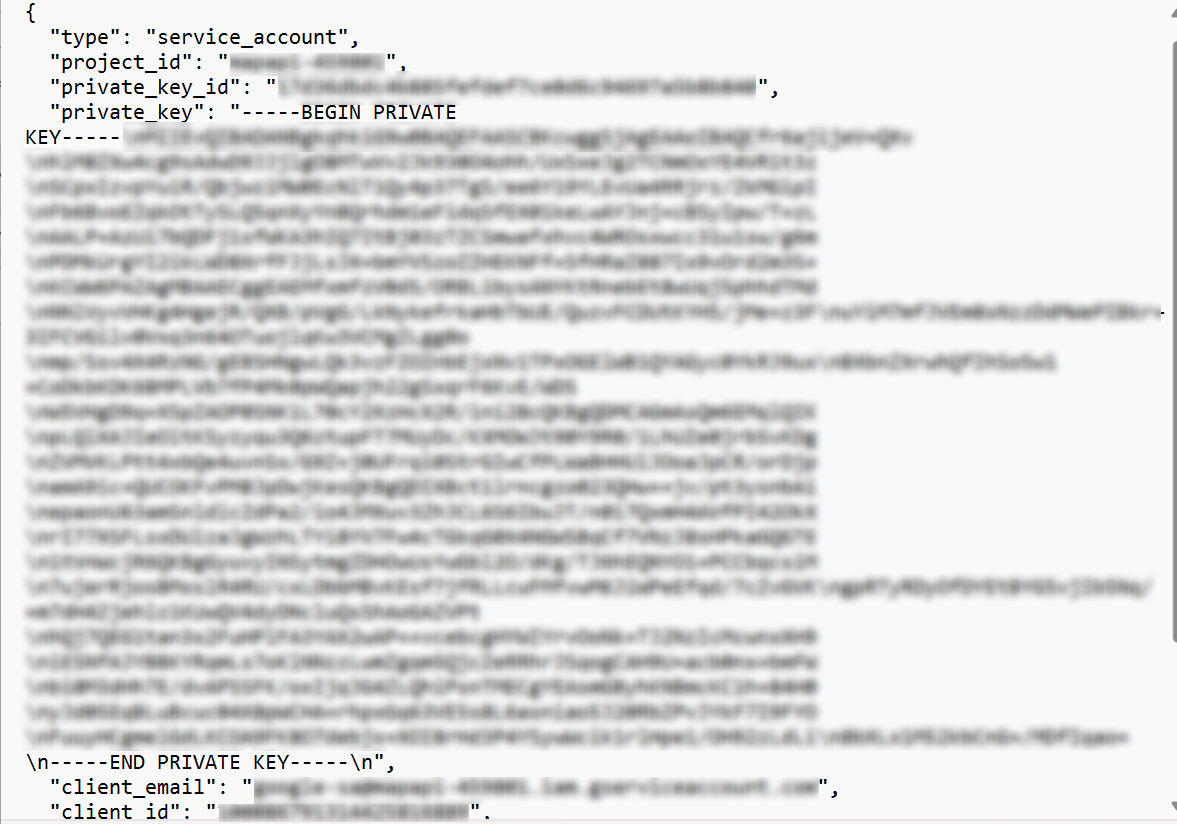
Service account email – Enter the client email that is included in the JSON file downloaded from the Google Cloud Platform when you create keys for the service account.
-
Private key – Enter the private key that is included in the JSON file downloaded from the Google Cloud Platform when you create keys for the service account.
-
Project ID – Enter the project ID that is included in the JSON file downloaded from the Google Cloud Platform when you create keys for the service account.
-
-
Click Save to save the configurations.
For the Service account email, Private key, and Project ID values, refer to the instructions below to create the service account key and download the JSON file.
-
Go to Google Cloud IAM.
-
Click Service Accounts and select the project where your service account has been created.
-
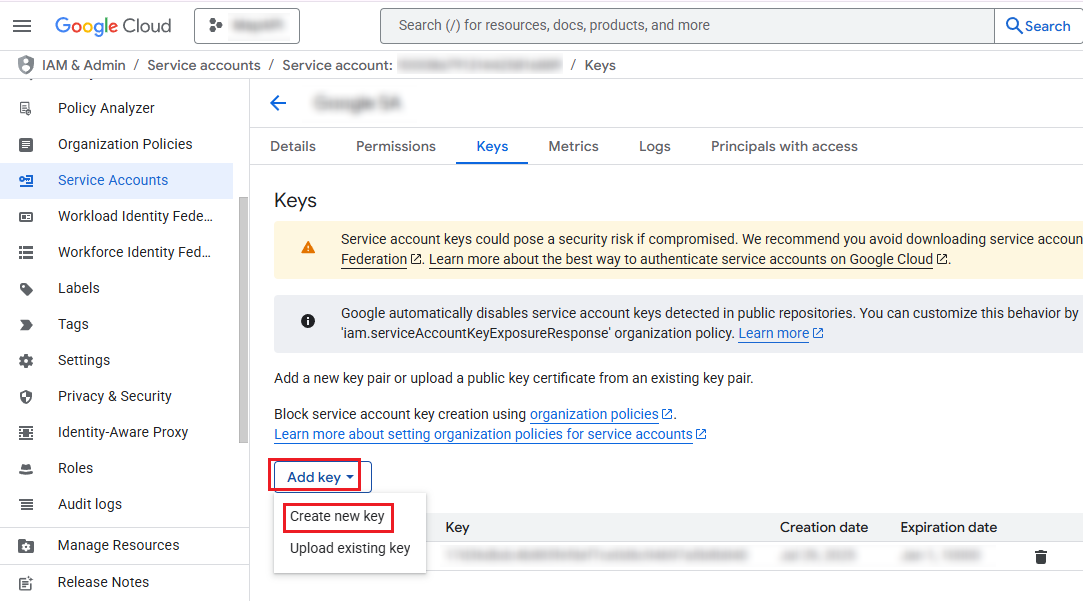
Click your service account, and then click the Keys tab.
-
Click Add key, and then click Create new key from the drop-down list.
-
Select the JSON key type and click Create.
-
Open the downloaded file and find the Project ID, Project key, and Client email values.