
Home > Workspace Management > View Workspaces of a Tenant
Download this articleView Workspaces of a Tenant
When you click a number link in the Total, Inactive, Orphaned, or Workspaces not ready for Copilot column on the Workspace management page, you switch to the tenant level and access the Workspaces page. When you are already at the tenant level, clicking Workspaces in the Workspace management drop-down menu also allows you to access the Workspaces page.
On the Workspaces page at the tenant level, you can view the number of workspaces per data source above the table. Click a data source to view the corresponding workspaces in the table with their information displayed. In addition to the basic details, you can view the following information for Teams and SharePoint and some of the information below for OneDrive, Groups, and Exchange.
-
Workspace classification – The classification applied to the workspace, either by data security posture settings or data owner.
-
Primary data owner – The primary data owner of the workspace.
-
Secondary data owner – The secondary data owner of the workspace.
-
Flagged issues – The number of issues that are flagged by data owners within the workspace.
-
Provisioning template – The provisioning template which is published to the tenant of the workspace.
-
Applied compliance policy – The compliance policy that is applied to the workspace.
-
Violations in compliance policy – The number of rules that are out of compliance and the total number of rules enabled in the compliance policy. Click the number link to access the Compliance details tab of the workspace details page.
-
Violated risk rules – The number of risk rules that the workspace violates. Click the number link to access the Risk rules page with all matched risk rules listed. You can then fix the violations of each risk rule. For more information, refer to Fix Violations for a Tenant.
-
Sensitive items – The number of sensitive items in the workspace. Click the number link to view the sensitive items on the Risk analysis > Details records page of Insights. For more information, refer to Detailed Records Reports.
-
Copilot readiness – The status of whether the workspace is ready for Copilot. If the status is Not ready, click it to view details in the Copilot readiness panel.
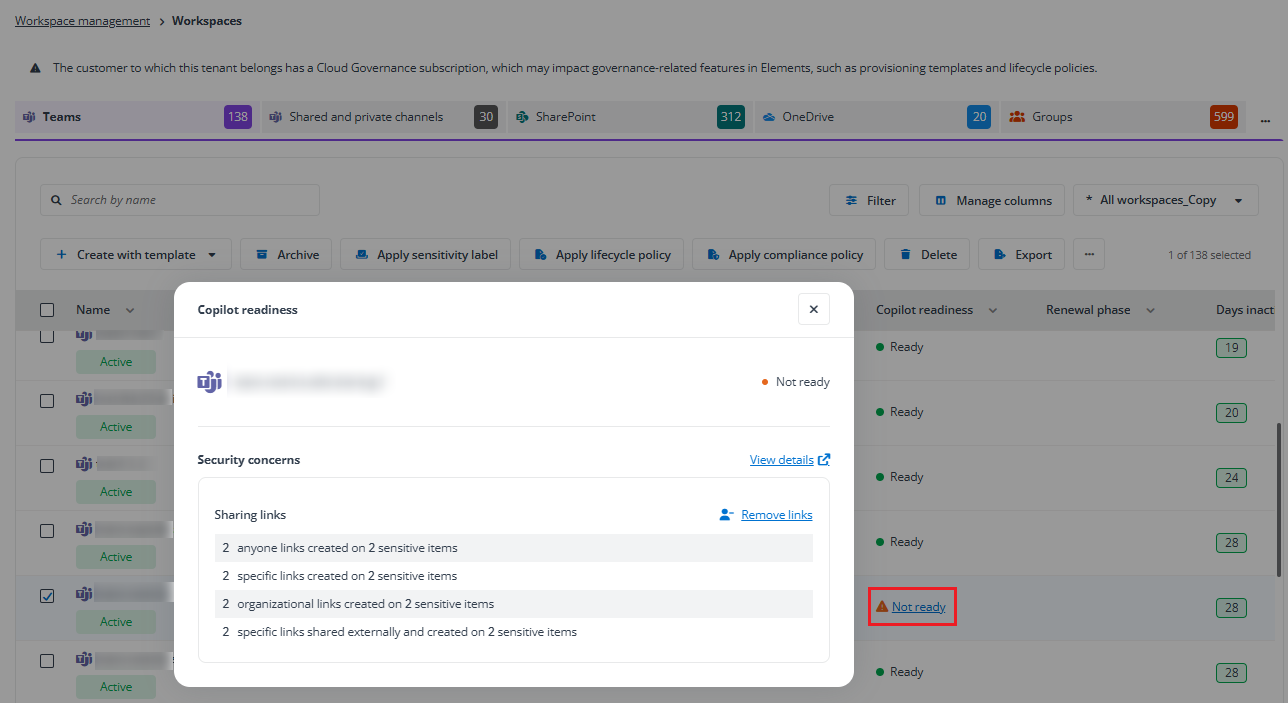
Clicking Remove access / Remove links under each security concern category to remove access/links in bulk. The process will start and Access removing… will be displayed for the security concern category. To view the process status, you can click Process center on the left navigation and switch to the Action tracker tab. When all security concerns are resolved, the Copilot readiness of the workspace will be changed to Ready.
Alternatively, you can click View details to go to the Copilot readiness page of Insights to view security concerns and take actions there.
-
Copilot search included – When the tenant has restricted both organization-wide search and Copilot experiences to a curated set of workspaces, this column values shows whether the workspace is included in the allowed list.
-
Lifecycle policy – The lifecycle policy that is applied to the workspace. If no lifecycle policy is applied to the workspace, the columns below will have no values.
-
Renewal phase – The specific stage of the workspace in the lifecycle management process.
-
In compliance – The last renewal process of the workspace has completed, and the next renewal task has not been generated yet. Alternatively, the first renewal task has not been triggered.
-
Invalid – The workspace has been locked, deleted, or archived.
-
Preparing renewal – The renewal task is being generated.
-
Renewal canceled – The last renewal task has been manually canceled.
-
Renewal completed with exception – An error occurred while updating the workspace properties.
-
Renewal submitted – The workspace properties are being updated based on the renewal results.
-
Renewal overdue – The renewal task of the workspace is overdue as the task assignee did not complete the task within the duration.
-
Renewal pending – The renewal task of the workspace is pending to be completed by the task assignee.
-
-
Phase assignee – The assignee of the renewal task in the current phase.
-
Last renewal time – The time of the workspace’s last renewal.
-
Last renewed by – The last user who renewed the workspace.
-
Discovery statistics – The statistics below are available for SharePoint and OneDrive only when the storage optimization discovery has been enabled for the tenant.
-
File count – The total number of files within the workspace.
-
Inactive data size (GB) – The size of inactive data within the workspace.
-
Inactive file count – The number of inactive files within the workspace.
-
Inactive data cost savings (monthly) – The monthly cost savings of inactive data after storage optimization.
-
> 10 versions (GB) – The size of files that have more than 10 versions.
-
> 50 versions (GB) – The size of files that have more than 50 versions.
-
ROT data size (GB) – The size of ROT data within the workspace.
-
ROT data cost savings (monthly) – The monthly cost savings of ROT data after storage optimization.
-
Redundant data size (GB) – The size of redundant data within the workspace.
-
Redundant data cost savings (monthly) – The monthly cost savings of redundant data after storage optimization.
-
Obsolete data size (GB) – The size of obsolete data within the workspace.
-
Obsolete data cost savings (monthly) – The monthly cost savings of obsolete data after storage optimization.
-
Trivial data size (GB) – The size of trivial data within the workspace.
-
Trivial data cost savings (monthly) – The monthly cost savings of trivial data after storage optimization.
-
-
Optimization statistics – The statistics below are available for SharePoint and OneDrive only when the storage optimization discovery has been enabled for the tenant.
-
Archived data size (GB) – The size of archived data within the workspace.
-
Destroyed data size (GB) – The size of destroyed data within the workspace.
-
Optimization scope – The configured data scope for optimization, Based on scanning results of discovery profile or Based on re-scanning results of archive profile.
-
Archive profile – If you select an archive profile as the data scope, the selected archive profile is displayed here.
-
Archive or destroy data job schedule – The job schedule to archive or destroy data. If you select Run now, this column will leave empty.
-
Click Refresh to refresh the workspaces displayed in the table.
To quickly view workspaces of specific criteria, you can select a view from the view drop-down list in the upper-right corner above the table to view the corresponding workspaces in the table.
You can manage the columns to be displayed in the table, and apply filters to filter specific workspaces as required. Then, you click Save as from the view drop-down list, enter a view name, and click Save to save a custom view. You can also make changes to a built-in view and save it as a custom view.
To export report of workspaces, you can click Export and select Current columns or All columns to export the currently displayed workspaces with the currently displayed columns or all columns in the report, and select xlsx or csv as the report type. Alternatively, select one or multiple workspaces and click Export to export report for the selected workspaces.
The Export action is not available for users who only have View only permission to Workspace management.
Manage Teams
When you click the Teams tile, you can view and manage Teams in the table. You can also create new Teams as required.
Create a Team
To create a Team, complete the following steps:
-
Click Create with template above the table and click Create from the drop-down list.
-
In the Create Team panel, enter the basic information and configure the settings for the Team:
-
Name – Enter the name of the Team.
-
Description – Enter the optional description for the Team.
-
Owner – Select the owners for the Team. Enter the display name or email address of the user and select the user. You can add multiple owners for a Team.
-
Members – Select the members for the Team. Enter the display name or email address of the user and select the user. You can add multiple members to a Team.
-
Sensitivity – Select the sensitivity label you would like to apply to the Team.
-
Privacy – Configure the privacy setting for the Team. Select from Private and Public.
-
Private Teams aren’t open for everyone to join them and Team owners are the only ones that can add members to them. These Teams won’t show up in search results or in the Teams gallery.
-
Public Teams can be seen by everyone from the Teams gallery, and people can join them without getting approval from a Team owner.
-
-
-
Click Create to create the Team.
Create a Team with Template
To create a Team with an existing provisioning template, complete the following steps:
-
Click Create with template above the table and click Create with template from the drop-down list.
-
In the Create with template window, select a template and enter the requester for which you create the Team.
NOTEOnly the provisioning templates with the corresponding type that are published to the tenant can be selected here.
-
Click Continue to continue the settings for the Team.
-
Enter a name and optional description for the Team.
-
Complete the configurable settings for the Team based on the template.
-
Click Create to create the Team with the template.
-
The privacy and external user access settings of the sensitivity label selected for the Team will affect the Team settings above.
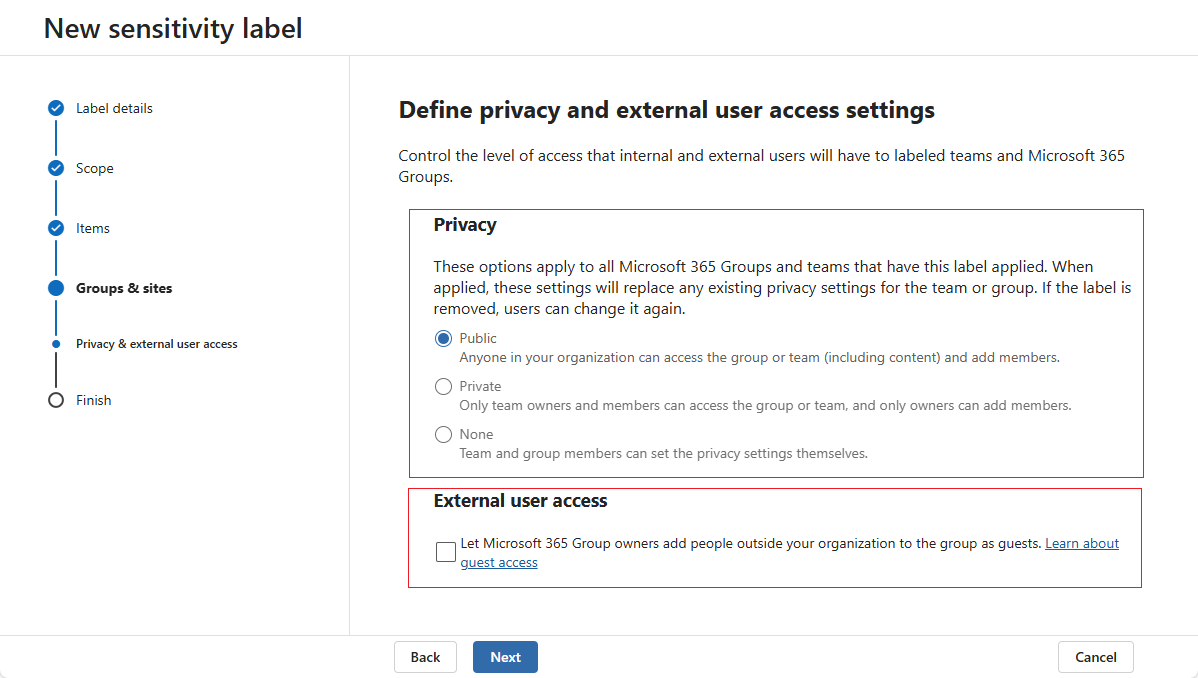
The Team privacy will be adjusted automatically based on the privacy setting of the sensitivity label. If the sensitivity label is configured to not let Microsoft 365 Group owners add people outside your organization to the group as guests, guest users cannot be added as members for the Team.
View and Manage Teams
You can view the detailed information of Teams in the tenant as well as manage Teams’ settings.
To view the details of a Team, click the Team’s display name to go the Teams details page. Information and manageable settings are displayed in tabs:
-
Basic information – Basic information of the Team.
-
Members – Lists all members of this Team. You can add, remove, or update memberships.
-
Channels – Lists all channels in this Team. You can create, delete, or update settings of the channels.
-
Governance details – You can view the detailed governance information of a Team, including the renewal information, metadata, and lifecycle timeline. In the Activity timeline section, you can view all related activities, along with the corresponding time and operator for each activity.
-
Compliance details – You can view the detailed compliance information of a Team, including the enabled rules and the rules that the Team is out of compliance.
-
Settings – Displays the settings of the Team, including conversation settings and channel settings.
-
Flagged issues – This tab lists the issues that are flagged for help by data owners and missing owner issues within this Team. The priority of the issue, object name, location, object type, data owner, comment added by the data owner, and created time of the object can be viewed in the table.
-
Audit logs – In this tab, you can view all action records performed to the current workspace. You can click Refresh to view the latest audit logs.
Refer to the following sections for the available management operations and the steps to manage them.
Update Team basic information
-
Click the Team display name to enter the Team details page.
-
To edit the basics for the Team, stay at the Basic information tab and click the pencil button to the right of each editable field after hovering over it. The editable fields will show:
-
Workspace name
-
Description
-
Privacy
-
Sensitivity label
-
Copilot search included
-
-
Click Apply changes on the top of the tab after you make changes to save and apply the changes.
Update Team members
You can add Team members, assign Team owners, or remove Team members from the Team.
To add Team members, complete the following steps in the Members tab:
-
Click Add.
-
In the Add users panel, search members by display name or email address and select members to add. You can only add a maximum of 20 members at a time. The selected users appear below the Users.
-
Select from Member and Owner for the users to add them as members or owners of the Team.
-
Click Save.
To remove Team members, complete the following steps:
-
Select the members you want to remove and click Remove.
-
In the Remove users confirmation window, click Remove.
To promote a member as an owner or demote an owner as a member, select Owner or Member from the drop-down list in the Role column. The role of the user in this Team will be updated.
Manage Team channels
For Team management, in the Channels tab, you can create channels, delete channels, and update channel information and settings.
To create a channel, complete the following steps.
-
Click Create.
-
In the Create channel panel, complete the channel information and setting, including:
-
Channel name – Enter the name for the channel.
-
Description – Enter an optional description for the channel.
-
Type – Select a type for the channel.
-
Standard channel is accessible to everyone on the Team.
-
Private channel is accessible only to a group of people within the Team.
-
Shared channel is a collaboration space where people who aren’t in the Team can be invited.
If you select Private or Shared, the Channel owner setting appears for you to select the channel owner.
-
-
-
Click Save.
To delete channels, complete the following steps:
-
Select the channels you want to delete and click Delete.
-
In the Delete channel confirmation window, click Delete to delete the channels.
You cannot delete channels in archived Teams, or delete the General channel in a Team.
To edit a channel’s basic information, complete the following steps:
-
Select the channel you want to edit, then click Edit.
-
In the Edit channel panel, update the Channel name or Description for the channel.
-
Click Save.
You cannot edit the General channel in a Team.
To manage permissions of a private or shared channel, complete the following steps:
-
Click the channel name to access the Channel details page.
-
Click Add to add members to the channel.
-
Search for and select the users you want to add to the channel.
-
Select Member or Owner from the drop-down list for each user.
-
Click Save.
To remove members from a private or shared channel, complete the following steps:
-
Click the channel name to access the Channel details page.
-
Select the members you want to delete and click Remove. The Remove users confirmation window appears.
-
Click Remove.
You cannot remove the last channel owner.
Update Team settings
-
Click the Team display name to enter the Team details page.
-
To edit settings for the Team, switch to the Settings tab.
-
Click Apply changes in the upper-right corner of the page after you make changes to save and apply the changes.
Handle workspace issues
You can handle workspace issues that are flagged by tenant users for administrator’s assistance or missing owner issues under the Flagged issues tab.
Select a Flag for help issue and click Review issue, and the Review flagged issue window appears. After reviewing the general information of the object and the issue type, the following actions can be performed:
-
View details – Click the View details link in the Issue description column to view details of the issue.
-
Fix issue – Click Fix issue and select Fix issue from the drop-down list to fix the issue. Confirm by clicking OK.
-
Preview fix – Click Fix issue and select Preview fix from the drop-down list to preview the fix result. Click Proceed with fix to fix the issue or click Cancel to close the Preview issue fix window without fixing the issue.
-
Ignore – Click Ignore to stop reporting issues for this object and it will no longer be included in the reporting scope. Confirm by clicking OK.
NOTEUse this action only when you are certain the object poses no security risks and does not require reporting.
Select a Missing owner issue and click Review issue, and the Review missing owner issue window appears. After reviewing the general information of the workspace, click Save after assigning data owners for the workspace:
-
Primary data owner
-
Secondary data owner
-
Additional data owners
Delete Teams
Select one or multiple Teams that you want to delete and click Delete above the table. The process will start to delete the Teams. To view the process status, you can go to the Process center. For details, refer to Action Tracker.
Archive or Unarchive Teams
After the end of a project, you can archive the related Team. When you archive a Team, the activity for that Team ceases, and private channels in the Teams and the associated site collections will also be archived. However, you can still add or remove members and update roles for the Team, and you can still view the Team activity, private channels, and chats.
To archive or unarchive a Team, complete the following steps:
-
Select the Teams you want to update in the table.
-
Click Archive or Unarchive.
-
If you are archiving the Teams, select Make the SharePoint site read-only for Team members on the confirmation window if it is needed, and then click Archive to save the updates.
-
If you are unarchiving the Teams, the Teams will be unarchived upon clicking Unarchive.
Edit Membership
To perform bulk operation to edit membership for Teams, complete the following steps:
-
Select the Teams to which you want to edit membership.
-
Click Edit membership.
-
In the Edit membership window, select the role for which you want to edit the membership, Owners, Members, or Guest.
-
Select the bulk operation you want to perform:
-
Add users – Specify the users you want to add as owners or members.
-
Replace user – Configure the original user and new user to replace the original user with the new user as owner or member.
-
Remove users – Specify the users you want to remove from the Owners or Members group.
-
Remove all users – This option is only available when the Members role is selected. Select it to remove all members from the Members group for the workspaces.
-
Remove all guests – This option is only available when the Guest role is selected. Select it to remove all guests from the workspaces.
-
-
Click Save to save the membership changes.
Apply a Sensitivity Label
To apply a sensitivity label to Teams, complete the following steps:
-
Select the Teams to which you want to apply a sensitivity label.
-
Click Apply sensitivity label.
-
In the Apply sensitivity label panel, select the sensitivity label you would like to apply to the selected Teams.
NOTEYou can only apply labels whose scope is site/group to Teams.
-
Click Apply. The process will start to apply the sensitivity label. To view the process status, you can go to the Process center. For details, refer to Action Tracker.
Apply a Lifecycle Policy
To apply a lifecycle policy to Teams, complete the following steps:
-
Select the Teams to which you would like to apply the lifecycle policy.
-
Click Apply lifecycle policy on the ribbon.
-
In the Apply lifecycle policy panel, select the lifecycle policy you would like to apply.
-
Click Apply to update the changes.
Alternatively, you can follow the steps below to apply a lifecycle policy to a Team:
-
Click the Team display name to enter the Team details page.
-
Switch to the Governance details tab, and click the pencil button in the Applied lifecycle policy field.
-
In the Apply lifecycle policy panel, select the lifecycle policy you would like to apply.
-
Click Apply to save and apply the lifecycle policy.
If the Team has ongoing renewal task, you can select how to handle it before applying the new lifecycle policy.
- Do not apply the new policy.
- Cancel the ongoing renewal task and apply the new policy.
Restart Renewal Process
To restart the renewal process of Teams, complete the following steps:
-
Select the Teams you would like to restart the renewal process.
-
Click Restart renewal process on the ribbon.
-
If the Team has a renewal task generated, you can choose whether to inform the task assignee about the task cancellation by selecting or deselecting the Send a cancellation email to the task assignees option.
-
In the confirmation window, click Restart. The process will start to restart the renewal process for the selected Teams.
You can only restart the renewal process for the workspaces of which the tenant has a lifecycle policy applied.
Auto-complete Renewal Process
To auto-complete the renewal process of Teams, complete the following steps:
-
Select the Teams you would like to auto-complete the renewal process.
-
Click Auto-complete on the ribbon.
-
In the Auto-complete window, select In compliance or Renewal canceled to indicate the phase status of the auto-completed renewal.
-
You can choose whether to inform the task assignee about the auto-completed renewal by selecting or deselecting the Send a cancellation email to the task assignees option.
-
Click Auto-complete. The process will start to auto-complete the renewal process for the selected Teams.
Apply a Compliance Policy
To apply a compliance policy to Teams, complete the following steps:
-
Select the Teams to which you would like to apply the compliance policy.
-
Click Apply compliance policy on the ribbon.
-
In the Apply compliance policy panel, select the compliance policy you would like to apply.
-
Click Apply to update the changes.
Alternatively, you can follow the steps below to apply a compliance policy to a Team:
-
Click the Team display name to enter the Team details page.
-
Switch to the Compliance details tab, and click the pencil button in the Compliance policy field.
-
In the Apply compliance policy panel, select the compliance policy you would like to apply.
-
Click Apply to save and apply the compliance policy.
Include or Exclude Teams for Copilot Search
For the tenant that restricts both organization-wide search and Copilot experiences to a curated set of workspaces, you can define the allowed list.
-
Select the Teams you want to add to the allowed list.
-
Click Include in Copilot search.
-
In the confirmation message, you can view the number of workspaces that are already in the allowed list. Click Include in Copilot search to add the selected Teams to the allowed list.
-
To exclude Teams from the allowed list, select them and click Exclude from Copilot search.
-
Click Exclude from Copilot search in the confirmation message to exclude the Teams from the allowed list.
Set Classification
Data classification is essential for ensuring the security, maintenance, and compliance of the workspace data. To set classification for Teams, complete the following steps:
-
Select the Teams for which you want to set classification, and click Set classification.
-
In the Set classification window, select the classification you want to apply to the Teams on the left. You can view the description of the selected classification on the right.
-
Click OK to apply the classification to the Teams. You can also click Clear classification to clear the classification for the Teams and select another one.
NOTEIf you clear the classification and click OK, the Default classification will be applied to the Teams.
Ignore All Issues
To ignore all issues for Teams, select the Teams and click Ignore all issues. In the confirmation window, click OK to confirm. After that, all existing issues for the Teams will be cleared from the dashboard and reports, and the workspace status will reset to OK.
Use this action only when:
- You are certain that objects under this workspace pose no security risks and do not require reporting, or
- You want to rest the baseline and start tracking issues only from this point.
Manage Shared and Private Channels
When you click the Shared and private channels tile, you can view and manage all shared and private channels in the tenant.
Create a Channel
To create a channel, complete the following steps:
-
Click Create above the table.
-
In the Create channel panel, enter the basic information and configure the settings for the channel:
-
Team name – Select the Team where you want to create the channel.
-
Channel name – Enter the name of the channel.
-
Description – Enter the optional description for the channel.
-
Type – Select the type of channel.
-
Private – Only the users on the team who are owners or members of the private channel can access the channel. Anyone, including guests, can be added as a member of a private channel as long as they’re existing members of the team.
-
Shared – Only the users who are owners or members of the shared channel can access the channel. You can invite people outside your organization to participate in a shared channel.
-
-
Channel owner – Select the owners for the channel. Enter the display name or email address of the user and select the user. You can add multiple owners for a private channel.
-
-
Click Save to create the channel.
Update channel basic information
To update channel basic information, complete the following steps:
-
Click the channel name to enter the Channel details page.
-
To edit the basics for the channel, click the pencil button to the right of each editable field after hovering over it. The editable fields will show:
-
Channel name
-
Description
-
-
Click Apply changes in the upper-right corner of the page to apply changes to the channel.
Alternatively, you can select a channel and click Edit above the table to edit the channel basic information.
Manage channel membership
To edit a private or shared channel, click the channel name to enter the Channel details page. You can then add members to this channel or remove channel members.
To add members to this channel, complete the following steps:
-
Click Add to add members to the channel.
-
Search for and select the users you want to add to the channel.
-
Select Member or Owner from the drop-down list for each user.
-
Click Save.
To remove members from this channel, complete the following steps:
-
Select the members you want to delete and click Remove. The Remove users confirmation window appears.
-
Click Remove.
You cannot remove the last channel owner.
Delete channels
Select one or multiple channels that you want to delete and click Delete above the table. The process will start to delete the channels. To view the process status, you can go to the Process center. For details, refer to Action Tracker.
SharePoint Management
When you click the SharePoint tile, you can view and manage SharePoint sites in the tenant. You can also create new sites as required.
Create a SharePoint Site
Click Create with template and select Create from the drop-down list. The Create SharePoint site panel appears. You have three options to create different sites, Team site, Communication site, and Other options.
Create a team site
In the Create SharePoint site panel, select Team site and click Continue to access the Create Group team site panel. Group Team sites are Microsoft 365 Group-connected sites that can provide spaces for users to collaborate in teams.
-
In the Create Group team site panel, complete the basic information for the Group team site, including:
-
Site name – Enter the name of the Group team site.
-
Group email address – The Group email address is for the Group that is connected to the Group team site. It is the same as the site name entered. However, you can edit this email address to make it different from the site name if needed.
-
Site address – The address of the Group team site. It is the same as the site name entered. However, you can edit this site address to make it different from the site name if needed.
-
Group owner – Enter the name or the email address of the user that you want to specify as the Group owner.
-
Select a language – Select the language for the site.
There are also advanced settings that you can configure for the Group team site, including:
-
Sensitivity – Select the sensitivity for the site.
-
Privacy settings – Select if the site is private or public. Private sites can only be accessed by Group members, while public sites can be accessed by anyone in the organization.
-
Time zone – Select the time zone for the site.
-
Site description – Enter a site description to tell people the purpose of this site.
-
Storage limit (GB) – Enter the site storage limit.
-
-
Add Group members for the Group team site, including:
-
Add additional owners – Apart from the Group owner you have configured, you can also add additional owners to the Group to be additional site admins.
-
Add members – Add members to the Group and they will also be members of the Group team site.
-
-
Click Save to create the Group team site.
Create a communication site
In the Create SharePoint site panel, select Communication site and click Continue to access the Create communication site panel.
-
To create a communication site, complete the following steps:
-
In the Create communication site panel, complete the basic information, including:
-
Site name – Enter the name of the site.
-
Site address – The address of the site. It is the same as the site name entered. However, you can edit this site address to make it different from the site name if needed.
-
Site owner – Enter the name or the email address of the user that you want to specify as the site owner.
-
Select a language – Select the language for the site.
There are also advanced settings that you can configure for the communication site, including:
-
Sensitivity – Select the sensitivity for the site.
-
Time zone – Select the time zone for the site.
-
Site description – Enter a site description to tell people the purpose of this site.
-
Storage limit (GB) – Enter the site storage limit.
-
-
Click Save to create the communication site.
Create other sites
In the Create SharePoint site panel, select Other options and click Continue to access the Create SharePoint site panel.
-
In the Create SharePoint site panel, complete the basic information, including:
-
Site name – Enter the name of the site.
-
Select a template – Select the template for the site.
-
Site address – The address of the site. It is the same as the site name entered. However, you can edit this site address to make it different from the site name if needed.
-
Primary administrator – Enter the name or the email address of the user that you want to specify as the primary administrator of the site.
-
Select a language – Select the language for the site.
There are also advanced settings that you can configure for the communication site, including:
-
Time zone – Select the time zone for the site.
-
Site description – Enter a site description to tell people the purpose of this site.
-
Storage limit (GB) – Enter the site storage limit.
-
-
Click Save to create the site.
Create a SharePoint Site with Template
Click Create with template and select Create with template from the drop-down list. The Create with template window appears. Select Team site, Communication site, Community portal, or Project site, and click Continue.
Select a template with which you want to create the site, enter the requester for which you create the site, and click Continue.
Only the provisioning templates with the corresponding type that are published to the tenant can be selected here.
Complete the settings in the window, and click Create to create the workspace with the template.
-
Enter a name and optional description for the site.
-
Complete the configurable settings for the site based on the template.
-
Click Create to create the site with the template.
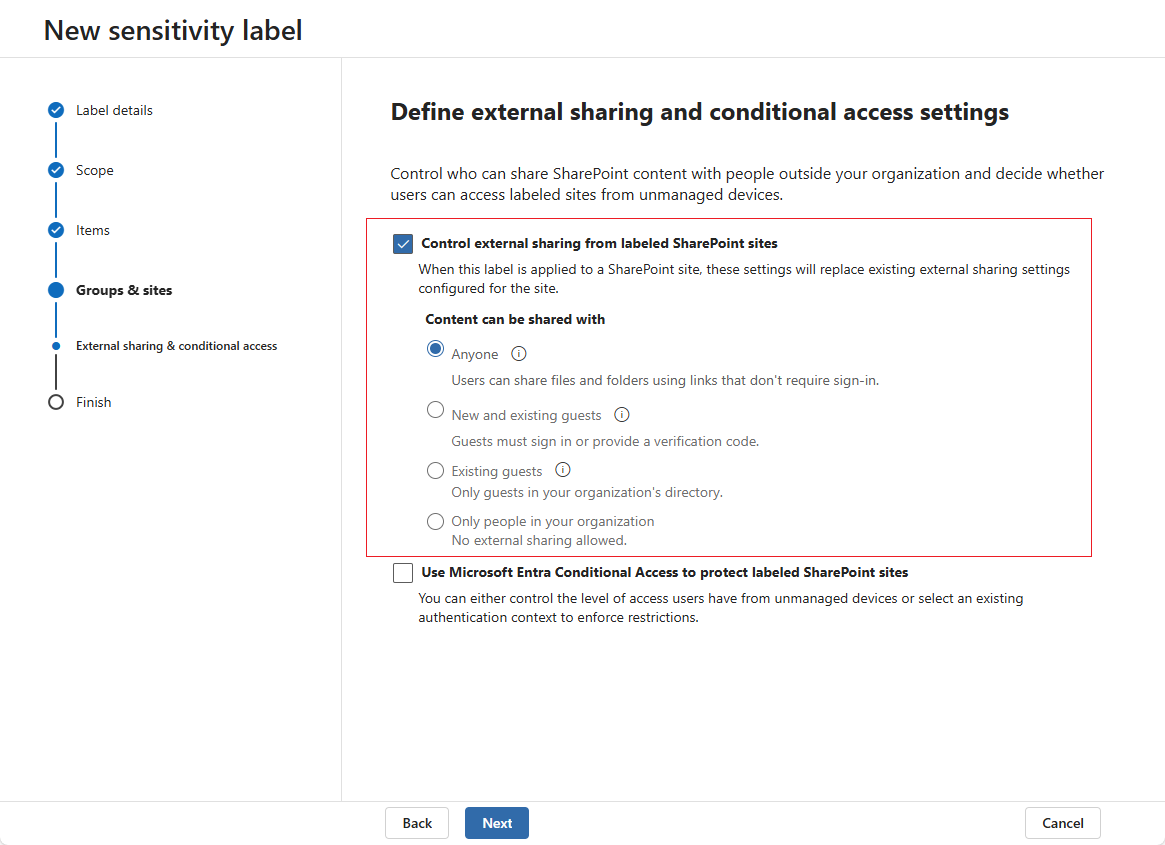
The site settings will be affected by the following:
- The external sharing and conditional access settings of the sensitivity label selected for the site.
- External sharing setting at the organization level in SharePoint.
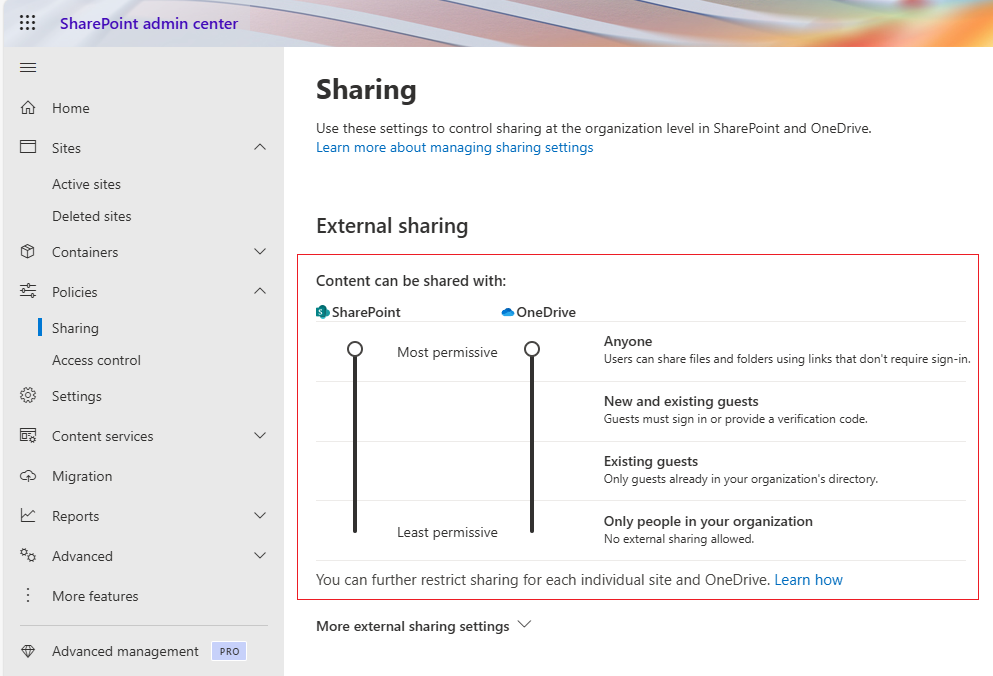
If Control external sharing from labeled SharePoint sites setting takes high priority than the External sharing setting at the organization level in SharePoint.
View and Manage Sites
You can update information and settings for a single site or bulk edit sites.
To view the details of a site, click the site name to go the Site details page. Information and manageable settings are displayed in tabs:
-
Basics – Basic information of the site.
-
Activities – Displays the percentage and size of storage used of the site, as well as the last activity date.
-
Permissions – Lists site admins, site owners, site members, site visitors, owners, and members of this site. You can add, remove, or update memberships.
NOTEThe Owners and Members groups will appear when the site has a Microsoft 365 Group connected.
-
Storage insights – This tab displays all archived objects within the site.
On the top, you can view the archived data size, destroyed data size, optimization scope, archive profile name if an archive profile is selected as the archive data scope, and the start time of the next archive or destroy data job.
All archived objects within the site are listed in the table. You can view the object name, URL, created time, modified time, the user who modified the object, and the archived time. Click Refresh to view the latest list of archived objects. You can also click Export, select Current columns or All columns to export the archived objects with the currently displayed columns or all columns, and select xlsx or csv as the report type. Alternatively, select one or multiple objects and click Export to export report for the selected objects.
-
Governance details – You can view the detailed governance information of a site, including the renewal information, metadata, and lifecycle timeline. In the Lifecycle timeline section, you can click View activity timeline in a tile to view all related activities, along with the corresponding time and operator for each activity.
-
Compliance details – You can view the detailed compliance information of a site, including the enabled rules and the rules that the site is out of compliance.
NOTEIf a team site has connected to a Team and has a compliance policy applied, the compliance details can only be viewed on the Team details page of the Team. For details, refer to View and Manage Teams.
-
Flagged issues – This tab lists the issues that are flagged for help by data owners and missing owner issues within this site. The priority of the issue, object name, location, object type, data owner, comment added by the data owner, and created time of the object can be viewed in the table.
-
Audit logs – In this tab, you can view all action records performed to the current workspace. You can click Refresh to view the latest audit logs.
Refer to the following sections for the available management operations and the steps to manage them.
Update site basic information
-
Click the site name to enter the Site details page.
-
To edit the basics for the site, stay at the Basics tab and click the pencil button to the right of each editable field after hovering over it. The editable fields will show:
-
Site name
-
Description
-
Copilot search included
If a team site has a Microsoft 365 Group connected, the value of Microsoft 365 Group will be Yes. If the Group has a Team added, the value of Connected to Teams will be Connected.
-
-
Edit settings in the Storage section to update the site storage related settings. For more information, refer to Manage site storage limits in SharePoint in Microsoft 365.
-
Click Apply changes in the upper-right corner of the page after you make changes to save and apply the changes.
Update permissions
You can manage the users in the following groups for the site under the Permissions tab: Site admins, Site owners, Site members, Site visitors. If the site has a Microsoft 365 Group connected, you can view the Owners and Members groups to manage membership for the Group.
To add group members, complete the following steps:
-
Click Add after selecting the Site admins, Site owners, Site members, Site visitors, Owners, or Members group.
-
In the Add users panel, search users by display name or email address, and select users to add.
-
Click Save.
For more information about managing membership of the Site admins, Site owners, Site members, and Site visitors groups, refer to Admin center site permissions reference.
For more information about managing membership of the Owners and Members groups, refer to Overview of Microsoft 365 Groups for administrators. if the team site has a Microsoft 365 Group connected. If the Group has a Team added, refer to Team owner, member, and guest capabilities in Microsoft Teams.
To remove group members, complete the following steps:
-
Select the users you want to remove and click Remove.
-
In the Remove users confirmation window, click Remove.
To promote a site admin as the primary admin, complete the steps below:
-
Click the Site admins group to show all admins of the site.
-
Select the user with Site admin role and click Set as primary admin. The role of the user in this site will be updated.
NOTEOnly one primary admin can be set for a site. If there is a user with the Primary admin role, this action will remove the primary admin role from that user.
Handle workspace issues
You can handle workspace issues that are flagged by tenant users for administrator’s assistance or missing owner issues under the Flagged issues tab.
Select a Flag for help issue and click Review issue, and the Review flagged issue window appears. After reviewing the general information of the object and the issue type, the following actions can be performed:
-
View details – Click the View details link in the Issue description column to view details of the issue.
-
Fix issue – Click Fix issue and select Fix issue from the drop-down list to fix the issue. Confirm by clicking OK.
-
Preview fix – Click Fix issue and select Preview fix from the drop-down list to preview the fix result. Click Proceed with fix to fix the issue or click Cancel to close the Preview issue fix window without fixing the issue.
-
Ignore – Click Ignore to stop reporting issues for this object and it will no longer be included in the reporting scope. Confirm by clicking OK.
NOTEUse this action only when you are certain the object poses no security risks and does not require reporting.
Select a Missing owner issue and click Review issue, and the Review missing owner issue window appears. After reviewing the general information of the workspace, click Save after assigning data owners for the workspace:
-
Primary data owner
-
Secondary data owner
-
Additional data owners
Restore Objects
-
Click the site name to enter the Site details page.
-
To restore the archived objects, switch to the Storage insights tab.
-
You can search for the archived objects by entering keywords of object names in the search box and press Enter to start the search. To perform advanced search, click the search criteria button above the table, use the provided criteria, and click Search to narrow down the archived objects displayed on the table.
-
Select one or multiple archived objects and click Restore to restore the required objects back to their original locations.
-
To restore all archived objects within one or multiple sites, you can select the sites and click Restore on the ribbon.
In the Restore window, complete the following settings for archived objects:
-
Select the number of latest versions to restore or select to restore all versions.
NOTEThis is not available for file versions or the entire workspace level restore.
-
Select the conflict resolution for the restore.
-
Skip – This will not restore the archived object, and instead keep the existing object in the destination.
-
Overwrite – This will replace the existing object in the destination with the archived object.
-
Append – This will keep the original object as it is and copy the archived object to the original location by adding a suffix (_1, _2, _3, …) to the item object name.
-
-
Select Include workflow definition to restore the definition of existing workflows for the objects.
-
Select Include sharing link to restore sharing links for the objects.
-
Select Designate a site administrator for the site (only one user account is permitted) to assign a site administrator to the site. Enter the name or email address of the user you want to assign as the site administrator, and select the user from the suggestion list.
Click Restore to start restoring archived objects.
Manage Permissions
To manage permissions of a site, complete the following steps:
-
Select the site for which you would like to update permissions.
-
Click the Permissions button to expand the management list.
-
With the management list, you can perform the following actions:
-
Manage site admins – Remove administrators from the site or add administrators to the site. To promote an admin as the primary admin or demote the primary admin as an admin, select Primary admin or Admin from the drop-down list in the role column. The role of the user in this site will be updated. For more information, refer to Admin center site permissions reference.
-
Manage owners – Remove owners from the Group or add Group owners.
NOTEThis is only available for the site with a Microsoft 365 Group connected. For more information, refer to Overview of Microsoft 365 Groups for administrators. If the Group has a Team added, refer to Team owner, member, and guest capabilities in Microsoft Teams.
-
Set Site Status
To update the status of a site, complete the following steps:
-
Select the site you would like to update, and click Set site status.
-
Select the status to update to, including:
-
Unlocked – When the site status is unlocked, the site is available to users.
-
Read only – When the site status is read-only, users cannot add, update, or delete content. A message will appear in the site stating that it is under maintenance and read-only.
-
No access – When the site status is no access, users cannot access the site or its content, and will receive a 403 error page.
-
-
Click Save to update the site status.
Update External Sharing Settings
To update the external sharing settings of a site, complete the following steps:
-
Select the site you would like to update, and click Sharing.
-
In the Sharing panel, you can update the following external sharing settings for the selected site:
-
Site content can be shared with – Select with whom the site content can be shared. You can select from Anyone, New and existing guests, Existing guests only, and Only people in your organization.
-
Advanced settings for external sharing
- Limit sharing by domain – Select whether you would like to allow only specific domains to receive the sharing or block the sharing to specific domains.
-
Expiration of guest access – Select whether the guest access never expires or configure an expiration period for the guest access. You can also select the expiration setting to be the same as your organization-level setting.
-
Default sharing link type – Select the type of link that is the default link type when users share files and folders on this site. You can select from People with existing access, Specific people (only the people the user specifies), Only people in your organization, and Anyone with the link. You can also select the setting to be the same as your organization-level setting. For more information, refer to Change the default link for a site.
-
Default link permission – Select the permission for the default sharing link. You can select from View and Edit. Or you can select the setting to be the same as your organization-level setting.
The settings are applied to the individual site you have selected. For more information, refer to Change the sharing settings for a site. You can also click Reset to organization-level settings to reset the external sharing settings of this site and make it comply with the sharing settings on the organizational-level.
-
-
Click Save to update the external sharing settings.
Edit Storage Limit
To update the site storage settings, complete the following steps.
-
Select the site you would like to update, and click Storage.
-
In the Edit storage limit panel, you can configure the maximum storage and the notification settings when a specific percentage of the storage is used.
-
Click Save to update the site storage settings.
For more information, refer to Manage site storage limits in SharePoint in Microsoft 365.
Archive or Destroy Objects
To archive or destroy objects within one or multiple sites, complete the following steps.
For customers with the Trial subscription for Workspace management - Storage optimization, you can archive up to 5 sites with a total data limit of 5 GB.
-
Select the sites where the objects you would like to archive or destroy, and click Archive or destroy.
-
Complete the following settings in the Archive or destroy window.
-
Define the data scope to be actioned.
-
You can choose to define the data scope based on the site's scanning results of the last storage optimization discovery.
The modified time range and file size range defined in the discovery profile are automatically loaded and available to narrow down the data scope. The file types in the reporting scope are also available as a filter.
-
Alternatively, you can define the data scope based on the site's re-scanning results of an archive profile.
Select an archive profile from the drop-down list and then you can click View details to view the archive profile details. You can also click Create new archive profile in the drop-down list and create a new archive profile in a new tab.
NOTEYou can skip the steps 3, 4, and 5 below when you select an archive profile as the data scope.
-
-
Configure the schedule of the archive or destroy data job.
-
Select Run now to run the job immediately after submitting your settings.
-
Select Configure a time and select a date and time to run the job at this specific time.
-
Select Configure a schedule to run the job based on the schedule.
-
Interval – Configure an interval to run the job repeatedly. You can select the interval unit from Days, Weeks, and Months.
-
Start time – Specify the start time for the job.
-
End time – Specify the end time for the job.
-
-
-
You can choose to manage all files in the scope defined above, or manage specific files and versions by selecting inactive data rules and/or ROT data rules to narrow down versions and files.
-
Select the action that you want to take on files:
-
Archive and destroy files – Select this option to archive files to a storage location for the defined period. These files will be destroyed in the content source.
- Select Leave a stub in place for each document if you want to leave a stub in the original location after a file is archived and disposed of. You can further select the stub type, HTML, TXT, or Restore link. When users click the stub, they have the option to restore or download the file. For the HTML and TXT stub types, you can view and customize the message displayed in the stub.
-
Destroy files – Select this option to destroy files in the content source.
In addition, you can select Include declared records if you want to include files that have been declared as SharePoint records (with a padlock icon).
-
-
Select the action that you want to take on versions:
-
Archive and destroy versions – Select this option to archive versions to a storage location for the defined period. These versions will be destroyed in the content source.
-
Destroy versions – Select this option to destroy versions in the content source.
-
-
-
Click Submit to save the settings above and you can view the record in Action Tracker.
Remove Schedule
For the site of which a schedule has been configured for archive or destroy data jobs, you can select the site and click Remove schedule to remove the schedule for the site. All scheduled archive or destroy data jobs will be deleted.
Connect to New Microsoft 365 Group
For the site with the Team site (no Microsoft 365 Group) and Team site (classic experience) template, you can create and connect a Microsoft 365 Group to the site if they have no Microsoft 365 Group connected.
-
Select the sites to which you want to connect to a Microsoft 365 Group, and click Connect to new Microsoft 365 Group.
-
In the Connect to new Microsoft 365 Group panel, complete the following settings:
-
Group name – The site name is the default Group name and you can edit it as required.
-
Group email address – The site name is the default Group email address and you can edit it as required.
-
Privacy settings – Select from Public or Private.
-
Content in a public group can be seen by anybody in your organization, and anybody in your organization is able to join the group.
-
Content in a private group can only be seen by the members of the group, and people who want to join a private group have to be approved by a group owner.
-
-
Add members – Search members by display name or email address and select members to add as Group members. The site admins are added as Group Owner automatically. You can change their role by selecting Member from the role list or remove them from the Group.
-
-
Click Save to create the Microsoft 365 Group and connect to the site.
Edit Membership
To perform bulk operation to edit membership for sites, complete the following steps:
-
Select the sites for which you want to edit membership.
-
Click Edit membership.
-
In the Edit membership window, select the role for which you want to edit the membership, Site admins, Site owners, Site members, or Site visitors.
-
Select the bulk operation you want to perform:
-
Add users – Specify the users you want to add with the selected role.
-
Replace user – Configure the original user and new user to replace the original user with the new user.
-
Remove users – Specify the users you want to remove from the corresponding group.
-
Remove all users – This option is only available when the Site members role is selected. Select it to remove all members from the Site members group for the workspaces.
-
Remove all guests – This option is only available when the Site visitors is selected. Select it to remove all guests from the workspaces.
-
-
Click Save to save the membership changes.
Apply a Sensitivity Label
Sensitivity labels classify and protect team content like files and sites. For more information, refer to Learn about sensitivity labels.
To apply a sensitivity label to SharePoint sites, complete the following steps:
-
Select the sites to which you want to apply a sensitivity label.
-
Click Apply sensitivity label.
-
In the Apply sensitivity label panel, select the sensitivity label you would like to apply to the selected sites.
NOTEYou can only apply labels whose scope is site/group to sites.
-
Click Apply. The process will start to apply the sensitivity label. To view the process status, you can go to the Process center. For details, refer to Action Tracker.
Apply a Lifecycle Policy
To apply a lifecycle policy to SharePoint sites, complete the following steps:
-
Select the sites to which you would like to apply the lifecycle policy.
-
Click Apply lifecycle policy on the ribbon.
-
In the Apply lifecycle policy panel, select the lifecycle policy you would like to apply.
-
Click Apply to update the changes.
Alternatively, you can follow the steps below to apply a lifecycle policy to a site:
-
Click the site name to enter the Site details page.
-
Switch to the Governance details tab, and click the pencil button in the Applied lifecycle policy field.
-
In the Apply lifecycle policy panel, select the lifecycle policy you would like to apply.
-
Click Apply to save and apply the lifecycle policy.
Restart Renewal Process
To restart the renewal process of SharePoint sites, complete the following steps:
-
Select the sites you would like to restart the renewal process.
-
Click Restart renewal process on the ribbon.
-
If the site has a renewal task generated, you can choose whether to inform the task assignee about the task cancellation by selecting or deselecting the Send a cancellation email to the task assignees option.
-
On the confirmation window, click Restart. The process will start to restart the renewal process for the selected sites.
You can only restart the renewal process for the workspaces of which the tenant has a lifecycle policy applied.
Auto-complete Renewal Process
To auto-complete the renewal process of SharePoint sites, complete the following steps:
-
Select the sites you would like to auto-complete the renewal process.
-
Click Auto-complete on the ribbon.
-
In the Auto-complete window, select In compliance or Renewal canceled to indicate the phase status of the auto-completed renewal.
-
You can choose whether to inform the task assignee about the auto-completed renewal by selecting or deselecting the Send a cancellation email to the task assignees option.
-
Click Auto-complete. The process will start to auto-complete the renewal process for the selected sites.
Apply a Compliance Policy
To apply a compliance policy to SharePoint sites, complete the following steps:
-
Select the sites to which you would like to apply the compliance policy.
-
Click Apply compliance policy on the ribbon.
-
In the Apply compliance policy panel, select the compliance policy you would like to apply.
-
Click Apply to update the changes.
Alternatively, you can follow the steps below to apply a compliance policy to a site:
-
Click the site name to enter the Site details page.
-
Switch to the Compliance details tab, and click the pencil button in the Compliance policy field.
-
In the Apply compliance policy panel, select the compliance policy you would like to apply.
-
Click Apply to save and apply the compliance policy.
Delete Sites
Select one or multiple sites that you want to delete and click Delete above the table. The process will start to delete the sites. To view the process status, you can go to the Process center. For details, refer to Action Tracker.
Include or Exclude Sites for Copilot Search
For the tenant that restricts both organization-wide search and Copilot experiences to a curated set of workspaces, you can define the allowed list.
-
Select the sites you want to add to the allowed list.
-
Click Include in Copilot search.
-
In the confirmation message, you can view the number of workspaces that are already in the allowed list. Click Include in Copilot search to add the selected sites to the allowed list.
-
To exclude sites from the allowed list, select them and click Exclude from Copilot search.
-
Click Exclude from Copilot search in the confirmation message to exclude the sites from the allowed list.
Set Classification
Data classification is essential for ensuring the security, maintenance, and compliance of the workspace data. To set classification for sites, complete the following steps:
-
Select the sites for which you want to set classification, and click Set classification.
-
In the Set classification window, select the classification you want to apply to the sites on the left. You can view the description of the selected classification on the right.
-
Click OK to apply the classification to the sites. You can also click Clear classification to clear the classification for the sites and select another one.
NOTEIf you clear the classification and click OK, the Default classification will be applied to the sites.
Ignore All Issues
To ignore all issues for sites, select the sites and click Ignore all issues. In the confirmation window, click OK to confirm. After that, all existing issues for the sites will be cleared from the dashboard and reports, and the workspace status will reset to OK.
Use this action only when:
- You are certain that objects under this workspace pose no security risks and do not require reporting, or
- You want to rest the baseline and start tracking issues only from this point.
OneDrive Management
You can view the detailed information OneDrives in the tenant as well as manage OneDrives’ settings.
To view the details of a OneDrive, click the OneDrive name to go the OneDrive details page. Information and manageable settings are displayed in tabs:
-
Basic information – Basic information of OneDrive.
-
Activities – Displays the percentage and size of storage used by OneDrive, as well as the last activity date.
-
Storage insights – This tab displays all archived objects within the OneDrive.
On the top, you can view the archived data size, destroyed data size, optimization scope, archive profile name if an archive profile is selected as the archive data scope, and the start time of the next archive or destroy data job.
All archived objects within the OneDrive are listed in the table. You can view the object name, URL, created time, modified time, the user who modified the object, and the archived time. Click Refresh to view the latest list of archived objects. You can also click Export, select Current columns or All columns to export the archived objects with the currently displayed columns or all columns, and select xlsx or csv as the report type. Alternatively, select one or multiple objects and click Export to export report for the selected objects.
-
Compliance details – You can view the detailed compliance information of a OneDrive, including the enabled rules and the rules that the OneDrive is out of compliance.
-
Audit logs – In this tab, you can view all action records performed to the current workspace. You can click Refresh to view the latest audit logs.
Refer to the following sections for the available management operations and the steps to manage them.
Manage administrators, storage limit, external sharing for OneDrive
You can update OneDrive administrators, storage limit, and external sharing setting.
To update OneDrive in the OneDrive table, complete the following steps:
-
Select the OneDrive you would like to update in the OneDrive table.
-
Click the Manage button to expand the management list.
-
With the management list, you can perform the following actions:
-
Manage administrators – Remove administrators from the OneDrive or add administrators to the OneDrive. However, the OneDrive owner cannot be removed from the administrator list.
-
Manage storage limit – Configure the storage limit for the OneDrive.
-
Manage external sharing – Configure the external sharing setting for the OneDrive. You can decide whether to let people outside your organization access this OneDrive. If enabled, you can select the detailed setting from the following:
-
Allow sharing to authenticated guest users with invitations
-
Allow sharing with anonymous guest links and authenticated users
-
Only allow sharing with existing guest users in the directory
-
-
To manage storage limit or external sharing for an individual OneDrive on the OneDrive details page, complete the following steps:
-
Click the display name of the OneDrive you would like to update in the OneDrive table.
-
In the Basic information tab of the OneDrive details page, click the pencil button in each editable field to edit the corresponding settings.
-
Status
-
Copilot search included
-
External sharing
-
-
Edit settings in the Storage section to update the OneDrive storage related settings.
-
Click Apply changes in the upper-right corner of the page after you make changes to save and apply the changes.
Update OneDrive status
To update the status of OneDrive, complete the following steps:
-
Select the OneDrive you would like to update, and click Update OneDrive status.
-
Select the status to update to, including:
-
Unlocked – When the OneDrive status is unlocked, the OneDrive is available to users.
-
Read only – When the OneDrive status is read only, users cannot add, update, or delete content. A message will appear in the OneDrive stating that it is under maintenance and read-only.
-
No access – When the OneDrive status is no access, users cannot access the OneDrive or its content, and will receive a 403 error page.
-
-
Click Save to update the OneDrive status.
Edit Membership
To perform bulk operation to edit membership for OneDrives, complete the following steps:
-
Select the OneDrives for which you want to edit membership.
-
Click Edit membership.
-
In the Edit membership window, only the Administrator role is available.
-
Select the bulk operation you want to perform:
-
Add users – Specify the users you want to add as administrators.
-
Replace user – Configure the original user and new user to replace the original user with the new user as the administrator.
-
Remove users – Specify the users for whom you want to remove the Administrator role.
-
-
Click Save to save the membership changes.
Apply a compliance policy
To apply a compliance policy to OneDrives in bulk, complete the following steps:
-
Select the OneDrives to which you would like to apply the compliance policy.
-
Click Apply compliance policy on the ribbon.
-
In the Apply compliance policy panel, select the compliance policy you would like to apply.
-
Click Apply to update the changes.
Alternatively, you can follow the steps below to apply a compliance policy to a OneDrive:
-
Click the OneDrive name to enter the OneDrive details page.
-
Switch to the Compliance details tab, and click the pencil button in the Compliance policy field.
-
In the Apply compliance policy panel, select the compliance policy you would like to apply.
-
Click Apply to save and apply the compliance policy.
Archive or Destroy Objects
To archive or destroy objects within one or multiple OneDrives, complete the following steps.
For customers with the Trial subscription for Workspace management - Storage optimization, you can archive up to 5 sites with a total data limit of 5 GB.
-
Select the OneDrives where the objects you would like to archive or destroy, and click Archive or destroy.
-
Complete the following settings in the Archive or destroy window.
-
Define the data scope to be actioned.
-
You can choose to define the data scope based on the OneDrive's scanning results of the last storage optimization discovery.
The modified time range and file size range defined in the discovery profile are automatically loaded and available to narrow down the data scope. The file types in the reporting scope are also available as a filter.
-
Alternatively, you can define the data scope based on the OneDrive's re-scanning results of an archive profile.
Select an archive profile from the drop-down list and then you can click View details to view the archive profile details. You can also click Create new archive profile in the drop-down list and create a new archive profile in a new tab.
NOTEYou can skip the steps 3, 4, and 5 below when you select an archive profile as the data scope.
-
-
Configure the schedule of the archive or destroy data job.
-
Select Run now to run the job immediately after submitting your settings.
-
Select Configure a time and select a date and time to run the job at this specific time.
-
Select Configure a schedule to run the job based on the schedule.
-
Interval – Configure an interval to run the job repeatedly. You can select the interval unit from Days, Weeks, and Months.
-
Start time – Specify the start time for the job.
-
End time – Specify the end time for the job.
-
-
-
You can choose to manage all files in the scope defined above, or manage specific files and versions by selecting inactive data rules and/or ROT data rules to narrow down versions and files.
-
Select the action that you want to take on files:
-
Archive and destroy files – Select this option to archive files to a storage location for the defined period. These files will be destroyed in the content source.
- Select Leave a stub in place for each document if you want to leave a stub in the original location after a file is archived and disposed of. You can further select the stub type, HTML, TXT, or Restore link. When users click the stub, they have the option to restore or download the file. For the HTML and TXT stub types, you can view and customize the message displayed in the stub.
-
Destroy files – Select this option to destroy files in the content source.
In addition, you can select Include declared records if you want to include files that have been declared as SharePoint records (with a padlock icon).
-
-
Select the action that you want to take on versions:
-
Archive and destroy versions – Select this option to archive versions to a storage location for the defined period. These versions will be destroyed in the content source.
-
Destroy versions – Select this option to destroy versions in the content source.
-
-
-
Click Submit to save the settings above and you can view the record in Action Tracker.
Remove Schedule
For the OneDrive of which a schedule has been configured for archive or destroy data jobs, you can select the OneDrive and click Remove schedule to remove the schedule for the OneDrive. All scheduled archive or destroy data jobs will be deleted.
Restore Objects
-
Click the OneDrive name to enter the OneDrive details page.
-
To restore the archived objects, switch to the Storage insights tab.
-
You can search for the archived objects by entering keywords of object names in the search box and press Enter to start the search. To perform advanced search, click the search criteria button above the table, use the provided criteria, and click Search to narrow down the archived objects displayed on the table.
-
Select one or multiple archived objects and click Restore to restore the required objects back to their original locations.
-
To restore all archived objects within one or multiple OneDrives, you can select the OneDrives and click Restore on the ribbon.
In the Restore window, complete the following settings for archived objects:
-
Select the number of latest versions to restore or select to restore all versions.
NOTEThis is not available for file versions or the entire workspace level restore.
-
Select the conflict resolution for the restore.
-
Skip – This will not restore the archived object, and instead keep the existing object in the destination.
-
Overwrite – This will replace the existing object in the destination with the archived object.
-
Append – This will keep the original object as it is and copy the archived object to the original location by adding a suffix (_1, _2, _3, …) to the item object name.
-
-
Select Include workflow definition to restore the definition of existing workflows for the objects.
-
Select Include sharing link to restore sharing links for the objects.
-
Select Designate a site administrator for the site (only one user account is permitted) to assign a site administrator to the site. Enter the name or email address of the user you want to assign as the site administrator, and select the user from the suggestion list.
Click Restore to start restoring archived objects.
Include or Exclude OneDrives for Copilot Search
For the tenant that restricts both organization-wide search and Copilot experiences to a curated set of workspaces, you can define the allowed list.
-
Select the OneDrives you want to add to the allowed list.
-
Click Include in Copilot search.
-
In the confirmation message, you can view the number of workspaces that are already in the allowed list. Click Include in Copilot search to add the selected OneDrives to the allowed list.
-
To exclude OneDrives from the allowed list, select them and click Exclude from Copilot search.
-
Click Exclude from Copilot search in the confirmation message to exclude the OneDrives from the allowed list.
Manage Groups
When you click the Groups tile, you can view and manage groups in the table. You can also create new groups as required.
By default, Microsoft 365 Group, Distribution group, Mail-enabled security group, and Security group can be created. If a tenant has connected to Hybrid Agent Management, you can also create Distribution groups and Security groups in your on-premises environment.
Create a Microsoft 365 Group
To create a Microsoft 365 Group, complete the following steps:
-
Click Create above the table.
-
In the Select a Group type panel, Microsoft 365 Group (recommended) is selected by default. For more information about group types, refer to Compare types of groups in Microsoft 365. Click Continue to proceed.
-
Complete the basics for the Microsoft 365 Group, including
-
Name – Enter the name of the Group.
-
Group email address – Enter the email address for the Group.
-
Description – Enter an optional description for the Group.
Click Continue to proceed or click Back to go back to the Group type selection.
-
-
Manage membership, including:
-
Microsoft Entra ID roles can be assigned to the Group – If this is turned on, you can assign roles defined in your Microsoft Entra ID to this Group. Click the Manage roles link under Roles, select Admin center access and desired roles to assign to the Group, and click Save. For more information, refer to Use Microsoft Entra groups to manage role assignments.
-
Membership type – Select from Assigned and Dynamic user.
For Assigned Groups, you need to manually manage the Owners and Members for this Group. Click Continue to proceed or click Back to go back to the Basics.
For Dynamic user Groups, you can configure rules to automatically manage membership for this Group. To manage the membership, complete the following steps:
-
Configure owners for this Group.
-
Click Customize rules for membership under Members.
-
To add a rule for the user membership management, select a condition and enter a value for the rule. If you want to add more than one rule, click Add rule to add more rules.
-
Click Save to save the rules and go back to the Manage membership panel.
Click Continue to proceed or click Back to go back to the Basics.
NOTEFor both Assigned and Dynamic Groups, if you plan to add Microsoft Teams to this Group, all owners must have a license that includes Teams. For more information, refer to Manage Teams licenses. Application groups cannot be added as owners or members.
-
-
-
Edit settings for the Group, including:
-
Sensitivity label – Select the sensitivity label you would like to apply to the Group.
-
Privacy – Select from Public or Private.
-
Content in a public group can be seen by anybody in your organization, and anybody in your organization is able to join the group.
-
Content in a private group can only be seen by the members of the group, and people who want to join a private group have to be approved by a group owner.
-
-
Allow external senders to email this Group – Select to enable or disable.
-
Send copies of Group conversations and events to Group members – Select to enable or disable.
-
Hide from my organization’s global address list – Select to enable or disable.
-
Add Microsoft Teams to this Group – Select to enable or disable.
-
-
Click Save.
Create a Distribution Group
To create a distribution group, complete the following steps:
-
Click Create above the table.
-
In the Select a Group type panel, select Distribution group. For more information about group types, refer to Compare types of groups in Microsoft 365. Click Continue to proceed.
-
Complete the basics for the distribution group, including:
-
Name – Enter the name of the group.
-
Group email address – Enter the email address for the group.
Mark this group as room list – Click the toggle to mark this group as room list. *Note: Once enabled, this setting cannot be disabled.
-
Description – Enter an optional description for the group.
Click Continue to proceed or click Back to go back to the Group type selection.
-
-
Manage membership, including:
-
Membership type – Select from Assigned or Dynamic user.
For Assigned groups, you need to manually assign owners and members for this group.
Click Continue to proceed or click Back to go back to the Basics.
For Dynamic user groups, you can configure rules to automatically manage membership for this group. To manage the membership, complete the following steps:
-
In the Owners field, select the users you want to assign as owners.
-
Click Customize rules for membership. The Customize rules for membership window appears.
-
Select the recipient type.
-
To add a rule for the user membership management, select a condition and enter a value for the rule. If you want to add more than one rule, click Add rule to add more rules.
-
Click Save to save the rules and go back to the Manage membership panel.
Click Continue to proceed or click Back to go back to the Basics.
-
-
-
Edit settings for the group, including:
-
Allow external senders to email this Group – Select to enable or disable.
-
Joining the group – Select from Open, Closed, and Owner approval.
-
Open – Anyone can join this group without owner approval.
-
Closed – Only group owners can add members. All requests to join will be automatically declined.
-
Owner approval – Anyone can request to join this group, and owners must approve the request.
-
-
Leaving the group – Select from Open and Closed.
-
Open – Anyone can leave this group without group owner approval.
-
Closed – Only group owners can remove members. All requests to leave will be automatically declined.
-
-
-
Click Save.
Create a Mail-enabled Security Group
To create a mail-enabled security group, complete the following steps:
-
Click Create above the table.
-
In the Select a Group type panel, select Mail-enabled security group. For more information about group types, refer to Compare types of groups in Microsoft 365. Click Continue to proceed.
-
Complete the basics for the distribution group, including
-
Name – Enter the name of the group.
-
Group email address – Enter the email address for the group.
-
Description – Enter an optional description for the group.
Click Continue to proceed or click Back to go back to the Group type selection.
-
-
Manage membership. The membership type can only be Assigned for a mail-enabled security group. Assign the owners and members manually.
Click Continue to proceed or click Back to go back to the Basics.
NOTEYou must have at least one owner. We recommend adding two to have coverage in the event one owner changes roles.
-
Edit settings for the group, including:
-
Allow external senders to email this Group – Select to enable or disable.
-
Require owner approval to join the group – Select to enable or disable.
-
-
Click Save.
Create a Security Group
To create a security group, complete the following steps:
-
Click Create above the table.
-
In the Select a Group type panel, select Security group. For more information about group types, refer to Compare types of groups in Microsoft 365. Click Continue to proceed.
-
Complete the basics for the security group, including:
-
Name – Enter the name of the group. Click Check name availability to check if the entered name is available.
-
Description – Enter an optional description for the group.
Click Continue to proceed or click Back to go back to the Group type selection.
-
-
Manage membership, including:
-
Microsoft Entra roles can be assigned to the Group – If this is turned on, you can assign roles defined in your Microsoft Entra ID to this Group. Click the Manage roles link under Roles, select Admin center access and desired roles to assign to the Group, and click Save. For more information, refer to Use Microsoft Entra groups to manage role assignments.
-
Membership type – Select from Assigned or Dynamic user.
For Assigned groups, you need to manually assign owners and members for the group.
Click Continue to proceed or click Back to go back to the Basics.
For Dynamic user groups, you can configure rules to automatically manage membership for this Group. To manage the membership, complete the following steps:
-
In the Owners field, select the users you want to assign as owners.
-
Click Customize rules for membership. The Customize rules for membership window appears.
-
To add a rule for the user membership management, select a condition and enter a value for the rule. If you want to add more than one rule, click Add rule to add more rules.
-
Click Save to save the rules and go back to the Manage membership panel.
-
-
-
Click Save.
Create a Local Distribution Group
To create a distribution group in your on-premises environment, complete the following steps:
-
Click Create above the table.
-
In the Select a Group type panel, select to create the group in On-premises environment.
-
Select Distribution group as the group type.
-
Click Continue to proceed.
-
Complete the basics for the distribution group, including:
-
Name – Enter the name of the group.
-
Group name (pre-Windows 2000) – Enter the pre-Windows 2000 group name.
-
Domain – Select a domain for the group.
-
Group email address – Enter the email address for the group.
-
Created in – Select an organizational unit to create the group in.
-
Group scope – Select the group scope, Domain local, Global, or Universal.
Click Continue to proceed or click Back to go back to the Group type selection.
-
-
Manage membership, including:
-
Managed by – Select the user you want to assign as the manager, and then choose whether the manager can update the membership list.
-
Members – Select the users that you want to assign as members.
-
-
Click Save.
Create a Local Security Group
To create a security group, complete the following steps:
-
Click Create above the table.
-
In the Select a Group type panel, select to create the group in On-premises environment.
-
Select Security group as the group type.
-
Click Continue to proceed.
-
Complete the basics for the security group, including:
-
Name – Enter the name of the group.
-
Group name (pre-Windows 2000) – Enter the pre-Windows 2000 group name.
-
Domain – Select a domain for the group.
-
Group email address – Enter the email address for the group.
-
Created in – Select an organizational unit to create the group in.
-
Group scope – Select the group scope, Domain local, Global, or Universal.
Click Continue to proceed or click Back to go back to the Group type selection.
-
-
Manage membership, including:
-
Managed by – Select the user you want to assign as the manager.
-
Members – Select the users that you want to assign as members.
-
-
Click Save.
View and Manage Groups
To view the details of a group, click the group name to go the Group details page. Information and manageable settings are displayed in tabs:
-
Basic information – Basic information of the group.
-
Members – Lists all members of this group. You can add, remove, or update memberships.
-
Compliance details – You can view the detailed compliance information of a Group, including the enabled rules and the rules that the Group is out of compliance.
NOTEThis tab is only available for Microsoft 365 Group.
-
Settings – Displays the settings of the group.
NOTEThis tab is not available for security groups, and the settings displayed in this tab are dynamics based on the group type.
-
Licenses – Lists the license assignment of cloud or hybrid Security and Mail-enabled security groups.
-
Audit logs – In this tab, you can view all action records performed to the current workspace. You can click Refresh to view the latest audit logs.
Refer to the following sections for the available management operations and the steps to manage them.
Update group basic information
-
Click the group name to enter the Group details page.
-
To edit the basics for the Group, stay at the Basic information tab and click the pencil button to the right of each editable field after hovering over it. The following fields are editable:
-
Group name
-
Group email address
-
Description
-
Aliases
-
Dynamic membership rules
NOTEGroup email address and Aliases are not available for security groups. Dynamic membership rules are editable when the membership type is Dynamic user.
-
-
Click Apply changes in the upper-right corner of the page after you make changes to save and apply the changes.
Manage group owners and members
To add owners or members, complete the following steps:
-
Click the display name of a group to navigate to the Group details page.
-
Switch to the Members tab.
-
Click Add in the ribbon.
-
In the Add users panel, search users by display name or email address and select users to add. You can only add a maximum of 20 users at a time. The selected users appear below the Users.
-
Select from Member and Owner for the users to add them as members or owners of the Group.
-
Click Save.
To remove owners or members, complete the following steps:
-
Select the owners or members to remove.
-
Click Remove on the ribbon,
-
In the Remove users confirmation window, click Remove.
There must be at least one owner in a group, therefore you cannot remove all owners or remove the last owner in the group.
Update group settings
To update settings of a group, complete the following steps:
-
Click the display name of a group to navigate to the Group details page.
-
Switch to the Settings tab.
-
Edit the group settings as required.
-
Click Apply changes in the upper-right corner of the page after you make changes to save and apply the changes.
Update license assignment
To update license assignments for a security group, complete the following steps:
-
Click the display name of a security group to navigate to the Group details page.
-
Switch to the Licenses tab.
-
Edit the license assignment as required.
-
Click Apply changes in the upper-right corner of the page after you make changes to save and apply the changes.
Edit Membership
To perform bulk operations to edit membership for groups, complete the following steps:
-
Select the groups for which you want to edit membership. Make sure the selected groups are in the same group type.
-
Click Edit membership.
-
In the Edit membership window, select the role for which you want to edit the membership, Owners, Members, or Guest.
-
Select the bulk operation you want to perform:
-
Add users – Specify the users you want to add as owners or members.
-
Replace user – Configure the original user and new user to replace the original user with the new user as owner or member.
-
Remove users – Specify the users you want to remove from the Owners or Members group.
-
Remove all users – This option is only available when the Members role is selected. Select it to remove all members from the Members group for the workspaces.
-
Remove all guests – This option is only available when the Guest role is selected. Select it to remove all guests from the workspaces.
-
-
Click Save to save the membership changes.
Apply a Compliance Policy
This is only available for Microsoft 365 Groups.
To apply a compliance policy to Groups, complete the following steps:
-
Select the Groups to which you would like to apply the compliance policy.
-
Click Apply compliance policy on the ribbon.
-
In the Apply compliance policy panel, select the compliance policy you would like to apply.
-
Click Apply to update the changes.
Alternatively, you can follow the steps below to apply a compliance policy to a Group:
-
Click the Group name to enter the Group details page.
-
Switch to the Compliance details tab, and click the pencil button in the Compliance policy field.
-
In the Apply compliance policy panel, select the compliance policy you would like to apply.
-
Click Apply to save and apply the compliance policy.
Delete Groups
To delete groups, complete the following steps:
-
Select the groups you want to delete.
-
Click Delete.
-
In the Delete Groups window, click Delete. The process will start to delete the groups. To view the process status, you can go to the Process center.
Include or Exclude Groups for Copilot Search
For the tenant that restricts both organization-wide search and Copilot experiences to a curated set of workspaces, you can define the allowed list.
-
Select the Microsoft 365 Groups you want to add to the allowed list.
-
Click Include in Copilot search.
-
In the confirmation message, you can view the number of workspaces that are already in the allowed list. Click Include in Copilot search to add the Groups to the allowed list.
-
To exclude Groups from the allowed list, select them and click Exclude from Copilot search.
-
Click Exclude from Copilot search in the confirmation message to exclude the Groups from the allowed list.
Exchange Management
When you click the Exchange tile, you can view and manage all mailboxes in the tenant. You can also create new shared mailboxes as required.
Create a Shared Mailbox
To create a shared mailbox, complete the following steps:
-
Click Create, select Shared mailbox as the resource mailbox type, and click Continue.
-
In the Set up the basics for shared mailbox window, enter the basic information for the shared mailbox:
-
Display name – Enter the name of the shared mailbox.
-
Email address – Enter the email address for the shared mailbox.
-
Alias – Enter the optional alias for the shared mailbox. Alias is a pseudonym under the specified email. If an alias is not provided, then it will be the same as the specified username in the Email address field.
-
Users – Select optional users who have the permissions to view and send email messages with this shared mailbox. Enter the email addresses or usernames to search for and select users.
-
-
Configure the Automapping setting – It is enabled by default. It automatically maps and loads any mailbox for which a user has full access permissions when Outlook starts and may cause performance issues.
-
Click Save.
Create a Room Mailbox
To create a room mailbox, complete the following steps:
-
Click Create, select Room mailbox as the resource mailbox type, and click Continue.
-
In the Set up the basics for room mailbox window, enter the basic information for the room mailbox:
-
Display name – Enter the name of the room mailbox.
-
Email address – Enter the email address for the room mailbox.
-
Alias – Enter the optional alias for the room mailbox. Alias is a pseudonym under the specified email. If an alias is not provided, then it will be the same as the specified username in the Email address field.
-
-
Click Continue to enter the Set properties window.
-
Set properties for the room mailbox as required, and click Continue.
-
In the Booking delegate settings window, complete the following settings:
-
Allow repeating meetings – Allows or prevents recurring meetings for the room.
-
Allow scheduling only during work hours – Accepts or declines meeting requests that are not during the working hours defined for the room mailbox. By default, working hours are 8:00 AM to 5:00 PM Monday through Friday.
-
Automatically decline meetings outside of limits below – Meeting requests are automatically declined if they violate the following limits.
-
Booking window (days) – The maximum number of days in advance that the room can be booked.
-
Maximum duration (hours) – The maximum duration that the room can be reserved in a meeting request.
-
-
Message reply to the meeting organizer – The text is used in a reply message sent to users who send meeting requests to reserve the room.
-
Booking requests – Select one of the following options.
-
Automatically accept or decline booking requests – Meeting requests are automatically accepted. Meeting requests are automatically declined in the following scenarios:
-
A scheduling conflict with an existing reservation.
-
The meeting request violates the scheduling limits of the room (for example, the meeting is too long).
-
-
Specify users who can accept or decline booking requests – Configure users in the text box. One of the users is responsible for accepting or declining meeting requests that are sent to the room mailbox. If you assign multiple delegates, only one needs to act on a meeting request.
-
-
-
Click Save.
Create an Equipment Mailbox
To create an equipment mailbox, complete the following steps:
-
Click Create, select Equipment mailbox as the resource mailbox type, and click Continue.
-
In the Set up the basics for equipment mailbox window, enter the basic information for the equipment mailbox:
-
Display name – Enter the name of the equipment mailbox.
-
Email address – Enter the email address for the equipment mailbox.
-
Alias – Enter the optional alias for the equipment mailbox. Alias is a pseudonym under the specified email. If an alias is not provided, then it will be the same as the specified username in the Email address field.
-
-
Click Continue to enter the Set properties window.
-
Set properties for the equipment mailbox as required, and click Continue.
-
In the Booking delegate settings window, complete the following settings:
-
Allow repeating meetings – Allows or prevents recurring meetings for the equipment.
-
Allow scheduling only during work hours – Accepts or declines meeting requests that are not during the working hours defined for the equipment mailbox. By default, working hours are 8:00 A.M. to 5:00 P.M. Monday through Friday.
-
Automatically decline meetings outside of limits below – Meeting requests are automatically declined if they violate the following limits.
-
Booking window (days) – The maximum number of days in advance that the equipment can be booked.
-
Maximum duration (hours) – The maximum duration that the equipment can be reserved in a meeting request.
-
-
Message reply to the meeting organizer – The text is used in a reply message sent to users who send meeting requests to reserve the equipment.
-
Booking requests – Select one of the following options.
-
Automatically accept or decline booking requests – Meeting requests are automatically accepted. Meeting requests are automatically declined in the following scenarios:
-
A scheduling conflict with an existing reservation.
-
The meeting request violates the scheduling limits of the equipment (for example, the meeting is too long).
-
-
Specify users who can accept or decline booking requests – Configure users in the text box. One of the users is responsible for accepting or declining meeting requests that are sent to the equipment mailbox. If you assign multiple delegates, only one needs to act on a meeting request.
-
-
-
Click Save.
Search for Mailbox Forwarding
With the Search for mailbox forwarding functionality, mailboxes that are automatically forwarding emails to a specific internal recipient can be found and listed.
Refer to the following instructions on searching:
-
Click Search for mailbox forwarding on the ribbon.
-
In the Search for mailbox forwarding panel, specify the following:
-
Recipient mailbox – Enter the internal recipient to which the mailboxes are forwarding email to.
-
Searching scope
-
Do not show results when the specified mailbox is contained in a recipient group mailbox – Results will not be listed when mailboxes are forwarding to a group mailbox and the specified recipient is a member of the group.
-
Show all results – The process will start to search for mailboxes forwarding to the recipient. To view the process status, you can go to the Process center. When the process is completed, you can download the report to view all results. For details, refer to Action Tracker.
-
-
-
Click Search to start the search. If Do not show results when the specified mailbox is contained in a recipient group mailbox is selected, the Search results panel will appear with results displayed in the table.
View and Manage Mailboxes
On the Mailbox details page, information and manageable settings are displayed in the following tabs:
-
Basic information – Displays the basic information of a mailbox.
-
Activities – Displays the Mailbox action and Meeting action charts, showing the number of emails sent, received, and read by the mailbox as well as the number of meetings created and interacted. This tab is only available for user mailboxes and shared mailboxes.
-
Settings – Displays the shared/user mailbox settings, including general settings, storage quota, Email apps, contacts folder delegation, calendar delegation, and mailbox delegation settings; displays the room/equipment mailbox settings, including booking delegate settings, scheduling, storage quota, delegation, and calendar delegation.
-
Configurations – Displays the mailbox configurations, including location and calendar configurations. This tab is only available for room mailboxes and equipment mailboxes.
-
Forwarding and replies – Displays the mailbox settings of forwarding and replies, including mail flow and out of office settings. This tab is only available for user mailboxes and shared mailboxes.
-
Custom attributes – Displays the mailbox custom attributes.
-
Audit logs – In this tab, you can view all action records performed to the current workspace. You can click Refresh to view the latest audit logs.
Refer to the following sections on the available management operation and detailed steps.
Update mailbox basic information
-
Click the mailbox name to enter the Mailbox details page.
-
To edit the basics for the mailbox, stay at the Basic information tab and click the pencil button to the right of each editable field after hovering over it. The editable fields are dynamic based on the recipient type of the mailbox.
-
Click Apply changes in the upper-right corner of the page after you make changes to save and apply the changes.
View mailbox activities
To view the activities of a specific user/shared mailbox, including the mailboxes action and meeting action, click the mailbox name and you will be directed to the Mailbox details page. In the Activities tab, you can view the following mailbox activities.
The Mailbox action chart shows the number of three mailbox actions operated in this mailbox in the specified time range. The actions include Sent, Received, and Read. On the chart, the X-axis depicts the date in the selected time range, and the Y-axis depicts the number of each action.
You can specify the time range of the chart on the top right of the chart from:
-
Last 7 days
-
Last 30 days
-
Last 90 days
-
Last 180 days
To hide a specific line in the chart, click the Sent, Received, or Read data category, the corresponding line in the chart will be hidden. You can hover your mouse over the line to view the detailed number of actions each day.
The Meeting action chart shows the number of meeting actions operated in this mailbox in the specified time range. The actions include Created and Interacted. On the chart, the X-axis depicts the date in the selected time range, and the Y-axis depicts the number of each action.
You can specify the time range of the chart on the top right of the chart from:
-
Last 7 days
-
Last 30 days
-
Last 90 days
-
Last 180 days
To hide a specific line in the chart, click the Created or Interacted data category, the corresponding line in the chart will be hidden. You can hover your mouse over the line to view the detailed number of actions each day.
Update mailbox settings
To update settings of a mailbox, complete the following steps:
-
Click the mailbox name to navigate to the Mailbox details page.
-
Switch to the Settings tab.
-
Click the pencil button to the right of an editable field to edit the corresponding setting.
-
Litigation hold – Litigation hold preserves deleted mailbox items and records changes made to mailbox items. Deleted items and all instances of changed items are returned in a discovery search. Mailboxes on litigation hold cannot be deleted. To delete the mailbox, you must first remove the litigation hold.
-
Recipient limit – The maximum number of allowed recipients on the To, Cc, and Bcc lines of an email message sent from the mailbox. The default value is 500, and the available range is from 1 to 1000. For more information, refer to Receiving and sending limits.
-
-
Click Apply changes in the upper-right corner of the page after you make changes to save and apply the changes.
-
Click Refresh in the upper-right corner to refresh the mailbox settings.
Convert Mailbox Recipient Type
You can convert user mailboxes to shared mailboxes or convert shared mailboxes to user mailboxes. To convert the mailbox recipient type, complete the following steps:
-
Select the user or shared mailboxes you want to convert in the mailboxes table.
-
Click the ellipsis button and select Convert to user mailbox / Convert to shared mailbox.
-
On the confirmation window, click Confirm to convert the mailbox recipient type.
Only mailboxes with the same recipient type can be converted in bulk. You can filter the recipient type by selecting the corresponding recipient type in the table filter.
Archive Mailboxes
Archiving mailboxes offer archiving capabilities with an archive mailbox feature. If you enable archive mailboxes, users will have specialized mailboxes that appear alongside the users’ primary mailbox folders and can access the archive as they access their primary mailboxes.
To enable or disable archive mailboxes, complete the following steps:
-
Select the user and/or shared mailboxes you want to update the archiving settings.
-
Click Archive above the table.
-
In the Archive panel, enable or disable mailbox archive. If you enable the mailbox archive, the Archive name setting appears.
-
Enter the Archive name or leave as default.
-
Click Save.
Hide Mailboxes from Address List
In an address list, mail-enabled recipient objects are grouped. If a mailbox is hidden from address lists, the mailbox can still receive emails. However, the mailbox cannot be found in address lists by users.
To hide or show mailboxes from the address list, complete the following steps:
-
Select the mailboxes you want to hide or show from the address list.
-
Click Hide from address list.
-
In the Hide from address list panel, enable or disable hide from the address list.
-
Click Save.
Copy Permissions
You can copy mailbox delegation permissions from one selected mailbox to another mailbox. To copy permissions, complete the following steps:
-
Select the mailbox you want to copy the permissions from.
-
Click Copy permissions.
-
In the Copy permissions panel, enter the display name or email address to search for mailboxes you want to copy the permissions to.
-
Select mailboxes to copy permissions to. You can select multiple mailboxes.
-
Click Save.
You can only select one mailbox to copy permissions from.
Delete Mailboxes
Select one or multiple mailboxes that you want to delete and click Delete above the table. The process will start to delete the mailboxes. To view the process status, you can go to the Process center. For details, refer to Action Tracker.