
Home > Workflows > Create a Workflow
Download this articleCreate a Workflow
In the Create workflow window, you need to select the method that you want to create the workflow:
-
Start from scratch – Create a workflow from scratch.
-
Start based on a template – Create a workflow based on a template. After you select this method and click Continue, select a desired template.
Elements offers two modes for configuring workflow information and diagrams. You can select a mode based on your preference by clicking the list mode or tree mode button in the upper-right corner.
List Mode
Refer to the following steps to configure a workflow in the list mode:
-
Complete the following information:
-
Customer – Select a customer for which you want to create the workflow.
This field is hidden if you are creating the workflow within a tenant or when you are creating a global workflow.
-
Tenant – Select the tenant for which you want to create the workflow.
This field is hidden if you are creating the workflow within a tenant or when you are creating a global workflow.
-
Workflow name – Enter a name for this workflow.
-
Description – Enter an optional description.
-
Trigger – Select the trigger for the workflow.
To view the supported triggers, conditions, and actions in Elements, refer to Supported Workflow Triggers, Conditions, and Actions.
-
-
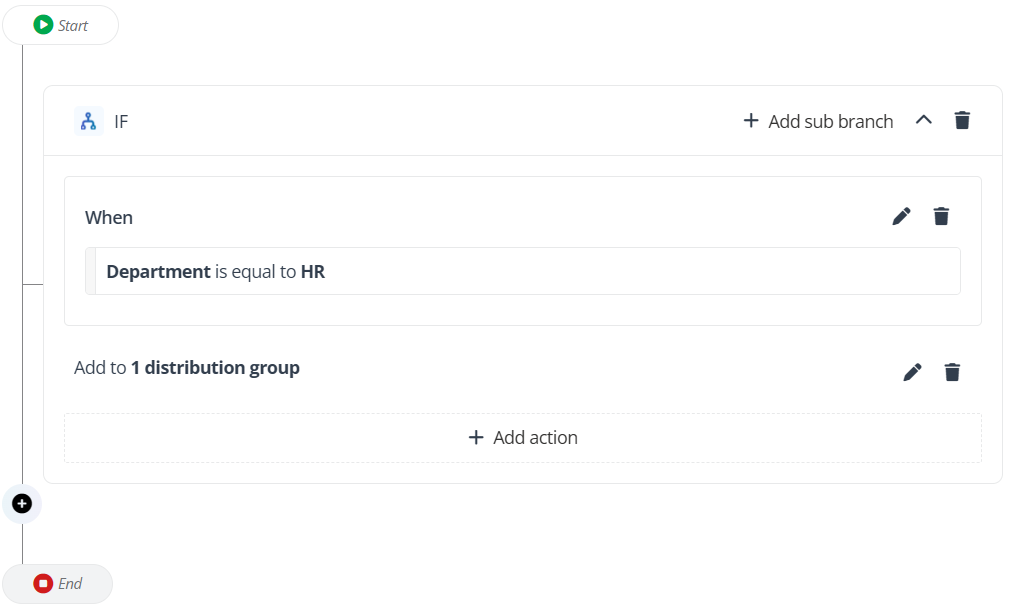
Configure the workflow conditions, and actions. If you are creating based on a template, click the conditions section to edit.
-
Condition – After a trigger is selected, click Add condition and perform the following actions to manage conditions and click Save when you complete:
-
Click Add condition group to add a group of conditions.
-
In a condition group, click Add rule to configure the rules. Clicking the All are true (AND) / Any is true (OR) link within the group section allows you to define the relationship among the added rules. To delete a configured rule, click the recycle bin button.
-
After you add multiple condition groups, you can also click the All are true (AND) / Any is true (OR) link on the top to define the relationship among the condition groups.
-
To delete a configured condition group, click the recycle bin button.
-
After you add a condition, you can click Add sub branch to configure the workflows under this condition.
-
-
Action – After a trigger is selected, you can select an action for the step and click Save.
For an action, you can turn on the On failure toggle to define how to process the workflow if this action fails:
-
Suppress and continue
-
End the workflow
If you want to notify related people when the action is failed in the workflow, select the Send email notifications when the action is failed checkbox. You can enter multiple email addresses in the text box as recipients, and separate them with a semicolon (;).
-
You can change the trigger during configurations. Note that if you change the trigger, all subsequent steps that have been configured for the workflow will be deleted.
To edit conditions or actions, you can click the pencil button in the upper-right corner.
To delete conditions or actions, you can click the recycle bin button in the upper-right corner.
After you add subsequent steps under a condition group, you can click the Add else branch (plus) button in the upper-right corner to add a branch to configure the workflow when the condition is not met.
-
-
After you finish, click Create. The workflow will be created.
You can also click Save draft to save the configured workflow as a draft.
Tree Mode
Refer to the following steps to configure a workflow in the tree mode:
-
Complete the following information:
-
Customer – Select a customer for which you want to create the workflow.
This field is hidden if you are creating the workflow within a tenant or when you are creating a global workflow.
-
Tenant – Select the tenant for which you want to create the workflow.
This field is hidden if you are creating the workflow within a tenant or when you are creating a global workflow.
-
Workflow name – Enter a name for this workflow.
-
Description – Enter an optional description.
-
-
Click Continue to proceed.
-
In the Create workflow window, you can click New step to configure the workflow triggers, conditions, and actions. If you are creating based on a template, click the ellipsis button in the upper-right corner of each step and select Edit.
To view the supported triggers, conditions, and actions in Elements, refer to Supported Workflow Triggers, Conditions, and Actions.
-
Trigger – Select the trigger for the workflow.
-
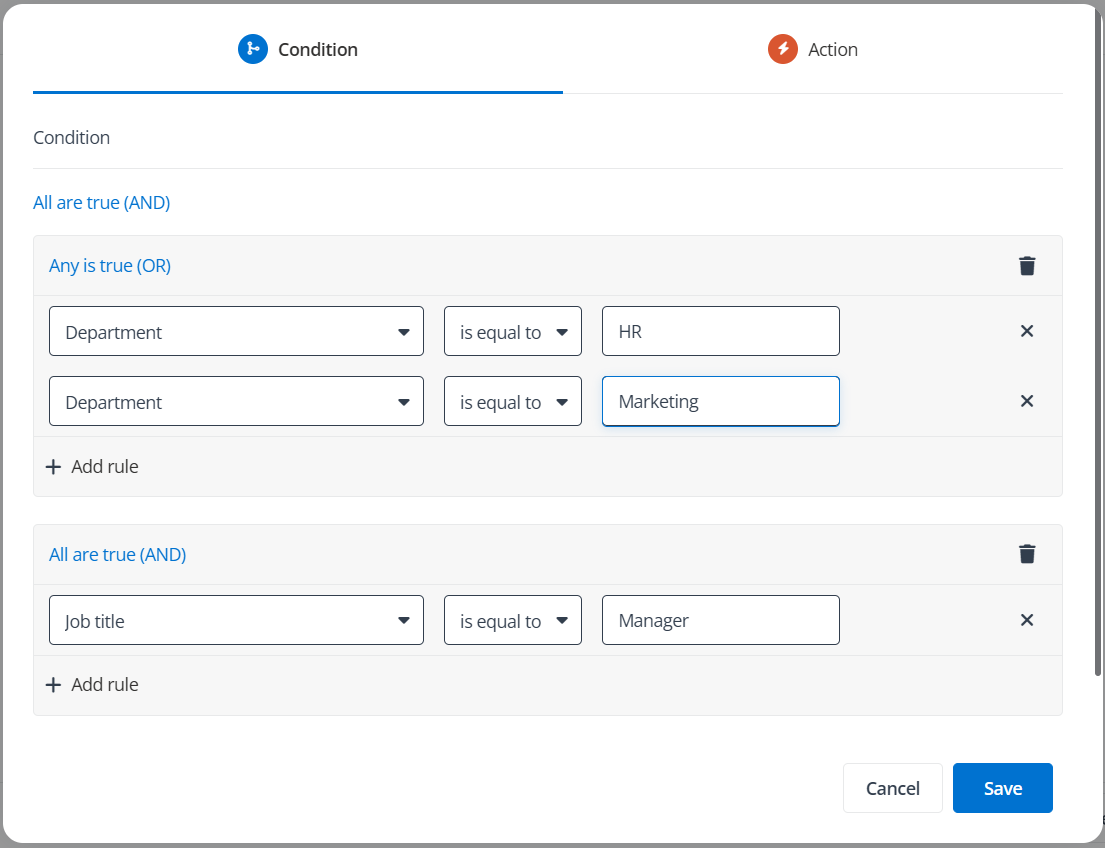
Condition – After a trigger is added, you can perform the following actions to manage conditions:
-
Click Add condition group to add a group of conditions.
-
In a condition group, Click Add rule to configure the rules. Clicking the All are true (AND) / Any is true (OR) link within the group section allows you to define the relationship among the added rules. To delete a configured rule, click the recycle bin button.
-
After you add multiple condition groups, you can also click the All are true (AND) / Any is true (OR) link on the top to define the relationship among the condition groups.
-
To delete a configured condition group, click the recycle bin button.
-
-
Action – After a trigger is added, you can select an action for the step and click Continue.
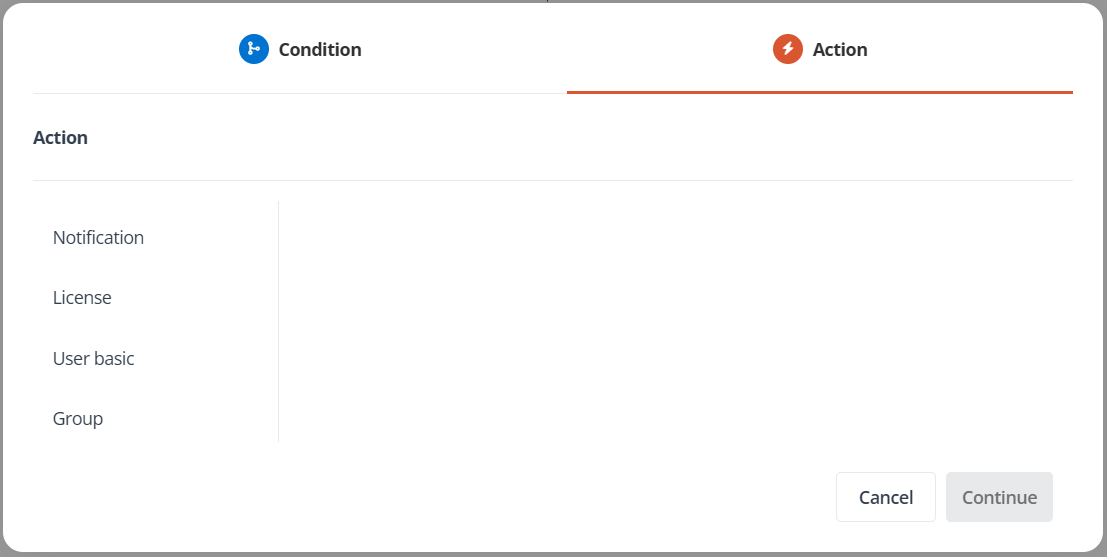
For an action, you can turn on the On failure toggle to define how to process the workflow if this action is failed:
-
Suppress and continue
-
End the workflow
If you want to notify related people when the action is failed in the workflow, select the Send email notifications when the action is failed checkbox. You can enter multiple email addresses in the text box as recipients, and separate them with a semicolon (;).
-
To edit a trigger, condition, or action, you can click the ellipsis button in the upper-right corner and select Edit. Note that if you change the trigger when you edit, all subsequent steps that have been configured for the workflow will be deleted.
To delete a trigger, condition, or action, you can click the ellipsis button in the upper-right corner and select Delete.
After you add subsequent steps under a condition, you can click the Else branch button in the upper-right corner to add a branch to configure the workflow when the condition is not met.
-
-
After you finish, click Create. The workflow will be created, and the workflow status will be Active.
You can also click Save draft to save the configured workflow as a draft.