
Home > Marketplace > View Overview Statistics
Download this articleView Overview Statistics
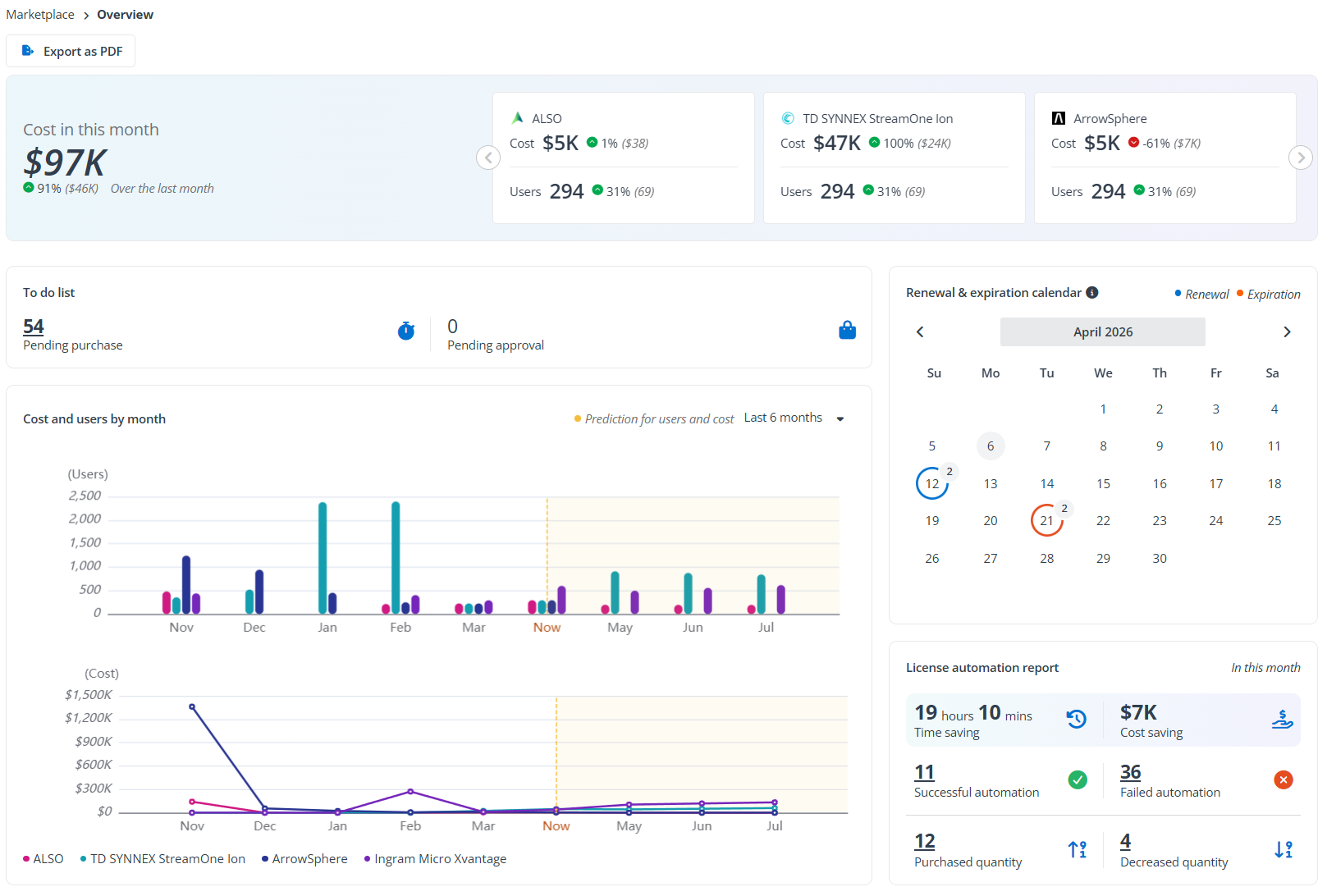
On the Overview page, the following information is displayed:
-
The card at the top of the Overview page displays the total cost for the current month across all connected marketplaces. In the respective sections for each marketplace, you can see the cost and the number of users associated with that marketplace. Additionally, for all values shown on this card, the percentage change compared to the previous month and the values from last month are provided, allowing you to track the change trends over the last month.
-
The To do list section lists the number of user seats that are pending approval and the number of user seats that need to be purchased. You can click the corresponding number link to go to approve the requests or purchase licenses.
-
The Costs and users by month section shows the statistics of costs and users in all marketplaces as well as the predicted values. You have the option to adjust the time range in the upper-right corner to display different data periods.
-
Renewal & expiration calendar – Displays a calendar that shows upcoming subscription renewals and expirations. Dates with subscriptions due for renewal are marked with a blue label, while those with expirations are marked with a red label. You can click the date to view the tenants with subscription renewals and expirations. Click the tenant name to view detailed information about the relevant subscriptions.
-
License automation report – Lists the numbers of successful and failed automations and auto-purchase/decrease quantities in this month. You can click the number link to view the detailed history. The time and cost savings by automation are also displayed here.
-
Top 5 subscriptions with the highest cost – Highlights the 5 subscriptions with the most costs in this month, detailing their cost for each plan and change trends. You can also change the time range or select a specific marketplace in the upper-right corner to view the data. Click View all to view the details of all subscriptions sorted by cost.
-
Top 5 customers with the highest cost – Highlights the 5 customers with the most costs in this month, detailing their cost, users, and change trends. You can also change the time range in the upper-right corner to view the data. Click View all to view the details of all customers sorted by cost.
Click Export as PDF at the top to download the overview data in PDF format.
The Overview page does not contain the data for Microsoft CSP.
Tenant-Level Overview
There is an Overview page for a specific tenant in the marketplace module to track costs, pending requests, license automation activities, top subscription costs, subscription renewal/expiration, etc.
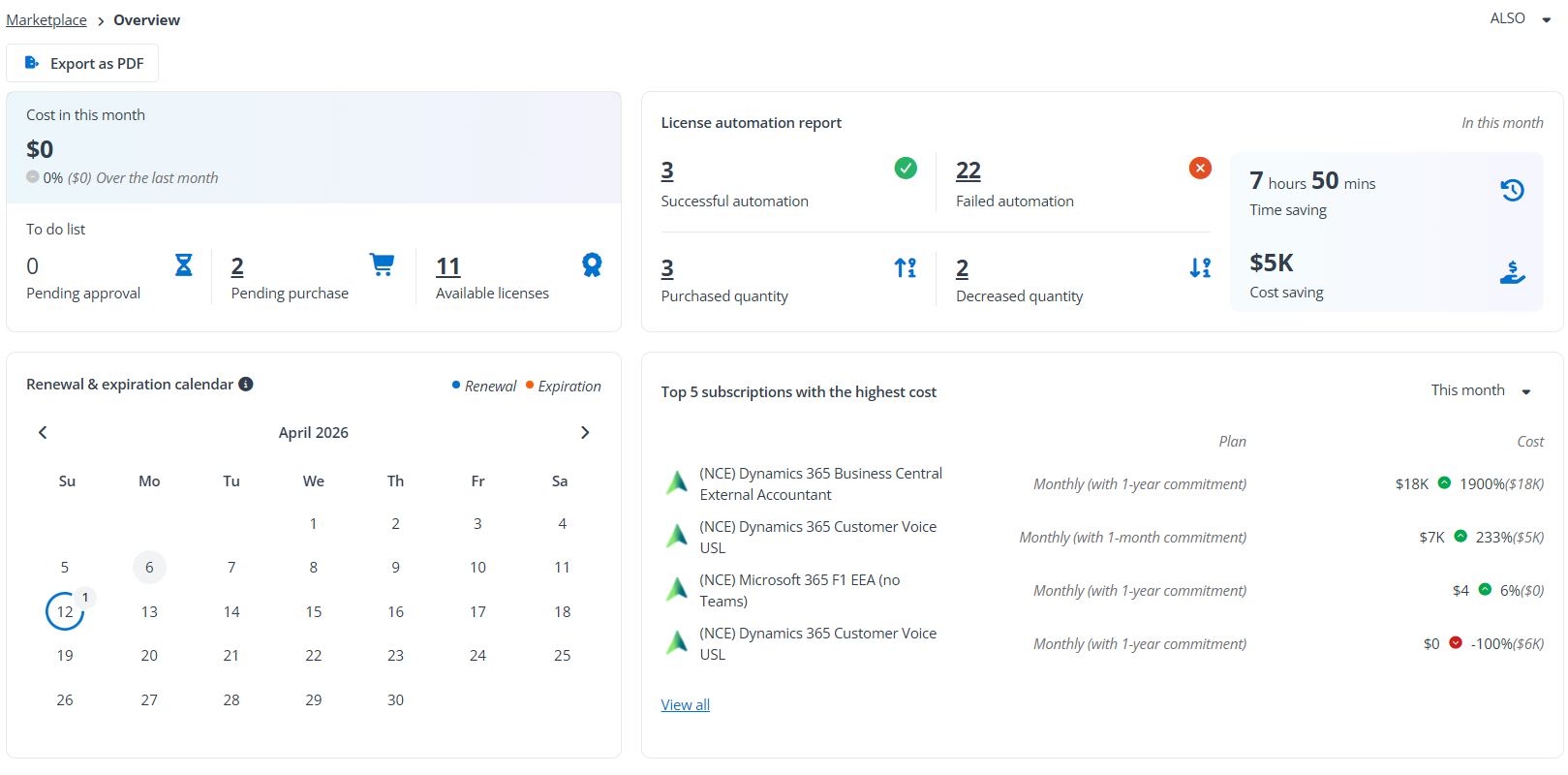
In the upper-right corner, you can switch between different marketplaces connected to this tenant to view their respective data. The following information is displayed:
-
Cost in this month – Displays the total cost incurred by the tenant for the current marketplace in this month. Additionally, the percentage change compared to the previous month and the values from last month are provided, allowing you to track the change trends over the last month.
-
To do list – Lists the number of user seats that are pending approval, the number of user seats that need to be purchased, and the number of available licenses that can be decreased. You can click the corresponding number link to go to approve the requests, purchase licenses, or decrease licenses.
-
License automation report – Lists the numbers of successful and failed automations and auto-purchase/decrease quantities in this month for this tenant. You can click the number link to view the detailed history. The time and cost savings by automation are also displayed here.
-
Renewal & expiration calendar – Displays a calendar that shows upcoming subscription renewals and expirations. Dates with subscriptions due for renewal are marked with a blue label, while those with expirations are marked with a red label. You can click the date to view the detailed information about the relevant subscriptions.
-
Top 5 subscriptions with the highest cost – Highlights the 5 subscriptions with the most costs in this month, detailing their cost for each plan and change trends. You can also change the time range in the upper-right corner to view the data. Click View all to view the details of all subscriptions sorted by cost.
Click Export as PDF at the top to download the overview data in PDF format.