
Home > Get Started > Use the Navigation
Download this articleUse the Navigation
Elements offers two distinct views at different levels via the new navigation. The top-level view is a comprehensive overview of all your customers, enabling efficient monitoring of overall performance, configurations, and system settings. This broad perspective is crucial for identifying trends and making informed decisions. Meanwhile, the tenant-level view delivers detailed insights into a specific customer’s tenant, facilitating targeted troubleshooting and tailored service enhancements. Additionally, it allows for easy navigation across different modules.
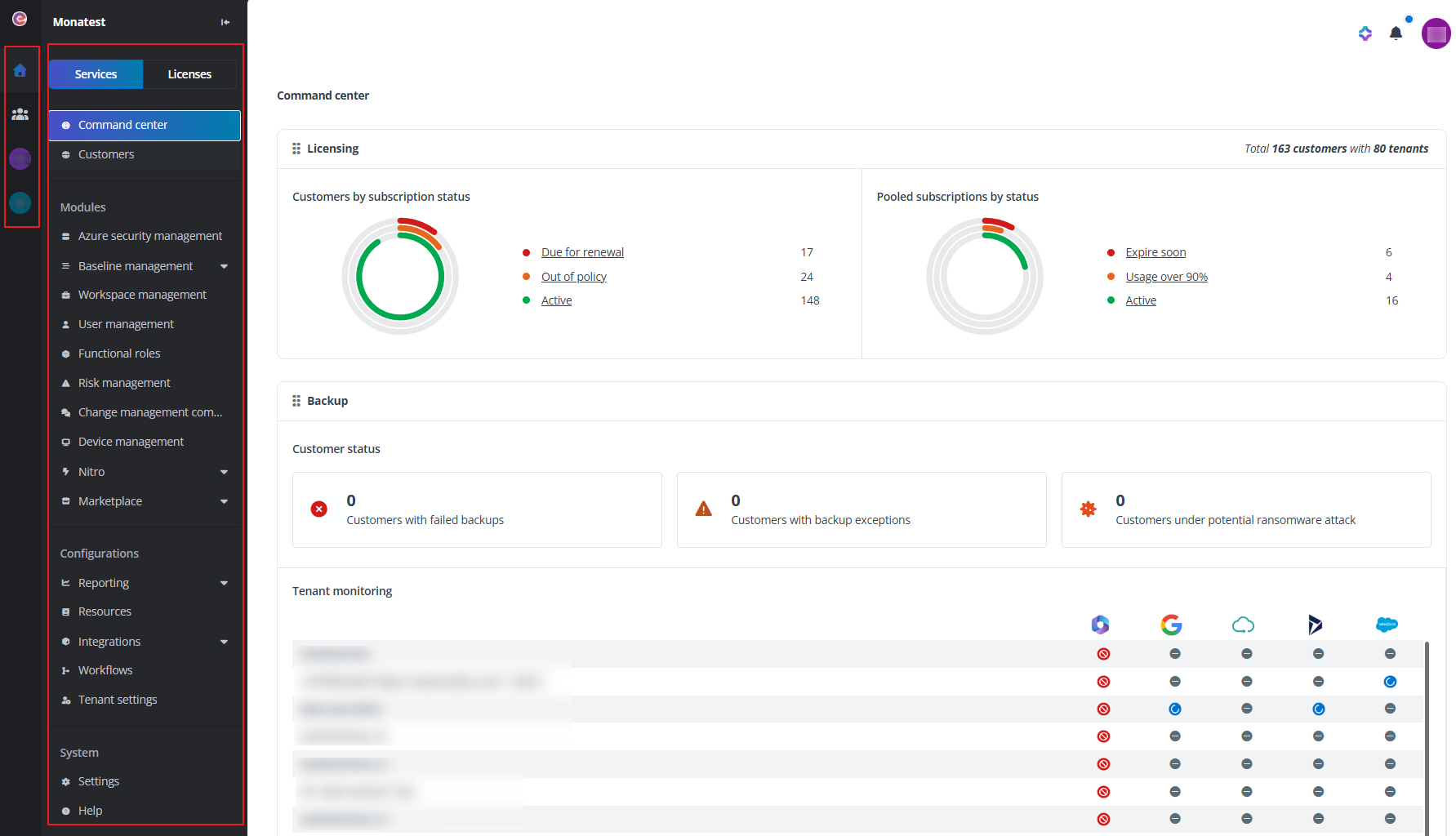
The top-level navigation.
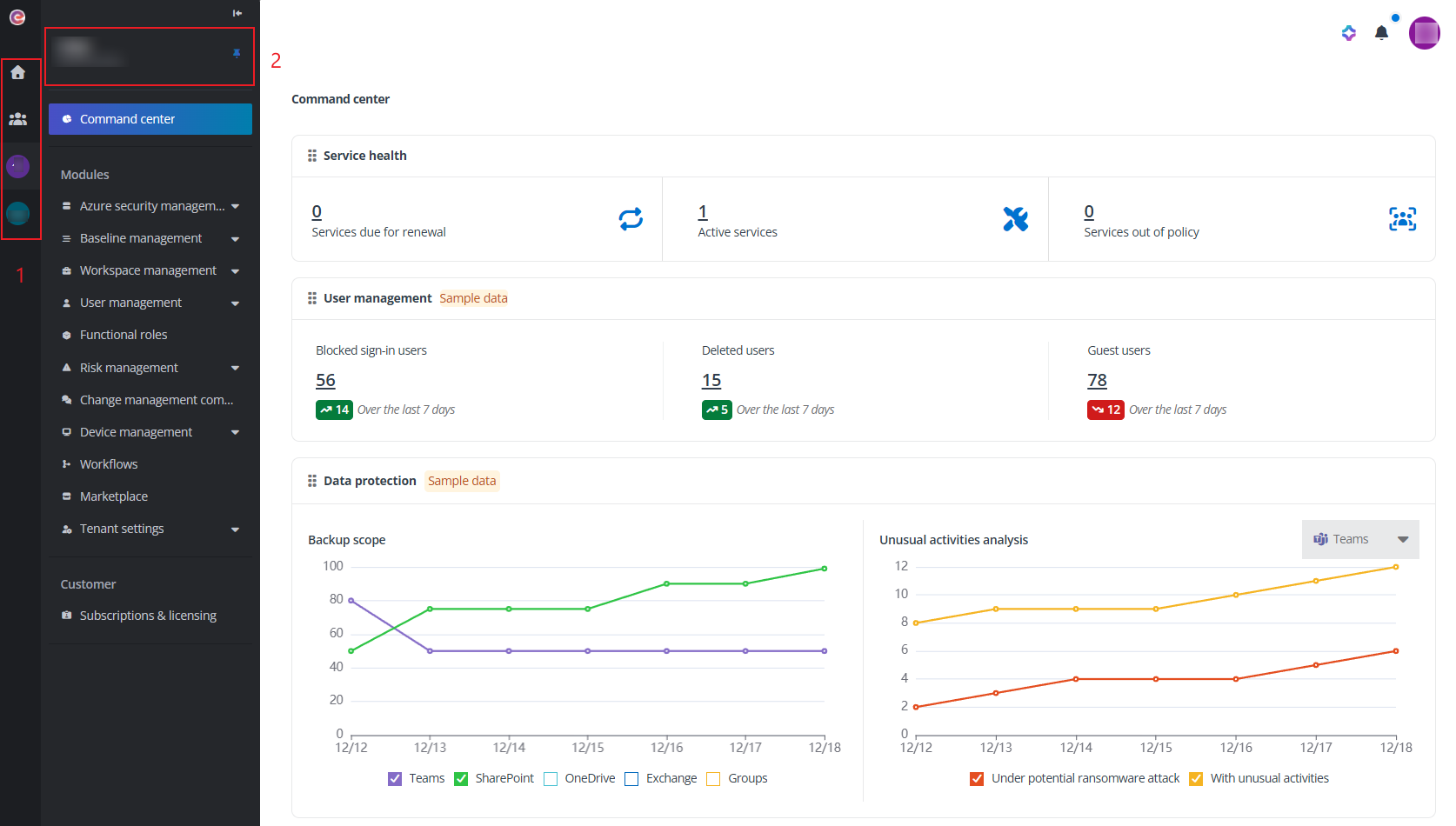
The tenant level navigation.
-
The left navigation tab view.
-
Homepage – The homepage of Elements. By clicking the house button, you can always go back to the homepage.
-
Tenant list – Click the Tenant list button to view the tenant list.
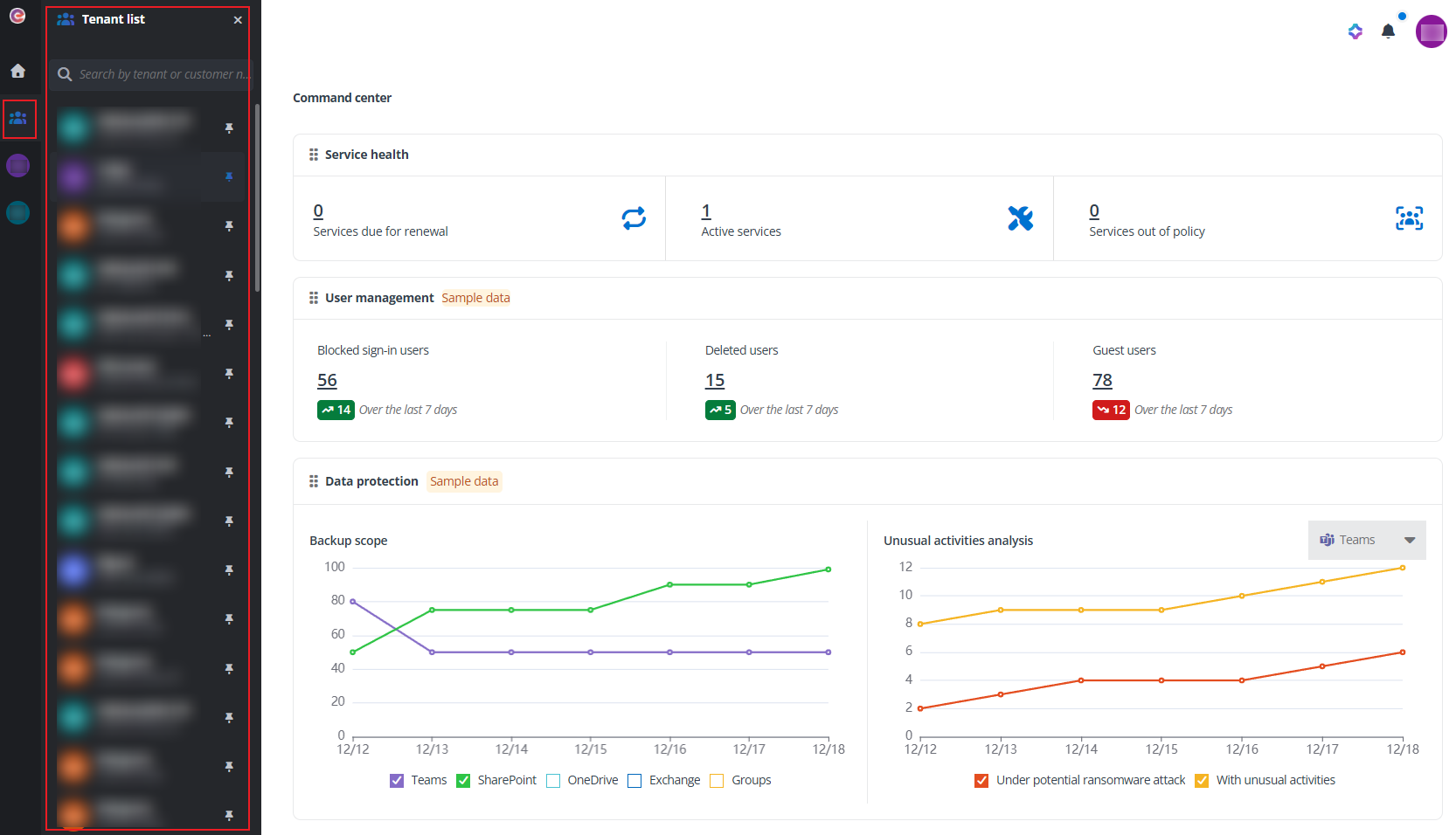
You can search for a specific tenant by the tenant or customer’s organization name. Click the pin tenant button to the right of a tenant to pin the tenant to the navigation. The tenant will be displayed as a tab on the left navigation and can be accessed directly from any page. To unpin a tenant from the navigation, click the unpin tenant button to the right of the tenant in the tenant list.
-
Pinned tenants – The tenants pinned to the navigation are displayed as tabs under the tenant list button.
-
-
The tenant level view.
Click a tenant name allows you to access tenant level and view statistics of that tenant. Then, you can navigate across modules to view statistics of that particular tenant directly without having to select the tenant each time. On the upper-left corner of the navigation, you can view the tenant and organization name. The pin tenant button is also available for you to pin the tenant to the navigation. To unpin the tenant, you can then click the unpin tenant button to the right of the tenant name.