
Home > Workspace Management > Compliance Policy Management
Download this articleCompliance Policy Management
On the Compliance policies page, the existing compliance policies are listed in the table. You can view the policy name, description, the number of enabled rules, police type, the modified time and the user who modified the policy.
To edit the settings of a compliance policy, you can select it in the table and click Edit, or click the ellipsis button to the right of the last column and select Edit. The changes will affect all workspaces where this policy is applied and will take effect in the next scan.
To delete existing compliance policies, select the policy in the table and click Delete. Alternatively, you can click the ellipsis button to the right of a policy row and select Delete to delete the compliance policy.
A compliance policy cannot be deleted if it is being used in a provisioning template.
For the built-in compliance policies, you can click View or click the ellipsis button to the right of a policy and select View to view details.
Create a Compliance Policy
On the Compliance policies page, click Create compliance policy in the upper-right corner and select Create for Microsoft 365 Groups / Create for Teams / Create for SharePoint / Create for OneDrive to create a new policy which will be available in the corresponding data source.
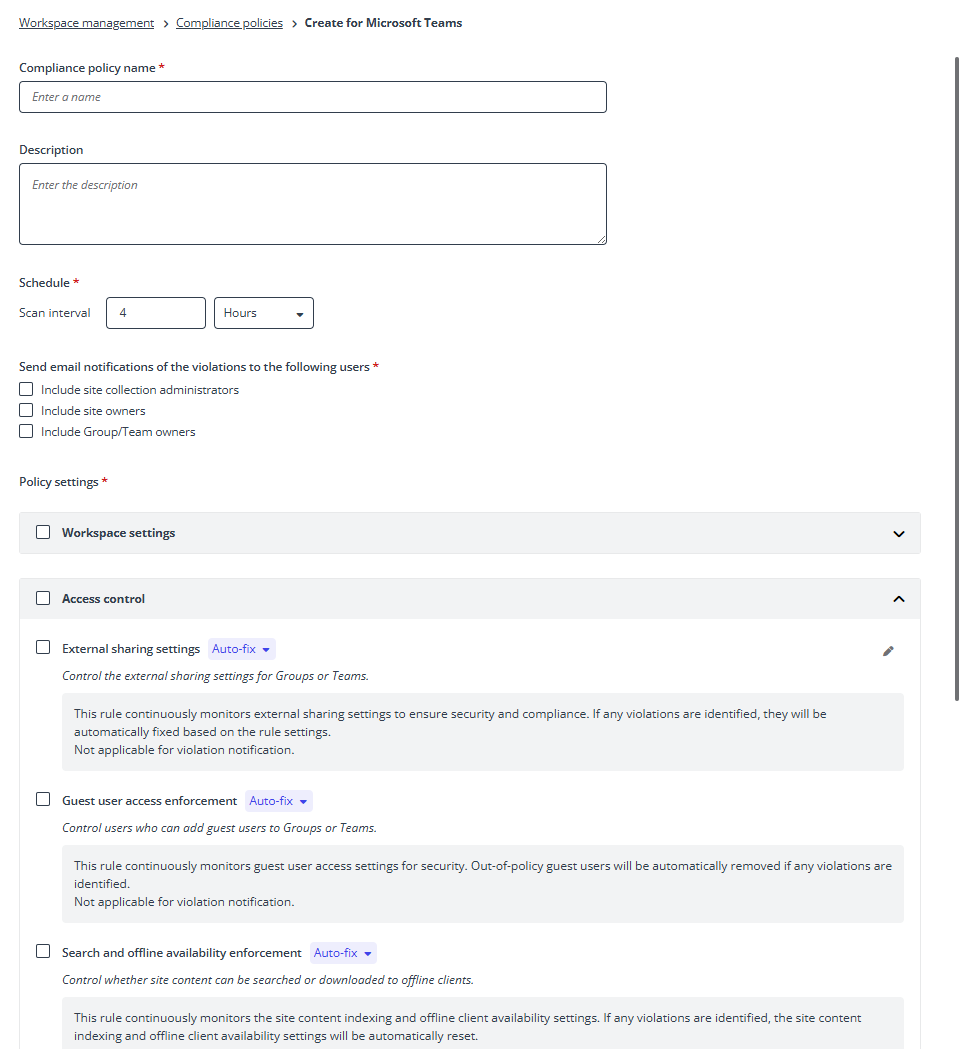
On the Create for Microsoft 365 Groups / Create for Teams / Create for SharePoint / Create for OneDrive page, complete the following settings:
-
Enter a name and optional description for the compliance policy.
-
Define the scan interval by entering a number and selecting a time unit. The workspaces to which this compliance policy is applied will be scanned based on this interval.
-
Configure the recipients of email notifications for compliance policy violations, Include site collection administrators, Include site owners, and/or Include Group/Team owners. The email notifications will be sent to the selected recipients when compliance policy violations are detected in the next scan.
NOTEThe Include Group/Team owners option is only available for Microsoft 365 Groups and Teams compliance policies.
-
Configure the policy settings in the Group settings control / Workspace settings, Access control, Owner number restriction, and Sharing link management sections by selecting the corresponding rules that you want to enable.
Auto-fix will be displayed to the right of the rule name if a rule can be fixed automatically by Elements. You can switch to manually fix violations by clicking Auto-fix and selecting Manual-fix as the fix type for access control rules.
NOTEThe Group settings control section is only available for Groups, and the Workspace settings section is only available for Teams.
-
Click Save to create the compliance policy.
Rules in Compliancy Policies
The table below lists the rules available in compliance policies. Most rules support auto-fix, enabling automatic correction of out-of-policy settings when violations are identified.
| Rule | Description | Default rule settings | Settings editable | Auto-fix | Auto-fix action | Available data source |
|---|---|---|---|---|---|---|
| Classification change restriction | This rule continuously monitors the classification changes of Teams or Groups. | This rule collects and adopts the classification the first time you apply this rule as the standard to be preserved. | No | Yes | The classification will be automatically reverted to the standard. | Teams Microsoft 365 Groups |
| Groups/Teams name enforcement | This rule continuously monitors the name changes of Groups or Teams. | Detect name changes: This rule collects and adopts the Group/Team name the first time you apply this rule as the standard to be preserved, preventing any subsequent name changes. Name changes are allowed when the updates meet the specified conditions: The name changes that meet the specified conditions are allowed. The other name changes will be reverted to the standard. | Yes | Yes | The name will be automatically reverted to the standard. | Teams Microsoft 365 Groups |
| Microsoft 365 Group visibility in Outlook client | This rule continuously monitors the Microsoft 365 Group visibility in the Outlook client and global address list. | Microsoft 365 Group is visible in the Outlook client and in the global address list. | No | Yes | The visibility will be automatically reset if it is hidden for a workspace. | Teams Microsoft 365 Groups |
| External sharing settings | This rule continuously monitors external sharing settings to ensure security and compliance. | This rule does not allow Group/Team owners to add people outside of the organization to the Gorup/Team by default. | Yes | Yes | The external sharing settings will be automatically reset if they do not match the rule settings. | Teams Microsoft 365 Groups |
| Guest user access enforcement | This rule continuously monitors guest user access settings for security. | The rule forbids any guest users. | No | Yes | The guest users will be automatically removed from Groups or Teams. | Teams Microsoft 365 Groups |
| Search and offline availability enforcement | This rule continuously monitors the site content indexing and offline client availability settings. | The site content must be indexed and items from this site can be downloaded to offline clients. | No | Yes | The indexing site content or offline client availability settings will be automatically reset if they do not match the rule settings. | Teams SharePoint Microsoft 365 Groups OneDrive |
| Access request settings | This rule continuously monitors access request settings, including sharing settings and access settings, to ensure ongoing compliance. If any violations are identified, they will be automatically fixed based on the rule settings. | Sharing settings: Allow members to share the site and individual files and folders, and allow members to invite others to the site members group. Access settings: Allow access requests, and SharePoint Online site owners, OneDrive site administrators, and Microsoft 365 Group team site owners will receive all access request on the site. | Yes | Yes | The sharing settings or access settings will be automatically reset based on the rule settings. | Teams SharePoint Microsoft 365 Groups OneDrive |
| Scan external users | This rule scans external users in sites for security and access control. | If there are external users in the workspace where external sharing is disabled, the rule is violated. | No | Yes | The external users will be removed from the workspace. *Note: This rule is irreversible. We recommend that you apply this rule to a small set of workspaces first to verify that it behaves as expected. | Teams SharePoint Microsoft 365 Groups OneDrive |
| Site content-sharing settings | This rule continuously monitors site content sharing settings, including site content sharing and company-wide sharing links settings. | Site content can be shared with anyone. Users can share files and folders using links that do not require sign-in. Allow the 'People in <Your Organization>' option to control company-wide sharing links. | No | Yes | The sharing settings will be automatically reset if they do not match the rule settings. | SharePoint OneDrive |
| Owner number restriction | This rule continuously monitors the number of owners in Teams, Microsoft 365 Groups, security groups, and distribution groups to ensure security and compliance. | The number of owners must be within 2 to 5. | Yes | No | - | Teams Microsoft 365 Groups |
| Private channel owner number restriction | This rule continuously monitors the number of owners in Teams private channels to ensure security and compliance. | The number of owners in a private channel must be within 2 to 5. | Yes | No | - | Teams |
| Site collection administrator number restriction | This rule continuously monitors the number of site collection administrators to ensure security and compliance. | The number of site collection administrators must be within 2 to 5. | Yes | No | - | Teams SharePoint Microsoft 365 Groups OneDrive |
| Site owner number restriction | This rule continuously monitors the number of site owners to ensure security and compliance. | The number of site owners must be within 2 to 5. | Yes | No | - | Teams SharePoint Microsoft 365 Groups OneDrive |
| Restrict sharing links | This rule continuously monitors all sharing links to ensure security and compliance. | This rule restricts sharing links that are created by or shared with specific users and groups. | No | No | - | Teams SharePoint Microsoft 365 Groups OneDrive |
| Restrict sharing links with Edit permission | This rule continuously monitors all sharing links with Edit permission to ensure security and compliance. | This rule restricts sharing links with Edit permission that are created by or shared with specific users and groups. | No | No | - | Teams SharePoint Microsoft 365 Groups OneDrive |
| Sharing link expiration enforcement | This rule continuously monitors the sharing links that remain active for over 30 days to ensure security and compliance. | Sharing links must expire within 30 days after being created. | No | No | - | Teams SharePoint Microsoft 365 Groups OneDrive |