
Home > Marketplace > License Change Requests
Download this articleLicense Change Requests
When you click Pending approval requests in the left navigation, you will be directed to the Pending approval requests page. Here, you will find two tabs that allow you to view and manage license change requests for all connected tenants within the marketplace module.
My Tasks
All requests pending your approval are listed under this tab by default. You can update the filters to view more license change requests.
Click the request ID link to view the basic information, approval process, and license change process of a request on the Task details page.
To process the requests, click the corresponding button in the upper-right corner of the request details page.
-
Approve – Approve the request. You can add your comment in the window and click Approve.
-
Reject – Reject the request. Click the ellipsis button and select Reject. Enter the required comment for the rejection in the window and click Reject.
-
Add comment – Only add your comment. Click the ellipsis button and select Add comment.
These actions are also available by selecting the tasks in the My tasks list and clicking the corresponding button above the table.
My Requests
All requests for which you are the requester are listed under this tab by default. and you can view the request details and check the status of them. You can also update the filters to view more license change requests.
Click the request ID link to view the basic information, approval process, and license change process of a request on the Request details page.
To cancel a pending request, click the Cancel button in the upper-right corner of the request details page. Or you can select multiple requests in the My requests list and click Cancel above the table.
Manage License Change Requests for a Tenant
There are several ways to access and manage license change requests of a specific tenant:
-
On the home page of a marketplace, you can click the number link in the Pending purchase column of a tenant to open the License change requests window.
-
On tenant-level Overview page, you can click the number link in the Pending approval or Pending purchase link to open the License change requests window.
-
Click Marketplace > License change requests on the left navigation of a tenant page to access the License change requests page.
On the License change requests window or page, there are several tabs where you can manage the requests for a tenant.
All
All license change requests in this tenant are listed under this tab, and you can check the request details here.
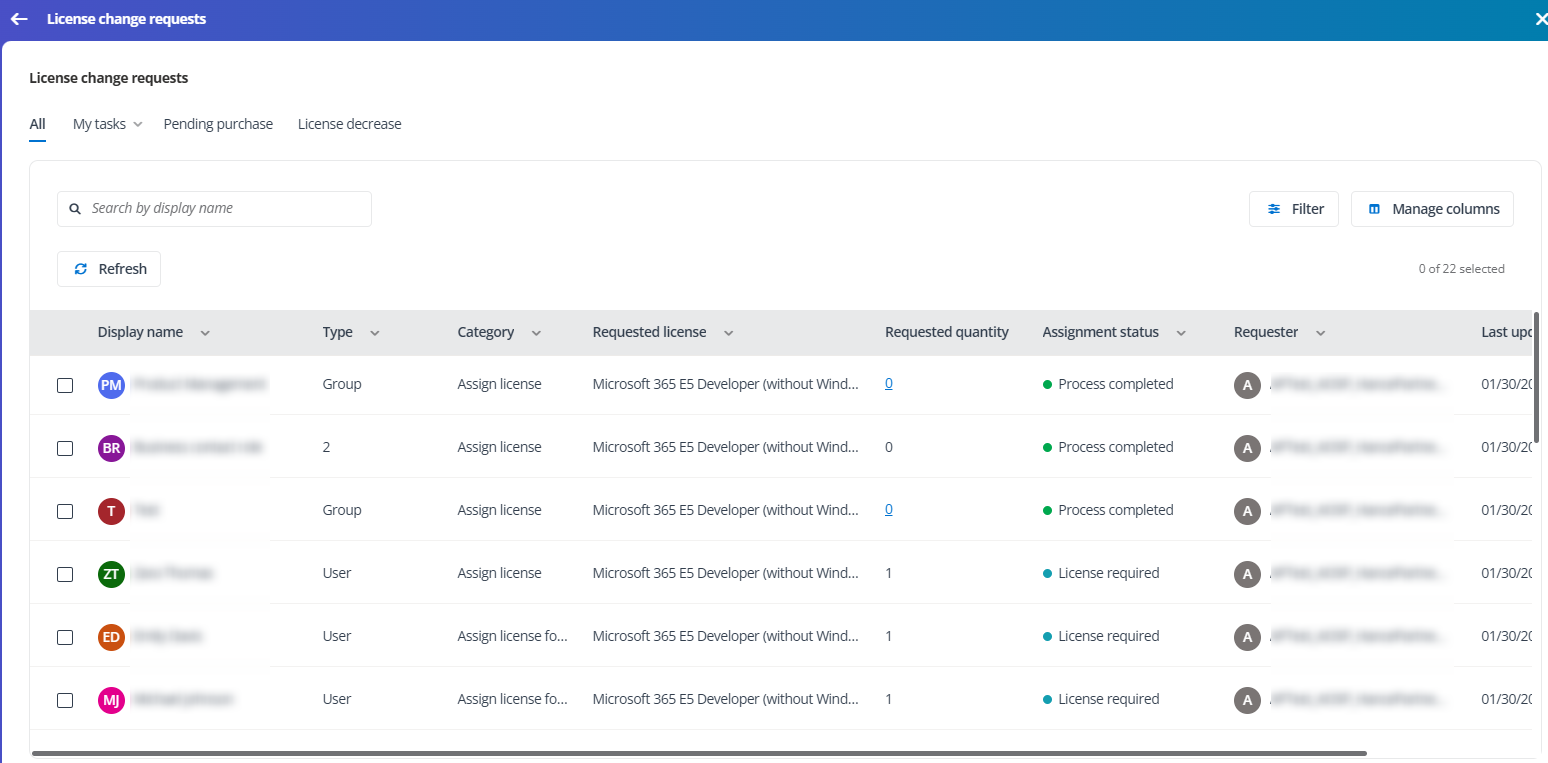
There is a Type column to indicate it is a request for a user or group. If the request is for a group, you can click the Requested quantity link to view the users within the group who requested for the license.
After you select a group request, the Sync group licenses button will be available. Clicking this button can retrieve the latest license assignment status of all users within the group.
My Tasks
All requests pending your approval are listed under this tab.
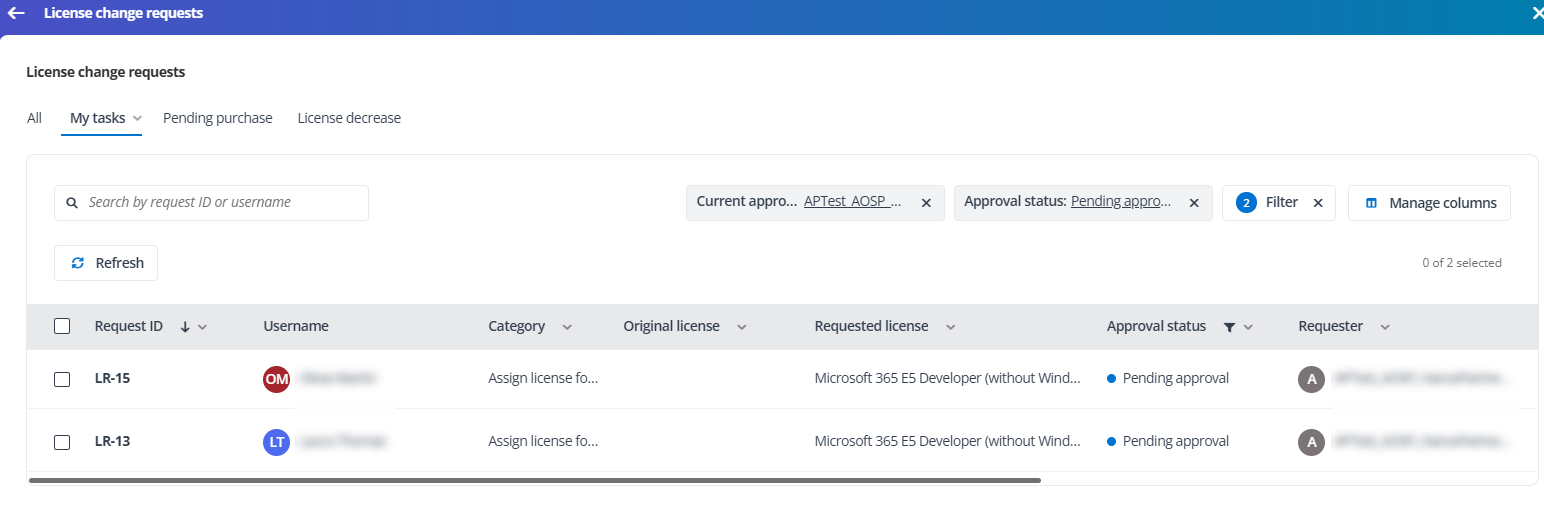
You can click the request ID link to view the basic information, approval process, and license change process of a request on the Request details page.
To process the requests, click the corresponding button in the upper-right corner of the request details page.
-
Approve – Approve the request. You can add your comment in the window and click Approve.
-
Reject – Reject the request. Click the ellipsis button and select Reject. Enter the required comment for the rejection in the window and click Reject.
-
Add comment – Only add your comment. Click the ellipsis button and select Add comment.
These actions are also available by selecting the tasks in the My tasks list and clicking the corresponding button above the table.
My Requests
By clicking the down arrow button next to the My tasks tab and selecting My requests, you can find all requests of which you are the requester. You can view the request details and check the status of them.
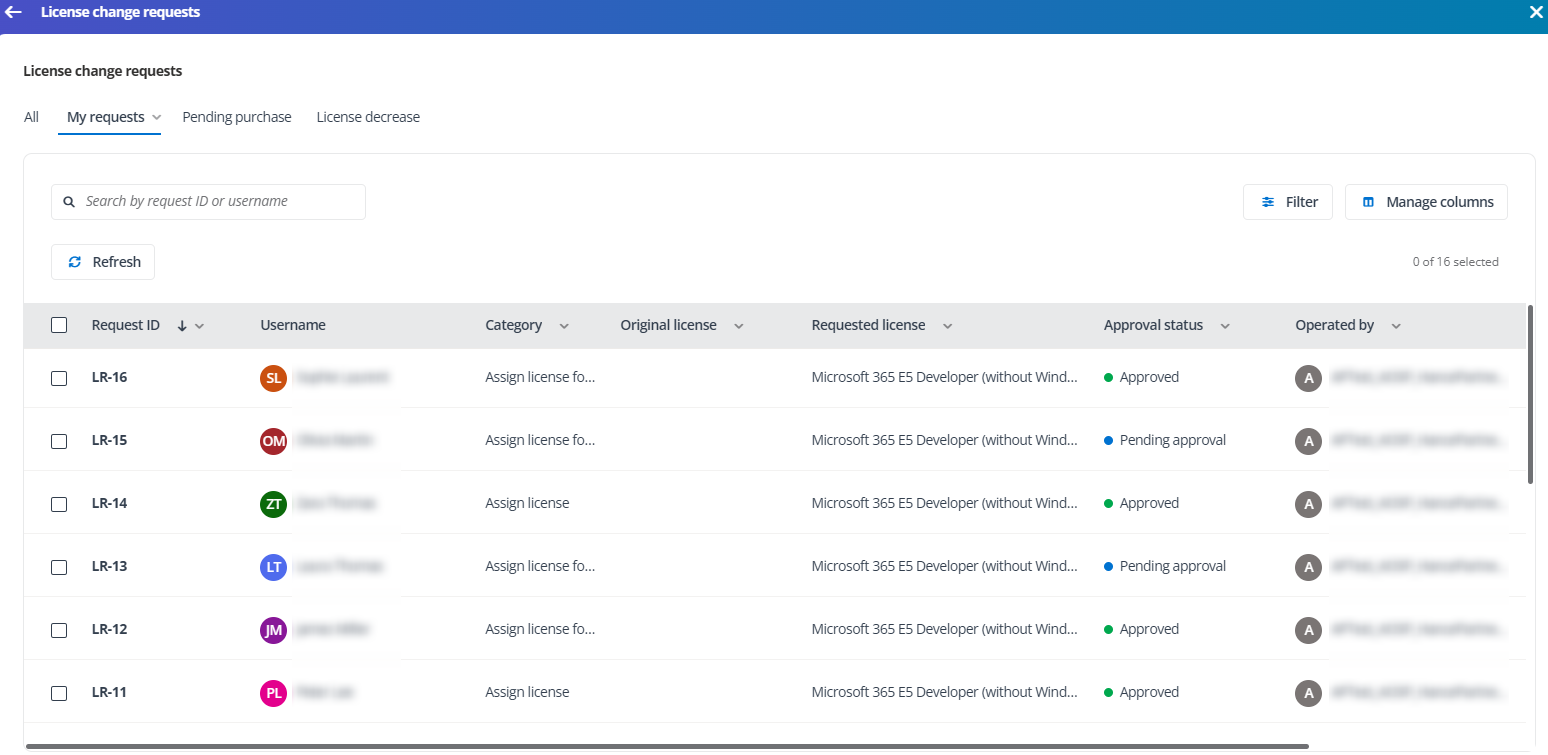
You can click the request ID link to view the basic information, approval process, and license change process of a request on the Request details page.
To cancel a pending request, click the Cancel button in the upper-right corner of the request details page. Or you can select multiple requests in the My requests list and click Cancel above the table.
Pending purchase
All licenses pending for purchase are listed. The licenses with auto-purchase enabled have a label next to them.
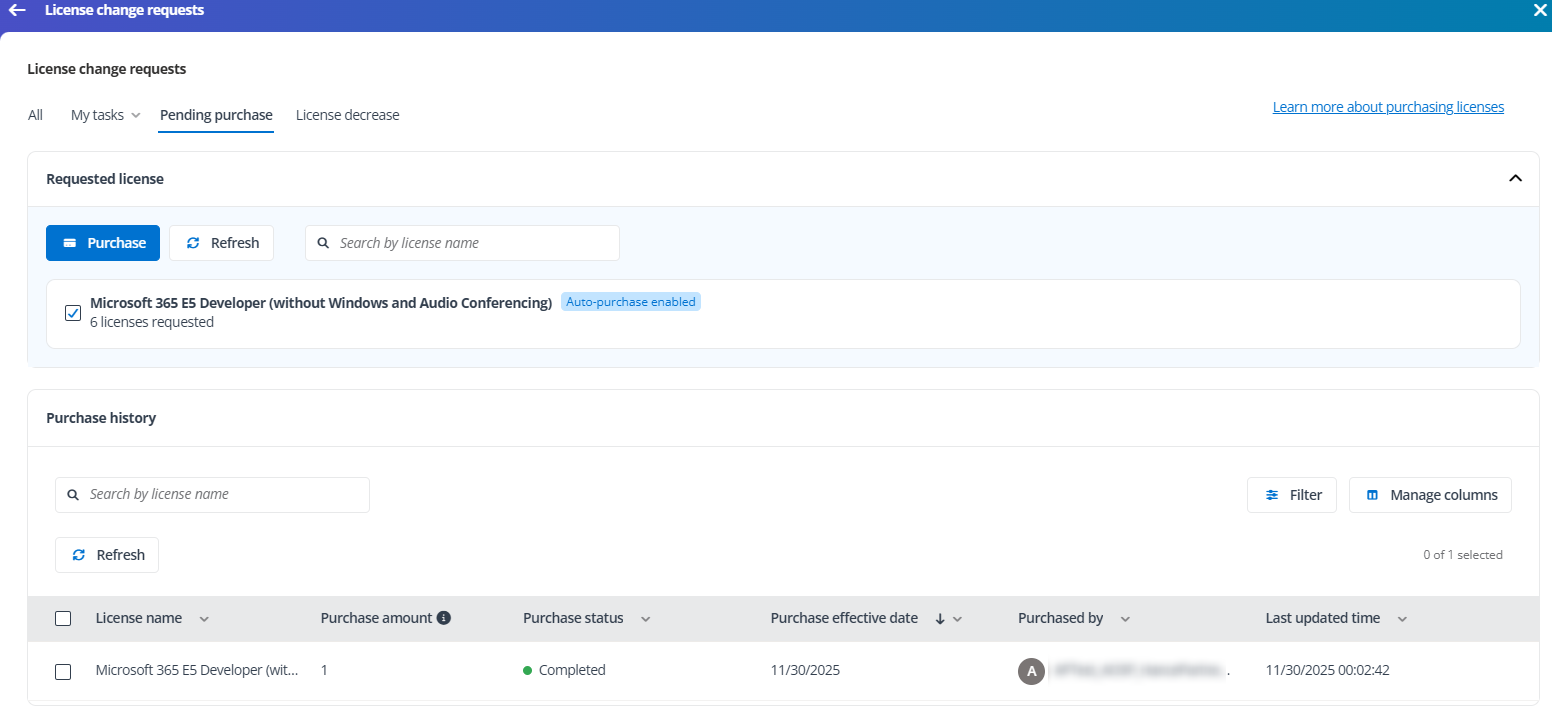
To manually purchase licenses, select the checkboxes and click the Purchase button. In the Purchase licenses window, complete the following settings for each license:
If you do not have an available subscription for the license, you may go to the Store tab to purchase one.
-
Select a marketplace where you want to purchase from. This setting only appears when you have accessed the License change requests page of a tenant.
-
Choose to purchase immediately after confirmation or select a desired date for the purchase from the calendar. You can also select if you still want to purchase licenses when there are available licenses in the pool.
-
In the table, the current quantities for license plans are listed. You can adjust the number in the Add column to configure the quantity you want to purchase for each plan.
-
After configuring the settings, click Purchase.
You can select the checkbox of one license to view its purchase history. For a purchase scheduled record, the following actions are available for you to manage the purchase:
-
Select the record and click Cancel to cancel the purchase.
-
Select the record and click Edit purchase effective date to update the date for purchasing the license. Choose to immediately take effect the purchase after confirmation or select a desired date from the calendar. You can also select if you still want to purchase licenses when there are available licenses in the pool.
License decrease
All licenses available for decrease are listed. The licenses with auto-decrease enabled have a label next to them.
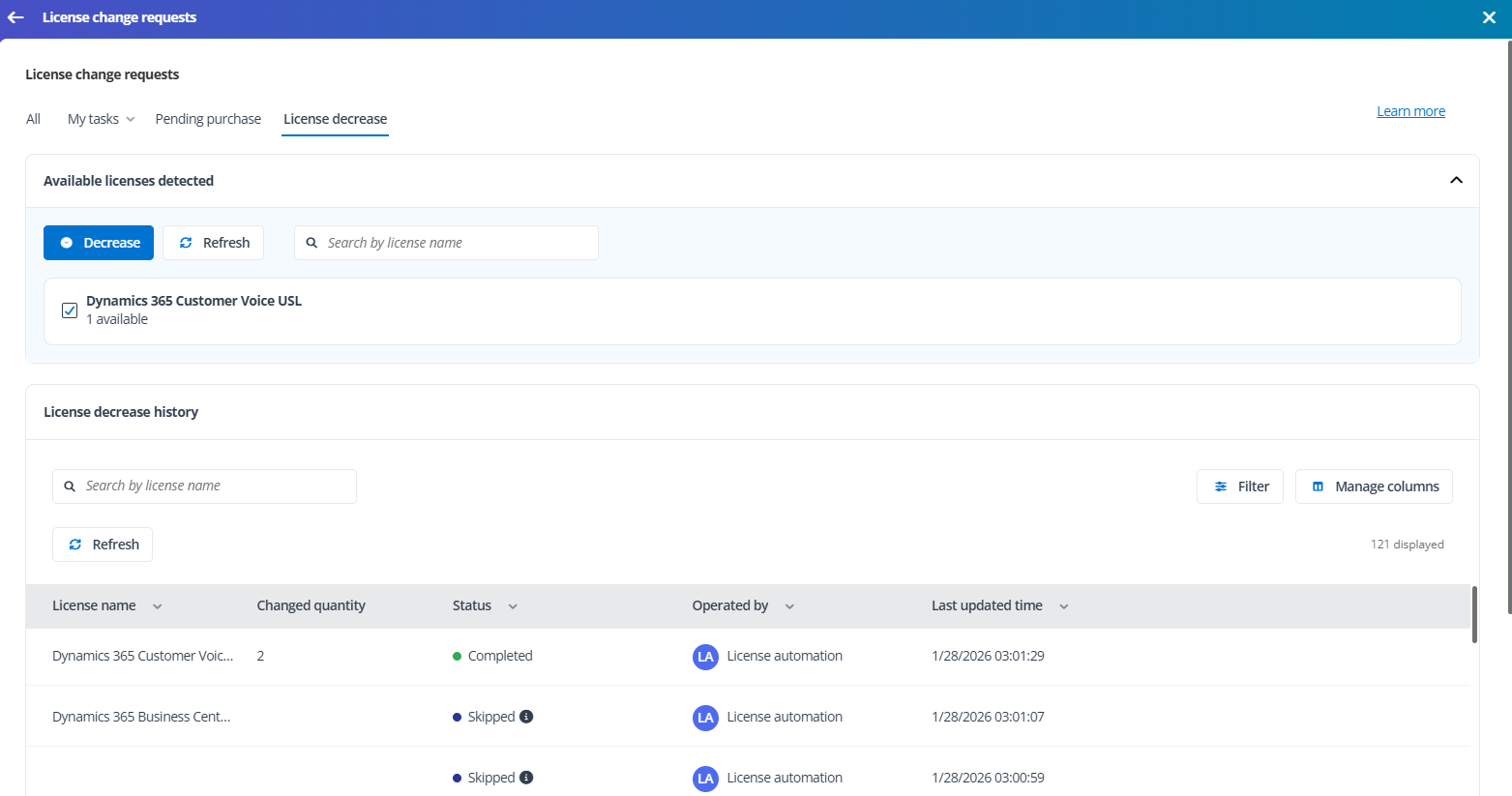
To manually decrease licenses, select the checkboxes and click the Decrease button. In the Decrease licenses window, complete the following settings for each license:
-
Select a marketplace where you want to purchase from. This setting only appears when you have accessed the License change requests page of a tenant.
-
In the table, the quantities available for decrease of each license plans are listed. You can adjust the number in the Decrease quantity column to configure the quantity you want to decrease for each plan. If the configured quantity exceeds the available licenses displayed on the page, a pop-up message will appear, allowing you to choose either cancel or continue to decrease.
-
After configuring the settings, click Decrease.
You can select the checkbox of one license to view its decrease history.