
Home > Workspace Management > Lifecycle Policy Management
Download this articleLifecycle Policy Management
On the Lifecycle policies page, the existing lifecycle policies are listed in the table. You can view the policy name, description, the application scope, and the modified time and the user who modified the policy. Click a policy name to view details of the lifecycle policy.
You can duplicate the settings of an existing lifecycle policy by selecting it and clicking Save as. A default name suffixed with – Copy is filled in automatically in the Save as window. You can edit it as desired, and click Save to create a new lifecycle policy based on the selected one.
To edit settings of a lifecycle policy, you can select it in the table and click Edit, or click the ellipsis button to the right of the last column and select Edit.
To delete existing lifecycle policies, select the policy in the table and click Delete. Alternatively, you can click the ellipsis button to the right of a policy row and select Delete to delete the lifecycle policy.
A lifecycle policy cannot be deleted if it is being used in a provisioning template. Built-in lifecycle policies cannot be edited or deleted.
Create a Lifecycle Policy
On the Lifecycle policies page, click Create lifecycle policy in the upper-right corner and select Create for Teams / Create for SharePoint to create a new policy which will be available in the corresponding data source.
On the Create for Teams / Create for SharePoint page, complete the following settings:
-
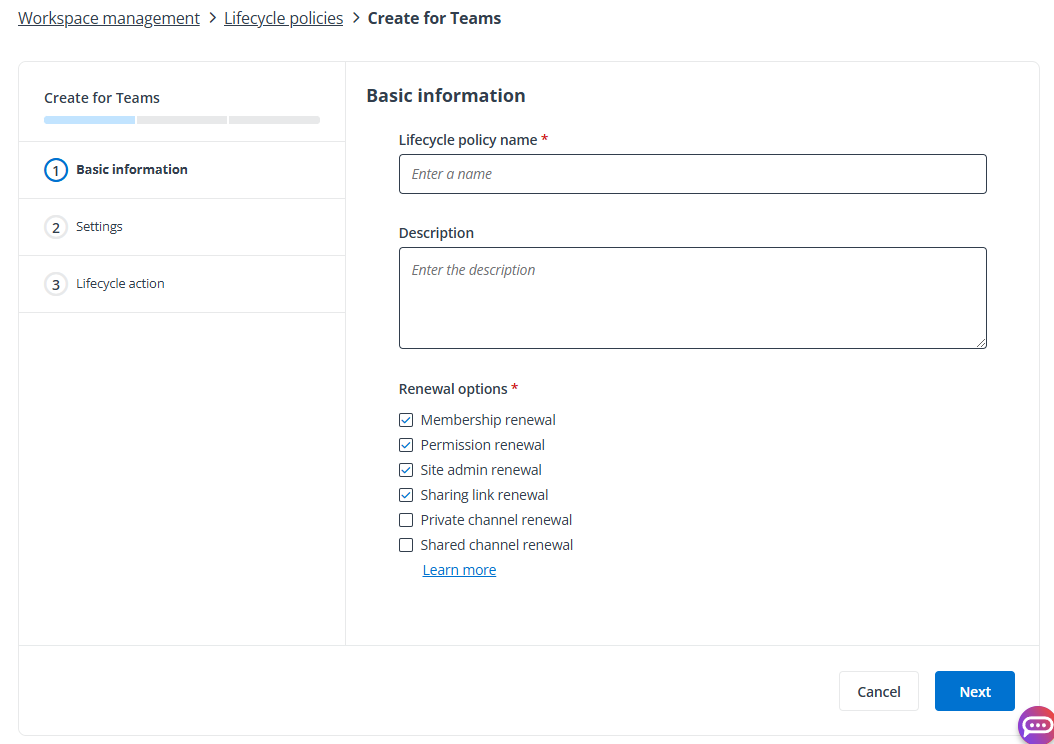
In the Basic information step, enter a name and optional description for the lifecycle policy.
-
In the Renewal options section, select what information will be displayed to the renewal task assignee for review and update.
The following renewal options are available for Teams:
-
Membership renewal – Allows renewal task assignees to review and modify team membership.
-
Permission renewal – Allows renewal task assignees to review and modify SharePoint group permissions to the corresponding Microsoft 365 Group team site.
-
Site admin renewal – Allows renewal task assignees to review and modify site admins of Group team sites.
-
Sharing link renewal – Allows renewal task assignees to review and manage the links that have been shared with users or groups.
-
Private channel renewal – Choose whether to enable private channel renewal for the team’s private channel, and enable the renewal for ownership or membership of the private channel.
NOTEIf channel renewal is enabled, the Team renewal task can be completed only when the channel renewal task is completed or skipped.
-
Shared channel renewal – Choose whether to enable shared channel renewal for the team’s shared channel, and enable the renewal for ownership or membership of the shared channel.
NOTEIf channel renewal is enabled, the Team renewal task can be completed only when the channel renewal task is completed or skipped.
The following renewal options are available for SharePoint:
-
Permission renewal – Allows renewal task assignees to review and modify SharePoint group permissions to the corresponding site collection.
-
Site admin renewal – Allows renewal task assignees to review and modify site admins.
-
Sharing link renewal – Allows renewal task assignees to review and modify the links that have been shared with users or groups.
-
-
Click Next to go to the Settings step.
-
In the Settings step, complete the following settings:
-
Renewal condition and schedule – Choose when and how to trigger a renewal process.
-
Select the Once a workspace is inactive, generate a renewal task option, and you can define the inactive time period. If a team or site has no activities for this time period, a renewal task will be generated.
-
Select the Generate renewal tasks on schedule, and the renewal recurrence start time is the Team/site created time option, and you can define the recurrence of the renewal process.
-
-
Who will be responsible for reviewing the task – The owner of the workspace will be the approver for reviewing renewal tasks.
-
Who will be responsible for reviewing the channel task – Define the approver for reviewing channel renewal tasks, Team owners or Channel owners. This is only available when channel renewal is selected as renewal options.
-
Notification email template for the assigned renewal task – Select the email template for the assignment notification of renewal tasks.
-
The task will be overdue if the task assignee does not complete it within – Specify the date range within which the task assignee needs to complete the renewal task. Otherwise, the renewal task will be overdue.
-
Notification email template for an overdue renewal task – Select the email template for the notification of renewal task overdue.
-
-
In the Lifecycle action step, select whether to allow the renewal task assignee to delete or archive the workspace during the renewal process.
-
Delete – Allow the renewal task assignee to delete the workspace. The workspace can be restored from the recycle bin within 30 days. After this period, the deletion will be permanent.
-
Archive – Allow the renewal task assignee to archive the Team. Select Make the SharePoint site read-only for Team members, the conversations and files in the Team will be read-only when the Team is archived.
If channel renewal is selected as renewal options, you can select whether to allow the following actions for renewal task assignees.
-
Skip – Allow the Team renewal task assignee to skip the channel renewal task and proceed with the Team renewal task. The skipped channel renewal task will be automatically closed.
-
Delete – Allow the channel renewal task assignee to delete the channel.
-
When you complete the steps, click Submit to create the lifecycle policy.
Workspace Lifecycle Management
When a lifecycle policy is applied to workspaces, the lifecycle of the workspaces is governed by Elements. When the renewal condition and schedule is met, a renewal task will be generated and assigned to the owner of the workspace.
The renewal task assignee will receive an email notification of the renewal task, with a link to the task in MyHub. After clicking the task link and accessing the task details page within MyHub, the renewal task assignee can start renewal and complete the renewal process.