Home > Workspace Management > Process Center
Download this articleProcess Center
The process center contains two tabs: All provisioning requests and Action tracker. Refer to the sections below for detailed information.
View Provisioning Requests
Click All provisioning requests in the Process center tile on the Workspace management page, and you can select a tenant on the top to view all provisioning requests of the tenant. Click Refresh to refresh the provisioning requests displayed in the table.
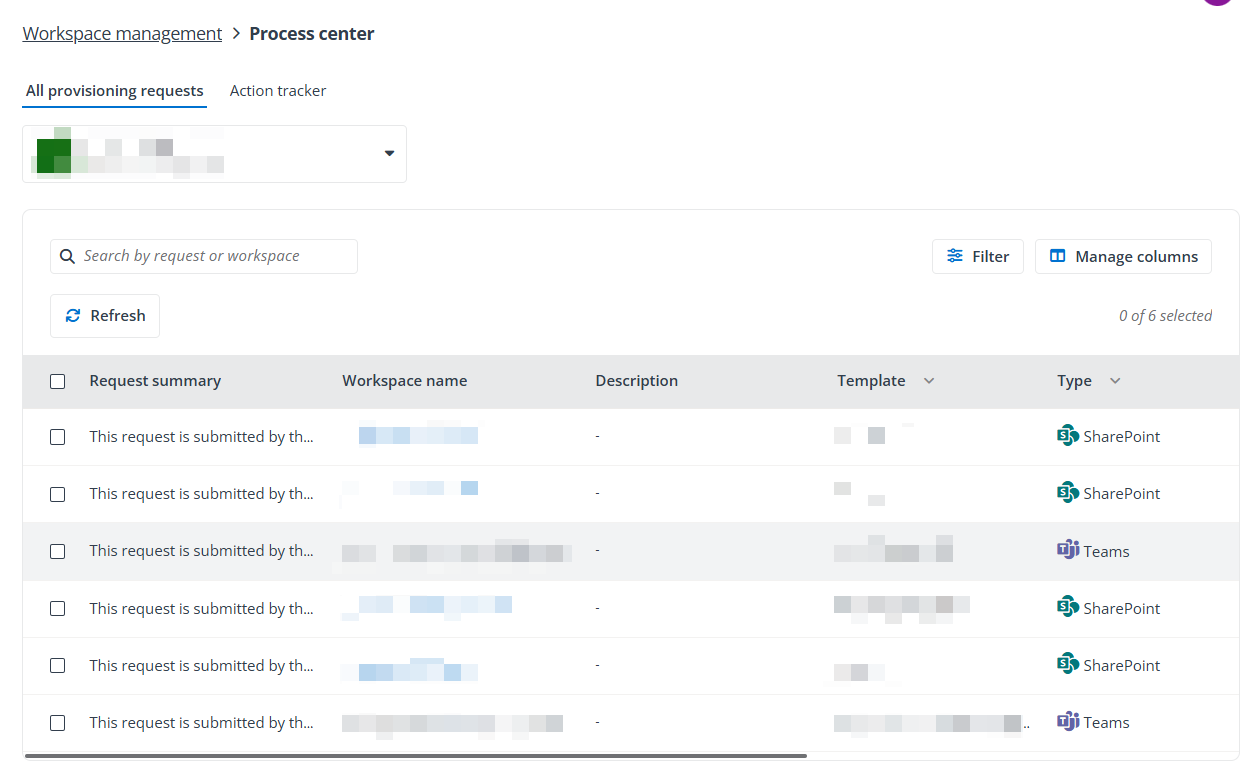
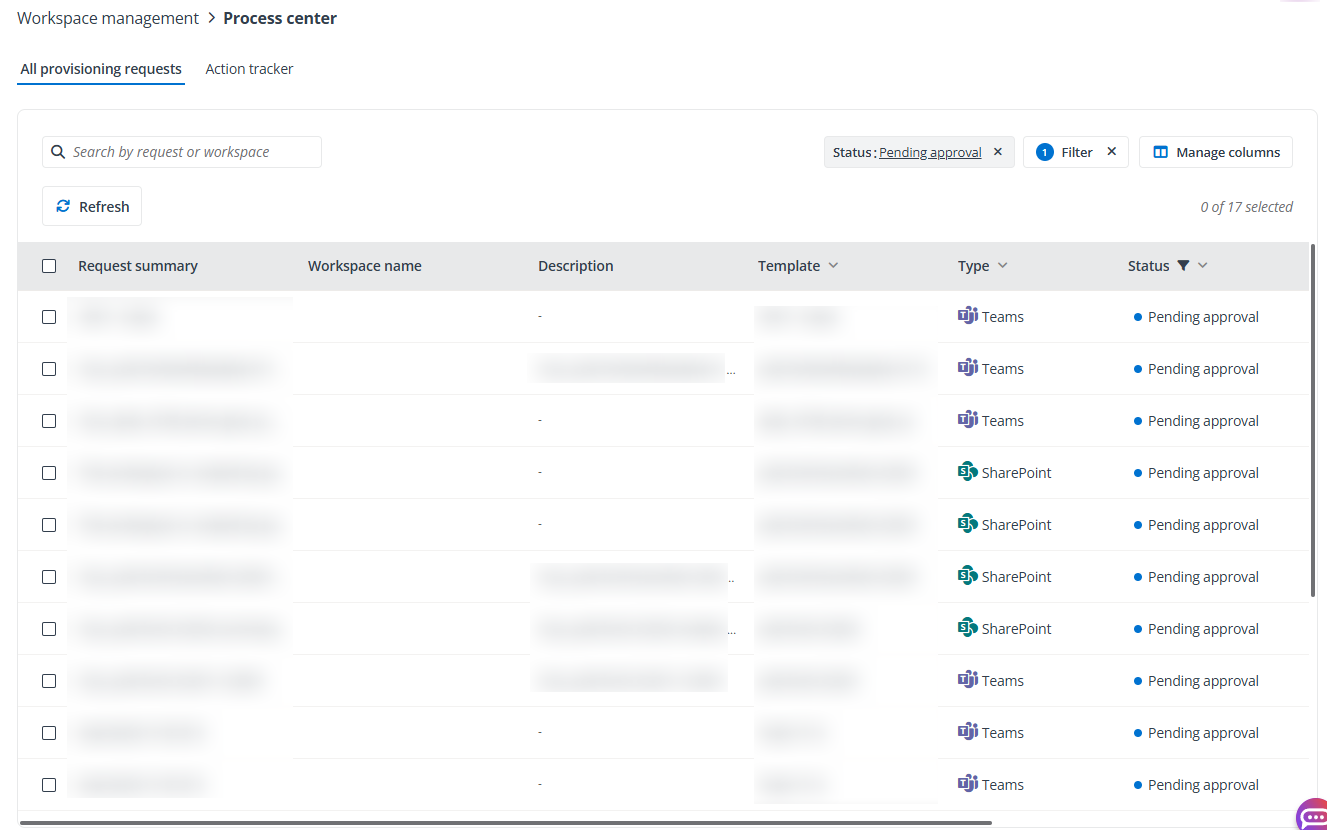
Select one or multiple requests that are pending approval, you can click Approve or Reject to approve or reject the requests. Enter your comments for approval, and click Approve or Reject to confirm your decision.
For the Completed requests of which type is SharePoint, you can click the workspace name to open the site created via this provisioning request in SharePoint to view details.
For the Problem encountered requests, you can click Retry to retry the workspace creation process. Alternatively, click Skip to skip the encountered problem and continue creating the workspace.
When you click the Pending-approval number link from the Workspace management page, you’ll be redirected to the tenant-level process center with the All provisioning requests tab selected. All provisioning requests that are pending approval for the tenant are listed in the table. Alternatively, you can access the tenant-level process center by clicking Process center on the left navigation from any tenant-level page. Click Refresh to refresh the provisioning requests displayed in the table.
Action Tracker
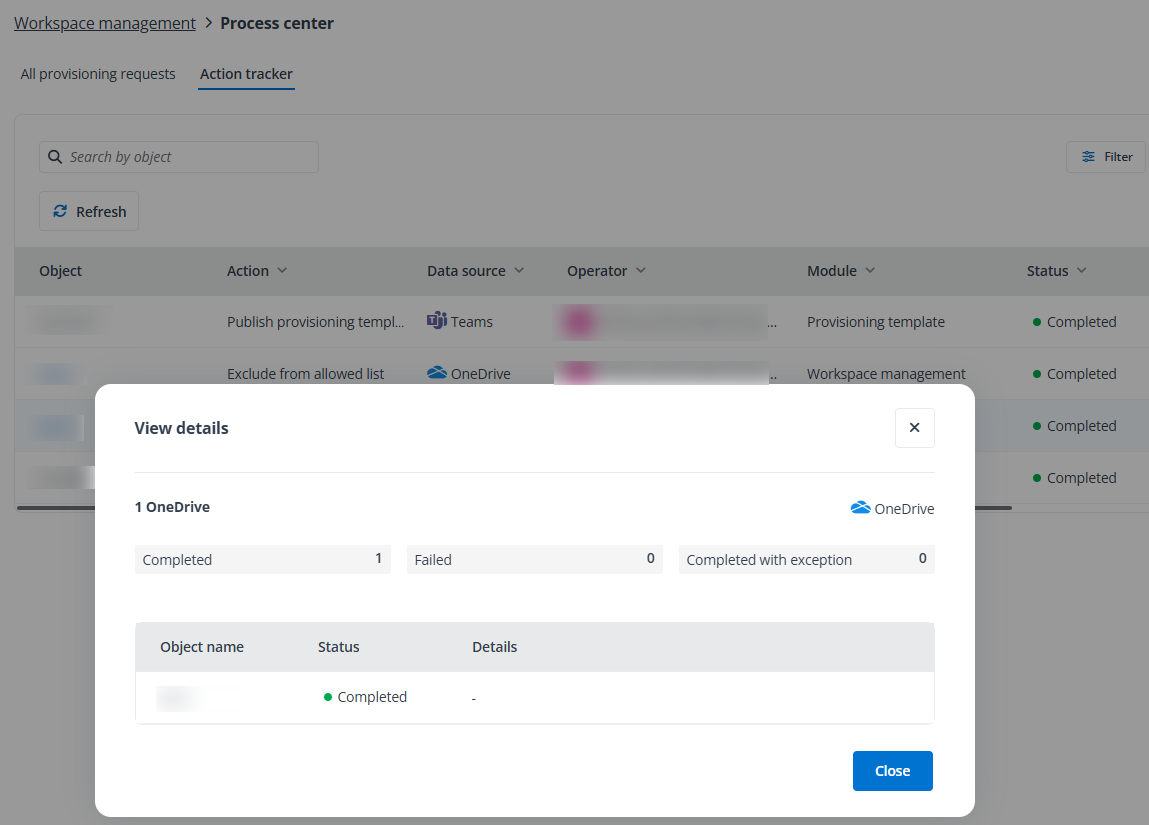
Click Action tracker in the Process center tile on the Workspace management page to access the process center, and action records of all tenants are listed in the table under the Action tracker tab. You can view only the action records of a specific tenant by selecting the tenant from the Tenant column.
When specific actions are initiated, corresponding processes are started to complete them. You can monitor the status of these processes and view related reports by clicking the Process center link in the notification that appears once the process has started. Additionally, you can access this tenant-level process center by clicking Process center from the left navigation on any tenant-level page. On the tenant-level process center page, click the Action tracker tab to view all action records within the tenant.
In the Action tracker tab, you can perform the following actions:
-
Refresh – Click Refresh to refresh the data displayed in the table.
-
Filter process – You can filter the process status shown in the table. To filter specific processes to view, click Filter in the upper-right corner. You can expand the fields in the filter and select specific options. Then, click Apply changes to apply the updates and only view the processes that match the filters.
-
Download report – You can click the download button to the right of a process to download the report generated in the report exportation job or download the report for the finished process.
NOTECurrently, this is only available for the Search for Mailbox Forwarding action.
-
View details – For some specific processes, you can click the object link and the View details panel appears with the process details displayed.