
Home > Workspace Management > Discovery Profile Management
Export to PDFDiscovery Profile Management
On the Discovery profiles page, existing discovery profiles are listed in the table. You can view the profile name, description, and the modified time and the user who modified the profile.
To edit the settings of a discovery profile, you can select it in the table and click Edit. The changes will affect all tenants where this profile is used and will take effect in the next discovery.
To delete existing discovery profiles, select the profile in the table and click Delete.
A discovery profile cannot be deleted if it is being used in a tenant.
For the built-in discovery profile, you can click the profile name to view details.
Create a Discovery Profile
On the Discovery profiles page, click Create discovery profile in the upper-right corner to access the Create discovery profile page.
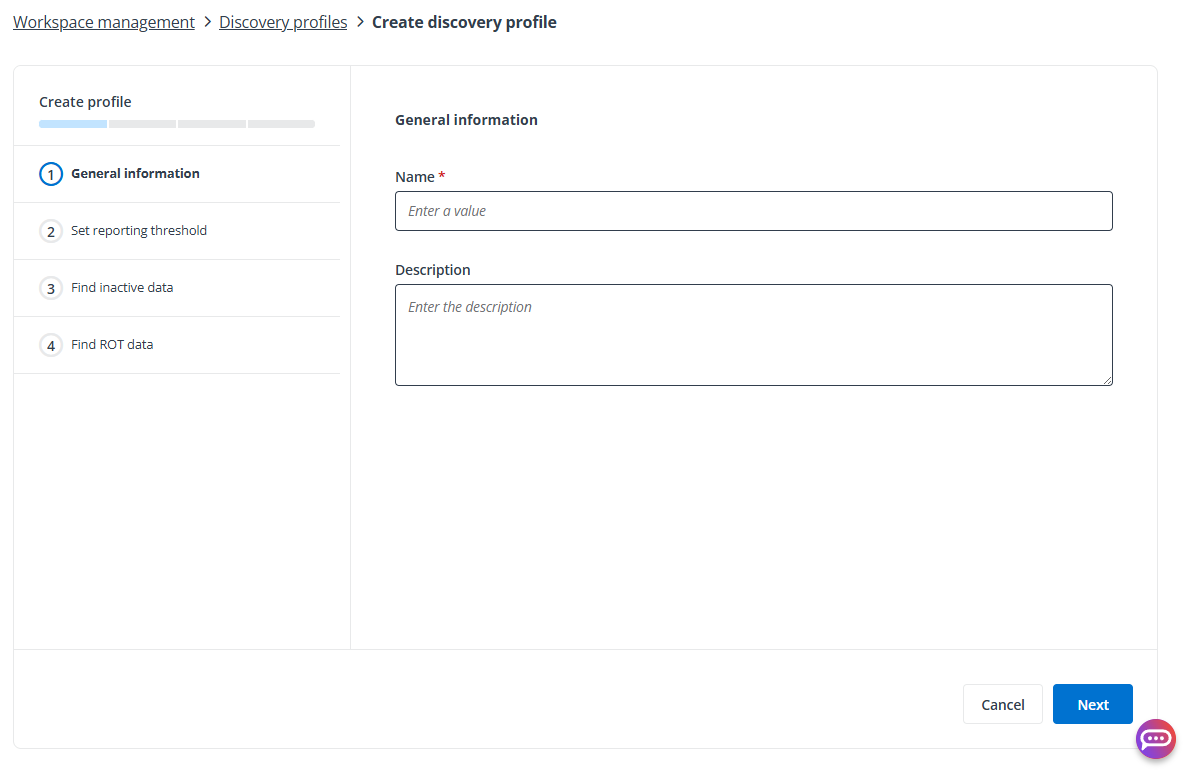
Complete the following settings to create the discovery profile.
-
In the General information step, enter a name and optional description for the profile, and click Next.
-
In the Set reporting threshold step, predefined filters based on file size and modified time are displayed. You can customize these filters to meet your special requirements.
-
Click Next to go to the next step.
-
In the Find inactive data step, create rules to find inactive data in the scope that you defined above:
-
Select a time range to mark data as inactive if last modified before the configured time range.
-
Turn on the toggle to analyze the data size of inactive versions.
-
There are built-in rules for you to select.
-
To add a rule, click Add rule. In the Add rule window, enter the name and description, configure rule criteria, and then click Add.
-
Select the rules that you want to use to find inactive data.
-
-
Click Next to go to the next step.
-
In the Find ROT data step, configure rules to find redundant, obsolete, and/or trivial data in the scope that you defined above:
-
Turn on the toggle to analyze the data size of ROT data.
-
There are built-in rules for you to select. You can also delete the built-in rules or modify the rule criteria based on your needs.
NOTEThe file types docx, dotx, xlsx, xltx, pptx, and potx have been removed from the Legacy Office files rule.
-
To add a rule, click Add rule under an ROT category. Enter the rule name and description, configure rule criteria, and then click Add to add the rule. Refer to the table below for detailed rule criteria.
-
Select the rules that you want to use to find ROT data.
-
-
Click Create to create the discovery profile.
Rule Criteria for Inactive Data
The following table lists the rule criteria that you can use when adding rules to find inactive data.
| Criterion | Condition | Description |
|---|---|---|
| Keep the latest version *Note: Current version, current approved version, and published major version are not collected. | Major and minor versions | Collect all previous versions, excluding the defined number of major and minor versions. |
| Keep the latest version *Note: Current version, current approved version, and published major version are not collected. | Major versions only | Collect all previous versions, excluding the defined number of major versions. |
| Keep the latest version *Note: Current version, current approved version, and published major version are not collected. | Minor versions of each major (with all major versions) | Collect all previous versions, excluding the defined number of minor versions in each major version. |
| Keep the latest version *Note: Current version, current approved version, and published major version are not collected. | Minor versions of the latest major (with all major versions) | Collect all previous versions, excluding the defined number of minor versions in the latest major version. |
| Modified time | Before | Collect versions whose last modified time is before the configured time. |
| Modified time | Older than | Collect versions whose last modified time exceeds the configured time range. |
| Type | In | Collect versions whose type is one of the configured file types. |
| Type | Not in | Collect versions whose type is not any of the configured file types. |
| Type | Empty | Collect versions whose type is empty. |
| Size | >= | Collect versions whose size is not smaller than the configured size. |
| Size | <= | Collect versions whose size is not larger than the configured size. |
Rule Criteria for ROT Data
The following table lists the rule criteria that you can use when adding rules to find ROT data.
| Data Type | Criterion | Condition | Description |
|---|---|---|---|
| File | Name *Note: The wildcard * is supported here. | Matches | Collect files whose name matches the entered value. |
| File | Name *Note: The wildcard * is supported here. | Does not match | Collect files whose name does not match the entered value. |
| File | Parent folder name (including subfolders) *Note: The wildcard * is supported here. | Matches | Collect files whose parent folder name matches the entered value. |
| File | Parent folder name (including subfolders) *Note: The wildcard * is supported here. | Does not match | Collect files whose parent folder name does not match the entered value. |
| File | Created time | Before | Collect files whose created time is before the configured time. |
| File | Created time | Older than | Collect files whose created time exceeds the configured time range. |
| File | Modified time | Before | Collect files whose last modified time is before the configured time. |
| File | Modified time | Older than | Collect files whose last modified time exceeds the configured time range. |
| File | Type | In | Collect files whose type is one of the configured file types. |
| File | Type | Not in | Collect files whose type is not any of the configured file types. |
| File | Type | Empty | Collect files whose type is empty. |
| File | Size | >= | Collect files whose size is not smaller than the configured size. |
| File | Size | <= | Collect files whose size is not larger than the configured size. |
| Version | Keep the latest version *Note: Current version, current approved version, and published major version are not collected. | Major and minor versions | Collect all previous versions, excluding the defined number of major and minor versions. |
| Version | Keep the latest version *Note: Current version, current approved version, and published major version are not collected. | Major versions only | Collect all previous versions, excluding the defined number of major versions. |
| Version | Keep the latest version *Note: Current version, current approved version, and published major version are not collected. | Minor versions of each major (with all major versions) | Collect all previous versions, excluding the defined number of minor versions in each major version. |
| Version | Keep the latest version *Note: Current version, current approved version, and published major version are not collected. | Minor versions of the latest major (with all major versions) | Collect all previous versions, excluding the defined number of minor versions in the latest major version. |
| Version | Modified time | Before | Collect versions whose last modified time is before the configured time. |
| Version | Modified time | Older than | Collect versions whose last modified time exceeds the configured time range. |
| Version | Type | In | Collect versions whose type is one of the configured file types. |
| Version | Type | Not in | Collect versions whose type is not any of the configured file types. |
| Version | Type | Empty | Collect versions whose type is empty. |
| Version | Size | >= | Collect versions whose size is not smaller than the configured size. |
| Version | Size | <= | Collect versions whose size is not larger than the configured size. |
| Duplicate files | Duplicate | In | Files in the same content source with the same name including file extension and size are seen as duplicate files. |