
Home > Workspace Management > Provisioning Template Management
Download this articleProvisioning Template Management
On the Provisioning templates page, the existing provisioning templates are listed in the table. You can view the template name and description, its status and type, the selected lifecycle policy, the tenants that are added to the scope of the template, and the number of provisioned workspaces, the modified time and the user who modified the template. Click a template name to view details of the provisioning template. Click Refresh to refresh the information on this page.
You can view the provisioning template type to the left of the template name through the type icon:
-
General mode (
 )
) -
Specific mode: Starting from scratch (
 )
) -
Specific mode: Using a workspace as blueprint (
 )
)
You can duplicate the settings of an existing provisioning template by selecting it and clicking Save as. A default name suffixed with – Copy is filled in automatically in the Save as new template window. You can edit it as desired, and click Save to create a new template based on the selected one.
For unpublished provisioning templates, you can select one and click Edit to edit settings, or select one or multiple templates and click Delete to delete them.
The built-in provisioning templates cannot be edited or deleted.
To create a new provisioning template, refer to the sections below.
Create a Provisioning Template
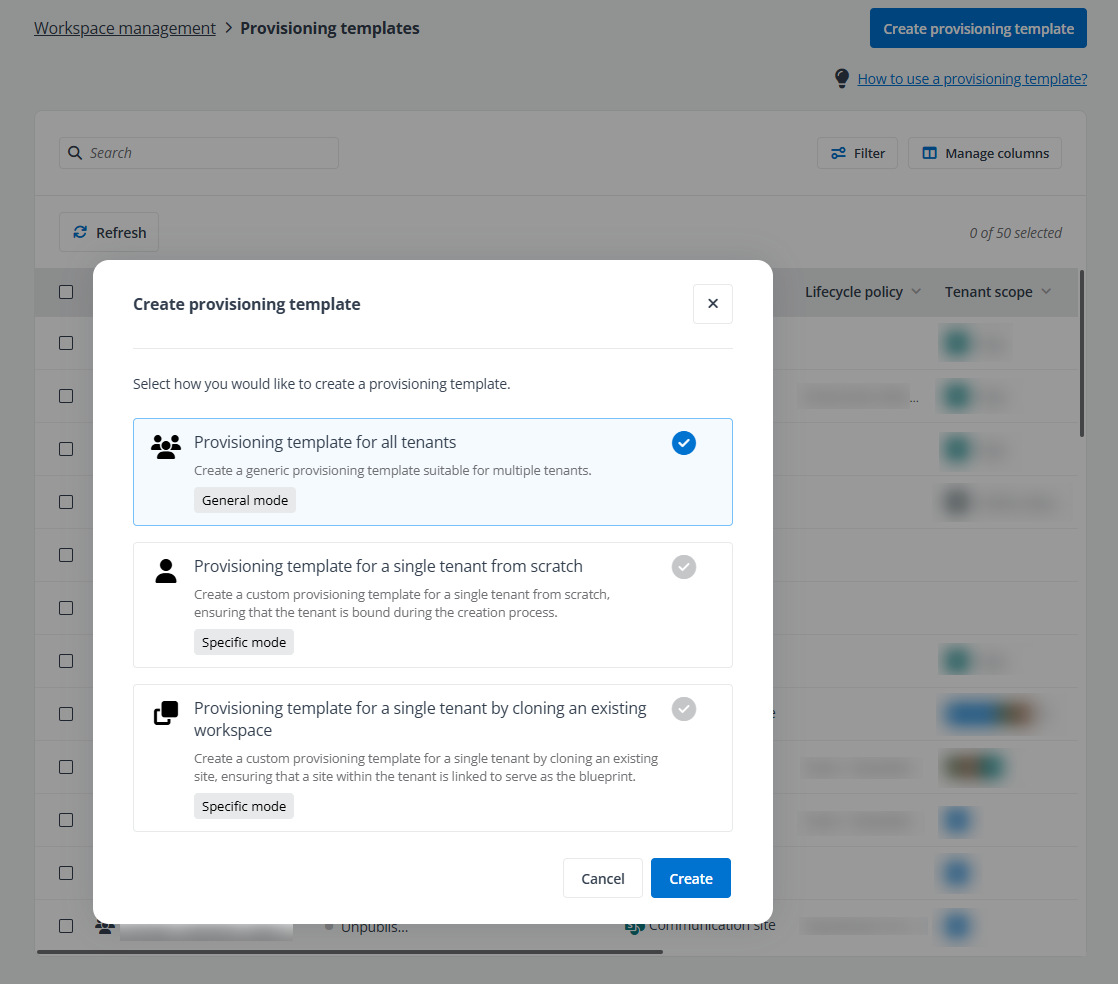
On the Provisioning templates page, click Create provisioning template in the upper-right corner to create a new template. In the Create provisioning template window, you have three methods to create the provisioning template.
-
Select Provisioning template for all tenants to create a generic provisioning template suitable for all tenants.
On the Create page, you have six steps to complete the creation process.
-
In the Workspace step, select Team if this is the template you want to use for Teams. To use this template in SharePoint, select Team site / Communication site / Community portal / Project site based on your needs.
-
Refer to the Create a provisioning template for Microsoft Team or Create a provisioning template for a SharePoint site section to complete the subsequent steps based on the workspace you selected in the previous step.
-
-
Select Provisioning template for a single tenant from scratch to create a custom provisioning template for a single tenant from scratch, ensuring that the tenant is bound during the creation process.
On the Create page, you have seven steps to complete the creation process.
-
In the Tenant step, select the tenant for which you want to create this provisioning template.
-
In the Workspace step, select Team if you want to use this template for Teams. To use this template in SharePoint, select Team site / Communication site / Community portal / Project site based on your needs.
-
Refer to the Create a provisioning template for Microsoft Team or Create a provisioning template for a SharePoint site section to complete the subsequent steps based on the workspace you selected in the previous step.
-
-
Select Provisioning template for a single tenant by cloning an existing workspace to create a custom provisioning template for a single tenant by cloning an existing Team, ensuring that a Team within the tenant is linked to serve as the blueprint.
On the Create page, you have seven steps to complete the creation process.
-
In the Workspace step, select a tenant and select an active Team in the tenant from where the provisioning template will be cloned.
-
In the Scope step, select the team details that you want to clone, including channels, apps, tabs, and team settings, as well as the governance details, including lifecycle policy and compliance policy settings.
-
Refer to the Create a provisioning template for Microsoft Team section to complete the subsequent steps.
-
Create a provisioning template for Microsoft Team
-
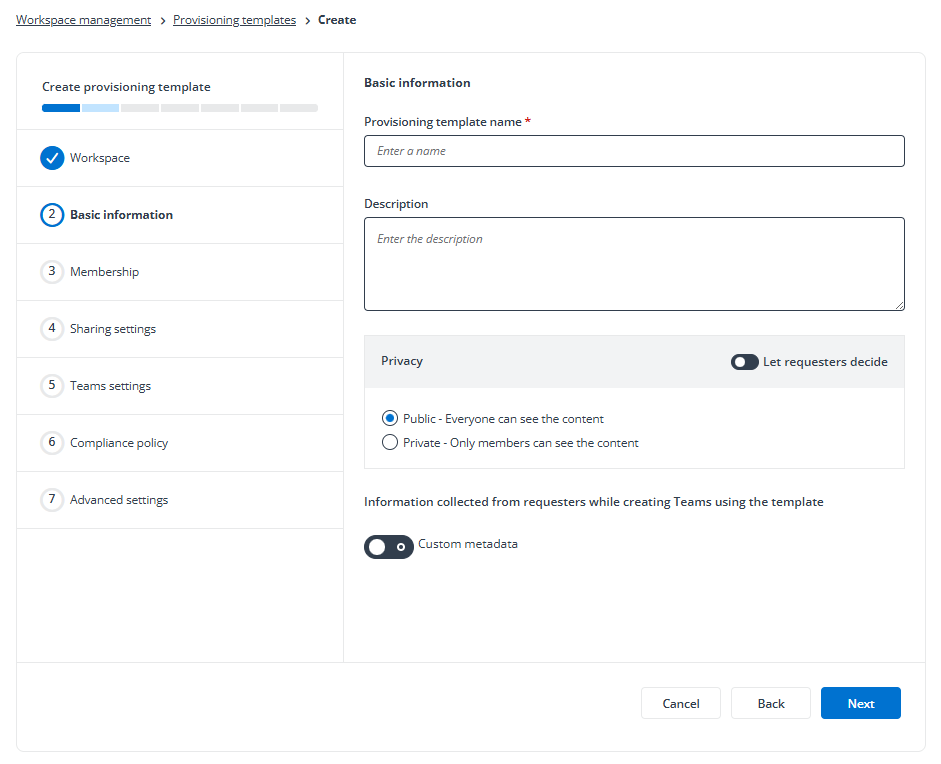
In the Basic information step, enter a name and description for the provisioning template.
-
In the Privacy section, select the default privacy. You can also click the toggle to let requesters decide the Team privacy.
-
Choose whether to collect information from requesters when they request to create Teams using this template. Once the Custom metadata is enabled, three custom fields are displayed below. You can remove one or two custom fields as required and leave at least one.
-
-
In the Membership step, predefine the team owners and members separately. You can select Requester and/or Manager of requester as the owners and members, and click the toggle to allow requesters to add owners and/or members.
If you select the Provisioning template for a single tenant from scratch or Provisioning template for a single tenant by cloning an existing site method to create the provisioning template, Specific users can also be predefined. Alternatively, you can select Custom conditions to specify the users who match the conditions to be team members.
-
In the Sharing settings step, you can click the toggle to let requesters decide the sharing settings and sharing permissions and predefine the available options for requesters to select in the provisioning requests. Alternatively, predefine the sharing settings and sharing permissions in this step. In addition, you can predefine the sensitivity label for the Team.
NOTEIn the specific mode of a provisioning template, the published sensitivity labels in the tenant are displayed in the drop-down list and can be selected. However, in the general mode, you need to manually enter the sensitivity label in the text box. Ensure that the entered sensitivity label is published in the tenant where the Team is to be created. For more information about how to publish sensitivity labels, refer to Create and configure sensitivity labels and their policies. If you want to apply a sublabel to the Team, enter the sublabel in the format of l**abel \ sublabel. If no sensitivity label is entered, None will be applied to the workspace.
-
In the Teams settings step, you can configure the channel settings, messaging settings, guest settings, and visibility settings for the Team separately.
-
In the Compliance policy step, you can select an existing compliance policy from the drop-down list, and preview the policy settings below. You can click the refresh button to refresh the policy settings or click the pencil button to open the edit page in a new tab.
To create a new compliance policy, you can click Create compliance policy in the drop-down list and the create compliance policy page will be opened in a new tab. For more information, refer to Compliance Policy Management for details.
Click the View all compliance policies link to view all compliance policies in a new tab.
-
In the Advanced settings step, the settings are configurable.
-
Naming rule – Define the name prefix and/or suffix. You can also click Select reference and select an option to add the reference to the prefix or suffix. The reference will be replaced with the actual value when a Team is created using this provisioning template.
-
Approval process – Select the approval type, auto approval or manual approval. If manual approval is selected, define who will be responsible for approval, the notification settings, and how long will the task be auto-completed if the task assignee does not complete it.
You can also set the auto-approval scope when you select Manual approval as the approval type in a specific mode provisioning template. If requesters do not exist in this scope, manual approval is needed for their requests.
NOTEBesides Manager of requester and Team owner / site administrator of the workspace, you can also select Specific users to specify desired users in a specific mode provisioning template.
-
Lifecycle policy – You can select an existing lifecycle policy from the drop-down list, or create a new lifecycle policy by clicking Create lifecycle policy in the drop-down list. Click the View all lifecycle policies link to view all lifecycle policies in a new tab.
-
Create a provisioning template for a SharePoint site
-
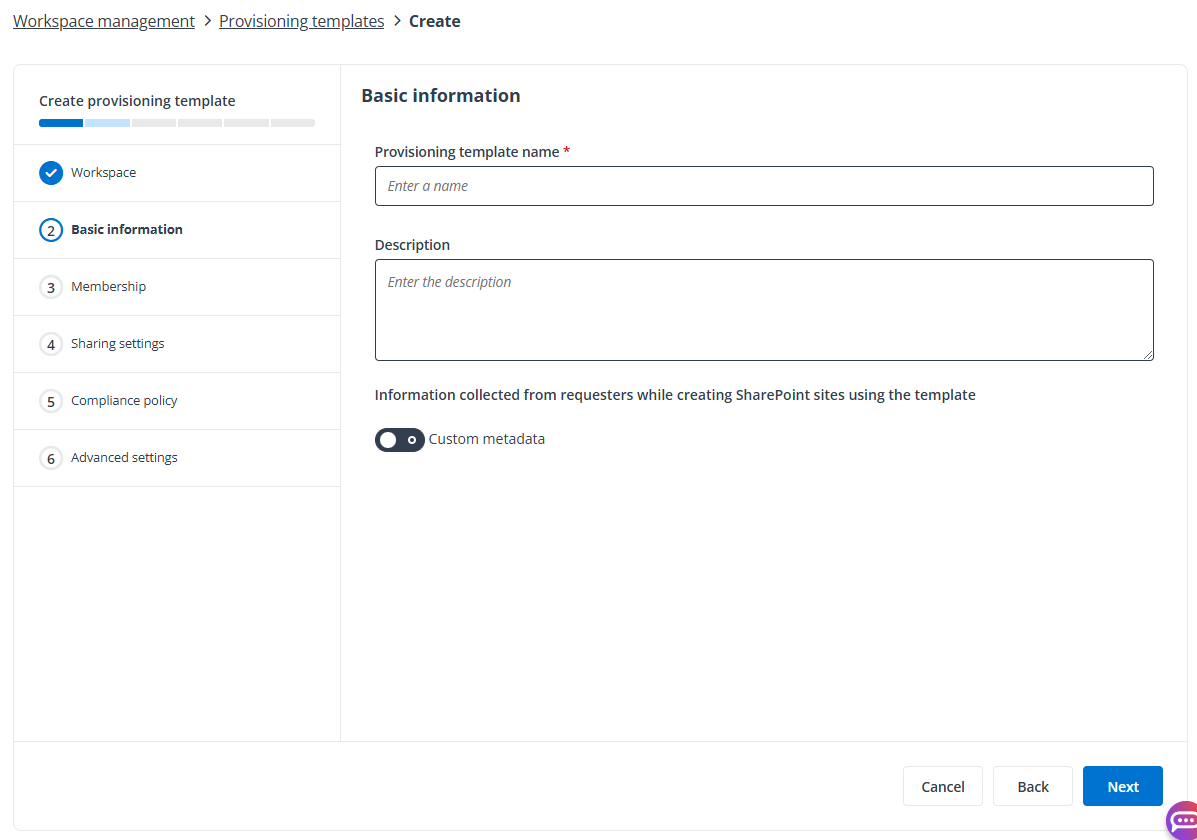
In the Basic information step, enter a name and description for the provisioning template.
Choose whether to collect information from requesters when they request to create SharePoint sites using this template. Once the Custom metadata is enabled, three custom fields are displayed below. You can remove one or two custom fields as required and leave at least one.
-
In the Membership step, choose whether to allow requesters to manage groups and grant user permissions. In addition, you can predefine the primary admin by selecting Request or Manager of requester.
-
In the Sharing settings step, you can click the toggle to let requesters decide the sharing settings and sharing permissions and predefine the available options for requesters to select in the provisioning requests. Alternatively, predefine the sharing settings and sharing permissions in this step. In addition, you can predefine the sensitivity label for sites.
NOTEIn the specific mode of a provisioning template, the published sensitivity labels in the tenant are displayed in the drop-down list and can be selected. However, in the general mode, you need to manually enter the sensitivity label in the text box. Ensure that the entered sensitivity label is published in the tenant where the site is to be created. For more information about how to publish sensitivity labels, refer to Create and configure sensitivity labels and their policies. If you want to apply a sublabel to the site, enter the sublabel in the format of Label \ sublabel. If no sensitivity label is entered, None will be applied to the workspace.
-
In the Compliance policy step, you can select an existing compliance policy from the drop-down list, and preview the policy settings below. You can click the refresh button to refresh the policy settings or click the pencil button to open the edit page in a new tab.
To create a new compliance policy, you can click Create compliance policy in the drop-down list and the create compliance policy page will be opened in a new tab. For more information, refer to Compliance Policy Management for details.
Click the View all compliance policies link to view all compliance policies in a new tab.
-
In the Advanced settings step, the settings are configurable.
-
Naming rule – Define the name prefix and/or suffix. You can also click Select reference and select an option to add the reference to the prefix or suffix. The reference will be replaced with the actual value when a site is created using this provisioning template.
-
Managed path – Select a managed path for the site.
-
Approval process – Select the approval type, auto approval or manual approval. If manual approval is selected, define who will be responsible for approval, the notification settings, and how long the task will be auto-completed if the task assignee does not complete it.
You can also set the auto-approval scope when you select Manual approval as the approval type in a specific mode provisioning template. If requesters do not exist in this scope, manual approval is needed for their requests.
NOTEBesides Manager of requester and Team owner / site administrator of the workspace, you can also select Specific users to specify desired users in a specific mode provisioning template.
-
Lifecycle policy – You can select an existing lifecycle policy from the drop-down list, or create a new lifecycle policy by clicking Create lifecycle policy in the drop-down list. Click the View all lifecycle policies link to view all lifecycle policies in a new tab.
-
Publish to Tenants
When a provisioning template is ready to be published, select it and click Publish to tenants above the table. The Publish to tenants window appears where you can view all tenants in the tenant scope of the provisioning template with their publish statuses.
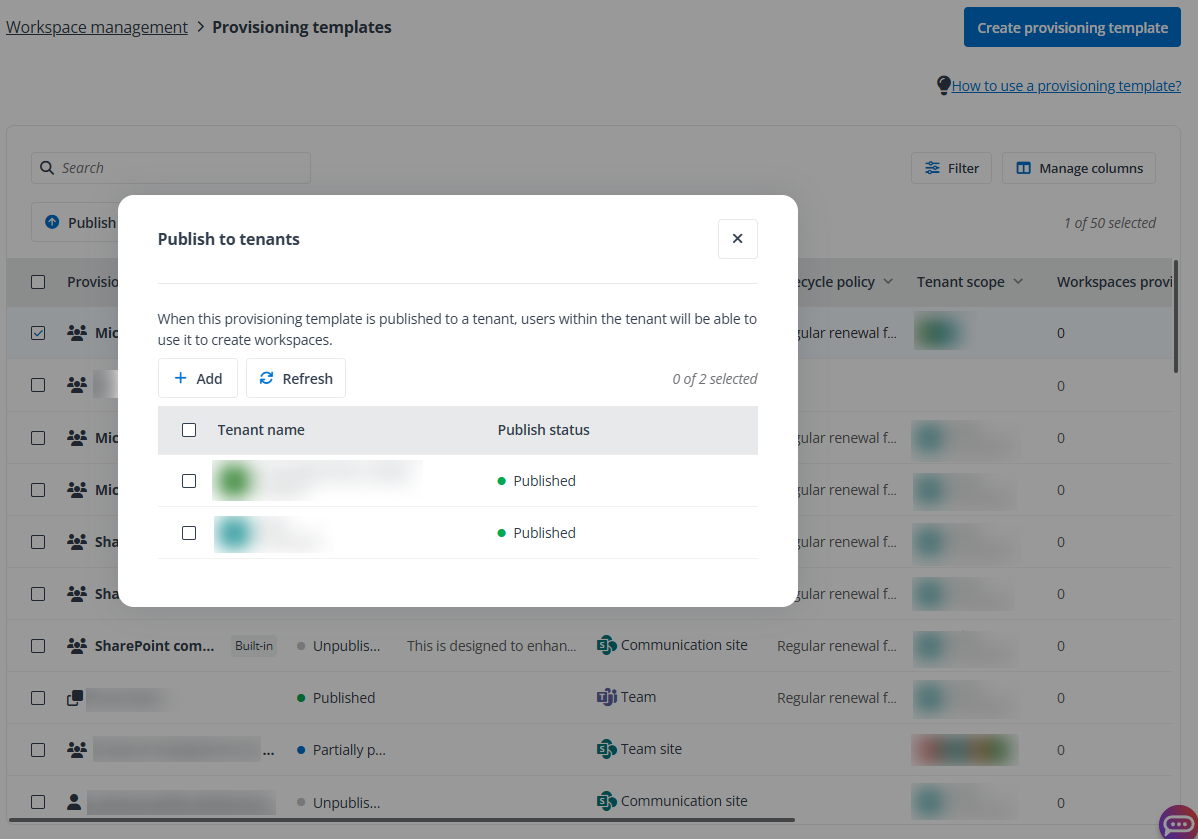
You can manage the tenant scope for the provisioning template as follows:
-
Remove tenants – Select one or multiple unpublished tenants and click Remove to remove the tenants from the tenant scope.
-
Publish to tenants – Select one or multiple unpublished tenants and click Publish to publish the provisioning template to the tenants. Users within the tenants will be able to use it to create workspaces.
-
Unpublish from tenants – Select one or multiple published tenants and click Unpublish to unpublish the provisioning template from the tenants. Once unpublished, users within the tenant will no longer be able to use the provisioning template to create workspaces.
-
Add tenants – Click Add to add more tenants to the tenant scope. In the Add tenants window, select the tenants and click Publish to add the tenants to the scope and publish the provisioning template to the tenants directly.
-
Refresh tenant scope – Click Refresh to refresh the tenants in the tenant scope of the provisioning template.
The Remove and Add actions are not available for specific mode provisioning templates.
When a provisioning template is published to a tenant, the template will be available for the tenant users to create workspaces. You can inform tenant users about the availability of the provisioning template by completing the following steps:
-
Click Settings on the left navigation, and click Email template under Notification.
-
Find and click the Workspace provisioning instructions email template to view details. This is the built-in email template which is provided to instruct tenant users on how to request a workspace using a provisioning template.
-
Click How to use MyHub.docx in the Attachment field to download it locally. Make changes as required.
-
To use a custom logo in the notification emails, navigate to Settings > Branding logo under Notification. Select A custom branding logo, click Upload to upload a custom logo image, and click Save.
-
Go back to the Email template page, and click Create.
-
In the Create email template window, complete the following settings:
-
To use a custom logo in the notification emails, click the Branding logo link in the message on the top to access the Branding logo page.
-
Select A custom branding logo, click Upload and select a custom logo image, and then click Save to save your custom logo and use it for all email templates.
-
Go back to the Create email template window, enter a name for the new email template.
-
Select Set as default to set this email template as the default one.
-
Select Workspace provisioning instructions as the email template type.
-
Edit the description, email subject, and email body as required.
-
Click Upload in the Attachment section, and select the file you prepared in step 3.
-
-
Click Preview to preview the email, or click Save to create the email template. For more details, refer to Manage Email Templates.
Tenant users can locate the MyHub Teams app and use the provisioning template to start requests. The main steps of a workspace creation process are listed below:
-
Tenant users locate the MyHub or MyHub for US GCC app in Teams Desktop or Web App. If the Microsoft 365 Global Administrator or Teams Service Administrator has pinned the app to the app bar, tenant users can see the app in the app bar within their Teams client. If the app is not shown in the app bar, tenant users can add the app manually. For more information, refer to Use the MyHub App in Microsoft Teams.
-
Tenant users start requests to create workspaces using the provisioning templates published to their tenants. For details on how to start requests to create workspaces, refer to Start a Request.
-
The requests submitted can be viewed in the All provisioning requests tab of the Process center. For more information, refer to View Provisioning Requests.
-
When the approvers approve the requests, the workspaces will be automatically created. For details on how to approve or reject requests, refer to Approve or Reject Requests.