
Home > What Can I Do as a User? > Start a Request
Download this articleStart a Request
If you are using the new Myhub experience, you can start a request using one of the following methods:
-
Click Request on the left navigation menu. Based on your administrator's configuration, you may see request listing or service catalog as the default view:
-
If services are listed under their categories, you are in the service catalog view. In this view, click a service to start a request for the service.
-
If requests are listed on the page, you are in the request listing view. In this view, click Start a request in the upper right corner, and then select a service to get started.
-
-
Click Spaces on the left navigation menu. Click the More actions button to the right of a space and select Start a request. Then, you can select a service to get started.
-
Click Dashboard on the left navigation menu. Click Start a request in the Self-service portal section, and then select a service to start a request for the service.
NOTEThis entry may not be available based on your administrator's configurations.
If you are using the legacy MyHub experience, you can start a request using one of the following methods:
-
Click New request on the Home page when you are new here. Then, select a request to start.
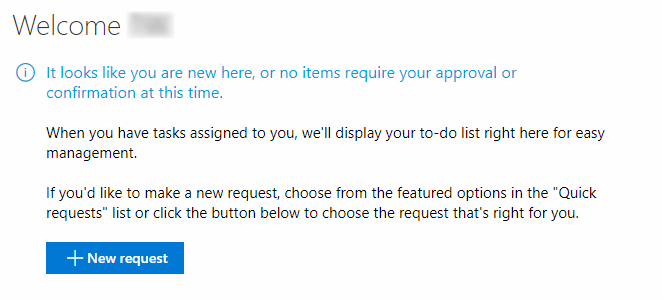
-
Locate the Start a request section on the left pane. Note that Start a request is the default title. Your administrator may customize the title. You can see several requests if your administrator adds quick requests for you. You can select a request from the request list to start. You can also click View all to view all requests available for you.
-
In Workspaces, select a site collection, site, Microsoft 365 Group, or Microsoft Team, and then click Start a request on the ribbon. On the New request page, select a request from the request list to start.
When starting a request from the Home page or clicking View all to choose from all available requests, you can filter service requests by languages. Click the filter button on the right corner, and then click Filter by language. Select your desired languages in the panel and then click Apply. If you want to clear the current filter, click the filter button and then click Clear filter.
In the request interface, provide the necessary information in the configuration fields. When you finish, click Submit to submit this request to the approvers.