
Home > Using AvePoint Cloud Governance Portal (MyHub)
Download this articleAbout AvePoint Cloud Governance Portal (MyHub)
Traditionally, administrators create components or manage their data in Microsoft 365 manually by following a series of requirements. The number of human interactions that occur in business processes can inhibit speed and the quality of decisions.
AvePoint Cloud Governance provides ways to create and govern your Microsoft 365 components automatically by submitting rich and customizable predefined service requests, which can trigger corresponding workflows and policies to accomplish these processes. This automation results in more speed, the overall effectiveness of the interactions, and often a reduction in errors.
The AvePoint Cloud Governance Portal (MyHub) is the landing page for end users to manage their to-do tasks, submit new requests, and view workspaces they own.
The AvePoint Cloud Governance Portal (MyHub) supports the following languages: English, Japanese, German, French, Chinese, Italian, Spanish, Portuguese, Korean, and Dutch.
MyHub mentioned in this guide is the default name of the application. Your IT administrator may customize this application name.
AvePoint Cloud Governance Versions: Insider and Production
There are two versions of AvePoint Cloud Governance: a version for preview features and a version for generally available features.
The Insider version was created for users who want to see and test new product features before they are generally available in your production tenant. If your organization has registered for the AvePoint Cloud Governance Insider environment, you will be able to use the AvePoint Cloud Governance Portal in your Microsoft 365 test tenant.
The production version has three environments: an environment for commercial use, an environment available on Microsoft’s Cloud Platform for the U.S. Government, and an environment for Microsoft 365 U.S. Government GCC High.
All versions and environments are covered in this guide. The table below lists the differences:
| Cloud Governance Commercial Production Environment | Cloud Governance U.S. Government Production Environment | Cloud Governance U.S. Government Production Environment | Cloud Governance Insider Environment | |
|---|---|---|---|---|
| Cloud Governance Commercial Production Environment | Microsoft 365 Version: Global Microsoft 365 or Microsoft 365 U.S. Government GCC | Microsoft 365 Version: Microsoft 365 U.S. Government GCC High | Cloud Governance Insider Environment | |
| Sign-in Address | https://myhub.avepointonlineservices.com | https://myhub-gov.avepointonlineservices.com | https://myhub.gov.avepointonlineservices.com | https://insider-governance.avepointonlineservices.com |
Note that for a security group, distribution group, or mail-enabled security group that has been added to AvePoint Online Services, the following users cannot sign in to AvePoint Cloud Governance:
-
The owner of the distribution group or mail-enabled security group.
-
If the security group has nested groups and the owner of a nested group is not a member of any other groups that have been added to AvePoint Online Services, the nested group owner cannot sign in to AvePoint Cloud Governance.
Supported Browsers
The following table lists the browsers supported by the AvePoint Cloud Governance Portal:
| Browser | Version |
|---|---|
| Google Chrome (recommended)* | The latest version |
| Mozilla Firefox | The latest version |
| Microsoft Edge based on Chromium | The latest version |
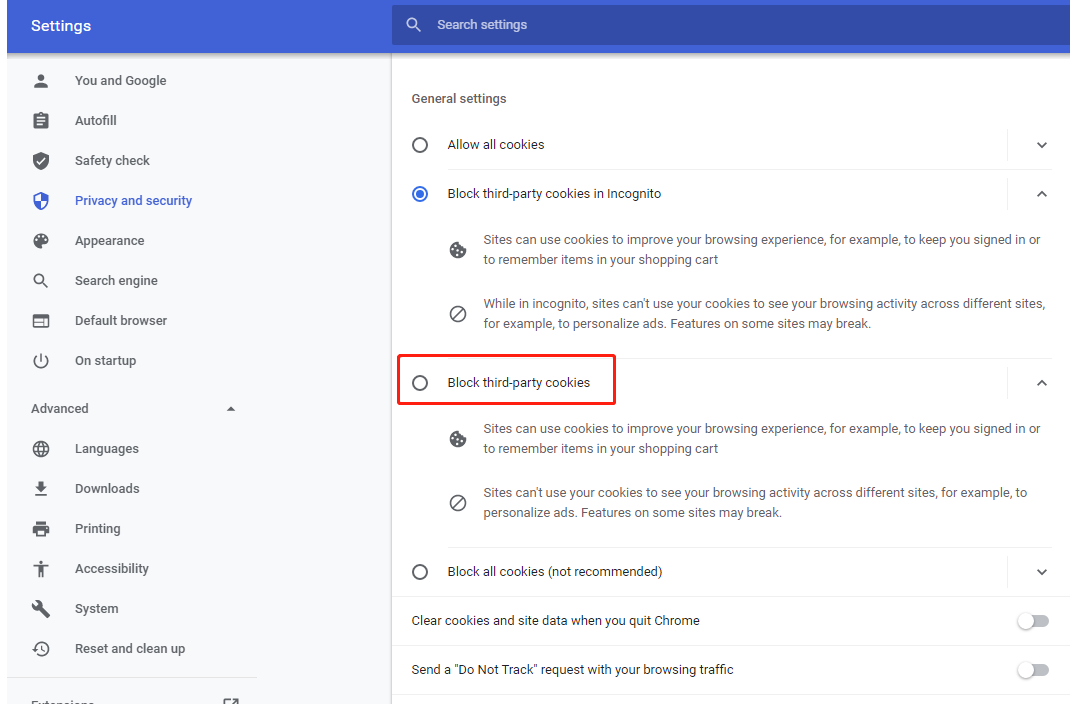
If your administrator has enabled the hubs functionality for you and you are using the Google Chrome browser to access hubs, make sure the Block third-party cookies option is disabled in Settings > Privacy and security in Chrome.
Use the MyHub App in Microsoft Teams/Outlook
AvePoint Cloud Governance provides the MyHub applications that can be added to Microsoft Teams/Outlook. The MyHub app is for the Cloud Governance commercial production environment, the MyHub for AOS-US app is for the Cloud Governance US Government production environment, and the MyHub for AOS-CN app is for the Cloud Governance 21Vianet production environment.
MyHub is a personal app that allows you to manage your tasks, submit new requests, and view workspaces you own within the Teams/Outlook interface. You can use the app in the Teams/Outlook desktop, web app, or mobile app.
MyHub app supports the following languages:
| Microsoft Teams Client Language | MyHub Language | Language Name in English |
|---|---|---|
| Deutsch (Deutschland) Deutsch (Liechtenstein) Deutsch (Luxemburg) Deutsch (Schweiz) Deutsch (Österreich) | Deutsch (Deutschland) | German (Germany) |
| Español (Argentina) Español (Bolivia) Español (Chile) Español (Colombia) Español (Costa Rica) Español (Ecuador) Español (El Salvador) Español (España, alfabetización internacional) Español (Estados Unidos) Español (Guatemala) Español (Honduras) Español (México) Español (Nicaragua) Español (Panamá) Español (Paraguay) Español (Perú) Español (Puerto Rico) Español (Republica Bolivariana de Venezuela) Español (República Dominicana) Español (Uruguay) | Español (España, alfabetización internacional) | Spanish (Spain, international alphabet) |
| Français (Belgique) Français (Canada) Français (France) Français (Luxembourg) Français (Principauté de Monaco) Français (Suisse) | Français (France) | French (France) |
| Italiano (Italia) Italiano (Svizzera) | Italiano (Italia) | Italian (Italy) |
| Português (Brasil) Português (Portugal) | Português (Brasil) | Portuguese (Brazil) |
| Others | English (United States) | English (United States) |
| 日本語 (日本) | 日本語 (日本) | Japanese (Japan) |
| 中文 (中国) 中文 (新加坡) | 简体中文 (中国) | Simplified Chinese (China) |
| 한국어 (대한민국) | 한국어 (대한민국) | Korean (South Korea) |
| Nederlands (België) Nederlands (Nederland) | Nederlands (Nederland) | Dutch (Netherlands) |
MyHub App in Teams Desktop or Web App
If your Microsoft 365 Global Administrator or Teams Service Administrator has pinned the app to the app bar, you can see the app in the app bar within your Teams client.
If the MyHub app is not shown in the Teams app bar, complete the following steps to add the app to your Teams client:
-
Sign in to Microsoft Teams.
-
Click Apps in the lower-left corner.
-
Enter MyHub in the search box.
-
In the search results, click MyHub, MyHub for AOS-US, or MyHub for AOS-CN.
-
Read the app introduction and privacy and permissions thoroughly.
-
Click Add.
MyHub App in Teams Mobile App
Follow the steps below to access the MyHub app in the Teams mobile app.
-
Open the Microsoft Teams app on your mobile device and sign in.
-
Tap More in the lower-right corner and tap the MyHub app.
If you cannot find the app in the app list, you can follow the instructions below to enable the developer preview.
-
In the Teams mobile app, tap the user photo on the left corner to open the left panel.
-
In the panel, tap Settings.
-
In the panel, tap Settings.
-
Tap About and turn on the toggle of Developer preview.
-
Read the description of the developer preview and tap Switch on the right corner.
-
Close and restart the Teams mobile app.
When the Developer preview is enabled, you can tap More again to find the app.
To use the links or buttons on the MyHub chat page to view the tasks assigned to you, navigate to different hubs, or turn on/off notifications, you must enable the developer preview.
MyHub Outlook App
Complete the following steps to add the MyHub app to your Outlook client:
-
Sign in to Outlook.
-
Click More apps in the lower-left corner.
-
Your apps are displayed. If the MyHub app is not in the list, click Add apps.
-
Enter MyHub in the search box.
-
In the search results, click MyHub, MyHub for AOS-US, or MyHub for AOS-CN.
-
Read the app introduction and privacy and permissions thoroughly.
-
Click Add.
Integration with Copilot for Microsoft 365
MyHub app offers integration with Copilot for Microsoft 365, enabling you to leverage Copilot for Microsoft 365 to find relevant information about your MyHub workspaces, tasks, and service requests. For details on enabling the integration and sample prompts, refer to Integration with Copilot for Microsoft 365 in MyHub user guide.
To use this function, ensure that you have an available subscription for Copilot for Microsoft 365.