
Home > What Can I Do as a User? > View and Manage Workspaces in Hubs > Manage Hubs
Download this articleManage Hubs
A hub centralizes different types of workspaces. You can view, access, and manage workspaces in a hub. There are four built-in hubs, and you can also customize your own hubs. All hubs are displayed in the left pane.
-
All workspaces – Displays the following Microsoft 365 workspaces:
-
All public groups, teams, and communities.
-
All private groups.
-
Private teams and communities you are a member or owner/admin of.
-
If your administrator enables the discovery and management of SharePoint sites, you can view all sites in this hub.
-
-
Favorite workspaces – Displays all Microsoft 365 workspaces that you have marked as favorites.
-
My workspaces – Displays all Microsoft 365 workspaces that you are an owner/community admin or member of.
NOTEIf your administrator enables the discovery and management of SharePoint sites, you can view all sites in this hub.
-
Recent workspaces – Displays all Microsoft 365 workspaces that had activities over the last 30 days.
NOTEDue to the Microsoft Graph API limitation for fetching a workspace's last active time in the Microsoft 365 Government GCC High environment, the Recent workspaces hub is unavailable for GCC High users.
The All workspaces, Favorite workspaces, My workspaces, and Recent workspaces built-in hubs are visible only when your administrators allow you to view and access the corresponding hubs.
Due to the Microsoft API limitation for fetching the last active time of workspaces, you need to deselect the Display concealed user, group, and site names in all reports option in Microsoft 365 admin center > Org settings > Reports. Otherwise, the Last active time on the workspace cards will be the created time of workspaces, and Recent workspaces will be sorted according to the created time of workspaces.
You can perform the following actions to manage hubs:
Filter Workspaces in Hubs
You can filter workspaces for all built-in hubs by properties, tags, and workspace active time. The workspaces that meet your filter criteria will be included in the current hub for your temporary view. You can save the filtered workspaces to a custom hub for future visits. Refer to the following steps to filter workspaces:
-
In a built-in hub, click the Filter workspaces in this hub button in the upper-right corner.
-
In the Filter workspaces pane, select the workspace types you want to filter and configure the filter criteria. For details on the filter criteria, refer to the Create a Hub section below.
-
After configuring the filter criteria, you can click:
-
Apply – The filtered workspaces can be included in the current hub for your temporary view. The filter rules will be removed once you refresh the webpage.
-
Save as a hub – Save the filtered workspaces to a custom hub for your future visits.
-
Cancel – Close the Filter workspaces pane without saving any changes.
-
Save Filtered Workspaces as a Hub
In a built-in workspace hub, you can filter your desired workspaces based on different criteria. After applying the filter criteria to the built-in workspace hub, you can find all workspaces that meet your filter criteria are included in the current hub. However, the filter criteria will be removed after you refresh the page. If you want to save the filtered workspaces to a new hub which allows you to view these workspaces at any time, you can follow the steps below:
-
In the Filter workspaces pane, click Save as a hub.
-
In the Save as a hub window, configure the following basic information for the hub:
-
Hub name – Enter a name for the hub.
-
Pin this hub for quick access – Choose this option to pin this hub for quick access, and the hub will be displayed in Pinned hubs.
-
-
Click Save. If you did not pin the hub, you can find the hub in Saved hubs.
Create a Hub
Cloud Governance allows you to create hubs to include various workspaces as needed.
To quickly create a hub to include your desired workspaces with a couple of simple clicks, complete the steps below:
-
In any hub, hover your mouse over the workspaces you want to include in the new hub and select the checkboxes in the upper-right corner of the workspace cards.
-
Click Create a hub in the upper-right corner.
-
Enter a name for the hub and click Create.
To use various filter rules to filter your desired workspaces and include them in a hub, choose one of the following methods to open the Create a hub panel:
-
In any hub, click the Create button and select Create a hub.
-
Click the Settings button in the upper-right corner and then click Hub management in the Settings panel. On the Hub management page, click Create on the ribbon.
In the Create a hub panel, configure the following basic information for the hub:
-
Hub name – Enter a name for the hub.
-
Pin this hub for quick access – Choose this option to pin this hub for your quick access, and the hub will be displayed in the Pinned hubs section.
-
Set as default hub – Choose this option to set the hub as the default hub. The default hub will be the default page that you will be brought to after you access Hubs.
Then choose how to include workspaces in the hub. You can choose to Filter workspaces or Manually add workspaces.
If you choose to Filter workspaces, you can filter workspace by properties, tags, and active time. The workspaces that meet your filter criteria will be included in the hub. The table below lists the supported filter rules.
| Filter Rule | Filter Result |
|---|---|
| Public | All public teams/groups/communities. |
| Private | Private teams and communities that you are an owner/community admin or member of.All private groups. |
| Marked as favorite | All teams/groups/communities/sites that you have marked as favorite. |
| I’m a member of | All teams/groups/communities that you are a member of. |
| I’m an owner of | All teams/groups/communities that you are an owner/community admin of. |
| I’m neither a member nor owner, but the workspaces are visible to me*Note: Private Microsoft Teams are hidden from users who haven’t been added as members or owners. | All public teams/groups/communities that you are neither a member nor owner/community admin of.Private groups that you are neither a member nor owner/community admin of. |
| With permissions | ● All site collections that you have permissions. |
| Without permissions | ● All site collections that you have no permissions. |
SharePoint sites are available for you to include in the hub only when your MyHub administrator allows you to view and manage sites in MyHub.
You can also filter workspaces by tags and the workspace activity.
-
Filter workspaces by tags – Switch among tabs to filter workspaces by both personal tags and organizational tags at the same time.
-
Personal tags – Enter the keywords of a tag and select the tag from the Suggested tags list. Then, click Add to tag list.
-
Organizational tags – Enter the keywords of a tag, select the tag from the Suggested tags list, and then enter or select a value. Click Add to tag list.
You can add multiple tags. When you add multiple tags, choose one of the following options to define the logical option for the tags:
-
Match any single tag – If you choose this option, the workspaces that conform to any one of the tags in the tag list will be included in the hub.
-
Match all tags – If you choose this option, the workspaces that conform to all of the tags in the tag list will be included in the hub.
-
Active in last_days – Select the checkbox and enter your desired number in the text box. For example, if you enter 1 in the text box, all workspaces (active from yesterday’s 0:00 to the time you save the filter) will be filtered for the current workspace type and included in the hub you are creating.
NOTEDue to the Microsoft Graph API limitation for fetching a workspace's last active time in the Microsoft 365 Government GCC High environment, this filter rule is unavailable for GCC High users.
If you want to reset the filter criteria you configured, click Clear filters.
-
When you finish, click Save to save your configuration.
If you choose to Manually add workspaces, you can manually add specific workspaces in the hub by completing the following steps:
-
Turn on the toggle of a workspace type, and then click Add to open the panel.
-
In the panel, select the workspaces that you want to add to the hub, and then click Add.
When you finish, click Save to save your configuration.
Switch the View of a Hub
In a hub, you can view workspaces in the card view or list view. Click the Card view or List view on the ribbon to switch the view.
Edit a Hub
To edit the information of a hub, choose one of the following methods to open the edit panel:
-
In any hub except the default hubs, click Edit hub next to the Create button.
-
Click the Settings button in the upper-right corner and then click Hub management in the Settings panel. On the Hub management page, select a hub that you want to edit, and then click the Edit button on the ribbon. You can also click a hub title to open the right pane displaying the hub details and click Edit at the top of the pane.
For details on how to configure the fields in the panel, refer to the instructions in the Create a Hub section.
You cannot edit shared hubs.
Delete Hubs
To delete one or more hubs that are no longer needed, complete the following steps:
-
Click the Settings button in the upper-right corner and then click Hub management in the Settings panel.
-
On the Hub management page, select one or more hubs that you want to delete, and then click the Delete button on the ribbon. You can also click a hub title to open the right pane displaying the hub details and click Delete at the top of the pane.
-
In the Delete hub window, click Delete to confirm the deletion.
You cannot delete shared hubs.
View Workspaces
To view workspaces in a hub, complete the following steps:
-
Click Settings in the upper-right corner and then click Hub management in the Settings panel.
-
On the Hub management page, select a hub that you want to view workspaces, and then click View workspaces on the ribbon. You can also click a hub title to open the right pane displaying the hub details and click View workspaces at the top of the pane.
-
You will be directed to the page displaying the workspaces of the selected hub.
Manage Workspaces
You can view, create, and manage details of workspaces in hubs.
To create a workspace, refer to the instructions in Create a Workspace.
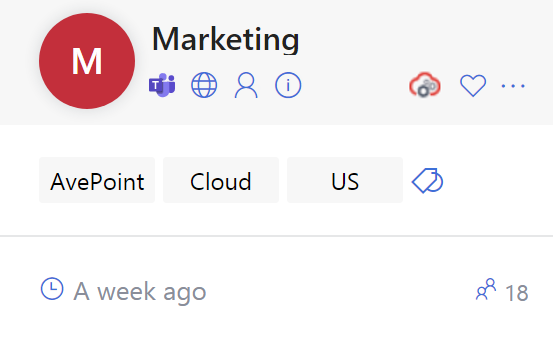
When you view workspaces in the card view or list view or view the details of a workspace, you can perform various actions. For details, refer to the table below:
| Icon | Description | Workspace Type |
|---|---|---|
 | The workspace is a Microsoft Team. Clicking the icon will navigate to the corresponding Channels tab in Microsoft Teams. Note that in the MyHub app in the Teams mobile app, clicking the icon will open the Channels panel in MyHub. | Microsoft Teams |
 | The workspace is a Microsoft 365 Group.Clicking the icon will open the group conversations in Outlook. | Microsoft 365 Groups |
 | The workspace is a Viva Engage community.Clicking the icon will open the Viva Engage community home feed. | Viva Engage Communities |
 | The workspace is a SharePoint site.Clicking the icon will open the SharePoint site. | SharePoint Sites |
 | The workspace is a public one. | Microsoft 365 GroupsMicrosoft TeamsViva Engage Communities |
 | The workspace is a private one. | Microsoft 365 GroupsMicrosoft TeamsViva Engage Communities |
 | You are a member of the workspace. | Microsoft 365 GroupsMicrosoft TeamsViva Engage Communities |
 | You are a group/team owner or community admin. | Microsoft 365 GroupsMicrosoft TeamsViva Engage Communities |
 | View the description of the workspace. | Microsoft 365 GroupsMicrosoft TeamsViva Engage Communities |
 | The total number of members in the current workspace including the owner/community admin and members. | Microsoft 365 GroupsMicrosoft TeamsViva Engage Communities |
 | Add workspaces to favorites. All your favorite workspaces will be displayed in the Favorite workspaces hub. | Microsoft 365 GroupsMicrosoft TeamsViva Engage CommunitiesSharePoint Sites |
 | View workspace details, start a request, send an email, or access the workspace’s additional resources, such as conversations, channels, and Planner. | Microsoft 365 GroupsMicrosoft TeamsViva Engage CommunitiesSharePoint Sites |
 | View, create, or remove your personal tags. | Microsoft 365 GroupsMicrosoft TeamsViva Engage CommunitiesSharePoint Sites |
 | The workspace’s last active time. | Microsoft 365 GroupsMicrosoft TeamsViva Engage CommunitiesSharePoint Sites |
 | The workspace is managed by AvePoint Cloud Governance. Click this icon, and you will be directed to the Additional information page to view the governance information on the workspace. | Microsoft 365 GroupsMicrosoft TeamsSharePoint Sites |
View Detailed Information on a Workspace
To view detailed information of a workspace, click the workspace name on the workspace card in the card view or click the workspace name in the list view. If no name has been specified for a workspace, (No name) is displayed in the name fields, and you can click the (No name) link. The Overview page appears, and you can see the general information, tags, membership, site permissions, as well as recent activities on the workspace. You can also add tags to the workspace or remove tags from the workspace.
You can click the arrow icon next to the workspace name to access the workspace. If you are using the MyHub app in the Teams mobile app, clicking the icon will open the Channels panel in a hub.
Due to Microsoft Graph API limitations, the activities of SharePoint sites with the following site types are not available: Community Portal, Basic Search Center, Visio Process Repository, Record Center, Blog, eDiscovery Center, and Compliance Policy Center.
You can click the Additional information tab to view the following governance details of a workspace: basic information, metadata, policy, and lifecycle timeline.
Manage Workspace Membership
If you are an owner of a workspace, you can manage the workspace membership.
You can add members to a workspace by completing the following steps:
-
Navigate to a workspace in the card view or list view and click the workspace name to go to the details page.
-
The Members section on the right displays the users in the workspace. You can perform the following actions:
-
Add a member
-
Click Add on the upper-right corner.
-
In the Add members window, enter the name or email address of the user that you want to add, and then select the user from the Suggested people list. You can add multiple users.
-
Click Confirm. The added users will be listed in the members list.
-
-
Remove a member from the workspace – Select a member, click the More actions button, and then click Remove member.
-
Promote a group or team member to an owner – Select a member, click the More actions button, and then click Promote to an owner.
-
Promote a community member to an admin – Select a member, click the More action button, and then click Promote to community admin.
-
Demote an owner or community admin to a member – Select an owner or community admin, click the More actions button, and then click Demote to a member.
-
Apply Tags to Workspaces
To apply tags to workspaces, select the workspaces, and click the Apply tags burron. The pop-up window appears. Enter a tag name and select the tags you wish to apply to the selected workspaces.
Create a Workspace
You can create Microsoft 365 Groups, Microsoft Teams, and SharePoint sites in hubs.
To create a workspace, in any hub, click the Create button next to the current hub name and select Create a workspace.
-
If your administrator only allows you to create workspaces via requests, clicking Create a workspace will open the New request page. Select a service, fill in the request form, and then submit the request. The workspace will be created after the approvers approve your request.
-
If the Create a workspace panel appears, select a workspace type from the drop-down list, and then refer to the sections below to configure the corresponding settings for the workspace.
NOTEYou can create workspaces only when your administrator enables the discovery and management of the workspace types.
Microsoft 365 Group
Configure the following settings for the Microsoft 365 Group:
-
Name – Enter a name for the group.
-
Group email address – Enter an email address for the group.
-
Description (optional) – Enter a description for the group.
-
Privacy – Define this group to be a public group or a private one.
-
Choose whether to Send copies of a group’s conversations and events to group members.
-
Classification – Select a classification for the group.
Microsoft Team
Configure the following settings for the Microsoft team:
-
Select a team template – If you want to create a team in Microsoft Teams for Education, select Class, Professional Learning Community (PLC), Staff, or Other.
-
Name – Enter a name for the team.
-
Description (optional) – Enter a description of the team.
-
Privacy – Define this team to be a public team or a private one.
NOTEThe Privacy setting will not be configurable if you select the Class template to create a team in Microsoft Teams for Education to ensure consistency with the Class team creation in Microsoft Teams for Education.
-
Classification – Select a classification for the team.
SharePoint Site
Configure the following settings for the SharePoint site:
-
Template – Select a template for the site.
-
Name – Enter a name for the site.
-
Site address – A site address will be populated automatically with the site name that you enter.
-
Description (optional) – Enter a description for the site.
-
Language – Select a language for the site.
-
Time zone – Select a time zone for the site.
-
Classification – Select a classification for the site. This is only available when you choose the Communication site as a site template.
Remove a Workspace
In a hub where the workspaces are manually selected to be included when creating the hub, you can remove workspaces from the hub by completing the following steps:
-
In a hub, hover your mouse over the workspaces that you want to remove and select the checkboxes in the upper-right corner of the workspace cards.
-
Click Remove from the hub in the upper-right corner.
-
The Remove from the hub window appears. Click Confirm to remove your selected workspaces from the hub.
Start a Request
When you view the governance details information on a workspace on the Additional information page, you can see various available Cloud Governance services under each service category in the Services section. You can start a request for the workspace by completing the following steps:
-
Click to expand the service category, and select a questionnaire or service as needed.
-
Click the Start a request button for a service or questionnaire.
-
If you select a questionnaire, answer the questions in the questionnaire that will guide you to the appropriate service request. Then, provide the necessary information in the configuration fields in the request form.
-
If you select a service, provide the necessary information in the configuration fields in the request form.
-
When you finish, click Submit to submit this request to the approvers.