
Home > Get Started
Download this articleGet Started
Your administrator can create services that contain a set of configured settings for Microsoft 365 operations that comply with your organization's rules and standards. These services are tailored to the needs of different departments and purposes within your organization. As an end user, you will be able to submit requests for these services according to your Microsoft 365 needs. Once you submit a service request, the approval process associated with each corresponding service will automatically notify the designated people in the organization of your request. After all approvers of a request have approved the request, AvePoint Cloud Governance will perform the necessary operations to complete the service you have requested.
How to Access AvePoint Cloud Governance Portal (MyHub)?
The AvePoint Cloud Governance Portal is an application that can be accessed from your apps list within Microsoft 365 after it is enabled by your administrator. Your administrator can also define the app name, so you should contact your administrator if you are unsure of the app name.
To access the portal, complete the following steps:
-
In Microsoft 365, click the app launcher button in the upper-left corner, and then click All apps.
-
The app is shown in the apps list.
NOTEIf you don't see the app, make sure you have an Exchange Online mailbox assigned to you, and you've signed into your mailbox at least once.
-
Click the app to access the portal.
-
The first time you access the portal, you may be asked to accept the permission requested by AvePoint Cloud Governance. Review the permission and click Accept to continue.
NOTEIf the Need admin approval page appears, it indicates that your organization does not allow users to consent to apps, and you must contact your Microsoft 365 Global Administrator to consent to the AvePoint Cloud Governance app.
-
The portal landing page appears.
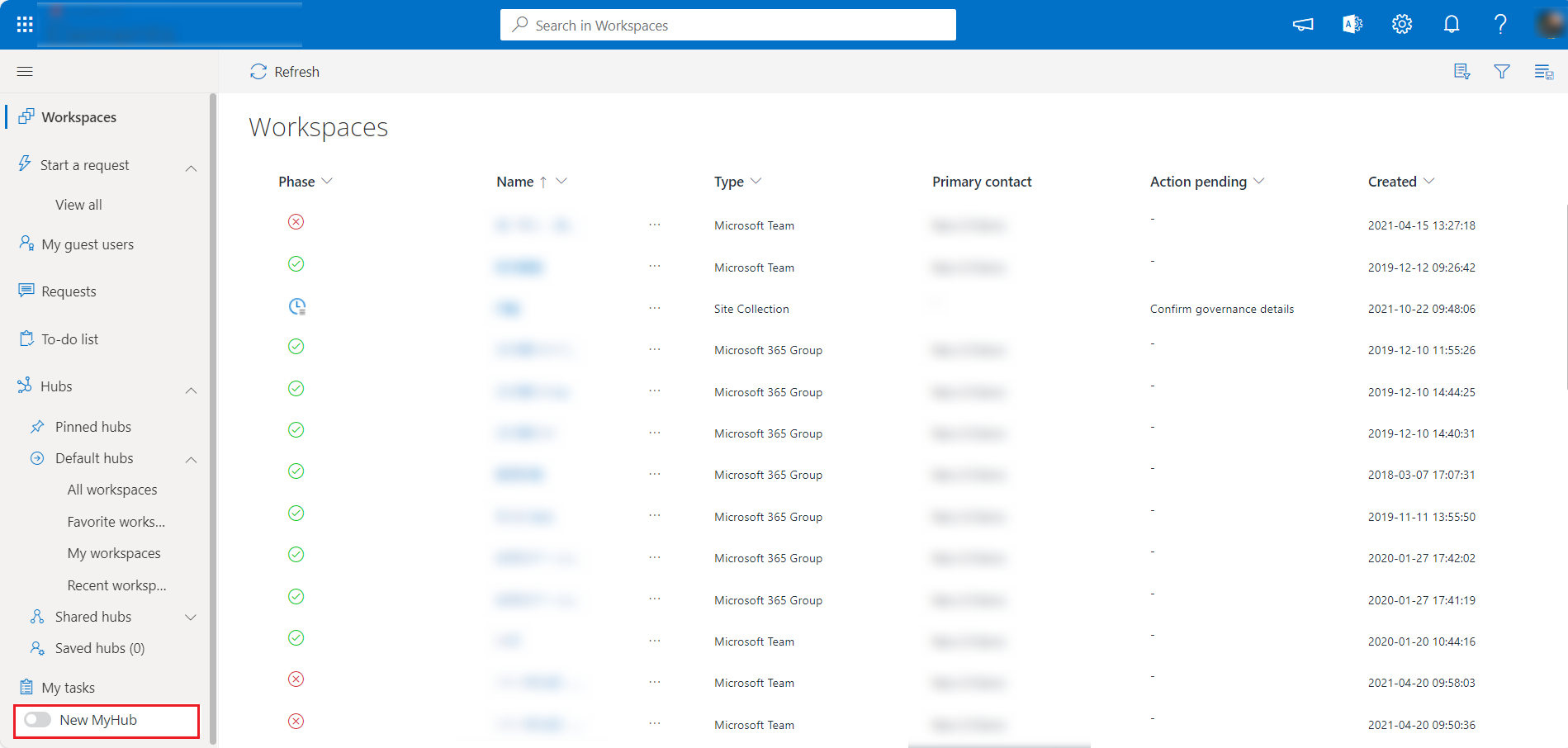
New MyHub Interface
The new MyHub provides a redesigned experience with an emphasis on productivity, consolidation, and actionable insights. Below are the key improvements compared to the legacy version:
-
Dashboard: A new overview page shows upcoming tasks, recent document activity, and a quick snapshot of the user's day.
-
Tasks and to-dos: Combines tasks from Microsoft To Do, Opus, and Cloud Governance into one place, making it easier to view, filter, and take action.
-
Spaces: Unifies workspace reports and hubs into a single entry point for managing objects.
-
Improved processes: Simplified processes with fewer clicks, progress tracking, and the flexibility to start requests from multiple locations.
-
AvePoint product integration: Review and remediate high-risk content detected by AvePoint Insights in owned spaces and review records pending disposal approvals from AvePoint Opus.
-
For instructions on using the new MyHub interface, refer to Use the New MyHub.
MyHub Interface
The portal provides different sections for you to easily manage requests, to-do tasks, and workspaces. By default, the navigation menu in the Cloud Governance portal is displayed as follows, and the display order of the navigation menu can be changed by your administrator.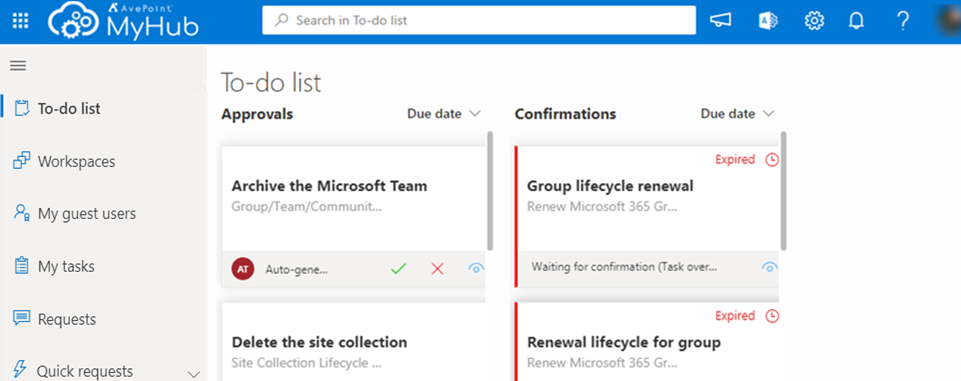
-
To-do list – It lists the requests that need your approval and the tasks that need your confirmation. To-do list is the default homepage. Your administrator may change the default homepage.
-
Workspaces – It lists the workspaces managed by AvePoint Cloud Governance.
-
Allows site collection contacts, site collection administrators, renewal task assignees, and auto-import task assignees to view all site collections they own or they're responsible for.
-
Allows group contacts, group owners, renewal task assignees, and auto-import task assignees to view all Microsoft 365 Groups they own or are responsible for.
-
Allows team contacts, team owners, renewal task assignees, and auto-import task assignees to view all Microsoft Teams they own or they're responsible for.
-
Allows community contacts, community admins, renewal task assignees, and auto-import task assignees to view all Viva Engage communities they own or they're responsible for.
-
Allows Power App contacts, Power App owners, renewal task assignees, and auto-import task assignees to view all Power Apps they own or they're responsible for.
-
Allows Power Platform environment contacts, environment admins, and renewal task assignees to view all environments they own or they're responsible for.
-
Allows Power Automate flow contacts, flow owners, flow co-owners, and auto-import task assignees to view all flows they own or they're responsible for.
-
Allows Power BI workspace contacts, workspace admins, renewal task assignees, and auto-import task assignees to view all workspaces they own or they're responsible for.
-
My guest users – It lists the guest users that you are responsible for the management as a primary or secondary contact together with their corresponding information.
-
My tasks – You can view and process all your current tasks as well as review all previous tasks.
-
Requests – Lists all requests you've submitted.
-
Start a request – Start a request is the default title. Your administrator may customize the title. You can see several requests if your administrator adds quick requests for you. You can select a request from the request list to start. You can also click View all to view all requests available for you.
You can see the following on the ribbon in the upper-right corner:
-
News and updates – News and updates in AvePoint Cloud Governance defined by your administrator.
-
Cloud Governance admin center – You can go to access the modern AvePoint Cloud Governance admin center. Only administrators can see this icon.
-
Settings – AvePoint Cloud Governance settings.
-
Notifications – You can view notifications from AvePoint Cloud Governance.
-
Help – Get help for using AvePoint Cloud Governance.
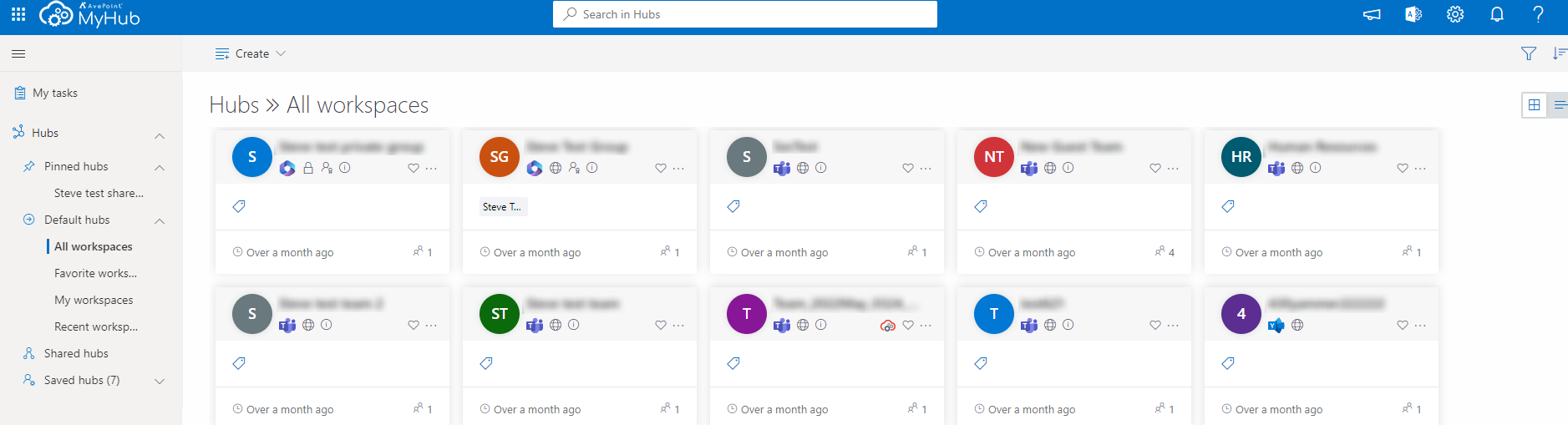
When your administrator enables hubs functionality for you, the following hubs and features are available:
- Pinned hubs – All hubs that you choose to pin for quick access are displayed in this section.
To pin/unpin a hub, hover your mouse over the hub, click the More actions button, and click Pin/Unpin.
-
There are four built-in hubs including different types of workspaces in each hub:
-
All workspaces – Displays the following Microsoft 365 workspaces:
-
All public groups, teams, and communities.
-
All private groups.
-
Private teams and communities you are a member or owner/admin of.
-
If your administrator enables the discovery and management of SharePoint sites, you can view all sites in this hub.
-
-
Favorite workspaces – Displays all Microsoft 365 workspaces that you have marked as favorites.
-
My workspaces – Displays all Microsoft 365 workspaces that you are an owner/community admin or member of.
-
Recent workspaces – Displays all Microsoft 365 workspaces that had activities over the last 30 days.
NOTEDue to the Microsoft Graph API limitation for fetching a workspace's last active time in the Microsoft 365 Government GCC High environment, the Recent workspaces hub is unavailable for GCC High users.
The All workspaces, Favorite workspaces, My workspaces, and Recent workspaces built-in hub are visible only when your administrators allow you to view and access the corresponding hubs.
-
Saved hubs – All custom hubs that you created are displayed in this section, except the hubs that you choose to pin.
-
Shared hubs – All hubs created by your administrator based on a set of filter criteria and shared with you.
-
Set as default hub – To set a hub that will appear as the default page when you access Hubs, hover your mouse over the hub, click the More actions button, and click Set as default hub.
The Working Environment
The AvePoint Cloud Governance Portal provides an intuitive working environment. The pages within the portal share similar features.
Below is a sample page in the portal. It features a familiar, dynamic ribbon, and a searchable, content list view.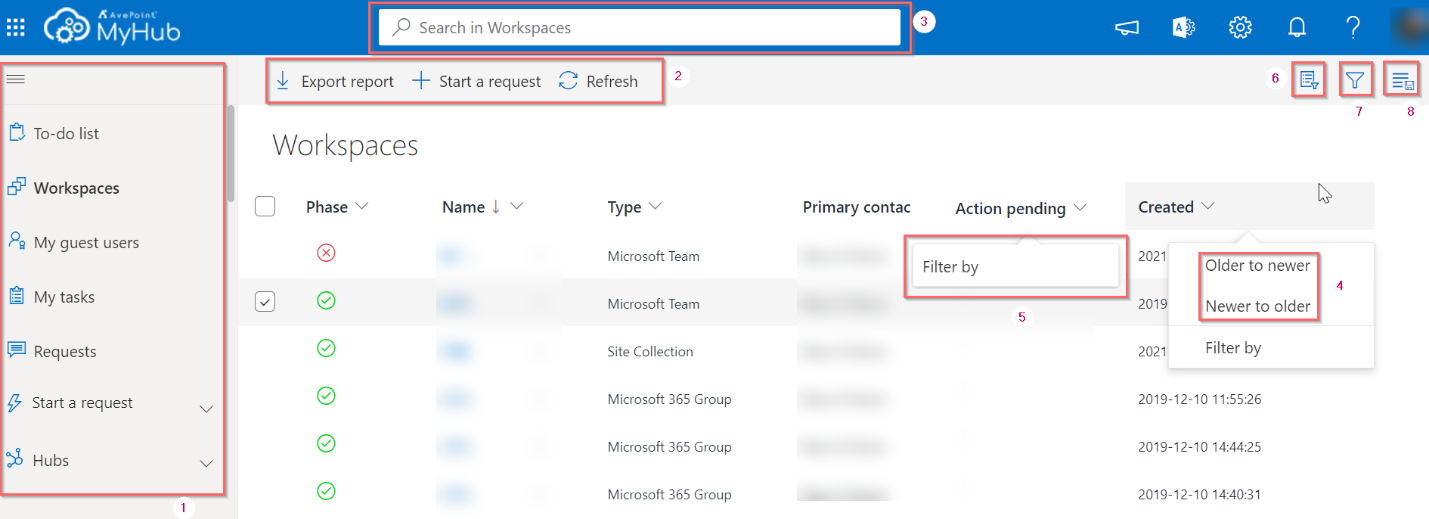
-
Navigation panel – Allows you to navigate to different pages in the portal.
-
Ribbon – Allows you to access the functionalities.
-
Search – Allows you to search for items by the keyword you designate. Enter your keyword in the search box and press Enter on the keyboard.
-
Sort items – This allows you to sort items. Click the expand button in a column name and select Older to newer or Newer to older or select A to Z or Z to A.
-
Filter items – This allows you to filter which item in the list is displayed. Click the expand button in a column name and select Filter by. A panel appears on the right. Select one or more column values and click Apply.
-
Choose columns – This allows you to select the columns that you want to display in a report by completing the following steps:
-
Click the Choose columns (button in the upper-right corner.
-
In the Choose columns panel, select your desired column names.
-
Click Apply to save your choice.
-
-
Sort and filter – This allows you to sort and filter items shown in a report by completing the following steps:
-
Click the Sort and filter button in the upper-right corner.
-
Sort by – Select a column name from the drop-down list to sort the items, and then choose to arrange the items in the Ascending or Descending order of the selected column.
-
Filter by – Select one or more columns from the drop-down list, and then configure the column values as the filter of the items.
-
If you want to reset the filters that you configured, click Reset.
-
Click Apply to save your configurations.
-
-
Save as default view – Allows you to save a report view by clicking the Save as default view button in the upper-right corner.
What are the User Roles?
In AvePoint Cloud Governance, each user is assigned a role, which allows them to perform certain actions. AvePoint Cloud Governance uses the following role types:
-
Users – can submit service requests and view their requests.
-
Approvers – can also submit service requests but are primarily responsible for reviewing and approving or rejecting requests.
-
Site collection contacts and site collection administrators – users who are responsible for specific site collections; site collection contacts and administrators have access to view site collections they own in Workspaces.
-
Group contacts and group owners – users who are responsible for specific Microsoft 365 Groups; group contacts and owners have access to view groups they own in Workspaces.
-
Team contacts and team owners – users who are responsible for specific Microsoft Teams; team contacts and owners have access to view teams they own in Workspaces.
-
Distribution group/security group/mail-enabled security group contacts and owners – users who are responsible for specific groups; group contacts and owners have access to view groups they own in Workspaces.
-
Shared mailbox contacts and members – users who are responsible for specific shared mailboxes; shared mailbox contacts and members have access to view shared mailboxes they own in Workspaces.
-
Viva Engage community contacts and admins – users who are responsible for specific Viva Engage communities; community contacts and admins have access to view communities they own in Workspaces.
-
Guest user contacts – users who are responsible for specific guest users in your organization.
-
Power App contacts and owners – users who are responsible for specific Power Apps; Power App contacts and owners have access to view Power Apps they own in Workspace.
-
Power Platform environment contacts and admins – users who are responsible for specific Power Platform environments; environment contacts and admins have access to view environments they own in Workspace.
-
Power Automate flow contacts and owners – users who are responsible for specific Power Automate flows; flow contacts and owners have access to view Power Automate flows they own in Workspace.
-
Power BI workspace contacts or admins – Users who are responsible for specific Power BI workspaces; workspace contacts and admins have access to view Power BI workspaces they own in Workspace.
Select Theme, Language, Time Zone, and Date and Time Formats
To select the theme, language, and time zone for your AvePoint Cloud Governance Portal, complete the following steps:
-
Click the Settings button in the upper-right corner.
-
Click Personal settings in the Settings panel. Then, configure the following settings in the Personal settings panel:
-
In the Theme field, select your desired theme. Note that the theme color configuration is only available when your administrator allows you to set the Cloud Governance theme color. They can predefine the theme color for you.
-
In the Time zone field, select your desired time zone from the drop-down list. The selected time zone determines the display time in the portal. If your time zone observes daylight saving time, you can choose to Adjust for daylight saving time automatically.
-
In the Language field, select your desired language as the portal display language.
-
In the Date format field, select your desired format to display date in the portal.
-
In the Time format field, select your desired format to display time in the portal.
Click Save to save your changes.