
Home > Risk Management
Download this articleRisk Management
The risk management module enables you to scan customer tenants for compliance with over 80 standardized configuration rules, ensuring security and adherence to industry standards. After each scan, the module identifies potential risk objects and provides recommended remediations to address and resolve issues.
At the top of the Risk management page, you can view the following tiles:
-
Rule configuration – Displays the number of currently enabled risk rules and the total number of risk rules provided by the risk management service. For details, refer to Configure Risk Rules.
-
Process center – This tile displays the number of jobs that require your attention. Click View details or the tile to access the process center. For details, refer to View Fix Action Results.
-
Top 6 tenants with the most risk rules matched – Lists the top 6 tenants that match the most risk rules, and the number of matched rules. Click a tenant name to access the Risk detection page of the tenant where you can view all matched rules with available fix actions. For details, refer to View Risks of Individual Tenants.
-
Number of tenants by violation category – Shows the number of tenants that match risk rules, organized by their respective violation categories. Click a number to view the corresponding tenants in the table below.
By default, all tenants that are connected to the risk management service are listed in the table with the following information:
-
Tenant – The tenant name. The customer's organization name is displayed below the tenant name. Click the tenant name to access the Risk detection page where you can view detailed information of the tenant.
-
Risk rules – The number of risk rules this tenant matches, organized by rule severities.
-
Categories – The violation categories of the tenant, which are based on the categories of the matched risk rules.
-
Status – The status of the tenant in this module.
-
In progress – After a tenant has been added to the risk management service, the tenant data is being processed for analysis.
-
Failed – There are some errors when scanning the tenant data.
-
Monitoring – The tenant data is scanned, and the data is under monitoring.
-
Expired – The service subscription of the customer has expired. The risk management data of the tenant will be unavailable.
-
Out of policy – The service subscription of the customer is no longer compliant with policy. Service jobs will be suspended after 15 days, and service reports will no longer be updated. After this grace period, service jobs will be paused, and service reports will no longer be updated.
-
-
Last updated time – The last updated time of the tenant.
To view the MFA-related data, the service account must have the Authentication Administrator and Global Administrator roles. You can change the service account for a tenant by selecting the tenant and clicking Edit service account.
As of June 15, 2025, service accounts are no longer required to access MFA-related data. To remove an existing configuration, select the tenant and click Remove service account.
MFA (Microsoft Entra multifactor authentication) helps safeguard access to data and applications, providing another layer of security by using a second form of authentication. Organizations can enable multifactor authentication with Conditional Access to make the solution fit their specific needs. For more information, refer to Require MFA for administrators.
For columns with the down arrow icon displayed to the right, you can click it to filter the items displayed in the table based on column values. When filters are applied, the filter icon will appear next to the column name. For certain columns, you can sort the values by clicking the down arrow icon and selecting a sort order. If the column values are sorted, the sort order icon will be displayed next to the column name.
Access to the Risk management module is restricted to view-only when your Elements reside in these data centers:
- Qatar Central (Doha)
- South Africa North (Johannesburg)
- United Arab Emirates (Dubai)
Add a Tenant
When you assign the Risk management service to a customer and consent to the app during the process of onboarding the customer or adding services for the customer, the customer’s tenant will be automatically displayed in this module.
If an existing customer has tenants that want to use the functionalities of this module, you can add those tenants to the module. Note that only tenants that have the Risk management service enabled can be loaded and added to this module. Please verify the module’s availability before adding tenants.
Risk management is an add-on service, free to use, and no license assignment is needed. Add-on services will expire when all prerequisite service subscriptions expire. This service will be available when the customer has an active subscription for Baseline management, Workspace management, or Cloud Backup for Microsoft 365.
Refer to the following steps to add a new tenant of an existing customer to the module:
-
On the Risk management page, click Add tenant in the upper-right corner.
-
Select a customer from the drop-down list, and click Continue.
-
Select a tenant of the customer.
If there are no available tenants for the customer, you can click Add new tenant. For detailed instructions on how to add a tenant, refer to Add a Microsoft 365 Tenant.
-
If the APElements Security and Analysis app for the tenant has already been consented, a green checkmark icon will appear.
This typically occurs during the process of assigning the Workspace management, Risk management, or Change management communication service to a customer and consenting to the app during the process of onboarding customer or adding services.
-
If the APElements Security and Analysis app for the tenant needs to be consented, complete the following steps:
-
Click Authenticate.
-
The permissions required for this app are displayed. Review the permissions and click Accept.
-
A page appears indicating that the app was authorized. Close this page, and you will be redirected back to the Add tenant window.
-
Click OK to add the tenant.
-
Elements will automatically create scan profiles in AvePoint Online Services to retrieve data from Microsoft 365 tenants. These scan profiles are crucial for the system’s functionality and should not be manually deleted. To ensure continuous data retrieval, a daily backend job runs at 00:00 UTC to update tenant information. If any scan profiles have been deleted, this job will recreate them to maintain continuous data retrieval capabilities.
Disconnect a Tenant
You can disconnect tenants from this module. Upon disconnection, the tenants will no longer appear in the module pages, and all baseline management data of these tenants will be permanently deleted.
When a customer's subscription for this module expires, the functionalities provided by the module will be unavailable for all tenants of the customer. It is recommended that you disconnect the expired tenants from the module.
To disconnect a tenant, select the tenant, click Disconnect tenant, then enter Yes in the text box and click Disconnect in the confirmation window.
Configure Risk Rules
At the top of the Risk management page, you can view the Rule configuration tile. Click View details or the tile to access the Rule configuration page. On this page, you can explore all out-of-the-box regulation rules provided by Elements. These rules assist you in detecting violations at the tenant level.
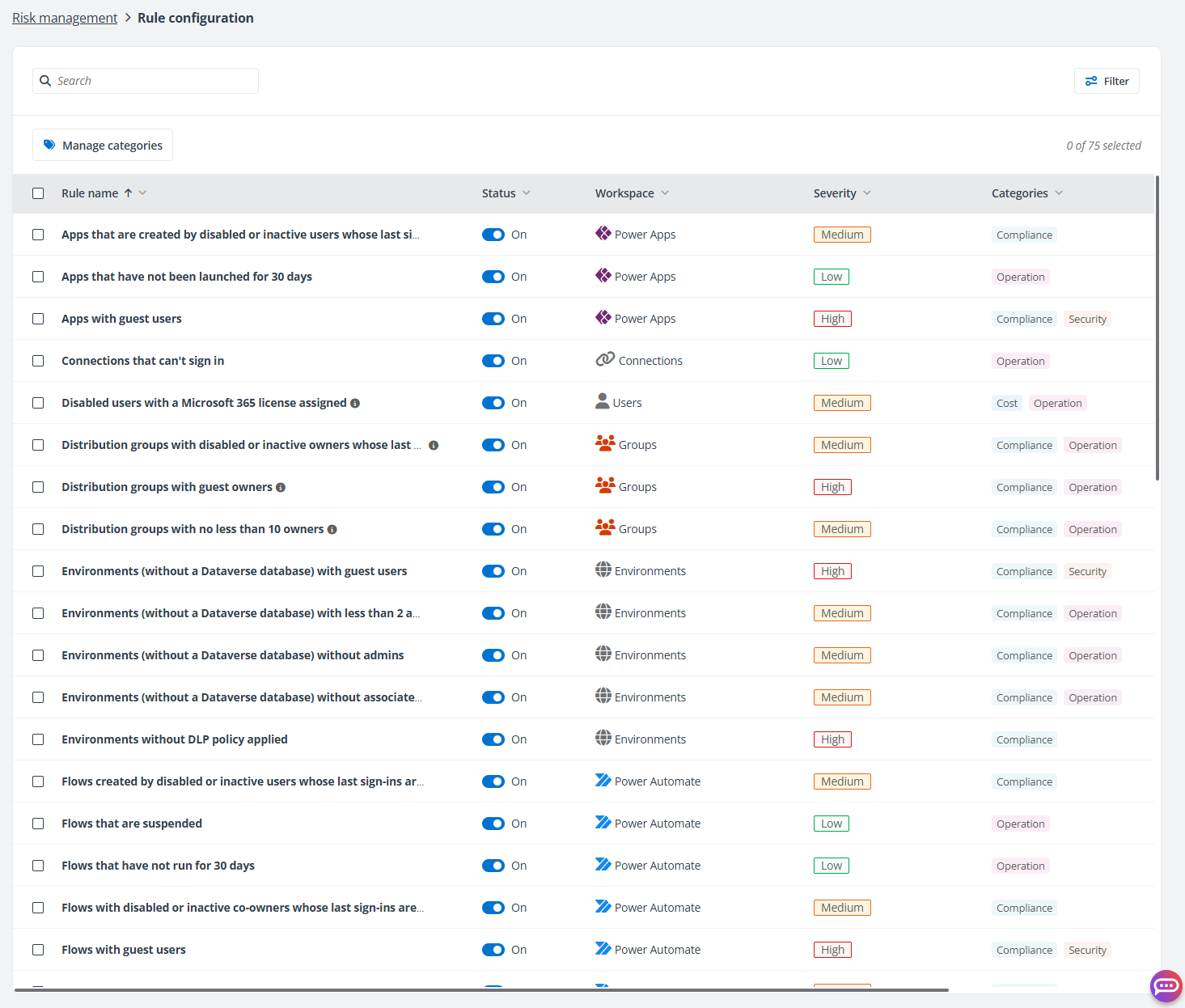
To disable a specific rule, click the toggle button in the Status column of the rule.
To edit rule settings, you can select the rule and click Edit. In the Edit rule panel, you can change the severity (High, Medium, or Low) and categories for each rule and only the rule criterion of specific rules are editable. You can also create a new category directly by clicking Create new category from the Categories drop-down list. Categories are used to classify rules and you can filter rules by category.
Click Manage categories above the table to access the Manage categories page where you can view and manage all categories.
-
To edit an existing category, select the category and click Edit.
-
To delete one or multiple categories, select the categories and click Delete.
-
To create a new category, click Create in the upper-right corner. Enter a category name, select a category color, and click Save.
View Risks of Individual Tenants
Click a tenant name on the Risk management page to access the Risk detection page where you can view all matched risk rules of the tenant.
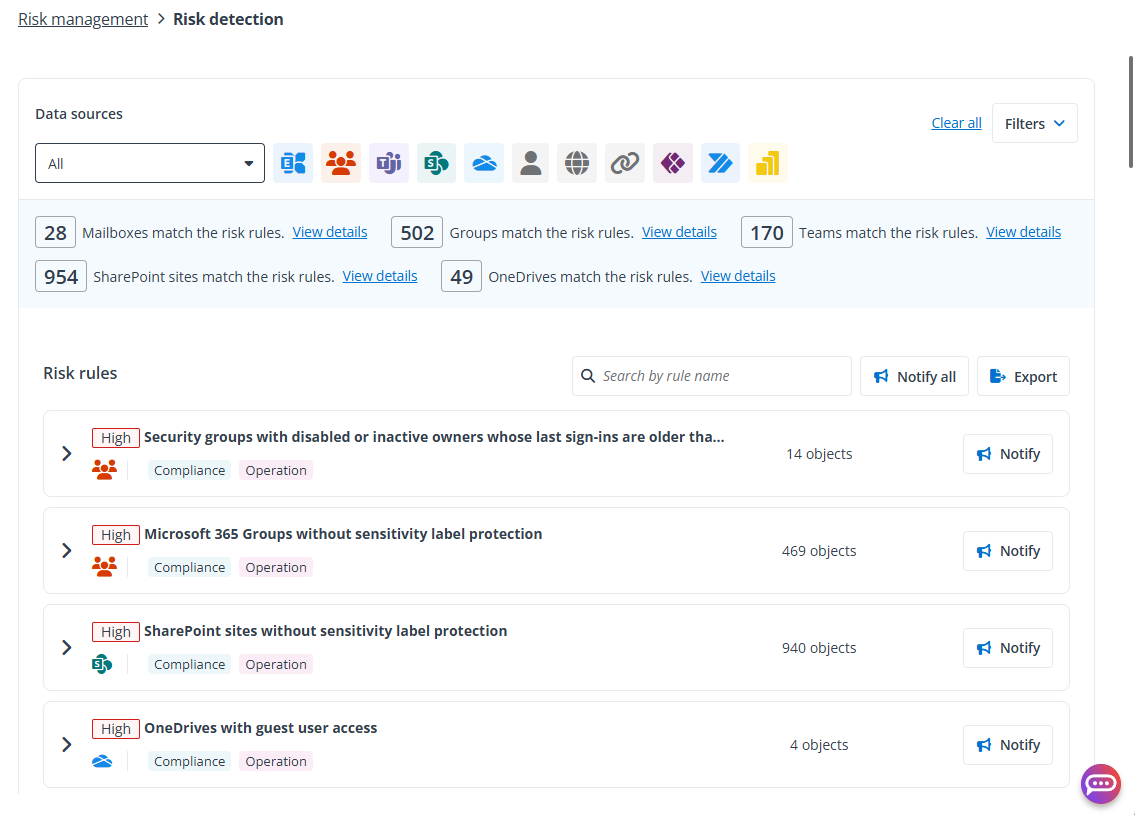
In the Data sources section, all data sources are selected by default. You can select specific data sources to view the matched risk rules. The numbers of matched risk rules are displayed per data source below.
Click Filters in the upper-right corner to filter risk rules by severity and/or category. Click Select all to display risk rules across all severities and/or categories, or refine your selection to show only specific severities and/or categories.
In the Risk rules section, the matched risk rules are displayed with the number of objects that violate the risk rule. The data source to which the rule applies, and the categories of the rule can be viewed below the rule name. Click the right arrow button to expand the rule details where the matched objects are listed in the table.
Fix Violations for a Tenant
In the Risk rules section, you can view all risk rules that this tenant has matched.
You can click Notify all in the upper-right corner to send notification emails to the users associated with each object to notify them about the risk in bulk. To send notification emails for a specific rule, click Notify to the right of the rule.
The Notify all and Notify actions are not supported for all risk rules.
You can also click Export in the upper-right corner to export the risk detection report for the tenant. Select Current columns or All columns to export the risk detection report with the currently displayed columns or all columns, and select xlsx or csv as the report type. An export job will be started and can be tracked in the Export jobs tab of the process center.
When you click the right arrow button in front of a rule, the objects that violate the rule are listed in the table. You can view the recommended remediation to fix the violations. Select one or multiple objects in the table and the available actions are displayed above the table.
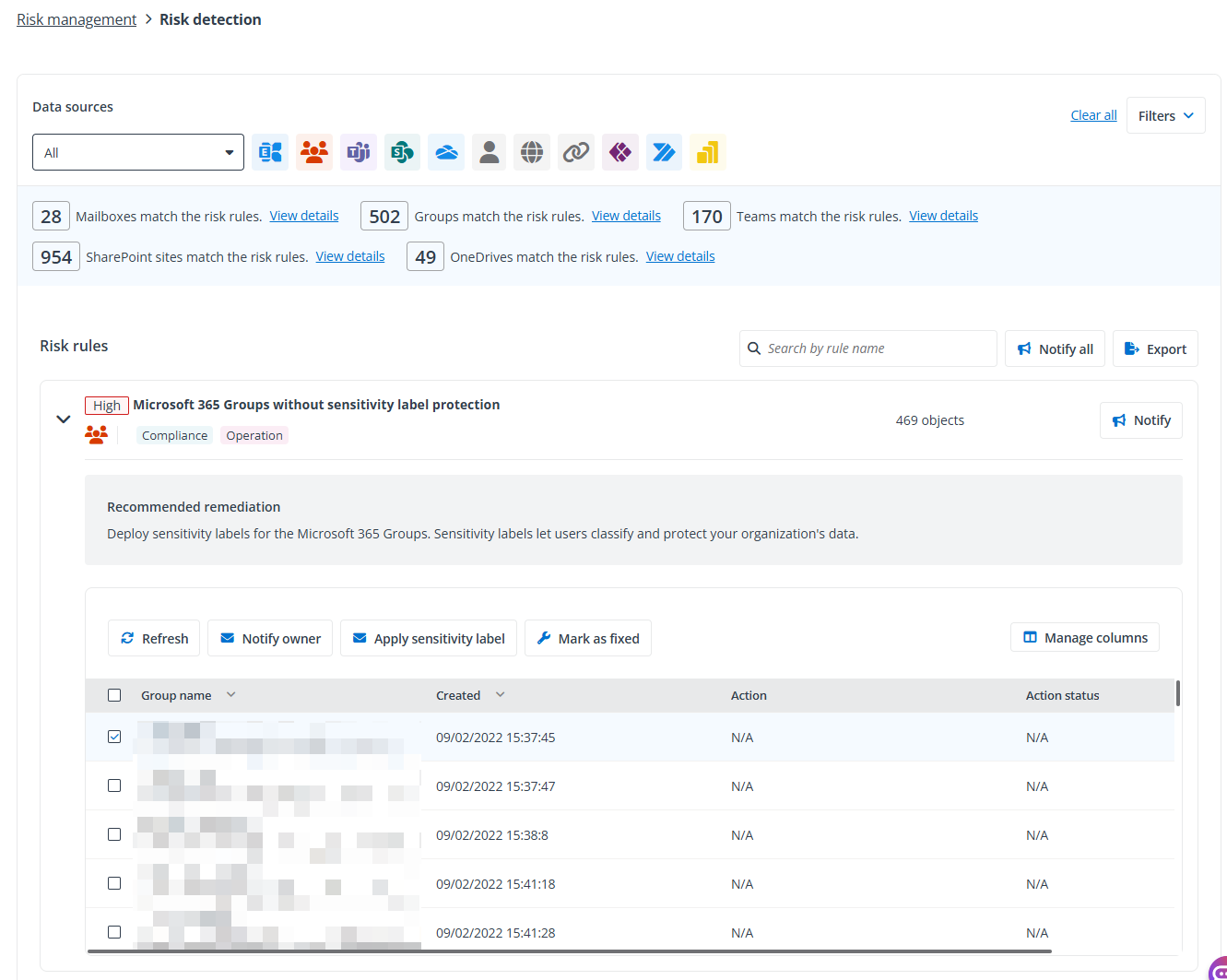
The available actions of risk rules are dynamic except for the following two actions:
-
Refresh – Click Refresh to refresh the objects listed in the table.
-
Mark as fixed – Select one or multiple objects and click Mark as fixed if you want to ignore the risk report for the selected objects. Once marked as fixed, they will be excluded from this rule’s results.
Some of the provided rules support scanning risks for hybrid or local users and groups, but only a few of the fix actions are available.
The table below lists the risk rules with similar rule criterion, as well as the specific fix actions supported for the rules.
There is a default number for the rules with {number} or {percentage} in the rule names, and this number is configurable when you edit the rule.
| Data source | Risk rule name | Workspace | Action | Details |
|---|---|---|---|---|
| Teams | {workspaces} without sensitivity label protection | Teams | Apply campaign Apply sensitivity label (to site / to Team) Notify owner | Apply campaign is only available for Teams and SharePoint sites. Notify owner is only available for Microsoft 365 Groups. *Note: Fix actions are not available for sites with the following statuses: No access, Archived, Recently archived, and Reactivating. |
| SharePoint | {workspaces} without sensitivity label protection | SharePoint sites | Apply campaign Apply sensitivity label (to site / to Team) Notify owner | Apply campaign is only available for Teams and SharePoint sites. Notify owner is only available for Microsoft 365 Groups. *Note: Fix actions are not available for sites with the following statuses: No access, Archived, Recently archived, and Reactivating. |
| Groups | {workspaces} without sensitivity label protection | Microsoft 365 Groups | Apply campaign Apply sensitivity label (to site / to Team) Notify owner | Apply campaign is only available for Teams and SharePoint sites. Notify owner is only available for Microsoft 365 Groups. *Note: Fix actions are not available for sites with the following statuses: No access, Archived, Recently archived, and Reactivating. |
| Teams | {workspaces} that are inactive for more than {number} days | Teams | Apply campaign Archive | |
| SharePoint | {workspaces} that are inactive for more than {number} days | SharePoint sites | Archive site Apply campaign Set status to read-only | |
| Groups | {workspaces} that are inactive for more than {number} days | Microsoft 365 Groups | Notify member Notify owner | |
| Teams | {workspaces} of which owners/admins are orphaned users | Teams | Archive Apply campaign | |
| Groups | {workspaces} of which owners/admins are orphaned users | Microsoft 365 Groups | Notify member | |
| SharePoint | {workspaces} of which owners/admins are orphaned users | SharePoint sites | Set status to read-only Archive site Apply campaign | |
| Groups | {workspaces} with disabled or inactive admins/owners/co-owners whose last sign-ins are older than {number} days | Microsoft 365 Groups | Notify Owner Remove (distribution) group disabled and inactive owners | |
| Groups | {workspaces} with disabled or inactive admins/owners/co-owners whose last sign-ins are older than {number} days | Distribution groups | Notify Owner Remove (distribution) group disabled and inactive owners | |
| Groups | {workspaces} with disabled or inactive admins/owners/co-owners whose last sign-ins are older than {number} days | Security groups | Notify Owner Remove (distribution) group disabled and inactive owners | |
| Teams | {workspaces} with disabled or inactive admins/owners/co-owners whose last sign-ins are older than {number} days | Teams | Remove Team owners Apply campaign | |
| Power BI | {workspaces} with disabled or inactive admins/owners/co-owners whose last sign-ins are older than {number} days | Power BI workspaces | Remove disabled and inactive owners Notify workspace owner | |
| Power Automate | {workspaces} with disabled or inactive admins/owners/co-owners whose last sign-ins are older than {number} days | Flows | Notify flow owner and co-owner Remove Flow disabled and inactive co-owners | |
| Power Apps | {workspaces} with disabled or inactive admins/owners/co-owners whose last sign-ins are older than {number} days | Apps | Remove App disabled and inactive co-owners Notify app owner/co-owner | |
| Teams | {workspaces} with less than {number} members | Teams | Archive Apply campaign | |
| Groups | {workspaces} with less than {number} members | Microsoft 365 Groups | Notify owner | |
| Teams | {workspaces} with no more than {number} owners | Teams | Apply campaign Add Team owner | |
| Groups | {workspaces} with no more than {number} owners | Microsoft 365 Groups | Add group owner Notify member | |
| Teams | {workspaces} without owners | Teams | Notify member | Add Team owner is only available for Teams Add group owner is only available for Microsoft 365 Groups. |
| Groups | {workspaces} without owners | Microsoft 365 Groups | Notify member | Add Team owner is only available for Teams Add group owner is only available for Microsoft 365 Groups. |
| Groups | {workspaces} with guest owners | Distribution groups | Notify owner Remove guest owners | |
| Groups | {workspaces} with guest owners | Security groups | Notify owner Remove guest owners | |
| Groups | {workspaces} with no less than {number} owners/admins | Distribution groups | Remove (distribution group) owner Notify owner | |
| Groups | {workspaces} with no less than {number} owners/admins | Security groups | Remove (distribution group) owner Notify owner | |
| OneDrive | {workspaces} with no less than {number} owners/admins | OneDrives | Remove OneDrive admin Notify owner | |
| Power Apps | {workspaces} (that are) created by disabled or inactive users whose last sign-ins are older than {number} days | Apps | Notify app owner/creator Remove Power App creator | |
| Power Automate | {workspaces} (that are) created by disabled or inactive users whose last sign-ins are older than {number} days | Flows | Notify flow owner and co-owner Delete creator | |
| Power Apps | {workspaces} (with/without a Dataverse database) with guest users | Apps | Remove Power App guest users Notify app owner/creator | |
| Power Automate | {workspaces} (with/without a Dataverse database) with guest users | Flows | Remove Flow users Notify flow owner and co-owner | |
| Power BI | {workspaces} (with/without a Dataverse database) with guest users | Power BI workspaces | Remove workspace guest users Notify workspace owner | |
| Environment | {workspaces} (with/without a Dataverse database) with guest users | Environments | Notify owner Remove guest user | Remove guest user is only available for environments without a Dataverse database. |
| OneDrive | {workspaces} with guest user access | OneDrives | Remove OneDrive users Notify owner | |
| Power BI | {workspaces} with guest user access | Power BI reports | Notify report owner Remove report guest users | |
| Exchange | {workspaces} that have reached {percentage} of the storage limits | Resource mailboxes | Notify owner Enable archive | |
| Exchange | {workspaces} that have reached {percentage} of the storage limits | Shared mailboxes | Notify owner Enable archive | |
| Exchange | {workspaces} that have reached {percentage} of the storage limits | Microsoft 365 Group mailboxes | Notify owner | |
| OneDrive | {workspaces} that have reached {percentage} of the storage limits | OneDrives | Notify owner | |
| Power Automate | {workspaces} (without a Dataverse database) with less than {number} owners/co-owners/admins | Flows | Notify flow owner and co-owner Add co-owner | |
| Power BI | {workspaces} (without a Dataverse database) with less than {number} owners/co-owners/admins | Power BI workspaces | Notify workspace owner Add owner | |
| Environment | {workspaces} (without a Dataverse database) with less than {number} owners/co-owners/admins | Environments | Notify admin Add admin |
The table below lists the risk rules with specific rule criterion, as well as the fix actions supported for the rules.
There is a default number for the rules with {number} or {percentage} in the rule names, and this number is configurable when you edit the rule.
| Data source | Rule name | Action | Details |
|---|---|---|---|
| OneDrive | OneDrives with more than {number} file deletions in last 7 days | Notify owner | |
| OneDrive | OneDrives with more than {number} file modifications in last 7 days | Notify owner | |
| Exchange | Mailboxes forwarding to external domains | Notify owner Disable automatic forwarding | |
| Exchange | Mailboxes reaching storage limits | Notify owner Enable archive | |
| Exchange | Mailboxes with automatic forwarding enabled | Notify owner Disable automatic forwarding | |
| Exchange | Mailboxes with litigation hold enabled | Turn off litigation hold Notify owner | |
| Exchange | Mailboxes with litigation hold enabled and have reached {percentage} of the storage limits | Enable archive Turn off litigation hold Notify owner | |
| Exchange | Mailboxes with no activity in the past {number} days and have a Microsoft 365 license assigned | Notify owner | |
| SharePoint | SharePoint sites that take more than {percentage} of the total storage | Apply campaign Archive site Set status to read-only | |
| SharePoint | SharePoint sites with external sharing enabled | Apply campaign Remove guest user access | *Note: Fix actions are not available for sites with the following statuses: No access, Archived, Recently archived, and Reactivating. |
| Power Apps | Apps that have not been launched for {number} days | Notify app owner/co-owner Delete app | |
| Power Automate | Flows that are suspended | Notify flow owner and co-owner Delete flow | |
| Power Automate | Flows that have not run for {number} days | Notify flow owner and co-owner Delete flow | |
| Power BI | Power BI reports that have not been accessed for more than {number} days | Notify report owner Delete Power BI report | |
| Power BI | Power BI reports with disabled or inactive users whose last sign-ins are older than {number} days | Notify report owner Remove disabled and inactive users | |
| Power BI | Power BI workspaces without activities for more than {number} days | Notify workspace owner Delete Power BI workspace | |
| Connection | Connections that can't sign in | Notify connection owner Delete connection | |
| Environment | Environments (without a Dataverse database) without admins | Notify maker Delete environment | |
| Environment | Environments (with a Dataverse database) without associated security groups | N/A | |
| Environment | Environments without DLP policy applied | Notify owner Apply DLP policy | |
| User | Ghost guest users | Delete user | |
| User | {role} without a password expiration date | Notify user Request password expiration | {role} refers to Global administrator, Other administrators, and Users. |
| User | {role} without a strong password | Notify user Request strong password | {role} refers to Global administrator, Other administrators, and Users. |
| User | {role} without MFA controlled via conditional access policy enabled | Show guidance Notify user | {role} refers to Global administrator, Other administrators, and Users. |
| User | {role} without MFA enabled | Notify user | {role} refers to Global administrator, Other administrators, and Users. |
| User | Ghost or external users with a Microsoft 365 license assigned | Remove all licenses Notify user | |
| User | Guest users whose last sign-ins are older than {number} days | Delete user | |
| User | Guest users with admin privilege | Remove admin privilege | |
| User | Unassigned Microsoft 365 licenses in EA contracts | Assign license | |
| User | User sign-ins from more than {number} locations within {number} hours | Block sign-in Delete user | |
| User | Users that are blocked sign-in | Notify user Notify manager Delete user Unblock | |
| User | Users who have no Microsoft 365 license | Apply license Notify manager | |
| User | Users whose last sign-ins are older than {number} days and have a Microsoft 365 license assigned | Notify user Remove all licenses | |
| User | Users with duplicate Microsoft 365 licenses | Remove license Notify user | |
| User | Disabled users with a Microsoft 365 license assigned | Remove all licenses Notify manager |
View Fix Action Results
After you click Notify all to send notification emails for all matching rules, click Notify to send notification email for a specific rule, or use any notify fix actions, the notify action will be displayed in the Notify actions tab of the Process center.
For the actions you perform for specific objects to fix violations of risk rules, they will be listed under the Fix actions tab.
The export jobs you started on the Risk detection page will be listed under the Export jobs tab.
When you have performed the notify or fix actions for an object, you can view the last fix action and the action status in the table after clicking the right arrow button in front of a rule. Click the action name to view details of the action in the Action details panel. You can further click the View action history link at the bottom of the panel to view the history of actions performed to this object.
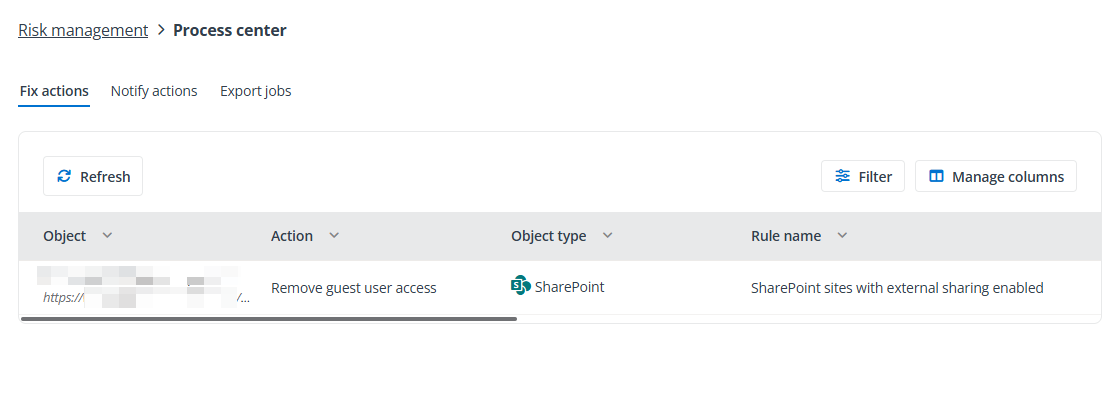
On the Process center page, the following actions are available:
-
Refresh – Click Refresh to refresh the data displayed in the table.
-
Filter process – You can filter the actions shown in the table. To filter specific actions to view, click Filter in the upper-right corner. You can expand the Object type, Rule name, Modified by, and Status fields in the filter and select specific options. For fix actions, you can also filter by specific actions. Then, click Apply changes to apply the updates and only view the actions that match the filters.
-
Manage columns – Click Manage columns in the upper-right corner to choose the columns you want to display in the table.
-
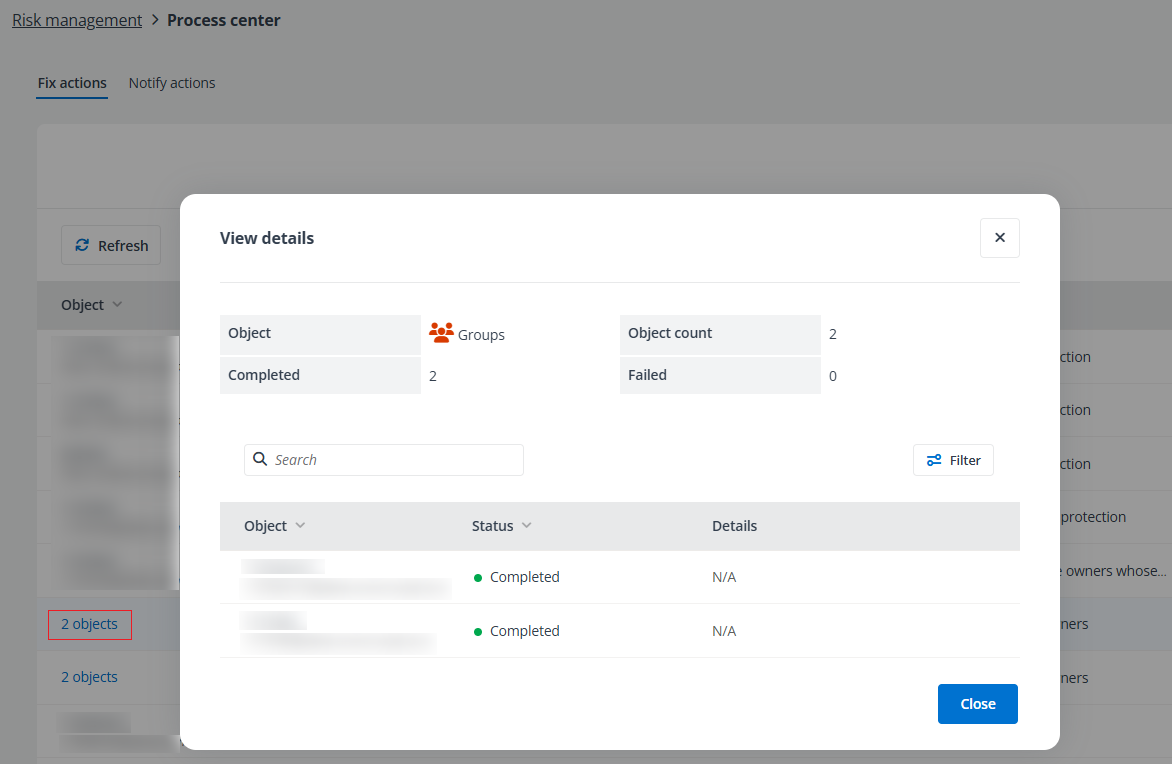
View details – For some specific actions, you can click the object link and the View details panel appears with the action details displayed.
-
Download report – For the export job that is completed, you can click the download button to the right to download the risk detection report.