
Home > Azure Virtual Desktop > Session Monitor
Download this articleSession Monitor
Click Session monitor in the left navigation for a tenant to open the Session monitor page, where you can view all AVD user sessions for this tenant.
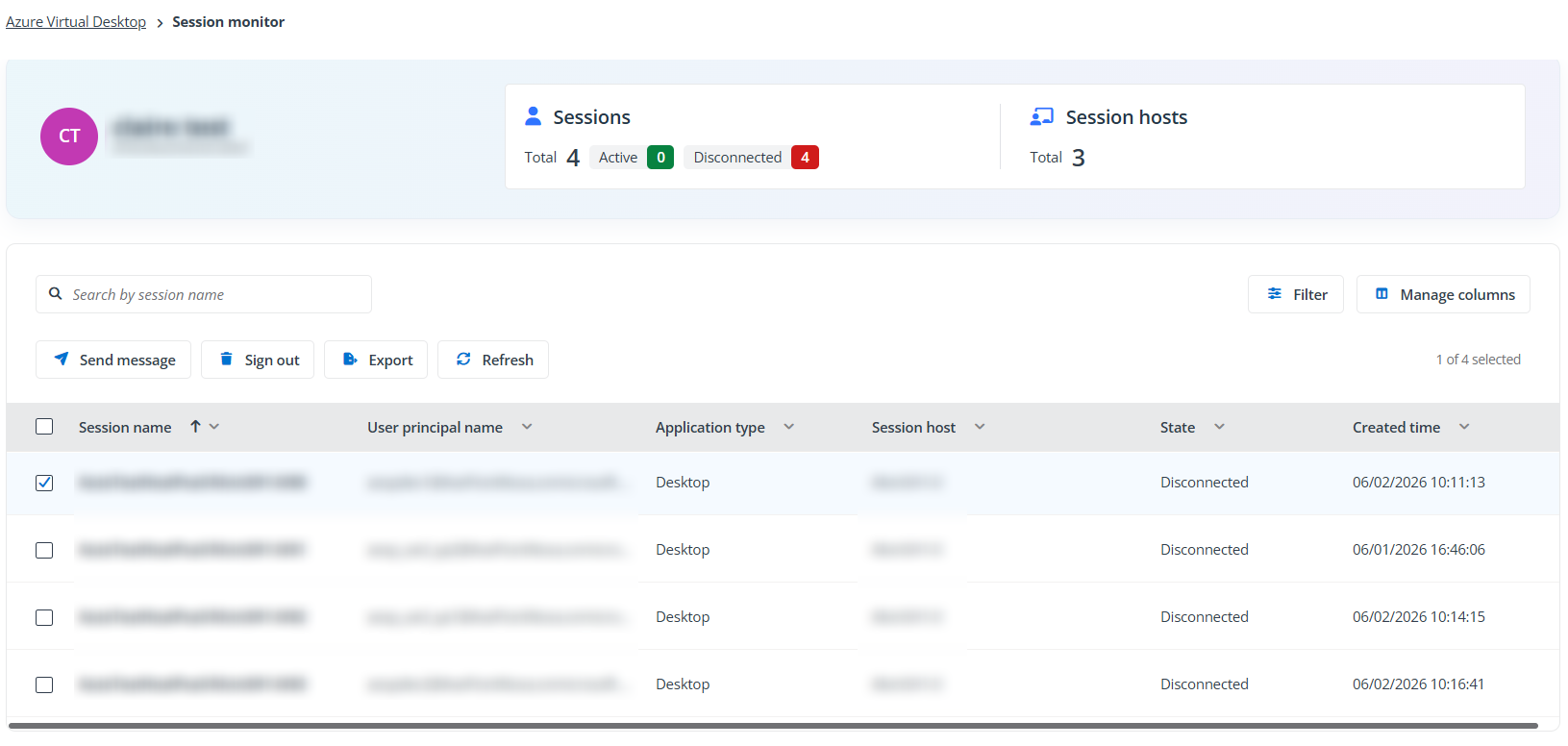
At the top of the page, you can see two tiles:
- Sessions – Displays the total number of sessions, and the number of active sessions and the number of disconnected sessions.
- Session hosts – Displays the total number of server hosts for this tenant.
The table displays all sessions within the tenant, including session details such as session host, state, and user. You can perform the following actions to manage sessions:
-
To send a message to sessions, select the sessions and click Send message. Enter the title and message, then click Send.
-
To export the currently displayed sessions, click Export. Select the columns to include: the current visible columns or all columns, select the file format: .xlsx or .csv, and click Export.
-
To disconnect an active user session, select the session and click Disconnect. Click OK in the confirmation window.
-
To sign out a user session, select the session and click Sign out. Click OK in the confirmation window.
-
Click the session name to view the session details. The send message, disconnect, and sign out actions are also available in the upper-right corner of the session details page.