
Home > Use Insights for Microsoft 365 > Risk Analysis > Detailed Records Reports
Download this articleDetailed Records Reports
On the Detailed records page of risk analysis, select the data scope for the report.
-
If your organization has multiple tenants, select a tenant or All tenants from the tenant drop-down list to view the risk analysis detailed report of the selected tenants.
-
Select a workspace from the workspace drop-down list, and the containers in the configured scope to which you have permissions will be loaded accordingly in the container drop-down list.
NOTEIf you select All workspaces, there is no container drop-down list, and objects in all containers of Microsoft 365 will be listed.
-
Select desired containers or the Select all checkbox and click OK to view the risk analysis of objects in the selected containers.
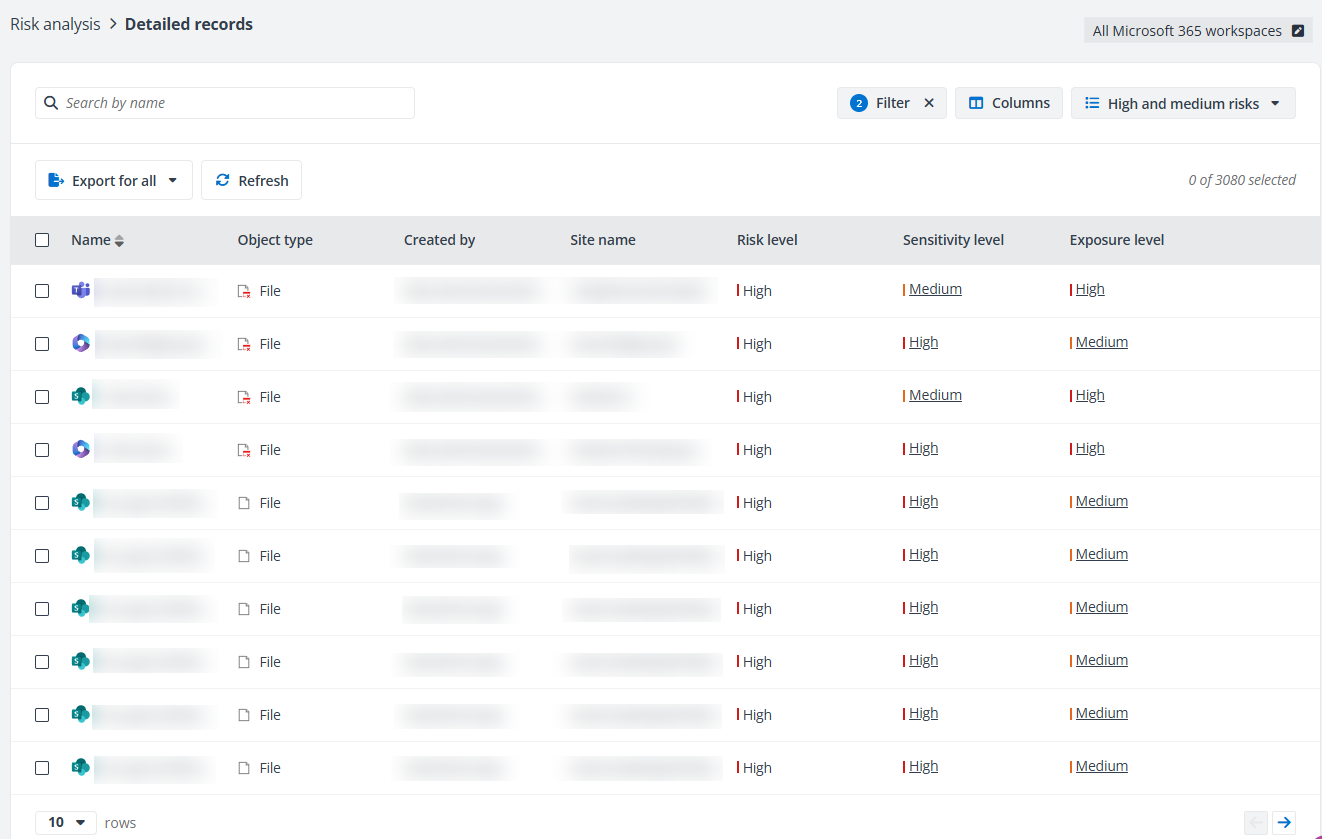
The following actions are available above the table on this page:
-
Manage views – You can use the built-in views to view records. You can also create custom views by updating built-in views and saving them as new views.
When you select a view from the views drop-down menu, and then make changes to the view, an asterisk icon (*) will be displayed in front of the view name and (*Modified) will be displayed to the right of the view name in the views menu. The following options are available for a view with changes:
-
Save – Click Save in the lower-right corner of the views drop-down menu to save the changes to the custom view.
-
Save as – Click Save as in the lower-right corner of the views drop-down menu, and the Save as new view window appears. Enter a name for the new view and click Save to save the new view. You can also select the Set as default view option to set the new view as the default view.
-
Reset – Click Reset in the lower-left corner of the views drop-down menu to reset the view to the default settings.
For a custom view, the following additional options are available when you click the ellipsis button to the right of its name in the views drop-down menu:
-
Rename – Click Rename to rename the selected view. In the pop-up window, enter a new name for the view and click Save to save the change.
-
Delete view – Click Delete view to delete the selected view. Click OK in the confirmation message to confirm the deletion.
After selecting a view from the views drop-down menu, you can click the ellipsis button and click Set as default view to set the selected view as the default view.
-
-
Filter – Click Filter in the upper-right corner of the table, and the Filter window appears in the right pane. All columns that are available for the filter are listed below. Click the down arrow button to the right of a column to show the text box or selectable options. Enter keywords in the text box and/or select desired options to define the filter conditions.
For example, you can select Any external user from Directly shared with to filter records that are directly shared with external users or select Specific user/group and enter the name/email of a specific user/group to filter records that are directly shared with this specific user/group. Everyone, Everyone except external users, All Users (membership), and All Users (windows) are also supported here.
You can also click Reset to default to clear your input and selections and reset the filters to their default state.
Click Apply changes to filter items displayed in the table based on the configured filters.
-
Manage columns – Click Columns in the upper-right corner of the table, and the drop-down list where all available columns are displayed appears. Select the columns that you want to display in the table and click Apply to apply the column selection. You can also choose Select all to show all columns in the table.
-
Export – You can export the detailed records using one of the following methods:
-
Click Export for all above the table to export all records of the current data scope.
-
Filter the records and then click Export for all to export the report of the filtered records.
-
Select one or multiple records and then click Export for selected items to export the selected records.
In the export drop-down list, select Export summary report to export the summary report of the records, or select Export permission report to export both the detailed record report and permission report for the records.
In the export window, a default report name is automatically filled in, and you can edit it if desired. Click Export in the window to start the export.
When the export process begins, you can monitor its progress by navigating to Job monitor > Download center or by clicking the Download center link in the prompted message.
-
-
Manage sensitivity label – Select one or multiple files and click Manage sensitivity label above the table. The Manage sensitivity label window appears. Select a sensitivity label you want to apply from the drop-down list and click Apply to apply the label to the files. Select None if you want to remove sensitivity label from files.
NOTEThis action is only available for the following file types: .doc, .xls, .ppt, .docx, .xlsx, and .pptx.
NOTETo apply sensitivity labels with encryption, Content.SuperUser and Content.Writer permissions are required. Make sure you use the AvePoint Insights for Microsoft365 app created by AvePoint Online Services, or use a custom Azure app and grant these permissions to the app. For more information, refer to Use a Custom Azure App.
To manage sensitivity labels to PDF files, make sure support for PDFs has been turned on. You can go to the Microsoft Purview portal > Solutions > Information Protection > Policies > Auto-labeling policies, and select the Protect PDFs with Auto-labeling banner to confirm you want to turn on PDF protection for files in SharePoint and OneDrive. For more information, refer to Adding support for PDF.
-
Inherit permissions – Select one or multiple objects that have broken inheritance, and click Inherit permissions to inherit permissions from their parent nodes. The unique permissions of the objects will be removed.
-
Notify – Select one or multiple objects and click Notify above the table to notify content owners, site administrators, or specific users that Insights identified potential risks in the objects.
-
Select an email template from the drop-down list, and you can preview the email below.
-
Select to notify content owners, site administrators, or specific users.
NOTEThe Primary Contact option is available only when Cloud Governance service is also set in the app profile.
-
Click Save to send the notification email.
NOTEThis is not available for Power BI currently.
-
-
Add tag – Select one or multiple objects and click Add tag above the table to add a tag to the selected objects. Alternatively, click Tag all to add a tag to the currently displayed objects in bulk.
In the Add tag window, select a tag from the drop-down list or enter the tag name in the text box. You can also create a new tag by entering a new tag name. Enter an optional comment in the text box and click Add to add the tag and comment to the objects.
NOTETo exclude a sensitive object from being calculated in the Sensitive Items statistic of Insights, you can add the False Positive tag to the object.
-
Refresh – Click Refresh to refresh the items displayed in the table.
-
Remove all access – Select one or multiple objects and click Remove all access to remove all access for the selected objects. This action will remove all user permissions and sharing links for the selected objects, except for site collection administrators and any sharing links inherited from the parent node. For objects that currently inherit permissions, inheritance will be broken.
The following options are available in the ellipsis drop-down list for each object listed in the table.
Some of the actions below are not available for artifacts currently.
-
Detailed information – This option allows you to view the risk level, permission report, and activity report of the item/file/artifact. For more information, refer to View Detailed Information of Items/Files/Folders/Lists/Libraries/Sites.
-
View permissions – This option allows you to access the View Permissions page of the object.
-
View activities – This option allows you to access the View Activities page of the object.
-
View activities in Insights – This option allows you to view all activities to the object in Insights.
-
View content with unique permissions – This option allows you to view all objects that have unique permissions in this container.
NOTEThis action is only available for the container level.
-
Manage sensitivity label – This option allows you to apply a sensitivity label to the file or remove the applied sensitivity label from the file.
NOTEThis action is only available for the following file types: .doc, .xls, .ppt, .docx, .xlsx, and .pptx.
-
Inherit permissions – This option allows you to inherit permissions from the parent node. The unique permissions of the object will be removed.
-
Remove all access – This option allows you to remove all user permissions and sharing links for the object, except for site collection administrators and any sharing links inherited from the parent node. For objects that currently inherit permissions, inheritance will be broken.
-
Notify – This option allows you to notify the content owner, site administrator, or specific users that Insights identified potential risks in the object.
-
Select an email template from the drop-down list, and you can preview the email below.
-
Select to notify content owners, site administrators, or specific users.
NOTEThe Primary Contact option is available only when Cloud Governance service is also set in the app profile.
-
Click Save to send the notification email.
NOTEThis is not available for Power BI currently.
-
-
Add tag – This option allows you to add tags and optional comments to the object.
NOTETo exclude a sensitive object from being calculated in the Sensitive items statistic of Insights, you can add the False positive tag to the object.
-
Open in SharePoint – This option allows you to open the object in SharePoint.
View Detailed Records of Microsoft 365 Workspaces
On the Detailed records page, all matched objects are listed in the table, including:
-
Team sites, site collections, OneDrives, and/or Microsoft 365 Group team sites in the currently selected workspace containers
-
Sites, lists, libraries, and folders with unique permissions
-
Files and items with unique permissions or that contain sensitive content
If you access this page by clicking a name link on the Overview page, only the matched objects in the team site/ site collection / OneDrive / Microsoft 365 Group team site are listed.
-
Name – The object name. Hover your mouse over the name, and the object full URL appears.
In front of the object name, you can view the workspace of the object.
-
Object type – The object type. In front of the object type, you can view the object icon. If the object has unique permissions, the unique permissions icon will be added to the object icon. Hover your mouse over the icon, and the type and inheritance status of the object appear.
-
Created by – The creator of the object.
-
Created time – The created time of the object.
-
Site name – The name of the Team / site collection / Group or the email address of OneDrive where the object locates.
-
Privacy – The privacy status of the Team or Group.
NOTEThis is not available for SharePoint Online or OneDrive.
-
Risk level – The risk level of the object, High, Medium, or Low. The risk level is calculated based on sensitivity level and exposure level. No risk is displayed when the sensitivity level of the object is Not sensitive.
-
Sensitivity level – The sensitivity level of the object, High, Medium, or Low. Click it to view the matched sensitive info types and/or applied sensitivity labels. Not sensitive is displayed for the container level and the object that does not match any of the configured sensitivity levels.
The sensitivity level is calculated based on the sensitivity level settings. For details, refer to Sensitivity Definitions.
Click a sensitivity level to open the Sensitivity details pane on the right, where you can view the object’s sensitivity details. The matched data types and matched text are displayed under General information.
If a sensitive info type has scan engine conditions bound to it, you can view the matching status of each condition. For more information about binding scan engine conditions , refer to Data Type Management.
-
This sensitive info type will be marked as Verified when one of the bound conditions is matched.
-
If none of the conditions are matched, Not verified is displayed.
-
-
Channel name – The channel where the object is located.
NOTEThis is not available for SharePoint Online, OneDrive, or Microsoft 365 Group.
-
Data type – The data types, including sensitive info types, custom information types, and scan engine conditions, that the object matches. At most, three data types can be displayed. If more than three data types are matched, the More link will be displayed below. Click it, and the Details window appears in the right pane. You can view the total number and names of the data types that the object matches.
-
Trainable classifier – The trainable classifiers that the object is categorized.
-
Sensitivity label – The sensitivity label of the object. N/A is displayed if the object has no sensitivity label applied in Microsoft 365.
NOTEIf a sensitivity label is removed from Microsoft 365, it may take some time for Microsoft 365 to synchronize the changes, and the label may still be displayed in Insights.
-
Retention label – The retention label of the object. N/A is displayed if the object has no retention label applied in Microsoft 365.
NOTEIf a retention label is removed from Microsoft 365, it may take some time for Microsoft 365 to synchronize the changes, and the label may still be displayed in Insights.
-
Exposure level – The exposure level of the object, High, Medium, or Low. Click it to view the matched exposure rule.
The exposure level is calculated based on the exposure level settings. For details, refer to Exposure Definitions.
-
Last discovered time – The time when this object is discovered.
-
Last modified time – The last modified time of sensitive objects. If an object is not sensitive based on the configured sensitivity definitions, this column will be empty.
-
Location – The full URL of the object.
-
Tag – The tag that has been added to the object. Click the tag link, and the Add tag window appears. You can select another tag for the object or create a new tag, and/or add your comment, and then click Add to add the new tag and/or comment.
NOTEThe Not started tag is the default tag and will not be displayed as a tag value for objects.
-
Comments window appears Comments – The comments icon is displayed when a comment has been added for the object. Click this icon, and the Comments window appears.
-
View existing comments, the user who added the comments, and the time when the comments are added.
-
Add a new comment by entering the comment in the text box and clicking Add.
-
Delete existing comments by clicking the Delete comment button to the right of a comment after hovering over a comment.
NOTEThis action is only available for administrators.
If no comment has been added, the Add link is displayed as the column value. Click the Add link, and the Comments window appears.
-
View Detailed Records of Power BI
On the Detailed records page, all artifacts in the currently selected containers are listed in the table. If you access this page by clicking a name link on the Overview page, only artifacts in the workspace are listed.
-
Name – The artifact name.
-
Type – The artifact type. In front of the type, you can view the corresponding icon.
-
Workspace – The workspace to which the artifact belongs.
-
Risk level – The risk level of the object, High, Medium, or Low. The risk level is calculated based on sensitivity level and exposure level. No risk is displayed when the sensitivity level of the object is Not sensitive.
-
Sensitivity level – The sensitivity level of the object, High, Medium, or Low. Click it to view the applied sensitivity labels. Not sensitive is displayed for the container level and the object that does not match any of the configured sensitivity levels.
The sensitivity level is calculated based on the sensitivity level settings. For details, refer to Sensitivity Definitions.
-
Exposure level – The exposure level of the object, High, Medium, or Low. Click it to view the matched exposure rule.
The exposure level is calculated based on the exposure level settings. For details, refer to Exposure Definitions.
-
Sensitivity label – The sensitivity label of the object. N/A is displayed if the object has no sensitivity label applied in Microsoft 365.
-
Owner – The owner of the artifact.
-
Tag – The tag that has been added to the object. Click the tag link, and the Add tag window appears. You can select another tag for the object or create a new tag, and/or add your comment, and then click Add to add the new tag and/or comment.
NOTEThe Not started tag is the default tag and will not be displayed as a tag value for objects.
-
Comments window appears Comments– The comments icon is displayed when a comment has been added for the object. Click this icon, and the Comments window appears.
-
View existing comments, the user who added the comments, and the time when the comments are added.
-
Add a new comment by entering the comment in the text box and clicking Add.
-
Delete existing comments by clicking the Delete comment button to the right of a comment after hovering over a comment.
NOTEThis action is only available for administrators.
If no comment has been added, the Add link is displayed as the column value. Click the Add link, and the Comments window appears.
-