
Home > Use Insights for Microsoft 365 > Risk Analysis > View Activities
Download this articleView Activities
On the View activities page, activities are listed in the table and sorted by Activity time in descending order. The activities for the object of the users to whom you have permissions, or the user activities for the objects to which you have permissions will be displayed on this page.
Click Refresh to refresh the activities displayed in the table.
In the Basic information tab, you can view the basic information of the object or user.
You can view the date when the initial configurations have been configured and applied for the tenant and the collection of audit data starts in the message above the page. By default, only the audit data in the last 90 days can be displayed on this page. This period can be configured in Database Settings if your tenant uses the custom Cosmos database.
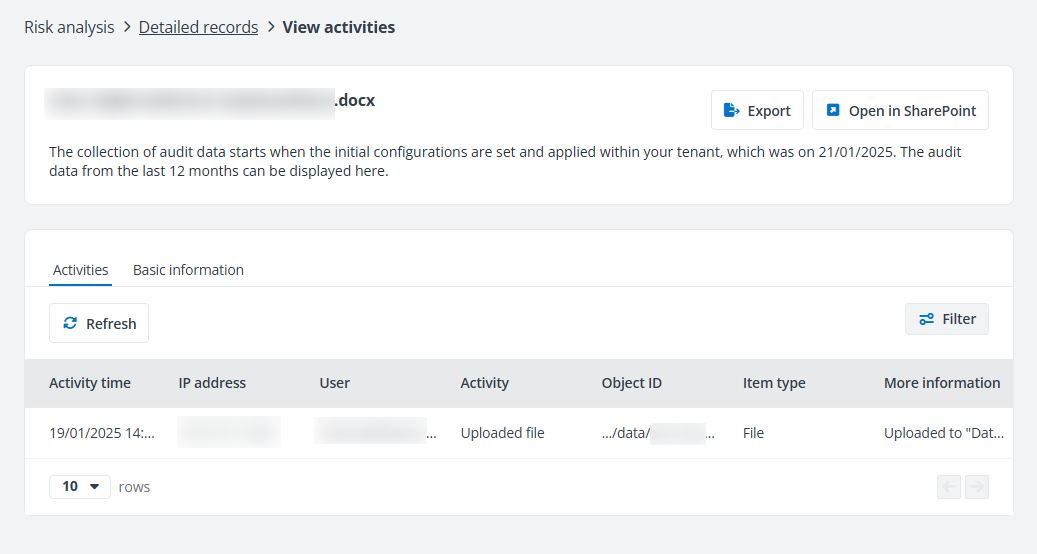
View activities of an object.
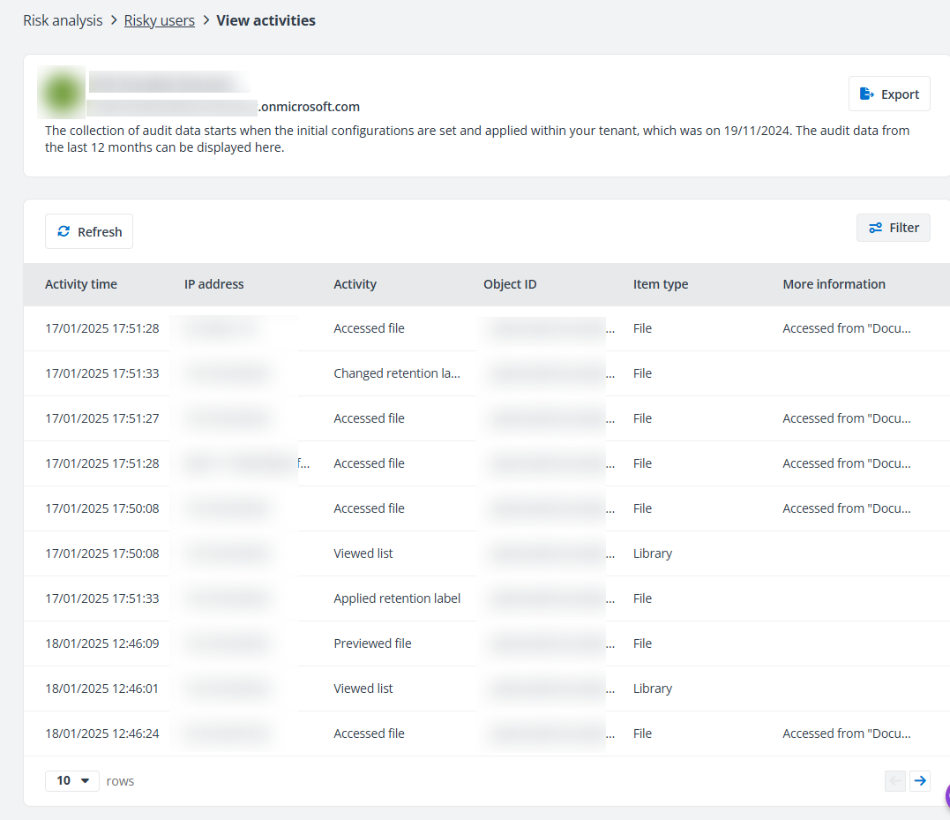
View user activities.
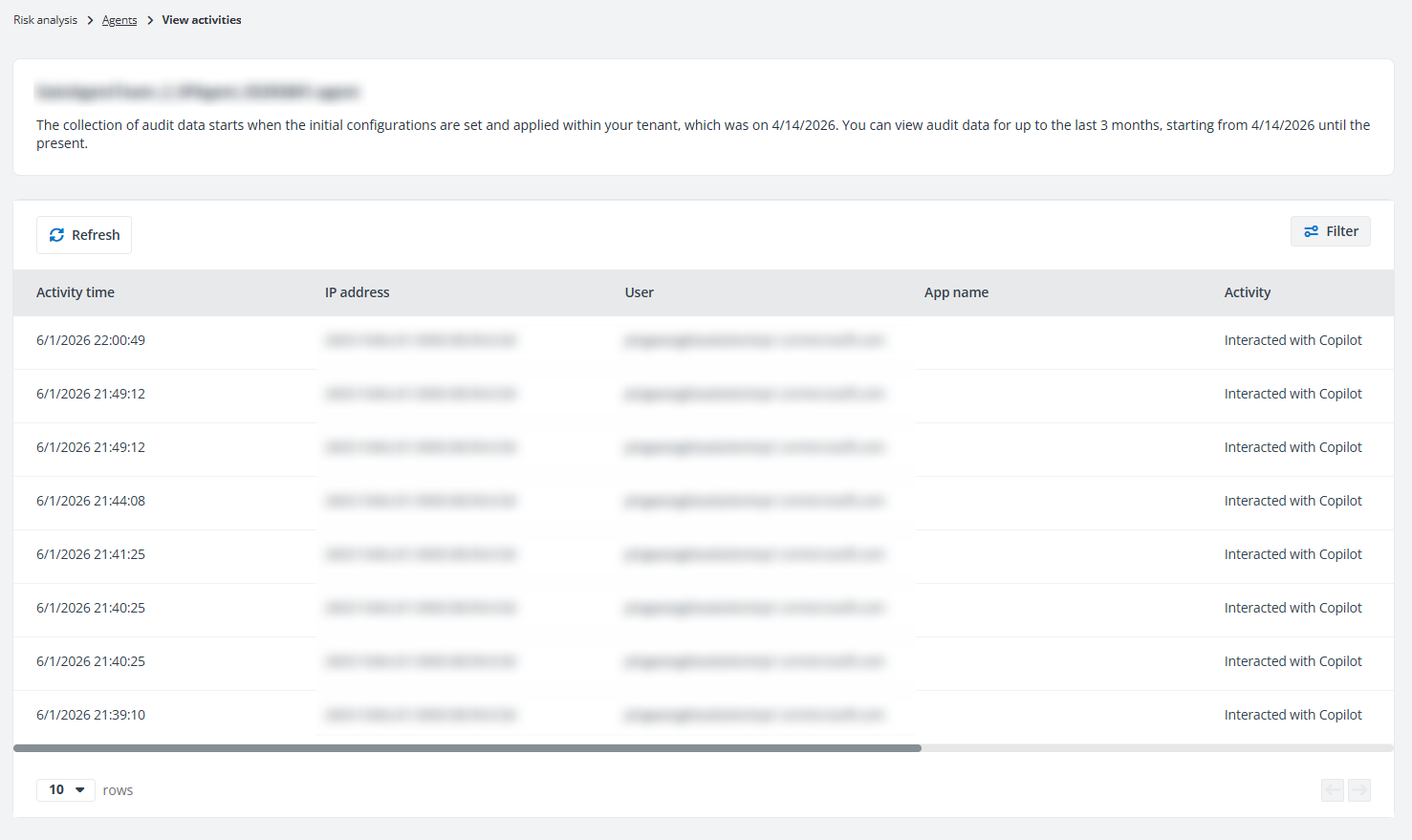
View activities of an agent.
When you view the activities of a site collection, you can click the Show all activities within this site collection checkbox in the upper-right corner of the page to view all activities of the objects in this site collection.
You can filter the activities by clicking Filter in the upper-right corner of the page. The Filter window appears.
-
Enter keywords in the User search box to filter activities by users. This filter is only available when you filter activities on the object.
-
Enter the IP address in the text box to filter activities from specific IP address.
-
Select Last 7 days, Last 14 days, or Last 30 days to filter activities in the last 7/14/30 days. Select all to show all activities. Select Last _ days and enter a number to filter activities in the last specific days. You can also select Custom and select a start date and end date in the calendar to filter activities in this period.
-
Filter specific activities by selecting the checkboxes to the left of the activity names. You can also enter keywords of activity names in the search box to search activities.
-
Enter keywords of URL in the Object ID search box to filter activities by objects.
-
Click Filter to filter activities and only display the matched activities in the table.
You can also click Clear all to clear the selection. Click Cancel to close the window without applying any changes.
Click Export and the Export window appears. A default report name is automatically filled in, and you can edit it if desired. Select to export the filtered activities or export all activities and click Export to export activities.
Click Open in SharePoint to the right of the object name to open the object in SharePoint.