
Home > Use Insights for Google > Search Center
Download this articleSearch Center
In Search Center, you can perform a Quick Search to search for a specific user or group to view their permissions to the objects in the configured data scope of Insights, or search for a specific object to view its detailed information. Using Search Profiles, you can search for users and/or groups in batch or all external users in a specific domain to view their permissions to the data scope configured in the profile, or search for drives in batch to view their information and the number of sensitive items in these drives without having to recreate the search. You can configure schedules to run search profiles periodically and export the reports automatically after the scheduled searches are complete. You can also notify specific users when the searches are complete.
Quick Search
You can search for a user/group or an object, via quick search.
Search for a User/Group
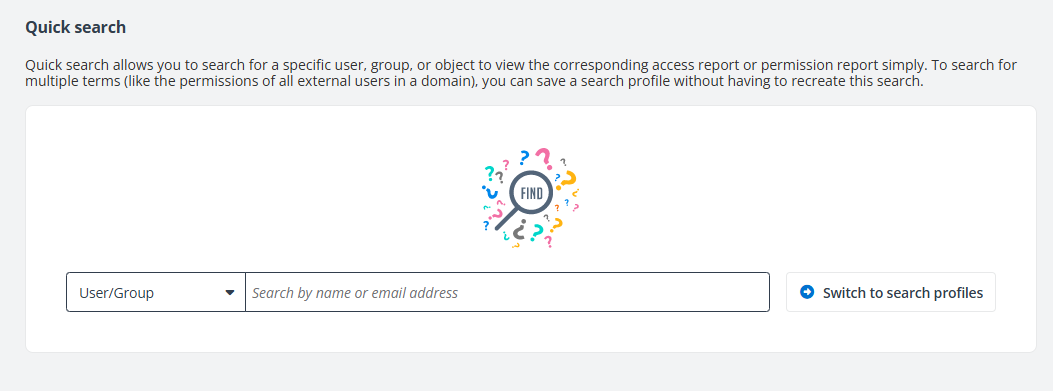
You can click a pinned user or group to view their permissions to the configured scope of Insights directly. You can also use the following steps to search for a user or group:
To unpin a user or group from Insights, hover your mouse over the user or group, and then click the Unpin from Insights button. The Pinned users/groups section is hidden when no users and groups are pinned to Insights.
-
Select User/Group from the drop-down list.
-
In the text box, enter the name or email address of the user or group, and the suggestion list appears.
-
Click the user or group you want to search from the suggestion list.
You can view the name of the user/group that you searched at the top of the search result. The search result contains the following tabs:
-
Known risk for Google Drive, where you can view the drives that the user/group has direct access to in the table.
-
Group membership, where you can view the groups to which the user/group belongs to
-
Google activities, where you can view the activities that the user has performed in Google Workspace.
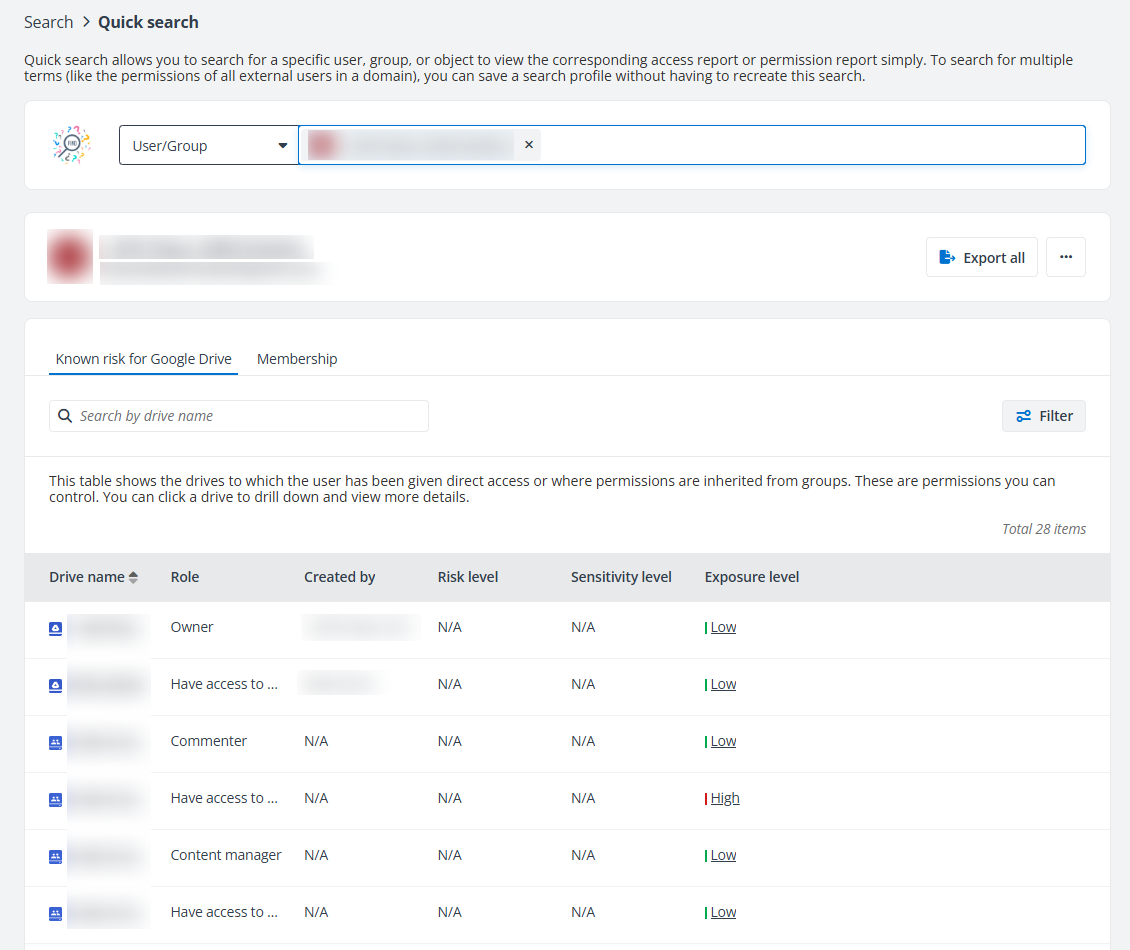
The following actions are available above the table of your search results.
-
Export all – Click Export all, and the Export window appears. A default report name is automatically filled in, and you can edit it if desired. Click Export to export the access report of the current user or group. When the export process begins, you can monitor its progress by navigating to Job monitor > Download center or by clicking the Download center link in the prompted message.
-
Pin to Insights – Click Pin to Insights to pin the user/group to the Pinned users/groups section of the Quick search page.
-
Remove permissions – Click Remove permissions to remove permissions from the searched-out user who is an external, unmanaged, or orphaned user.
Click the ellipsis button in front of the drive name or object name, and the actions for the drive or object are available.
-
View details – The Details window appears in the right panel.
-
The basic information of the drive and the risk information, including risk level, exposure level, and sensitivity level of the drive are all displayed. You can also view the number of files with high sensitivity for drives.
-
The basic information of the object and the risk information, including risk level, exposure level and exposure rule, sensitivity level, sensitivity label, and matched data types of the object are displayed.
-
-
View activities – The View activities page is opened in a new tab. For details, refer to View Activities.
Search for an Object
Refer to the following steps to search for and view detailed information of an object within the configured data scope of Insights:
-
Select Object from the drop-down list.
-
In the text box, enter the name or URL of the object, and the suggestion list appears.
-
Click the object you want to search from the suggestion list.
The related information of the object will be displayed in the table below. You can view the name of the object that you searched for on the top of the search results.
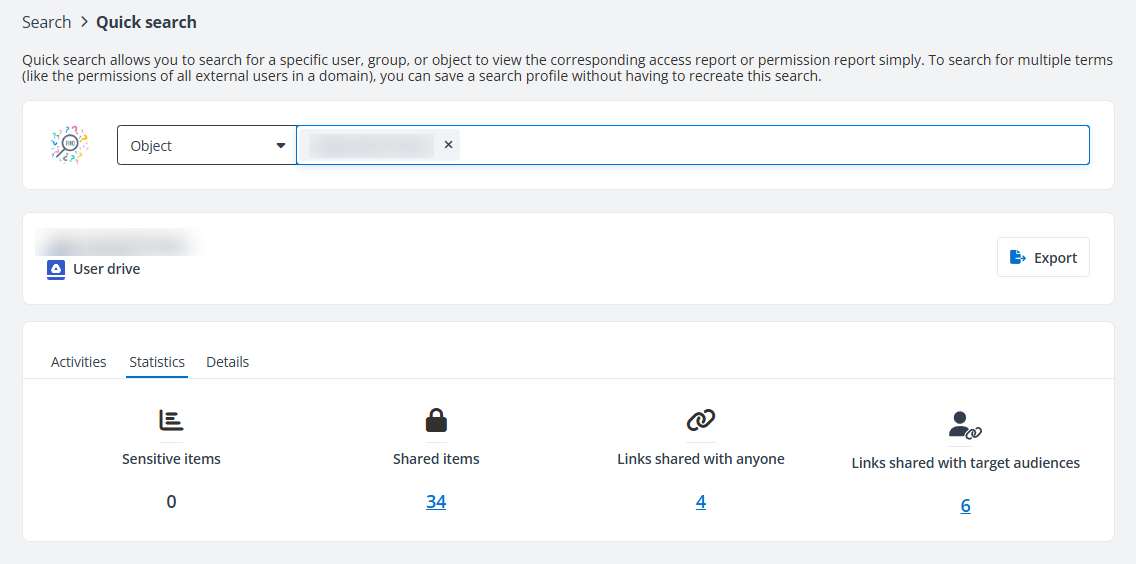
Refer to the View Detailed Information of Drives section for details if you search for a drive.
Refer to the View Detailed Information of Objects section for details if you search for an object.
You can directly click Export and select one of the export option to export the corresponding report of the object.
Search Profiles
Using search profiles, you can search for users and/or groups in batch or all external users in a specific domain to view their permissions to the data scope configured in the profile, or search for drives in batch to view their detailed information. You can configure schedules to run the search profiles periodically and export the reports automatically after the scheduled searches are complete. You can also notify specific users when the searches are complete.
Insights has converted all export schedules on the risk analysis overview report into search profiles with settings configured accordingly. Please note that if the interval of an export schedule is less than 1 week, it will be updated as 1 week, which is the shortest interval allowed for profiles.
You can navigate to Search center > Search profiles. Alternatively, you can click Switch to search profiles on the Quick search page to access the Search profiles page.
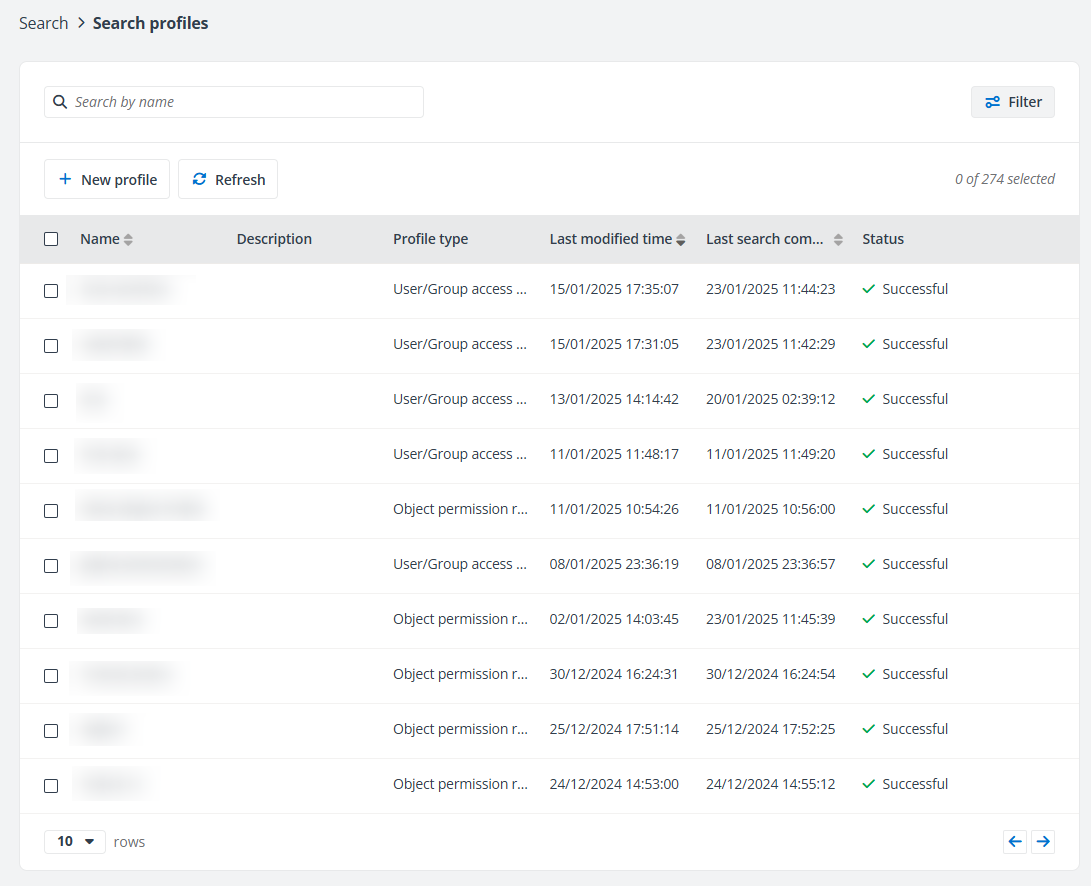
The following actions are available on the Search profiles page.
-
Filter – Click Filter to filter search profiles by filter conditions.
-
New profile – Click New profile on the ribbon to create a search profile. For details, refer to Create New Profiles.
-
Delete profile – Select one or multiple search profiles that you want to delete and click the Delete profile. Alternatively, you can delete a single search profile by clicking the ellipsis button to the right of the profile row, and then clicking Delete profile in the drop-down list.
-
View report – Select a profile and click View report on the ribbon to access the report generated by the corresponding search profile. Alternatively, click the ellipsis button to the right of a profile row, and then click View report in the drop-down list. Note that you can only view the report when the status of the profile is shown as Successful in the table. For details, refer to View Report.
-
View profile – Select a profile and click View profile on the ribbon to view details of the profile. Alternatively, click the ellipsis button to the right of a profile row, and then click View profile in the drop-down list. The profile details are displayed on the right pane.
-
Refresh – Click Refresh to refresh the search profiles displayed in the table.
Create New Profiles
Click New profile in the upper-left corner of the Search profiles page, and the New profile page appears.
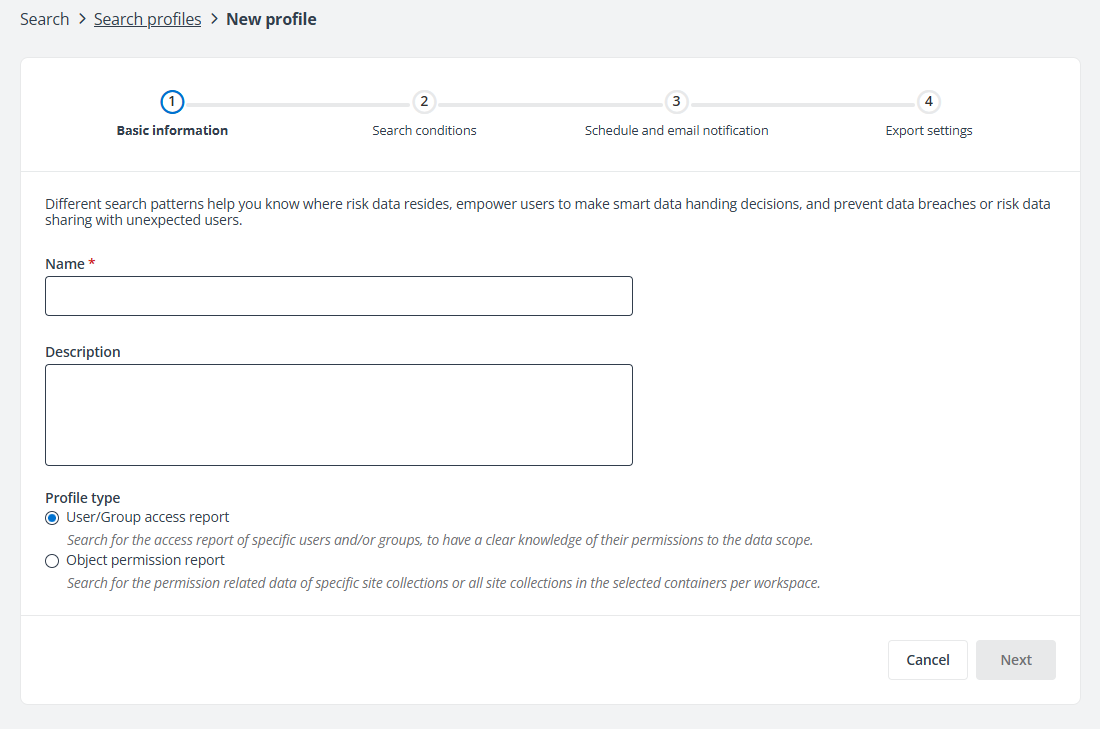
On this page, complete the following sections to create a profile:
Basic Information
Refer to the following steps to complete the information in this section:
-
Enter a profile name in the Name text box.
-
Enter a profile description in the Description text box.
-
Select a profile type to define for which you want the profile to search.
-
User/Group access report – Searches for the access report of specific users and/or groups, to have a clear knowledge of their permissions to the data scope.
-
Object permission report – Searches for the permission related data of specific drives or all drives in the selected containers per workspace.
-
-
Click Next to proceed to the Search conditions section.
Search Conditions
You can refer to the instructions below to configure the search conditions for the User/Group access report and Object permission report profile types respectively.
For the User/Group access report profile type, you are required to configure the User scope and Data scope of the profile:
-
User scope – Configure the user scope for the search profile.
NOTEOrphaned users will be excluded from the search profile report.
-
Specific users and groups – Enter the name, email address, or domain of the user or group you want to search for, and the suggestion list appears. Select the user or group that you want to search for. Multiple users and groups can be searched in batches.
Note that you must enter at least 2 characters that begin with @ to search users/groups by domain. For example, to search users/groups in contoso.com, you must enter at least @c.
-
Import users and groups – You can add users and groups in batch by importing a CSV file. Click Download template above the text box, add the desired users and groups to the downloaded file, and save the file. Click Import and select the file to import the users and groups in the file.
The number of users and groups that have been imported is displayed above the text box. Click the number to view the imported users and groups in the prompted window on the right pane.
-
External users in the domain – Select a domain from the drop-down list or search for a specific domain by entering keywords in the text box. External users in the domain will be the user scope of the search.
NOTEInsights has a maximum number of 500 external users. If this domain has more external users, Insights will choose a random set of users to report against.
-
Specific users that match conditions – Click Add condition to start configuring a condition. Select an option from the user or group property drop-down list and an option from the condition drop-down list, and then enter a value in the text box to define a condition. You can repeat the actions to add multiple conditions. Then, you can define the logical relationship of the conditions by clicking the All link in the upper-left corner of the conditions and clicking All or Any in the drop-down list.
NOTEInsights has a maximum number of 500 users. If more users match the conditions, Insights will choose a random set of users to report against.
-
-
Data scope – Configure the data scope in which you want to search for the permissions that the users and/or groups have.
-
Workspaces – Select the workspaces from where you want to search for the users and/or groups. Note that the workspaces to which you do not have permissions will be grayed out and cannot be selected.
-
Containers – Select the containers that you want to search per workspace to search for the users and/or groups in the containers. Alternatively, enter the name of the container, and the suggestion list appears. You can select multiple containers that you want to search from the suggestion list.
-
Specific drives – Enter the drive names to which you have permissions.
For the Object permission report profile type, you are required to configure the Search scope of the profile. You can choose to search objects by:
-
Specific drives – Enter the drive name that you want to search for the permission related data, and the suggestion list appears. Select the drive that you want to search from the suggestion list. Multiple drives can be searched in batches.
-
Containers – Select the containers that you want to search per workspace to search for all drives in the containers. Alternatively, enter the name of the container, and the suggestion list appears. You can select multiple containers that you want to search from the suggestion list. All drives in the selected containers will be searched in batch.
Click Next to proceed to the Schedule and email notification section.
Schedule and Email Notification
In this section, you can configure the Schedule settings and Email notification for the profile.
You can refer to the instructions below to configure settings for the profile:
Select No schedule if you do not want to configure a schedule for the search profile or select Configure the schedule myself to configure the following schedule settings for the search profile:
-
Start date – Select a start date from the calendar for the scheduled searches.
-
Interval – Enter a number in the text box and select Week or Month as the time unit to define the interval.
-
End time – Configure when to end the scheduled searches.
-
No end time – Select this option to keep the scheduled searches until you manually stop them.
-
End by occurrences – Select this option and enter the number of occurrences for the scheduled searches.
-
End by – Select this option and select an end date from the calendar.
-
For the Email notification setting of the profile, select No notification if you do not want to send any email notifications for the search profile, or select Send email notification to specific recipients when the search completes and enter the email addresses of the desired recipients after the search completes. Use semicolons to separate multiple email addresses.
Click Next to proceed to the Export settings section.
Export Settings
The results of the scheduled searches can be exported automatically by selecting the Automatically export the reports after the search completes checkbox.
This checkbox is only selectable when a schedule has been configured.
-
For user/group access reports, the following export options are available:
-
Export permission related reports – Select an option for the corresponding permission report of the users and groups in the search scope:
-
Only export the summary report – Select this option to export the summary report of all users and groups in the search results.
-
Export both the summary report and drive levelaccess report – Select this option to export both the summary report and the drive level access report of all users and groups in the search results.
-
Export both the summary report and access report to all objects in the data scope – Select this option to export both the summary report and the access report of all users and groups in the search results to all objects in the data scope that the users and groups have access.
-
Export the summary report and merge access report to all objects in the data scope for users/groups – Select this option to export both the summary report and the merged access report of all users and groups in the search results to all objects in the data scope to which the users and groups have access.
-
-
Export user activity report in a certain time range – You can choose to export the activity report of the users and groups in the search scope.
-
Activity selection – Select All activities to export activities of all types. Alternatively, select Specific types, click Configure activity types, select the activity types that you want to export in the Configure activity types window, and click Save to only export the corresponding activities in the report. You can also search for a specific activity type by entering keywords in the search box.
NOTEUp to 20 activity types can be selected.
-
Time range – Enter a number in the text box and select Day, Week, or Month to define the time range. Activities within this time range will be exported.
-
-
-
For object permission reports, the following export options are available:
-
Export permission related reports – Select an option for the corresponding permission report of the objects in the search scope:
-
Only export summary report – Select this option to export the summary report of all drives in the search scope.
-
Export both the summary report and permission report – Select this option to export both the summary report and the permission report of all drives in the search scope.
-
Export the summary report and merge permission report for items – Select this option to export the summary report and merge the permission reports of all drives in the search scope into one file.
-
-
Export activity report in a certain time range – You can choose to export the activity report of the objects in the search scope.
-
Activity selection – Select All activities to export activities of all types. Alternatively, select Specific types, click Configure activity types, select the activity types that you want to export in the Configure activity types window, and click Save to only export the corresponding activities in the report. You can also search for a specific activity type by entering keywords in the search box.
NOTEUp to 20 activity types can be selected.
-
Time range – Enter a number in the text box and select Day, Week, or Month to define the time range. Activities within this time range will be exported.
-
-
The results can also be exported to a specified drive or folder. Select the Upload the reports to a specific drive or folder checkbox and configure the desired drive in the text box. Enter the folder name if you want to export the results to a specific folder.
The following actions are available after configuring the settings in this section:
-
Click Cancel to close the page without saving the search profile.
-
Click Back to view or edit the basic information of the search profile.
-
Click Save to save the search profile. After you click Save, a message appears. You can click Go back to search profiles to go to the Search profiles page. You can only view the search report after you run the profile and the search completes.
-
Click Save and run now to save and run the search profile. After you click Save and run now, a message appears. You can click Go back to search profiles to go to the Search profiles page. You can view the search report after the search completes.
View Report
You can view details of User/Group Access report and Object Permission Report for the corresponding profile type when the search completes.
-
The following actions are available on the View report page:
-
View profile – Click View profile above the Search report section, and the View profile window appears in the right pane. You can view the profile information, including profile description, profile type, the last time when the profile is modified, the time when the last search was completed, and the search conditions configured in the profile. Click the Close button or click Close to close the window.
-
Edit profile – Click the ellipsis button to the right of View profile and click Edit profile from the drop-down list to edit the profile settings except the profile type. If you have edited a profile, you need to rerun the profile so that you can view the latest search report after the search completes.
NOTEThe profile type cannot be edited once you have saved a profile.
-
Run profile – If the profile has been saved but not run, you can click Run profile from the ellipsis drop-down list to run the profile and view the corresponding report after the search completes.
-
Rerun profile – If the profile has been saved and run, you can click Rerun profile from the ellipsis drop-down list to rerun the profile and view the latest report after the search completes.
User/Group Access report
The Top 5 data types section displays the top 5 data types that the objects to which the searched users and/or groups have access match, and the number of objects that match each data type. The Top 5 badges section displays the top 5 badges of the Google labels that are applied to the objects to which the searched users and/or groups have access. The User type section displays the types of users and/or groups in the search results and the numbers. Hover your mouse over the circle to the left of the user types to view the number of users or groups in each user type in the search results.
In the table below the Search report section, you can view the details of all users and/or groups in the search results, including the user/group name, type, workspaces in which the drives that the user/group has access to reside, and number of drives that the user/group has direct access.
You can click a user/group name to view the detailed access report of the user/group. The drives to which the user/group has been directly granted permissions are listed in the table. You can view the workplace, drive name, role, creator, risk level, sensitivity level, and exposure level. You can click the drive name link to drill down, and the objects with unique permissions in the drive are displayed. If the user/group has direct access to the drive, the drive itself will also be displayed with the assigned role.
For users and/or groups in the search results, the following actions are available:
-
Search for a User/Group – Enter keywords in the search box in the upper-right corner of the table and click the magnifying glass button or press Enter on the keyboard.
-
Export – You can export reports using one of the following methods:
-
Click Export for all to export the reports of all users and groups in the search results.
-
Select one or multiple users and/or groups and then click Export for selected items to export the reports of the selected users and/or groups.
In the export drop-down list, select Export summary report to export the summary report, or select Export access report to export both the summary report and access report for the users and groups.
In the export window, a default report name is automatically filled in, and you can edit it if desired.
-
Export both the summary report and drive level access report – Select this option to export both the summary report and the drive level access report of the users and groups.
-
Export both the summary report and access report – Select this option to export both the summary report and access report of the users and groups.
-
Export the summary report and merge access report for users/groups – Select this option to export both the summary report and the merged access report of the users and groups to all objects in the data scope of the search profile.
The Export user activity report in a certain time range advanced option is also available if you select users to export. Select Last 7 days, Last 1 month, Last 3 months, or Custom to define the time range during which user activity report you want to export.
Click Export to start exporting the report.
When the export process begins, you can monitor its progress by navigating to Job monitor > Download center or by clicking the Download center link in the prompted message.
-
-
Refresh – Click Refresh to view the latest report results.
-
Export access report – Click Export access report from the ellipsis drop-down list to export the access report of the user/group.
-
Access report – Click Access report from the ellipsis drop-down list to access and view the access report page of the user/group.
Object Permission Report
The Sensitive items section displays the number of sensitive items in the drives you searched per workspace.
Details of the drives you searched by the profile are displayed in the table below the Sensitive items section. You can view details of all drives in the search scope, including the drive name, workspace in which the drive resides, object type, and the user/group that created the drive.
For drives listed in the table, the following actions are available:
-
Search for a drive – Enter keywords in the search box in the upper-right corner of the table and click the magnifying glass button or press Enter on the keyboard.
-
Export – You can export the summary and/or permission report of drives using one of the following methods:
-
Click Export for all to export reports of all site collections in the search scope.
-
Select one or multiple site collections and then click Export for selected items to export reports of the selected site collections.
In the export drop-down list, select Export summary report to export the summary report, or select Export permission report to export both the summary report and permission report for the drives.
In the export window, a default report name is automatically filled in, and you can edit it if desired.
-
Export both the summary report and permission report – Select this option to export both the summary report and the permission report of the drives.
-
Export both the summary report andlink permission report – Select this option to export both the summary report and the link permission report of the drives.
-
The advanced options are available when you select items to export permission report.
-
Merge the permission report for items – Select this option to merge the permission reports into one report file.
-
Export activity report in a certain time range – Select Last 7 days, Last 1 month, Last 3 months, or Custom to define the time range during which activity report you want to export.
Click Export to start the export.
When the export process begins, you can monitor its progress by navigating to Job monitor > Download center or by clicking the Download center link in the prompted message.
-
-
View risk report – Click the drive name to access the Risk analysis > Detailed records page of a drive in a new tab.
-
Detailed information – Click the ellipsis button to the right of a drive, and then click Detailed information to view detailed information about the drive. For details, refer to View Detailed Information of Drives.
-
View activities – Click the ellipsis button to the right of a drive, and then click View activities to view all user activities of the drive. For details, refer to View Activities.