Home > Use Insights for Microsoft 365 > Risk Analysis > View Shadow Users and Groups Access Report
Download this articleView Shadow Users and Groups Access Report
On the Access report of shadow users andgroups page, the Team or Microsoft 365 Group name is displayed on the top. All shadow users and groups in the team site or Microsoft 365 Group team site are listed in the left pane. You can hover your mouse over the icon on the left of each user or group to view their type. You can click a user or group to view the objects to which the user or group has permissions in the team site or Microsoft 365 Group team site together with the permission details.
Only the objects with unique permissions to which the user or group has permissions will be listed on the right pane.
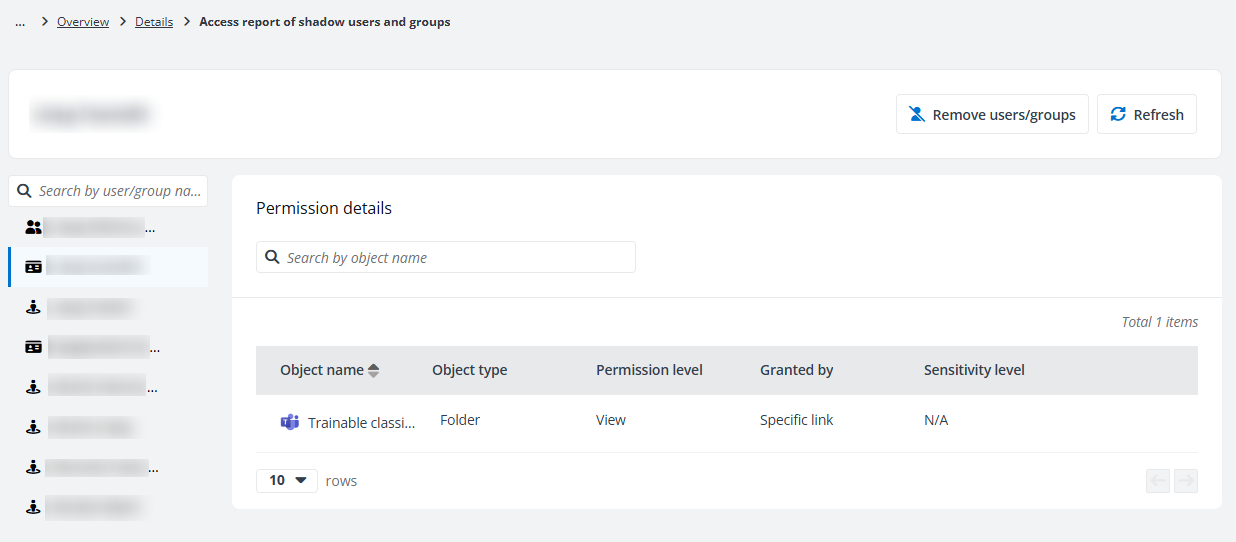
The following actions are available in this tab:
-
Remove shadow users and groups – To batch removing shadow users and groups from the site collection, click Remove users/groups in the upper-right corner of this page, and the Remove users/groups window appears. All shadow users and groups in the site collection, together with their trust status and user/group type are listed. You can select the desired shadow users and groups and click Remove to remove them from the site collection. You can also click Refresh to refresh the shadow users and groups that are listed in this window.
NOTEIf the permissions of the shadow users and groups are granted via anyone links or organization links, the links will be deleted.
-
Click Refresh to refresh the shadow users and groups displayed in the left pane of this page.
-
Click or hover your mouse over the object rows, the ellipsis button is displayed on the right of each row. Click the ellipsis button, and the following actions are available from the action drop-down list:
-
View permissions – Select this option to access the View Permissions page in a new tab.
-
View activities – Select this option to access the View Activities page in a new tab.
-
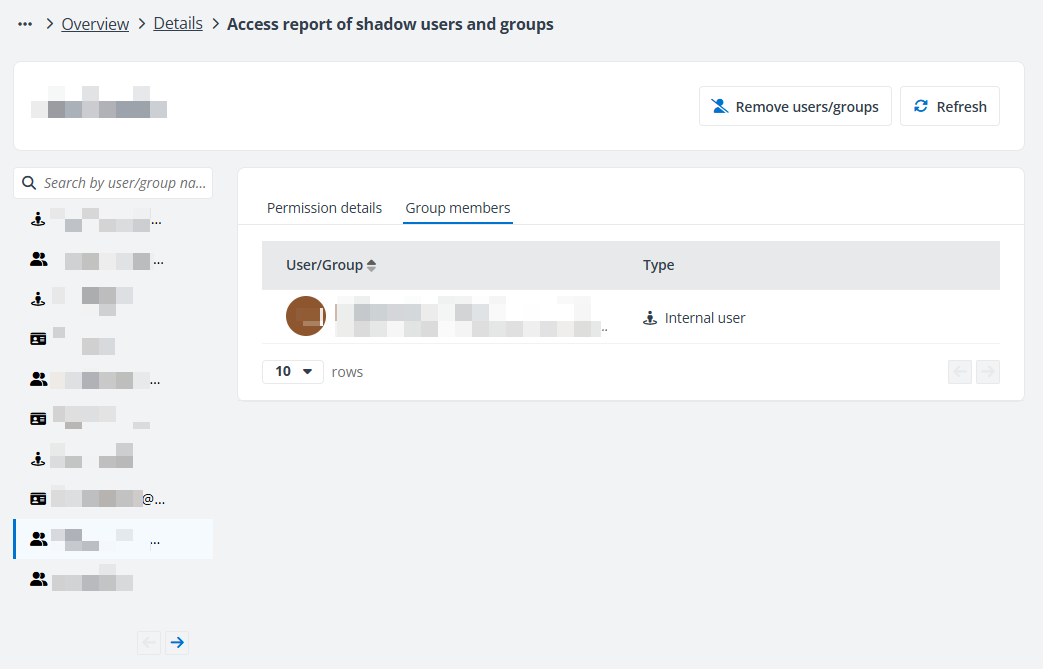
Click a shadow group in the left pane, and the Group members tab appears where all members in the group are listed with their types.
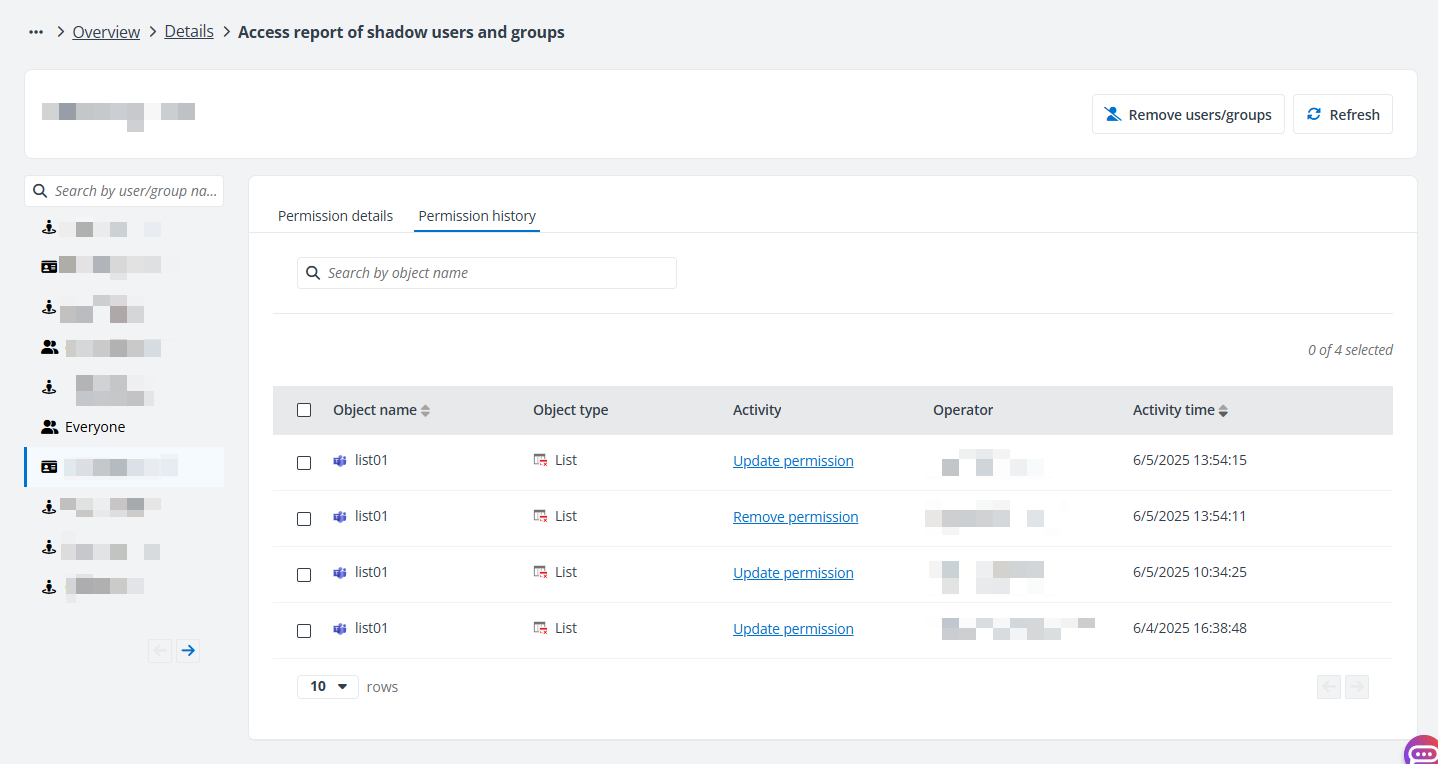
If the permission history setting is enabled for the site collection, the Permission history tab appears. You can view the permission changes of shadow users and groups to the objects in the site collection. Click the activity link to view activity details in the window. You can also Revert a specific permission change as required.
If the first permission change record is Remove permission, it cannot be reverted since the removed permission cannot be retrieved before the permission history is enabled.