
Home > Use Insights for Microsoft 365 > View Exposure Report
Download this articleView Exposure Report
In the Exposed Externally exposure report, you can view the count of each category in each tenant, including external users, groups with external users, orphaned users, and ghost guest users.
In the Exposed to "Everyone" exposure report, you can view all accessible objects and sensitive items in the Everyone, Everyone except External Users, All Users (membership), and All Users (windows) groups.
In the Sharing Links exposure report, you can view the statistics of different types of links, including anyone links, specific links, and organization links.
In the Overshared Externally exposure report, you can view all external users as well as the groups where there are external users that have the Full Control permission to objects in the configured data scope.
You can define the data scope for the exposure report by selecting a workspace or All workspaces from the workspace drop-down list, and selecting desired containers or Select all from the container drop-down list.
The container drop-down list will be hidden when All workspaces is selected from the workspace drop-down list. The available containers are in the data scope configured by the administrators and to which you have permissions.
Exposed Externally
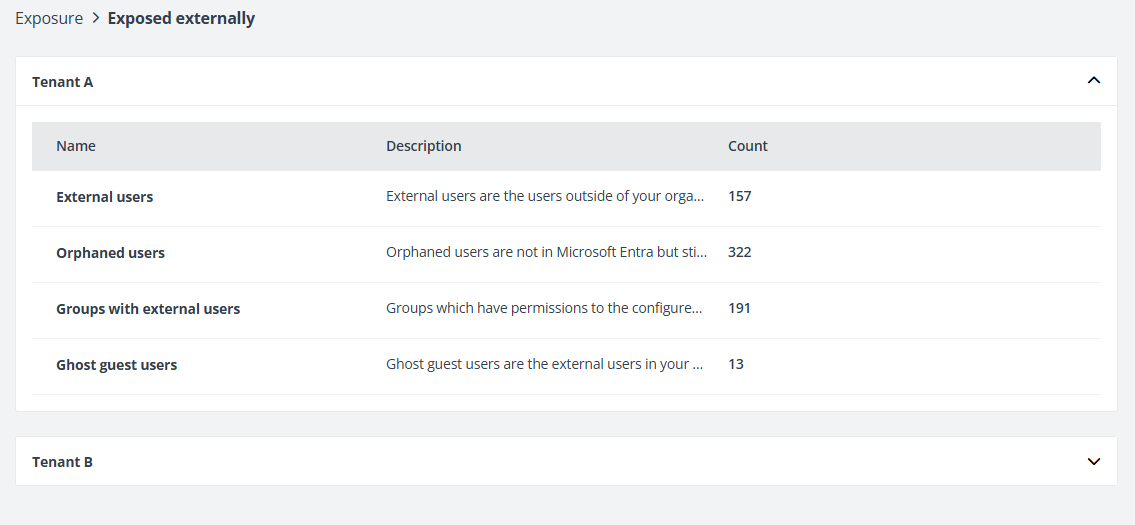
On the Exposed externally page, you can view the total number of the following statistics for each tenant. Click a name to access the corresponding report page.
-
External Users – External users are the users outside your organization but reside in your Microsoft Entra.
-
Orphaned Users – Orphaned users are the deleted users and groups, as well as blocked users in Microsoft Entra ID, that still have access to objects in the Insights scope, individuals who have accessed shared content via links without an invitation or sign-in, and guest members of shared channels.
-
Groups with External Users – Groups which have permissions to the configured data scope of Insights and contain external users.
-
Ghost Guest Users – Ghost guest users are the external users in your Microsoft Entra who are neither members of Microsoft 365 Groups or Microsoft Teams nor with permissions to the configured data scope of Insights.
Exposed to “Everyone”
On the Exposed to “everyone” page, you can view four groups in all your tenants.
If any of the following groups are not enabled in a tenant, a warning message will be displayed below the tenant to show which groups are not enabled. If the site collections to which the Everyone group has access and the site content can be shared with anyone, new and existing guests, or existing guests only, the shield icon will be displayed in front of the Site collections column of Everyone.
-
Everyone – Any user that has been granted access to the SharePoint Online environment, whether internal users or external users from external sharing.
-
Everyone except external users – Any accounts that have been assigned a SharePoint Online license within the tenant.
-
All Users (membership) – Any user that has an active Microsoft 365 account within the tenant.
-
All Users (windows) – Any user within the Active Directory service of Microsoft 365, whether Microsoft 365 Azure users or those synced via Microsoft Entra Connect.
You can view the number of site collections and the number of sensitive files and items each group has access.
Click a group name to access the Access report page of the group. You can also click the Exposed to “everyone” link on the top navigation to go back to the Exposed to “everyone” page.
On the Access report page, all site collections to which the group has been given access are listed in the table. You can view the workspace of the site collection, the user who created the site collection, and the external sharing setting of the site collection in the table. Click a site name to drill down and view more details. The sites, lists/libraries, folders, files, and items with unique permissions to which the group has access are listed. If the group has direct access to the site collection, the site collection itself will also be displayed with the granted permission levels.
-
Click Export all above the table to export the access report of the group. The Export window appears. A default report name is automatically filled in, and you can edit it if desired. Click Export to export the access report. When the export process begins, you can monitor its progress by navigating to Job monitor > Download center or by clicking the Download center link in the prompted message.
-
Click Remove all above the table to remove the direct access permissions of the current group. The permissions that have been given directly to the group, and those inherited from the SharePoint groups to which the group belongs will be removed together. Note that the Remove action needs confirmation since the removal cannot be rolled back once completed.
NOTEThis button is only available for administrators.
-
Select one or multiple site collections and click Remove access above the table to remove the group access to the selected site collections.
-
Click Refresh to refresh the site collections displayed in the table.
Click Filter in the upper-right corner of the table, and the Filter window appears. You can filter the site collections or objects displayed in the table using the filter conditions.
Click the ellipsis button in front of the site name or object name to view available actions for the site collection or object:
-
View details – The Details window appears in the right pane. The basic information of the site collection/object and the risk information, including risk level, exposure level, and sensitivity level of the site collection/object are all displayed. You can view the sensitivity info types that the object matches if the file is sensitive, and the sensitivity label that is applied to the site collection/object in Microsoft 365.
-
View permissions – The View permissions page is opened in a new tab. For details, refer to View Permissions.
-
View activities – The View activities page is opened in a new tab. For details, refer to View Activities.
-
Remove access – Select Remove access to remove the group access to the site collection.
Sharing Links
On the Sharing links page, you can view the statistics of each link type for each tenant, including the total number of sharing links, number of sensitive items, and the number of sharing links to which the items are sensitive. Click a number link to access the report page with the corresponding data displayed. Click View details in the Sensitive links column to access the page where the corresponding links are listed in the table.
To efficiently manage the expiration of sharing links in bulk, you can enable the Sharing link expiration enforcement rule of Policies for Microsoft 365 directly in Insights by clicking Run policy on the Anyone links / Specific links / Organization links page. In the Run policy window, set the duration of how long sharing links remain active after being created and specify the notification email recipients, and click Save and run now. The set expiration will be enforced to all links of the corresponding type within the configured data scope, and expired links will be removed in bulk. For more information, refer to Policies for Microsoft 365 User Guide.
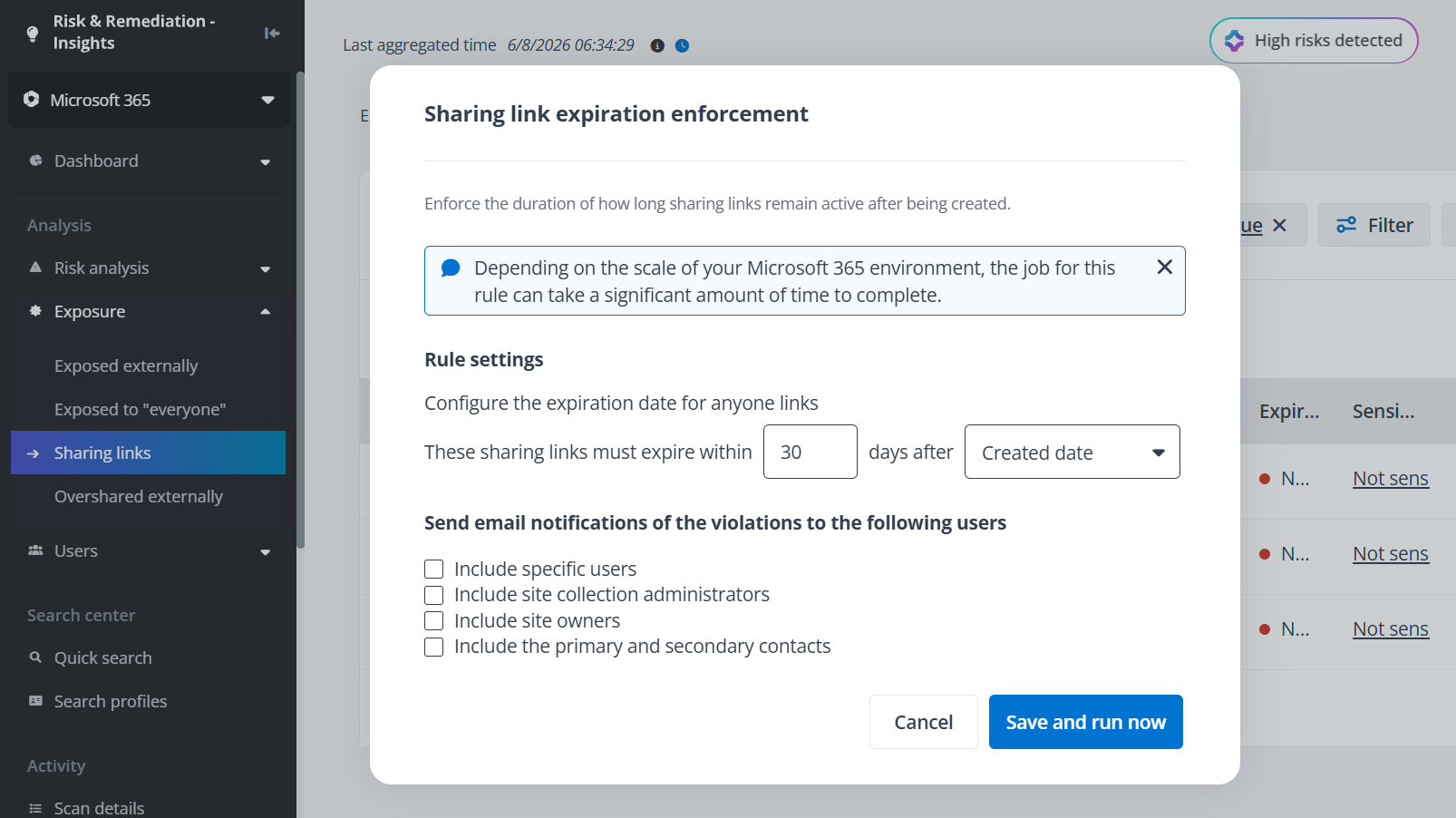
This is only available when you have a subscription for Policies for Microsoft 365.
Anyone links
On the Anyone links page, objects that are shared via anyone links are displayed in the table. Objects shared via anyone link are the objects that are shared by sending a link, and the link works for anyone who receives the link. This may include people outside of your organization.
In the table of anyone links, you can view the completed statistics as below:
-
Name – The name of the object whose access is given via link.
-
Object type – The type of the object.
-
Shared by – The user who shared the object via the link.
-
Shared with – The number of users with whom the link is shared. Click the number to view details of the users.
-
Link – The link that gives access to the object. Click the link to access the object directly in the new tab.
-
Inherit from – Unique is displayed if the object is directly shared via link. If the shared permission is inherited from its parent, the parent name will be displayed as a clickable link. Click this link to view the parent object.
-
Permission – The access given to users via the link.
-
Created – The time when the link is created.
-
Site name – The name of the site where the object is located.
-
Expiration date – The expiration date of the link.
-
Sensitivity level – The sensitivity level of the object.
-
Sensitivity label – The sensitivity label applied to the object.
NOTEThe sensitivity label of an object will be only available if the link is created or the object of the link has been updated after June 2, 2024. To view the most recent sensitivity label applied to a file, make an update to the file to trigger the retrieval of the latest details. To view the sensitivity labels of multiple files, go to the Scan details page, and prioritize the site where the files you want to review are located for a full scan.
The following actions are also available on this page.
-
Filter – Click Filter in the upper-right corner of the table, and the Filter window appears. You can filter the objects displayed in the table using the filter conditions.
-
Manage columns – Click Columns in the upper-right corner of the table, and the drop-down list where all available columns are displayed appears. Select the columns that you want to display in the table, and click Apply to apply the column selection. You can also select the Select all checkbox to show all columns in the table.
-
Export – You can export a report of anyone links using one of the following methods:
-
Click Export for all on the ribbon to export the report of all anyone links displayed in the table.
-
Filter the anyone links and then click Export for all to export the report of the filtered anyone links.
-
Select one or multiple anyone links and then click Export for selected items to export the report of the selected anyone links.
-
Hover your mouse over anywhere of a row, click the ellipsis button, and select Export from the drop-down list.
In the export window, a default report name is automatically filled in, and you can edit it if desired. Select only to export the summary report or export both the summary report and access details report, and click Export to export the report. When the export process begins, you can monitor its progress by navigating to Job monitor > Download center or by clicking the Download center link in the prompted message.
NOTEIf you click Export for all, only the Only export the summary report export option is available.
-
-
Remove access – Select one or multiple objects and click Remove access on the ribbon to remove access for the objects, and the links giving access to these objects will be removed from Microsoft 365. You can also hover your mouse over a row, click the ellipsis button, and select Remove access from the drop-down list. A confirmation window appears. Click OK to remove the links giving access to the object from Microsoft 365.
-
Set expiration date – Select one or multiple anyone links and click Set expiration date above the table to set the expiration date of the selected links. You can also hover your mouse over a row, click the ellipsis button, and select Set expiration date from the drop-down list to set the expiration date of an anyone link. In the Set expiration date window, select a date from the calendar, and click Save to set the expiration date for the anyone links.
-
Notify – Select one or multiple links and click Notify above the table to notify content owners, site administrators, or specific users. You can also hover your mouse over a row, click the ellipsis button, and select Notify from the drop-down list. In the Notify window, you can select Content owner, Site administrator, or Specific users to be notified about the link. If there are multiple content owners or site administrators, you can view the user list. Click Save to send the notification email to the users.
-
Refresh – Click Refresh to refresh the objects displayed in the table.
-
Access details – Hover your mouse over a row, click the ellipsis button, and select Access details to view the access details of the object. In the Access details window, the user, IP address, and sign-in time are displayed in the table.
Specific Links
On the Specific links page, the objects that are shared with specific people are displayed in the table. If you’re redirected from the Sharing links page by clicking a Specific link shared externally statistic, the objects that are shared with external users or orphaned users are displayed in the table.
In the table of specific links, you can view the completed statistics as below:
-
Name – The name of the object whose access is given via link.
-
Object type – The type of the object.
-
Shared by – The user who shared the object via the link.
-
Shared with – The number of users with whom the link is shared. Click the number to view details of the users.
-
Link – The link that gives access to the object. Click the link to access the object directly in the new tab.
-
Inherit from – Unique is displayed if the object is directly shared via link. If the shared permission is inherited from its parent, the parent name will be displayed as a clickable link. Click this link to view the parent object.
-
Permission – The access given to users via the link.
-
Created – The time when the link is created.
-
Site name – The name of the site where the object is located.
-
Expiration date – The expiration date of the sharing link.
-
Sensitivity level – The sensitivity level of the object.
-
Sensitivity label – The sensitivity label applied to the object.
NOTEThe sensitivity label of an object will be only available if the link is created or the object of the link has been updated after June 2, 2024. To view the most recent sensitivity label applied to a file, make an update to the file to trigger the retrieval of the latest details. To view the sensitivity labels of multiple files, go to the Scan details page, and prioritize the site where the files you want to review are located for a full scan.
The following actions are available on this page:
-
Filter – Click Filter in the upper-right corner of the table, and the Filter window appears in the right pane. All columns that are available for the filter are listed below. Click the down arrow button to the right of a column to show the text box or selectable options. Enter keywords in the text box and/or select desired options to define the filter conditions.
You can also click Reset to default to clear your input and selections and reset the filters to their default state.
Click Apply changes to filter items displayed in the table based on the configured filters.
-
Manage columns – Click Columns in the upper-right corner of the table, and the drop-down list where all available columns are displayed appears. Select the columns that you want to display in the table, and click Apply to apply the column selection. You can also choose Select all to show all columns in the table.
-
Export – You can export the report of specific links using one of the following methods:
-
Click Export for all to export the report of all specific links displayed in the table.
-
Filter the specific links and then click Export for all to export the report of the filtered specific links.
-
Select one or multiple specific links and then click Export for selected items to export the report of the selected specific links.
-
Hover your mouse over anywhere of a row, click the ellipsis button, and select Export from the drop-down list.
In the export window, a default report name is automatically filled in, and you can edit it if desired. Select to only export the summary report or export both the summary report and access details report, and click Export to export the report. When the export process begins, you can monitor its progress by navigating to Job monitor > Download center or by clicking the Download center link in the prompted message.
NOTEIf you click Export for all, only the Only export the summary report export option is available.
-
-
Remove access – Select one or multiple objects and click Remove access on the ribbon to remove access for the objects, and the links giving access to these objects will be removed from Microsoft 365. You can also hover your mouse over a row, click the ellipsis button to the right of the object of which the permissions are unique, and select Remove access from the drop-down list. A confirmation window appears. Click OK to remove the links giving access to the object from Microsoft 365.
-
Notify – Select one or multiple objects and click Notify to notify the content owners or site administrators of the objects that are shared via links, or notify specific users. In the Notify window, you can select Content owners, Site administrators, or Specific users to be notified of the links. If there are multiple content owners or site administrators, you can view the user list. Click Save to send the notification email to the users. To notify about a specific link, you can click the ellipsis button for the object of which the permissions are unique and select Notify from the drop-down list.
-
Edit permission – Select an object and click Edit permission or click the ellipsis button to the right of the row to edit the permission of the link to the object. Select a new permission and click Save to update the link permission.
You can also select multiple objects at the same level to edit permissions in bulk.
-
Refresh – Click Refresh to refresh the objects that are shared via link with specific people displayed in the table.
-
Access details – Hover your mouse over a row, click the ellipsis button, and select Access details to view the access details of the object. In the Access details window, the user, IP address, and sign-in time are displayed in the table.
Organization Links
On the Organization links page, the objects that are shared via link for all people in the organization are displayed in the table.
In the table of organization links, you can view the completed statistics as below:
-
Name – The name of the object whose access is given via link.
-
Object type – The type of the object.
-
Shared by – The user who shared the object via the link.
-
Shared with – The number of users with whom the link is shared. Click the number to view details of the users.
-
Link – The link that gives access to the object. Click the link to access the object directly in the new tab.
-
Inherit from – Unique is displayed if the object is directly shared via link. If the shared permission is inherited from its parent, the parent name will be displayed as a clickable link. Click this link to view the parent object.
-
Permission – The access given to users via the link.
-
Created – The time when the link is created.
-
Expiration date – The expiration date of the sharing link.
-
Sensitivity level – The sensitivity level of the object.
-
Sensitivity label – The sensitivity label applied to the object.
NOTEThe sensitivity label of an object will be available only if the link is created or the object of the link has been updated after June 2, 2024. To view the most recent sensitivity label applied to a file, make an update to the file to trigger the retrieval of the latest details. To view the sensitivity labels of multiple files, go to the Scan details page, and prioritize the site where the files you want to review are located for a full scan.
The following actions are available on this page:
-
Filter – Click Filter in the upper-right corner of the table, and the Filter window appears in the right pane. All columns that are available for the filter are listed below. Click the down arrow button to the right of a column to show the text box or selectable options. Enter keywords in the text box and/or select desired options to define the filter conditions.
You can also click Reset to default to clear your input and selections and reset the filters to their default state.
Click Apply changes to filter items displayed in the table based on the configured filters.
-
Manage columns – Click Columns in the upper-right corner of the table, and the drop-down list where all available columns are displayed appears. Select the columns that you want to display in the table, and click Apply to apply the column selection. You can also choose Select all to show all columns in the table.
-
Export – You can export the report of organization links using one of the following methods:
-
Click Export for all to export the report of all organization links displayed in the table.
-
Filter the organization links and then click Export for all to export the report of the filtered organization links.
-
Select one or multiple organization links and then click Export for selected items to export the report of the selected organization links.
-
Hover your mouse over anywhere of a row, click the ellipsis button, and select Export from the drop-down list.
In the export window, a default report name is automatically filled in, and you can edit it if desired. Select only to export the summary report or export both the summary report and access details report, and click Export to export the report. When the export process begins, you can monitor its progress by navigating to Job monitor > Download center or by clicking the Download center link in the prompted message.
NOTEIf you click Export for all, only the Only export the summary report export option is available.
-
-
Remove access – Select one or multiple objects and click Remove access on the ribbon to remove access for the objects, and the links giving access to these objects will be removed from Microsoft 365. You can also hover your mouse over a row, click the ellipsis button to the right of the object of which the permissions are unique, and select Remove access from the drop-down list. A confirmation window appears. Click OK to remove the links giving access to the object from Microsoft 365.
-
Notify – Select one or multiple objects and click Notify to notify the content owners or site administrators of the objects that are shared via links, or notify specific users. In the Notify window, you can select Content owners, Site administrators, or Specific users to be notified of the links. If there are multiple content owners or site administrators, you can view the user list. Click Save to send the notification email to the users. To notify about a specific link, you can click the ellipsis button to the right of the object of which the permissions are unique and select Notify from the drop-down list.
-
Refresh – Click Refresh to refresh the objects that are shared via link with all people in the organization displayed in the table.
-
Access details – Hover your mouse over a row, click the ellipsis button, and select Access details to view the access details of the object. In the Access details window, the user, IP address, and sign-in time are displayed in the table.
Overshared Externally
On the Overshared externally page, the objects to which external users, as well as the groups where there are external users, have Full Control permission are listed in the table. You can view the object name, type, the external user or group that has Full Control permission to the object, and where they are granted the permission.
By default, the report scope is All tenants. Select a specific tenant from the drop-down list to view report of that tenant only.
The following actions are available on this page:
-
Filter – Click Filter in the upper-right corner of the table, and the Filter window appears. You can filter the objects displayed in the table using the filter conditions.
-
Remove permissions – Select one or multiple overshared records and click Remove permissions to Remove permissions of the external users or groups to the objects. You can also click the ellipsis button to the right of the Permission granted by column value and click Remove permissions from the drop-down list to Remove permissions of the external user or group to the object.
-
Refresh – Click Refresh to refresh the objects displayed in the table.
-
Edit permissions – To change the user/group permissions to the object, select the overshared record, click the ellipsis button to the right of the Permission granted by column value and click Edit permissions from the drop-down list. In the prompted window, select the permission that you want to change for the user/group, and click Save.