
Home > Use Insights for Microsoft 365 > Dashboard
Download this articleDashboard
When workspaces are enabled and the administrator configures the data scope, you can view Insights data on the dashboard for the data you have access to.
Based on your permissions, you may see the following dashboard pages:
-
Microsoft 365 overview – The overview page shows the statistics of all workspaces.
-
Microsoft Teams – Microsoft Teams shows the statistics of the configured scope in Microsoft Teams.
-
SharePoint Online – SharePoint Online shows the statistics of the configured scope in SharePoint Online.
-
OneDrive – OneDrive shows the statistics of the configured scope in OneDrive.
-
Microsoft 365 Group – Microsoft 365 Group shows the statistics of the configured scope in Microsoft 365 Group.
-
Power BI – Power BI shows the statistics of the configured scope in Power BI.
On each page of the dashboard, you can view the tenant drop-down list in the upper-right corner if there are multiple tenants in your organization. You can select All tenants to view the corresponding dashboard of all your tenants or select a tenant to only view dashboard of the tenant. In the upper-right corner of the dashboard page, you can select to view statistics for a specific date range: last 7 days, 3 months, or 6 months.
You can click Export Excel report in the upper-left corner of the page to export the current dashboard page into an Excel file.
Click Export DSPM report to export the data security posture management report into a PDF file. This is only available on the Microsoft 365 overview dashboard page.
Click Export PDF report to export the current dashboard page into a PDF file. This is available on the Microsoft Teams / SharePoint Online / OneDrive / Microsoft 365 Group dashboard page.
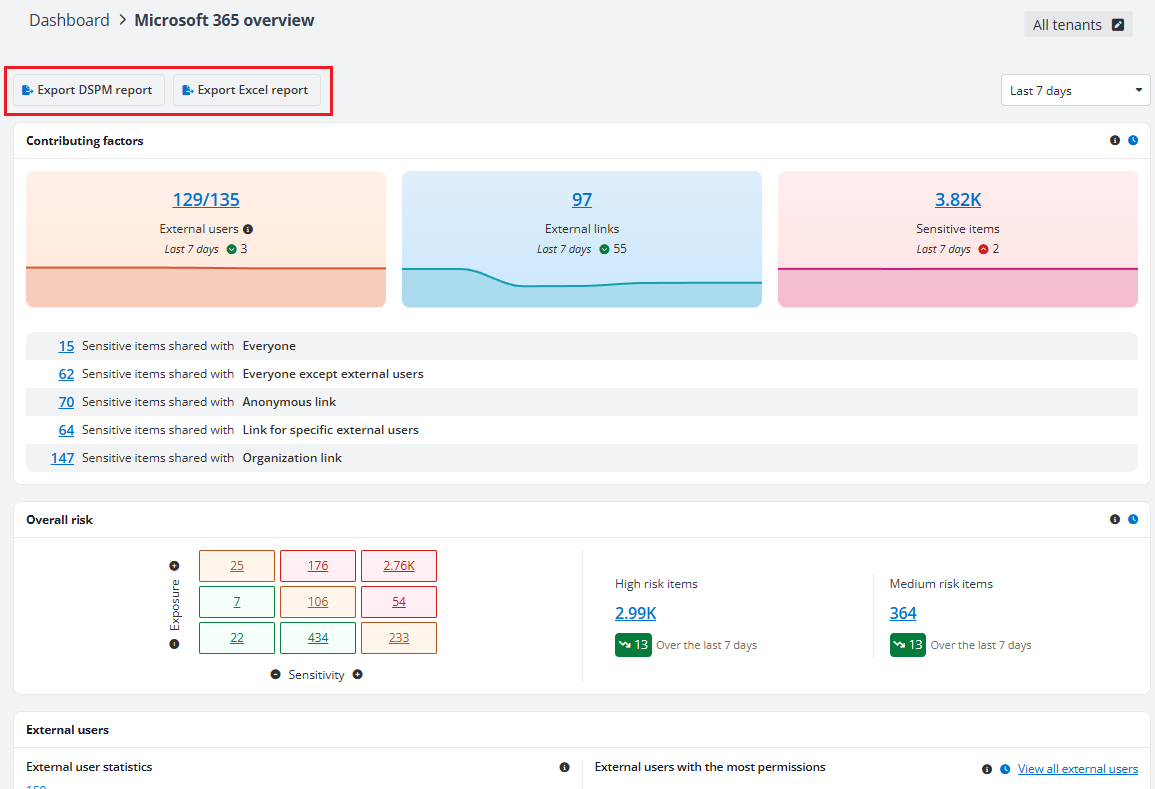
The following dashboard components function similarly, differing only in data scope.
Contributing factors
On the top of each dashboard page, you can view the Contributing factors section.
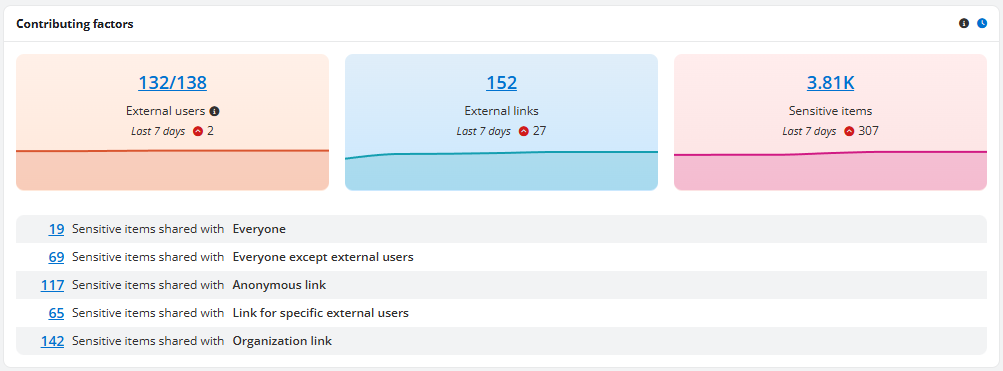
The Contributing factors section on the Microsoft 365 overview dashboard page.
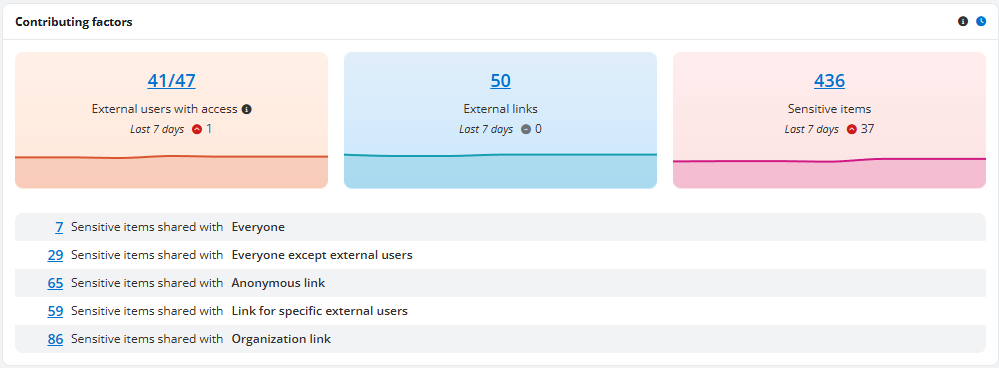
The Contributing factors section on other Microsoft 365 dashboard pages.
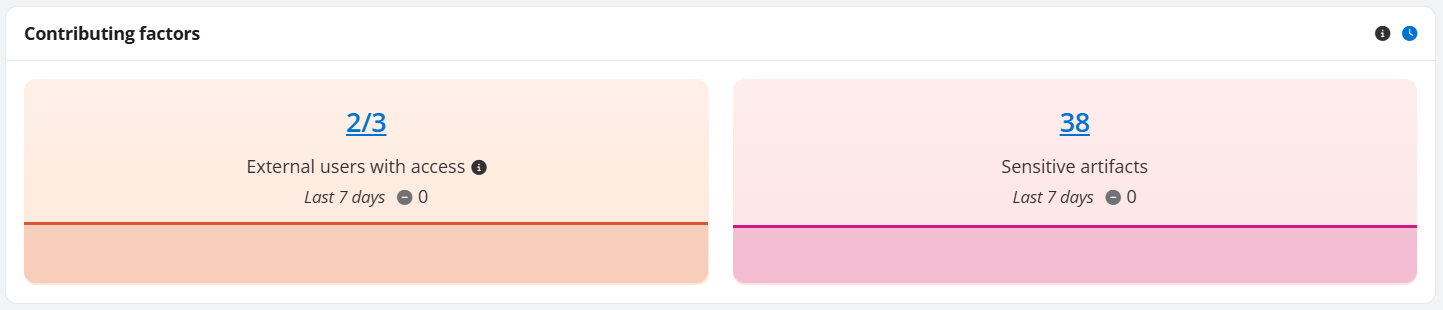
The Contributing factors section on Power BI dashboard page.
There are three charts in the Contributing factors section for administrators.
-
External users – This chart displays the trends of all external users for the last 7 days, last 3 months, or last 6 months, and is only available on the Microsoft 365 overview dashboard page. The number of external users that are not trusted and the total number of external users on the last day/month are displayed above the chart. Hover your mouse over the numbers in the chart to view the total number of external users, the number of external users that are not trusted, and the number of trusted external users, respectively.
NOTEThis chart is not available for standard users. The number of external users will be updated when the aggregation job finishes, instead of being updated immediately, along with the scope changing.
-
External users with access – This chart displays the trends of external users that have access to objects in the configured scope of each workspace for the last 7 days, last 3 months, or last 6 months, and is available on the Microsoft Teams / SharePoint Online / OneDrive / Microsoft 365 Group / Power BI dashboard page. The number of external users that are not trusted and the total number of external users that have access to objects of the last day/month are displayed above the chart. Hover your mouse over the numbers in the chart, and you can view the total number of external users that have access to objects, the number of external users that are not trusted, and the number of trusted external users, respectively.
NOTEThis chart is not available for standard users. The number of external users will be updated when the aggregation job finishes, instead of being updated immediately, along with the scope changing.
-
External links – This chart displays the trends of external links for the last 7 days, last 3 months, or last 6 months.
-
Sensitive items – This chart displays the trends of sensitive items for the last 7 days, last 3 months, or last 6 months. Sensitive items refer to the files, items, and site collections of which the sensitivity level is High, Medium, or Low.
-
Sensitive artifacts – This chart displays the trends of sensitive artifacts for the last 7 days, last 3 months, or last 6 months.
Hover your mouse over a trend to view the number of external users, external links, sensitive files, and items, or sensitive artifacts of the day/month. You can also view the changes in numbers in the selected date range above the charts.
Below the charts, you can view the following statistics except Power BI:
-
The number of sensitive items that are shared with the Everyone group.
-
The number of sensitive items that are shared with the Everyone except external users group.
-
The number of sensitive items that are shared with anyone via link.
-
The number of sensitive items that are shared with specific external users via link.
-
The number of sensitive items that are shared with people in the organization via link.
Click the external user number link to access the External Users page; click the external link number link to access the Sharing Links page; click the sensitive items/artifacts number link to access the Detailed Records Reports page.
Overall risk
The Overall risk section shows the calculated risk using the configured exposure and sensitivity definitions.
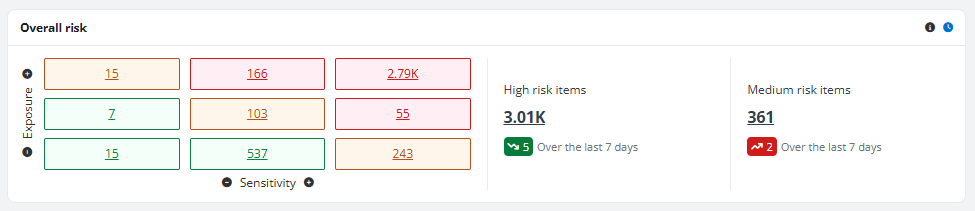
You can view a matrix that contains nine cells in three colors. Hover your mouse over a cell, and the exposure and sensitivity levels are displayed. You can also view the number of items that match the exposure and sensitivity definitions.
To the right of the matrix, you can view High risk items and Medium risk items. You can view the number of files and items with high/medium risk of the day or month. The changes in numbers for the last 7 days, last 3 months, or last 6 months can also be found below. Good Job! is shown if no risk items are discovered in the data scope. Click the number link to access the Risk analysis > Detailed records report page of the high/medium risk items.
The table below illustrates the risk level calculation based on sensitivity level and exposure level:
| Exposure level \ Sensitivity level | High | Medium | Low | Not sensitive |
|---|---|---|---|---|
| High | High Risk | High Risk | Medium Risk | No risk |
| Medium | High Risk | Medium Risk | Low Risk | No risk |
| Low | Medium Risk | Low Risk | Low Risk | No risk |
Sensitivity details
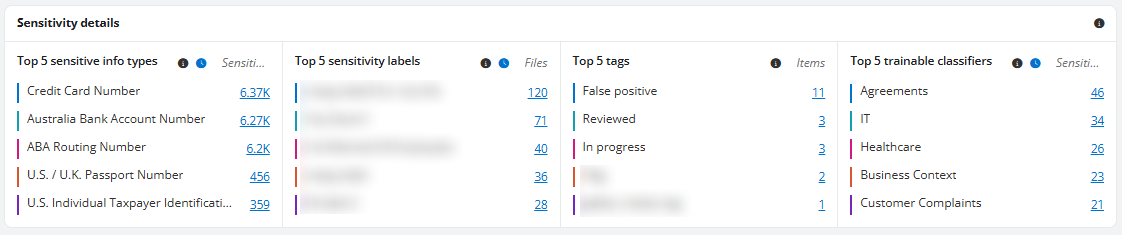
In the Sensitivity details section, the following components can be viewed.
-
Top 5 sensitive info types – The top 5 sensitive info types and the number of sensitive files and items that match the sensitive info types are displayed. Click a number link to access the Risk analysis > Detailed records page with the corresponding files and items listed.
-
Top 5 sensitivity labels – The top 5 sensitivity labels and the number of files/artifacts with the sensitivity labels applied are displayed. Click a number link to access the Risk analysis > Details records page with the files/artifacts listed.
-
Top 5 tags – The top 5 tags and the number of objects (all object levels) / artifacts with the tags applied are displayed. You can click the number link to access the Risk analysis > Details records page with the objects/artifacts listed.
-
Top 5 trainable classifiers – On the Microsoft 365 overview / Microsoft Teams / SharePoint Online / OneDrive / Microsoft 365 Group dashboard page, you can find the Top 5 trainable classifiers section.
In this section, the top 5 trainable classifiers and the number of sensitive files and items that match the trainable classifiers are displayed. You can click a trainable classifier link to access the Risk analysis > Detailed records page with the files and items listed.
-
Top 5 workspaces with high risk artifacts – On the Power BI dashboard page, you can find this section where 5 workspaces with the highest risk artifacts are listed. You can click the number link to access the Risk analysis > Details records page with the artifacts listed.
Microsoft 365 Overview
On the Microsoft 365 Overview page, besides Contributing factors, Overall risk, and Sensitivity details, you can view the External users and Summary sections.
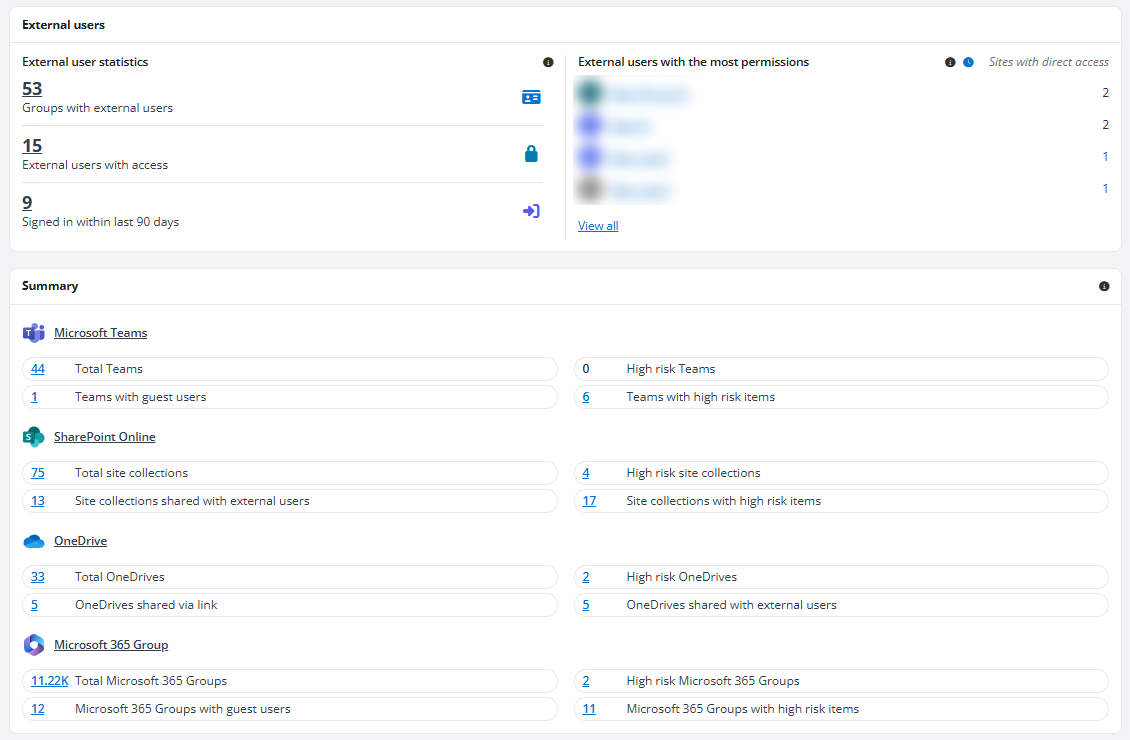
In the left pane of the External users section, you can view the number of groups in which there are external users, the number of external users that have access to objects in the configured scope, and the number of external users whose last sign-in activities on Microsoft 365 are within the last 90 days. Click a number link to access the Users > External users page with the corresponding external users listed.
In the right pane of the External users section, four external users who have direct access to the highest quantity of site collections in the configured data scope are listed with the numbers of site collections. Click the display name link of an external user to access the Access report page of the user. Click View all to access the Users > External users page with all external users listed.
In the Summary section, the summary for the enabled workspaces is displayed.
-
Microsoft Teams – The total number of Teams, the number of high risk Teams, the number of Teams in which there are guest users, and the number of Teams with high risk files and items are displayed.
-
SharePoint Online – The total number of site collections, the number of high risk site collections, the number of site collections that are shared with external users, and the number of site collections with high risk files and items are displayed.
-
OneDrive – The total number of OneDrives, the number of high risk OneDrives, the number of OneDrives shared via link, and the number of OneDrives shared with external users are displayed.
-
Microsoft 365 Group – The total number of Microsoft 365 Groups, the number of high risk Microsoft 365 Groups, the number of Microsoft 365 Groups in which there are guest users, and the number of Microsoft 365 Groups with high risk files and items are displayed.
Click a number to access the Risk analysis > Overview > Details page with the corresponding teams/site collections/OneDrives/Microsoft 365 Groups displayed.
The Please Configure scope settings for[Workspace] first message will appear for the administrator if a workspace is not enabled or containers of a workspace have no risk definition profiles assigned. Clicking Configure scope settings in the message allows you to directly access the Scope and Binding page, based on the currently used mode.
For standard users, a workspace will be hidden from the Summary section when:
-
the user does not have permission to the workspace,
-
or all containers of the workspace to which the user has permission have no risk definition profiles assigned.
Microsoft Teams Dashboard
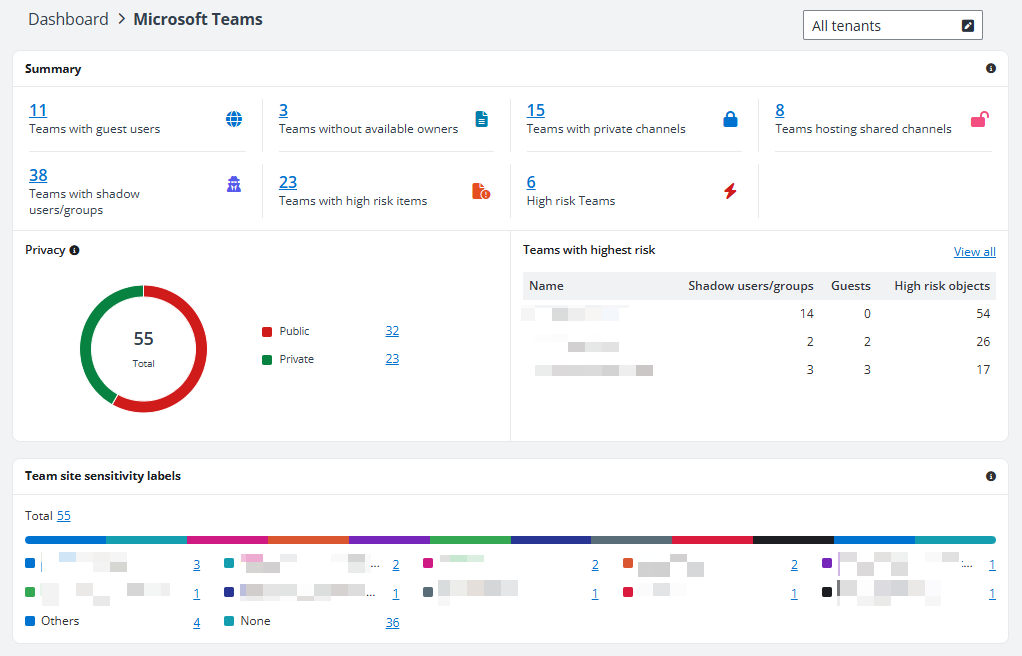
On the Microsoft Teams dashboard page, besides Contributing factors, Overall risk, and Sensitivity details, you can view the Summary, Privacy, Teams with highest risk, and Team site sensitivity labels sections.
-
In the Summary section, the numbers of teams with guest users, with shadow users/groups, without available owners, with high risk items, with private channels, hosting shared channels, and teams that are high risk in your permission scope of Microsoft Teams are displayed. If there are no high risk teams, the high risk statistic will be hidden.
-
In the Privacy section, you can view the total number of teams, the number of public teams, and the number of private teams in your permission scope of Microsoft Teams. You can also view the ratio of teams by privacy in the doughnut chart.
-
In the Teams with highest risk section, the top three teams that contain potential risks are listed in the table. The priority of the components used in risk calculation is High risk objects > Guests > Shadow users/groups. You can also view the Trusted icon for the teams in the trusted list.
Click View all in the upper-right corner to access the Risk analysis > Overview > Details page with all teams in the configured scope of Microsoft Teams displayed. For details, refer to View Overview Reports for Microsoft Teams.
-
In the Team site sensitivity labels section, the top ten sensitivity labels that are applied to team sites are displayed in the doughnut chart. The sensitivity labels with the same number of team sites are displayed in alphabetical order. You can view the number of team sites with the top ten sensitivity labels applied, the number of team sites with other sensitivity labels applied, and the number of team sites that have no sensitivity labels applied to the right of the doughnut chart.
Click a number link in each section to access the Risk analysis > Overview > Details page with the corresponding teams displayed. For details, refer to View Overview Reports for Microsoft Teams.
SharePoint Online Dashboard
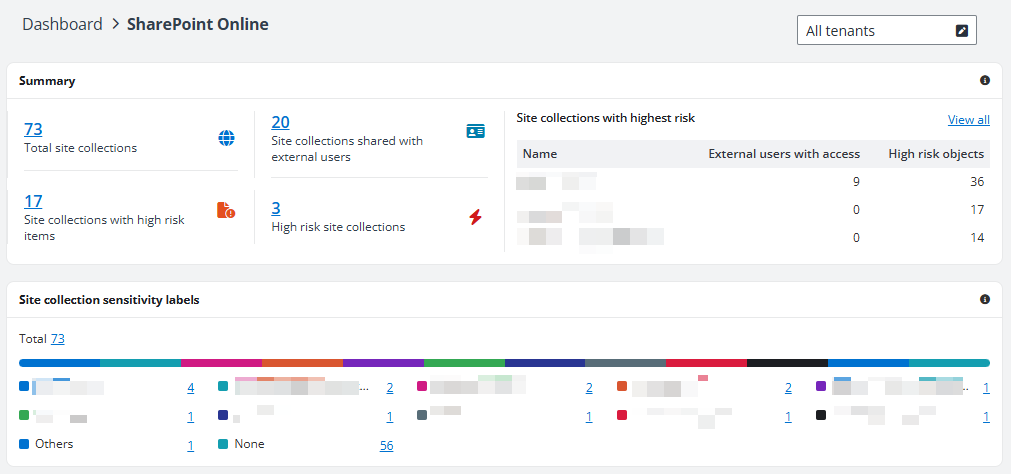
On the SharePoint Online dashboard page, besides Contributing factors, Overall risk, and Sensitivity details, you can view the Summary, Site collections with highest risk, and Site collection sensitivity labels sections.
-
In the Summary section, the total number of site collections, the number of site collections that are shared with external users, the number of site collections with high risk items, and the number of site collections that are high-risk in your permission scope of SharePoint Online are displayed. If there are no high risk site collections, the high risk statistic will be hidden.
-
In the Site collections with highest risk section, the top three sites that contain potential risks are listed in the table. The priority of the components used in risk calculation is High Risk Objects > External Users with Access. You can also view the Trusted icon for the site collections in the trusted list.
Click View all in the upper-right corner to access the Risk analysis > Overview > Details page with all site collections in the configured scope of SharePoint Online displayed.
-
In the Site collection sensitivity labels section, the top ten sensitivity labels that are applied to site collections are displayed in the doughnut chart. The sensitivity labels with the same number of site collections are displayed in alphabetical order. You can view the number of site collections with the top ten sensitivity labels applied, the number of site collections with other sensitivity labels applied, and the number of site collections that have no sensitivity labels applied to the right of the doughnut chart.
Click a number to access the Risk analysis > Overview > Details page with the corresponding site collections displayed. For details, refer to View Overview Reports for SharePoint Online and OneDrive.
OneDrive Dashboard
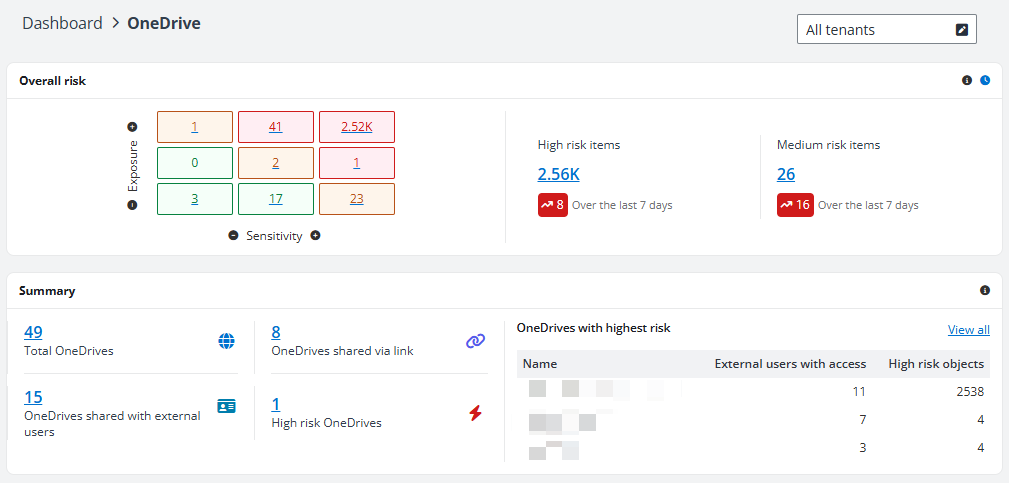
On the OneDrive dashboard page, besides Contributing factors, Overall risk, and Sensitivity details, you can view the Summary and OneDrive with highest risk sections.
-
In the Summary section, the total number of OneDrives, the number of OneDrives shared via links, the number of OneDrives that are shared with external users, and the number of OneDrives that are high-risk in your permission scope of OneDrive are displayed. If there are no high risk OneDrives, the high risk statistic will be hidden. Click a number to access the Risk analysis > Overview > Details page with the corresponding OneDrives displayed.
-
In the OneDrive with highest risk section, the top three OneDrives that contain potential risks are listed in the table. The priority of the components used in risk calculation is High Risk Objects > External User. You can also view the Trusted icon for the OneDrives in the trusted list.
Click View all in the upper-right corner to access the Risk analysis > Overview > Details page with all OneDrives in the configured scope of OneDrive displayed. For details, refer to View Overview Reports for SharePoint Online and OneDrive.
Microsoft 365 Group Dashboard
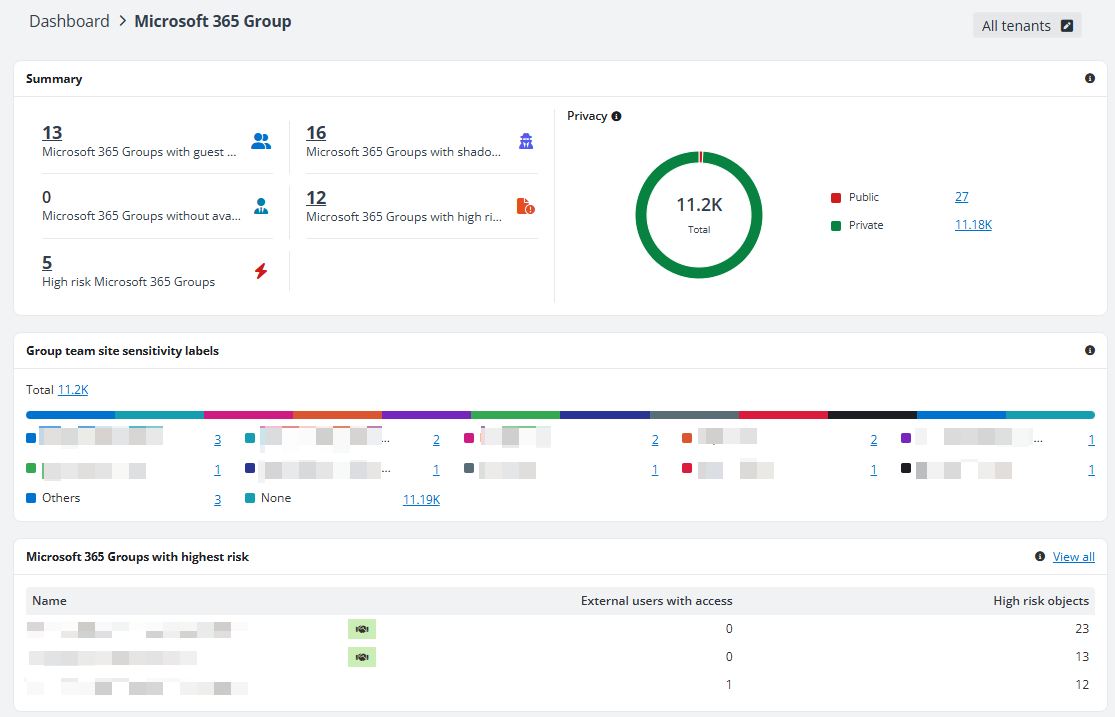
On the Microsoft 365 Group dashboard page, in addition to Contributing factors, Overall risk, and Sensitivity details, you can view the Summary, Privacy, Microsoft 365 Groups with highest risk, and Group team site sensitivity labels sections.
-
In the Summary section, the numbers of groups with guest users, with shadow users/groups, without available owners, and with high risk items, and the number of groups that are high-risk in your permission scope of Microsoft 365 Group are displayed. If there are no high risk Microsoft 365 groups, the high risk statistic will be hidden.
-
In the Privacy section, you can view the total number of groups, the number of public groups, and the number of private groups in your permission scope of Microsoft 365 Group. You can also view the ratio of groups by privacy in the doughnut chart.
-
In the Group team site sensitivity labels section, the top ten sensitivity labels that are applied to Microsoft 365 Group team sites are displayed in the doughnut chart. The sensitivity labels with the same number of Microsoft 365 Group team sites are displayed in alphabetical order. You can view the numbers of Microsoft 365 Group team sites with the top ten sensitivity labels applied, the number of Microsoft 365 Group team sites with other sensitivity labels applied, and the number of Microsoft 365 Group team sites that have no sensitivity labels applied to the right of the doughnut chart.
-
In the Microsoft 365 Groups with highest risk section, the top three groups that contain potential risks are listed in the table. The priority of the components used in risk calculation is High risk objects > Guests > Shadow users/groups. You can also view the Trusted icon for the groups in the trusted list.
Click View all in the upper-right corner to access the Risk analysis > Overview > Details page with all groups in the configured scope of Microsoft 365 Group displayed.
Click a number to access the Risk analysis > Overview > Details page with the corresponding Microsoft 365 Groups displayed. For details, refer to View Overview Reports for Microsoft 365 Group.
Power BI Dashboard
On the Power BI dashboard page, in addition to Contributing factors, Overall risk, and Sensitivity details, you can view the Summary section.

In the Summary section, the numbers of total workspaces, inactive workspaces, total artifacts, and workspaces without available admins are displayed. Click a number to access the Risk analysis > Overview > Details page with the corresponding workspaces displayed, or the Risk analysis > Detailed records page with the corresponding artifacts displayed.