
Home > Use Insights for Microsoft 365 > General Settings
Download this articleGeneral Settings
You can configure the following settings in general settings. Click the tile to access the corresponding settings page.
-
Database Settings – Choose to use the default Cosmos database or your own Cosmos database to store the Insights data.
-
Visibility Settings – Choose whether to hide IP addresses from exported activity reports, and use a customized logo in exported PDF reports.
-
User Identification – Identify the external users that have been added to your company directory and identify internal users to exclude them from security reports and exposure calculations.
-
Notification Settings – Notify specific recipients about the current risk status periodically.
-
Library Exclusions – Define libraries to be excluded from the data scan.
-
Shadow User and Group Exclusions – Define users and groups to be excluded from the security risk reports of shadow users and groups.
-
Permission History Settings – Choose whether to show the permission history for site collections from both the object and user perspectives.
-
Microsoft Entra Activity Logs – Choose whether to sync existing Microsoft Entra activity logs that are prior to using Insights for visibility.
-
Cloud Governance Integration Settings – Choose whether to retrieve data from Cloud Governance and display it in Insights for enhanced visibility and data management.
-
Scan Settings – Choose your preferred scan settings in Insights.
Database Settings
The Database settings page displays the Azure Cosmos database selection for your tenant. You can edit the database that is used to store scan results on this page. Select Default Cosmos database to use the Cosmos database provided by AvePoint, or select My own Cosmos database to use your own Cosmos database.
By default, Insights retains activity feed data in the Cosmos database for 90 days. However, data retention period extension is available as an on-demand feature for the default Cosmos database. You can contact AvePoint Technical Support or your sales representative to learn more.
If you use your own Cosmos database, all your Insights data stored in the default Cosmos database will be migrated into your own Cosmos database, and you can select the Customize the email recipients for the completion of data migration checkbox and define the email recipients to notify the configured users when the data migration completes. The data stored in the default Cosmos database will be automatically removed 30 days after the data migration.
Changing the Cosmos database will affect the running scan jobs and may take additional time to migrate your existing data. The following features will not be available after you change to use your own Cosmos database:
-
Activity explorer > Overview page
-
Risky user detection settings in Settings > General
-
Insights detections tab of the Risky users report
Complete the following database settings when My own Cosmos database is selected:
-
Connection string – Enter the primary or secondary connection string of your Azure Cosmos database. To find the connection string, refer to the following steps:
-
Log in to Azure portal.
-
Select the Azure Cosmos database that you want to use to store scan results.
-
Navigate to Settings > Keys > Read-write Keys, and you can find the primary and secondary connection strings.
-
-
Database name – The database name is automatically filled in. You can also change it to use an existing Cosmos database.
-
Container name – The container name is automatically filled in.
If you have already created a container with the same name in your database, make sure the partition key configured is /scopeid.
-
Throughput – The throughput – Request Units per second (RU/s) – required for the workload. Refer to Throughput Recommendation to estimate your required RU/s.
To change the throughput setting for your container, refer to the following steps:
-
Log in to Azure portal.
-
Navigate to your Azure Cosmos DB account and open the Data Explorer tab.
-
Under SQL API, click the Cosmos database that you configured in the database settings to load all containers.
-
Click the container that you configured in the database settings and click Scale & Settings.
-
In the Settings tab, you can configure the throughput settings for the container under Scale.
-
-
Microsoft 365 activity feed retention – Configure the retention policy for the activity feed data in your own Cosmos database.
Throughput Recommendation
The cost of all database operations is normalized by the Azure Cosmos database and is expressed by Request Units (or RUs, for short). A Request Unit is a performance currency abstracting the system resources such as CPU, IOPS, and memory that are required to perform the database operations supported by the Azure Cosmos database.
The throughput of a newly created container is 4,000 RU/s. This is also recommended if you use an existing container.
To estimate your required RU/s, refer to the following table.
| User seat (n) | RU recommendation | Cost |
|---|---|---|
| 0-2,000 | 4,000 RU/s | $35.04-$350.40 Monthly |
| 2,000-10,000 | 2n RU/s(The maximum RU/s is 20,000)2n indicates that the number of user seats is multiplied by 2. | For details, refer to Capacity Calculator. |
| >10,000 | 30,000 RU/s | $262.80-$2628.00 Monthly |
Visibility Settings
Visibility settings control the visibility of sensitive data in Insights, IP addresses in exported activity reports, and customized logo in exported PDF reports.
Sensitive content visibility
You can choose whether to show the content that matches the sensitivity conditions in Insights. With this function enabled, the sensitive content that matches a sensitive information type can be viewed under the sensitive information type.
[!NOTE]
This function can be enabled only when the premium scan mode has been enabled since the sensitive content is scanned via scan engine.
Hide IP address from exported activity reports
To conform to your organization's regulations, you can enable this setting to hide IP addresses from the exported activity reports.
Logo customization for PDF reports
With this function enabled, you can use customized logo in the exported PDF reports of Insights.
To use this function, make sure logo customization has been enabled and configured in AvePoint Online Services. For more information, refer to Logo Customization.
User Identification
On the User identification page, you can use Identify external users in your company directory to mark the external users that have been added to your directory based on your organization’s policies. This is extremely common for companies who use v- accounts to mark external contractors, vendors, or interns. By using Identify internal users in your company directory, you can mark external users as internal users and exclude them from security reports and exposure calculations.
Identify external users in your company directory
With this function enabled in the upper-right corner of the Identify external users in your company directory section, you can mark external users using one of the following methods:
-
Enter the names or email addresses of the users that you want to mark as external users in the text box.
-
Define conditions to mark users that match the conditions as external users.
Select a property from the property drop-down list, select a condition from the condition drop-down list, and enter a value in the text box to define a condition. Click Add condition to add another condition. You can define the logical relationship of the conditions by clicking the All link in the upper-left corner of the conditions and clicking All or Any in the drop-down list.
-
All – The users that meet all the conditions you configured will be marked as external users
-
Any – The users that meet any one of the conditions you configured will be marked as external users.
-
Click Apply to apply the settings. Note that the exposure calculation will be adjusted based on these settings, and Insights will start updating report statistics in 24 hours. The update may take some time to complete based on your data volume.
Identify internal users in your company directory
With this function enabled in the upper-right corner of the Identify internal users in your company directory section, you can mark external users as internal users using one of the following methods:
-
Enter the names or email addresses of the users that you want to mark as internal users in the text box.
-
Enter the names of the domains in which the external users you want to mark as internal users when they exist in your company directory or have permissions to access the data in the configured scope.
Click Apply to apply the settings. Note that the exposure calculation will be adjusted based on these settings, and Insights will start updating report statistics in 24 hours. The update may take some time to complete based on your data volume.
Notification Settings
Insights provides three types of notifications to send you information periodically. You can use the default notifications directly, edit them as required, and configure new notifications based on your requirements.
The following actions are available after you select a notification type to view notifications.
-
Create – Click Create to create a new notification of the currently notification type.
-
Edit – Select a notification and click Edit to edit the notification settings.
-
Refresh – Click Refresh to view the latest notification list.
-
Enable/Disable – Click the gray toggle or blue toggle button in the Status column of a notification to enable or disable the notification.
NOTEThese actions are not available for risk remediation notification templates.
-
Delete – Select a disabled notification and click Delete from the ellipsis drop-down list.
Risk status notification
Insights can send you email notifications for your current risk status. The settings below can be configured:
-
In the Basics step, enter a name and optional description for future reference.
-
In the Notification content step, the Subject is automatically filled in. You can change the subject as required and set the email body in the main text box. Select the information that you want to show on the data table.
-
In the Scope and schedule step, configure the following settings:
-
Start date and time – Select the start date and time of the email notifications.
-
Interval – Configure the interval of the email notifications. By default, email notifications will be sent when a scan is completed. You can select the Only send notifications when there are changes to risk checkbox to only send notifications when there are risk changes in the scanned data.
-
Email recipient – Enter the names of the users and/or groups who will receive the notifications, and select them from the suggestion list. The recipients can only view the high risk report of data to which they have been granted permissions in Insights.
NOTEOnly users and groups that are members of security groups in User Management can be configured as email recipients.
-
-
In the Review step, check the settings you configured. Click Save to save the notification.
Custom risk notification
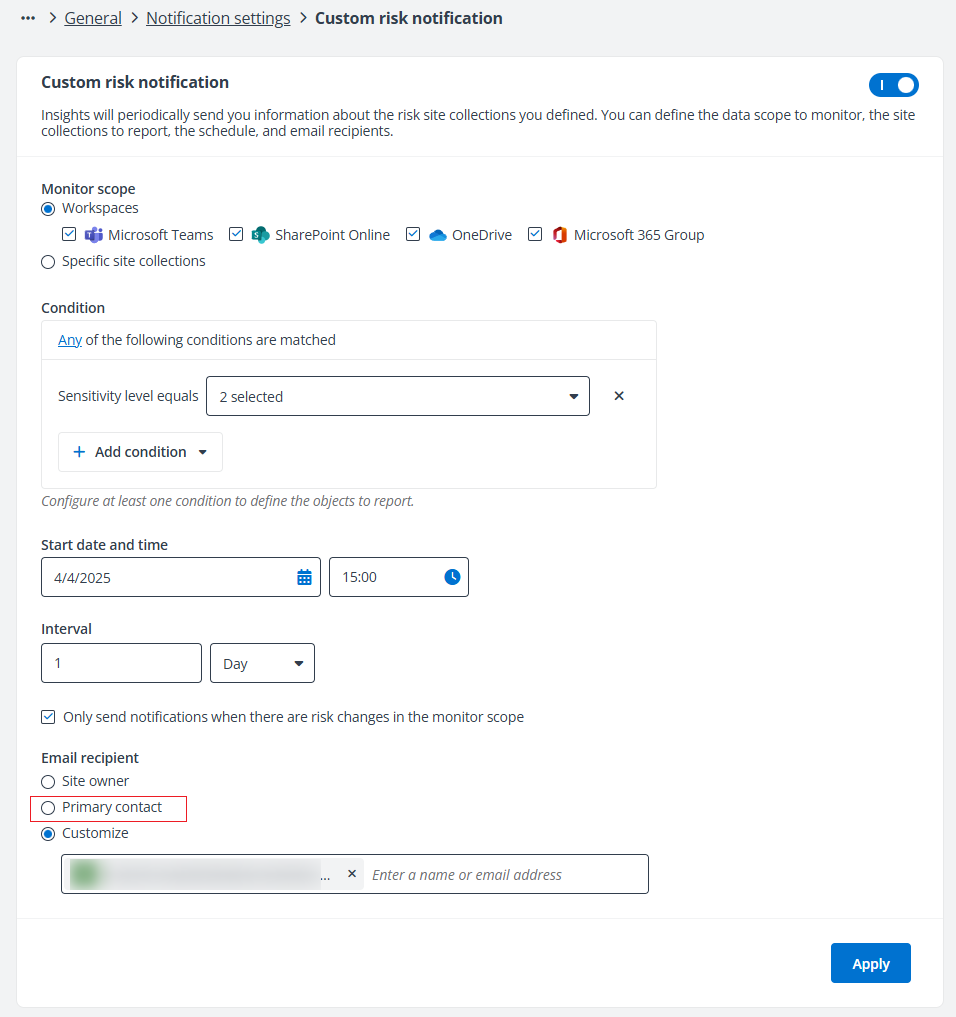
Insights can send you email notifications for the risk site collections you defined. You can configure the data scope to monitor, the site collections to report, the schedule, and email recipients.
-
In the Basics step, enter a name and optional description for future reference.
-
In the Notification content step, the Subject is automatically filled in. You can change the subject as required and set the email body in the main text box.
-
In the Scope and schedule step, configure the following settings:
-
Monitor scope – Define the data scope that you want to monitor.
-
Workspaces – Select the workspaces for which you want to monitor risk site collections.
-
Specific site collections – Enter the domain name or site name in the URL of the site collection, and the suggestion list appears. Select the site collection that you want to monitor from the suggestion list. Multiple site collections will be monitored in batches.
-
-
Condition – Configure at least one condition to define the site collections to report.
-
Sensitivity level equals – Select one or multiple sensitivity levels to include the site collections with matched sensitivity levels in the notification.
-
Exposure level equals – Select one or multiple exposure levels to include the site collections with matched exposure levels in the notification.
You can define the logical relationship of the conditions by clicking the Any link in the upper-left corner of the conditions and clicking All or Any in the drop-down list.
-
-
-
Start date and time – Select the start date and time of the email notifications.
-
Interval – Configure the interval of the email notifications. By default, email notifications will be sent based on the interval setting. You can select the Only send notifications when there are risk changes in the monitor scope checkbox to only send notifications when there are risk changes in the data scope that you configured to monitor.
-
Email recipient – Select Site owner or Primary contact as the email recipients. Alternatively, select Customize and configure specific users and/or groups as the email recipient.
NOTEOnly users and groups that are members of security groups in User Management can be configured as email recipients. The Primary contact option will be displayed only when the corresponding setting has been enabled in Cloud Governance Integration Settings.
- In the Review step, check the settings you configured. Click Save to save the notification.
Risky user notification
Insights can send you email notifications for risky users detected in a specific date range. The settings below can be configured:
-
In the Basics step, enter a name and optional description for future reference.
-
In the Notification content step, the Subject is automatically filled in. You can change the subject as required and set the email body in the main text box. Select the information that you want to show on the data table.
-
In the Scope and schedule step, configure the following settings:
-
Monitor scope – Select to monitor the risky users detected by Microsoft Entra ID or Insights.
-
Start date and time – Select the start date and time of the email notifications.
-
Interval – Configure the interval of the email notifications. By default, email notifications will be sent when a scan is completed. You can select the Only send notifications when there are new risky users checkbox to only send notifications when there are new risky users in the scanned data.
-
Email recipient – Enter the names of the users and/or groups who will receive the notifications, and select them from the suggestion list.
NOTEOnly users and groups that are members of security groups in User Management can be configured as email recipients.
-
-
In the Review step, check the settings you configured. Click Save to save the notification.
Risk remediation notification templates
Risk remediation notification templates can be selected when you use the Notify action to notify content owners or site administrators of potential risks that may require manual remediation.
The settings below can be configured:
-
In the Basics step, enter a name and optional description for future reference.
-
In the Notification content step, enter a subject for the notification email and set the email body in the main text box.
-
In the Review step, check the settings you configured. Click Save to save the notification.
Library Exclusions
You can exclude libraries from scanning and reporting on security risks, especially those in your environment that are trusted.
You can refer to Appendix D: Objects Skipped in Scan for certain system libraries and lists that have been excluded from the data scan by default.
With this function enabled in the upper-right corner of the Library exclusions section, you can enter the library names that you want to exclude from the data scan in the text box. Multiple library names can be entered.
If the library name differs from that in the full URL of the library, use the library name in the URL. If the library name is the same as that in the full URL of the library, use the library name.
Click Apply to apply the settings. All libraries with the defined names in the configured scope will be excluded from the data scan and security risk reports. If the libraries with the defined names were scanned and included in the security risk reports, they will be removed from the reports in 6 hours. If you remove the defined library names or disable library exclusions, those libraries will only be scanned when there are new activities in the libraries.
Shadow User and Group Exclusions
You can exclude specific users and groups, or users and groups with certain names from being identified as shadow users and groups, and exclude them from security risk reports of shadow users and groups.
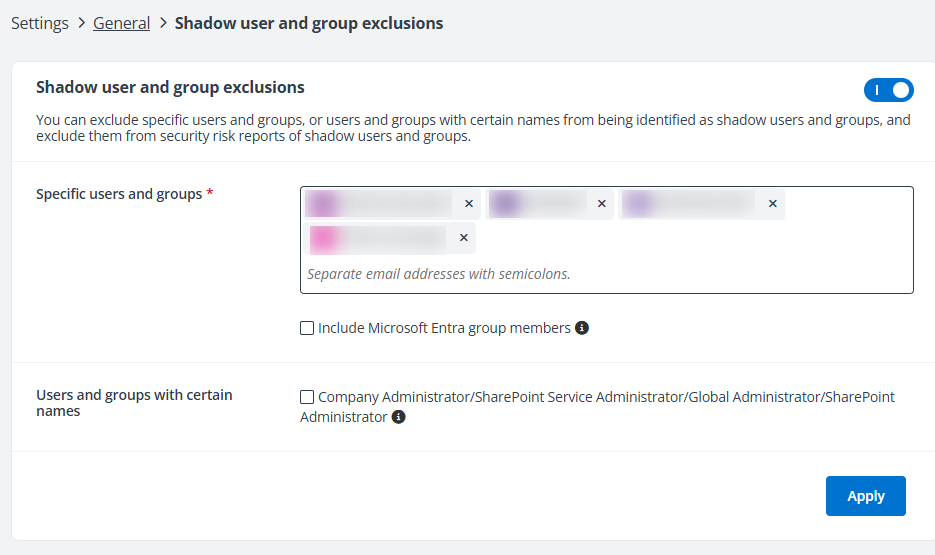
With this function enabled in the upper-right corner of the Shadow user and group exclusions section, you can define the users and groups that you want to exclude from the shadow users and groups report.
-
Specific users and groups – For a single user or group, enter the name or email address of the desired user or group, and select the user or group from the suggestion list. You can also add users and groups in batch by entering their email addresses and separating the email addresses with semicolons.
- Include Microsoft Entra group members – Select the checkbox to exclude the members of the Microsoft Entra groups in the text box from being identified as shadow users and exclude them from security risk reports of shadow users.
-
Users and groups with certain name – You can select the Company Administrator/SharePoint Service Administrator/Global Administrator/SharePoint Administrator checkbox to exclude the Company Administrator, SharePoint Service Administrator, Global Administrator, and SharePoint Administrator users and groups from being identified as shadow users and groups, and exclude them from shadow users and groups.
Click Apply to apply the settings for shadow user and group exclusions.
Permission History Settings
You can choose whether to show the permission history for site collections from both the object and user perspectives.
With this function enabled, you can define the data scope by selecting one of the following options.
-
Specific site collections – Specify the site collections in the text box.
-
Import site collections – Click Download template, configure site collections in the file, and then import site collections from the file.
-
Containers – Select one or multiple containers to select the underlying site collections.
After configuring the site collections, click Apply to save and apply the permission history settings.
Insights will collect permission related activity feeds from Microsoft 365 and display the permission changes for the site collections in the scope, as well as the underlying content.
The maximum number of site collections where permission history can be enabled, along with the available date range for this history, are offered as on-demand features. You can contact AvePoint Technical Support or your sales representative to learn more.
Microsoft Entra Activity Logs
Insights retrieve real-time audit logs and sign-ins since the initial configurations are applied from Microsoft Entra ID, which retains this data for a fixed period by default. To access extended audit logs and sign-in records, you can enable the on-demand feature to store Microsoft Entra activities in Insights. You can contact AvePoint Technical Support or your sales representative to learn more.
You can further choose to sync existing Microsoft Entra activities from Cloud Backup for IaaS + PaaS to view the audit logs and sign-ins before you start using Insights in Activity Explorer.
This setting can be enabled only when the following conditions are met:
-
You have available subscription for Cloud Backup for IaaS + PaaS.
-
You have enabled this on-demand feature.
Cloud Governance Integration Settings
With a Cloud Governance subscription, you can enable below settings to retrieve corresponding data from Cloud Governance and display it in Insights for enhanced visibility and data management. Click the gray toggle button to the right of each setting to enable it.
-
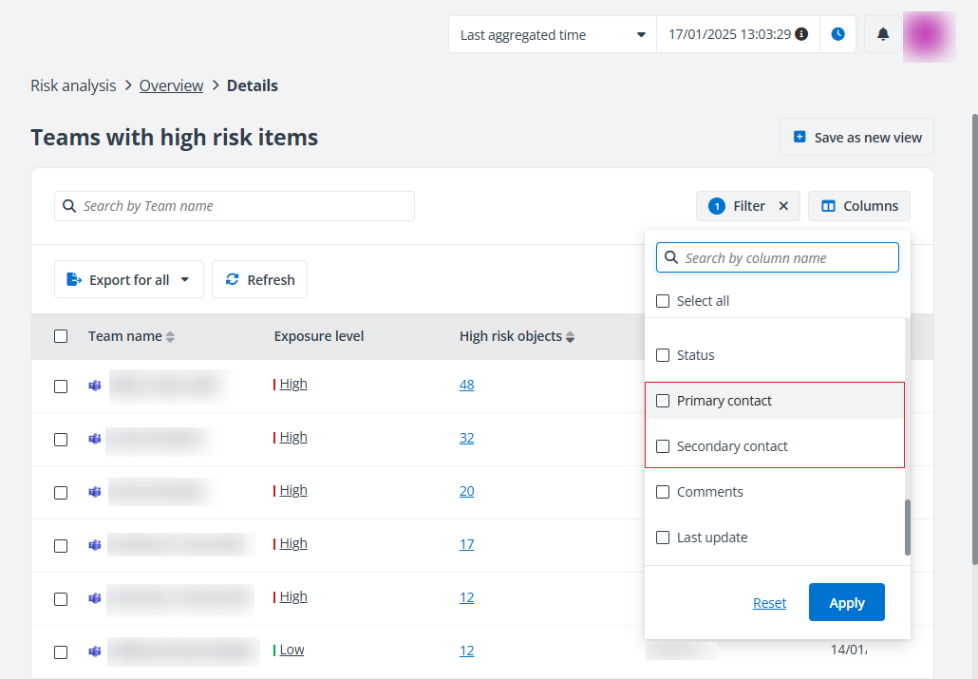
Contacts for workspaces – Choose whether to sync the primary contact and secondary contact for workspaces and display the information in the risk analysis workspaces report. This applies to Microsoft Teams, SharePoint Online, and Microsoft 365 Group.
With this setting enabled, you can view the primary contact and secondary contact of workspaces as below.
-
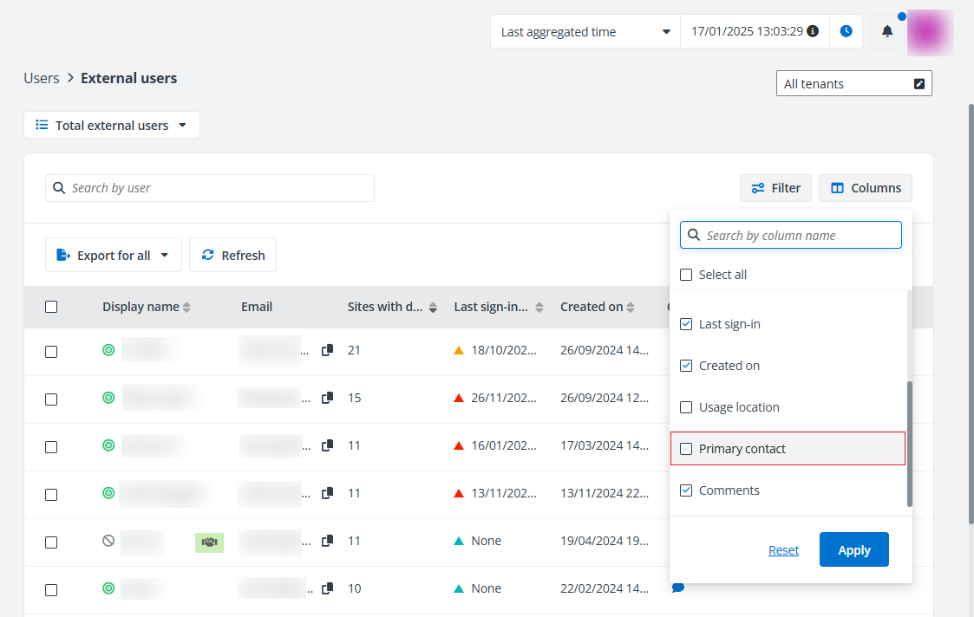
Primary contact for external users – Choose whether to sync the primary contact for external users and display the information in the External users report.
With this setting enabled, you can view the primary contact of external users as below.
-
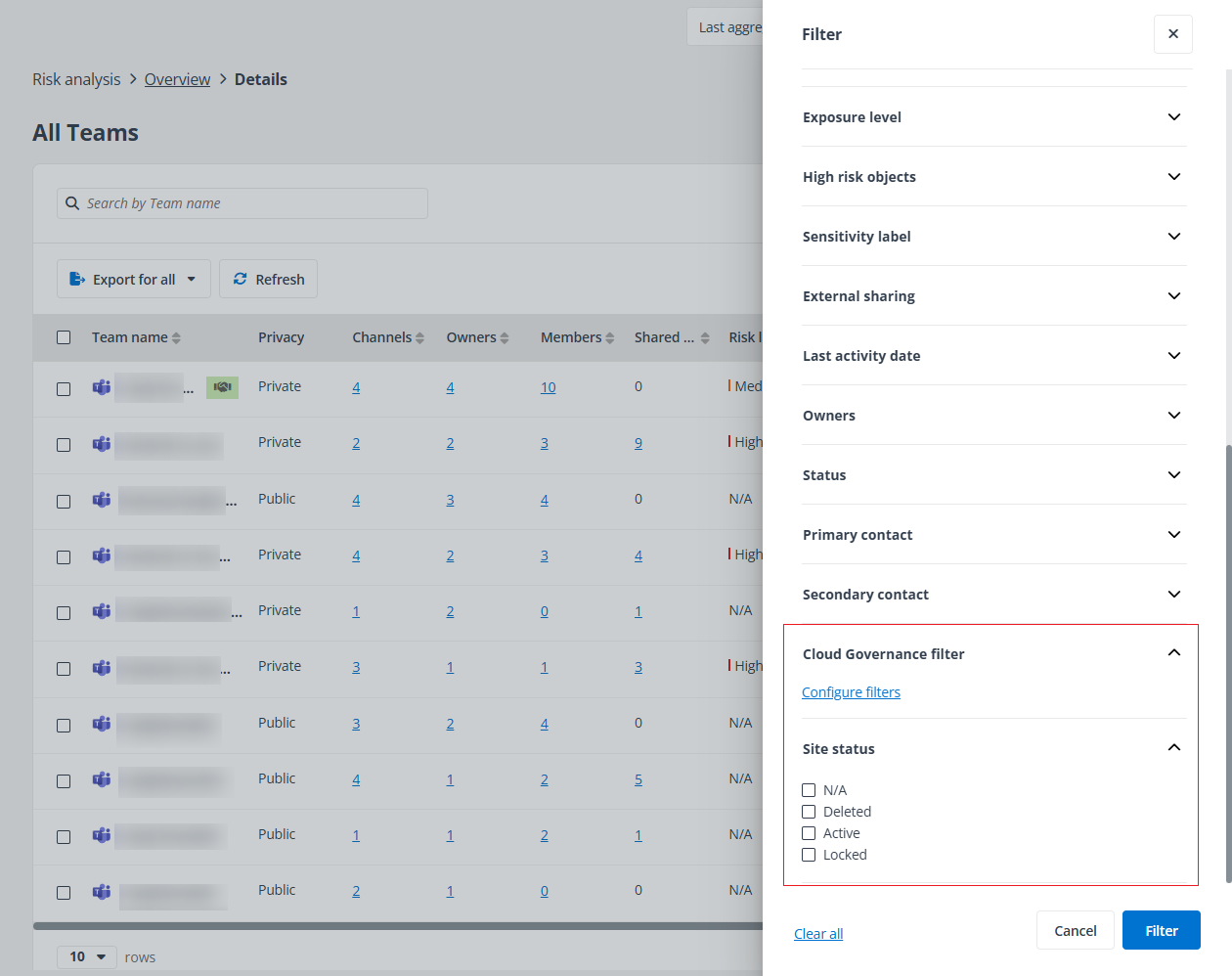
Cloud Governance filter – Choose whether to display Cloud Governance metadata applied to workspaces as filter options in the risk analysis workspaces report, as well as the Site status statistic in the risk analysis workspaces report and access report.
With this setting enabled, you can view the filters as below.
-
Primary contact as email recipient – Choose whether to sync the primary contact for workspaces and display Primary contact as an email recipient option for custom risk notification.
With this setting enabled, the Primary contact option is available when you configure settings for the custom risk notification. For details, refer to Notification Settings.
Scan Settings
By default, Insights discovers all your sensitive data based on your sensitivity definitions, as well as all data with unique permission settings. You can adjust your preferred scan settings in Insights.
-
Data scan priority – The Comprehensive option is selected by default. To enable faster reporting of exposure-related issues, select the Risk-prioritized option to scan objects with unique permissions before scanning for sensitive data. You can view the fully baked analytics later.
-
Enable premium scan mode – Click the toggle button to enable premium scan mode.
NOTEThe premium scan mode is currently in private preview mode and is available as an on-demand feature. You can contact AvePoint Technical Support or your sales representative for more information.
-
Enhanced scan with verification – With this scan mode selected, you can bind scan engine conditions to Microsoft 365 sensitive info types or custom information types, and verify the info types used in risk definition profiles against those bound conditions.
-
Premium scan – With premium scan mode, you can use scan engine conditions in risk definition profiles directly.
-