
Home > Use Insights for Google > Risk Analysis > View Permissions
Download this articleView Permissions
On the View permissions page, you can view the name of the object for which you are viewing permissions above the table.
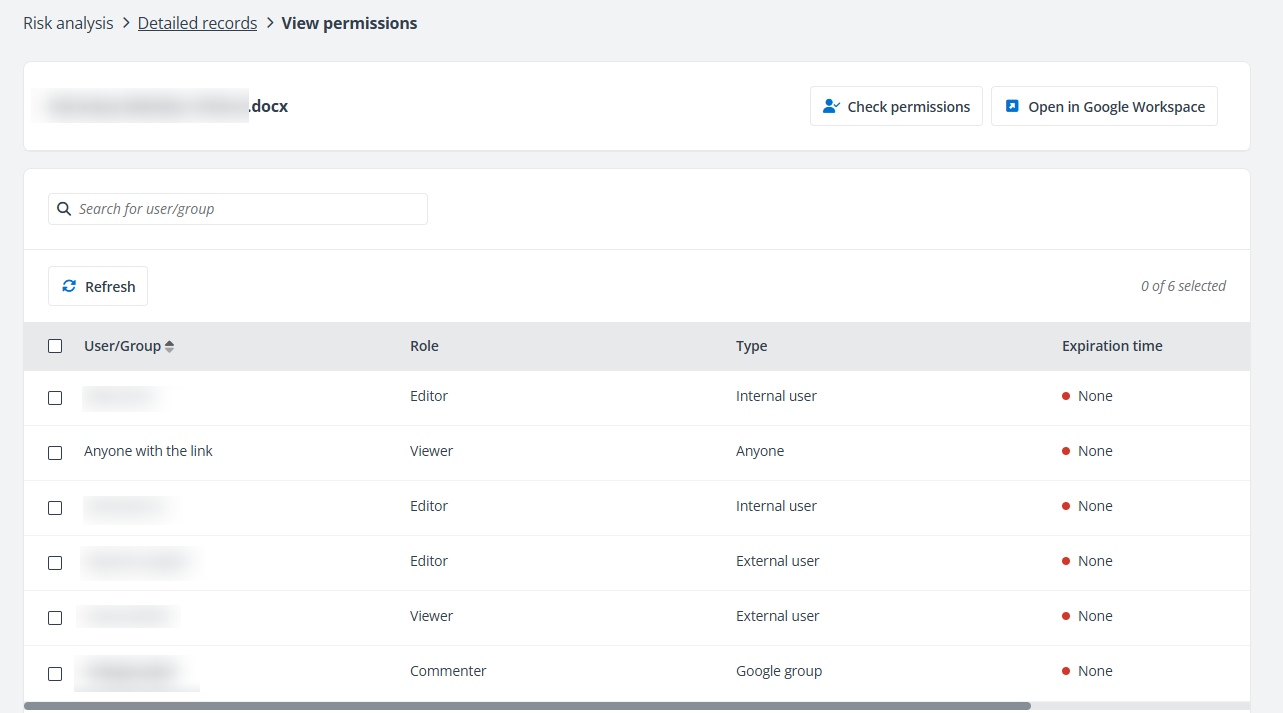
The users and groups who have permissions to the object are listed in the table. Click Filter, and you can configure the filter conditions to filter the users and groups displayed in the table.
-
User/Group – The user or group that has permissions to the object, or the shared link to the object. Click the group name, and the View group members window appears listing the group members in the table. You can click the photo of the user or group in the table to view additional metadata. You can also click a group name to view all members in it.
-
Role – The role assigned to the user or group for the object, or the role granted by the shared link.
-
Type – The type of the user, group, or shared link.
-
Expiration time – If the object is shared via link, the expiration date of the link will be displayed here.
Click Check permissions in the upper-right corner of the page, and the Check permissions window appears on the right pane. Enter the name or email address of the user or group in the text box and select the user/group from the suggestion list. The permission details of the user or group to the object are displayed below. Select the roles that you want to remove from the user and click Remove permissions to remove the user permissions for the object.
Click Open in Google Workspace in the upper-right corner of the page to open the object in Google Workspace.
Select one or multiple users or groups in the table, and click Edit permission to edit the permission in batch. You can also click Remove permissions to remove permissions from the users or groups.
Select one or multiple users or groups in the table, and click Set expiration time to set an expiration for the access, or click Remove expiration to remove the expiration from the access.
Click Refresh above the table to refresh the users and groups listed in the table.
You can also click Filter in the upper-right corner of the table to filter the users and groups displayed in the table by role, type, and expiration time.