
Home > Use Insights for Microsoft 365 > Risk Definition Administration
Download this articleRisk Definition Administration
The risk definition settings have already been configured when the first tenant user logs into Insights and completes the initial configurations. You can make updates to your risk definition settings as required by clicking Settings > Risk definition. The following tiles can be viewed on the Risk definition page.
-
Risk Definition Profiles
-
Sensitive Information Type Availability Test
-
Scope and Binding
-
Data Type Management
Default Settings of Sensitivity and Exposure Definitions
Refer to the sections below for the default settings of sensitivity definitions and exposure definitions provided by Insights.
Default Settings of Sensitivity Definitions based on Your Data Center
Based on your AvePoint Online Services data center, Insights will automatically enable some of the built-in sensitivity definitions in the Default profile. You can also configure them based on your own requirements. For details about how to configure sensitivity definitions, refer to Sensitivity Definitions.
For each built-in sensitivity definition, default settings are provided for both the High and Medium sensitivity levels.
-
High sensitivity level – When ALL of the conditions are matched in a sensitivity definition, the object’s sensitivity level is High.
-
Medium sensitivity level – When ANY of the conditions are matched in a sensitivity definition, the object’s sensitivity level is Medium.
There are no default settings for the Low sensitivity level. N/A is displayed for container levels and the objects that do not match the default settings for the High or Medium sensitivity level.
Refer to the table below for the conditions used in each built-in sensitivity definition by default.
| Data center | Sensitivity definition | Conditions |
|---|---|---|
| Australia Southeast (Victoria) | Australia Personally Identifiable Information (PII) Data | Australia Tax File Number Australia Driver’s License Number |
| Australia Southeast (Victoria) | Australia Financial Data | Credit Card Number Australia Tax File Number Australia Bank Account Number SWIFT Code |
| Australia Southeast (Victoria) | Australia Health Records Act (HRIP Act) | Australia Tax File Number Australia Medical Account Number |
| Australia Southeast (Victoria) | Australia Privacy Act | Australia Driver’s License Number Australia Passport Number |
| Canada Central (Toronto) | Canada Financial Data | Credit Card Number Canada Bank Account Number |
| Canada Central (Toronto) | Canada Health Information Act (HIA) | Canada Passport Number Canada Social Insurance Number Canada Health Service Number Canada Personal Health Identification Number (PHIN) |
| Canada Central (Toronto) | Canada Personal Health Act (PHIPA) – Ontario | Canada Passport Number Canada Social Insurance Number Canada Health Service Number Canada Personal Health Identification Number (PHIN) |
| Canada Central (Toronto) | Canada Personal Health Information Act (PHIA) – Manitoba | Canada Social Insurance Number Canada Health Service Number Canada Personal Health Identification Number (PHIN) |
| Canada Central (Toronto) | Canada Personal Information Protection Act (PIPEDA) | Canada Driver’s License Number Canada Bank Account Number Canada Passport Number Canada Social Insurance Number Canada Health Service Number Canada Personal Health Identification Number (PHIN) |
| Canada Central (Toronto) | Canada Personal Information Protection Act (PIPA) | Canada Passport Number Canada Social Insurance Number Canada Health Service Number Canada Personal Health Identification Number (PHIN) |
| Canada Central (Toronto) | Canada Personally Identifiable Information (PII) Data | Canada Driver’s License Number Canada Bank Account Number Canada Passport Number Canada Social Insurance Number Canada Health Service Number Canada Personal Health Identification Number (PHIN) |
| East US (Virginia) | U.S. Personally Identifiable Information (PII) Data | U.S. Individual Taxpayer Identification Number (ITIN) U.S. Social Security Number (SSN) U.S. / U.K. Passport Number |
| East US (Virginia) | U.S. Health Insurance Act (HIPAA) | U.S. Social Security Number (SSN) Drug Enforcement Agency (DEA) Number |
| East US (Virginia) | U.S. Patriot Act | Credit Card Number U.S. Bank Account Number U.S. Individual Taxpayer Identification Number (ITIN) U.S. Social Security Number (SSN) |
| East US (Virginia) | U.S. State Breach Notification Laws | Credit Card Number U.S. Bank Account Number U.S. Driver’s License Number U.S. Social Security Number (SSN) |
| East US (Virginia) | U.S. Federal Trade Commission (FTC) Consumer Rules | Credit Card Number U.S. Bank Account Number ABA Routing Number |
| East US (Virginia) | U.S. Financial Data | Credit Card Number U.S. Bank Account Number ABA Routing Number |
| East US (Virginia) | U.S. Gramm-Leach-Bliley Act (GLBA) | Credit Card Number U.S. Bank Account Number U.S. Individual Taxpayer Identification Number (ITIN) U.S. Social Security Number (SSN) |
| France Central (Paris) | France Financial Data | Credit Card Number EU Debit Card Number |
| France Central (Paris) | France Personally Identifiable Information (PII) Data | France Social Security Number (INSEE) France Driver’s License Number France Passport Number France National ID Card (CNI) |
| France Central (Paris) | France Data Protection Act | France National ID Card (CNI) France Social Security Number (INSEE) |
| Germany West Central (Frankfurt) | Germany Personally Identifiable Information (PII) Data | German Driver’s License Number German Passport Number |
| Germany West Central (Frankfurt) | Germany Financial Data | Credit Card Number EU Debit Card Number |
| Japan West (Osaka) | Japan Personally Identifiable Information (PII) Data | Japan Resident Registration Number Japan Social Insurance Number (SIN) |
| Japan West (Osaka) | Japan Financial Data | Japan Bank Account Number Credit Card Number |
| Japan West (Osaka) | Japan Protection of Personal Information | Japan Resident Registration Number Japan Social Insurance Number (SIN) |
| Korea Central (Seoul) | PCI Data Security Standard (PCI DSS) | Credit Card Number IP Address |
| North Europe (Ireland) | General Data Protection Regulation (GDPR) | EU Debit Card Number EU Driver’s License Number EU National Identification Number EU Passport Number EU Tax Identification Number (TIN) EU Social Security Number (SSN) or Equivalent ID |
| Southeast Asia (Singapore) | PCI Data Security Standard (PCI DSS) | Credit Card Number IP Address |
| Switzerland North (Zurich) | General Data Protection Regulation (GDPR) | EU Debit Card Number EU Driver’s License Number EU National Identification Number EU Passport Number EU Tax Identification Number (TIN) EU Social Security Number (SSN) or Equivalent ID |
| UK South (London) | U.K. Personally Identifiable Information (PII) Data | U.K. National Insurance Number (NINO) U.S. / U.K. Passport Number |
| UK South (London) | U.K. Access to Medical Reports Act | U.K. National Health Service Number U.K. National Insurance Number (NINO) |
| UK South (London) | U.K. Data Protection Act | U.K. National Insurance Number (NINO) U.S. / U.K. Passport Number SWIFT Code |
| UK South (London) | U.K. Personal Information Online Code of Practice (PIOCP) | U.K. National Insurance Number (NINO) U.K. National Health Service Number SWIFT Code |
| UK South (London) | U.K. Financial Data | Credit Card Number EU Debit Card Number SWIFT Code |
| US Gov Virginia (Virginia) | U.S. Personally Identifiable Information (PII) Data | U.S. Individual Taxpayer Identification Number (ITIN) U.S. Social Security Number (SSN) U.S. / U.K. Passport Number |
| US Gov Virginia (Virginia) | U.S. Health Insurance Act (HIPAA) | U.S. Social Security Number (SSN) Drug Enforcement Agency (DEA) Number |
| US Gov Virginia (Virginia) | U.S. Patriot Act | Credit Card Number U.S. Bank Account Number U.S. Individual Taxpayer Identification Number (ITIN) U.S. Social Security Number (SSN) |
| US Gov Virginia (Virginia) | U.S. State Breach Notification Laws | Credit Card Number U.S. Bank Account Number U.S. Driver’s License Number U.S. Social Security Number (SSN) |
| US Gov Virginia (Virginia) | U.S. Federal Trade Commission (FTC) Consumer Rules | Credit Card Number U.S. Bank Account Number ABA Routing Number |
| US Gov Virginia (Virginia) | U.S. Financial Data | Credit Card Number U.S. Bank Account Number ABA Routing Number |
| US Gov Virginia (Virginia) | U.S. Gramm-Leach-Bliley Act (GLBA) | Credit Card Number U.S. Bank Account Number U.S. Individual Taxpayer Identification Number (ITIN) U.S. Social Security Number (SSN) |
| West Europe (Netherlands) | General Data Protection Regulation (GDPR) | EU Debit Card Number EU Driver’s License Number EU National Identification Number EU Passport Number EU Tax Identification Number (TIN) EU Social Security Number (SSN) or Equivalent ID |
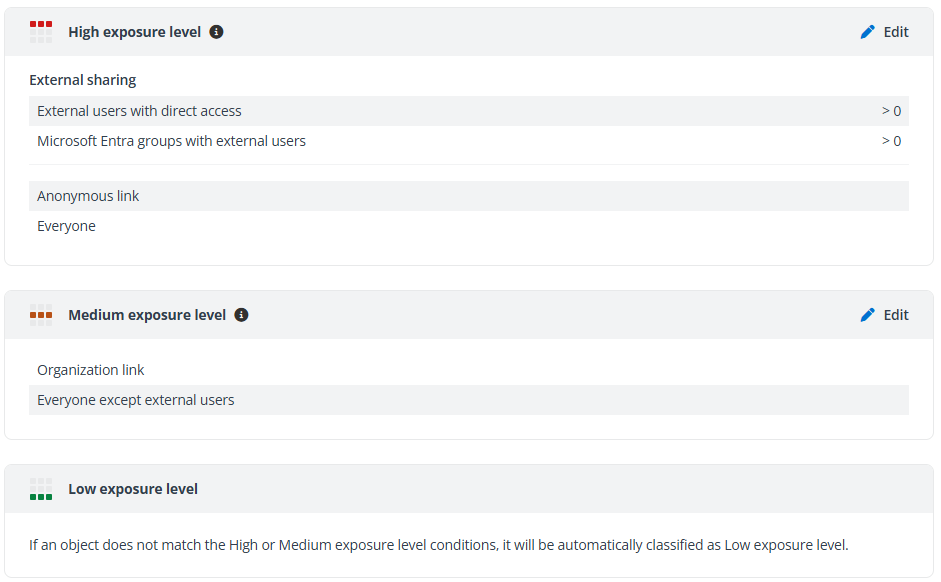
Default Settings of Exposure Definitions
Insights provides default settings of exposure definitions. You can also configure them based on your own requirements. For details about configuring these settings, refer to Exposure Definitions.
Risk Definition Profiles
On the Risk definition profiles page, existing profiles are listed in the table, including the built-in Default profile. You can search for a specific profile by entering the profile name in the search box and pressing Enter on the keyboard.
On this page, the following actions are available to manage profiles.
-
New profile – Click New profile on the Risk definition profiles page, and the New profile page will appear.
-
In the Profile information step, select a definition type (Microsoft 365, Power BI, or AI agent), enter a name and optional description for the profile. Click Next to go to the next step.
-
In the Sensitivity definitions step, configure the sensitivity definitions that you want to use in the profile. You can use the existing definitions or create a new one by clicking New definition. For detailed information, refer to Sensitivity Definitions.
-
In the Sensitive item exclusions step, configure whether to exclude specific items from being reported as sensitive items in Insights. For detailed information, refer to Sensitive Item Exclusions. Click Next to go to the next step.
NOTEThis step is not available for AI agent profiles.
-
In the Exposure definitions step, configure the exposure definitions that you want to use in the profile. For detailed information, refer to Exposure Definitions. Click Next to go to the next step.
-
In the Review step, click Save to save the risk definition profile. You can also click Back to go back to the previous step or click Cancel to discard changes.
If you select Risky user / Risky app as the definition type, the following steps are available to configure the risk definition profile:
-
In the Activity detection settings step, you can configure settings for risky user detection and risky app detection separately. For detailed information, refer to Activity Detection Settings.
-
In the Risky item exclusions step, you can configure whether to exclude specific users and/or apps from being reported as risky users and/or apps in Insights. For detailed information, refer to Risky Item Exclusions.
-
-
View – Select a profile and click View on the ribbon to view the profile details on the right pane. Alternatively, click the ellipsis button to the right of a profile row, and click View from the drop-down list.
-
Edit – Select a profile and click Edit on the ribbon to edit the profile. Alternatively, click the ellipsis button to the right of a profile row, and click Edit from the drop-down list. The Edit profile page appears, where you can edit the profile information.
-
Duplicate – Select a profile and click Duplicate on the ribbon to duplicate the profile. Alternatively, click the ellipsis button to the right of a profile row, and click Duplicate from the drop-down list. The New profile page appears with the settings of the profile. The new profile name is suffixed with – Copy.
-
Delete – Select one or multiple profiles that you want to delete and click Delete above the table. Alternatively, click the ellipsis button to the right of a profile row, and click Delete from the drop-down list.
NOTEDefault profile cannot be deleted.
With desired risk definition profiles created, you can now apply the profiles to data scopes based on your requirements. You can click the Scope and binding link on the right pane to access the Scope and Binding page directly.
Sensitivity Definitions
On the Sensitivity definitions step, existing definitions are listed in the table, including the built-in definitions. You can filter the displayed definitions by clicking Filter in the upper-right corner of the table, selecting desired filter options from the drop-down lists separately, and clicking Filter. You can also click Refresh to refresh the displayed definitions in the table.
For each definition, you can view its template, country or region, and status.
-
Click the blue toggle button in front of a definition to disable the definition.
-
Click the gray toggle button in front of a definition to enable the definition.
Click the ellipsis button to the left of a definition, and the available actions are displayed in the drop-down list.
-
Click View to view details of the sensitivity definition.
-
Click Edit to edit the definition.
-
Click Duplicate to access the New definition page with the definition settings of this definition duplicated and displayed.
-
Click Delete to delete the definition.
NOTEOnly custom definitions can be deleted.
Create New Definition
In the Sensitivity definitions step, click New definition to create a new definition.
In the New definition window, complete the following information:
-
Name – Enter a name for the definition.
-
Level – Select a level for the definition, Item or Site collection. Item (scan engine) will be available if you choose the Hybrid sensitivity scan method in Scan Settings.
-
Template – Select a template for the definition. Currently, only Custom can be selected.
-
Country or region – Select the country or region for which this definition will be used.
In the High sensitivity level, Medium sensitivity level, and Low sensitivity level sections, multiple conditions and/or condition groups can be configured.
To add a new group of conditions for a sensitivity level, click Add a group.
You can click the Delete button in the upper-right corner of a group to delete the group from the sensitivity level.
In each condition group, you can perform the following actions to manage the group:
-
You can define the logical relationship of the conditions and/or groups in this group by clicking the All link in the upper-left corner of the group and clicking All or Any in the drop-down list.
-
All – An object that meets all the conditions and groups in this group is discovered and classified as the corresponding sensitivity level.
-
Any – An object that meets any one of the conditions and groups in this group is discovered and classified as the corresponding sensitivity level.
NOTEA file can only have one sensitivity label. To use more than one sensitivity label for your sensitivity definition, make sure the Any logical relationship is used.
-
-
Click Add condition in the upper-left corner of the group, and the Add condition window appears. For details on how to add a condition, refer to the Add Condition section below.
-
You can click the Delete button to the right of the condition to delete the condition from the group.
-
Click Add a group to add a condition group to this group.
-
You can click the Delete button in the upper-right corner of a group to delete the group.
Add Condition
For the Item level sensitivity definition, there are five tabs in the Add condition window.
Microsoft 365 sensitive info types and custom information types can be used for the following file types: .vsdx, .vss, .odt, .msg, .xls, .xml, .nws, .jhtml, .dot, .docm, .url, .doc, .mht, .one, .ods, .xps, .vsd, .vdx, .pub, .dotx, .vst, .csv, .vsx, .xlsb, .jsp, .vssm, .vsdm, .zip, .vtx, .asp, .php, .vstx, .vstm, .vdw, .pdf, .vssx, .xlsm, .eml, .xlsx, .mspx, .mhtml, .txt, .ppt, .odp, .pptm, and .pptx. Sensitivity labels can be used for the following file types: .doc, .xls, .ppt, .docx, .xlsx, and .pptx.
If Insights fails to report a file to match the sensitive info types and sensitivity labels, which you believe the file does, use Sensitive Information Type Availability Test to test if the sensitive information type or sensitivity label is available for detecting the sensitive information in SharePoint. You can select the specific sensitive info type or sensitivity label that you believe the file matches and use the SharePoint URL of the file to perform the test. If there is no result found, the sensitive information in the file can neither be detected nor reported by Insights and you can refer to the Sensitive Information Type Availability Test section for the troubleshooting tips. If the sensitive information in the file is displayed in the test results, please contact the AvePoint Support team for assistance.
-
In the M365 sensitive info types tab, sensitive info types synchronized from Microsoft 365 are listed. You can click the Sensitive information type entity definitions link in the tab for more information about Microsoft 365 sensitive info types.
If you want to use the new sensitive info types, make sure they can be used to search for your tenant. You can click the Copy search keyword button to the right of a sensitive info type to copy the search keyword and search in SharePoint with it.
NOTEThe synchronized sensitive info types are only available for files.
-
Manually sync – The synchronization of sensitive info types from Microsoft 365 is not in real-time. You can manually add them to Insights if they do not exist. To manually sync a Microsoft 365 sensitive info type, click Sync and select Manually sync. For more information, refer to How to leverage custom sensitive info types from Microsoft 365?.
-
Automatically sync – To synchronize both built-in and custom sensitive info types from Microsoft 365 at a time, click Sync and select Automatically sync.
NOTEThis is only available when the required permissions have been authorized for the app profile. For details, refer to Use a Custom Azure App.
NOTEUsing one of the following sensitive info types that are synchronized from Microsoft 365 may cause false positives. You can remove these sensitive info types from the provided sensitivity definitions manually.
Microsoft 365 sensitive info type Sensitivity definition International Classification of Diseases (ICD-10-CM) None International Classification of Diseases (ICD-9-CM) None EU Tax Identification Number (TIN) General Data Protection Regulation (GDPR) EU Social Security Number (SSN) or Equivalent ID General Data Protection Regulation (GDPR) EU National Identification Number General Data Protection Regulation (GDPR) France National ID Card (CNI) France Personally Identifiable Information (PII) Data France National ID Card (CNI) France Data Protection Act Turkish National Identification number None IP Address None NOTETo ensure the Japan Physical Addresses sensitive info type works properly, a Microsoft 365 E5 subscription is required.
-
-
In the Trainable classifiers tab, trainable classifiers synchronized from Microsoft 365 are listed. You can click the Trainable classifiers link in the tab for more information about Microsoft 365 trainable classifiers.
If you want to use the new trainable classifiers, make sure they can be used to search for your tenant. You can click the Copy search keyword button to the right of the trainable classifier to copy the search keyword and search in SharePoint with it.
NOTEThe synchronized trainable classifiers are only available for files.
To manually sync a trainable classifier that does not exist in Insights, click Manually sync. For more information, refer to How to leverage custom trainable classifiers from Microsoft 365?.
-
In the M365 sensitivity labels tab, all published sensitivity labels synchronized from Microsoft 365 are listed. By default, published sensitivity labels are synchronized from Microsoft 365 daily. You can also manually sync sensitivity labels by clicking Sync.
NOTEInsights leverages the SharePoint search to search for sensitivity label information. Make sure your tenant has turned on the ability to process content in Office online files in Microsoft Purview portal > Solutions > Information Protection. For more information, refer to Enable sensitivity labels for Office files in SharePoint and OneDrive.
-
In the M365 retention labels tab, all published retention labels synchronized from Microsoft 365 are listed. By default, published retention labels are synchronized from Microsoft 365 daily. You can also manually sync retention labels by clicking Sync.
NOTEThis action is only available when a custom Azure app with delegated permissions is configured for Insights with the RecordsManagement.Read.All permission in AvePoint Online Services.
-
In the Custom information types tab, the information types you created in Insights are listed. You can also create a custom information type here by clicking Create. The Create information type window appears. For details on creating a custom information type, refer to Custom Information Types. To manage custom information types, you can click the Custom information types link in the message.
In each tab, you can search for an information type, classifier, or sensitivity label by entering keywords in the search box and clicking the magnifying glass button or pressing Enter on the keyboard.
Select the desired information types, classifiers, and/or sensitivity labels, and click Save to add the selected information types, classifiers, and/or sensitivity labels as conditions. You can also click Cancel to close the Add condition window without adding any conditions.
For the Site collection level sensitivity definition, you can select to add Microsoft 365 sensitivity label and Number of files with high sensitivity as conditions.
-
After clicking Microsoft 365 sensitivity label, the Add condition window appears with all published sensitivity labels synchronized from Microsoft 365 listed. By default, published sensitivity labels are synchronized from Microsoft 365 daily. You can also manually sync sensitivity labels by clicking Sync. Select the desired sensitivity labels, and click Save to add the selected sensitivity labels as conditions. You can also click Cancel to close the Add condition window without adding any conditions.
NOTEInsights leverages the SharePoint search to search for sensitivity label information. Make sure your tenant has turned on the ability to process content in Office online files in Microsoft Purview portal > Solutions > Information Protection. For more information, refer to Enable sensitivity labels for Office files in SharePoint and OneDrive.
-
After clicking Number of files with high sensitivity, you can configure the condition as follows:
-
Select More than, and enter a number in the text box. When the number of files with high sensitivity in the site collection is more than the configured number, this condition is matched.
-
Select From…to, and enter a number range in the text boxes separately. When the number of files with high sensitivity in the site collection is between the configured number range, this condition is matched.
-
Select Less than, and enter a number in the text box. When the number of files with high sensitivity in the site collection is less than the configured number, this condition is matched.
-
Sensitivity labels can only be applied to the objects that comply with their scopes. For more information, refer to Label scopes.
For the Item (scan engine) level sensitivity definition, there are three tabs in the Add condition window.
-
In the M365 sensitivity labels tab, all published sensitivity labels synchronized from Microsoft 365 are listed. By default, published sensitivity labels are synchronized from Microsoft 365 daily. You can also manually sync sensitivity labels by clicking Sync.
NOTEInsights leverages the SharePoint search to search for sensitivity label information. Make sure your tenant has turned on the ability to process content in Office online files in Microsoft Purview portal > Solutions > Information Protection. For more information, refer to Enable sensitivity labels for Office files in SharePoint and OneDrive.
-
In the M365 retention labels tab, all published retention labels synchronized from Microsoft 365 are listed. By default, published retention labels are synchronized from Microsoft 365 daily. You can also manually sync retention labels by clicking Sync.
-
In the Scan engine conditions tab, all provided conditions are listed. You can click Create to create your own conditions.
-
Name and description – Enter a name and optional description for the condition.
-
Regular expression – Select Regular expression as the type, and you can configure the regular expression as the prerequisite matching condition for the scan engine condition, and configure keywords in context as the supplementary matching conditions to increase the confidence of detection.
Click the star button if you need help for creating regular expressions. In the prompted window, describe your requirements in natural language and click Generate to generate a valid regular expression with AI assistance. You can then click the copy button to copy the generated regular expression after reviewing the description and example.
-
Dictionary – Select Dictionary as the type and you can configure a set of keywords as the dictionary. An object is detected when any of the keywords is matched.
-
For the Power BI level sensitivity definition, you can select to add Microsoft 365 sensitivity label and No sensitivity label as conditions.
-
After clicking Microsoft 365 sensitivity label, the Add condition window appears with all published sensitivity labels synchronized from Microsoft 365 listed. By default, published sensitivity labels are synchronized from Microsoft 365 daily. You can also manually synchronize sensitivity labels by clicking Sync. Select the desired sensitivity labels, and click Save to add the selected sensitivity labels as conditions. You can also click Cancel to close the Add condition window without adding any conditions.
NOTEInsights leverages the SharePoint search to search for sensitivity label information. Make sure your tenant has turned on the ability to process content in Office online files in Microsoft Purview portal > Solutions > Information Protection. For more information, refer to Enable sensitivity labels for Office files in SharePoint and OneDrive.
-
After clicking No sensitivity label, the condition is matched when no objects have sensitivity label applied.
For the AI agent level sensitivity definition, you can select to add Number of files with specific sensitivity and Has objects with specific sensitivity labels as conditions.
-
After clicking Number of files with specific sensitivity, you can enter a number in the text box and select High, Medium, and/or Low from the drop-down list. When an AI agent has more than the configured number of files with the corresponding sensitivity within its knowledge, this condition is matched.
-
After clicking Has objects with specific sensitivity labels, you can select desired sensitivity labels. When an AI agent has files or site collections with the selected sensitivity labels in its knowledge, this condition is matched.
The calculation also includes all underlying files and items contained within SharePoint containers (from site to folder level) in the knowledge base.
How to leverage custom sensitive info types from Microsoft 365?
Refer to the following processes to see how to leverage custom sensitive info types in Insights:
-
(Optional) Go to https://compliance.microsoft.com/dataclassificationclassifiers?viewid=sensitiveinfotypes to create a custom sensitive information type.
If you have already created the custom sensitive info type in Microsoft 365, you can skip this step.
-
(Optional) Manually re-crawl content for a site collection, list, or library.
Microsoft 365 uses the search crawler to crawl content based on a schedule. You can manually re-crawl content for a site collection, list, or library.
-
Click the custom sensitive info type to access its details page, and find the ID in the URL path as the screenshot shown below.

Alternatively, use the following PowerShell commands to connect to Security & Compliance PowerShell and get the Id of the custom sensitive info type.
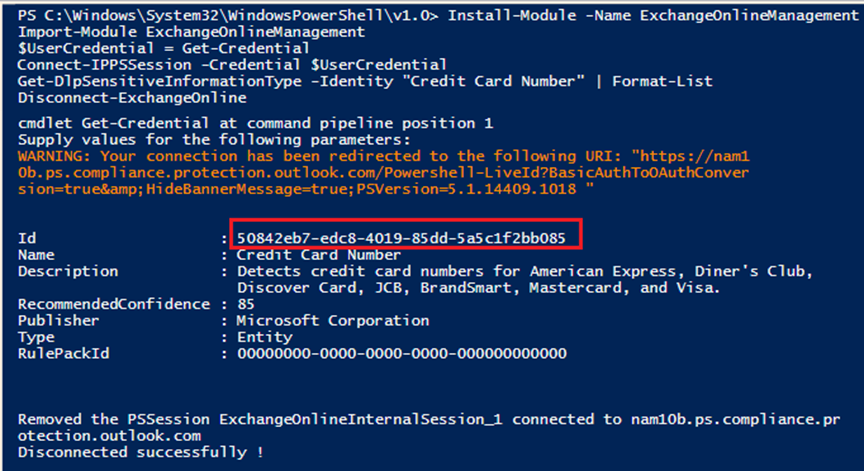
Replace Sensitive info type with the name of the custom sensitive info type.
NOTEWhen executing the commands above, a window will appear requesting administrator rights. Enter the username and password of the account that has the Security admin, Compliance admin, or Compliance data admin role.
-
Go back to the New definition page and click Add condition.
-
In the M365 sensitive info types tab, click Sync and select Manually sync.
-
In the Manually sync Microsoft 365 sensitive info type window, complete the following information and click Save.
-
Name – Enter the name of the sensitive info type.
-
ID – Enter the Id you got from step 3.
-
Publisher – Enter the publisher of the sensitive info type.
-
-
Use this custom information type in the sensitivity definition and enable the sensitivity definition in Insights. When you view the risk analysis report in Insights, the custom sensitive info types that an object matches can be displayed.
How to leverage custom trainable classifiers from Microsoft 365?
Refer to the following processes to see how to leverage custom trainable classifiers in Insights:
-
(Optional) Go to https://compliance.microsoft.com/dataclassificationclassifiers?viewid=classifiers to create a custom classifier. For more information, refer to Learn about trainable classifiers.
If you have already created the custom classifier in Microsoft 365, you can skip this step.
-
(Optional) Manually re-crawl content for a site collection, list, or library.
Microsoft 365 uses the search crawler to crawl content based on a schedule. You can manually re-crawl content for a site collection, list, or library.
-
Click the Open in new window button to the right of a custom classifier to access its details page, and find the ID in the URL path as the screenshot shown below.

-
Go back to the New definition page and click Add condition.
-
In the Trainable classifiers tab, click Manually sync.
-
In the Manually sync trainable classifier window, complete the following information and click Save.
-
Name – Enter the name of the trainable classifier.
-
ID – Enter the Id you got from step 3.
-
Description – Enter a friendly description in the text box. This is optional.
-
-
Use this custom classifier in the sensitivity definition and enable the sensitivity definition in Insights. When you view the risk analysis report in Insights, the custom classifier that an object matches can be displayed.
Sensitive Item Exclusions
In the Sensitive item exclusions step, you can choose to exclude specific items from being reported as sensitive items in Insights, especially those in your environment that are trusted or have no negative effect.
Click Add condition to start configuring a condition. The items that match any of the conditions will be excluded from being reported as sensitive items.
-
Select Modified time or Created time from the drop-down list, enter a number in the text box, and select Month or Year. The items of which the modified time or created time is older than the configured time period will be excluded.
-
Select Content from the drop-down list, and enter the search keyword to exclude the items that contain the keyword. Multiple Content conditions can be added.
NOTEInsights leverages the SharePoint search to search for the content. It is recommended to keep the entered text within 500 characters. As the character limit may vary across different languages, the text may not be properly processed for exclusion if exceeded. For more details, contact the AvePoint Support team.
Click Apply to apply the settings for sensitive item exclusions.
Exposure Definitions
In the Exposure definitions step, you can view the High exposure level, Medium exposure level, and Low exposure level sections.
For the High and Medium exposure levels, you can view the default settings in each section.
Click Edit in the upper-right corner of the section to edit settings for the corresponding exposure level.
Choose to use one or more conditions below by selecting the corresponding checkboxes and configuring settings.
-
Select Shared directly with external users, select one of the following options from The number of external users is drop-down list, and configure the threshold number or number range.
-
More than – The object that is directly shared with external users and the number of external users is more than the threshold number will be classified as the corresponding exposure level.
-
From…to – The object that is directly shared with external users and the number of external users is within the configured number range will be classified as the corresponding exposure level.
-
Less than – The object that is directly shared with external users and the number of external users is less than the threshold number will be classified as the corresponding exposure level.
-
-
Select Shared with a Microsoft Entra group, select one of the following options from The number of external users in the group is drop-down list, and configure the threshold number or number range.
-
More than – The object that is shared with a group and the number of external users in the group is more than the threshold number will be classified as the corresponding exposure level.
-
From…to – The object that is shared with a group and the number of external users in the group is within the configured number range will be classified as the corresponding exposure level.
-
Less than – The object that is shared with a group and the number of external users in the group is less than the threshold number will be classified as the corresponding exposure level.
-
-
Shared via anyone link – The object that is shared by sending an anyone link will be classified as the corresponding exposure level.
-
Shared via organization link – The object that is shared with everyone inside the organization by sending a link will be classified as the corresponding exposure level.
-
Shared with everyone – The object that is shared with the Everyone, All Users (membership), or All Users (windows) group will be classified as the corresponding exposure level.
-
Shared with everyone except external users – The object that is shared with the Everyone except external users group will be classified as the corresponding exposure level.
-
Select Shared with a large Microsoft Entra group, select one of the following options from The number of users in the group is drop-down list, and configure the threshold number or number range.
-
More than – The object that is shared with a large group and the number of group users is more than the threshold number will be classified as the corresponding exposure level.
-
From…to – The object that is shared with a large group and the number of group users is within the configured number range will be classified as the corresponding exposure level.
-
Less than – The object that is shared with a large group and the number of group users is less than the threshold number will be classified as the corresponding exposure level.
-
-
Select Shared directly with multiple users and Microsoft Entra groups, select one of the following options from The number of users and groups is drop-down list, and configure the threshold number or number range.
-
More than – The object that is shared with multiple users and groups and the number of users and groups is more than the threshold number will be classified as the corresponding exposure level.
-
From…to – The object that is shared with multiple users and groups and the number of users and groups within the configured number range will be classified as the corresponding exposure level.
-
Less than – The object that is shared with multiple users and groups and the number of users and groups is less than the threshold number will be classified as the corresponding exposure level.
-
After configuring settings for the exposure level, click Save to save the settings. You can also click Cancel to discard your edits.
When an object matches any of the enabled conditions of the High or Medium exposure level, the object will be classified as the corresponding exposure level. If an object does not match the High or Medium exposure level conditions, it will be automatically classified as the Low exposure level.
Activity Detection Settings
In the Risky user detection tab, define the activity-based detection settings to identify risky user behaviors.
All provided detections are listed under the corresponding category. With a detection enabled, you can configure settings for this detection and select a risk level for the detected activity.
Refer to the following settings for each detection.
-
Sign-in failure – You can define the custom threshold of sign-in failures per day. When the threshold is reached, it will be reported.
-
Untrusted IP address – You can define trusted IP addresses in the allow list to exclude them from risk activity detections.
-
Learn trusted IPs – Select this option to automatically learn trusted IP addresses from sign-in activity over the next 7 days and use them to build your allow list.
-
Use custom allow list – Select this option to define the trusted IP addresses you want to always allow.
You can add exact IP addresses or ranges. Click the remove button to the right to remove an IP address or range. To add a new row, click Add condition and select New IP address or New IP range and complete the information.
-
-
Untrusted location – You can define trusted locations in the allow list to exclude them from risk activity detections.
-
Learn trusted locations – Select this option to automatically learn trusted locations from sign-in activity over the next 7 days and use them to build your allow list.
-
Use custom allow list – Select this option to define the trusted locations you want to always allow. Select the locations from the drop-down list to define the allow list.
-
-
Atypical or impossible travel – You can select Use custom allow list to define IP addresses to be excluded from the risk detections.
You can add exact IP addresses or ranges. Click the remove button to the right to remove an IP address or range. To add a new row, click Add condition and select New IP address or New IP range and complete the information.
-
Malicious IP address – You can select Set custom monitoring group to define the IP addresses in the monitoring group.
You can add exact IP addresses or ranges. Click the remove button to the right to remove an IP address or range. To add a new row, click Add condition and select New IP address or New IP range and complete the information.
-
Abnormal file deletions / Abnormal file modifications / Abnormal file downloads / Mass access to sensitive files – You can define the detection rule by selecting one of the following options:
-
Generate a baseline – Select this option to generate a behavioral baseline per user. A baseline requires a minimum of 12 days of data and will continue to monitor user activities for 60 days. Alerts will be triggered according to the baseline starting on the 13th day following its enablement, and Insights will continue to store the latest 60-day window of activities to keep the baseline up to date.
You can further configure the threshold for baseline comparison. If the number of user activities per day has exceeded the threshold, baseline comparison will be performed to check if the activities are risky.
-
Set custom threshold – Select this option to define the custom threshold. When the number of activities per day has exceeded the threshold, an alert will be triggered.
-
File sensitivity level – Select the sensitivity levels of files for this detection.
-
In the Risky app detection tab, define the activity-based detection settings for identifying risky behaviors from applications.
All provided detections are listed under the corresponding category. With a detection enabled, you can configure settings for this detection and select a risk level for the detected activity.
-
Abnormal file deletions / Abnormal file modifications / Abnormal file downloads / Mass access to sensitive files – You can define the detection rule by selecting one of the following options:
-
Generate a baseline – Select this option to generate a behavioral baseline per app. A baseline requires a minimum of 12 days of data and will continue to monitor app activities for 60 days. Alerts will be triggered according to the baseline starting on the 13th day following its enablement, and Insights will continue to store the latest 60-day window of activities to keep the baseline up to date.
You can further configure the threshold for baseline comparison. If the number of app activities per day has exceeded the threshold, a baseline comparison will be performed to check if the activities are risky.
-
Set custom threshold – Select this option to define the custom threshold. When the number of activities per day has exceeded the threshold, an alert will be triggered.
-
File sensitivity level – Select the sensitivity levels of files for this detection.
-
Risky Item Exclusions
In the Risky item exclusions step, you can choose to exclude specific items from being reported as risky users and/or apps in Insights, especially those in your environment that are trusted or have no negative effect.
Click the toggle button to enable the user and app exclusions. You can then enter the name or email address of the users who you want to exclude, and enter the name of the apps you want to exclude.
Scope and Binding
On the Scope and binding page, containers of all data sources are listed. You can view the data source of the container and the number of items in the container. Click the item count link, and the View container details window appears where the Team sites / site collections / OneDrives / Microsoft 365 Group team sites / workspaces / agents (preview) in the container are displayed.
Select one or multiple containers and click Assign profile, and the Assign profile window appears on the right pane. Select a profile for the containers and click Save to assign the selected risk definition profile to the containers. The profile name will be displayed as the Risk definition profile column values for the containers.
If you remove profiles from containers, these containers will no longer be scanned. It may take some time to rescan these containers when they are assigned with profiles again.
With the limited Trial subscription, you can scan up to 25 workspaces per data source for your tenant. To scan desired workspaces, make sure the number of workspaces selected for each data source does not exceed this limit.
You can also turn on the Include new containers feature, select a risk definition profile, and click Apply to apply the selected risk definition profile for all containers created later. Every new container will be automatically scanned based on the risk definition profile.
Data Type Management
On the Risk definition page, you can click Data type management to review the detection confidence statistics of each data type, and refine their configurations to improve sensitive data detection accuracy.
Scan Engine Conditions
In the Scan engine conditions tab, both built-in and custom conditions are listed in the table with name, type, detection strictness, and last modified time.
- Detection strictness – The strictness of the match refers to the number of signals that are required to report on the detection. A higher strictness typically decreases the number of detections for this scan engine condition, due to the requirement of additional signals (keywords configured in context) beyond the primary element (regular expression).
The following actions are available for managing scan engine conditions:
-
Click View on the ribbon after selecting a scan engine condition, or click the ellipsis button to the right of a scan engine condition row and click View to view details of a scan engine condition.
-
Click Edit on the ribbon after selecting a custom scan engine condition, or click the ellipsis button to the right of a custom scan engine condition row and click Edit to edit the scan engine condition. The built-in scan engine conditions cannot be edited.
-
To delete a custom scan engine condition, click the ellipsis button to the right of the custom scan engine condition row and click Delete, or select the custom scan engine condition and click Delete on the ribbon. The built-in conditions cannot be deleted. Alternatively, select one or multiple custom scan engine conditions and click Delete on the ribbon.
-
Click Create on the ribbon to create a new custom scan engine condition. In the Create scan engine condition window, complete the following information:
-
Name and Description – Enter a friendly name and optional description for the scan engine condition.
-
Type – Select the type of the scan engine condition. The type can be either Regular expression or Dictionary.
-
When you select the Regular expression type, you can configure the regular expression as the prerequisite matching condition for the scan engine condition, and configure keywords in context as the supplementary matching conditions to increase the confidence of detection.
Click the star button if you need help for creating regular expressions. In the prompted window, describe your requirements in natural language and click Generate to generate a valid regular expression with AI assistance. You can then click the copy button to copy the generated regular expression after reviewing the description and example.
-
When you select the Dictionary type, you can configure keywords for the scan engine condition. An object is detected when any of the keywords is matched.
-
Click Save to save the custom scan engine condition, or click Cancel to close the window without saving any changes.
-
-
Click Change detection strictness on the ribbon after selecting a scan engine condition, or click the ellipsis button to the right of a scan engine condition row and click Change detection strictness to adjust the detection strictness for the selected scan engine condition.
-
Click the ellipsis button to the right of a scan engine condition row and click Test availability, and the Test availability panel appears with the condition settings displayed. You can test the availability of this scan engine condition. For details, refer to Availability Test.
Microsoft 365 Sensitive Info Types
In the M365 sensitive info types tab, all Microsoft 365 sensitive info types that are synchronized to Insights are listed in the table with name, detection strictness, publisher, and the number of linked scan engine conditions or the name of the linked scan engine condition.
Linking scan engine conditions to custom information types is available when you enable premium scan mode, which is currently in private preview mode and is available as an on-demand feature.
-
Detection strictness – The strictness of the match refers to the number of signals that are required to report on the detection. A higher strictness typically decreases the number of detections for this sensitive info type, due to the requirement of additional signals beyond the primary element.
NOTEThe detection strictness of a sensitive info type is determined by the confidence level of the sensitive info type. Use the following PowerShell commands to grant sufficient permissions so that Insights can retrieve confidence levels from Microsoft Purview:
Connect-IPPSSessionNew-ServicePrincipal -AppId "Application ID" -ObjectId "Object ID"Add-RoleGroupMember -Identity InformationProtection -Member "Application ID"Replace Application ID and Object ID with the information of your Insights for Microsoft 365 app. You can find the app information in Azure portal.
-
Scan engine conditions – The scan engine conditions that are linked to this sensitive info type. When scan engine conditions are linked to a sensitive info type, the detection results of the scan engine conditions will be used to verify and improve the accuracy of the info type. When one of the linked scan engine conditions is matched as well as the info type, the object will be marked as a validated detection for this info type.
The following actions are available for managing sensitive info types:
-
Select one or multiple sensitive info types and click Change detection strictness to adjust the detection strictness for the selected sensitive info types.
-
Click Link scan engine condition on the ribbon after selecting an info type, or click the ellipsis button to the right of an info type row and click Link scan engine condition to link scan engine conditions to the info type.
-
If the sensitive info type you want to use is not listed, you can synchronize it from Microsoft 365 by clicking Sync.
-
Select Automatically sync to automatically synchronize any new sensitive info types created in Microsoft 365 but do not exist in Insights.
-
Select Manually sync to manually synchronize a specific sensitive info type that does not exist in Insights. When manually syncing, you need to enter the name, publisher, and ID of the sensitive info type. You can find the ID of a sensitive info type in its details page in Microsoft 365 compliance center. For more information, refer to How to leverage custom sensitive info types from Microsoft 365?.
-
-
Click the ellipsis button to the right of an info type row and click Test availability, and the Test availability panel appears with the info type selected. You can test the availability of this info type. For details, refer to Availability Test.
-
To copy the keywords configured in a sensitive info type, click the ellipsis button to the right of an info type row and click Copy search keyword.
Custom Information Types
In the Custom information types tab, all custom information types are listed in the table with name, description, last modified time, and the number of linked scan engine conditions or the name of the linked scan engine condition.
Linking scan engine conditions to custom information types is available when you enable premium scan mode, which is currently in private preview mode and is available as an on-demand feature.
- Scan engine conditions – The scan engine conditions that are linked to this custom information type. When scan engine conditions are linked to a custom information type, the detection results of the scan engine conditions will be used to verify and improve the accuracy of the custom information type. When one of the linked scan engine conditions is matched as well as the custom information type, the object will be marked as a validated detection for this custom information type.
The following actions are available for managing custom information types:
-
Click Create on the ribbon to create a new custom information type. In the Create information type window, complete the following information:
-
Name – Enter a friendly name for the information type.
-
Keyword query – KQL (Keyword Query Language) is the default query language for building search queries. Using KQL, you can specify the search terms or property restrictions passed to the SharePoint search service. Enter keywords or KQL queries in the text box, and use the Boolean operator AND and OR to broaden or narrow the detection.
-
Description – Enter a friendly description in the text box. This is optional.
Click Save to save the custom information type, or click Cancel to close the window without saving any changes.
-
-
Click Edit on the ribbon after selecting an information type, or click the ellipsis button to the right of an information type row and click Edit to edit the information type.
-
To delete an information type, click the ellipsis button to the right of the information type row and click Delete, or select the information type and click Delete on the ribbon. Alternatively, select one or multiple information types and click Delete on the ribbon.
-
Click View on the ribbon after selecting an information type, or click the ellipsis button to the right of an information type row and click View to view details of an information type.
-
Click Link scan engine condition on the ribbon after selecting an information type, or click the ellipsis button to the right of an information type row and click Link scan engine condition to link scan engine conditions to the information type.
-
Click Test sensitive keywords on the ribbon after selecting one or multiple information types, and the Test availability panel appears with the Sensitive keywords test object selected. You can test the availability of keywords in this custom information type directly, or select Custom information type and enter the name of another type to test its availability. Alternatively, click the ellipsis button to the right of an information type row and click Test availability. For details, refer to Availability Test.
-
To copy the keywords configured in a custom information type, click the ellipsis button to the right of an information type row and click Copy search keywords.
Microsoft 365 Sensitivity Labels
In the M365 sensitivity labels tab, all published Microsoft 365 sensitivity labels that are synchronized to Insights are listed in the table with name and tenant.
If the sensitivity label you want to use is not listed, you can synchronize it from Microsoft 365 by clicking Sync.
To test the availability of a sensitivity label, click the ellipsis button to the right of the sensitivity label row and click Test availability. The Test availability panel appears on the right pane. For details, refer to Availability Test.
To copy the keyword of a sensitivity label, click the ellipsis button to the right of a sensitivity label row and click Copy search keyword.
Trainable Classifiers
In the Trainable classifiers tab, all trainable classifiers that are synchronized to Insights are listed in the table with name and description.
Click Manually sync and the Manually sync trainable classifier window appears. You can enter the name, description, and ID of a trainable classifier to synchronize it to Insights. You can find the ID of a trainable classifier in its details page in Microsoft 365 compliance center. For more information, refer to How to leverage custom trainable classifiers from Microsoft 365?.
Availability Test
You can test in Insights if a specific Sensitive Information Type (SIT), sensitivity label, custom information type, or condition is available for detecting the sensitive information in SharePoint. You can also copy the keyword of a specific sensitive information type, sensitivity label, or custom information type and search for the sensitive information in a SharePoint site.
In the Scan engine conditions, M365 sensitive info types, Custom information types, or M365 sensitivity labels tab, hover your mouse over the desired condition, information type, or sensitivity label, and click the ellipsis button. In the drop-down list, the following actions are available:
-
Select Test availability to test the availability in Insights.
-
Select Copy search keyword and use the keywords of the sensitive information type or sensitivity label to test the availability in a SharePoint site. When the keywords are available, you can click Save as information type to save the keywords as a custom information type directly.
If the availability test is completed but no results are found, which means the sensitive information type or sensitivity label is not available for detecting the sensitive information in SharePoint, refer to the following troubleshooting tips:
-
If you are testing the availability in Insights, make sure the configured URL is the full URL of a SharePoint site collection, library, folder, or file that contains the sensitive information against the sensitive information type or sensitivity label.
-
If you are testing the availability of a custom information type in Insights, make sure the keyword query is correct. You can refer to Custom Information Types for details.
-
If you are testing the availability in SharePoint, make sure the SharePoint site contains the sensitive information against the sensitive information type or sensitivity label of which the search keyword is copied.
-
The content in the SharePoint site has been crawled and the search index is up to date. You can refer to Manually request crawling and reindexing of a site, a library or a list for details and configure the settings manually.
Test Availability in Insights
Select Test availability from the ellipsis drop-down list of the selected condition, information type, or sensitivity label, and the Test availability window appears.
-
The selected information type or sensitivity label is displayed in the Microsoft 365 sensitive info type / Microsoft 365 sensitivity label / Custom information type field by default. For scan engine conditions, the settings are displayed.
To test another Microsoft 365 sensitive info type, Microsoft 365 sensitivity label, or custom information type, click the remove button, enter the name of the desired sensitive information type or sensitivity label, and select it from the suggestion list.
-
In the SharePoint URL field, enter the full SharePoint URL of a site collection, library, folder, or file that contains sensitive information against the sensitive information type or sensitivity label specified above.
-
In the Document field, click Browse to browse the document that contains the sensitive information against the condition settings above.
NOTEThis is only available for scan engine conditions.
Click Test to start the availability test.
If the sensitive information type or sensitivity label is available, at most 10 files with their matched sensitive information are listed. You can use the sensitive information type or sensitivity label to detect the sensitive information in its configured detection scope of Insights. Otherwise, you can refer to the troubleshooting tips above for further instructions.
If the condition is available, the matched sensitive information in the document is listed with the matched keywords highlighted.
Test Availability in SharePoint
You can test the availability of specific sensitive information types and sensitivity labels in SharePoint sites. Complete the following steps to perform the test:
-
Select Copy search keyword from the ellipsis drop-down list of the selected sensitive info type / sensitivity label / custom information type.
For Microsoft 365 sensitive information types, you can also get their search keyword from Microsoft 365:
NOTEThis is not available for all sensitive information types.
-
Open the Sensitive information type entity definitions page.
-
Click the name link of the desired sensitive information type to open its detailed information page.
-
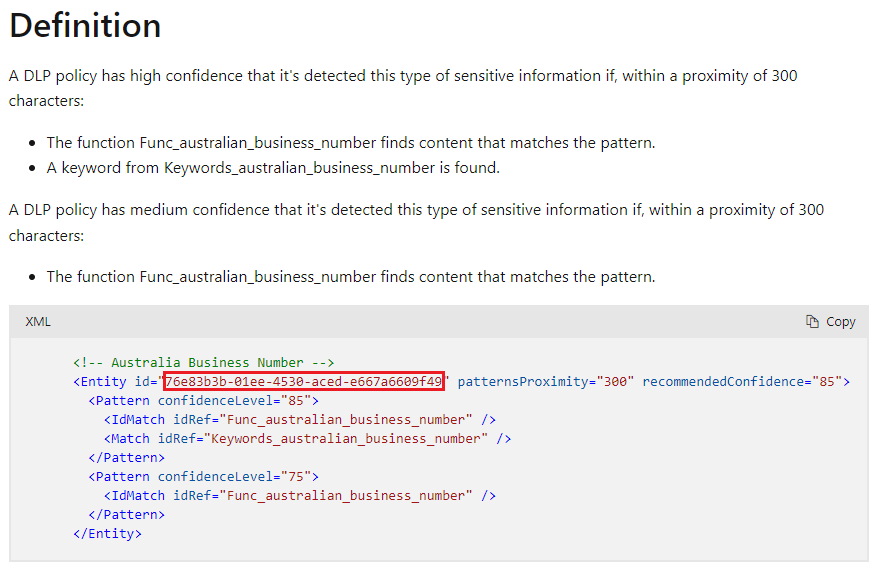
On the detailed information page, you can find and copy the Entity id of the sensitive information type in the XML table under the Definition section and the entity id can be used as the search keyword of the sensitive information type.
-
-
Open a SharePoint site that contains sensitive information against the sensitive information type or sensitivity label that you use for this test.
-
Paste the search keyword of the sensitive information type or sensitivity label that you copied in step 1 to the SharePoint search box of the SharePoint site, and then press Enter on your keyboard to start the search.
If there are search results, the sensitive information type or sensitivity label is available and you can use the sensitive information type or sensitivity label to detect the sensitive information in its configured detection scope of Insights. Otherwise, you can refer to the troubleshooting tips above for further instructions.