
Home > Use Insights for Google > Risk Analysis > Overview Report
Download this articleOverview Report
On the Overview page of risk analysis, select the data scope for the report.
-
If your organization has multiple tenants, select a tenant or All tenants from the tenant drop-down list to view an overview report of the selected tenants.
-
Select User drive or Shared drive from the workspace drop-down list, and the containers in the configured scope to which you have permissions will be loaded accordingly in the container drop-down list.
-
Select your desired containers or the Select all checkbox and click OK to view the risk analysis overview report of drives in the selected containers.
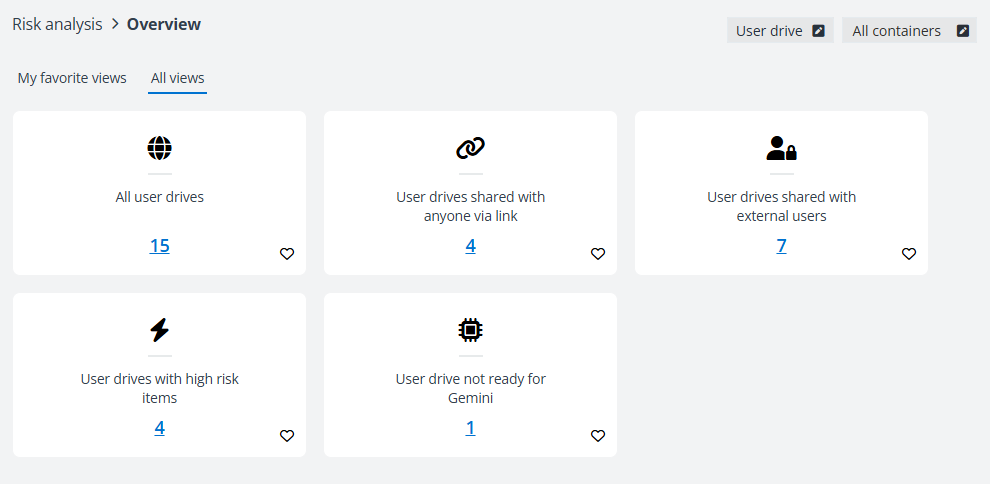
On this page, all built-in views provided for the selected workspace are displayed under All views. You can click the gray heart icon in the lower-right corner of a view card to add the view as a favorite view, and it will be displayed under My favorite views. To remove a view from favorites, click the red heart icon. You can view the statistics of each view and click the view card or number link to access the details page.
All drives in the selected containers are the data scope of the overview report under each view, and each view shows the risk analysis statistics from different perspectives. You can view the completed statistics for all views below:
-
Name – The name of the drive. Click the name to view all objects in the drive on the Detailed records page.
-
Members – The number of groups and the number of users who are members of the shared drive. Click the number and the Membership window appears with all members and their roles listed.
-
You can change the role of a member by selecting another role from the role drop-down list.
-
You can click the remove button to the right of a member to remove the user from the drive.
-
To add a new user or group as a drive member, search for the user or group and select it from the suggestion list. Select a role from the drop-down list, and click Add to add the user or group to the drive.
NOTEThis is only available for shared drives.
-
-
Shadow users/groups – The groups or users who are not members of the shared drive but have permissions to the items in the drive. If there are external users in shadow users/groups, the number will be changed into the number of external users/the total number of shadow users/groups.
Click the number link to View Shadow Users and Groups Access Report.
NOTEThis is only available for shared drives.
-
External users with access – The number of external users that have access to the drive. Click the number link to view all external users in the drive on the Overview / Details / External users page.
Click a user on the left pane to view the objects to which they have permissions.
NOTEThis is only available for user drives.
-
Links shared with anyone – The number of links that are shared with anyone. Click the number link to access the View shared links page with the corresponding links displayed.
-
Links shared with target audiences – The number of links that are shared with target audiences. Click the number link to access the View shared links page with the corresponding links displayed.
-
Gemini readiness – The status whether the drive is ready for Gemini.
-
Risk level – The risk level of the drive, High, Medium, or Low. The risk level is calculated based on sensitivity level and exposure level. No risk is displayed when the sensitivity level of the drive is Not sensitive.
-
Sensitivity level – The sensitivity level of the drive, High, Medium, or Low. Click it to view the number of files with high sensitivity in the drive. Not sensitive is displayed for the drive that does not match any of the configured sensitivity levels.
The sensitivity level is calculated based on the sensitivity level settings. For details, refer to Sensitivity Definitions.
-
Exposure level – The exposure level of the drive, High, Medium, or Low. Click it to view the matched exposure rule.
The exposure level is calculated based on the exposure level settings. For details, refer to Exposure Definitions.
-
High risk objects – The number of high risk objects in the drive. Click the number to view the object list on the Detailed records page.
-
Comments – The comments that were added to the drive. If comments are added, the comments icon will be displayed. Click it, and the Comments window appears on the right pane. You can view the added comments and add a new comment by entering comment content in the text box and clicking Add. If no comment is added to the drive, you can click Add to add a comment.
-
Last update – The date when the drive is last updated.
The following actions are available above the table on the details page:
-
Save as new view – Click Save as new view, and the Save as new view window appears. Enter a name for the new view in the text box and click Save to save the new view. Selecting the Set as favorite option allows you to add the new view to your favorite views.
-
Manage columns – Click Columns in the upper-right corner of the table, and the drop-down list where all available columns are displayed appears. Select the columns that you want to display in the table and click Apply to apply the column selection. You can also choose Select all to show all columns in the table.
-
Filter – Click Filter in the upper-right corner of the table, and the Filter window appears in the right pane. All columns that are available for the filter are listed below. Click the down arrow button to the right of a column to show the text box or selectable options. Enter keywords in the text box and/or select desired options to define the filter conditions.
You can also click Reset to default to clear your input and selections and reset the filters to their default state.
Click Apply changes to filter items displayed in the table based on the configured filters.
-
Export – You can export reports using one of the following methods:
-
Click Export for all to export the report of all drives in the currently selected containers of the selected workspace.
-
Filter drives and then click Export for all to export the report of the filtered drives.
-
Select one or multiple drives and then click Export for selected items to export the report of the selected drives in the currently selected containers of the selected workspace.
In the export drop-down list, select Export summary report to export the summary report, or select Export permission report to export both the summary report and permission report.
NOTEIf you select to export permission report, at most 2000 records can be exported in one report.
In the export window, a default report name is automatically filled in, and you can edit it if desired.
-
You can select Export both the summary report and permission report or Export both the summary report and link permission report to export the corresponding reports for the drives.
-
The advanced options are available when you select items to export permission report.
-
Merge the permission report for items – Select this option to merge the permission reports into one report file.
-
Export activity report in a certain time range – Select Last 7 days, Last 1 month, Last 3 months, or Custom to define the time range during which user activity report you want to export.
-
Click Export to start exporting the report.
When the export process begins, you can monitor its progress by navigating to Job monitor > Download center or by clicking the Download center link in the prompted message.
-
-
Trust – Select one or multiple drives, click Trust above the table, enter your comment in the text box, and click OK to trust the selected drives.
You can view the Trusted icon displayed for drives in the trusted list, and the added comments are displayed in the Comments column with the comments icon. Click this icon, and the Comments window appears on the right pane. You can view the comment you added and add a new comment by entering your comment in the text box and clicking Add. You can also filter drives by trust status to view all drives in the trusted list of a specific workspace, or the drives that are not in the trusted list.
NOTEThis action is only available for administrators.
-
Remove from trusted list – Select one or multiple drives that have been trusted, click Remove from trusted list above the table, enter your comment in the text box, and click OK to remove the drives from the trusted list. The Trusted icon will also be removed.
NOTEThis action is only available for administrators.
-
Rescan – Select one or multiple drives and click Rescan above the table to rescan and prioritize them. The scan will be conducted in a few hours.
-
Refresh – Click Refresh above the table to refresh the drives displayed in the table.
The following options are available in the ellipsis drop-down list for each drive listed in the table:
-
Export permission report – This option allows you to export the report of the current drive. Click Export permission report and the Export window appears. A default report name is automatically filled in, and you can edit it if desired. Select an export option for the corresponding report and click Export.
-
Export both thesummary report and permissionreport – Select this option to export the summary report and permission report of this drive.
-
Export both the summary report and link permission report – Select this option to export the summary report and link permission report of this drive.
-
Merge the permission report for items – Select this option to export the summary report and merge the permission report of the selected drives into one file.
-
Export activity report in a certain time range – Select this option and select a time range or configure a custom range to export the activity report in the configured time range of this drive.
When the export process begins, you can monitor its progress by navigating to Job monitor > Download center or by clicking the Download center link in the prompted message.
-
-
Detailed information – This option allows you to access the Detailed information page of the drive. For more information, refer to View Detailed Information of Drives.
-
View activities – This option allows you to access the View Activities page of the drive.
-
Gemini readiness – This option allows you to access the Gemini readiness page where you can check for any security-related issues that may affect your drive’s eligibility for Gemini. You can view the sharing links statistics of the user drive or shared drive. You can click Remove access to directly delete the sharing links. When all issues are resolved, the Gemini readiness status of the drive will be changed to Ready.
-
View shared links – This option allows you to access the View Shared Links page of the drive.
-
View high risk items – This option allows you to access the Detailed records page listing the items of which risk level is High.
-
View shared sensitive items – This option allows you to access the Detailed records page with the sensitive items that are shared with any external users.
-
Trust – This option allows you to trust the drive. Enter your comment in the text box and click OK to trust the drive.
You can view the Trusted icon displayed for drives in the trusted list, and the added comments are displayed in the Comments column with the comments icon. Click this icon, and the Comments window appears on the right pane. You can view the comment you added and add a new comment by entering your comment in the text box and clicking Add. You can also filter drives by trust status to view all drives in the trusted list of a specific workspace, or the drives that are not in the trusted list.
NOTEThis action is only available for administrators.
-
Remove from trusted list – This option allows you to remove the drive from the trusted list. Enter your comment in the text box and click OK to remove the drive from the trusted list. The Trusted icon will also be removed.
NOTEThis action is only available for administrators.
-
Rescan – This option allows you to rescan and prioritize the drive. The scan will be conducted in a few hours.
-
Open in Google Workspace – This option allows you to open the shared drive in Google Workspace.