
Home > Use Insights for Google > Risk Definition Administration
Download this articleRisk Definition Administration
The risk definition settings have already been configured when the first tenant user logs into Insights and completes the initial configurations. You can make updates to your risk definition settings as required by clicking Settings > Risk definition. The following tiles can be viewed on the Risk definition page.
-
Risk Definition Profiles
-
Scan Engine Condition Availability Test
-
Scope and Binding
Default Settings of Sensitivity and Exposure Definitions
Refer to the sections below for the default settings of sensitivity definitions and exposure definitions provided by Insights for Google Workspace.
Default Settings of Sensitivity Definitions
Insights will automatically enable the Google DLP built-in sensitivity definition in the Default profile for Google Workspace. You can also configure them based on your own requirements. For details about how to configure sensitivity definitions, refer to Sensitivity Definitions.
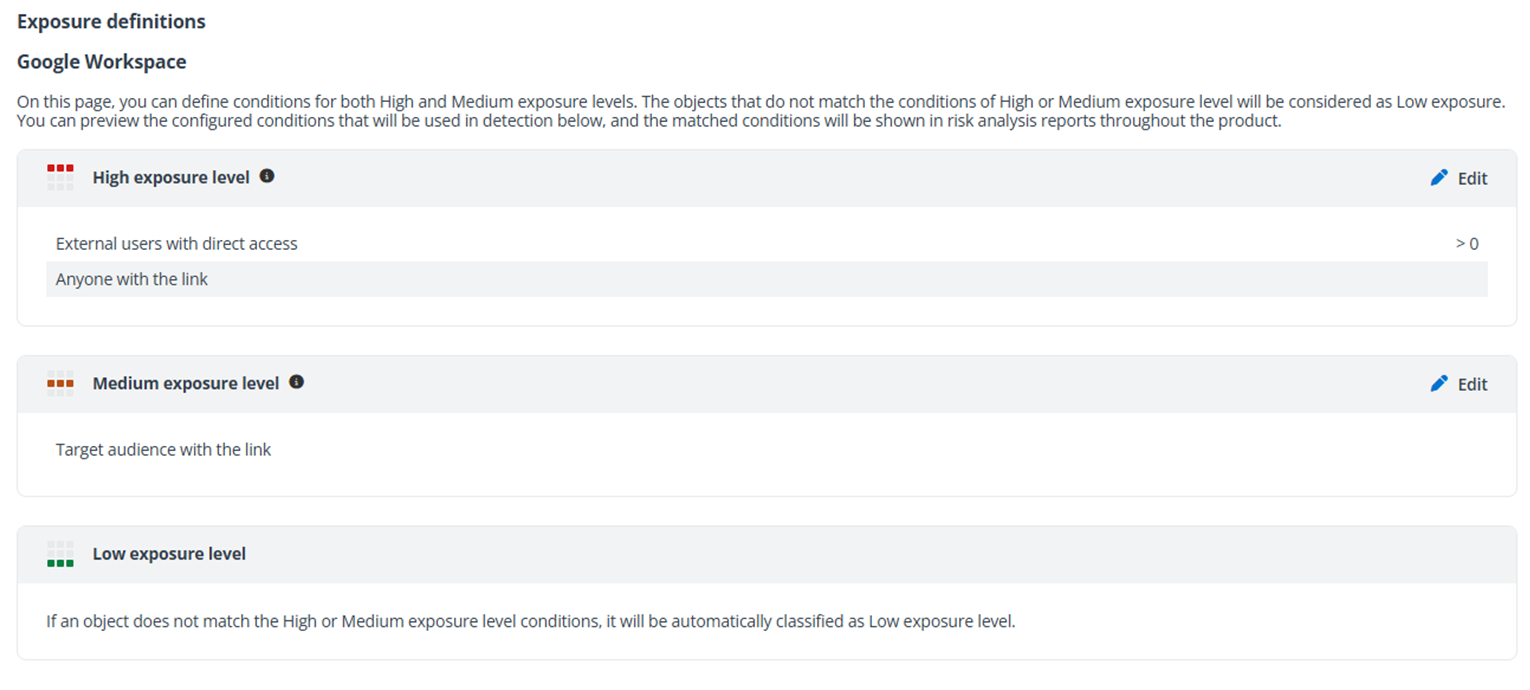
Default Settings of Exposure Definitions
Insights for Google provides default settings of exposure definitions. You can also configure them based on your own requirements. For details about configuring these settings, refer to Exposure Definitions.
Risk Definition Profiles
On the Risk definition profiles page, existing profiles are listed in the table, including the built-in Default profile for Google and Default profile for Google Cloud (if you have the Google Cloud add-on feature enabled). You can search for a specific profile by entering the profile name in the search box and pressing Enter on the keyboard.
On this page, the following actions are available to manage profiles.
-
New profile – Click New profile on the Risk definition profiles page, and the New profile page will appear.
-
In the Profile information step, select Google Workspace or Google Cloud as the definition type. Enter a name and optional description for the profile, and click Next to go to the next step.
-
In the Sensitivity definitions step, configure the sensitivity definitions that you want to use in the profile. You can use the existing definitions or create a new one by clicking New definition. For detailed information, refer to Sensitivity Definitions.
Click Next to go to the next step.
NOTEThis step is not available for Google Cloud.
-
In the Exposure definitions step, configure the exposure definitions that you want to use in the profile. For detailed information, refer to Exposure Definitions.
Click Next to go to the next step.
-
In the Review step, review your settings and click Save to save the risk definition profile. You can also click Back to go back to the previous step or click Cancel to discard changes.
-
-
View – Click View above the table or click View from the ellipsis drop-down list to the right of a profile. The profile details are displayed in the View window on the right.
-
Edit – Click Edit above the table or click Edit from the ellipsis drop-down list to the right of a profile. The Edit profile page appears, where you can edit the profile information.
-
Duplicate – Click Duplicate above the table or click Duplicate from the ellipsis drop-down list to the right of a profile. The New profile page appears with the settings of the profile. The new profile name is suffixed with – Copy.
-
Delete – Select one or multiple profiles that you want to delete and click the Delete button above the table.
NOTEDefault profile cannot be deleted.
After your desired risk definition profiles created, you can now apply the profiles to data scopes based on your requirements. You can click the Scope and binding link on the right pane to access the Scope and Binding page directly.
Sensitivity Definitions
On the Sensitivity definitions page, existing definitions are listed in the table. You can filter the displayed definitions by clicking Filter in the upper-right corner of the table, selecting desired filter options from the drop-down lists separately, and clicking Filter. You can also click Refresh to refresh the displayed definitions in the table.
A default Google DLP sensitivity definition is provided for Google. With this sensitivity definition enabled, the Active data protection rules for the Google Drive service configured in the Google Workspace Admin Console > Security > Data protection will be used to detect sensitive information, such as credit card numbers, in Google Drive files. Use the data loss prevention (DLP) for Drive to protect your content and prevent data leaks to unauthorized users.
For each definition, you can view its level, template, and country or region.
-
Click the blue toggle button in front of a definition to disable the definition.
-
Click the gray toggle button in front of a definition to enable the definition.
Click the ellipsis button to the left of a definition, and the available actions are displayed in the drop-down list.
-
Click View to view details of the definition.
-
Click Edit to edit the definition.
-
Click Duplicate to access the New definition page with the definition settings of this definition duplicated and displayed.
-
Click Delete to delete the definition.
On the Sensitivity definitions page, click New definition to create a new definition. In the New definition window, complete the following information:
-
Name – Enter a name for the definition.
-
Level – Select a level for the definition, Google item, Google item (scan engine), or Google drive.
NOTEThe hybrid sensitivity scan method is currently in private preview mode and is available as an on-demand feature. You can contact AvePoint Technical Support or your sales representative for more information.
-
Template – Select a template for the definition. Currently, only Custom can be selected.
-
Country or region – Select the country or region for which this definition will be used.
In the High sensitivity level, Medium sensitivity level, and Low sensitivity level sections, multiple conditions and/or condition groups can be configured.
To add a new group of conditions for a sensitivity level, click Add a group.
You can click the Delete button in the upper-right corner of a group to delete the group from the sensitivity level.
In each condition group, you can perform the following actions to manage the group:
-
You can define the logical relationship of the conditions and/or groups in this group by clicking the All link in the upper-left corner of the group and clicking All or Any in the drop-down list.
-
All – An object that meets all the conditions and groups in this group is discovered and classified as the corresponding sensitivity level.
-
Any – An object that meets any one of the conditions and groups in this group is discovered and classified as the corresponding sensitivity level.
NOTEA file can only have one sensitivity label. To use more than one sensitivity label for your sensitivity definition, make sure the Any logical relationship is used.
-
-
Click Add condition in the upper-left corner of the group, and the Add condition window appears. For details on how to add a condition, refer to the Add Condition section below.
-
You can click the Delete button to the right of the condition to delete the condition from the group.
-
Click Add a group to add a condition group to this group.
-
You can click the Delete button in the upper-right corner of a group to delete the group.
Add Condition
For the Google item level sensitivity definition, Google labels can be added as conditions. Select a desired label, and select a field and value as the condition. Alternatively, select a label and select Has this label applied as the condition. Click Add condition to add multiple conditions.
If your desired label is not displayed, click Sync labels to sync the latest labels from Google.
For the Google drive level sensitivity definition, the only condition is the number of files with high sensitivity. After clicking Add condition, you can configure the condition as follows:
-
Select More than, and enter a number in the text box. When the number of files with high sensitivity in the drive is more than the configured number, this condition is matched.
-
Select From…to, and enter a number range in the text boxes separately. When the number of files with high sensitivity in the drive is between the configured number range, this condition is matched.
-
Select Less than, and enter a number in the text box. When the number of files with high sensitivity in the drive is less than the configured number, this condition is matched.
For the Google item (scan engine) level sensitivity definition, all provided conditions are listed. You can also click Create to create your own conditions.
-
Name and description – Enter a name and optional description for the condition.
-
Regular expression – Select Regular expression as the type and you can enter a regular expression and configure the context.
-
Dictionary – Select Dictionary as the type and you can configure a set of keywords as the dictionary.
Exposure Definitions
You can view the High exposure level, Medium exposure level, and Low exposure level sections on this page.
For the High and Medium exposure levels, you can view the default settings in each section.
Click Edit in the upper-right corner of the section to edit settings for the corresponding exposure level.
When an object matches any of the enabled conditions of the High or Medium exposure level, the object will be classified as the corresponding exposure level. If an object does not match the High or Medium exposure level conditions, it will be automatically classified as the Low exposure level.
Exposure definitions for Google Workspace
Choose to use one or more conditions below by selecting the corresponding checkboxes and configuring settings.
-
Select Shared directly with external users, select one of the following options from The number of external users is drop-down list, and configure the threshold number or number range.
-
More than – An object that is directly shared with external users and the number of external users is more than the threshold number will be classified as the corresponding exposure level.
-
From…to – An object that is directly shared with external users and the number of external users is within the configured number range will be classified as the corresponding exposure level.
-
Less than – An object that is directly shared with external users and the number of external users is less than the threshold number will be classified as the corresponding exposure level.
-
-
Shared with anyone via link – An object that is shared with anyone via link will be classified as the corresponding exposure level.
-
Shared with target audience via link – An object that is shared with target audiences via link will be classified as the corresponding exposure level.
-
Select Shared directly with multiple users and groups, select one of the following options from The number of users and groups is drop-down list, and configure the threshold number or number range.
-
More than – An object that is shared with multiple users and groups and the number of users and groups is more than the threshold number will be classified as the corresponding exposure level.
-
From…to – An object that is shared with multiple users and groups and the number of users and groups within the configured number range will be classified as the corresponding exposure level.
-
Less than – An object that is shared with multiple users and groups and the number of users and groups is less than the threshold number will be classified as the corresponding exposure level.
-
After configuring settings for the exposure level, click Save to save the settings. You can also click Cancel to discard your edits.
Exposure definitions for Google Cloud
Choose to use one or more conditions below by selecting the corresponding checkboxes and configuring settings.
-
Select Shared directly with external users, select one of the following options from The number of external users is drop-down list, and configure the threshold number or number range.
-
More than – An object that is directly shared with external users and the number of external users is more than the threshold number will be classified as the corresponding exposure level.
-
From…to – An object that is directly shared with external users and the number of external users is within the configured number range will be classified as the corresponding exposure level.
-
Less than – An object that is directly shared with external users and the number of external users is less than the threshold number will be classified as the corresponding exposure level.
-
-
Select Shared with a group, select one of the following options from The number of external users in the group is drop-down list, and configure the threshold number or number range.
-
More than – An object that is shared with a group and the number of external users in the group is more than the threshold number will be classified as the corresponding exposure level.
-
From…to – An object that is shared with a group and the number of external users in the group is within the configured number range will be classified as the corresponding exposure level.
-
Less than – An object that is shared with a group and the number of external users in the group is less than the threshold number will be classified as the corresponding exposure level.
-
-
Select Shared directly with service accounts, select one of the following options from The number of service accounts is drop-down list, and configure the threshold number or number range.
-
More than – An object that is shared with multiple service accounts and the number of service accounts is more than the threshold number will be classified as the corresponding exposure level.
-
From…to – An object that is shared with multiple service accounts and the number of service accounts within the configured number range will be classified as the corresponding exposure level.
-
Less than – An object that is shared with multiple service accounts and the number of service accounts is less than the threshold number will be classified as the corresponding exposure level.
-
-
Shared with domain – An object that is shared with a domain will be classified as the corresponding exposure level.
-
Select Shared directly with multiple principals, select one of the following options from The number of principals is drop-down list, and configure the threshold number or number range.
-
More than – An object that is shared with multiple principals and the number of principals is more than the threshold number will be classified as the corresponding exposure level.
-
From…to – An object that is shared with multiple principals and the number of principals within the configured number range will be classified as the corresponding exposure level.
-
Less than – An object that is shared with multiple principals and the number of principals is less than the threshold number will be classified as the corresponding exposure level.
-
After configuring settings for the exposure level, click Save to save the settings. You can also click Cancel to discard your edits.
Scan Engine Condition Availability Test
On the Risk definition page, click Scan engine condition availability test to access the Scan engine condition availability test page.
On this page, built-in data types and custom data types are listed under the corresponding tabs. You can test in Insights if a specific data type is available for detecting the sensitive information in Google.
-
Select Test availability from the ellipsis drop-down list of the selected data type, and the Test availability window appears.
-
Click Browse to select a document that contains the information you want to test, and click Test.
-
In the Results section, you can view the test result. If the data type is available for detecting the sensitive information, the matched text will be displayed in this section.
Scope and Binding
On the Scope and binding page, containers are listed. You can view the container name, workspace, the number of items in the container, and the applied risk definition profile. Click the item count link, and the View container details window appears where the drives in the container are displayed.
Select one or multiple containers and click Assign profile, and the Assign profile window appears on the right pane. Select a profile for the containers and click Save to assign the selected risk definition profile to the containers. The profile name will be displayed as the Risk definition profile column values for the containers.
If you remove profiles from containers, these containers will no longer be scanned. It may take some time to rescan these containers when they are assigned with profiles again.
With the limited Trial subscription, you can scan up to 25 drives per workspace for your tenant. To scan your desired drives, make sure the number of drives selected for each workspace does not exceed this limit.
You can also turn on the Include new containers feature, select a risk definition profile, and click Apply to apply the selected risk definition profile for all containers created later. Every new container will be automatically scanned based on the risk definition profile.