
Home > Use Insights for Google > Manage Users
Download this articleManage Users
The External Users page is where you can view and manage external users and the drives that they can access.
The Groups with External Users page is where you can view groups that contain external users.
The Unmanaged Accounts page is where you can view and manage unmanaged accounts. An unmanaged account is fully owned and managed by the individual who created it.
The Orphaned Users page is where you can view and manage orphaned users and groups, archived users, and suspended users who are deleted but still have access to drives in the Insights scope.
External Users
On the External users page, all external users in your Google Workspace that are invited to collaborate with your organization and the unmanaged users who have not accepted the invitation via email are all displayed in the table.
You can view the display name, user type, email address, the number of drives to which the external user has direct permissions, and the comments added to the user.
The following actions are available above the table on this page:
-
Manage views - You can use the built-in views to view external users. You can also create custom views by updating built-in views and saving them as new views.
When you select a view from the views drop-down menu, and then make changes to the view, an asterisk icon (*) will be displayed in front of the view name and (*Modified) will be displayed to the right of the view name in the views menu. The following options are available for a view with changes:
-
Save – Click Save in the lower-right corner of the views drop-down menu to save the changes to the custom view.
-
Save as – Click Save as in the lower-right corner of the views drop-down menu, and the Save as new view window appears. Enter a name for the new view and click Save to save the new view. You can also select the Set as default view option to set the new view as the default view.
-
Reset – Click Reset in the lower-left corner of the views drop-down menu to reset the view to the default settings.
For a custom view, the following additional options are available when you click the ellipsis button to the right of its name in the views drop-down menu:
-
Rename – Click Rename to rename the selected view. In the pop-up window, enter a new name for the view and click Save to save the change.
-
Delete view – Click Delete view to delete the selected view. Click OK in the confirmation message to confirm the deletion.
After selecting a view from the views drop-down menu, you can click the ellipsis button and click Set as default view to set the selected view as the default view.
-
-
Workspace – You can select the workspaces for which the external user statistic you want to view.
-
Filter – Click Filter in the upper-right corner of the table, and the Filter window appears in the right pane. All columns that are available for the filter are listed below. Click the down arrow button to the right of a column to show the text box or selectable options. Enter keywords in the text box and/or select desired options to define the filter conditions.
You can also click Reset to default to clear your input and selections and reset the filters to their default state.
Click Apply changes to filter items displayed in the table based on the configured filters.
-
Manage columns – Click Columns in the upper-right corner of the table, and the drop-down list where all available columns are displayed appears. Select the columns that you want to display in the table, and click Apply to apply the column selection. You can also choose Select all to show all columns in the table, or click Reset to reset the column selection.
-
Export – You can export reports of external users using one of the following methods:
-
Click Export for all to export the report of all external users in the currently selected containers of the selected workspace.
-
Filter external users and then click Export for all to export the report of the filtered external users.
-
Select one or multiple external users and then click Export for selected items to export the report of the selected external users in the currently selected containers of the selected workspace.
In the export drop-down list, select Export summary report to export the summary report, or select Export access report to export both the summary report and access report for the external users.
NOTEIf you select to export an access report, at most 2000 external users can be exported in one report.
In the export window, a default report name is automatically filled in, and you can edit it if desired.
-
Export both the summary report and drive level access report – Select this option to export both the summary report and the drive level access report of the users.
-
Export both the summary report and access report – Select this option to export both the summary report and the access report of the selected external users to all objects in the configured data scope.
-
Export the summary report and merge access report for users – Select this option to export the summary report and merge the access report of the selected external users to all objects in the configured data scope into one report file.
-
The Export user activity report in a certain time range advanced option is also available if you select items to export. Select Last 7 days, Last 1 month, Last 3 months, or Custom to define the time range for the user activity report you want to export.
Click Export to start exporting the report.
When the export process begins, you can monitor its progress by navigating to Job monitor > Download center or by clicking the Download center link in the prompted message.
-
-
Trust – Select one or multiple active external users and click Trust above the table, enter your comment in the text box, and click OK to trust the users.
You can view the Trusted icon displayed for the users in the trusted user list, and the added comments are displayed in the Comments column with the comments icon. Click this icon, and the Comments window appears on the right pane. You can view the comments you added and add a new comment by entering your comment in the text box and clicking Add. You can also filter external users by trust status to view all external users in the trusted user list, or the external users that are not in the trusted user list.
NOTEThis action is only available for administrators.
-
Remove from trusted user list – Select one or multiple trusted external users and click Remove from trusted user list above the table, enter your comment in the text box, and click OK to remove the users from the trusted user list.
NOTEThis action is only available for administrators.
-
Remove external user permissions – Select one or multiple external users and click Remove external user permissions to the permissions from the external users, including both directly granted permissions and those inherited through membership.
-
Refresh – Click Refresh to refresh the external users displayed in the table.
The following options are available in the ellipsis drop-down list for each external user listed in the table:
-
View activities – This option allows you to open the View Activities page of the external user in a new tab.
-
Export access report – This option allows you to export the access report of the external user. In the Export window, a default report name is automatically filled in, and you can edit it if desired. Select an export option for the corresponding reports and click Export.
When the export process begins, you can monitor its progress by navigating to Job monitor > Download center or by clicking the Download center link in the prompted message.
-
Access report – This option allows you to access the Access report page of the external user.
-
Trust – This option allows you to trust the external user.
NOTEThis action is only available for administrators.
-
Remove from trusted user list – This option allows you to remove the external user from the trusted user list.
NOTEThis action is only available for administrators.
-
Remove permissions – This option allows you to remove permissions from the external user for the drives within the configured data scope, including both directly granted permissions and those inherited through membership.
Access Report
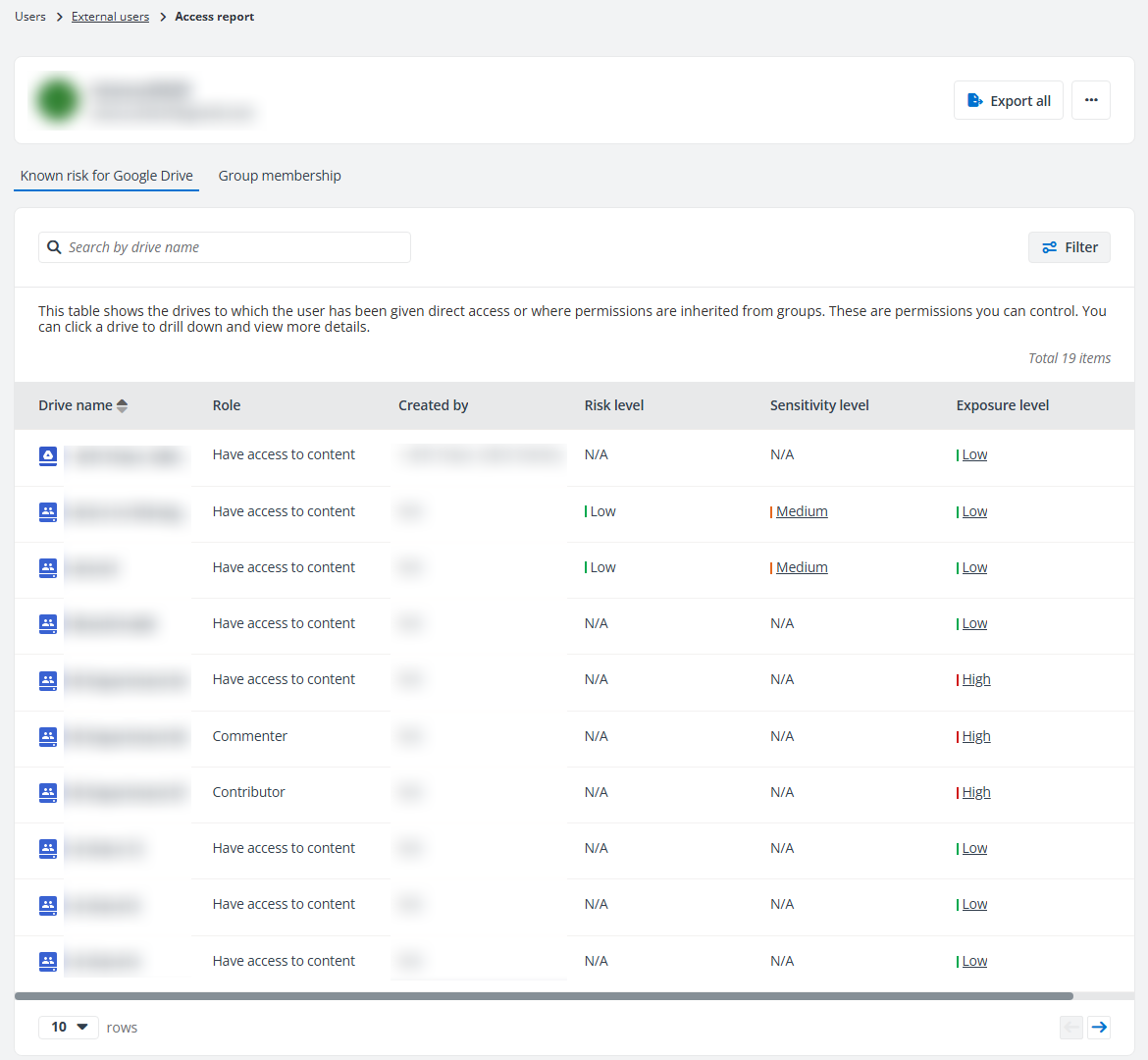
On the top of the Access report page, you can view the external user’s display name and email address. You can click the External users link on the top navigation to go back to the External users page. To the right of the user display name, the following actions are available:
-
Export all – Click Export all to export the access report of the external user. The Export window appears. A default report name is automatically filled in, and you can edit it if desired. Click Export to export the access report.
When the export process begins, you can monitor its progress by navigating to Job monitor > Download center or by clicking the Download center link in the prompted message.
-
View activities – Click View activities from the ellipsis drop-down list to open the View Activities page of the external user in a new tab.
-
Remove external user permissions– Click Remove external user permissions from the ellipsis drop-down list to remove the external user’s permissions for the drives within the configured data scope, including both directly granted permissions and those inherited through membership.
The Access report page contains two tabs, Known risk for Google Drive and Group membership.
-
In the Known risk for Google Drive tab, all drives to which the user has been given direct access are listed in the table. You can view the name, role, creator of each drive, as well as the risk level, sensitivity level, and exposure level of the drive.
-
In the Group membership tab, all groups to which the user belongs are listed in the table. The number of members in the group and the number of drives to which the group has been given access can also be viewed in the table.
Click the ellipsis button in front of the drive or object name to view available actions for the drive or object:
-
View details – The Details window appears in the right pane.
-
The basic information of the drive and the risk information, including risk level, exposure level, sensitivity level, and the number of files with high sensitivity of the drive are all displayed.
-
The basic information of the object and the risk information, including risk level, exposure level, sensitivity level, sensitivity label, and the matched data types of the object are all displayed.
-
-
View permissions – The View permissions page of the object is opened in a new tab. For details, refer to View Permissions.
-
View activities – The View activities page is opened in a new tab. For details, refer to View Activities.
Groups with External Users
On the Groups with external users page, all groups in your Google Workspace that include external users are listed along with basic information. Click the number link of External users for a group, and the External users window appears with all external users in the group listed.
The following actions are available above the table on this page:
-
Export – You can export the reports of groups with external users using one of the following methods:
-
Click Export for all to export the summary report of all groups with external users displayed in the table.
-
Filter the groups with external users and then click Export for all to export the report of the filtered groups with external users.
-
Select one or multiple groups with external users and then click Export for selected items.
In the export drop-down list, select Export summary report to export the summary report of the groups, or select Export access report to export both the summary report and access report for the groups.
If Export access report is selected, you can select an export option:
-
Export both the summary report and drive level access report – Select this option to export both the summary report and the drive level access report of the groups.
-
Export both the summary report and access report – Select this option to export both the summary report and the access report of the selected groups with external users to all objects in the configured data scope.
-
Export and summary report and merge access report for groups – Select this option to export both the summary report and the access report of the selected groups with external users to all objects in the configured data scope to one file.
In the Export window, a default report name is automatically filled in, and you can edit it if desired. Click Export to export the reports. When the export begins, you can go to Job monitor > Download center to check the progress or clicking the Download center link in the prompted message.
-
-
Refresh – Click Refresh to refresh the groups displayed in the table.
-
Filter – Click Filter in the upper-right corner of the table, and the Filter window appears in the right pane. All columns that are available for the filter are listed below. Click the down arrow button to the right of a column to show the text box or selectable options. Enter keywords in the text box and/or select desired options to define the filter conditions.
For example, you can select Last 7 days from Created on to filter the groups that are created in the last 7 days.
You can also click Reset to default to clear your input and selections and reset the filters to their default state.
Click Apply changes to filter items displayed in the table based on the configured filters.
-
Manage columns – Click Columns in the upper-right corner of the table, and the drop-down list where all available columns are displayed appears. Select the columns that you want to display in the table, and click Apply to apply the column selection. You can also choose Select all to show all columns in the table.
The following options are available in the ellipsis drop-down list for each group listed in the table:
-
Export access report – This option allows you to export the access report of the group. The Export both the summary report and access report option is selected and cannot be edited.
In the Export window, a default report name is automatically filled in, and you can edit it if desired. Click Export to export both the summary report and the access report of this group to all objects in the configured data scope. When the export begins, you can go to Job monitor > Download center to check the progress or clicking the Download center link in the prompted message.
-
Access report – This option allows you to access the Access report page of the group. All drives to which the group has been given access are listed in the table of the Known risk for Google Drive tab; all groups to which this group belongs are listed in the table of the Group membership tab. The number of members in the group and the number of drives to which the group has been given access can also be viewed in the Group membership tab. Click a number link in the Number of members column, and the View group members window appears in the right pane with all group members listed. Click a number link in the Number of drives column to view the corresponding drives in the table. You can also click the group name link to drill down.
Click Export all to export the access report of the user or group.
Click Filter in the upper-right corner of the table, and the Filter window appears. You can filter the drives or objects displayed in the table using the filter conditions.
Click the ellipsis button in front of the drive name to view available actions:
-
View details – The Details window appears in the right pane. The basic information of the drive and the risk information is displayed.
-
View activities – The View activities page is opened in a new tab. For details, refer to View Activities.
-
Unmanaged Users
On the Unmanaged users page, all unmanaged users are displayed in the table.
You can view the display name, email address, request status, the number of requests that have been sent, last modified time, and the number of drives to which each user has direct permissions.
The following actions are available above the table on this page:
-
Views – You can use the built-in views to view unmanaged users.
-
Filter – Click Filter in the upper-right corner of the table, and the Filter window appears in the right pane. All columns that are available for the filter are listed below. Click the down arrow button to the right of a column to show the text box or selectable options. Enter keywords in the text box and/or select desired options to define the filter conditions.
You can also click Reset to default to clear your input and selections and reset the filters to their default state.
Click Apply changes to filter items displayed in the table based on the configured filters.
-
Manage columns – Click Columns in the upper-right corner of the table, and the drop-down list where all available columns are displayed appears. Select the columns that you want to display in the table, and click Apply to apply the column selection. You can also choose Select all to show all columns in the table, or click Reset to reset the column selection.
-
Export – You can export reports of unmanaged users using one of the following methods:
-
Click Export for all to export the report of all unmanaged users in the currently selected containers of the selected workspace.
-
Filter unmanaged users and then click Export for all to export the report of the filtered unmanaged users.
-
Select one or multiple unmanaged users and then click Export for selected items to export the report of the selected unmanaged users in the currently selected containers of the selected workspace.
In the export drop-down list, select Export summary report to export the summary report, or select Export access report to export both the summary report and access report for the unmanaged users.
In the export window, a default report name is automatically filled in, and you can edit it if desired.
-
Export both the summary report and drive level access report – Select this option to export both the summary report and the drive level access report of the users.
-
Export both the summary report and access report – Select this option to export both the summary report and the access report of the selected external users to all objects in the configured data scope.
-
Export the summary report and merge access report for users – Select this option to export both the summary report and the access report of the selected users to all objects in the configured data scope to one file.
-
The Export user activity report in a certain time range advanced option is also available if you select items to export. Select Last 7 days, Last 1 month, Last 3 months, or Custom to define the time range for the user activity report you want to export.
Click Export to start exporting the report.
When the export begins, you can go to Job monitor > Download center to check the progress or clicking the Download center link in the prompted message.
-
-
Trust – Select one or multiple unmanaged users and click Trust above the table, enter your comment in the text box, and click OK to trust the users.
You can view the Trusted icon displayed for the users in the trusted user list, and the added comments are displayed in the Comments column with the comments icon. Click this icon, and the Comments window appears on the right pane. You can view the comments you added and add a new comment by entering your comment in the text box and clicking Add. You can also filter unmanaged users by trust status to view all unmanaged users in the trusted user list, or the unmanaged users that are not in the trusted user list.
NOTEThis action is only available for administrators.
-
Remove from trusted user list – Select one or multiple trusted unmanaged users and click Remove from trusted user list above the table, enter your comment in the text box, and click OK to remove the users from the trusted user list.
NOTEThis action is only available for administrators.
-
Remove permissions – Select one or multiple unmanaged users and click Remove permissions to remove permissions from the selected users for the drives within the configured data scope, including both directly granted permissions and those inherited through membership.
-
Refresh – Click Refresh to refresh the unmanaged users displayed in the table.
The following options are available in the ellipsis drop-down list for each unmanaged user listed in the table:
-
View activities – This option allows you to open the View Activities page of the unmanaged user in a new tab.
-
Export access report – This option allows you to export the access report of the unmanaged user.
-
Access report – This option allows you to access the Access report page of the unmanaged user.
-
Trust – This option allows you to trust the unmanaged user.
NOTEThis action is only available for administrators.
-
Remove from trusted user list – This option allows you to remove the unmanaged user from the trusted user list.
NOTEThis action is only available for administrators.
-
Remove permissions – This option allows you to remove permissions from the unmanaged user for the drives within the configured data scope, including both directly granted permissions and those inherited through membership.
Access Report
On the top of the Access report page, you can view the unmanaged user’s display name and email address. You can click the Unmanaged users link on the top navigation to go back to the Unmanaged users page. To the right of the user display name, the following actions are available:
-
Export all – Click Export all to export the access report of the unmanaged user. The Export window appears. A default report name is automatically filled in, and you can edit it if desired. Click Export to export the access report. When the export begins, you can go to Job monitor > Download center to check the progress or clicking the Download center link in the prompted message.
-
View activities – Click View activities to the right of the user’s display name to open the View Activities page of the unmanaged user in a new tab.
-
Remove permissions – Click Remove permissions to the right of the user’s display name to remove all permissions from the user, including both directly granted permissions and those inherited through membership.
The Access report page contains two tabs, Known risk for Google Drive and Group membership.
-
In the Known risk for Google Drive tab, all drives to which the user has been given direct access are listed in the table. You can view the name, role, creator of each drive, as well as the risk level, sensitivity level, and exposure level of the drive.
-
In the Group membership tab, all groups to which the user belongs are listed in the table. The number of members in the group and the number of drives to which the group has been given access can also be viewed in the table.
Click the ellipsis button in front of the drive or object name to view available actions for the drive or object:
-
View details – The Details window appears in the right pane. The basic information of the drive/object and the risk information, including risk level, exposure level, and sensitivity level of the drive/object are all displayed.
-
View permissions – The View permissions page of the object is opened in a new tab. For details, refer to View Permissions.
-
View activities – The View activities page is opened in a new tab. For details, refer to View Activities.
Orphaned Users
On the Orphaned Users page, deleted users and groups, archived users, and suspended users who still have access to drives in the Insights scope are displayed with basic information.
The following actions are available on the page:
-
Filter – Click Filter in the upper-right corner of the table, and the Filter window appears in the right pane. All columns that are available for the filter are listed below. Click the down arrow button to the right of a column to show the text box or selectable options. Enter keywords in the text box and/or select desired options to define the filter conditions.
You can also click Reset to default to clear your input and selections and reset the filters to their default state.
Click Apply changes to filter items displayed in the table based on the configured filters.
-
Manage views – Click the view in the upper-right corner of the page, and the drop-down list where all available views are displayed appears. Both the built-in views and the views you created are listed. Select the view you want to use by clicking it. After selecting a view, the following actions can be performed on the view:
-
Save – After editing a custom view, click this link to save the view.
-
Save as new view – Click this link, and the Save as new view window appears. Enter a name for the new view in the text box and click Save to save the new view.
-
Set as default view – Click this link to set the current view as the default view. The view will be marked with (Default).
-
Delete view – Click this link to delete the current view.
NOTEThe built-in views cannot be deleted.
-
-
Remove – Select one or multiple users and click Remove above the table to remove permissions from the selected users for the drives in the configured data scope.
You can also click or hover your mouse over anywhere in an orphaned user row of whom you want to remove permissions, and the ellipsis button appears to the right of the orphaned user row. Select Remove from the drop-down list to remove permissions from the user for the drives in the configured data scope.
-
Export – You can export the reports of orphaned users using one of the following methods:
-
Click Export for all to export the summary report of all orphaned users displayed in the table.
-
Filter the orphaned users and then click Export for all to export the report of the filtered orphaned users.
-
Select one or multiple orphaned users and then click Export for selected items.
-
Click or hover your mouse over anywhere in an orphaned user row, and then click the ellipsis button that appeared on the right of the row. Select Export access report from the action drop-down list.
In the export drop-down list, select Export summary report to export the summary report of the orphaned users, or select Export access report to export both the summary report and access report for the orphaned users.
If Export access report is selected, you can select an export option:
-
Export both the summary report and drive level access report – Select this option to export both the summary report and the drive level access report of the users.
-
Export both the summary report and access report – Select this option to export both the summary report and the access report of the selected orphaned users to all objects in the configured data scope.
-
Export the summary report and merge access report for users – Select this option to export both the summary report and the access report of the selected orphaned users to all objects in the configured data scope to one file.
In the Export window, a default name is automatically filled in, and you can edit it if desired. Click Export to export the reports. When the export process begins, you can monitor its progress by navigating to Job monitor > Download center or by clicking the Download center link in the prompted message.
-
-
Refresh – Click Refresh above the table to refresh the orphaned users displayed in the table.
-
Access report – Click or hover your mouse over anywhere in the orphaned user rows, and the ellipsis button appears to the right of the orphaned user rows. Select Access report from the drop-down list to access the Access report page of the orphaned users.
Access Report
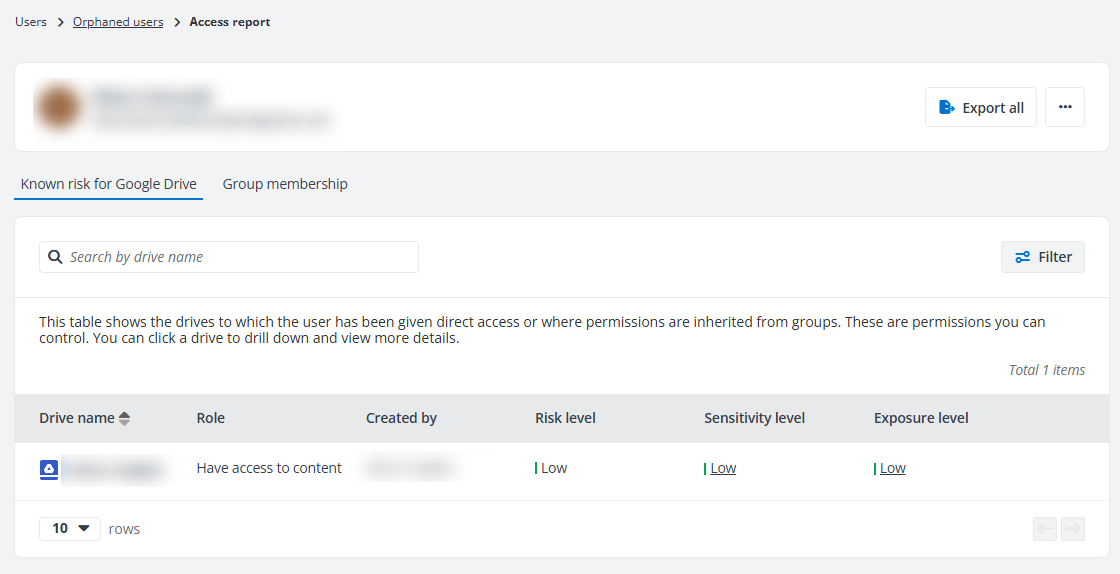
On the top of the Access report page, you can view the display name of the orphaned user. The following actions are available:
-
Export all – Click Export all and the Export window appears. A default report name is automatically filled in, and you can edit it if desired. Click Export to export the access report of the user. When the export process begins, you can monitor its progress by navigating to Job monitor > Download center or by clicking the Download center link in the prompted message.
-
View activities – Click View activities to the right of the user’s display name to open the View Activities page of the orphaned user in a new tab.
-
Remove all – Click Remove all to remove the permissions of the user to all drives in the configured data scope, including both directly granted permissions and those inherited through membership.
In the Known risk forGoogle Drive section, you can view the drive name, role, the user who created the drive, and the risk level, sensitivity level, and exposure level of the drive.
The following actions are available:
-
Search drives – You can locate the desired drives by entering their names in the search box in the upper-left corner of the section and pressing Enter on your keyboard. The matching results will be displayed below.
-
Filter – Click Filter in the upper-right of the section and the Filter window appears. Configure the filters as required and click Filter. The filtered results will be displayed below.
Click or hover your mouse over the drive rows and the ellipsis button appears on the right of the row. Click the ellipsis button to view available actions for the drive:
-
View details – The Details window appears in the right pane. The basic information of the drive and the risk information is displayed.
-
View activities – The View activities page is opened in a new tab. For details, refer to View Activities.
In the Group membership tab, the groups to which the orphaned user belongs are listed. You can view the group name, number of members for each group, and the number of drives to which the group has access.