
Home > Use Insights for Microsoft 365 > View Activity
Download this articleView Activity
The Scan Details page allows you to view details and trends related to scan records of your data.
Job Monitor is the centralized place where you can view your export tasks and action records.
Activity Explorer is where you can view Microsoft 365 activities and Microsoft Entra activities.
Scan Details
The Scan details page displays all types of scan records at the site level. If you select All workspaces or any Microsoft 365 workspace from the workspace drop-down list, the Scan details page will be displayed as follows:
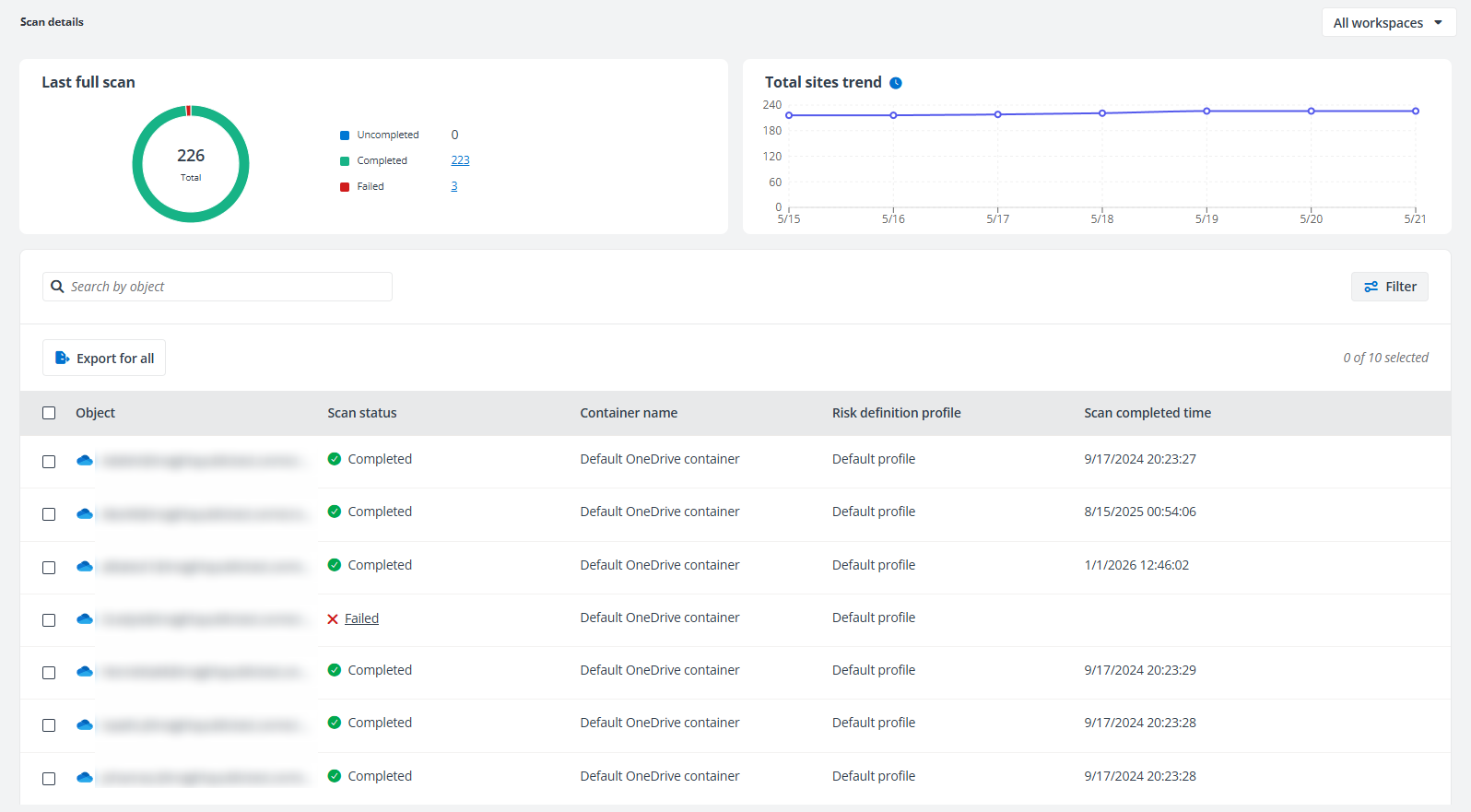
In the Last full scan section, you can view the number of site collections that have completed the data scan, the number of uncompleted site collections, and the number of site collections that fail in the scan in a doughnut chart. Click the number link to show the corresponding site collections in the table below.
In the Total sites trend section, you can view the number of total site collections in the last 7 days. Hover your mouse over a circle to view the number of site collections of the day.
In the table, you can view the object, workspace, scan status, container name, applied risk definition profile, scan completed time, and failed reason. You can also search for a specific object above the table. For the site collections that you want to prioritize in the scan, select the site collections in the table and click Prioritize in scan. The Waiting in the queue icon will be displayed to the right of the site collection row to show its status. Click Export for all to export the summary report of the currently displayed site collections or click Export for selected items after selecting one or multiple objects. The report name is automatically filled in and you can edit it if required. Click Export to start exporting the report.
Click the ellipsis button to the right of a site collection, and you can select View scan history to view all scan records within the site collection. In the table, you can view the object name and relative URL, the start time and end time of the scan, the scan type, the scan status, container name, applied risk definition profile, scanned data size, and the trigger of the scan. You can also filter or search for a specific object in the table.
If you select Power BI from the workspace drop-down list, the Scan details page displays as follows:
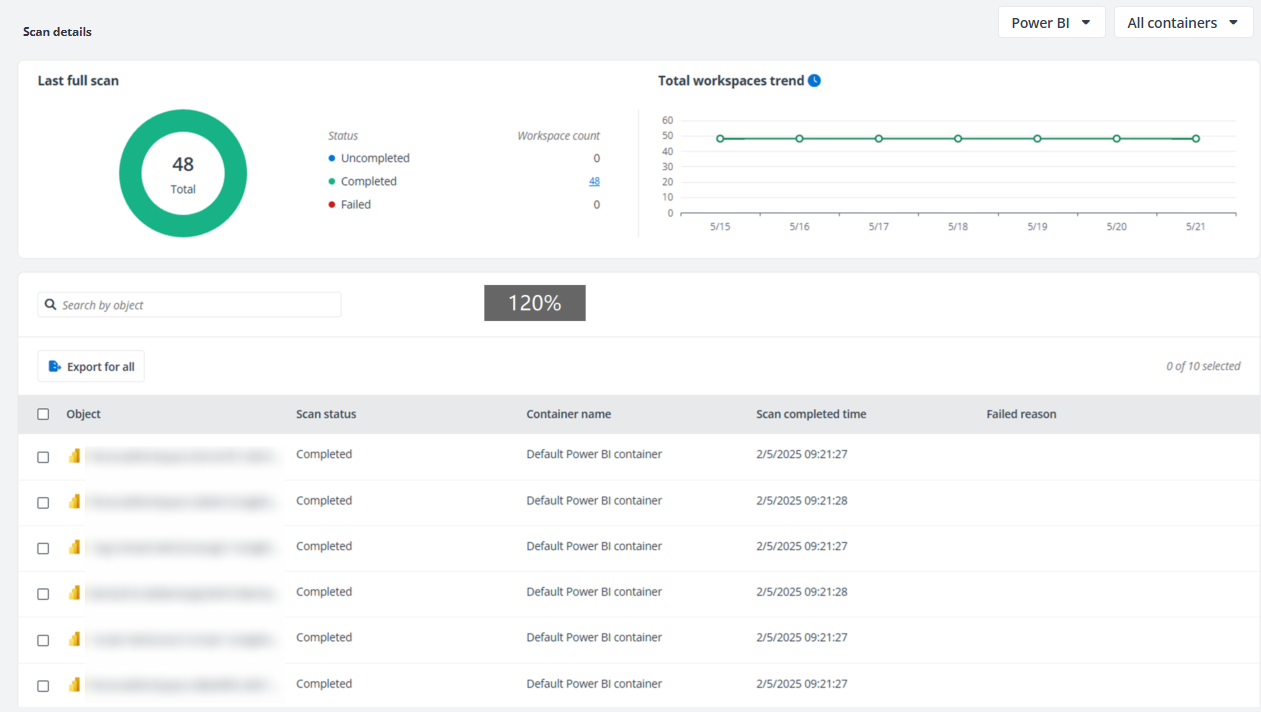
In the Last full scan section, you can view the number of workspaces that have completed the data scan, the number of uncompleted workspaces, and the number of workspaces that fail in the scan in a doughnut chart. Click the number link to show the corresponding workspaces in the table below.
In the Total workspaces trend section, the number of total workspaces over the last 7 days can be viewed. Hover your mouse over a circle to view the number of workspaces of the day. In the table, you can view the workspace, scan status, container name, scan completed time, and failed reason if the scan failed. You can also search for a specific workspace above the table. Click Export for all to export the summary report for all workspaces, or select one or multiple workspaces and click Export for selected items to export the summary report for the currently displayed workspaces. The report name is automatically filled in and you can edit it if required. Click Export to start exporting the report.
Activity Explorer
Activity explorer is where you can view activities of specific types within the retention period since the initial configurations.
Click Activity explorer on the left navigation, and select which type of activities you want to view.
Microsoft Entra Audit logs and Microsoft Entra Sign-ins are not available when one of the following conditions is met:
-
Only app profiles with the Classic mode setup method are created for your tenants.
-
App profiles with the Custom mode setup method are created with insufficient permissions.
The Modern mode setup method is recommended for app profile creation if you want to view Microsoft Entra Audit logs and Microsoft Entra Sign-ins.
Activity Overview (Preview)
Click Overview under Activity explorer on the left navigation, and the Overview page appears.
If your organization has multiple tenants, select a tenant or All tenants from the tenant drop-down list to view an overview report of the selected tenants.
The Activity overview feature is currently in public preview mode and is available as an on-demand feature. You can contact AvePoint Technical Support or your sales representative for more information.
Summary
There are three charts in the Summary section.
-
Total activities – This chart displays the number of total activities in the last 7 days. You can view the proportion of Microsoft 365 activities, Microsoft Entra audit logs, and Microsoft Entra sign-ins on each bar. Hover your mouse over a bar to view the exact numbers respectively.
-
New risks detected – This chart displays the trends of newly detected risks for the last 7 days. Hover your mouse over a trend to view the number of new risks of the day.
-
Total sign-in failures – This chart displays the trends of total sign-in failures for the last 7 days. Hover your mouse over a trend to view the number of total sign-in failures of the day.
Risk detections
In this section, you can view the number of users whose activities match each configured detection rule. Click a number link to access the Risky users page with the Insights detections tab selected. You can view the corresponding activities in the table.
-
Sign-in failure – The number of sign-in failures per day has reached the custom threshold.
-
Untrusted IP address – The sign-ins from IP addresses that are not in the IP address allow list.
-
Untrusted location – The sign-ins from locations that are not in the sign-in location allow list.
-
Atypical or impossible travel – The sign-ins or user activities originating from geographically distant locations in less time than physically possible.
-
Malicious IP address – The sign-ins from malicious IP addresses which are in the custom monitoring group.
-
Abnormal file deletions – The file deletions per day have exceeded the baseline or custom threshold and is considered as a risk activity.
-
Abnormal file modifications – The modifications to sensitive files per day have exceeded the baseline or custom threshold and is considered as a risk activity.
-
Abnormal file downloads – The downloads of sensitive files per day have exceeded the baseline or custom threshold and is considered as a risk activity.
-
Mass access to sensitive files – The accesses to sensitive files per day have exceeded the baseline or custom threshold and is considered as a risk activity.
-
MFA-disabled – The activity that was taken to disable multi-factor authentication.
Activity analysis
In the Activity analysis section, the following components can be viewed.
-
Top 10 users with the most activities – Top 10 users are displayed with the number of their activities in the last 7 days. Click a number to view the corresponding activities on the Microsoft 365 activities page.
-
Top 10 sensitive objects with the most activities – Top 10 sensitive objects are displayed with the number of user activities on them in the last 7 days. Click a number to view the corresponding activities on the Microsoft 365 activities page.
-
Top 10 agents with most accesses to sensitive files– Top 10 Copilot Studio agents and SharePoint agents are displayed with the number of sensitive files they have accessed.
Sign-in distribution
In the Sign-in distribution section, the following components can be viewed.
-
Top 5 locations – The top 5 locations from where sign-in activities are performed in the last 7 days.
-
Top 5 new locations – The top 5 new locations from where sign-in activities are performed in the last 7 days.
-
Top 5 IP addresses – The top 5 IPs from where sign-in activities are performed in the last 7 days.
-
Top 5 new IP addresses – The top 5 new IPs from where sign-in activities are performed in the last 7 days.
Click a number link to view the corresponding activities on the Entra sign-ins page.
Microsoft 365 Activities
Click Microsoft 365 activities under Activity explorer on the left navigation, and the Microsoft 365 activities page appears.
Microsoft 365 activity data is stored in the Cosmos database. For more information, refer to Database Settings.
Specify the scope of activities to view in the report via the following conditions:
-
Date range – Define the date range during which activities you want to view. The default date range is the last 7 days.
-
User scope – Select A specific user and configure the user in the text box to only view activities of this specific user.
Alternatively, select All users to view activities of all users.
-
Activity scope – Select Activities of specific types, and click Configure activity types. In the prompted window, select desired activity types and click Save to only view activities of the specific types. You can click Collapse all to view the activity types Insights collects, or click Expand all to view all activities. You can also search for a specific activity. For detailed activities, refer to Appendix H: Collected Microsoft 365 Activity List.
Alternatively, select All activities to view activities of all types.
-
Tenant – If your organization has multiple tenants, select a tenant or All to view activities of the selected tenants.
Click Run report to view the activities that meet the conditions above.
Click Filter, and the Filter window appears. You can select desired options from the IP address, User, Date range, Activities, and/or Object ID filter drop-down lists, and click Apply changes to only display the activities that meet the conditions you configured. For the Activities filter, you can click Collapse all to view the activity types Insights collects, or click Expand all to view all activities. You can also search for a specific activity. For detailed activities, refer to Appendix H: Collected Microsoft 365 Activity List.
Click Refresh in the upper-left corner of the page to refresh the activities listed in the table.
Click Export to export the currently displayed activities. The report name is automatically filled in and you can edit it if required. Click Export to start exporting the activity report.
Microsoft Entra Audit Logs
Click Entra audit logs under Activity explorer on the left navigation, and the Entra audit logs page appears where you can view every logged event in Microsoft Entra ID. Changes to applications, groups, users, and licenses are all captured in the Microsoft Entra audit logs.
Insights retrieve real-time audit logs and sign-ins from Microsoft Entra ID, which retains this data for a fixed period by default. To access extended audit logs and sign-in records, you can enable the on-demand feature to store Microsoft Entra activities in Insights. You can contact AvePoint Technical Support or your sales representative to learn more.
Specify the scope of activities to view in the report via the following conditions:
-
Date range – Define the date range during which activities you want to view. The default date range is the last 7 days.
-
Activity scope – Select Activities of specific types, and click Configure activity types. In the prompted window, select desired activity types and click Save to only view activities of the specific types. You can click Collapse all to view the activity types Insights collects, or click Expand all to view all activities. You can also search for a specific activity.
Alternatively, select All activities to view activities of all types.
-
Tenant – If your organization has multiple tenants, select a tenant or All to view activities of the selected tenants.
Click Run report to view the activities that meet the conditions above.
Click Filter, and the Filter window appears. You can select desired options from the Data range, Service, Category, Activities, and/or Status filter drop-down lists, and click Apply changes to only display the activities that meet the conditions you configured. For the Activities filter, you can click Collapse all to view the activity types Insights collects, or click Expand all to view all activities. You can also search for a specific activity.
Click Refresh in the upper-left corner of the page to refresh the activities listed in the table.
Click Export to export the currently displayed activities. The report name is automatically filled in and you can edit it if required. Click Export to start exporting the activity report.
Microsoft Entra Sign-ins
Click Entra sign-ins under Activity explorer on the left navigation, and the Entra sign-ins page appears where you can view all sign-ins into your Microsoft Entra tenant, including your internal apps and resources.
Insights retrieve real-time audit logs and sign-ins from Microsoft Entra ID, which retains this data for a fixed period by default. To access extended audit logs and sign-in records, you can enable the on-demand feature to store Microsoft Entra activities in Insights. You can contact AvePoint Technical Support or your sales representative to learn more.
On the Entra sign-ins page, you can view sign-ins in four tabs.
-
User sign-ins (interactive) – Interactive sign-ins are performed by a user and require the user to provide an authentication factor to Microsoft Entra ID.
-
User sign-ins (non-interactive) – Non-interactive sign-ins are done on behalf of a user and do not require the user to provide an authentication factor. In general, the user perceives these sign-ins as happening in the background.
-
Service principal sign-ins – Sign-ins by any nonuser account, such as apps or service principals.
-
Managed identity sign-ins – Sign-ins that are performed by resources that have their secrets managed by Azure to simplify credential management.
Click Filter, and the Filter window appears. You can select desired options and click Apply changes to only display the sign-in activities that meet the conditions you configured.
Click Refresh in the upper-left corner of the page to refresh the activities listed in the table.
Click Export to export the currently displayed sign-in activities. The report name is automatically filled in and you can edit it if required. Click Export to start exporting the activity report.