
Home > Use Insights for Google > Risk Analysis > Detailed Records Report
Download this articleDetailed Records Report
On the Detailed records page of risk analysis, select the data scope for the report.
-
If your organization has multiple tenants, select a tenant or All tenants from the tenant drop-down list to view the risk analysis detailed report of the selected tenants.
-
Select User drive or Shared drive from the workspace drop-down list, and the containers in the configured scope to which you have permissions will be loaded accordingly in the container drop-down list.
-
Select desired containers or the Select all checkbox and click OK to view the risk analysis of objects in the selected containers.
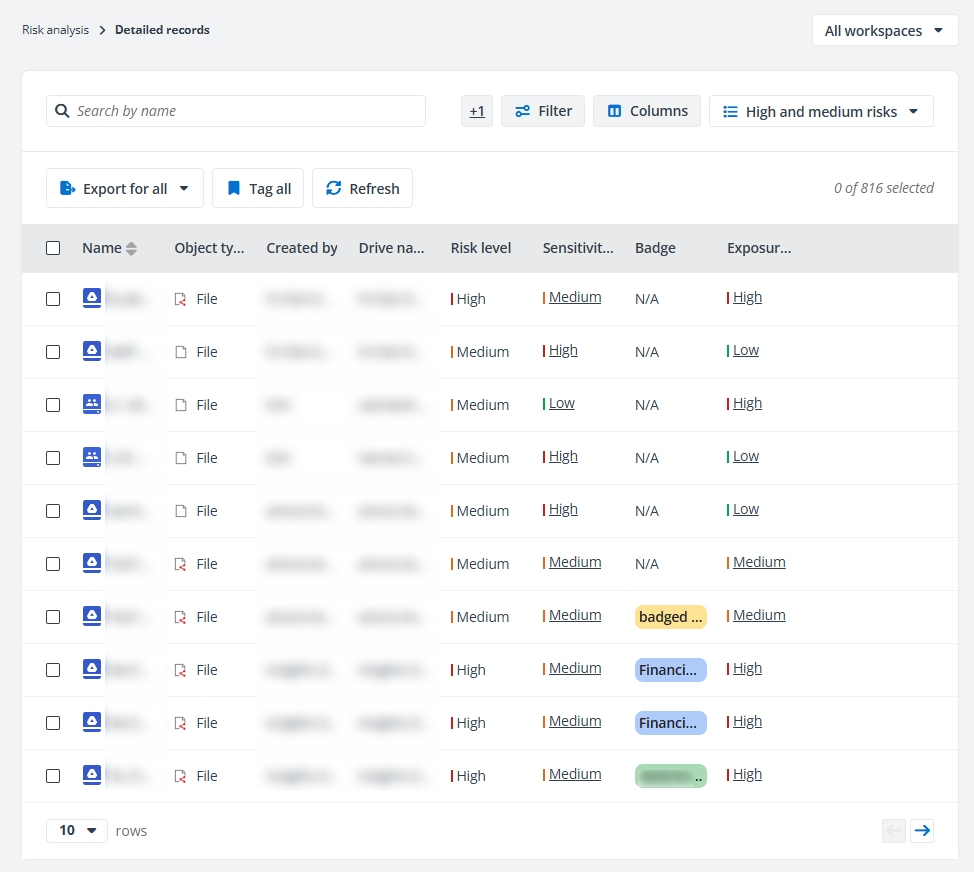
On the Detailed records page, all objects in the currently selected workspace containers are listed in the table. If you access this page by clicking a name link on the Overview page, only objects in the drive are listed.
-
Name – The object name. Hover your mouse over the name, and the object location appears.
In front of the object name, you can view the workspace of the object.
-
Object type – The object type. In front of the object type, you can view the object icon. If the object is shared with others, the shared icon will be added to the object icon. Hover your mouse over the icon, and the type and sharing status of the object appear.
-
Created by – The creator of the object.
-
Created time – The created time of the object.
-
Drive name – The name of the drive where the object locates.
-
Risk level – The risk level of the object, High, Medium, or Low. The risk level is calculated based on sensitivity level and exposure level. No risk is displayed when the sensitivity level of the object is Not sensitive.
-
Sensitivity level – The sensitivity level of the object, High, Medium, or Low. Not sensitive is displayed for the container level and the object that does not match any of the configured sensitivity levels.
The sensitivity level is calculated based on the sensitivity level settings. For details, refer to Sensitivity Definitions.
Click the sensitivity level, and the Sensitivity details window appears on the right where you can view the sensitivity details of the object.
-
If the Google DLP sensitivity definition is enabled, the matched data protection rules and the corresponding data types will be displayed in the Google DLP section.
-
If Google labels are used in the risk definition profile, the matched Google label together with the corresponding field and value will be displayed in the Label section.
-
If built-in or custom conditions are used in the risk definition profile, the matched conditions together with the matched text in the object will be displayed in the Built-in condition/Custom condition section.
-
-
Data type – The matched data types of the file are listed. Click the View details link to view all matched data types in the right panel.
-
Badge – The badge selected for the file.
-
Exposure level – The exposure level of the object, High, Medium, or Low. Click it to view the matched exposure rule.
The exposure level is calculated based on the exposure level settings. For details, refer to Exposure Definitions.
-
Last discovered time – The time when this object is discovered.
-
Last modified time – The last modified time of the object.
-
Location – The path of the object’s storage location in the drive.
-
Tag – The tag that has been added to the object. Click the tag link, and the Add tag window appears. You can select another tag for the object or create a new tag, and/or add your comment, and then click Add to add the new tag and/or comment.
NOTEThe Not processed tag is the default tag and will not be displayed as a tag value for objects.
-
Comments – The comments icon is displayed when a comment has been added for the object. Click this icon, and the Comments window appears.
-
View existing comments, the user who added the comments, and the time when the comments are added.
-
Add a new comment by entering the comment in the text box and clicking Add.
-
Delete existing comments by clicking the Delete comment button to the right of a comment after hovering over a comment.
NOTEThis action is only available for administrators.
If no comment has been added, the Add link is displayed as the column value. Click the Add link, and the Comments window appears.
-
The following actions are available above the table on this page:
-
Manage views – Click the view in the upper-right corner of the page, and the drop-down list where all available views are displayed appears. Both the built-in views and the views you created are listed. Select the view you want to use by clicking it. After selecting a view, the following actions can be performed on the view:
-
Save – After editing a custom view, click this link to save the view.
-
Save as new view – Click this link, and the Save as new view window appears. Enter a name for the new view in the text box and click Save to save the new view.
-
Set as default view – Click this link to set the current view as the default view. The view will be marked with (Default).
-
Delete view – Click this link to delete the current view.
NOTEThe built-in views cannot be deleted.
-
-
Filter – Click Filter in the upper-right corner of the table, and the Filter window appears in the right pane. All columns that are available for the filter are listed below. Click the down arrow button to the right of a column to show the text box or selectable options. Enter keywords in the text box and/or select desired options to define the filter conditions.
You can also click Reset to default to clear your input and selections and reset the filters to their default state.
Click Apply changes to filter items displayed in the table based on the configured filters.
-
Manage columns – Click Columns in the upper-right corner of the table, and the drop-down list where all available columns are displayed appears. Select the columns that you want to display in the table and click Apply to apply the column selection. You can also choose Select all to show all columns in the table.
-
Export – You can export the detailed records using one of the following methods:
-
Click Export for all above the table to export all records of the current data scope.
-
Filter the records and then click Export for all to export the report of the filtered records.
-
Select one or multiple records and then click Export for selected items to export the selected records.
In the export drop-down list, select Export summary report to export the summary report of the records, or select Export permission report to export both the detailed record report and permission report for the records.
In the export window, a default report name is automatically filled in, and you can edit it if desired. Click Export in the window to start the export.
When the export process begins, you can monitor its progress by navigating to Job monitor > Download center or by clicking the Download center link in the prompted message.
-
-
Add tag – Select one or multiple objects and click Add tag above the table to add a tag to the selected objects. Alternatively, click Tag all to add a tag to the currently displayed objects in bulk.
In the Add tag window, select a tag from the drop-down list or enter the tag name in the text box. You can also create a new tag by entering a new tag name. Enter an optional comment in the text box and click Add to add the tag and comment to the objects.
NOTETo exclude a sensitive object from being calculated in the Sensitive Items statistic of Insights, you can add the False Positive tag to the object.
-
Manage label – Select one or multiple files and click Manage label above the table. The Manage label window appears. Click Select one and select a Google label you want to apply from the drop-down list. If there are any fields configured for the label, you can select field values. Then, click Apply to apply the label to the files.
If a label has already been applied, you can click the pencil button to the right of the label to edit field values. Alternatively, click the recycle bin button to remove the label from the file.
-
Unshare – Select one or multiple objects and click Unshare above the table. Any shared permissions on the selected objects will be removed. If they have parent nodes, they will inherit permissions from their parent folders once the shared permissions are removed.
NOTEThis action is only available for shared objects.
-
Refresh – Click Refresh to refresh the items displayed in the table.
The following options are available in the ellipsis drop-down list for each object listed in the table.
-
Detailed information – This option allows you to view the risk level, permission report, and activity report of the object. For more information, refer to View Detailed Information of Objects.
-
View permissions – This option allows you to access the View Permissions page of the object.
-
View activities – This option allows you to access the View Activities page of the object.
-
View activities in Insights – This option allows you to view all activities to the object in Insights.
-
Add tag – This option allows you to add tags and optional comments to the object.
NOTETo exclude a sensitive object from being calculated in the Sensitive items statistic of Insights, you can add the False positive tag to the object.
-
Manage label – This option allows you to apply or update the Google label applied to the file.
-
Unshare – This option allows you to remove shared permissions on the object. If it has parent node, the object will inherit permissions from the parent folder once the shared permissions are removed.
NOTEThis action is only available for shared objects.
-
Open in Google Workspace – This option allows you to open the object in Google Workspace.
NOTEThis action is only available for objects in shared drives.