
Home > Get Started > Initial Configurations
Download this articleInitial Configurations
When the first tenant user logs into Insights, the welcome page appears.

Select Start the wizard to begin the initial configurations for your tenant. To explore Insights first, select View sample data to use the built-in sample dataset. When you’re ready to configure your tenant, click Real data at the bottom of the page.
Insights follows the session timeout setting configured in AvePoint Online Services. A user can be inactive for the configured time period before they are automatically logged off. After a user signs out or is logged off, the configurations can be maintained when the user logs into Insights again.
Initial Configurations for Microsoft 365
The following are the steps to complete the initial configurations to use Insights for Microsoft 365:
-
Prerequisites setup
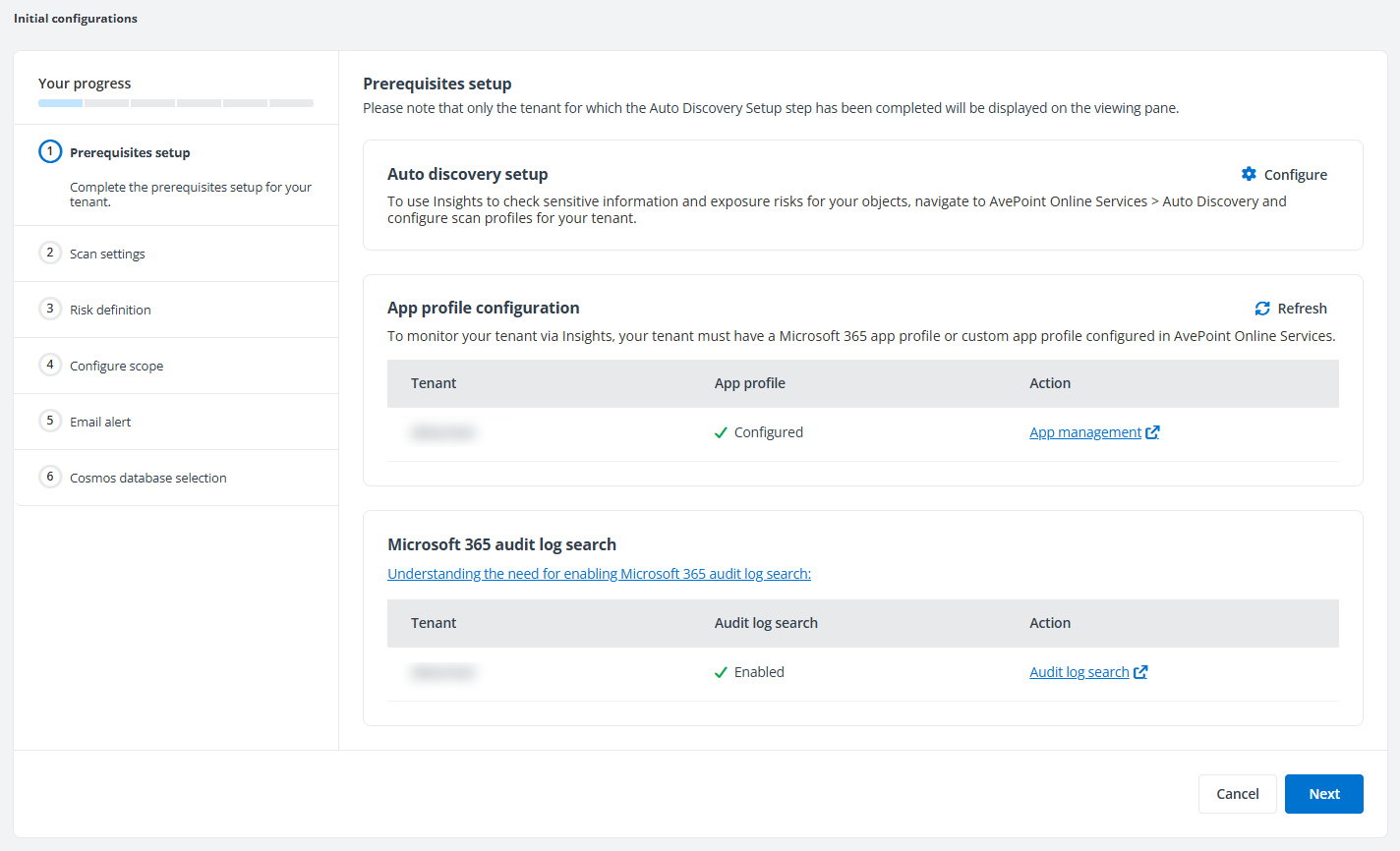
Only the tenant for which the auto discovery scan profile has been configured in AvePoint Online Services can be displayed here.
-
Auto discovery setup – Click Configure to access the Scan profiles page in AvePoint Online Services in a new tab and configure scan profiles for your tenant.
-
App profile configuration – When a Microsoft 365 app profile or custom Azure app profile has been configured for the tenant in AvePoint Online Services, Configured is displayed. Otherwise, Not configured is displayed here.
You can click App management in the Action column to directly access the App management page of AvePoint Online Services in a new tab.
Loading… may be displayed due to a poor network connection. You can click Refresh to refresh the statuses displayed in the table.
-
Microsoft 365 audit log search – When audit log search is enabled for the tenant in the Microsoft Purview portal, Enabled is displayed. Otherwise, Disabled is displayed here.
NOTEWhen the Enabled for users to sign-in setting for the AOS app or custom app of the tenant is disabled in Microsoft Entra ID, Insights for Microsoft 365 cannot check if the audit log search is enabled for the tenant when users configure the scope. Disabled will be displayed here.
You can click Audit log search in the Action column to access the Audit page in the Microsoft Purview portal after logging into Microsoft 365.
NOTEAfter the audit log search is turned on, it will take a few minutes to retrieve the new status from Microsoft 365 and update the status here.
Additionally, it may take several hours after you turn on the audit log search before you can return the audit log search results. For more information, refer to Turn on audit log search.
Click Next to go to the Scan settings step.
-
-
Scan settings
The Comprehensive scan mode is used by default. To view your initial risk assessment quickly, select the Risk-prioritized scan mode to scan objects with unique permissions first. You can view the fully baked analytics later when the incremental scan is completed.
Click Next to go to the Risk definition step.
-
Risk definition
Insights for Microsoft 365 provides you with default risk definition profiles. You can create custom risk definition profiles with configurations for sensitivity and exposure definitions by clicking New profile. For detailed information, refer to Risk Definition Profiles.
Click Next to go to the Configure scope step.
-
Configure scope
Assign a profile to the containers for which you want to enable Insights functionalities by selecting the container checkboxes and clicking Assign profile. Make sure you have selected a profile for each container with items. You can also search for desired containers or filter containers displayed in the table.
NOTEWith the limited Trial subscription, you can scan up to 25 sites per data source for your tenant. To scan desired sites, make sure the number of sites selected for each data source does not exceed this limit.
You can also turn on the Include new containers feature, select a risk definition profile, and click Apply to apply the selected risk definition profile for all containers created later. Every new container will be automatically scanned based on the risk definition profile. For more information, refer to Scope and Binding.
NOTEInclude new containers is not available here when you have subscriptions for both Microsoft 365 and Google/Salesforce modules. You can configure this feature later on the Scope and binding page after the initial configurations are completed.
-
Email alert
Insights for Microsoft 365 supports sending an email alert after the full scan is completed. You can enable the email alert and configure email recipients in the text box.
-
Cosmos database selection
Choose to use the default Cosmos database or your own Cosmos database. If My own Cosmos database is selected, the database information needs to be configured. For detailed information, refer to Database Settings.
After completing the initial configurations, click Apply to save the settings for your tenant and initiate the full scan. If email alert is enabled, the configured recipient will receive an email notification once the scan is complete. Alternatively, you can go to System Event and check the full scan events.
Initial Configurations for Google
The following are the steps to complete the initial configurations to use Insights for Google:
-
Prerequisites setup
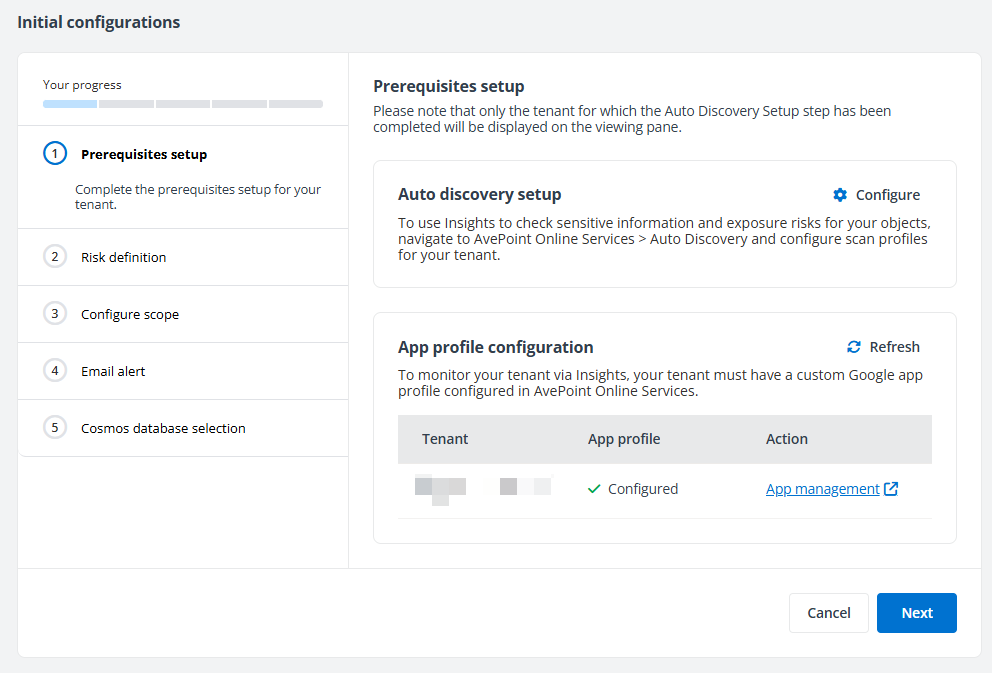
Only the tenant for which the auto discovery scan profile has been configured in AvePoint Online Services can be displayed here.
-
Auto discovery setup – Click Configure to access the Scan profiles page in AvePoint Online Services in a new tab and configure scan profiles for your tenant.
-
App profile configuration – When a custom Google app profile has been configured for the tenant in AvePoint Online Services, Configured is displayed. Otherwise, Not configured is displayed here.
You can click App management in the Action column to directly access the App management page of AvePoint Online Services in a new tab.
Loading… may be displayed due to a poor network connection. You can click Refresh to refresh the statuses displayed in the table.
Click Next to go to the Risk definition step.
-
-
Risk definition
A default profile is provided for Google Workspace and Google Cloud (if the Google Cloud add-on feature is enabled) separately. You can create custom risk definition profiles with configurations for sensitivity and exposure definitions by clicking New profile. For detailed information, refer to Risk Definition Profiles.
Click Next to go to the Configure scope step.
-
Configure scope
Assign a profile to the containers for which you want to enable Insights functionalities by selecting the container checkboxes and clicking Assign profile. Make sure you have selected a profile for each container with items. You can also search for desired containers or filter containers displayed in the table.
NOTEWith the limited Trial subscription, you can scan up to 25 drives per type for your tenant. To scan desired drives, make sure the number of drives selected for each type does not exceed this limit.
You can also turn on the Include new containers feature, select a risk definition profile, and click Apply to apply the selected risk definition profile for all containers created later. Every new container will be automatically scanned based on the risk definition profile. For more information, refer to Scope and Binding.
NOTEInclude new containers is not available here when you have subscriptions for both Google and Microsoft 365/Salesforce modules. You can configure this feature later on the Scope and binding page after the initial configurations are completed.
-
Email alert
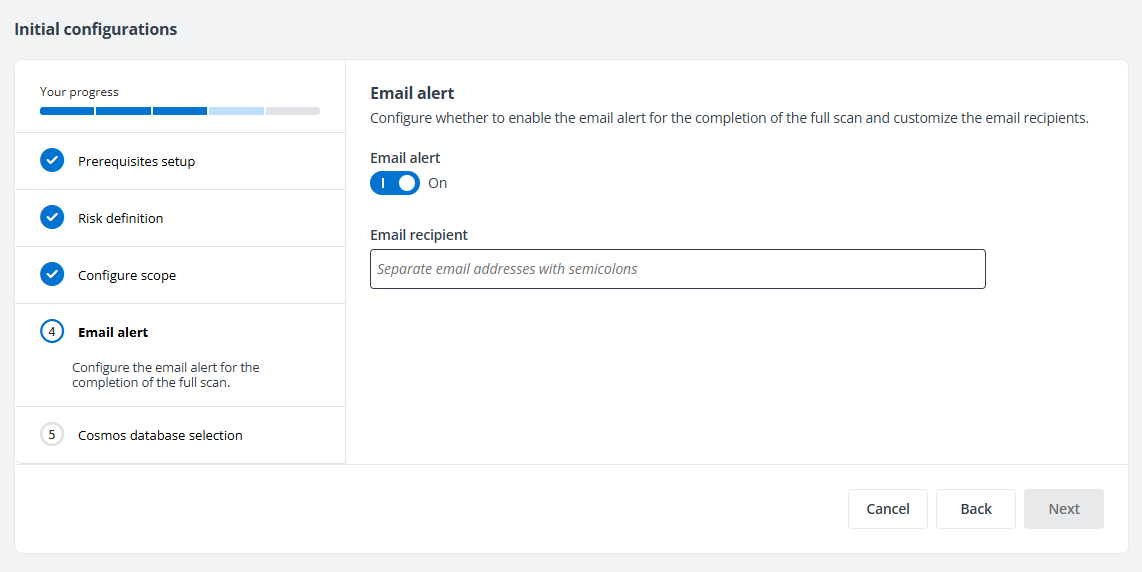
Insights for Google supports sending an email alert after the full scan is completed. You can enable the email alert and configure email recipients in the text box.
-
Cosmos database selection
Choose to use the default Cosmos database or your own Cosmos database. If My own Cosmos database is selected, the database information needs to be configured. For detailed information, refer to Database Settings.
After finishing the initial configurations, click Apply to apply the initial configurations for your tenant.
Initial Configurations for Salesforce
The following are the steps to complete the initial configurations to use Insights for Salesforce:
-
Prerequisites setup
-
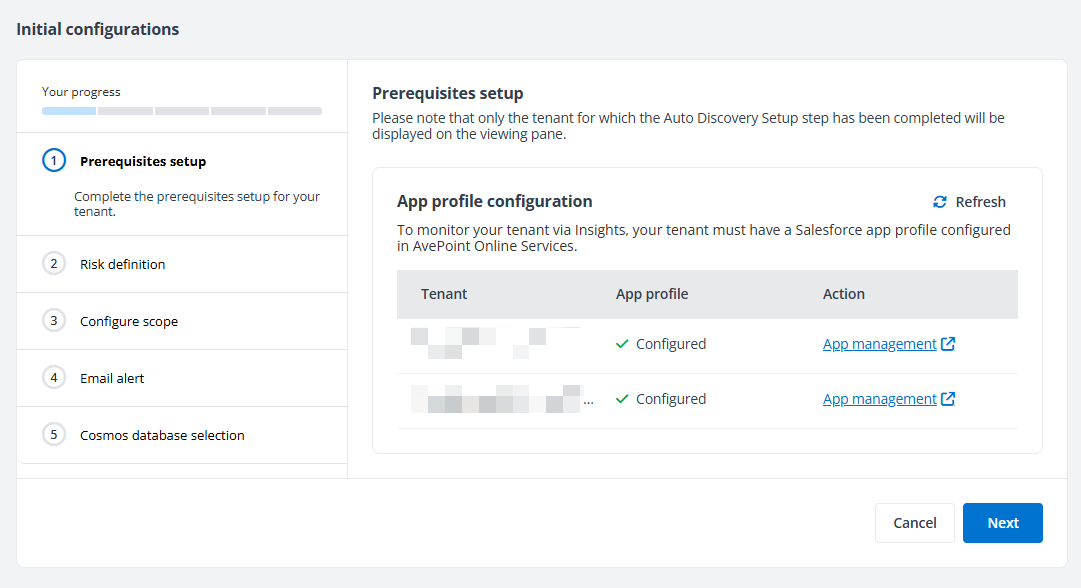
App profile configuration – When a Salesforce app profile has been configured for the tenant in AvePoint Online Services, Configured is displayed. Otherwise, Not configured is displayed here.
You can click App management in the Action column to directly access the App management page of AvePoint Online Services in a new tab.
Loading… may be displayed due to a poor network connection. You can click Refresh to refresh the status displayed in the table.
Click Next to go to the Risk definition step.
-
-
Risk definition
A default risk definition profile is provided for Salesforce. You can create custom risk definition profiles by clicking New profile. For detailed information, refer to Create New Risk Definition Profile.
Click Next to go to the Configure scope step.
-
Configure scope
-
Default containers of Salesforce are displayed. You can create new containers with desired objects. For more information, refer to Scan Scope Definition.
NOTEWith the limited Trial subscription, you can scan up to 25 objects for your tenant except for the Content Delivery object. To scan desired objects, make sure the number of objects selected in the scan scope containers does not exceed this limit.
-
Click Next to configure scope and binding.
-
To assign a profile to the containers for which you want to enable Insights functionalities, select the container checkboxes and click Assign profile. Make sure you have selected a profile for each container with items. For more information, refer to Scope and Binding.
-
Click Next to go to the Email alert step.
-
-
Email alert
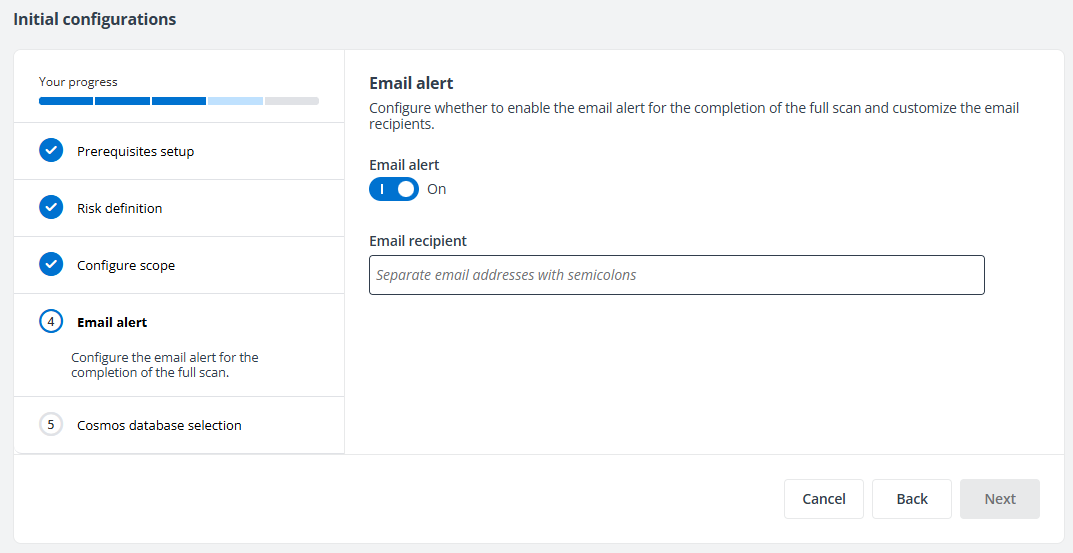
Insights for Salesforce supports sending an email alert after the full scan is completed. You can enable the email alert and configure email recipients in the text box.
-
Cosmos database selection
Choose to use the default Cosmos database or your own Cosmos database. If My own Cosmos database is selected, the database information needs to be configured. For detailed information, refer to Database Settings.
After finishing the initial configurations, click Apply to apply the initial configurations for your tenant.
Initial Configurations for AWS
The following are the steps to complete the initial configurations to use Insights for AWS:
-
Prerequisites setup
-
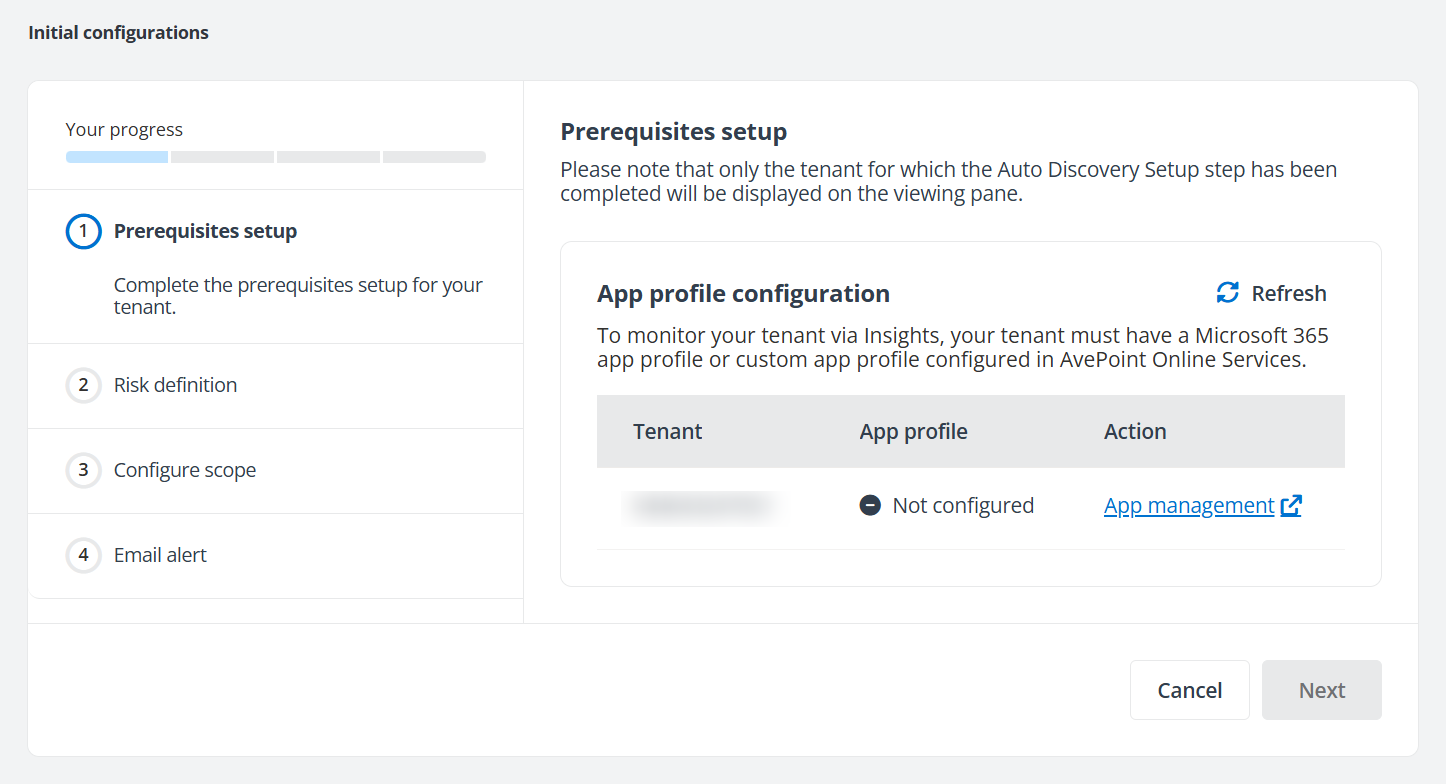
App profile configuration – When an AWS app profile has been configured for the tenant in AvePoint Online Services, Configured is displayed. Otherwise, Not configured is displayed here.
You can click App management in the Action column to directly access the App management page of AvePoint Online Services in a new tab.
Loading… may be displayed due to a poor network connection. You can click Refresh to refresh the statuses displayed in the table.
Click Next to go to the Risk definition step.
-
-
Risk definition
Insights for AWS provides you with a default risk definition profile. You can create custom risk definition profiles with configurations for exposure definitions by clicking New profile. For detailed information, refer to Risk Definition Profiles.
Click Next to go to the Configure scope step.
-
Configure scope
Assign a profile to the AWS account for which you want to enable Insights functionalities by selecting its checkboxes and clicking Assign profile. You can also search for desired accounts or filter accounts displayed in the table.
Click Next to go to the Email alert step.
-
Email alert
Insights for AWS supports sending an email alert after the full scan is completed. You can enable the email alert and configure email recipients in the text box.
After completing the initial configurations, click Apply to save the settings for your tenant and initiate the full scan. If email alert is enabled, the configured recipient will receive an email notification once the scan is complete. Alternatively, you can go to System Event and check the full scan events.