
Home > Use Insights for Microsoft 365 > Risk Analysis > View Shared Links
Download this articleView Shared Links
On the View shared links page, all links that provide access to the objects in the current site collection are displayed, including links shared with external users, orphaned users, whole organizations, and internal users. The Team / site collection / OneDrive / Microsoft 365 Group name is displayed on the top. The objects in the team site / site collection / OneDrive / Microsoft 365 Group team site that are shared via links are listed.
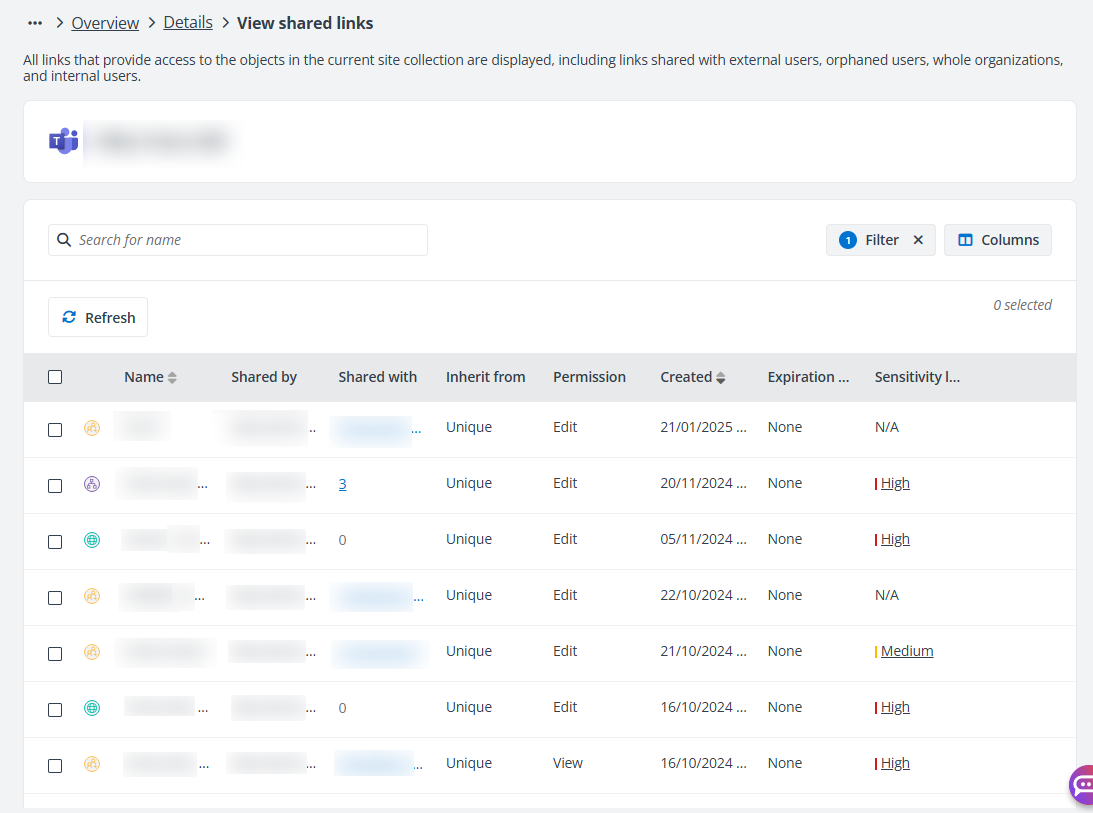
In the Shared with column, the number of the users and groups with whom the object is shared is displayed.
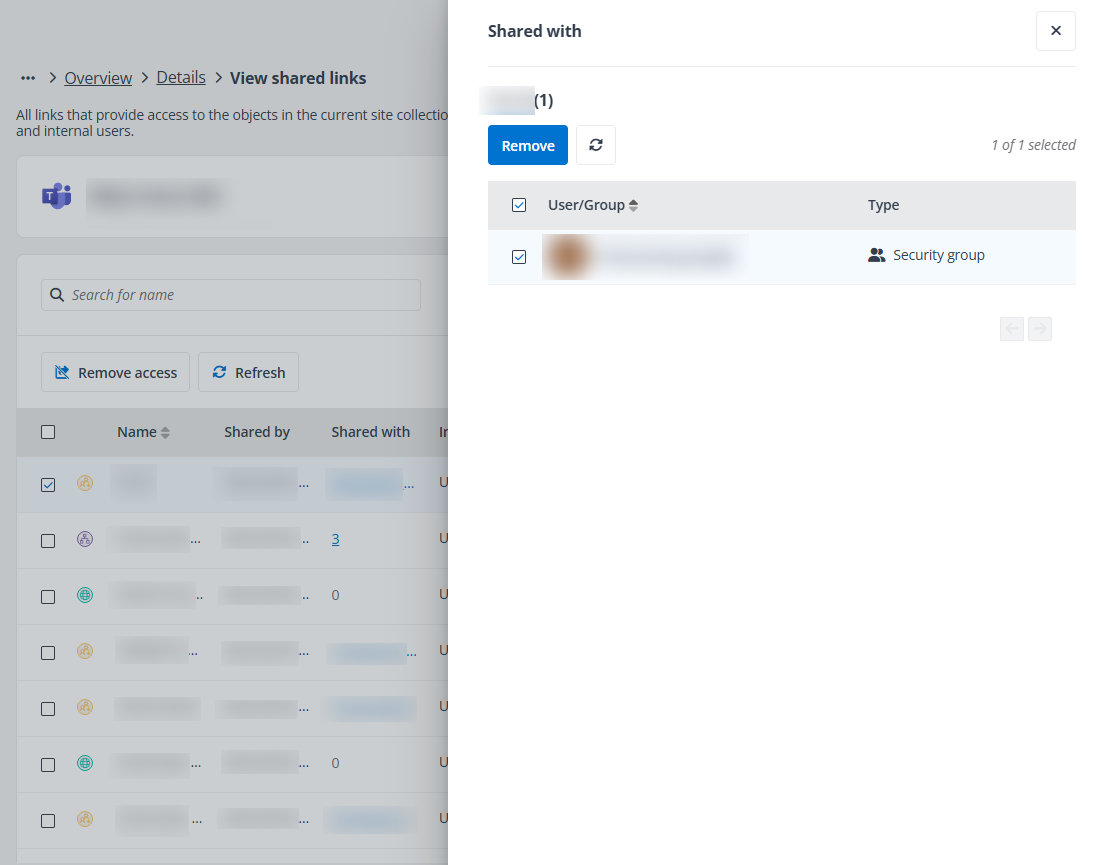
Click the number link in the Shared with column, and the Shared with window appears. You can view the users and groups with whom the object is shared.
For specific links, the following actions are available in this window:
-
Remove – Select one or multiple users and groups and click Remove to remove their access to the object.
NOTEThis action is only available for specific link.
-
Refresh – Click the Refresh button to refresh the users and groups displayed in the window.
The following actions are available on the View shared links page:
-
Filter – Click Filter, and the Filter window appears. You can configure the filter conditions to filter the objects displayed in the table. After the filter is applied, you can click the number on the right of Filter to view and edit the filter or you can click the remove button on the right of Filter to remove the filter.
-
Manage columns – Click Columns, and the drop-down list where all available columns are displayed appears. Select the columns that you want to display in the table and click Apply to apply the column selection. You can also select the Select all option to show all columns in the table.
-
Remove access – Select one or multiple objects and click Remove access on the ribbon to remove access for the objects, and the links giving access to these objects will be removed from Microsoft 365. You can also hover your mouse over a row, click the ellipsis button, and select Remove access from the drop-down list. A confirmation window appears. Click OK to remove the links giving access to the object from Microsoft 365.
-
Refresh – Click Refresh to refresh the objects displayed in the table.