
Home > Use Insights for Google > Risk Analysis > View Shared Links
Download this articleView Shared Links
On the View shared links page, all links that provide access to the objects in the current drive are displayed, including links shared with anyone and target audiences. The drive name is displayed on the top. The objects in the drive that are shared via links are listed.
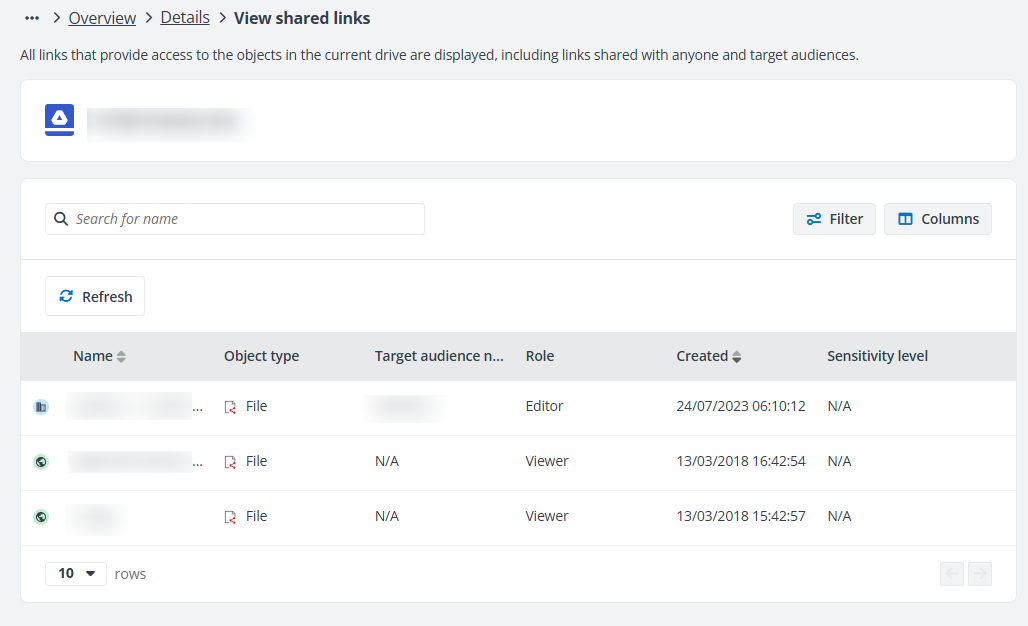
The following actions are available on the View shared links page:
-
Filter – Click Filter, and the Filter window appears. You can configure the filter conditions to filter the objects displayed in the table.
-
Manage columns – Click Columns, and the drop-down list where all available columns are displayed appears. Select the columns that you want to display in the table and click Apply to apply the column selection. You can also select the Select all option to show all columns in the table.
-
Refresh – Click Refresh to refresh the objects displayed in the table.
-
Remove access – Select one or multiple shared links and click Remove access to remove the shared links from the objects. To remove access for a single link, you can click the ellipsis button to the right of the record and click Remove access from the drop-down list.
If you choose to remove access from a file that inherits permissions from its parent folder, the link will be removed directly from the parent folder.
-
Edit permission – Select one or multiple shared links, click Edit permission, choose the new permission level for the links, and click Save to update the permission for the shared links.
To edit the permission of a single link, click the ellipsis button to the right of the record and select Edit permission from the drop-down list.
-
Open in Google Workspace – Click the ellipsis button to the right of the link and click Open in Google Workspace to open the object in Google Workspace.