
Home > Use Insights for Microsoft 365 > Manage Users
Download this articleManage Users
External Users is where you can view and manage external users and the sensitive items that they can access.
Orphaned Users is where you can view orphaned users and manage anonymous access. Orphaned users are the deleted users and groups, and blocked users in Microsoft Entra, that still have access to objects in the configured data scope of Insights. Anonymous access refers to individuals who have accessed shared content via links without an invitation or sign-in, as well as guest members of shared channels.
Groups with External Users is where you can view groups that contain external users.
Ghost Guest Users is where you can view ghost guest users and their basic information. They are the external users in your Microsoft Entra who are neither members of any Microsoft 365 Groups and Microsoft Teams nor with permissions to the configured data scope of Insights.
Risky Users is where you can view risky users who are detected by Microsoft Entra and Insights separately. You can define the detection rules in Risky User Detection Settings (Preview) which are used by Insights.
These reports are only available for administrators.
Overview
On the Overview page, the overall statistics of users for each tenant are displayed in a tab. You can switch tabs to view statistics of different tenants.
-
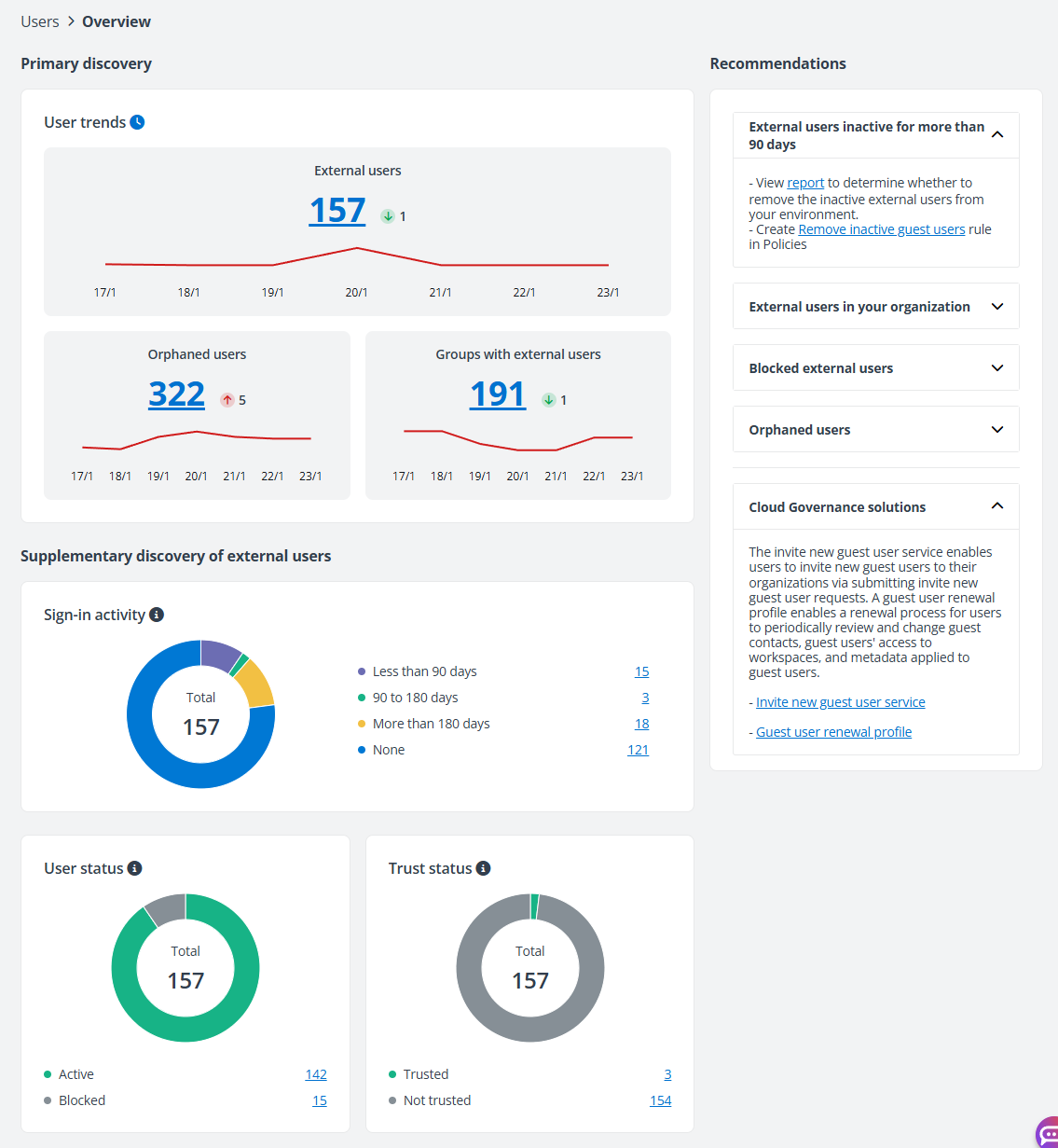
User trends – For each tenant, you can view the user trends section. You can view the trends of external users, orphaned users, and groups with external users for the last 7 days in the charts. Hover your mouse over a dot in the charts to view the total number of external users, orphaned users, or groups with external users of the day. The total number of external users, orphaned users, or groups with external users on the last day is displayed above the chart. You can also view the changes in numbers for the last 7 days.
NOTEThis chart is not available for standard users. The number of external users will be updated when the aggregation job finishes, instead of being updated immediately, along with the scope change.
-
Sign-in activity – This chart displays the number of external users by their sign-in activities. Click the count number of each type to view the corresponding external users on the External Users page.
NOTEExternal users that have never signed in to the tenant since being added to Microsoft Entra will be collected as the None type.
If the app profile configured for the tenant where the external user exists has not been authorized with enough permissions, the external user will be collected as the N/A type.
-
User status – This chart displays the number of external users by user status, Active or Blocked. You can click the chart or count link to only view the external users of a status on the External Users page.
-
Trust status – This chart displays the number of external users by trust status. The total number of external users, the number of trusted external users, and the number of external users that are not trusted are all displayed. Click the chart or the number link to view the corresponding external users on the External Users page.
-
Domains with most external users – Top five domains with the most external users are displayed in this chart. The domains with the same number of external users are displayed in alphabetical order. You can click the number link to the right of a bar to view the external user list on the External Users page.
-
Recommendations – Based on the user statistics, you can view the recommendations of Insights on the right pane. You can view the related Insights reports and recommended rules of Policies, as well as the Cloud Governance solutions.
External Users
On the External users page, all external users are displayed in the table, including external users in your Microsoft Entra that are invited to collaborate with your organization, and the users that are marked as external users in Insights.
To efficiently remove inactive guest users in bulk without reviewing them individually, you can enable the Remove inactive guest users rule of Policies for Microsoft 365 directly in Insights by clicking Run policy. In the Remove inactive guest users window, set the scan scope, action, excluded users, and specify the notification email recipients, and click Save and run now. The guest users in the scan scope will be removed in bulk. For more information, refer to Policies for Microsoft 365 User Guide.
This is only available when you have a subscription for Policies for Microsoft 365.
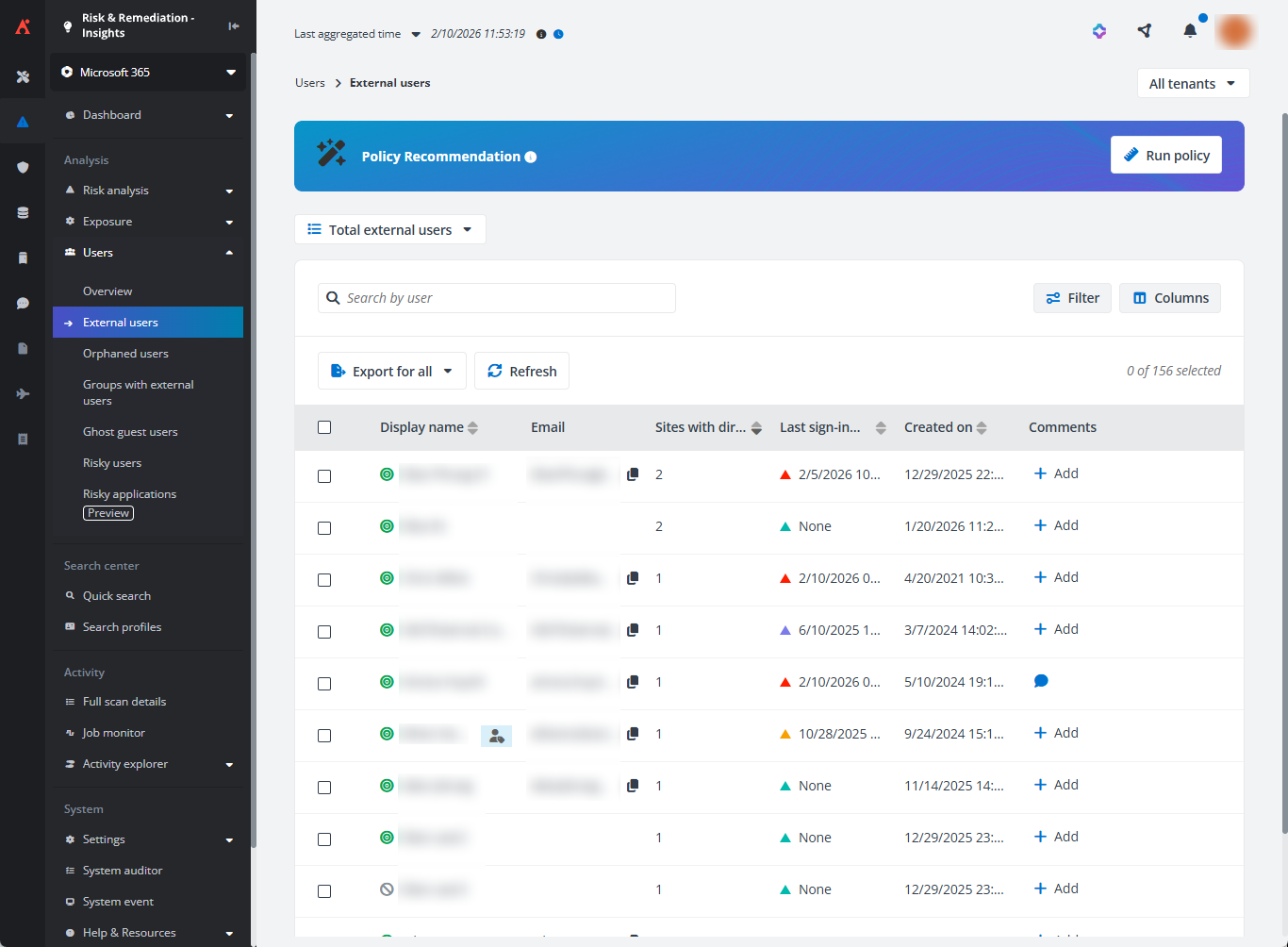
You can view the display name, principal name, email address, the number of site collections to which the external user has direct permissions, the external user’s sign-in information, created time of the external user, the usage location, and primary contact.
-
Last sign-in – The latest interactive sign-in time or non-interactive sign-in time.
-
Last interactive sign-in – The last interactive sign-in time of the external user.
-
Last non-interactive sign-in – The last non-interactive sign-in time of the external user.
External users that have never signed in to the tenant since being added to Microsoft Entra will be collected as the None type.
If the app profile configured for the tenant where the external user exists has not been authorized with enough permissions, the external user will be collected as the N/A type.
To access the sign-in reports for a tenant, a Microsoft Entra tenant must have an associated Microsoft Entra ID license. Microsoft Entra ID P1 (or above) license is required to access sign-in reports for any Microsoft Entra tenant. Alternatively, if the directory type is Azure AD B2C, the sign-in reports are accessible through the API without any additional license requirement. For details, refer to Prerequisites to access the Azure Active Directory reporting API.
The following actions are available above the table on this page:
-
Views – You can use the built-in views to view external users. You can also filter external users as needed and save as a custom view.
-
Filter – Click Filter in the upper-right corner of the table, and the Filter window appears in the right pane. All columns that are available for the filter are listed below. Click the down arrow button to the right of a column to show the text box or selectable options. Enter keywords in the text box and/or select desired options to define the filter conditions.
For example, you can select Last 7 days from Created on to filter external users that are created in the last 7 days.
You can also click Reset to default to clear your input and selections and reset the filters to their default state.
Click Apply changes to filter items displayed in the table based on the configured filters.
-
Manage columns – Click Columns in the upper-right corner of the table, and the drop-down list where all available columns are displayed appears. Select the columns that you want to display in the table, and click Apply to apply the column selection. You can also choose Select all to show all columns in the table, or click Reset to reset the column selection.
-
Export – You can export reports of external users using one of the following methods:
-
Click Export for all to export the report of all external users in the currently selected containers of the selected workspace.
-
Filter external users and then click Export for all to export the report of the filtered external users.
-
Select one or multiple external users and then click Export for selected items to export the report of the selected external users in the currently selected containers of the selected workspace.
In the export drop-down list, select Export summary report to export the summary report, or select Export access report to export both the summary report and access report for the external users.
NOTEIf you select to export access report, at most 2000 external users can be exported in one report.
In the export window, a default report name is automatically filled in, and you can edit it if desired.
-
Export both the summary report and site collection level access report – Select this option to export both the summary report and the site collection level access report of the selected external users.
-
Export both the summary report and access report – Select this option to export both the summary report and the access report of the selected external users to all objects in the configured data scope.
-
Export the summary report and merge access report for users – Select this option to export the summary report and merge the access report of the selected external users to all objects in the configured data scope to one file.
The Export user activity report in a certain time range advanced option is also available. Select Last 7 days, Last 1 month, Last 3 months, or Custom to define the time range during which user activity report you want to export.
Click Export to start exporting the report.
When the export process begins, you can monitor its progress by navigating to Job monitor > Download center or by clicking the Download center link in the prompted message.
-
-
Trust – Select one or multiple active external users and click Trust above the table, enter your comment in the text box, and click OK to trust the users.
You can view the Trusted icon displayed for the users in the trusted user list, and the added comments are displayed in the Comments column with the comments icon. Click this icon, and the Comments window appears on the right pane. You can view the comment you added and add a new comment by entering your comment in the text box and clicking Add. You can also filter external users by trust status to view all external users in the trusted user list, or the external users that are not in the trusted user list.
Trusted users will still be calculated in the risk reports.
NOTEThis action is only available for administrators.
-
Remove from trusted user list – Select one or multiple trusted external users and click Remove from trusted user list above the table, enter your comment in the text box, and click OK to remove the users from the trusted user list.
NOTEThis action is only available for administrators.
-
Unblock – Select one or multiple blocked external users and click Unblock above the table to unblock the users from signing into Microsoft 365.
NOTEThis action is only available for administrators.
If the blocked users are members of private channels in Teams, the membership cannot be restored after they are unblocked.
-
Block from signing in – Select one or multiple active external users and click Block from signing in above the table to block the users from signing into Microsoft 365. The blocked users will be calculated in the risk reports.
NOTEThis action is only available for administrators.
If the user to be blocked is a member or owner of a role-assignable group, you need to assign the Privileged Authentication Administrator or Global Administrator role to the app. For detailed information, refer to Appendix G: How to Assign a Role to an App?.
-
Remove user from Microsoft Entra – Select one or multiple active/blocked external users and click Remove user from Microsoft Entra above the table to remove the user from Microsoft Entra. The removed users will not be calculated in the risk reports.
NOTEThis action is only available for administrators.
-
Refresh – Click Refresh to refresh the external users displayed in the table.
The following options are available in the ellipsis drop-down list for each external user listed in the table:
-
View activities – The View activities page is opened in a new tab. For details, refer to View Activities.
-
Export access report – This option allows you to export the access report of the external user. In the Export window, a default report name is automatically filled in, and you can edit it if desired. Select an export option for the corresponding reports and click Export.
When the export process begins, you can monitor its progress by navigating to Job monitor > Download center or by clicking the Download center link in the prompted message.
-
Access report – This option allows you to access the Access report page of the external user. For details, refer to the Access Report section below.
-
Trust – This option allows you to trust the external user.
NOTEThis action is only available for administrators.
-
Remove from trusted user list – This option allows you to remove the external user from the trusted user list.
NOTEThis action is only available for administrators.
-
Block from signing in – This option allows you to block the external user from signing into Microsoft 365. The blocked users will be calculated in the risk reports.
NOTEThis action is only available for administrators.
If the user to be blocked is a member or owner of a role-assignable group, you need to assign the Privileged Authentication Administrator or Global Administrator role to the app. For Detailed information, refer to Appendix G: How to Assign a Role to an App?.
-
Unblock – This option allows you to unblock the external user from signing into Microsoft 365.
NOTEThis action is only available for administrators.
If the blocked users are members of private channels in Teams, the membership cannot be restored after they are unblocked.
-
Remove user from Microsoft Entra – This option allows you to remove the external user from Microsoft Entra. The removed users will not be calculated in the risk reports.
NOTEThis action is only available for administrators.
Access Report
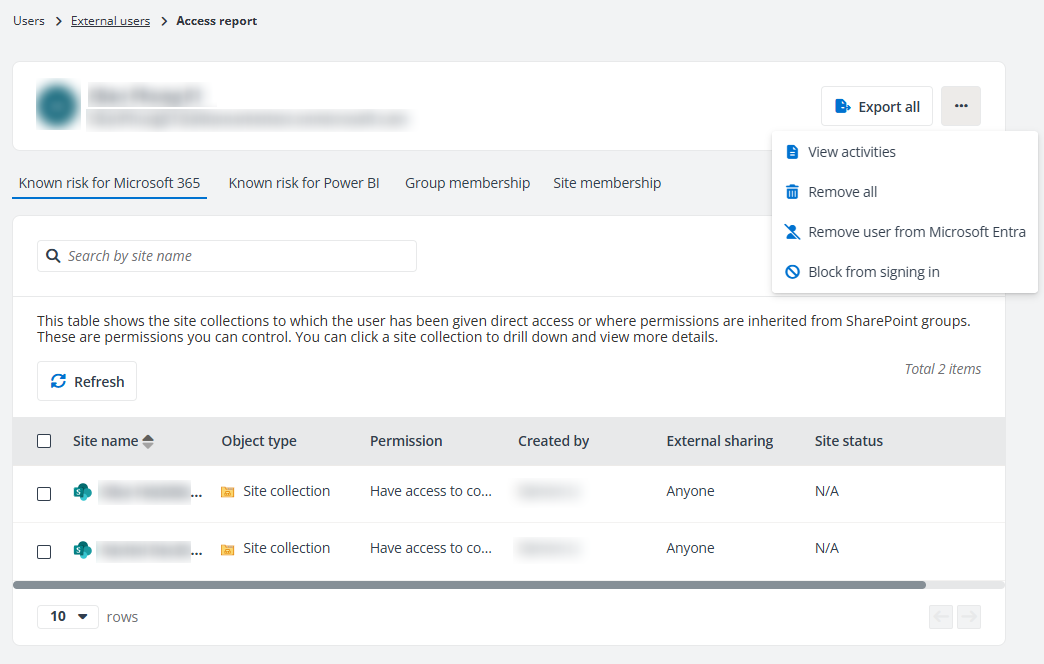
On the top of the Access report page, you can view the external user’s display name and email address. You can click the External users link on the top navigation to go back to the External users page. To the right of the user display name, the following actions are available.
-
Export all – Click Export all to export the access report of the external user. The Export window appears. A default report name is automatically filled in, and you can edit it if desired. Click Export to export the access report. When the export process begins, you can monitor its progress by navigating to Job monitor > Download center or by clicking the Download center link in the prompted message.
-
View activities – Click View activities from the ellipsis drop-down list to open the View Activities page of the external user in a new tab.
-
Remove all – Click Remove all from the ellipsis drop-down list to remove the permissions that are directly granted to the external user for all site collections below.
-
Remove user from Microsoft Entra – Click Remove user from Microsoft Entra from the ellipsis drop-down list for an active/blocked external user to remove the user from Microsoft Entra. The removed users will not be calculated in the risk reports. Note that this action is only available for administrators.
-
Block from signing in – Click Block from Signing in from the ellipsis drop-down list for an active external user to block the user from signing into Microsoft 365. The blocked user will be calculated in the risk reports. Note that this action is only available for administrators.
NOTEIf the user to be blocked is a member or owner of a role-assignable group, you need to assign the Privileged Authentication Administrator or Global Administrator role to the app. For detailed information, refer to Appendix G: How to Assign a Role to an App?.
-
Unblock – Click Unblock from the ellipsis drop-down list for a blocked user to unblock the user from signing into Microsoft 365.
NOTEIf the blocked users are members of private channels in Teams, the membership cannot be restored after they are unblocked.
The Access report page contains four tabs, Known risk for Microsoft 365, Known risk for Power BI, and Membership.
-
In the Known risk for Microsoft 365 tab, all site collections to which the user has been given direct access are listed in the table. You can view the site name, workspace, object type, permission, creator, primary admin, external sharing setting, and site status.
-
In the Known risk for Power BI tab, all workspaces to which the user has been given direct access are listed in the table. You can view the workspace name, object type, type, and permission.
-
In the Group membership tab, all groups to which the user belongs are listed in the table. The number of members in the group and the number of site collections to which the group has been given access can also be viewed in the table. Click a number link in the Number of members column, and the View group members window appears in the right pane with all group members listed. You can also click the group name link to drill down and the site collections to which the group has been given access are listed in the table. You can view the site name, workspace, object type, permission, creator, primary admin, external sharing setting, and site status. Click a number link in the Number of site collections column, and the site collections to which the group has access are listed in the table.
Select one or multiple groups and click Remove membership to remove the user from the selected groups. The permissions of the user inherited from the groups will be removed together.
-
In the Site membership tab, the sites where the user exists in the All People list are listed in the table. You can view the site collection name, creator, status, and external sharing setting. Select Remove from the ellipsis drop-down list of a site collection row to remove the user from the site collection. Alternatively, select one or multiple site collections and click Remove to remove the user from the site collections.
Click the ellipsis button in front of the site or object name to view available actions for the site collection or object:
-
View details – The Details window appears in the right pane. The basic information of the site collection/object/workspace/artifact and the risk information, including risk level, exposure level and exposure rule, and sensitivity level of the site collection/object are all displayed. You can also view the data types that the object matches if the file is sensitive, and the sensitivity label that is applied to the site collection/object in Microsoft 365.
-
View permissions – The View permissions page is opened in a new tab. For details, refer to View Permissions.
-
View activities – The View activities page is opened in a new tab. For details, refer to View Activities.
-
Remove access – Remove the user access to the site collection.
Orphaned Users
Orphaned users are the deleted users and groups, as well as blocked users in Microsoft Entra ID, that still have access to objects in the configured data scope of Insights. On the Orphaned Users page, deleted users are displayed in the Orphaned users tab by default. You can use the built-in views to view corresponding orphaned users, and use filters to view deleted groups and blocked users.
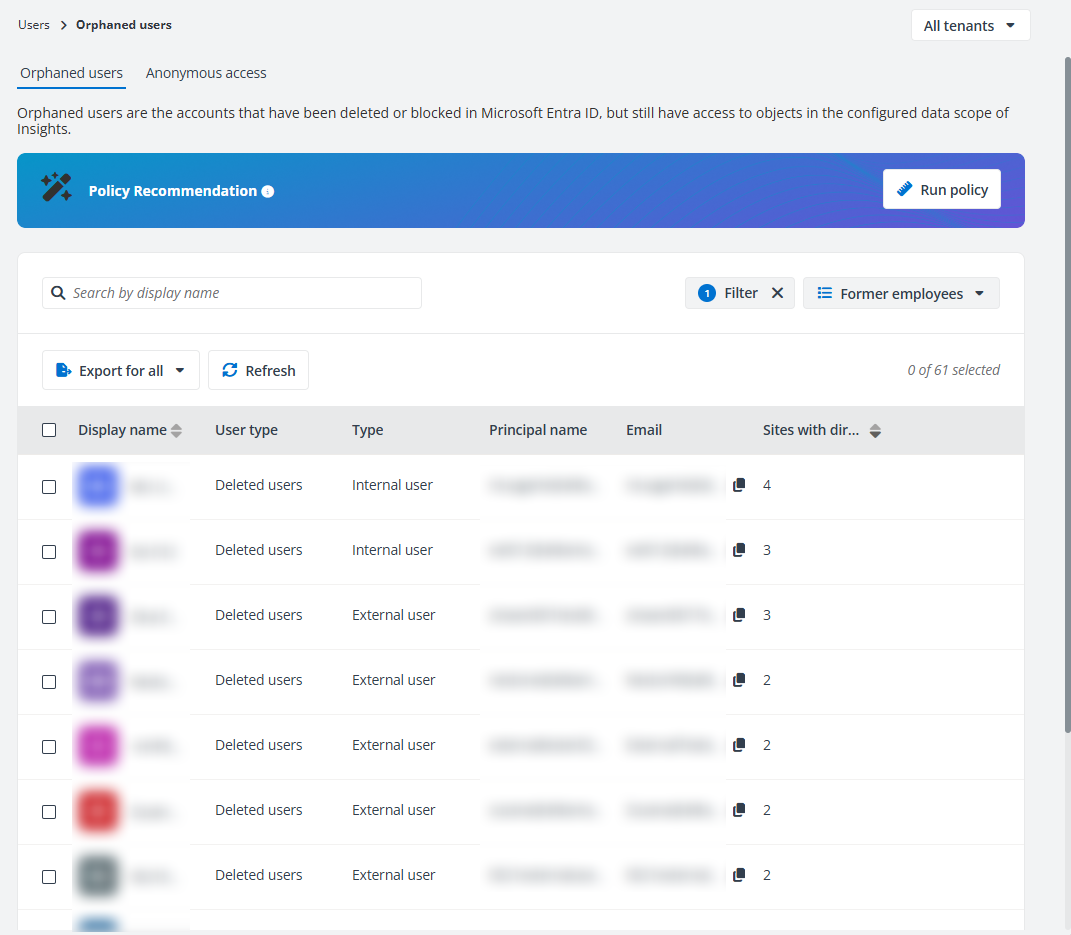
To efficiently remove orphaned users in bulk without reviewing them individually, you can enable the Scan orphaned users rule of Policies for Microsoft 365 directly in Insights by clicking Run policy. In the Run policy window, set the scan scope and specify the notification email recipients, and click Save and run now. The permissions of orphaned users and/or groups in the scan scope will be removed in bulk. For more information, refer to Policies for Microsoft 365 User Guide.
This is only available when you have a subscription for Policies for Microsoft 365.
In the Anonymous access tab, individuals who have accessed shared content via links without an invitation or sign-in, as well as guest members of shared channels are all listed.
The following actions are available on the page:
-
Filter – Click Filter in the upper-right corner of the table, and the Filter window appears in the right pane. All columns that are available for the filter are listed below. Click the down arrow button to the right of a column to show the text box or selectable options. Enter keywords in the text box and/or select desired options to define the filter conditions.
You can also click Reset to default to clear your input and selections and reset the filters to their default state.
Click Apply changes to filter items displayed in the table based on the configured filters.
-
Manage views – Click the view in the upper-right corner of the page, and the drop-down list where all available views are displayed appears. Both the built-in views and the views you created are listed. Select the view you want to use by clicking it. After selecting a view, the following actions can be performed on the view:
-
Save – After editing a custom view, click this link to save the view.
-
Save as new view – Click this link, and the Save as new view window appears. Enter a name for the new view in the text box and click Save to save the new view.
-
Set as default view – Select Set as default view from the ellipsis drop-down list to set this view as the default view. The view will be marked with (Default).
-
Rename – Select Rename from the ellipsis drop-down list, enter a new name, and click Save to rename the view.
-
Delete view – Select Delete view from the ellipsis drop-down list to delete the view.
NOTEThe built-in views cannot be deleted.
NOTEThis is only available in the Orphaned users tab.
-
-
Remove – Select one or multiple users and click Remove above the table to remove the permissions that are directly granted to the selected users for the site collections in the configured data scope.
You can also click or hover your mouse over anywhere in an orphaned user row of whom you want to remove permissions, and the ellipsis button appears to the right of the orphaned user row. Select Remove from the drop-down list to remove the permissions that are directly granted to the user for the site collections in the configured data scope.
Select the Remove user permissions granted via links checkbox to remove the user permissions granted via sharing links. This will:
-
Remove the user’s access from specific links.
-
Delete the anyone and organization links through which the user had access.
NOTETo permanently remove permissions from orphaned users whose access was granted via anyone or organization links, select this checkbox. Otherwise, they will be detected as orphaned again in the next scan.
-
-
Export – You can export the reports of orphaned users using one of the following methods:
-
Click Export for all to export the summary report of all orphaned users displayed in the table.
-
Filter the orphaned users and then click Export for all to export the report of the filtered orphaned users.
-
Select one or multiple orphaned users and then click Export for selected items.
-
Click or hover your mouse over anywhere in an orphaned user row, and then click the ellipsis button that appeared on the right of the row. Select Export access report from the action drop-down list.
In the export drop-down list, select Export summary report to export the summary report of the orphaned users, or select Export access report to export both the summary report and access report for the orphaned users.
If Export access report is selected, you can select an export option:
-
Export both the summary report and site collection level access report – Select this option to export both the summary report and site collection level access report of the selected orphaned users.
-
Export both the summary report and access report – Select this option to export both the summary report and the access report of the selected orphaned users to all objects in the configured data scope.
-
Export the summary report and merge access reportfor users – Select this option to export both the summary report and the access report of the selected orphaned users to all objects in the configured data scope to one file.
-
The Export user activity report in a certain time range advanced option is available when you select items to export access report. Select Last 7 days, Last 1 month, Last 3 months, or Custom to define the time range during which user activity report you want to export.
In the Export window, a default name is automatically filled in, and you can edit it if desired. Click Export to export the reports. When the export process begins, you can monitor its progress by navigating to Job monitor > Download center or by clicking the Download center link in the prompted message.
-
-
Refresh – Click Refresh above the table to refresh the orphaned users displayed in the table.
-
Access report – Click or hover your mouse over anywhere in the orphaned user rows, and the ellipsis button appears to the right of the orphaned user rows. Select Access report from the drop-down list to access the Access report page of the orphaned users.
-
Access events – Click or hover your mouse over anywhere in the orphaned user rows, and the ellipsis button appears to the right of the orphaned user rows. Select Access events from the drop-down list to view the access event of the orphaned user.
Access Report
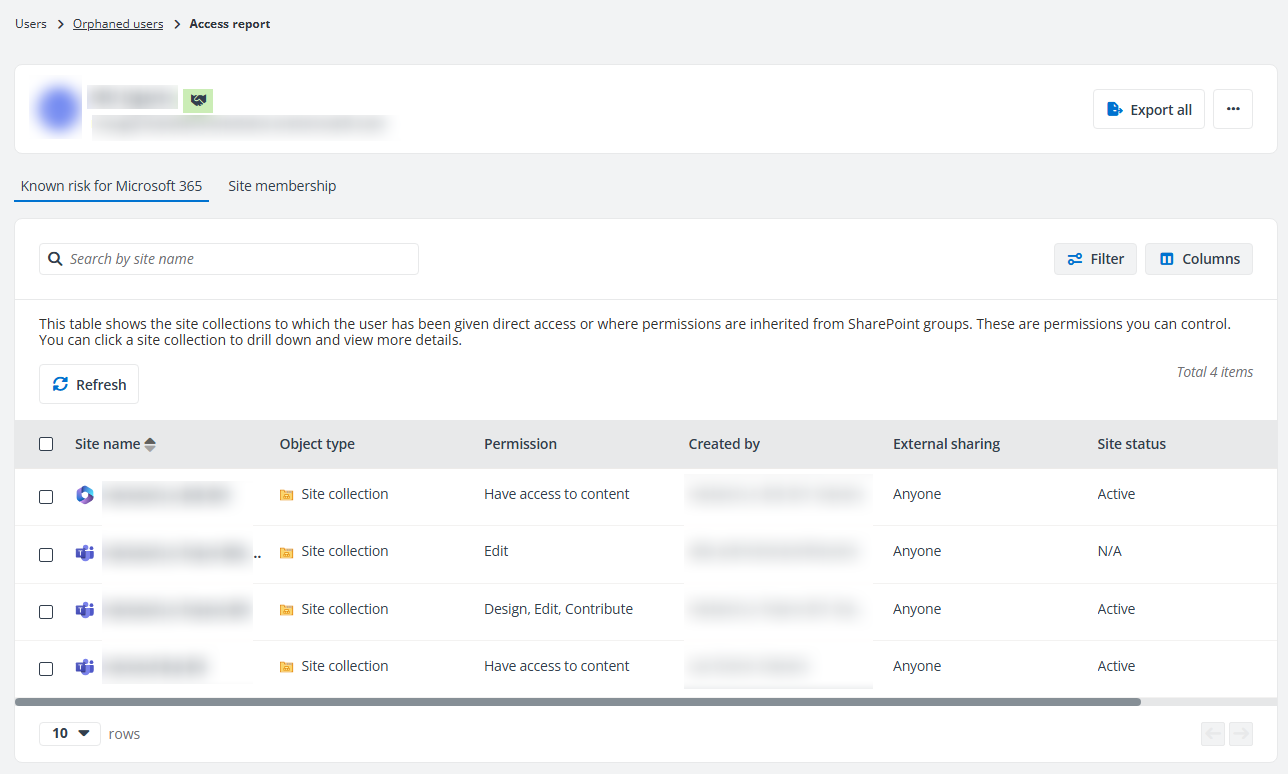
On the top of the Access report page, you can view the display name of the orphaned user. The following actions are available:
-
Export all – Click Export all and the Export window appears. A default report name is automatically filled in, and you can edit it if desired. Click Export to export the access report of the user. When the export process begins, you can monitor its progress by navigating to Job monitor > Download center or by clicking the Download center link in the prompted message.
-
View activities – Click View activities to the right of the user’s display name to open the View Activities page of the orphaned user in a new tab.
-
Remove all – Click Remove all to remove the permissions of the user to all site collections in the configured data scope to which they have access.
In the Known risk for Microsoft 365 tab, you can view the site name, object type, permission, the user who created the site, the primary admin, external sharing settings, and status of all site collections that the user has access to.
The following actions are available:
-
Search sites – You can locate the desired sites by entering their names in the search box in the upper-left corner of the section and pressing Enter on your keyboard. The matching results will be displayed below.
-
Filter – Click Filter in the upper-right of the section and the Filter window appears. Configure the filters as required and click Filter. The filtered results will be displayed below.
Click or hover your mouse over the site collection rows and the ellipsis button appears on the right of the row. Click the ellipsis button to view available actions for the site collection:
-
View details – The Details window appears in the right pane. The basic information of the site collection/workspace and the risk information is displayed.
-
View permissions – The View permissions page is opened in a new tab. For details, refer to View Permissions.
-
View activities – The View activities page is opened in a new tab. For details, refer to View Activities.
-
Remove access – Remove the user access to the site collection.
In the Site membership tab, the sites where the user exists in the All People list are listed in the table. You can view the site collection name, creator, status, and external sharing setting. Select Remove from the ellipsis drop-down list of a site collection row to remove the user from the site collection. Alternatively, select one or multiple site collections and click Remove to remove the user from the site collections.
Groups with External Users
On the Groups with external users page, all groups in Microsoft Entra ID in which there are external users are listed with basic information. Click the number link of External users for a group, and the External users window appears with all external users in the group listed.
The following actions are available above the table on this page:
-
Export – You can export the reports of groups with external users using one of the following methods:
-
Click Export for all to export the summary report of all groups with external users displayed in the table.
-
Filter the groups with external users and then click Export for all to export the report of the filtered groups with external users.
-
Select one or multiple groups with external users and then click Export for selected items.
In the export drop-down list, select Export summary report to export the summary report of the groups, or select Export access report to export both the summary report and access report for the groups.
If Export access report is selected, you can select an export option:
-
Export both the summary report and site collection level access report – Select this option to export both the summary report and the site collection level access report of the selected groups with external users.
-
Export both the summary report and access report – Select this option to export both the summary report and the access report of the selected groups with external users to all objects in the configured data scope.
-
Export the summary report and merge access report for groups – Select this option to export both the summary report and the access report of the selected groups with external users to all objects in the configured data scope to one file.
In the Export window, a default report name is automatically filled in, and you can edit it if desired. Click Export to export the reports. When the export process begins, you can monitor its progress by navigating to Job monitor > Download center or by clicking the Download center link in the prompted message.
-
-
Refresh – Click Refresh to refresh the groups displayed in the table.
-
Filter – Click Filter in the upper-right corner of the table, and the Filter window appears in the right pane. All columns that are available for the filter are listed below. Click the down arrow button to the right of a column to show the text box or selectable options. Enter keywords in the text box and/or select desired options to define the filter conditions.
For example, you can select Last 7 days from Created on to filter the groups that are created in the last 7 days.
You can also click Reset to default to clear your input and selections and reset the filters to their default state.
Click Apply changes to filter items displayed in the table based on the configured filters.
-
Manage columns – Click Columns in the upper-right corner of the table, and the drop-down list where all available columns are displayed appears. Select the columns that you want to display in the table, and click Apply to apply the column selection. You can also choose Select all to show all columns in the table.
The following options are available in the ellipsis drop-down list for each group listed in the table:
-
Export access report – This option allows you to export the access report of the group.
-
Export both the summary report and site collection level access report – Select this option to export both the summary report and the site collection level access report of this group.
-
Export both the summary report and access report – Select this option to export both the summary report and the access report of this group to all objects in the configured data scope.
In the Export window, a default report name is automatically filled in, and you can edit it if desired. Click Export to export the reports. When the export process begins, you can monitor its progress by navigating to Job monitor > Download center or by clicking the Download center link in the prompted message.
-
-
Access report – This option allows you to access the Access report page of the group. All site collections to which the group has been given access are listed in the table of the Known risk for Microsoft 365 tab; all workspaces to which the group has been given access are listed in the table under the Known risk for Power BI tab; all groups to which this group belongs are listed in the Group membership tab. The number of members in the group and the number of site collections to which the group has been given access can also be viewed in the table. Click a number link in the Number of members column, and the View group members window appears in the right pane with all group members listed. You can also click the group name link to drill down.
Click Filter in the upper-right corner of the table, and the Filter window appears. You can filter the site collections, workspaces, objects, or artifacts displayed in the table using the filter conditions.
Click Export all to export the access report of the group. Click Remove all to remove the permissions that are directly granted to the group for all site collections below.
Click the ellipsis button in front of the site/workspace name to view available actions:
-
View details – The Details window appears in the right pane. The basic information of the site/workspace and the risk information is displayed.
-
View permissions – The View permissions page is opened in a new tab. For details, refer to View Permissions.
-
View activities – The View activities page is opened in a new tab. For details, refer to View Activities.
-
Remove access – Remove the group access to the site collection.
-
Ghost Guest Users
Ghost guest users are external users who are neither members of any configured Microsoft 365 Groups, Microsoft Teams, or security groups nor with permissions to the configured data scope of Insights.
Enable all containers for each workspace in Insights for the ghost guest users report. When the full scan for the data in the configured scope is complete, you can view the report on this page.
On the Ghost guest users page, all ghost guest users are listed with basic information, including the display name, email address, the time when the user account is created, and the time of the user’s last sign-in.
The following actions are available on this page:
-
Remove – Select one or multiple ghost guest users and click Remove above the table to remove the users from Microsoft Entra ID.
-
Export – You can export the report of ghost guest users using one of the following methods:
-
Click Export for all to export the summary report of all ghost guest users displayed on the table.
-
Filter the ghost guest users and then click Export for all to export the report of the filtered ghost guest users.
-
Select one or multiple ghost guest users and then click Export for selected items to export the summary report of the selected users.
In the Export window, a default name is automatically filled in, and you can edit it if desired. Click Export to export the report. When the export process begins, you can monitor its progress by navigating to Job monitor > Download center or by clicking the Download center link in the prompted message.
-
-
Refresh – Click Refresh above the table to refresh the ghost guest users displayed in the table.
Risky Users
On the Risky users page, you can view the risky users report in two tabs. If your organization has multiple tenants, select a tenant or All tenants from the tenant drop-down list to view risky users report of the selected tenants.
The risky users reports are only available for administrators.
Entra Detections
The report statistics under the Entra detections tab are from Microsoft Entra ID. To learn more about the risks that are reported on risky users, see Risk types and detection.
The report statistics are visible only to Microsoft Entra ID P2 customers.
Before viewing the Entra detections reports, check the app profiles that have been configured in AvePoint Online Services for tenants:
-
If the tenant configured and began to use a modern mode app profile for Insights before February 17, 2023, re-authorize the app profile.
-
If the tenant uses a custom mode app profile for Insights, to view the risky users report, IdentityRiskyUser.ReadWrite.All and IdentityRiskEvent.Read.All permissions are required. Make sure to grant these permissions to the app in Microsoft Entra admin center (Azure portal) > App registrations. For more information, refer to Use a Custom Azure App.
-
If the tenant uses a classic mode app profile for Insights, configure a modern mode app profile, or a custom mode app profile with the proper permissions to view the risky users reports.
The following actions are available for each risky user report:
-
Filter – Click Filter in the upper-right corner of the page, and the Filter window appears. You can configure the filter conditions to filter the risky users displayed in the table. After the filter is applied, you can click the number on the left of Filter to view and edit the filter, or you can click the remove button on the right of Filter to remove the filter.
-
Export – You can export the report of risky users using one of the following methods:
-
Click Export for all to export the report of all risky users displayed.
-
Filter the risky users and then click Export for all to export the report of the filtered risky users.
-
Select one or multiple risky users and then click Export for selected items to export the report of the selected risky users.
In the export drop-down list, select Export summary report to export the summary report of the risky users, or select Export access report to export both the summary report and access report for the risky users.
If Export access report is selected, you can select an export option:
-
Export both the summary report and site collection level access report
-
Export both the summary report and access report
-
Export the summary report and merge access report for users
The Export activity report in a certain time range advanced option is available when you select items to export access report. Select Last 7 days, Last 1 month, Last 3 months, or Custom to define the time range during which user activity report you want to export.
In the export window, a default report name is automatically filled in, and you can edit it if desired. Click Export to export the report. When the export process begins, you can monitor its progress by navigating to Job monitor > Download center or by clicking the Download center link in the prompted message.
-
-
Confirm user compromised – Select one or multiple users and click Confirm user compromised to confirm that the users are compromised. The risk level of those users will be moved to ‘High’.
-
Confirm user safe – Select one or multiple users and click Confirm user safe to remove risk and detections on them to mark false positives.
-
Dismiss user risk – Select the desired users and click Dismiss user risk to dismiss all risk for the user.
-
Reset password – Select a user and click Reset password to assign a temporary password to the user. The temporary password must be changed to something new during the next sign-in.
NOTEThis action is only available for administrators when a custom Azure app with delegated permissions is configured for Insights with the UserAuthenticationMethod.ReadWrite.All permission in AvePoint Online Services.
-
Block from signing in – Select one or multiple active risky users and click Block from signing in above the table to block the users from signing into Microsoft 365.
NOTEThis action is only available for administrators.
If the user to be blocked is a member or owner of a role-assignable group, you need to assign the Privileged Authentication Administrator or Global Administrator role to the app. For Detailed information, refer to Appendix G: How to Assign a Role to an App?.
-
Unblock user – Select one or multiple blocked risky users and click Unblock user above the table to unblock the users from signing into Microsoft 365.
NOTEThis action is only available for administrators.
If the blocked users are members of private channels in Teams, the membership cannot be restored after they are unblocked.
-
Refresh – Click Refresh to refresh the risky users listed in the table.
You can view the detailed information of a risky user by clicking the user link. The information window of the user appears in the right pane. You can view the corresponding information in the Basic information, Recent risky sign-ins, and Risk history tabs.
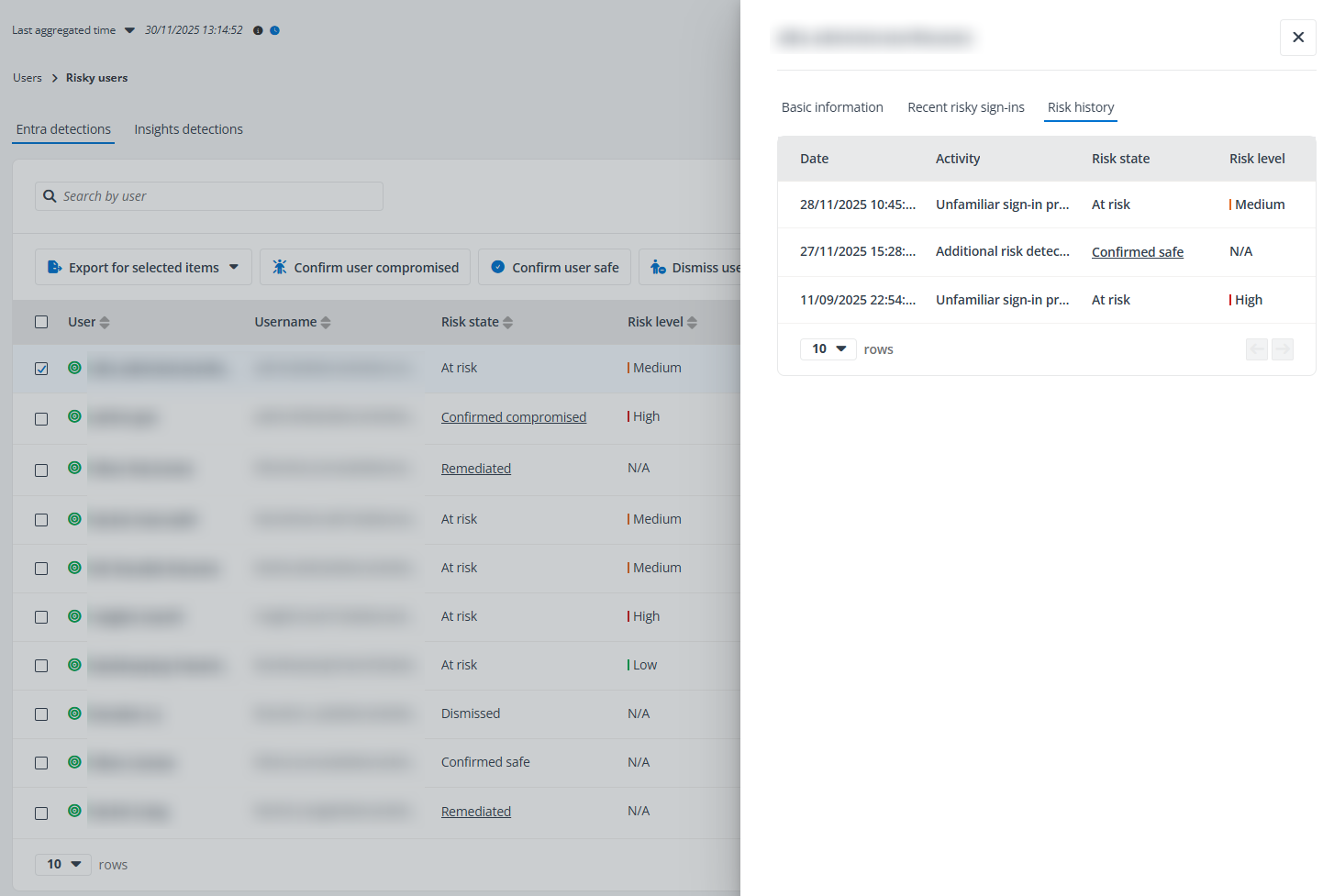
Click or hover your mouse over anywhere in the risky user rows, and the ellipsis button appears to the right of the rows. Click the ellipsis button, and the action drop-down list appears. From the action drop-down list, the following actions are available:
-
Export access report – Export both the summary report and access report for the risky user. In the Export window, a default report name is automatically filled in, and you can edit it if desired. You can select an export option and click Export to export the report:
-
Export both the summary report and site collection level access report
-
Export both the summary report and access report
The Export user activity report in a certain time range advanced option is available. Select Last 7 days, Last 1 month, Last 3 months, or Custom to define the time range during which user activity report you want to export.
When the export process begins, you can monitor its progress by navigating to Job monitor > Download center or by clicking the Download center link in the prompted message.
-
-
Access report – Select the Access report option, and the Access report page appears.
-
View activities – This option allows you to access the View Activities page of the user.
-
View sign-in events – This option allows you to access the View sign-in events page of the user, where you can view the user sign-in events both interactive and non-interactive. You can also export the sign-in events if required.
-
Risk detections – Select the Risk detections option, and the Risk detections page appears.
-
Confirm user compromised – Click Confirm user compromised to confirm that the current user compromised.
-
Confirm user safe – Click Confirm user safe to remove risk and detections on the user to mark false positives.
-
Dismiss user risk – Click Dismiss user risk to dismiss all risk for the current user.
-
Block from signing in – Click Block from signing in to block the current user from signing in to Microsoft 365. The blocked users will not be calculated in the risk reports.
NOTEIf the user to be blocked is a member or owner of a role-assignable group, you need to assign the Privileged Authentication Administrator or Global Administrator role to the app. For detailed information, refer to Appendix G: How to Assign a Role to an App?.
-
Unblock user – Click Unblock user to unblock the users from signing into Microsoft 365.
NOTEIf the blocked users are members of private channels in Teams, the membership cannot be restored after they are unblocked.
View Access Report
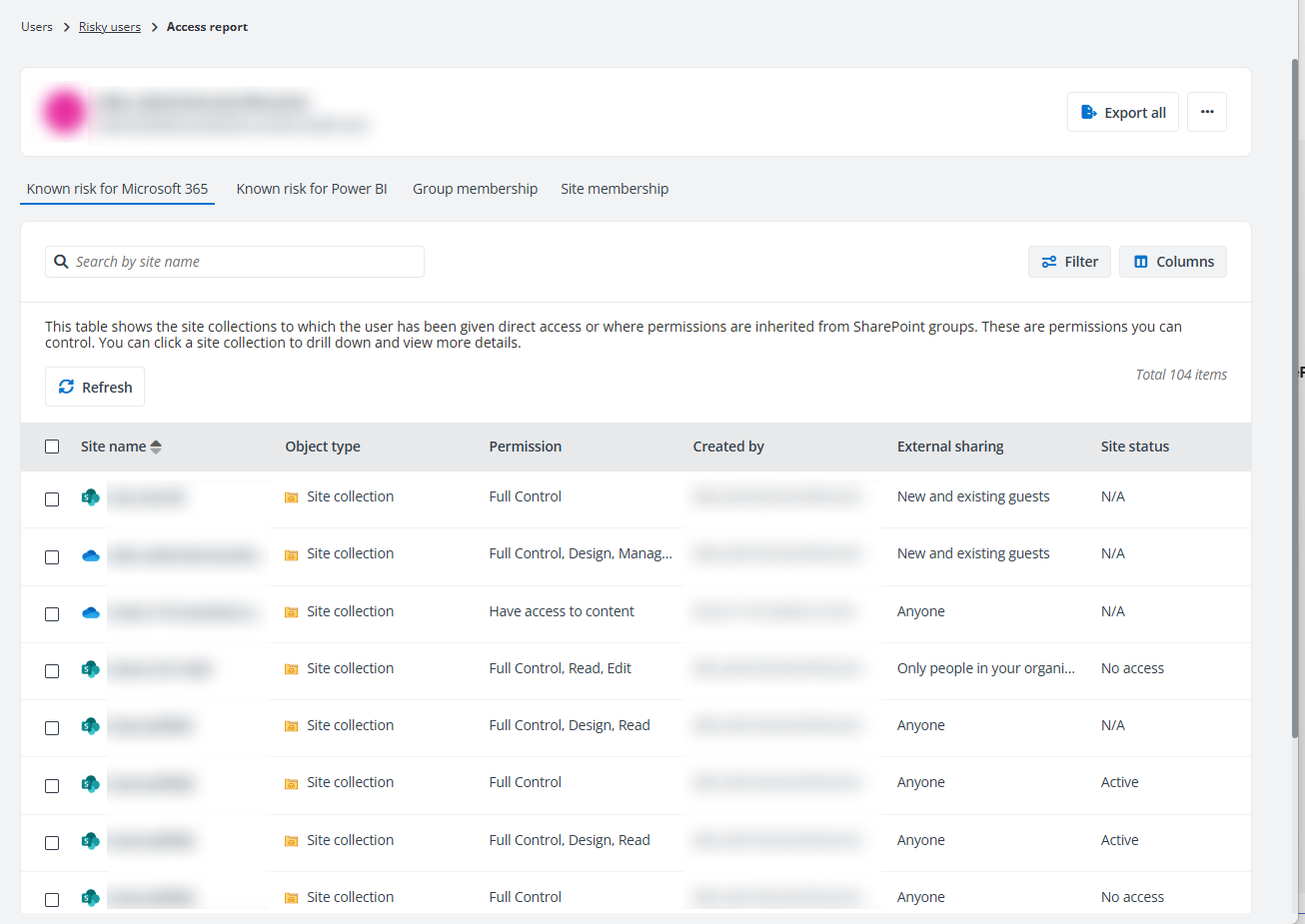
The Access report page contains four tabs, Known risk for Microsoft 365, Known risk for Power BI, Group membership, and Site membership. You can click the Risky users link on the top navigation to go back to the Risky users page.
The following actions are available on the Access report page:
-
Export all – Click Export all in the upper-right corner of the page, and the Export window appears. A default report name is automatically filled in, and you can edit it if desired. Click Export to export the access report of the current user. When the export process begins, you can monitor its progress by navigating to Job monitor > Download center or by clicking the Download center link in the prompted message.
-
View activities – Click View activities from the ellipsis drop-down list in the upper-right corner of the page to view all activities of the risky user on the View activities page.
-
Remove all – Click Remove all to remove the permissions that are directly granted to this risky user for the site collections in the configured data scope.
In the Known risk or Microsoft 365 tab, all site collections to which the user has been directly granted permissions are listed in the table. You can view the workplace, site name, permission, creator, primary admin, and external sharing setting, and status of each site collection. You can click the site name link to drill down, and the objects with unique permissions in the site collection are displayed. If the user has direct access to the site collection, the site collection itself will also be displayed with the granted permission levels.
Click Filter, and the Filter window appears in the right pane. All columns that are available for the filter are listed. Click anywhere in a filter line to show the text box or selectable options. Enter keywords in the text box and/or select desired options to define the filter conditions. Click Apply changes to filter items displayed in the table based on the configured filters.
After the filter is applied, you can click the number on the right of Filter to view and edit the filter or you can click the remove button on the right of Filter to remove the filter.
Click or hover your mouse over anywhere in the site collection and object rows, the ellipsis button appears to the right of the rows. Click the ellipsis button, and the action drop-down list appears. From the action drop-down list, the following actions are available:
-
View details – Click View details, and the Details window appears in the right pane. The basic information of the site collection or object and the risk information, including risk level, exposure level, and sensitivity level of the site collection or object are displayed.
-
View permissions – Click View permissions, and the View permissions page is opened in a new tab. For details, refer to View Permissions.
-
View activities – Click View activities, and the View activities page is opened in a new tab. For details, refer to View Activities.
-
Remove access – Click Remove access to remove the user access to the site collection or object.
In the Known risk for Power BI tab, all workspaces to which the user has been given direct access are listed in the table. You can view the workspace name, object type, type, and permission.
In the Group membership tab, all groups to which the user belongs are listed in the table, including Microsoft 365 Groups, distribution groups, security groups, and mail-enabled security groups. The number of members in the group and the number of site collections to which the group has access can also be viewed in the table. Click a number link in the Number of members column, and the View group members window appears in the right pane with all group members listed. You can also click the group name link to drill down, and the site collections to which the group has access will be displayed. Click a number link in the Number of site collections column, and the site collections to which the group has access are listed in the table.
Select one or multiple groups and click Remove membership to remove the user from the selected groups. The permissions of the user inherited from the groups will be removed together.
In the Site membership tab, the sites where the user exists in the All People list are listed in the table. You can view the site collection name, creator, status, and external sharing setting. Select Remove from the ellipsis drop-down list of a site collection row to remove the user from the site collection. Alternatively, select one or multiple site collections and click Remove to remove the user from the site collections.
View Activities
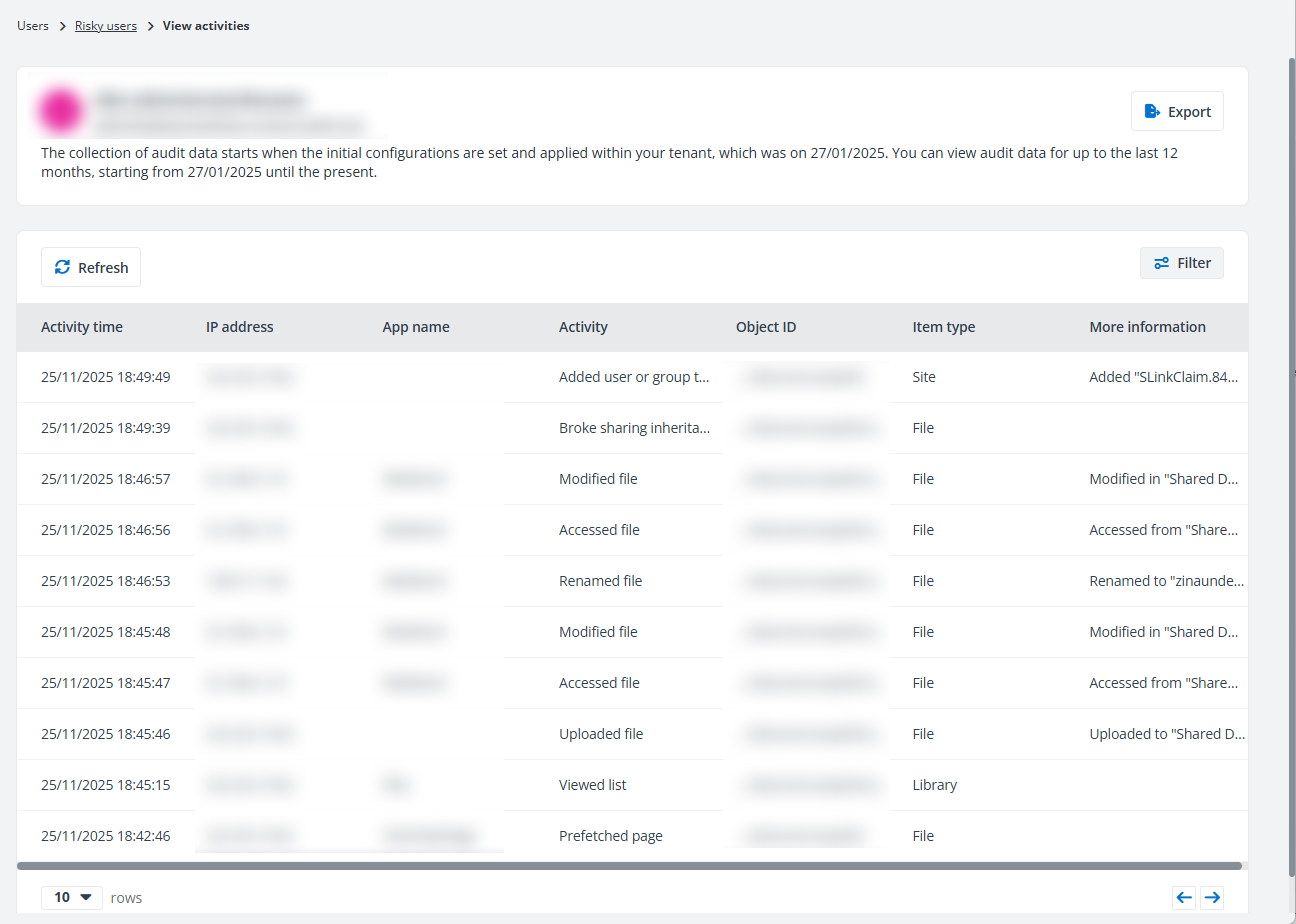
On the View activities page, the user activities for the objects to which you have permissions will be displayed.
Only user activities that are reserved in the Cosmos database can be displayed on this page. If the default Cosmos database is used to store your Insights data, the retention period is based on your subscription. This period can be configured in Database Settings if your tenant users the custom Cosmos database.
You can export the activities of the current user using one of the following methods:
-
Click Export to export all activities displayed on the page.
-
Filter the activities and then click Export to export the filtered activities of the current user.
After clicking Export, the Export window appears. A default report name is automatically filled in, and you can edit it if desired. Click Export to export the report. When the export process begins, you can monitor its progress by navigating to Job monitor > Download center or by clicking the Download center link in the prompted message.
You can click Refresh to refresh the activities displayed in the table.
Click Filter in the upper-right corner of the table, and the Filter window appears in the right pane. You can configure the filter conditions to filter the user activities displayed in the table. Click Apply changes to filter items displayed in the table based on the configured filters.
After the filter is applied, you can click the number on the right of Filter to view and edit the filter, or you can click the remove button on the right of Filter to remove the filter.
View Risk Detections Report
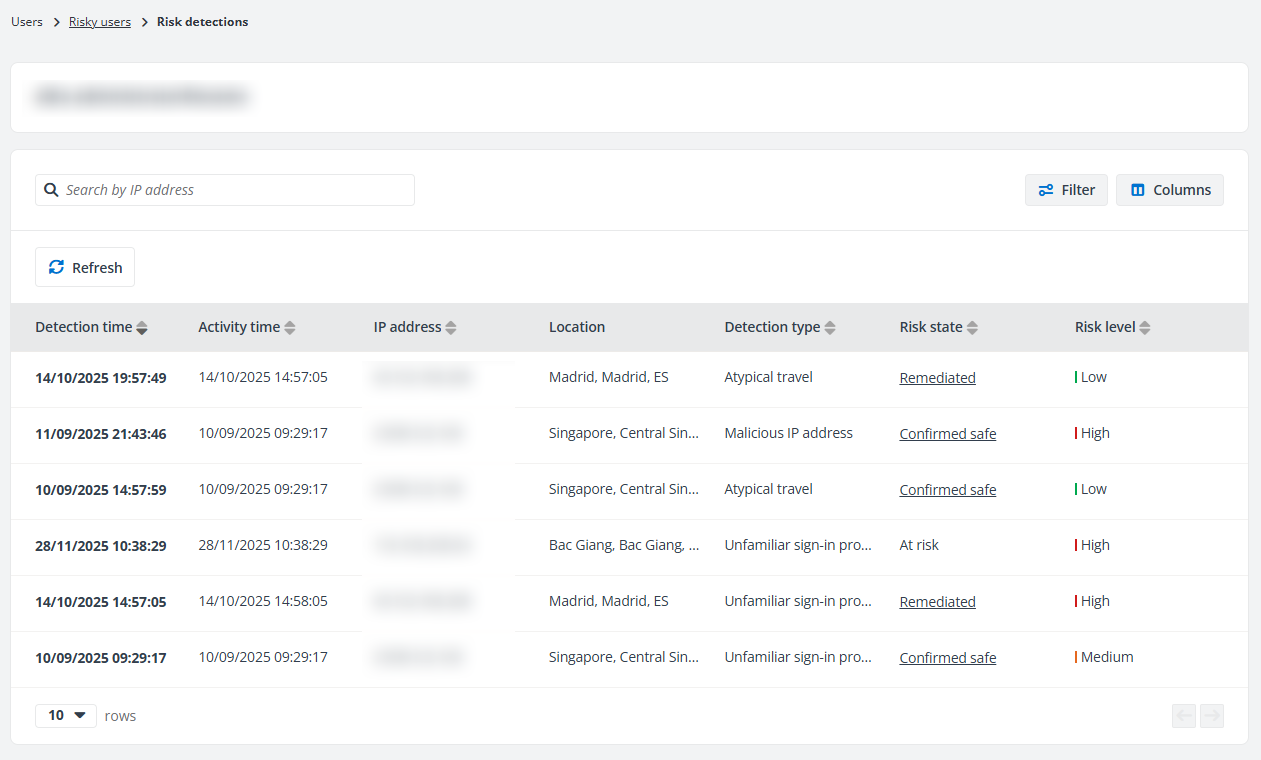
On the Risk detections page, details of the risks detected for the user are displayed in the table.
You can click a detection time link to view details of the corresponding risk detection. For risk detections whose Activity is User, you can view the details in the Risk detection details window. For risk detections whose Activity is sign-in, you can view the corresponding details in the Basic information, Device information, and Risk information tabs of the Risky sign-in details window.
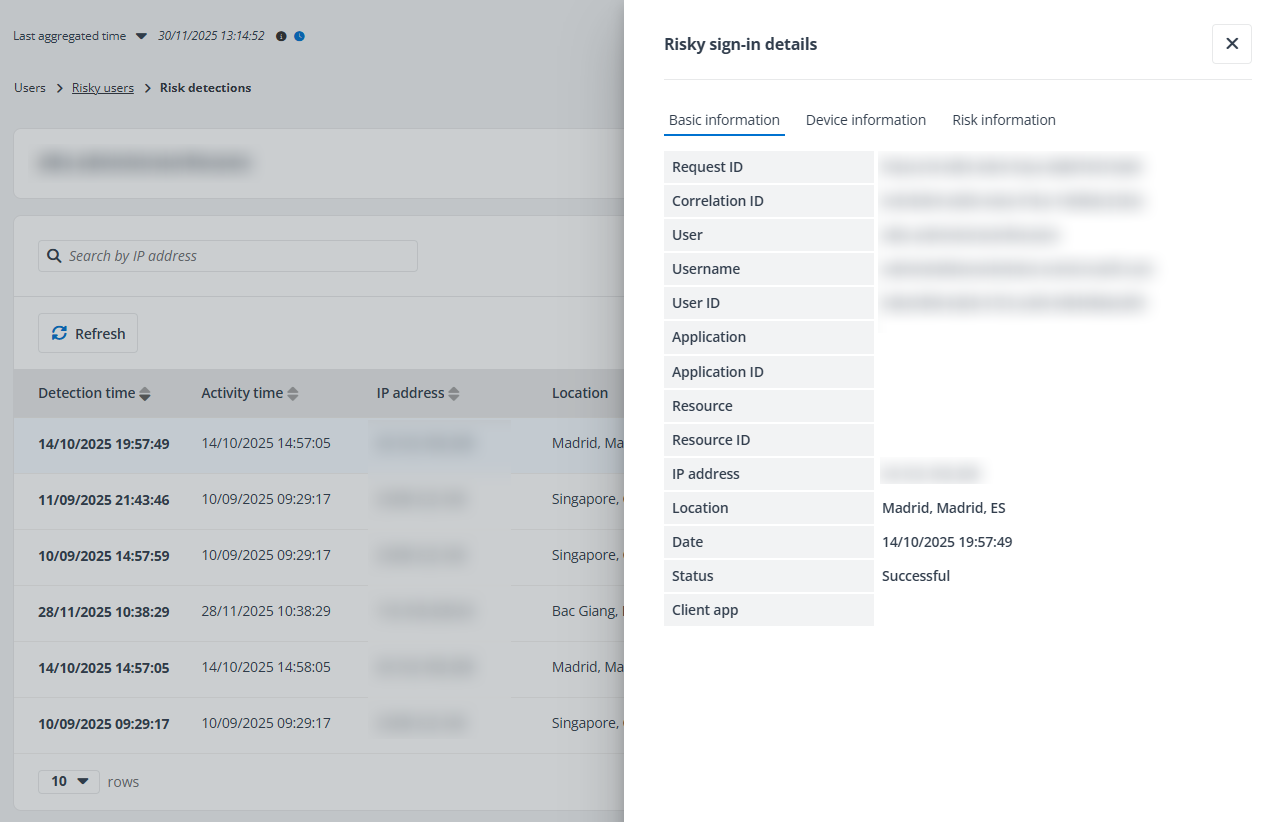
You can click Refresh to refresh the risk detections displayed on this page.
Click Columns in the upper-right corner of the table, and the drop-down list where all available columns are displayed appears. Select the columns that you want to display in the table and click Apply to apply the column selection. You can also choose Select all to show all columns in the table.
Click Filter in the upper-right corner of the table, and the Filter window appears. You can configure the filter conditions to filter the risk detections displayed in the table. Click Apply changes to filter items displayed in the table based on the configured filters.
After the filter is applied, you can click the number on the right of Filter to view and edit the filter or you can click the remove button on the right of Filter to remove the filter.
Insights Detections (Preview)
The report statistics under the Insights detections tab are detected by Insights based on the risky user detection settings.
The following actions are available on this page:
-
Filter – Click Filter in the upper-right corner of the page, and the Filter window appears. You can configure the filter conditions to filter the risky users displayed in the table. After the filter is applied, you can click the number on the left of Filter to view and edit the filter, or you can click the remove button on the right of Filter to remove the filter.
-
Export – You can export the report of risky users using one of the following methods:
-
Click Export for all to export the report of all risky users displayed.
-
Filter the risky users and then click Export for all to export the report of the filtered risky users.
-
Select one or multiple risky users and then click Export for selected items to export the report of the selected risky users.
In the export drop-down list, select Export summary report to export the summary report of the risky users, or select Export access report to export both the summary report and access report for the risky users.
If Export access report is selected, you can select an export option:
-
Export both the summary report and site collection level access report
-
Export both the summary report and access report
-
Export the summary report and merge access report for users
The Export activity report in a certain time range advanced option is available when you select items to export access report. Select Last 7 days, Last 1 month, Last 3 months, or Custom to define the time range during which user activity report you want to export.
In the export window, a default report name is automatically filled in, and you can edit it if desired. Click Export to export the report. When the export process begins, you can monitor its progress by navigating to Job monitor > Download center or by clicking the Download center link in the prompted message.
-
-
Confirm user safe – Select one or multiple users and click Confirm user safe to remove risk and detections on them to mark false positives.
-
Block from signing in – Select one or multiple active risky users and click Block from signing in above the table to block the users from signing into Microsoft 365.
NOTEThis action is only available for administrators.
If the user to be blocked is a member or owner of a role-assignable group, you need to assign the Privileged Authentication Administrator or Global Administrator role to the app. For Detailed information, refer to Appendix G: How to Assign a Role to an App?.
-
Unblock user – Select one or multiple blocked risky users and click Unblock user above the table to unblock the users from signing into Microsoft 365.
NOTEThis action is only available for administrators.
If the blocked users are members of private channels in Teams, the membership cannot be restored after they are unblocked.
-
Refresh – Click Refresh to refresh the risky users listed in the table.
You can view the detailed information of a risky user by clicking the user link. The information window of the user appears in the right pane.
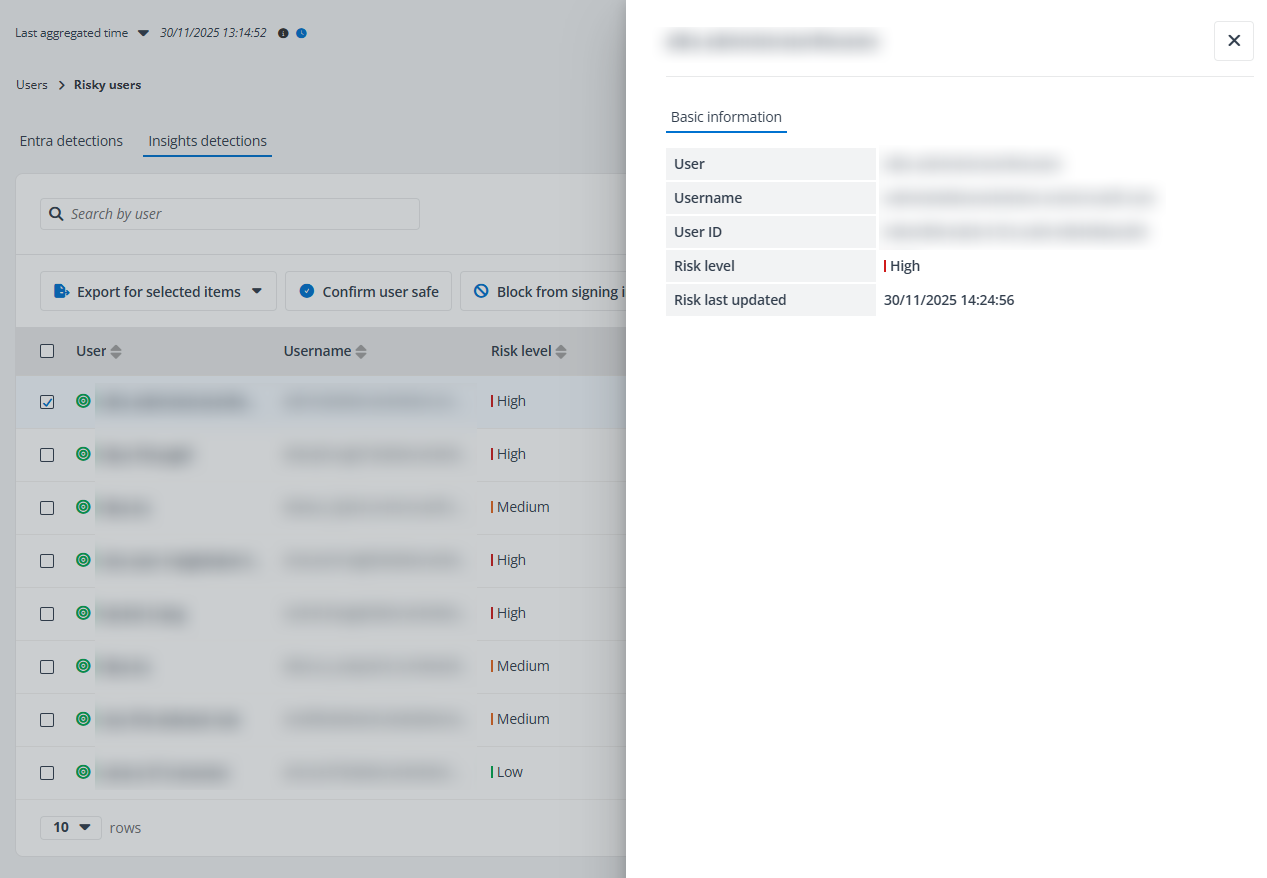
Click or hover your mouse over anywhere in the risky user rows, and the ellipsis button appears to the right of the rows. Click the ellipsis button, and the action drop-down list appears. From the action drop-down list, the following actions are available:
-
Export access report – Export both the summary report and access report for the risky user. In the Export window, a default report name is automatically filled in, and you can edit it if desired. You can select an export option and click Export to export the report:
-
Export both the summary report and site collection level access report
-
Export both the summary report and access report
The Export user activity report in a certain time range advanced option is available. Select Last 7 days, Last 1 month, Last 3 months, or Custom to define the time range during which user activity report you want to export.
When the export process begins, you can monitor its progress by navigating to Job monitor > Download center or by clicking the Download center link in the prompted message.
-
-
Access report – Select the Access report option, and the Access report page appears.
-
View activities – This option allows you to access the View Activities page of the user.
-
View sign-in events – This option allows you to access the View sign-in events page of the user, where you can view the user sign-in events both interactive and non-interactive. You can also export the sign-in events if required.
-
Risk detections – Select the Risk detections option, and the Risk detections page appears.
-
Confirm user safe – Click Confirm user safe to remove risk and detections on the user to mark false positives.
-
Block from signing in – Click Block from signing in to block the current user from signing in to Microsoft 365. The blocked users will not be calculated in the risk reports.
NOTEIf the user to be blocked is a member or owner of a role-assignable group, you need to assign the Privileged Authentication Administrator or Global Administrator role to the app. For detailed information, refer to Appendix G: How to Assign a Role to an App?.
-
Unblock user – Click Unblock user to unblock the users from signing into Microsoft 365.
NOTEIf the blocked users are members of private channels in Teams, the membership cannot be restored after they are unblocked.
View Access Report
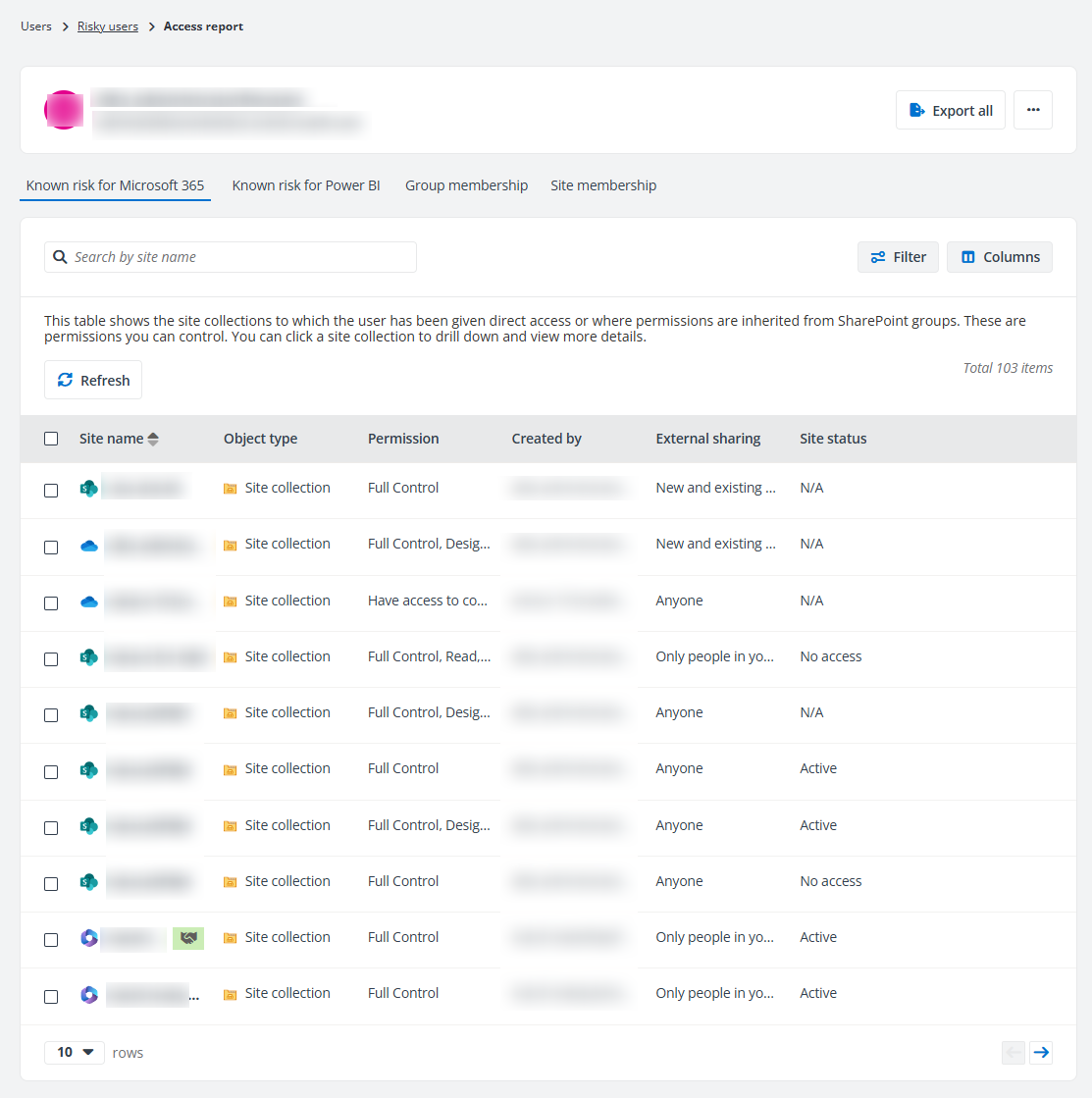
The Access report page contains three tabs, Known risk for Microsoft 365, Known risk for Power BI, Group membership, and Site membership. You can click the Risky users link on the top navigation to go back to the Risky users page.
The following actions are available on the Access report page:
-
Export all – Click Export all in the upper-right corner of the page, and the Export window appears. A default report name is automatically filled in, and you can edit it if desired. Click Export to export the access report of the current user. When the export process begins, you can monitor its progress by navigating to Job monitor > Download center or by clicking the Download center link in the prompted message.
-
View activities – Click View activities from the ellipsis drop-down list in the upper-right corner of the page to view all activities of the risky user on the View activities page.
-
Remove all – Click Remove all to remove the permissions that are directly granted to this risky user for the site collections in the configured data scope.
In the Known risk for Microsoft 365 tab, all site collections to which the user has been directly granted permissions are listed in the table. You can view the workplace, site name, permission, creator, primary admin, and external sharing setting, and status of each site collection. You can click the site name link to drill down, and the objects with unique permissions in the site collection are displayed. If the user has direct access to the site collection, the site collection itself will also be displayed with the granted permission levels.
Click Filter, and the Filter window appears in the right pane. All columns that are available for the filter are listed. Click anywhere in a filter line to show the text box or selectable options. Enter keywords in the text box and/or select desired options to define the filter conditions. Click Apply changes to filter items displayed in the table based on the configured filters.
After the filter is applied, you can click the number on the left of Filter to view and edit the filter or you can click the remove button on the right of Filter to remove the filter.
Click or hover your mouse over anywhere in the site collection and object rows, the ellipsis button appears to the right of the rows. Click the ellipsis button, and the action drop-down list appears. From the action drop-down list, the following actions are available:
-
View details – Click View details, and the Details window appears in the right pane. The basic information of the site collection or object and the risk information, including risk level, exposure level, and sensitivity level of the site collection or object are displayed.
-
View permissions – Click View permissions, and the View permissions page is opened in a new tab. For details, refer to View Permissions.
-
View activities – Click View activities, and the View activities page is opened in a new tab. For details, refer to View Activities.
-
Remove access – Click Remove access to remove the user access to the site collection or object.
In the Known risk for Power BI tab, all workspaces to which the user has been given direct access are listed in the table. You can view the workspace name, object type, type, and permission.
In the Group membership tab, all groups to which the user belongs are listed in the table, including Microsoft 365 Groups, distribution groups, security groups, and mail-enabled security groups. The number of members in the group and the number of site collections to which the group has access can also be viewed in the table. Click a number link in the Number of members column, and the View group members window appears in the right pane with all group members listed. You can also click the group name link to drill down, and the site collections to which the group has access will be displayed. Click a number link in the Number of site collections column, and the site collections to which the group has access are listed in the table.
Select one or multiple groups and click Remove membership to remove the user from the selected groups. The permissions of the user inherited from the groups will be removed together.
In the Site membership tab, the sites where the user exists in the All People list are listed in the table. You can view the site collection name, creator, status, and external sharing setting. Select Remove from the ellipsis drop-down list of a site collection row to remove the user from the site collection. Alternatively, select one or multiple site collections and click Remove to remove the user from the site collections.
View Activities
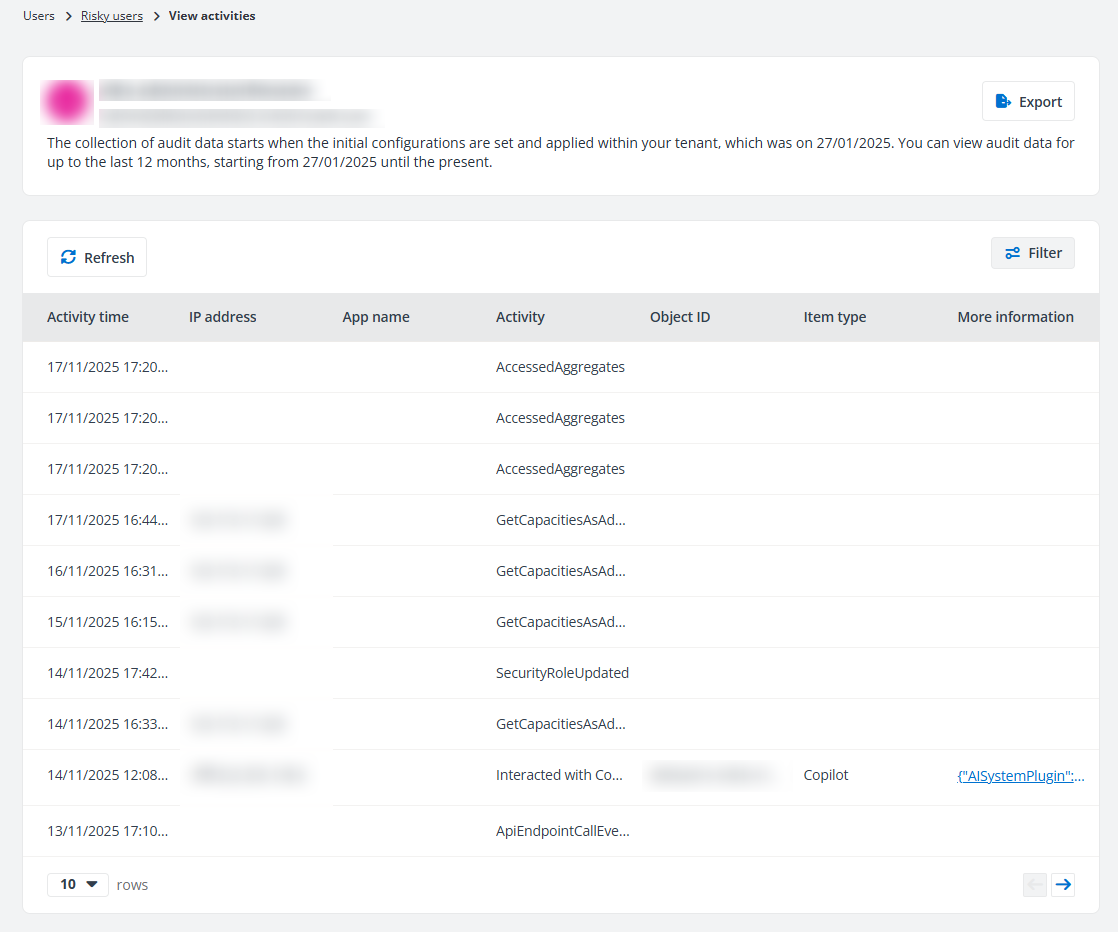
On the View activities page, the user activities for the objects to which you have permissions will be displayed.
Only user activities that are reserved in the Cosmos database can be displayed on this page. If the default Cosmos database is used to store your Insights data, the retention period is based on your subscription. This period can be configured in Database Settings if your tenant users the custom Cosmos database.
You can export the activities of the current user using one of the following methods:
-
Click Export to export all activities displayed on the page.
-
Filter the activities and then click Export to export the filtered activities of the current user.
After clicking Export, the Export window appears. A default report name is automatically filled in, and you can edit it if desired. Click Export to export the report. When the export process begins, you can monitor its progress by navigating to Job monitor > Download center or by clicking the Download center link in the prompted message.
You can click Refresh to refresh the activities displayed in the table.
Click Filter in the upper-right corner of the table, and the Filter window appears in the right pane. You can configure the filter conditions to filter the user activities displayed in the table. Click Apply changes to filter items displayed in the table based on the configured filters.
After the filter is applied, you can click the number on the right of Filter to view and edit the filter, or you can click the remove button on the right of Filter to remove the filter.
View Risk Detections Report
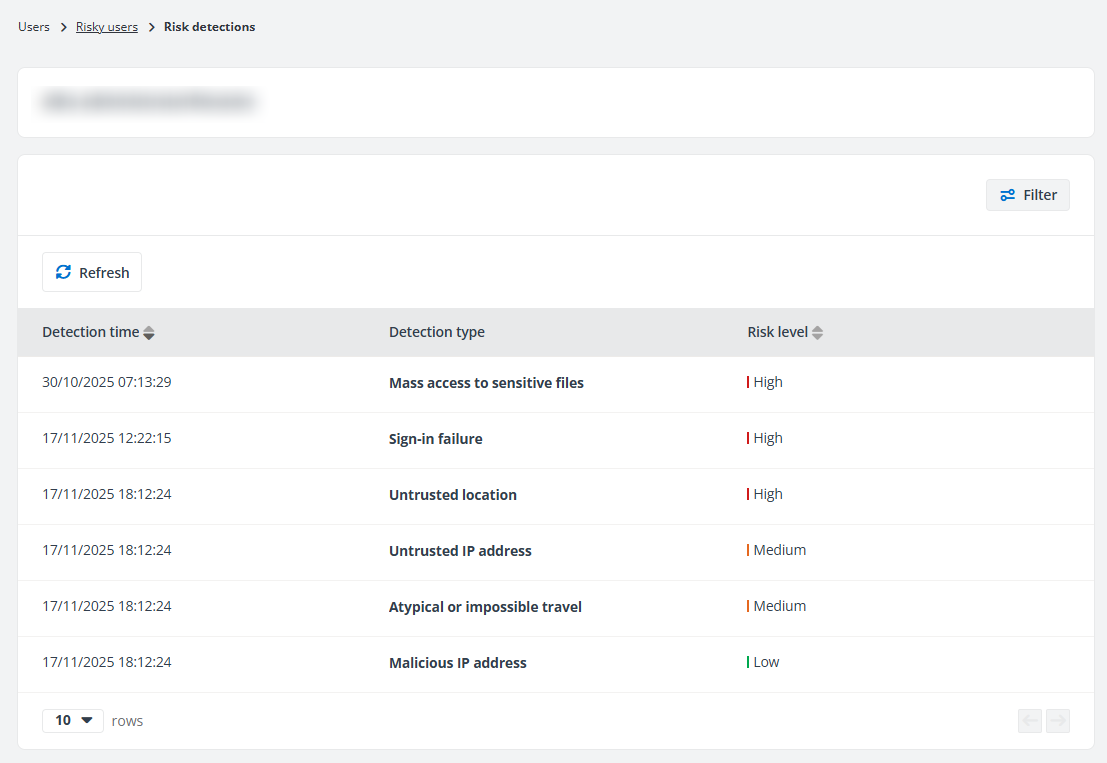
On the Risk detections page, details of the risks detected for the user are displayed in the table.
In the New detections section, you can view the trend of new detections in the last 7 days.
In the Last 3 detections per rule section, you can view the last 3 detection records of each detection type.
In the upper-right corner of the page, the following actions are available in the Take action drop-down list:
-
Confirm user safe – Click Confirm user safe to remove risk and detections on the user to mark false positives.
-
Block from signing in – Click Block from signing in to block the current user from signing in to Microsoft 365. The blocked users will not be calculated in the risk reports.
NOTE
If the user to be blocked is a member or owner of a role-assignable group, you need to assign the Privileged Authentication Administrator or Global Administrator role to the app. For detailed information, refer to Appendix G: How to Assign a Role to an App?. -
Unblock user – Click Unblock user to unblock the users from signing into Microsoft 365.
NOTE
If the blocked users are members of private channels in Teams, the membership cannot be restored after they are unblocked. -
Reset password – Select a user and click Reset password to assign a temporary password to the user. The temporary password must be changed to something new during the next sign-in.
NOTEThis action is only available for administrators when a custom Azure app with delegated permissions is configured for Insights with the UserAuthenticationMethod.ReadWrite.All permission in AvePoint Online Services.
-
Remove user from Microsoft Entra – Click Remove user from Microsoft Entra to remove the user from Microsoft Entra. Removed users will not be calculated in the risk reports.
You can click a detection type link to view details of the corresponding risk detection.
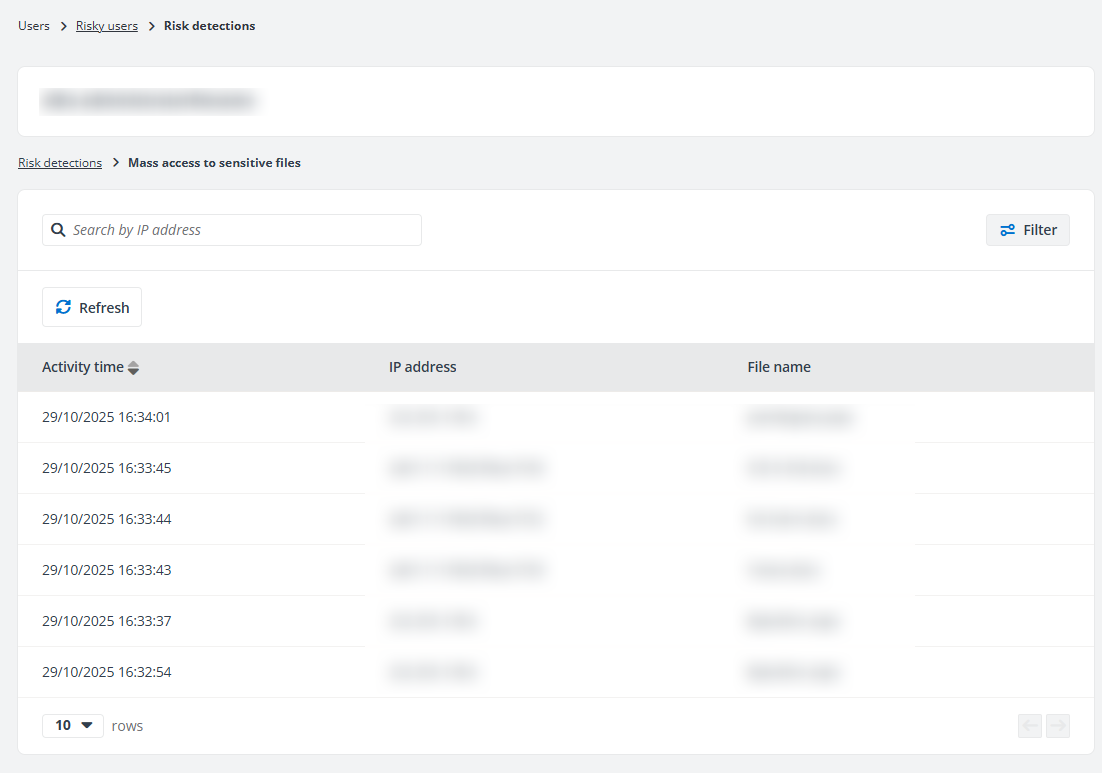
You can click Refresh to refresh the risk detections displayed on this page.
Click Filter in the upper-right corner of the table, and the Filter window appears. You can configure the filter conditions to filter the risk detections displayed in the table. Click Apply changes to filter items displayed in the table based on the configured filters.
After the filter is applied, you can click the number on the right of Filter to view and edit the filter or you can click the remove button on the right of Filter to remove the filter.
Risky Applications (Preview)
On the Risky applications page, you can view all risky applications for your tenant. If your organization has multiple tenants, select a tenant or All tenants from the tenant drop-down list to view risky applications report of the selected tenants.
The risky applications reports are only available for administrators.
The following actions are available on this page:
-
Filter – Click Filter in the upper-right corner of the page, and the Filter window appears. You can configure the filter conditions to filter the risky apps displayed in the table. After the filter is applied, you can click the number on the left of Filter to view and edit the filter, or you can click the remove button on the right of Filter to remove the filter.
-
Confirm app safe – Select one or multiple apps and click Confirm app safe to remove risk and detections on them to mark false positives.
-
Refresh – Click Refresh to refresh the risky apps listed in the table.
Click or hover your mouse over anywhere in the risky app rows, and the ellipsis button appears to the right of the rows. Click the ellipsis button, and the drop-down list appears. From the action drop-down list, the following actions are available:
-
View activities – This option allows you to access the View activities page of the app. All activities related to the application are displayed on this page. You can click Refresh to refresh the activities displayed in the table.
-
Risk detections – Select the Risk detections option, and the Risk detections page appears. Details of the risks detected for the app are displayed in the table. You can click a detection type link to view details of the corresponding risk detection. To refresh the risk detections displayed on this page, click Refresh.
-
Confirm app safe – Click Confirm app safe to remove risk and detections on the app to mark false positives.