
Home > Get Started > User Management
Download this articleUser Management
User management provides centralized management of groups and security where administrators can add and manage groups. Security groups allow you to organize users in Insights more efficiently. You can add users and groups to a security group, and then all users and group members in that security group will have permission to view risk analysis and exposure reports, as well as view data in the dashboard for the objects that are contained in the object containers that have been assigned to this group.
Administrators group is the built-in group that has all permissions in Insights. You cannot remove this group or update its permissions.
The users who have been designated as service administrators in AvePoint Online Services and the tenant users who are assigned with the Application administrator role for Insights will be automatically synchronized to the Administrators group.
Administration pages are only available for users in the Administrators group.
Manage Security Groups
To manage user permissions more efficiently, you can create a security group for a set of users and configure group permissions. The users within this group will have the permission when the group is granted.
-
On the User management page, click Create group in the Groups tab.
-
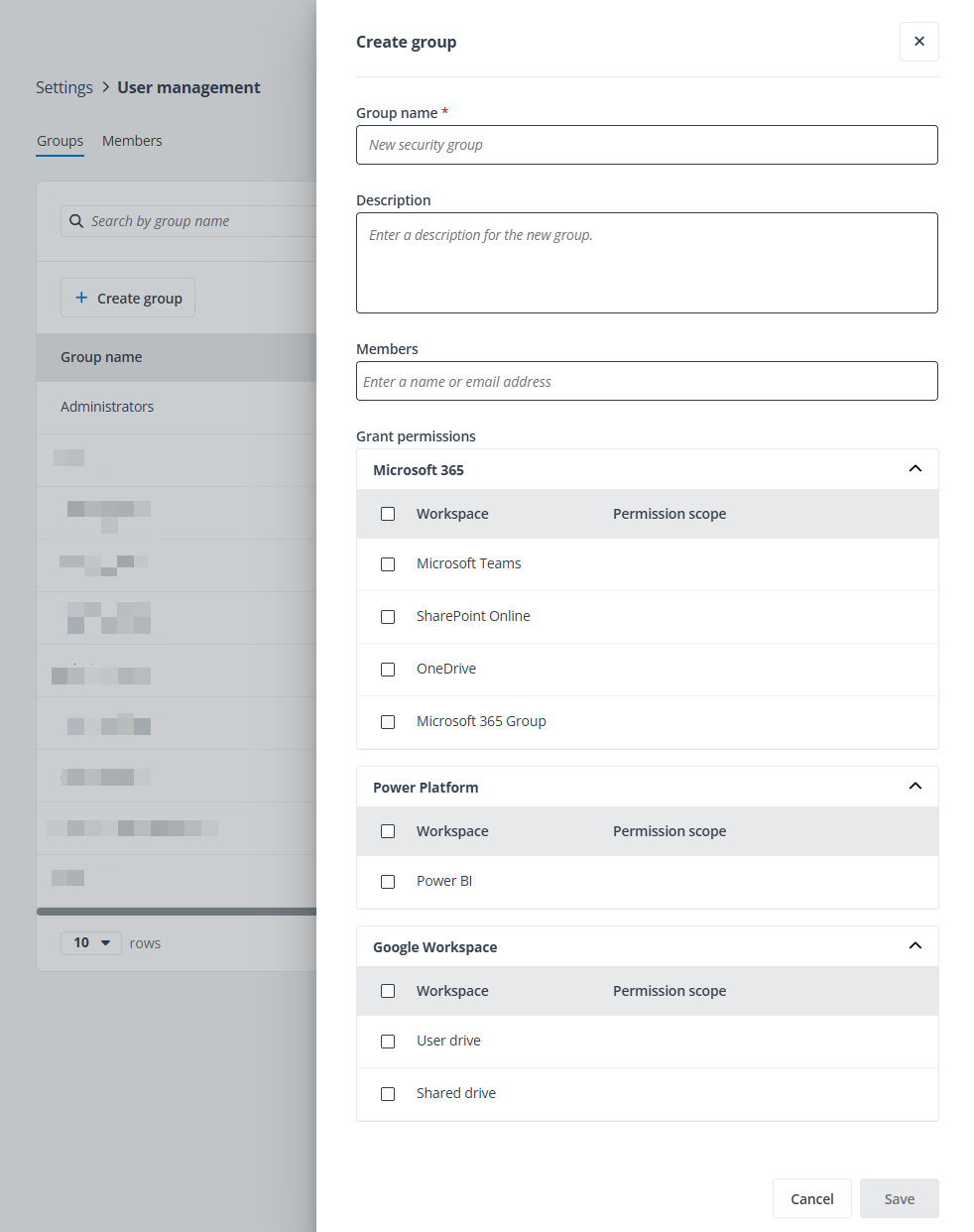
Complete the following information in the Create group window:
-
Group name – Enter a name for this security group.
-
Description – Enter an optional description for further reference.
-
Members – Enter the users or groups that you want to add to this group. Both Microsoft 365 Group, security group, and Google group are supported here. The users and groups you grant permissions to must exist in the tenant and AvePoint Online Services and have user seats and permissions to access Insights.
-
Grant permissions – Grant permissions for this group. All workspaces are displayed in the list.
-
Click the Configure scope button in front of a workspace to configure the scope for the workspace.
-
Select the containers for the workspace. To select all containers for this workspace, select the checkbox in the column header.
-
Click Save to save the permission scope for the workspace or click Cancel to go back without saving.
The containers you selected will be displayed in the Permission scope column for the workspace.
Select the workspaces that you want to grant permissions to the group. The users of this group will be granted permissions to the configured scope of each selected workspace. To select all workspaces, select the checkbox in the column header.
-
-
-
Click Save to save your configurations or click Cancel to close the window without saving.
The security groups you created will be listed in the Groups tab of the User management page. Click the ellipsis button at the end of the group row to view available actions for the security group.
-
View – Click this option to view details of the security group.
-
Edit – Click this option to edit the security group.
-
Delete – Click this option to delete this security group.
NOTEThis action is not available for the Administrators group.
Manage Members
Under the Members tab, all users and groups in security groups are listed in the table. You can view the type, role, groups to which they belong, and their status. Click the ellipsis button at the end of a user or group to view the available actions.
-
View information – Click this option to view the basic information of the user or group, and view the groups to which the user or group belongs.
-
Edit role – Click this option to edit the role of the user or group. You can edit the role of a standard user to visitor to only grant view permission to the user and choose whether to allow the user to export reports. Alternatively, you can edit the role of a visitor to the standard user to grant them standard permissions in Insights.
For details on the permission difference between standard user and visitor in Insights, refer to Appendix I: Permission Difference Between Standard User and Visitor.