
Home > Use Insights for Microsoft 365 > Risk Analysis > Workspaces Reports
Download this articleWorkspaces Reports
On the Workspaces page of risk analysis, select the data scope for the report.
-
If your organization has multiple tenants, select a tenant or All tenants from the tenant drop-down list to view an overview report of the selected tenants.
-
Select a data type from the data type drop-down list, and the containers in the configured scope to which you have permissions will be loaded accordingly in the container drop-down list.
-
Select desired containers or the Select all checkbox and click OK to view the risk analysis report of workspaces in the selected containers.
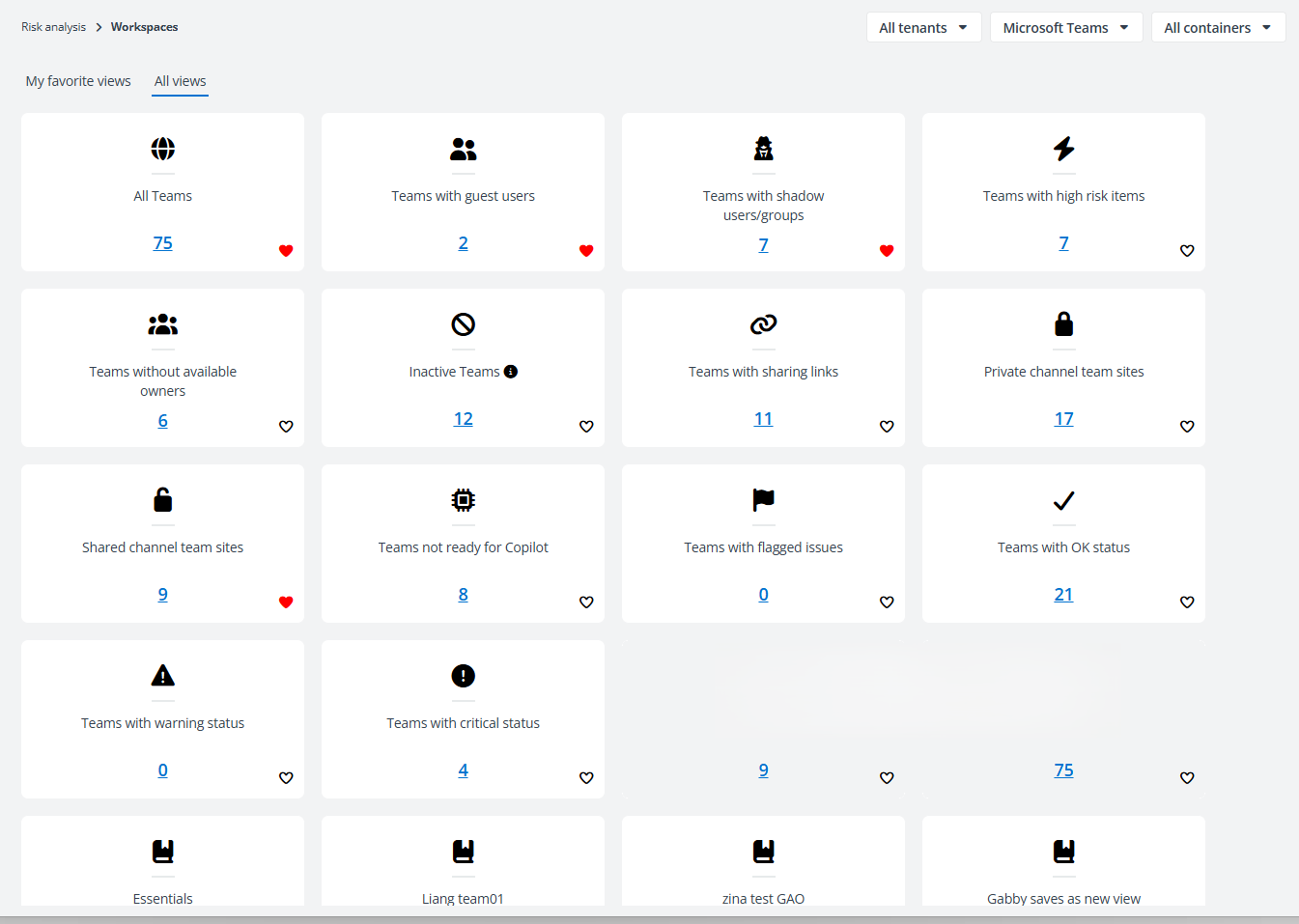
On this page, all built-in views provided for the selected workspace are displayed under All views. You can click the add to gray heart icon in the lower-right corner of a view card to add the view as a favorite view, and it will be displayed under My favorite views. To remove a view from favorites, click the remove from red heart icon. You can view the statistics of each view and click the view card or number link to access the details page.
The following actions are available above the table on the details page:
-
Save as new view – Click Save as new view, and the Save as new view window appears. Enter a name for the new view in the text box and click Save to save the new view. Selecting the Set as favorite option allows you to add the new view to your favorite views.
-
Create policy – Click Create policy to create a policy directly for this workspace without having to sign in to Policies for Microsoft 365.
NOTEThis button is only available when you meet the following conditions:
-
The service administrator of both Insights and Policies for Microsoft 365.
-
Have a subscription for both Insights and Policies for Microsoft 365.
On the Create policy page, complete the following steps:
-
The workspace is automatically selected as the object type and cannot be edited. Enter a name and optional description for the policy.
-
Click Next to go to the next step.
-
In the Rules step, click Add rule. In the window that appears on the right pane, select a rule to add to the policy. The configuration page of this specific rule will appear. You can search for a specific rule by entering the rule name in the Search text box and then selecting it from the suggestion list.
-
Configure rule settings and click Add to policy. You can also update rule settings after adding the rule by clicking the gear button to the right of the corresponding rule name.
-
Click Next to go to the next step.
-
In the Assign policy step, all containers in the configured data scope of Insights are displayed. Select the containers for which you want to assign the policy and click Next. To apply this policy to only specific objects, you can select an existing filter or click New from the filter drop-down list to create a new filter.
-
In the Schedule step, configure the scan schedule and retention settings.
-
Scan interval – Enter a positive integer and select a time unit (Hours, Days, Weeks, or Months). Policies for Microsoft 365 will start Enforce policy jobs of the current policy to scan your Microsoft 365 environment according to the configured interval.
NOTEYou can narrow down scan intervals to hours to detect violations sooner than a day. The minimum scan interval is 2 Hours.
-
Scan start time – When the scan interval is set to Days, Weeks, or Months, the Scan start time setting will appear below for you to specify the exact timing of job executions.
-
Retention duration – Enter a positive integer to define how many days you would like to retain the data associated with the current policy. After the retention period, the violation details and job details will be removed from Policy for Microsoft 365.
-
-
Click Next to go to the Review step.
-
Review the configured settings. If you want to update information in a step, click the edit button and then make updates.
-
Click Publish to publish the policy to Policies for Microsoft 365. The Enforce policy job will start based on the configured scan start time.
Alternatively, click Publish and run now to publish the policy and run an Enforce policy job immediately. You can go to Policies for Microsoft 365 > Job monitor to check the job details.
For more information on configuring policies, refer to Service Level Policies.
-
-
Manage columns – Click Columns in the upper-right corner of the table, and the drop-down list where all available columns are displayed appears. Select the columns that you want to display in the table and click Apply to apply the column selection. You can also choose Select all to show all columns in the table.
-
Filter – Click Filter in the upper-right corner of the table, and the Filter window appears in the right pane. All columns that are available for the filter are listed below. Click the down arrow button to the right of a column to show the text box or selectable options. Enter keywords in the text box and/or select desired options to define the filter conditions.
The Cloud Governance filter can also be used to filter the site collections in the table. Click Configure filters and select the desired options to define the filter conditions in the Configure filters window.
You can also click Reset to default to clear your input and selections and reset the filters to their default state.
Click Apply changes to filter items displayed in the table based on the configured filters.
-
Export – You can export reports using one of the following methods:
-
Click Export for all to export the report of all team sites / site collections / OneDrives / Microsoft 365 Group team sites / workspaces in the currently selected containers of the selected workspace.
-
Filter team sites / site collections / OneDrives / Microsoft 365 Group team sites / workspaces and then click Export for all to export the report of the filtered team sites / site collections / OneDrives / Microsoft 365 Group team sites / workspaces.
-
Select one or multiple Teams / site collections / OneDrives / Microsoft 365 Groups / workspaces and then click Export for selected items to export the report of the selected team sites / site collections / OneDrives / Microsoft 365 Group team sites / workspaces in the currently selected containers of the selected workspace.
In the export drop-down list, select Export summary report to export the summary report, or select Export permission report to export both the summary report and permission report for the records.
In the export window, a default report name is automatically filled in, and you can edit it if desired.
-
For Microsoft Teams and Microsoft 365 Group, you can select Export details of owners, Export details of members, and/or Export details of site administrators to export the owner, member, and/or site administrator details.
-
For SharePoint Online, you can select Export details of site owners to export the site owner details.
-
For all Microsoft 365 workspaces, you can select Export both the summary report and permission report or Export both the summary report and link permission report to export the corresponding reports for the team sites / site collections / OneDrives / Microsoft 365 Group team sites.
-
For Power BI, only the Export both the summary report and permission report option is available and selected by default.
-
The Merge the permission report for items advanced option is available when permission report of more than one team site / site collection / OneDrive / Microsoft 365 Group team site will be exported. Select it to merge the permission report for items into one file.
-
The Export activity report in a certain time range advanced option is available when you select items to export permission report. Select Last 7 days, Last 1 month, Last 3 months, or Custom to define the time range during which user activity report you want to export.
Click Export to start exporting the report.
When the export process begins, you can monitor its progress by navigating to Job monitor > Download center or by clicking the Download center link in the prompted message.
-
-
Manage sensitivity label – Select one or multiple Teams / site collections / OneDrives / Microsoft 365 Groups and click Manage Sensitivity Label above the table. The Manage Sensitivity label window appears. Select a sensitivity label you want to apply from the drop-down list and click Apply to apply the label. Select None if you want to remove the sensitivity label.
NOTEMake sure the account used to consent to the app with delegated permissions is an administrator of the site collection or owner of the Team/OneDrive/Group, or has the Groups administrator role.
This is not available for Power BI.
-
Trust – Select one or multiple Teams / site collections / OneDrives / Microsoft 365 Groups / workspaces, click Trust above the table, enter your comment in the text box, and click OK to trust the selected objects.
You can view the Trusted icon displayed for objects in the trusted list, and the added comments are displayed in the Comments column with the comments icon. Click this icon, and the Comments window appears on the right pane. You can view the comment you added and add a new comment by entering your comment in the text box and clicking Add. You can also filter objects by trust status to view all objects in the trusted list of a specific workspace, or the objects that are not in the trusted list.
NOTEThis action is only available for administrators.
-
Remove from trusted list – Select one or multiple Teams / site collections / OneDrives / Microsoft 365 Groups / workspaces that have been trusted, click Remove from trusted list above the table, enter your comment in the text box, and click OK to remove the objects from the trusted list. The Trusted icon will also be removed.
NOTEThis action is only available for administrators.
-
Rescan – Select one or multiple Teams / site collections / OneDrives / Microsoft 365 Groups and click Rescan above the table to rescan and prioritize them. The scan will be conducted in a few hours.
-
Refresh – Click Refresh above the table to refresh the items displayed in the table.
The following options are available in the ellipsis drop-down list for each object listed in the table:
-
Export permission report – This option allows you to export the report of the current team site / site collection / OneDrive / Microsoft 365 Group team site / workspace. Click Export permission report and the Export window appears. A default report name is automatically filled in, and you can edit it if desired. Select an export option for the corresponding report and click Export.
-
Export both the summary report and permission report – Select this option to export the summary report and permission report of this team site / site collection / OneDrive / Microsoft 365 Group team site / workspace.
-
Export both the summary report and link permission report – Select this option to export the summary report and link permission report of this team site / site collection / OneDrive / Microsoft 365 Group team site.
-
Export details of owners – Select this option to export the details of owners for the selected Team/Microsoft 365 Group.
-
Export details of members – Select this option to export the details of members for the selected Team/Microsoft 365 Group.
-
Export details of site administrators – Select this option to export the details of site administrators for the selected Team/Microsoft 365 Group.
-
Export details of site owners – Select this option to export the details of site owners for the selected SharePoint Online site.
-
Export activity report in a certain time range – Select this option and select a time range or configure a custom range to export the activity report in the configured time range of this team site / site collection / OneDrive / Microsoft 365 Group team site / workspace.
When the export process begins, you can monitor its progress by navigating to Job monitor > Download center or by clicking the Download center link in the prompted message.
-
-
Detailed information – This option allows you to access the Detailed information page of the team site / site collection / OneDrive / Microsoft 365 Group team site / workspace. For more information, refer to View Detailed Information of Site Collections.
-
View permissions – This option allows you to access the View Permissions page of the team site / site collection / OneDrive / Microsoft 365 Group team site / workspace.
-
Manage permissions – This option allows you to access the Manage Permissions page of the team site / site collection / OneDrive / Microsoft 365 Group team site.
-
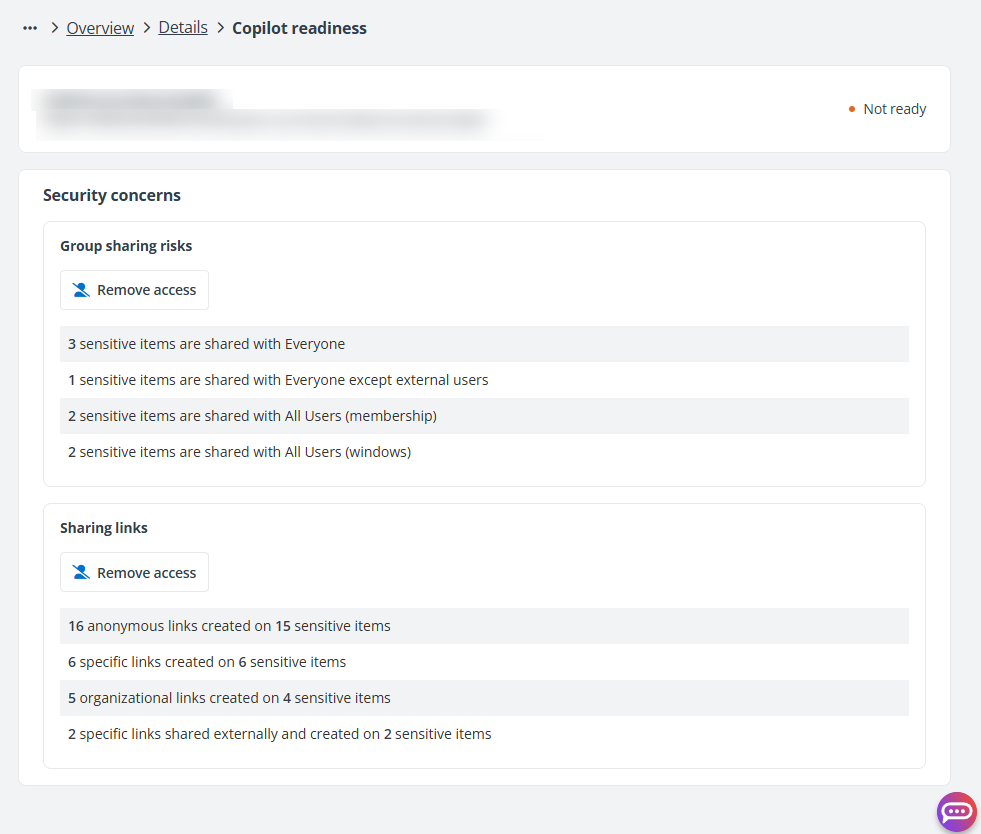
Copilot readiness – This option allows you to access the Copilot readiness page, where you can check for any security-related issues that may affect your workspace’s eligibility for Copilot. You can view the group sharing risks and sharing links statistics of the team site / site collection / OneDrive / Microsoft 365 Group team site. You can click Remove access to directly remove the access of groups or users, or directly delete the sharing links. When all issues are resolved, the Copilot readiness status of the workspace will be changed to Ready.
-
View activities – This option allows you to access the View Activities page of the team site / site collection / OneDrive / Microsoft 365 Group team site / workspace.
-
View shared links – This option allows you to access the View Shared Links page of the team site / site collection / OneDrive / Microsoft 365 Group team site.
-
View high risk items – This option allows you to access the Detailed records page with the files and items of which risk level is High.
-
View shared sensitive items – This option allows you to access the Detailed records page with the sensitive files and items that are shared with any external users or orphaned users.
-
Manage sensitivity label – This option allows you to apply a sensitivity label to the Team / site collection / OneDrive / Microsoft 365 Group or remove the applied sensitivity label.
NOTEMake sure the account used to consent to the app with delegated permissions is an administrator of the site collection or owner of the Team/OneDrive/Group, or has the Groups administrator role.
-
Trust – This option allows you to trust the Team / site collection / OneDrive / Microsoft 365 Group / workspace. Enter your comment in the text box and click OK to trust the object.
You can view the Trusted icon displayed for objects in the trusted list, and the added comments are displayed in the Comments column with the comments icon. Click this icon, and the Comments window appears on the right pane. You can view the comment you added and add a new comment by entering your comment in the text box and clicking Add. You can also filter objects by trust status to view all objects in the trusted list of a specific workspace, or the objects that are not in the trusted list.
NOTEThis action is only available for administrators.
-
Remove from trusted list – This option allows you to remove the Team / site collection / OneDrive / Microsoft 365 Group / workspace from the trusted list. Enter your comment in the text box and click OK to remove the object from the trusted list. The Trusted icon will also be removed.
NOTEThis action is only available for administrators.
-
Rescan – This option allows you to rescan and prioritize the team site / site collection / OneDrive / Microsoft 365 Group team site.
-
Open in SharePoint – This option allows you to open the team site / site collection / OneDrive / Microsoft 365 Group team site in SharePoint.
-
Open in Power BI – This option allows you to open the workspace in Power BI.
View Overview Reports for Microsoft Teams
All teams in the selected containers are the data scope of Microsoft Teams overview report under each view, and each view shows the risk analysis statistics from different perspectives. For all views except Private channel team sites and Shared channel team sites, you can view the completed statistics as below:
-
Team name – The name of the team. The Team Name(Mail) will be displayed when you hover your mouse on it. Click the team name to view all objects in the team on the Detailed records page.
-
Privacy – The privacy of the team.
-
Hidden membership – The status of whether the team membership is hidden. If the value is Yes, only members and admins can see who’s in the team.
-
Channels – The number of channels in the team. Click the number to access the Channels page. All channels of the team are listed and sorted by High risk objects in descending order. If the team is the host team of a shared channel, a host Team icon will be displayed to the right of the channel name.
You can click Open in SharePoint in the upper-right corner to open the team site in SharePoint. Click Refresh above the table to refresh the channel list.
-
Channel name – The name of the channel.
-
Type – The privacy of the channel.
-
Channel users – The number of channel users. Click the number to view the user list in the prompted window. You can click the user photo to view the user name, type, email, and principal name.
You can manage members of private channels as follows:
-
Click Add member, enter the user you want to add as a channel member in the Users text box and select the user from the suggestion list. Multiple users can be selected.Click Add, and the users will be added as channel members.
NOTEThe added user must be an internal user in the team where the private channel resides.
-
You can change the user role in this channel by selecting Owner or Member from the Role drop-down list to promote a member to an owner or demote an owner to a member.
NOTEThe user who you want to assign the owner role must be an internal user in the team where the private channel resides.
-
You can click remove button to the right of a member or owner to remove the user from the channel.
-
Click Refresh above the table to refresh the member list.
-
-
High risk objects – The number of high risk objects in the channel. Click the number to view the object list on the Detailed records page.
-
-
Site collection administrators – The number of site collection administrators of the team site. If the team site has no available administrators, the warning icon will be displayed. Click the number, and the Site collection administrators window appears in the right pane, where you can view the administrator list under the Site collection administrators tab.
-
Click Refresh to refresh the user list.
-
Click Add user to add a user in Microsoft Entra to the Site collection administrators group.
-
Click the remove button to the right of a user to remove the user from the Site collection administrators group.
In the Member change history tab, you can view the history of changes to the site collection administrators, including the change type, user name, and change date.
-
-
Owners – The number of team owners. If the team has no available owners, the warning icon will be displayed. Click the number, and the Membership window appears in the right pane, where you can view the member list of the team. Click the user photo to view the user name, type, email, and principal name.
-
Members – The number of team members. Click the number, and the Membership window appears in the right pane, where you can view the member list. Click the user photo to view the user name, type, email, and principal name.
You can manage members and owners of the team as follows:
-
Click Add member to add new members to the team. Enter the name or email address of the user you want to add as a team member in the Users text box and select the user from the suggestion list. Multiple users can be selected. Click Add, and the users will be added as team members.
-
You can change the role of a user in this team by selecting Owner or Member from the Role drop-down list to promote a member to an owner or demote an owner to a member.
NOTEOnly the members who are internal users can be promoted to owners.
-
You can click the remove button to the right of a member or owner to remove the user from the team.
-
Click Refresh above the table to refresh the member list.
-
-
Guests – The number of guests on the team. Click the number, and the Guests window appears, listing all guest users in the team.
-
Shadow users/groups – The security groups or users who are not members of the Team or Group but have permissions to the team site or have access to the SharePoint objects. If there are external users in shadow users/groups, the number will be changed into the number of external users/the total number of shadow users/groups.
Click the number link to View Shadow Users and Groups Access Report.
-
Shared links – The number of shared links. Click the number link to access the View Shared Links page with the corresponding links displayed.
-
Site collection URL – The URL of the team site. Hover your mouse over a URL to view the full URL.
-
Copilot readiness – The status whether the team is ready for Copilot.
-
Risk level – The risk level of the team, High, Medium, or Low. The risk level is calculated based on sensitivity level and exposure level. No risk is displayed when the sensitivity level of the team is Not sensitive.
-
Sensitivity level – The sensitivity level of the team, High, Medium, or Low. Click it to view the applied sensitivity label or the number of files with high sensitivity on the team site. Not sensitive is displayed for the team that does not match any of the configured sensitivity levels.
The sensitivity level is calculated based on the sensitivity level settings. For details, refer to Sensitivity Definitions.
-
Exposure level – The exposure level of the team, High, Medium, or Low. Click it to view the matched exposure rule.
The exposure level is calculated based on the exposure level settings. For details, refer to Exposure Definitions.
-
High risk objects – The number of high risk objects in the team, including both files and items with the High risk level. Click the number to view the object list on the Detailed records page.
-
Sensitivity label – The sensitivity label of the team. N/A is displayed if the team has no sensitivity label applied in Microsoft 365. Note that after a sensitivity label is removed from Microsoft 365, it may take some time for Microsoft 365 to synchronize the changes, and the label may still be displayed in Insights.
-
External sharing – The external sharing setting of the team site.
-
Last activity date – The date of the last activity in the team site.
NOTEThis statistic is only available when the Display concealed user, group, and site names in all reports option is not selected in Microsoft 365 admin center > Org settings > Services > Reports.
-
Primary admin – The primary admin of the team.
-
Status – The status of the team. It shows if the team is Active or Archived.
-
Primary contact – The primary contact of the team.
-
Secondary contact – The secondary contact of the team.
-
Site status – The status of the team site.
-
Comments – The comments that were added to the team. If comments are added, the comments icon will be displayed. Click it, and the Comments window appears on the right pane. You can view the added comments and add a new comment by entering comment content in the text box and clicking Add. If no comment is added to the team, you can click Add to add a comment.
-
Last update – The date when the team is last updated.
The Owners and Members statistics may not be the latest numbers since they are not retrieved in real-time for performance consideration. To view the latest statistics, click one of the number links and view the statistics in the Membership window. Then, you can view the latest statistics in the table after you refresh the page. The Primary contact, Secondary contact, and Site status statistics will be displayed only when the corresponding setting has been enabled in Cloud Governance Integration Settings.
Under the Shared channel team sites view, all shared channels in the selected containers are listed.
You can view the following details of all shared channels:
-
Channel name – The name of the shared channel. Click the shared channel name to view all objects in the shared channel on the Detailed records page.
-
Host Team name – The name of the team that hosts the shared channel.
-
Channel users – The number of channel users. Click the number link to view the user list in the prompted window. You can click the user photo to view the user photo, title, email, and location.
-
External users – The number of external users. Click the number to view the user list in the prompted window. You can click the user photo to view the user photo, title, email, and location.
-
Shared with Teams – The number of teams that the shared channel is shared with. Click the number link to view the team list in the prompted window. The teams are listed and sorted by the number of team members in descending order.
-
High risk objects – The number of high risk objects in the shared channel. Click the number link to view the object report on the Detail records page. Refer to Detailed Records Reports for details.
-
Site collection URL – The URL of the team site. Hover your mouse over a URL to view the full URL.
Under the Private channel team sites view, all private channels in the selected containers are listed.
You can view the following details of all private channels:
-
Channel name – The name of the private channel. Click the shared channel name to view all objects in the shared channel on the Detailed records page.
-
Team name – The name of team where the private channel is located.
-
Channel users – The number of channel users. Click the number link to view the user list in the prompted window. You can click the user photo to view the user photo, title, email, and location.
-
External users – The number of external users. Click the number to view the user list in the prompted window. You can click the user photo to view the user photo, title, email, and location.
-
High risk objects – The number of high risk objects in the private channel. Click the number link to view the object report on the Detail records page. Refer to Detailed Records Reports for details.
-
Site collection URL – The URL of the team site. Hover your mouse over a URL to view the full URL.
Under the Teams with shadow users/groups view, you can enable the Remove shadow users rule of Policies for Microsoft 365 directly by clicking Run policy to efficiently remove shadow users and groups in bulk from all Teams within the configured data scope without reviewing them individually.
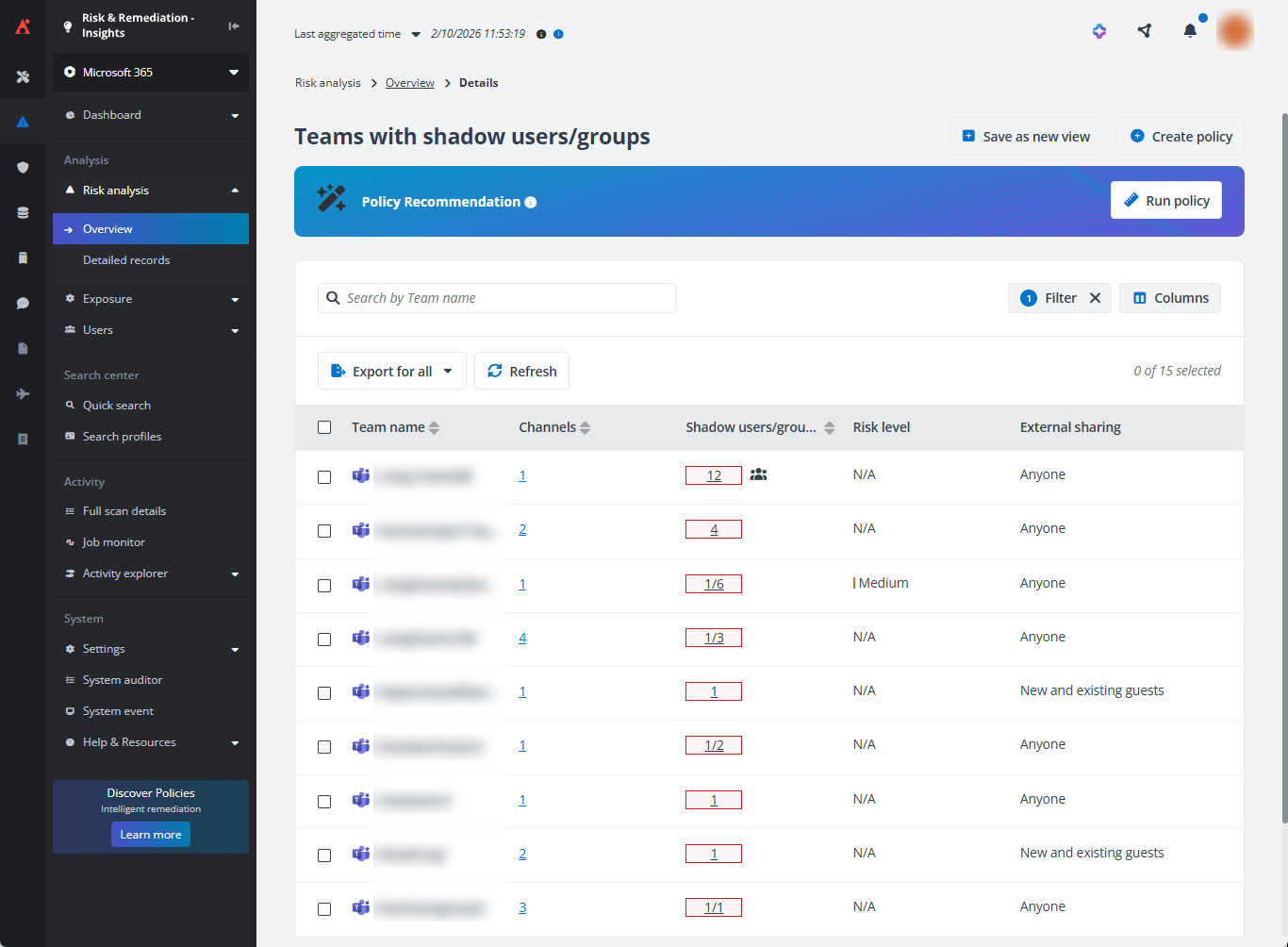
In the Run policy window, set the excluded scope of removal and specify the notification email recipients, and click Save and run now. Shadow users and groups not in the excluded scope will be removed in bulk. For more information, refer to Policies for Microsoft 365 User Guide.
This is only available when you have a subscription for Policies for Microsoft 365.
View Overview Reports for SharePoint Online and OneDrive
All site collections/OneDrive in the selected containers are the data scope of SharePoint Online/OneDrive overview report under each view, and each view shows the risk analysis statistics from different perspectives. You can view the completed statistics for all views below:
-
Name – The name of the site collection/OneDrive. The Site Collection Name*(Full URL)*/UserName(Email) will be displayed when you hover your mouse on it. Click the name to view all objects in the site collection/OneDrive on the Detailed records page.
-
External users with access – The number of external users that have access to the SharePoint Online site collection or OneDrive. Click the number link to view all external users in the site collection/OneDrive on the External users page.
You can view the external users who have access to the site collection/OneDrive under the Has access tab and the external users who have no access under the Has no access tab. Click a user on the left pane to view the objects to which they have permissions.
NOTEOnly the objects with unique permissions to which the user has permissions will be listed on the right pane.
-
Orphaned users with access – The number of orphaned users that have access to the SharePoint Online site collection or OneDrive. Click the number link to view all orphaned users in the site collection/OneDrive on the Orphaned users page.
You can view the orphaned users who have access to the site collection/OneDrive under the Has access tab and the orphaned users who have no access under the Has no access tab. Click a user on the left pane to view the objects to which they have permissions.
NOTEOnly the objects with unique permissions to which the user has permissions will be listed on the right pane.
-
Shared links – The number of shared links. Click the number link to access the View Shared Links page with the corresponding links displayed.
-
Site collection administrators – The number of site collection administrators of the site collection. If the site collection has no available administrators, the warning icon will be displayed. Click the number, and the Site collection administrators window appears in the right pane, where you can view the administrator list under the Site collection administrators tab.
-
Click Refresh to refresh the user list.
-
Click Add user to add a user in Microsoft Entra to the Site collection administrators group.
-
Click the remove button to the right of a user to remove the user from the Site collection administrators group.
In the Member change history tab, you can view the history of changes to the site collection administrators, including the change type, user name, and change date.
-
-
Site collection URL – The URL of the site collection/OneDrive. Hover your mouse over a URL to view the full URL.
-
Copilot readiness – The status whether the site collection/OneDrive is ready for Copilot.
-
Risk level – The risk level of the site collection/OneDrive, High, Medium, or Low. The risk level is calculated based on sensitivity level and exposure level. No risk is displayed when the sensitivity level of the site collection/OneDrive is Not sensitive.
-
Sensitivity level – The sensitivity level of the site collection/OneDrive, High, Medium, or Low. Click it to view the applied sensitivity label or the number of files with high sensitivity in the site collection/OneDrive. Not sensitive is displayed for the site collection/OneDrive that does not match any of the configured sensitivity levels.
The sensitivity level is calculated based on the sensitivity level settings. For details, refer to Sensitivity Definitions.
-
Exposure level – The exposure level of the site collection/OneDrive, High, Medium, or Low. Click it to view the matched exposure rule.
The exposure level is calculated based on the exposure level settings. For details, refer to Exposure Definitions.
-
High risk objects – The number of high risk objects in the site collection/OneDrive, including both files and items with the High risk level. Click the number to view the object list on the Detailed records page.
-
Sensitivity label – The sensitivity label of the site collection. N/A is displayed if the site collection has no sensitivity label applied in Microsoft 365. Note that after a sensitivity label is removed from Microsoft 365, it may take some time for Microsoft 365 to synchronize the changes, and the label may still be displayed in Insights.
-
External sharing – The external sharing setting of the site collection/OneDrive.
-
Last activity date – The date of the last activity in the site collection/OneDrive.
NOTEThis statistic is only available when the Display concealed user, group, and site names in all reports option is not selected in Microsoft 365 admin center > Org settings > Services > Reports.
-
Primary admin – The primary admin of the site collection/OneDrive.
-
Primary contact – The primary contact of the site collection.
-
Secondary contact – The secondary contact of the site collection.
-
Site status – The status of the site collection.
-
Comments – The comments that were added to the site collection/OneDrive. If comments are added, the comments icon will be displayed. Click it, and the Comments window appears on the right pane. You can view the added comments and add a new comment by entering comment content in the text box and clicking Add. If no comment is added to the site collection/OneDrive, you can click Add to add a comment.
-
Last update – The date when the site collection/OneDrive is last updated.
The Primary contact, Secondary contact, and Site status statistics will be displayed only when the corresponding setting has been enabled in Cloud Governance Integration Settings.
The following columns are only available for SharePoint Online:
-
Created by – The user who created the site collection.
-
Site owners – The number of site owners of the site collection. If the site collection has no available owners, the warning icon will be displayed. Click the number, and the Site owners window appears in the right pane, where you can view the owner list.
-
Site members – The number of site members of the site collection. If the site collection has no available members, the warning icon will be displayed. Click the number, and the Site members window appears in the right pane, where you can view the member list.
-
Site visitors – The number of site visitors of the site collection. If the site collection has no available visitors, the warning icon will be displayed. Click the number, and the Site visitors window appears in the right pane, where you can view the visitor list.
The following columns are only available for OneDrive:
-
Country or region – The country or region of the OneDrive.
-
Department – The department of the OneDrive.
-
Last sync time – The last successful sync time of the OneDrive. If no time is displayed, it means the OneDrive has not been synchronized since it was managed by Insights for Microsoft 365.
View Overview Reports for Microsoft 365 Group
All Microsoft 365 Groups in the selected containers are the data scope of Microsoft 365 Group overview report under each view, and each view shows the Risk analysis statistics from different perspectives. You can view the completed statistics for all views as detailed below:
-
Microsoft 365 Group name – The name of the group. The Group Name and Group Email will be displayed when you hover your mouse over it. Click the group name to view all objects in the group on the Detailed records page.
-
Privacy – The privacy of the group.
-
Hidden membership – The status whether the membership of the group is hidden. If the value is Yes, the group members will be hidden from users who aren’t members of the groups.
-
Site collection administrators – The number of site collection administrators of the group team site. If the group team site has no available administrators, the warning icon will be displayed. Click the number, and the Site collection administrators window appears in the right pane, where you can view the administrator list under the Site collection administrators tab.
-
Click Refresh to refresh the user list.
-
Click Add user to add a user in Microsoft Entra to the Site collection administrators group.
-
Click the remove button to the right of a user to remove the user from the Site collection administrators group.
In the Member change history tab, you can view the history of changes to the site collection administrators, including the change type, user name, and change date.
-
-
Owners – The number of group owners. If the group has no available owners, the warning icon will be displayed. Click the number, and the Membership window appears in the right pane, where you can view the owner list. Click the user photo to view the user photo, title, email, and location.
You can manage owners of groups as follows:
-
Enter the internal user you want to add as the group owner in the Add owner search box and select a user from the suggestion list. After saving, the user will be added as a group owner.
-
You can click the Remove owner button to the right of an owner to remove the owner from the owner list of the group.
-
You can click the Demote owner to member button to the right of an owner to demote the owner to a member. The user will be listed in the member list.
You can manage members of groups as follows:
-
Enter the user you want to add as the group member in the Add member search box and select a user from the suggestion list. After saving, the user will be added as a group member.
-
You can click Promote the member to owner button to the right of a member to promote the member to an owner.
NOTEThe Promote member to owner button is only available for members who are internal users.
-
You can click the Remove member button to the right of a member to remove the member from the group.
-
-
Members – The number of group members. Click the number, and the Membership window appears in the right pane, where you can view the member list. Click the user photo to view the user photo, title, email, and location.
You can manage owners of groups as follows:
-
Enter the internal user whom you want to add as the group owner in the Add owner search box and select a user from the suggestion list. After saving, the user will be added as the group owner.
-
You can click the Remove owner button to the right of an owner to remove the owner from the owner list of the group.
-
You can click the Demote owner to member button to the right of an owner to demote the owner to a member.
You can manage members of groups as follows:
-
Enter the user you want to add as the group member in the Add member search box and select a user from the suggestion list. After saving, the user will be added as a group member.
-
You can click Promote the member to owner button to the right of a member to promote the member to an owner.
NOTEThe Promote member to owner button is only available for members who are internal users.
-
You can click the Remove member button to the right of a member to remove the member from the group.
-
-
Guests – The number of guests in the group. Click the number, and the Guests window appears in the right pane, where you can view the lists of guests.
-
Shadow users/groups – The security groups or users who are not members of the Microsoft 365 Group but have permissions to the content in the underlying SharePoint sites. If there are external users in shadow users/groups, the number will be changed into the number of external users/the total number of shadow users/groups.
Click the number link to View Shadow Users and Groups Access Report.
-
Shared links – The number of shared links. Click the number link to access the View Shared Links page with the corresponding links displayed.
-
Site collection URL – The URL of the Group team site. Hover your mouse over a URL to view the full URL.
-
Copilot readiness – The status whether the Group is ready for Copilot.
-
Risk level – The risk level of the Microsoft 365 Group, High, Medium, or Low. The risk level is calculated based on sensitivity level and exposure level. No risk is displayed when the sensitivity level of the Microsoft 365 Group is Not sensitive.
-
Sensitivity level – The sensitivity level of the Microsoft 365 Group, High, Medium, or Low. Click it to view the applied sensitivity label or the number of files with high sensitivity in the Group team site. Not sensitive is displayed for the Microsoft 365 Group that does not match any of the configured sensitivity levels.
The sensitivity level is calculated based on the sensitivity level settings. For details, refer to Sensitivity Definitions.
-
Exposure level – The exposure level of the Microsoft 365 Group, High, Medium, or Low. Click it to view the matched exposure rule.
The exposure level is calculated based on the exposure level settings. For details, refer to Exposure Definitions.
-
High risk objects – The number of high risk objects in the group, including both files and items with the High risk level. Click the number to view the object list on the Detailed records page.
-
Sensitivity label – The sensitivity label of the Microsoft 365 Group. N/A is displayed if the Microsoft 365 Group has no sensitivity label applied in Microsoft 365. Note that after a sensitivity label is removed from Microsoft 365, it may take some time for Microsoft 365 to synchronize the changes, and the label may still be displayed in Insights.
-
External sharing – The external sharing setting of the Group team site.
-
Last activity date – The date of the last activity in the Group team site.
NOTEThis statistic is only available when the Display concealed user, group, and site names in all reports option is not selected in Microsoft 365 admin center > Org settings > Services > Reports.
-
Primary admin – The primary admin of the Group.
-
Primary contact – The primary contact of the Group.
-
Secondary contact – The secondary contact of the Group.
-
Site status – The status of the Group team site.
-
Comments – The comments that were added to the group. If comments are added, the comments icon will be displayed. Click it, and the Comments window appears on the right pane. You can view the added comments and add a new comment by entering comment content in the text box and clicking Add. If no comment is added to the group, you can click Add to add a comment.
-
Last update – The date when the group is last updated.
The Owners and Members statistics may be not the latest numbers since they are not retrieved in real-time for performance consideration. To view the latest statistics, click one of the number links and view the statistics in the Membership window. Then, you can view the latest statistics in the table after you refresh the page. The Primary contact, Secondary contact, and Site status statistics will be displayed only when the corresponding setting has been enabled in Cloud Governance Integration Settings.
Under the Groups with shadow users/groups view, you can enable the Remove shadow users rule of Policies for Microsoft 365 directly by clicking Run policy to efficiently remove shadow users and groups in bulk from all Groups within the configured data scope without reviewing them individually.
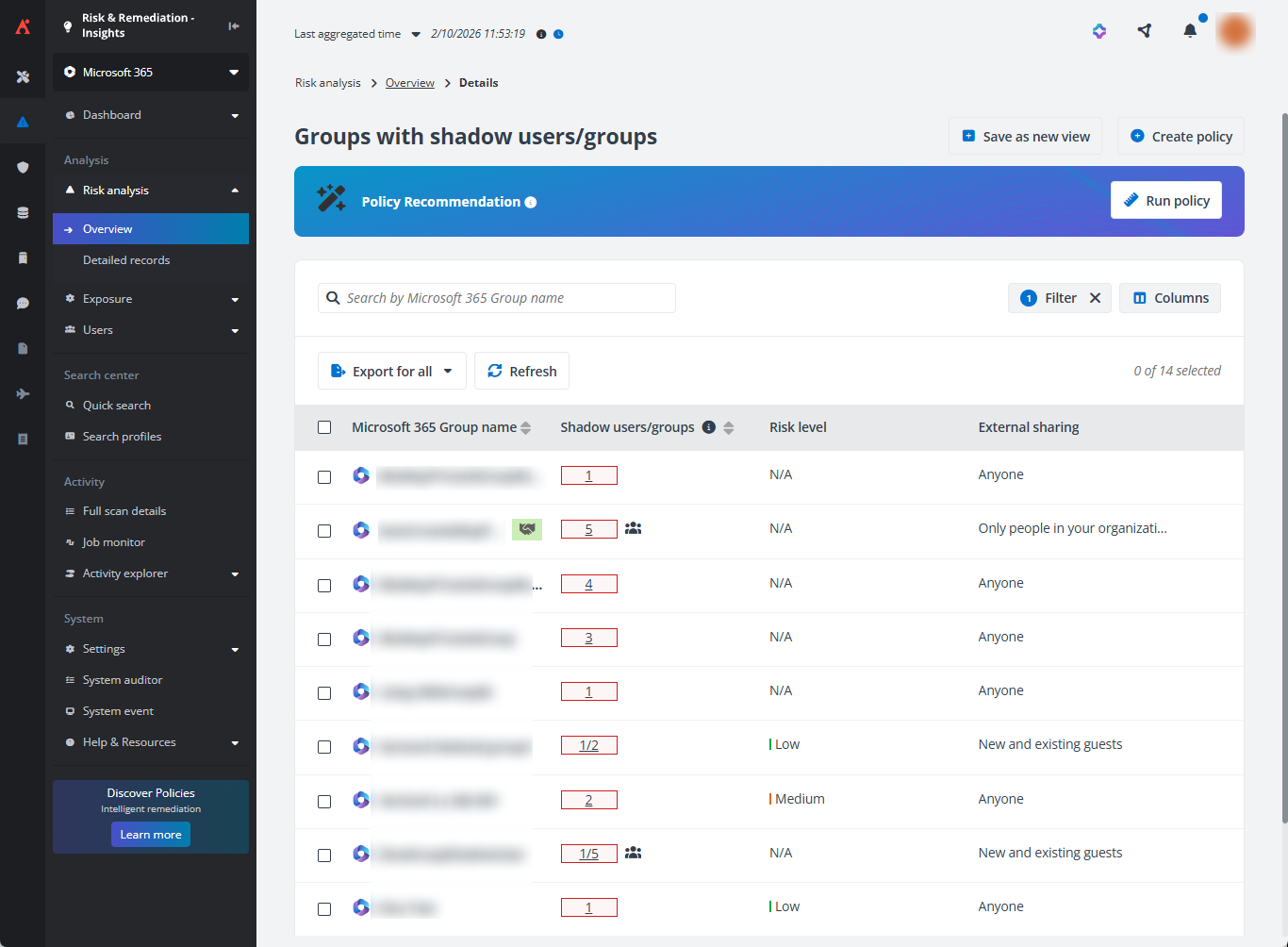
In the Run policy window, set the excluded scope of removal and specify the notification email recipients, and click Save and run now. Shadow users and groups not in the excluded scope will be removed in bulk. For more information, refer to Policies for Microsoft 365 User Guide.
This is only available when you have a subscription for Policies for Microsoft 365.
View Overview Reports for Power BI
All workspaces in the selected containers are the data scope of Power BI overview report under each view, and each view shows the risk analysis statistics from different perspectives. You can view the completed statistics for all views below:
-
Display name – The display name of the workspace. Click the name to view all artifacts in the workspace on the Detailed records page.
-
Type – The type of the workspace.
-
Exposure level – The exposure level of the workspace, High, Medium, or Low. Click it to view the matched exposure rule.
The exposure level is calculated based on the exposure level settings. For details, refer to Exposure Definitions.
-
High risk objects – The number of high risk artifacts in the workspace. Click the number to view the artifact list on the Detailed records page.
-
Reports – The number of reports in the workspace. Click the number to view reports on the Detailed records page.
-
Dashboards – The number of dashboards in the workspace. Click the number to view dashboards on the Detailed records page.
-
Semantic models – The number of semantic models in the workspace. Click the number to view semantic models on the Detailed records page.
-
Dataflows – The number of dataflows in the workspace. Click the number to view dataflows on the Detailed records page.
-
Admins – The number of users who have the Admin role to the workspace. Click the number to view the user list in the prompted window. If the workspace has no available admins, the warning icon will be displayed.
-
Contributors/Members/Viewers – The numbers of users who have the Contributor, Member, and Viewer roles in the workspace. Click the number to view the user list in the prompted window.
-
Guests – The number of guests in the workspace. Click the number to view the guest list in the Guests window.
-
Last activity date – The date of the last activity in the workspace.
-
Comments – The comments that were added to the workspace. If comments are added, the comments icon will be displayed. Click it, and the Comments window appears on the right pane. You can view the added comments and add a new comment by entering comment content in the text box and clicking Add. If no comment is added to the workspace, you can click Add to add a comment.